Installation of Templates
Establishing up a template is a pretty simple and uncomplicated process.
STEP 1. FOLLOW THESE PROCEDURES TO A THEME MAY BE INSTALLED USING THE WORDPRESS ADMINISTRATION.
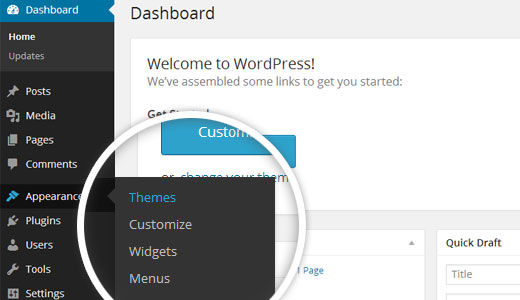
Go to WordPress and click the administrator panel Initially.
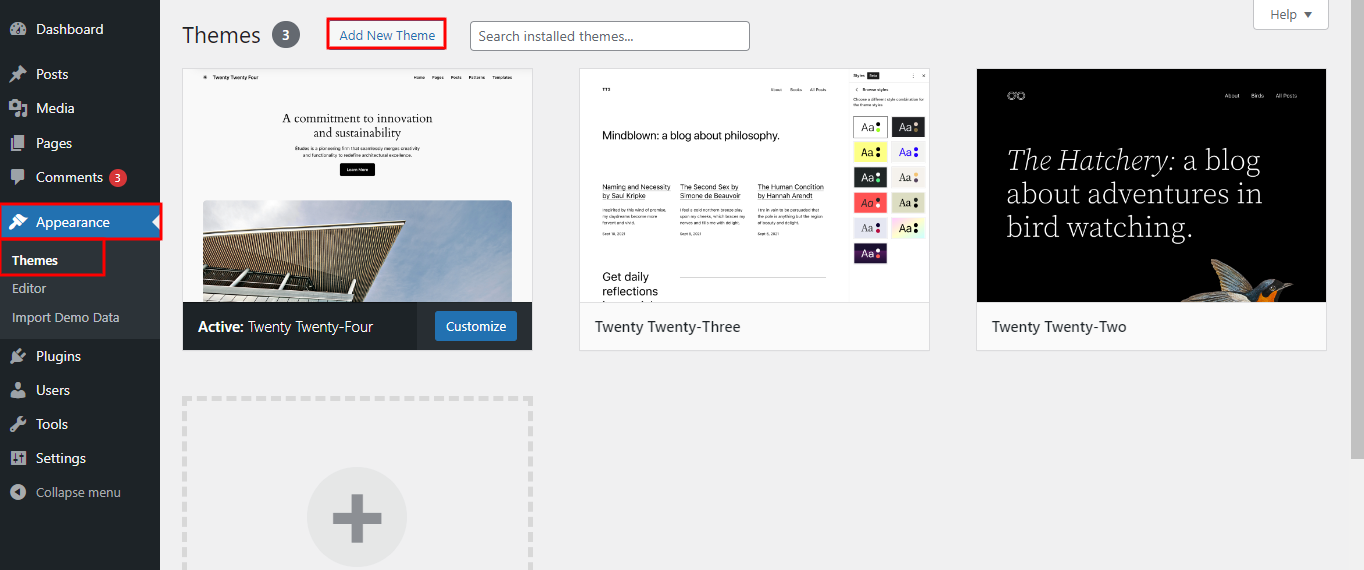
Through the "Appearance" menu, now go with "Themes."
Select "Add New" from the menu above the page with themes after you've arrived there.
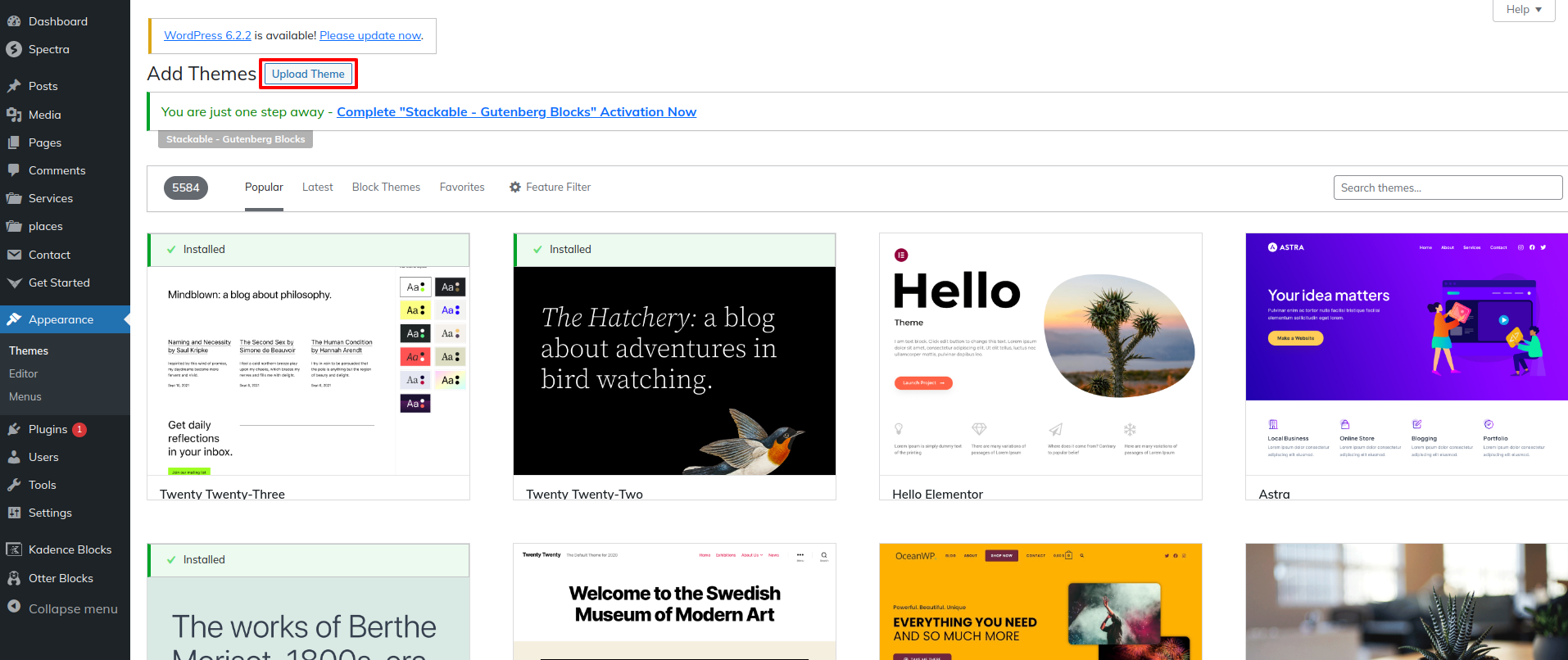
Choose the button for Upload Theme.
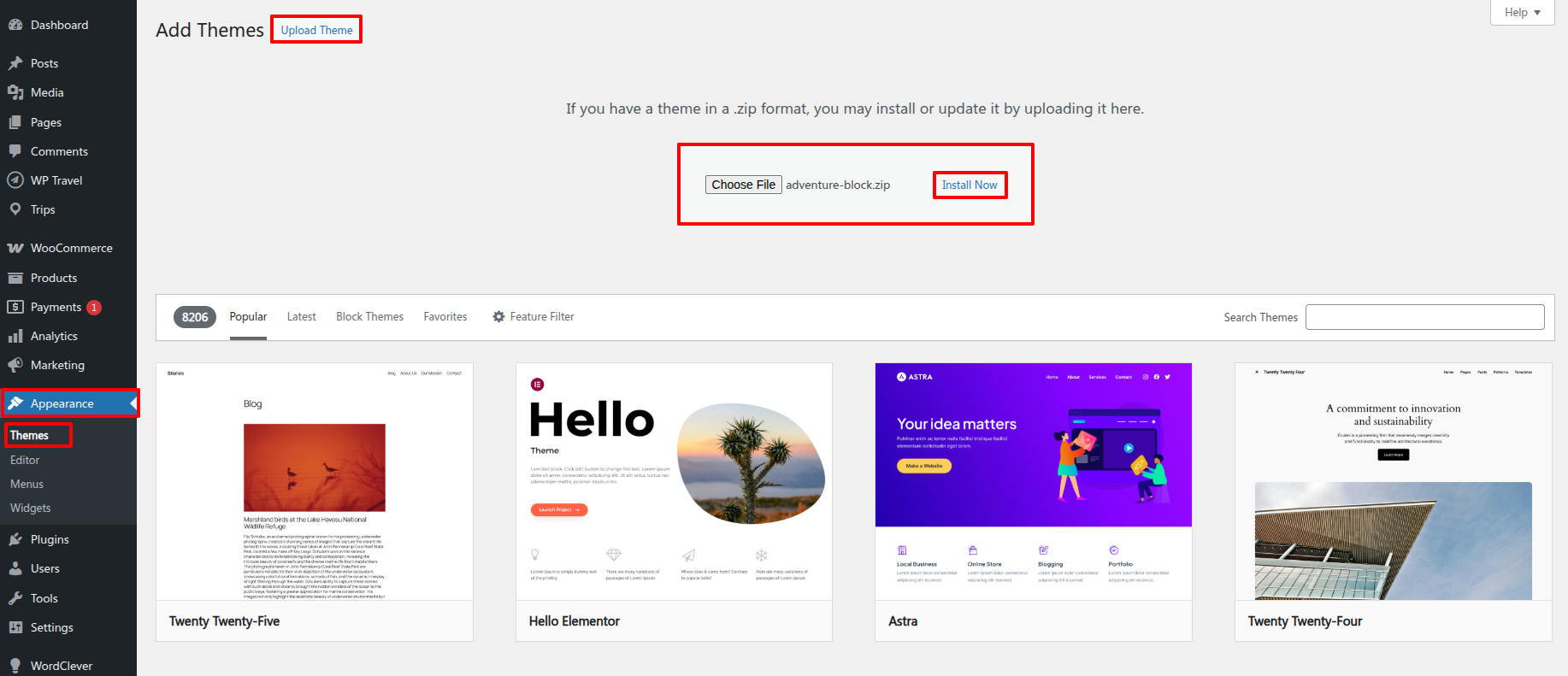
Next, press on that Browse A button.
Click the Here's the Browse A button then select the adventure-block.zip theme of your choice Now Installing.
Presently, WordPress will carry out the installation of your chosen theme and provide A message of encouragement combined with choices to activate or hear a live preview of the theme..
STEP 2. IMPLEMENT A THEME VIA FTP
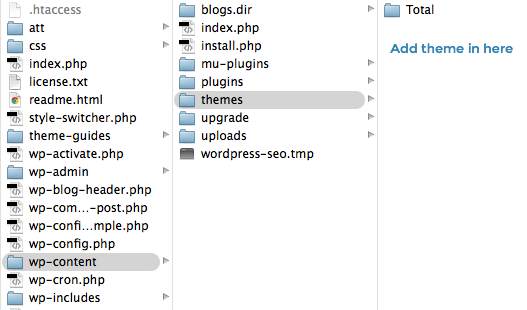
As a second installation method, the theme may be uploaded through FTP. You must initial use FTP to log into your website and gointo into the folder wp-content/themes to apply this technique. All you have to do is download the file themes to the server you use. and extract the Total folder from it.
Then, log back to your WordPress dashboard and navigate begin "Appearance" move to "Themes" then you have to activate the whole folder.
THEME IMPLEMENTATION
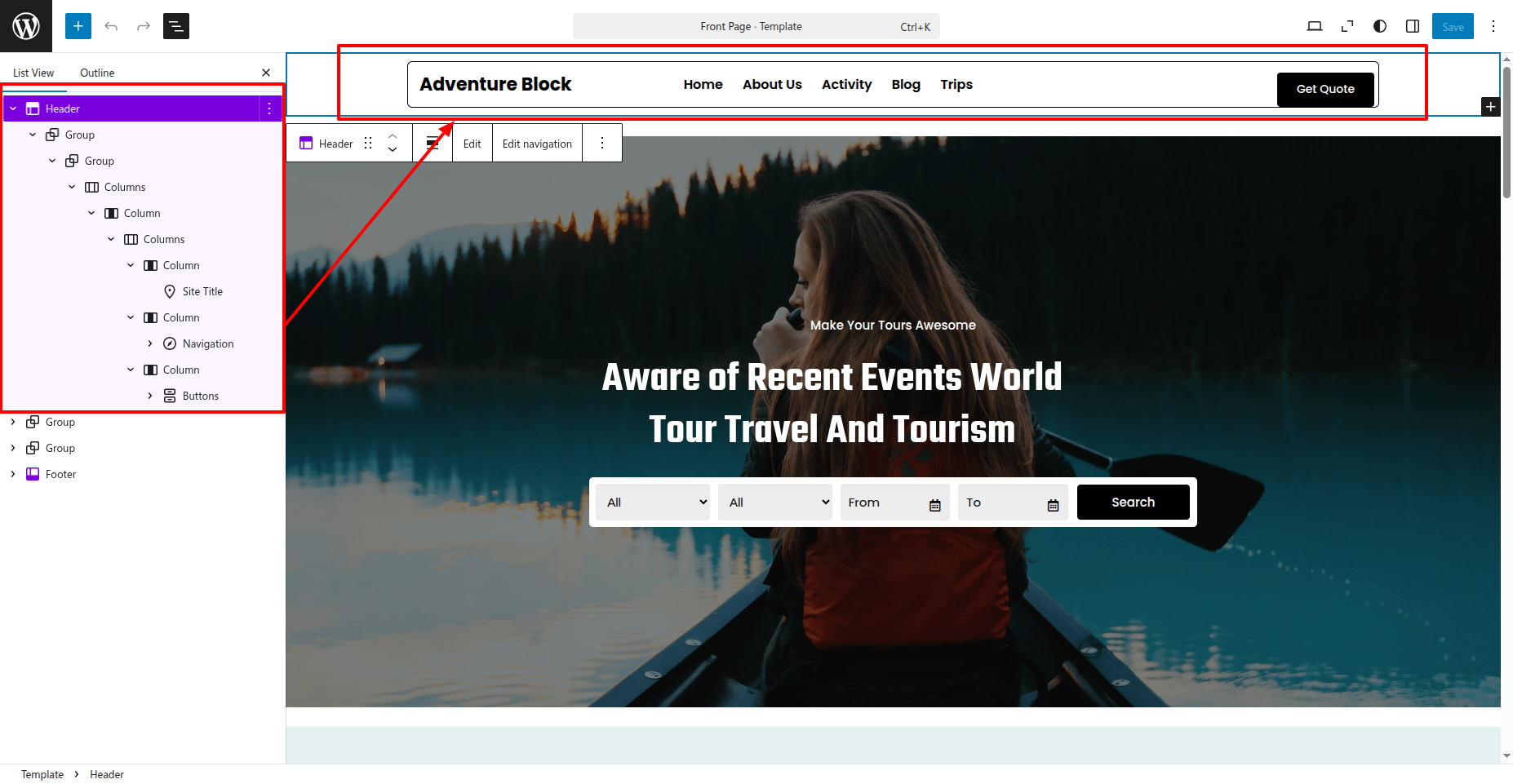
HOW TO DISPLAY HOMEPAGE
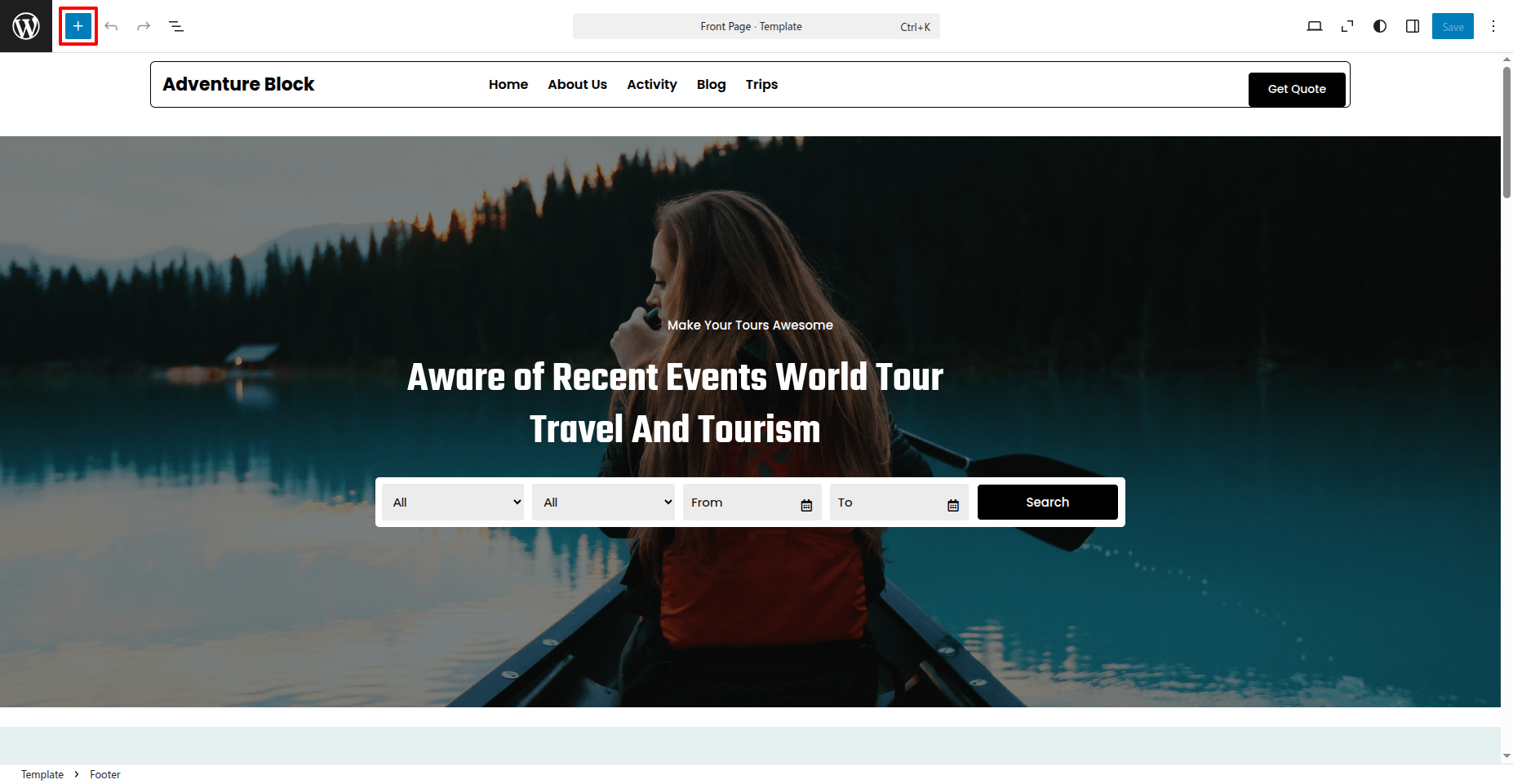
Go to the Dashboard Appearance Editor.
HOW TO INCLUDE PATTERNS AND BLOCKS IN A PAGE
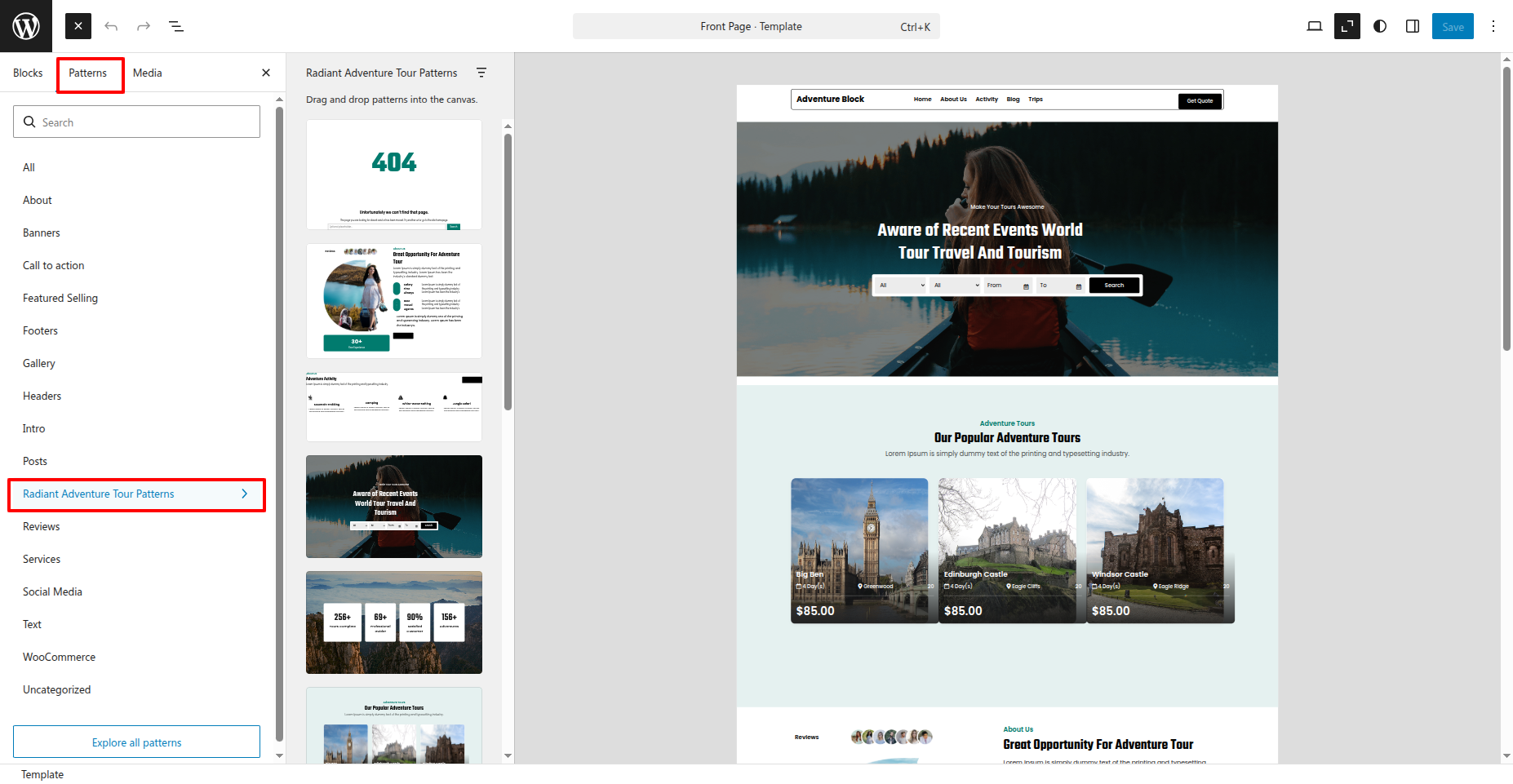
Please click the "Plus" icon as displayed in the screen below in order to add patterns and bocks.
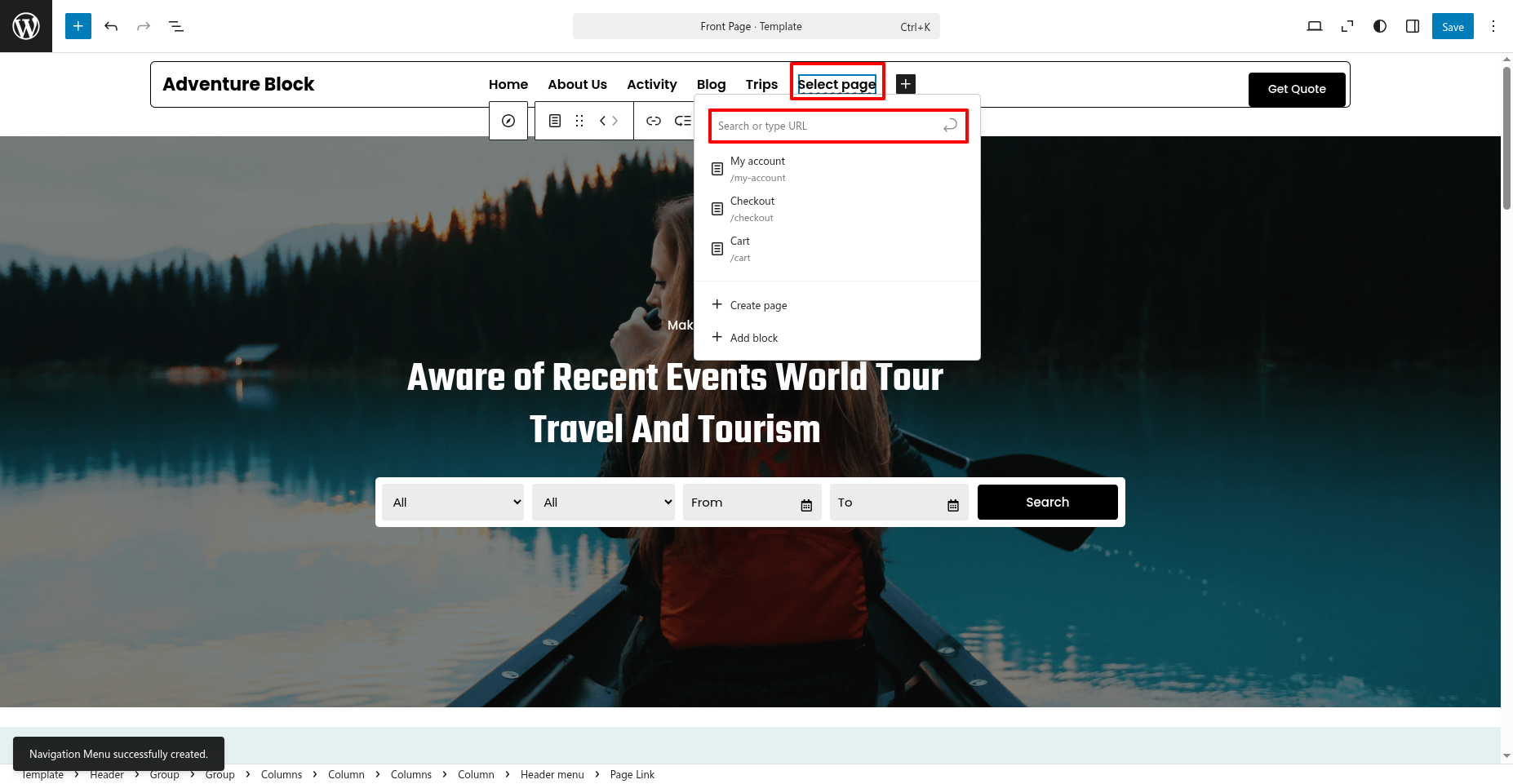
SETUP NAVIGATION
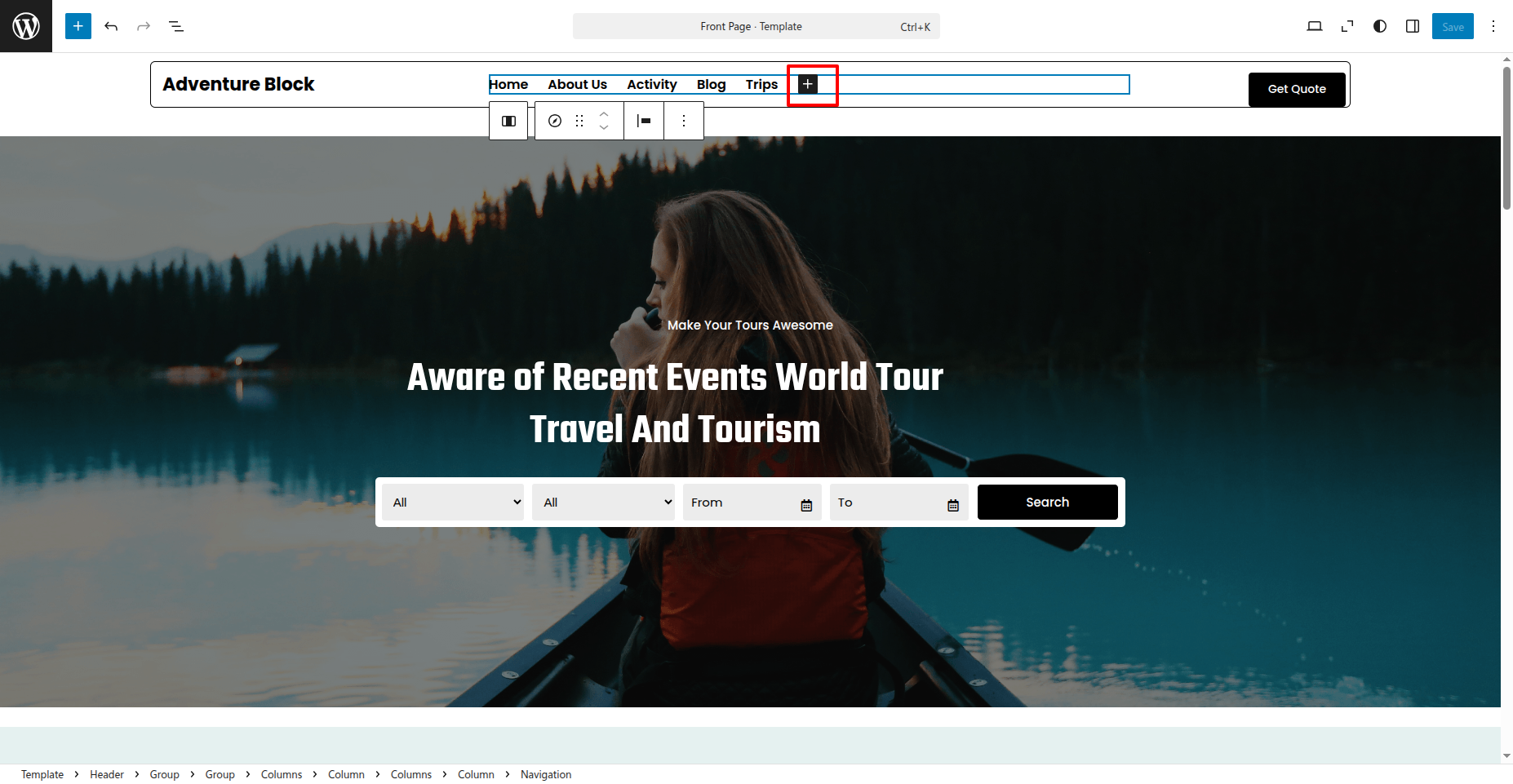
To create a menu for your site, do the following:
Go to Dashboard Appearance Editor.
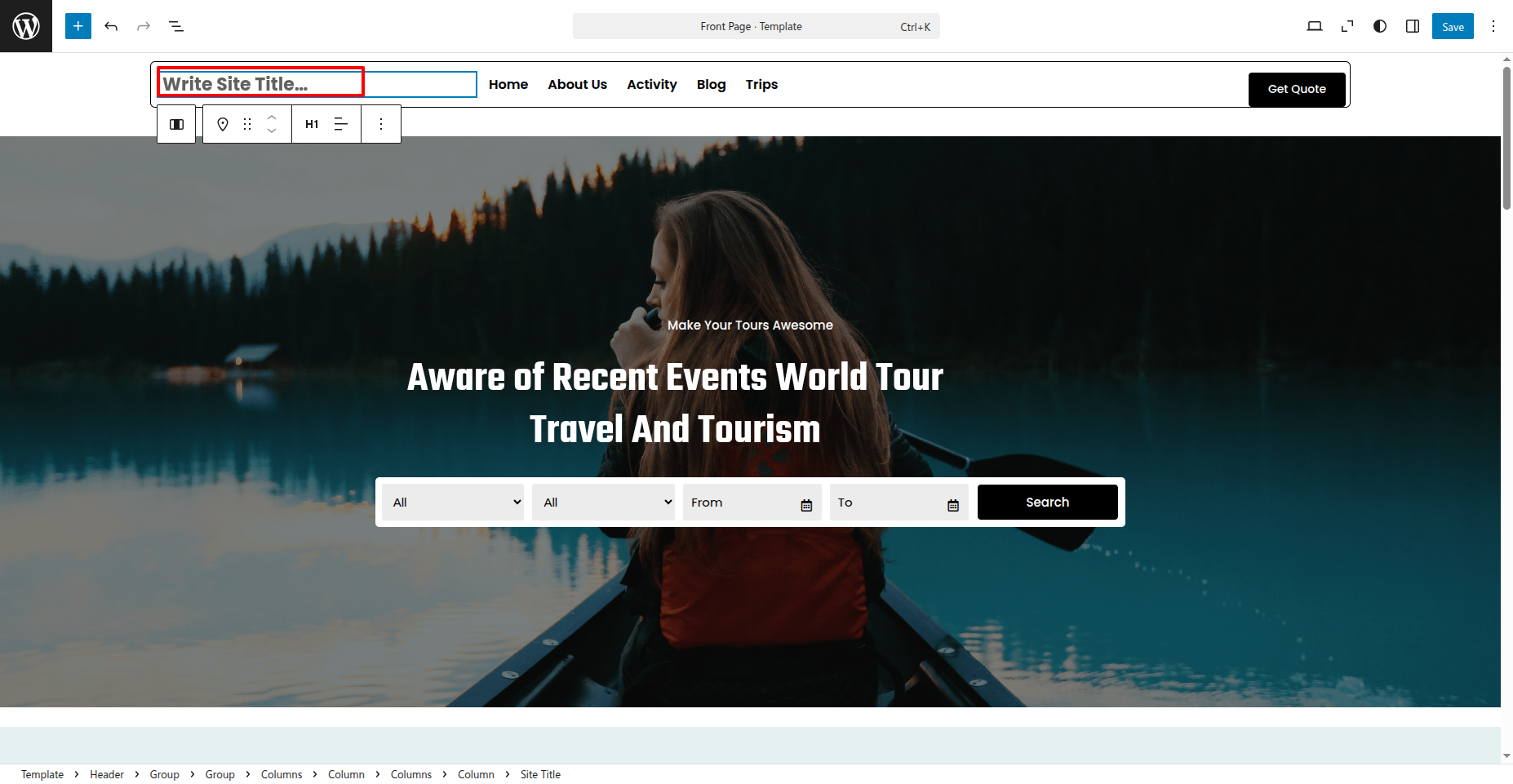
SETUP SITE IDENTITY
Set up the Site Identity by following the steps mentioned below.
Go to Dashboard Appearance Editor.
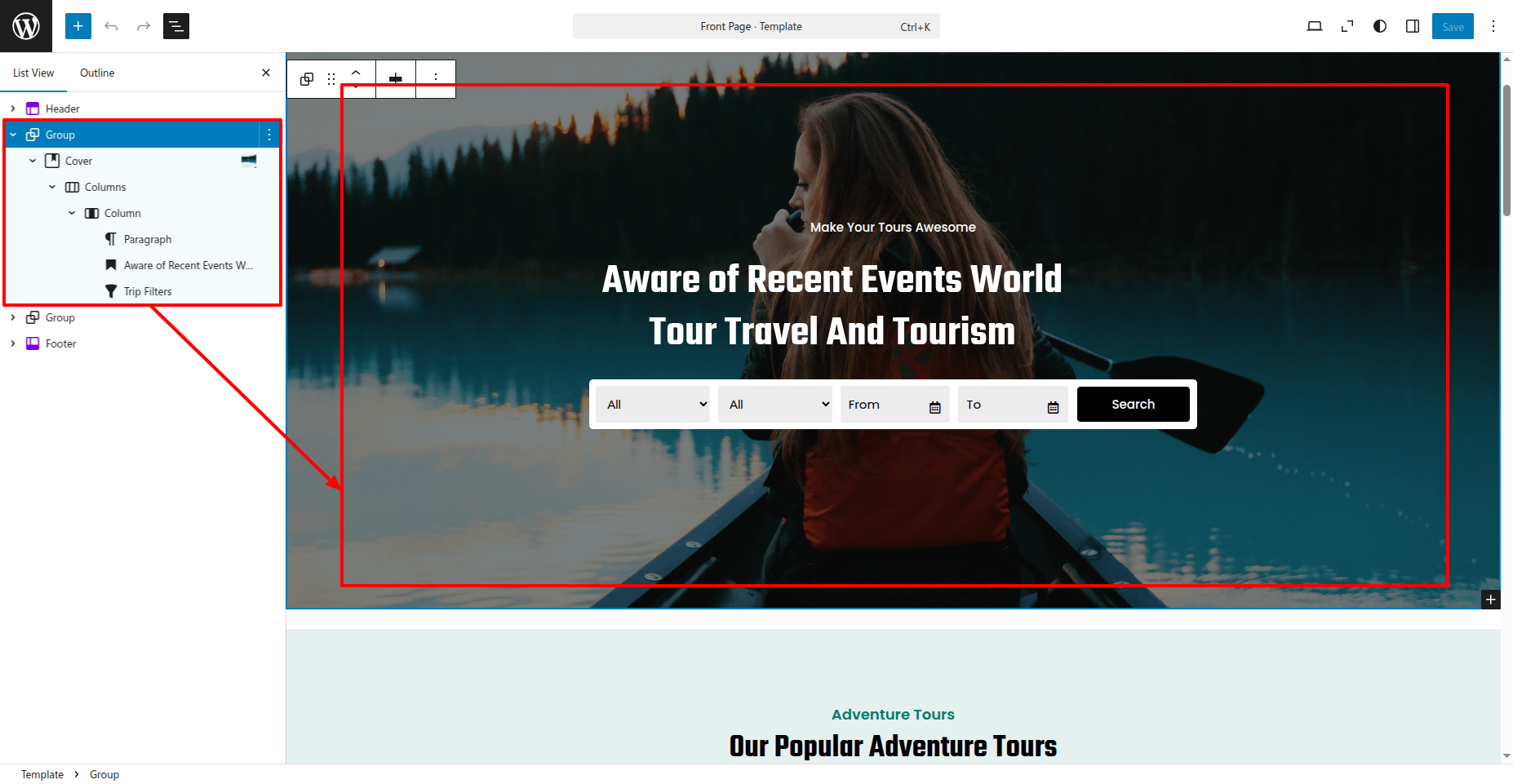
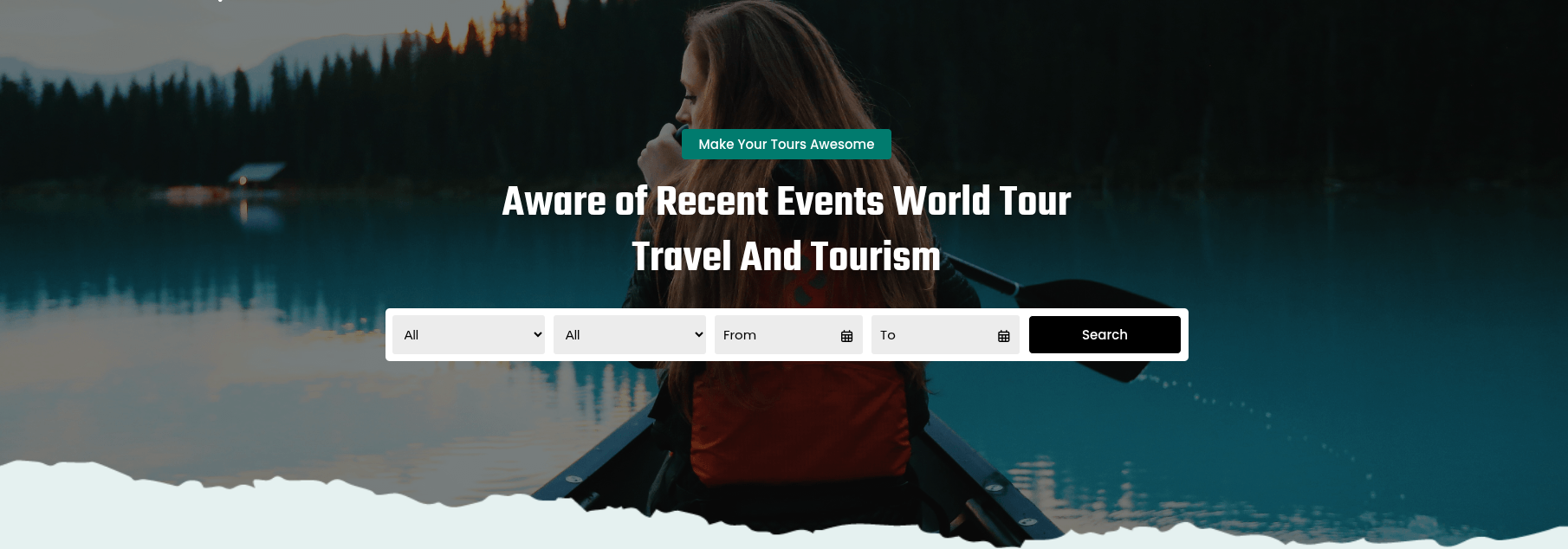
SETUP BANNERS SECTION
Set up the Banners Section according to the instructions below.
Go to Dashboard Appearance Editor.
This is how you may set up and include the Banners section.
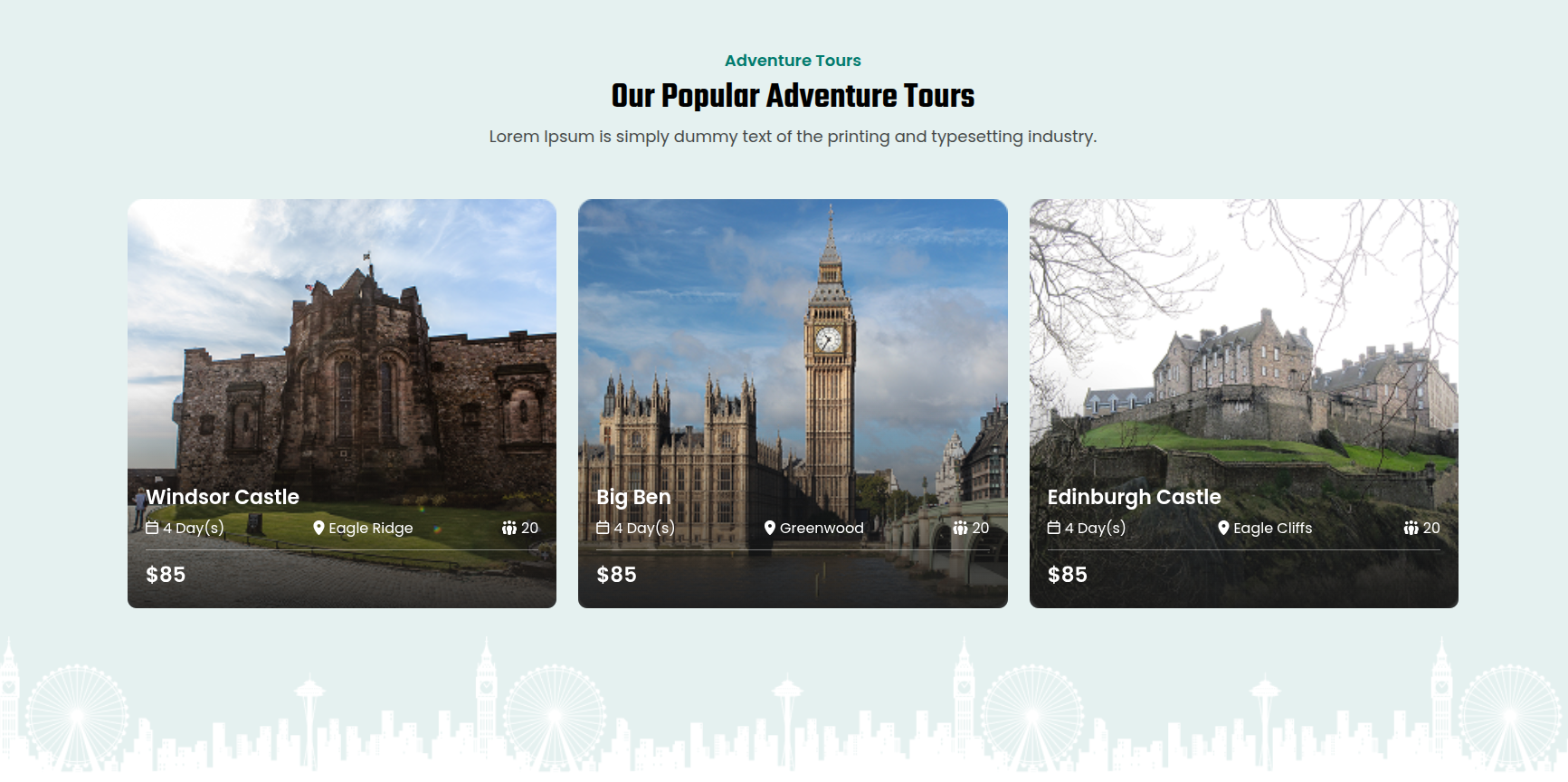
SETUP ADVENTURE TOUR SECTION
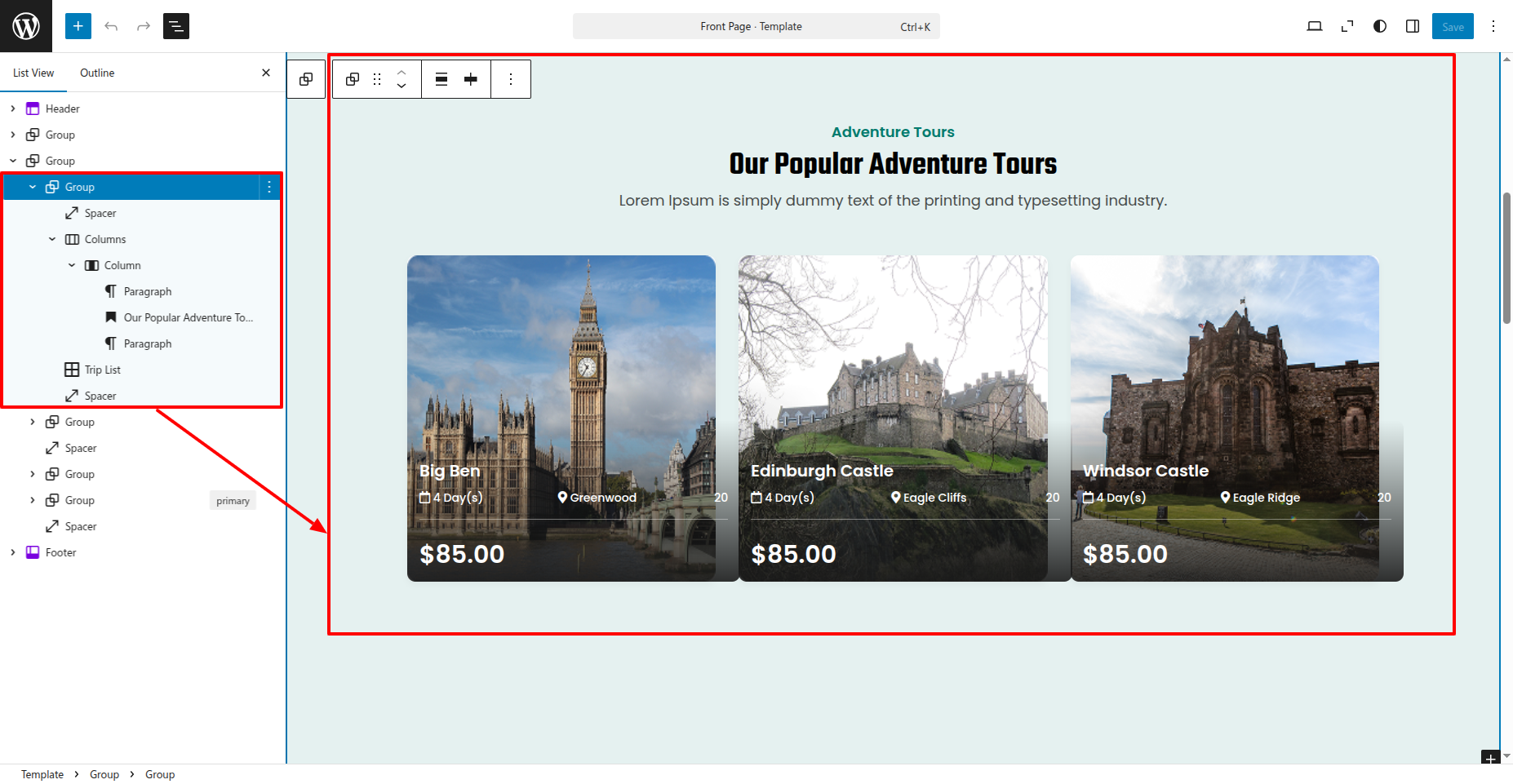
Set up the Adventure Tours Section according to the instructions below.
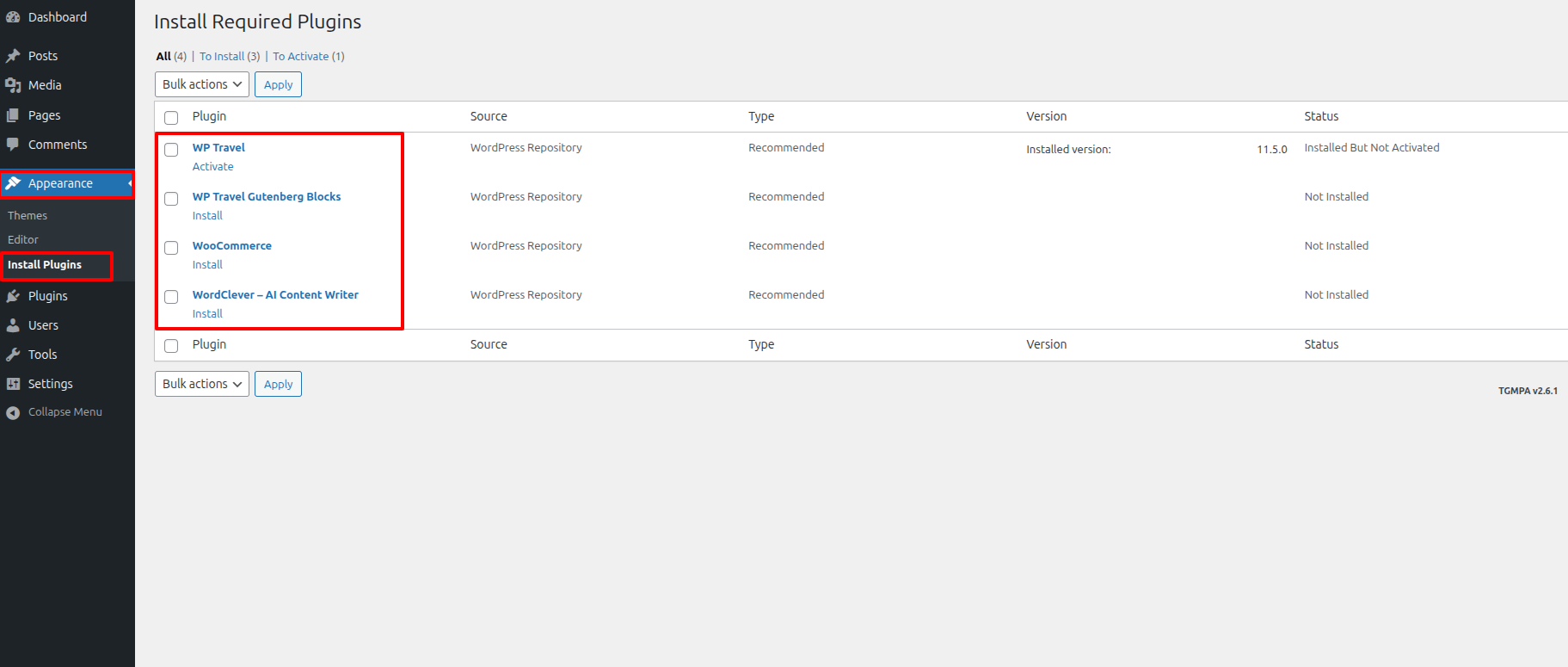
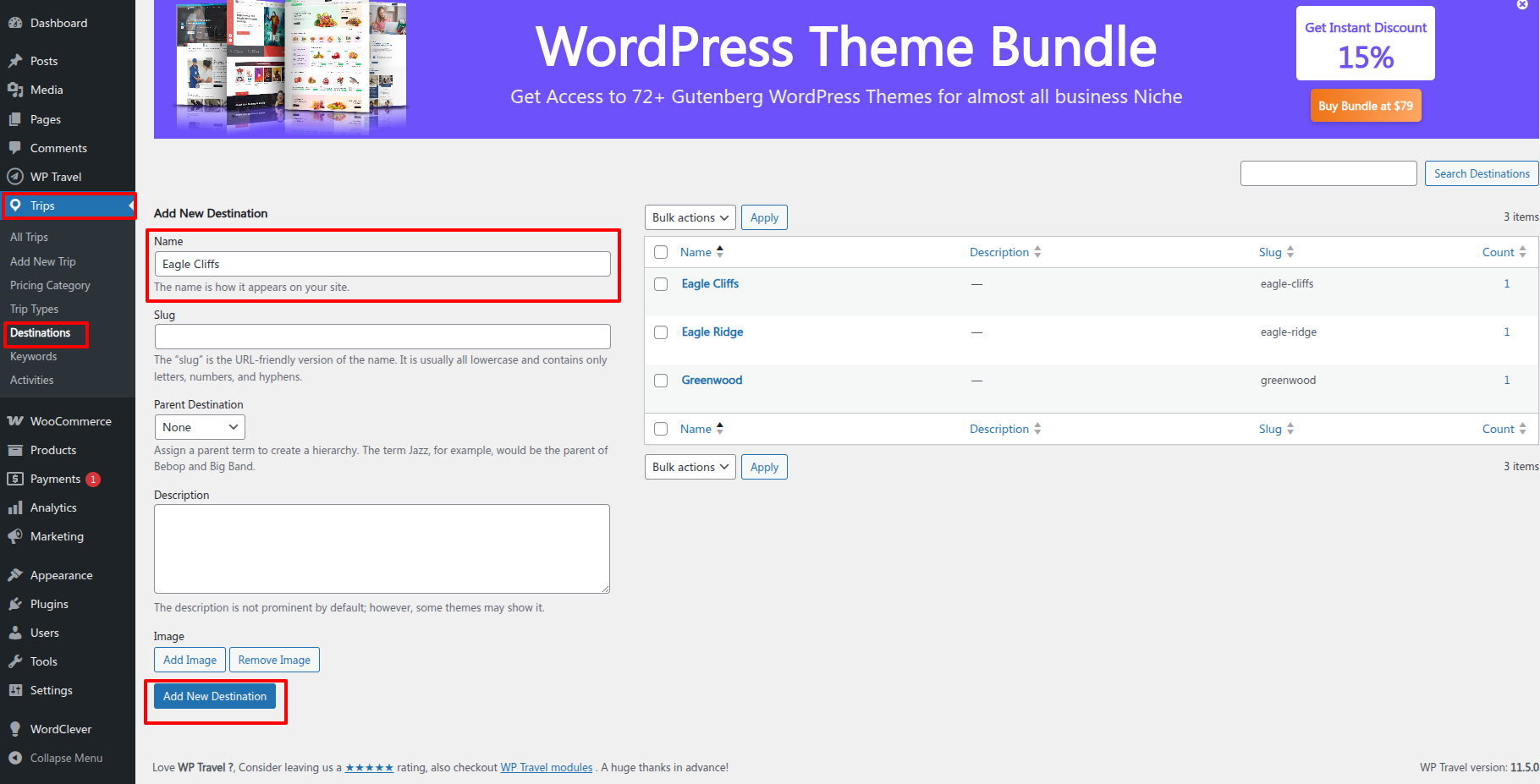
If they look at it like this, they'll see it as static; if you want to make it dynamic, follow the instructions given below.
Go to Dashboard Appearance Install Plugins.
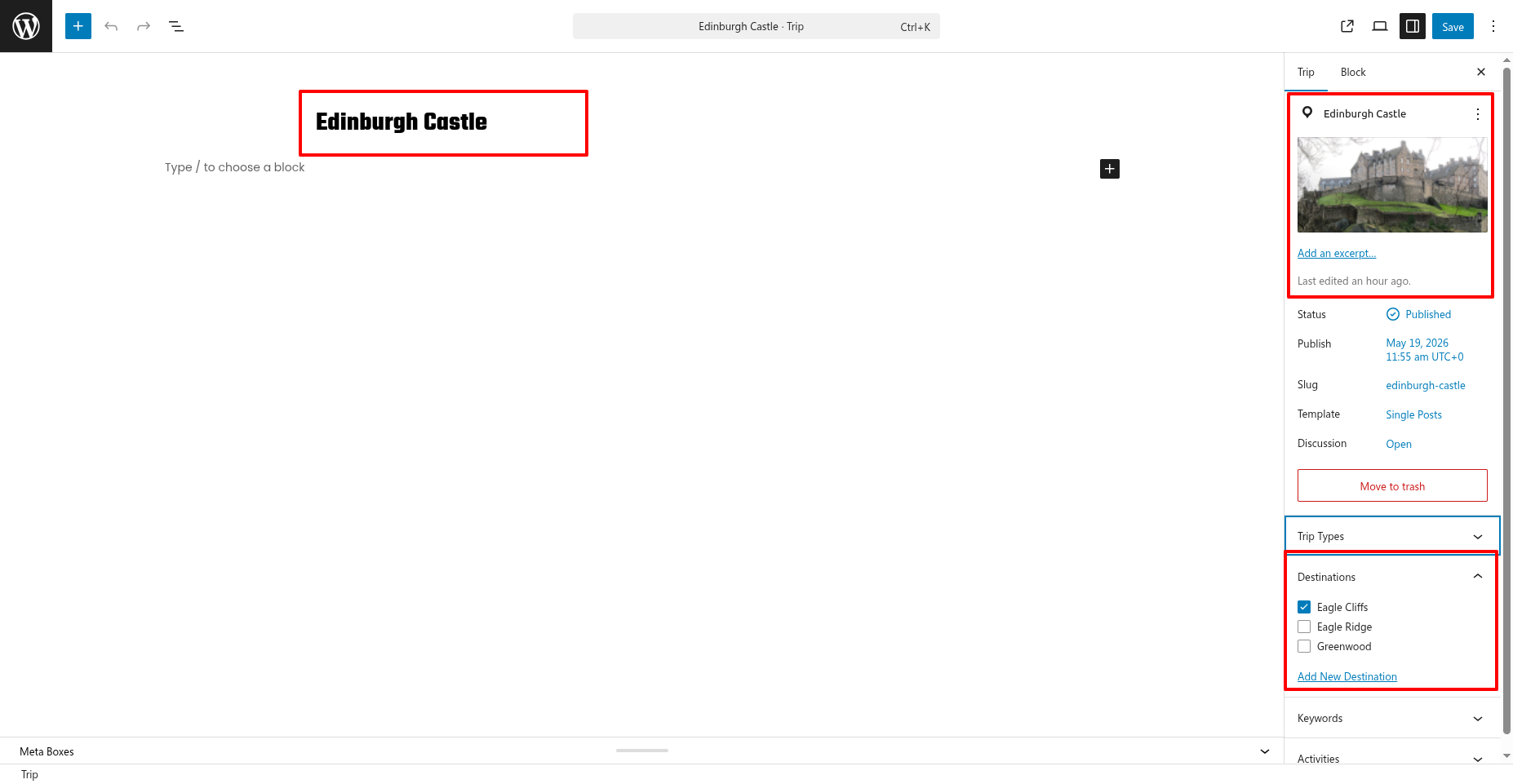
Go to Dashboard Trips Destinations.
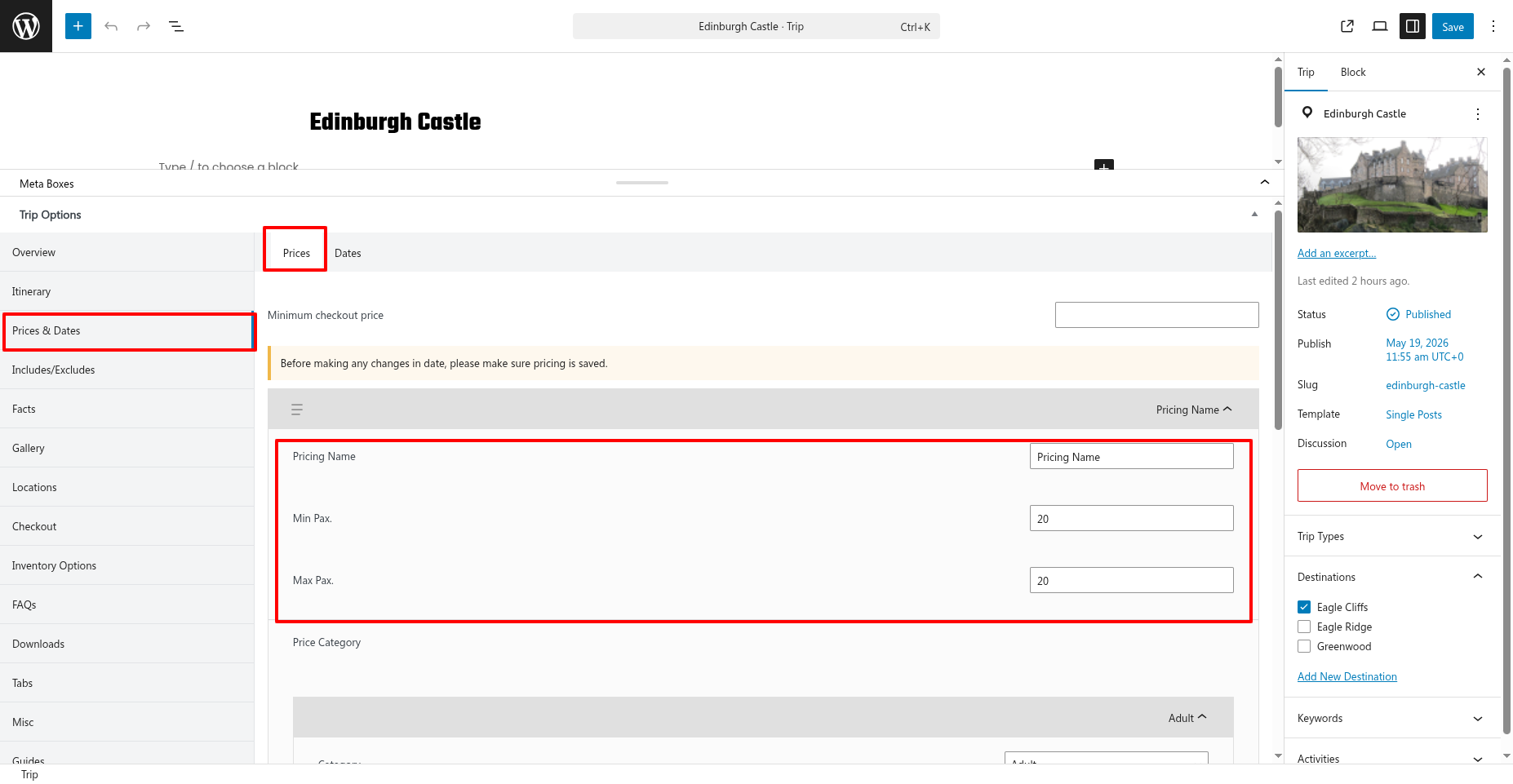
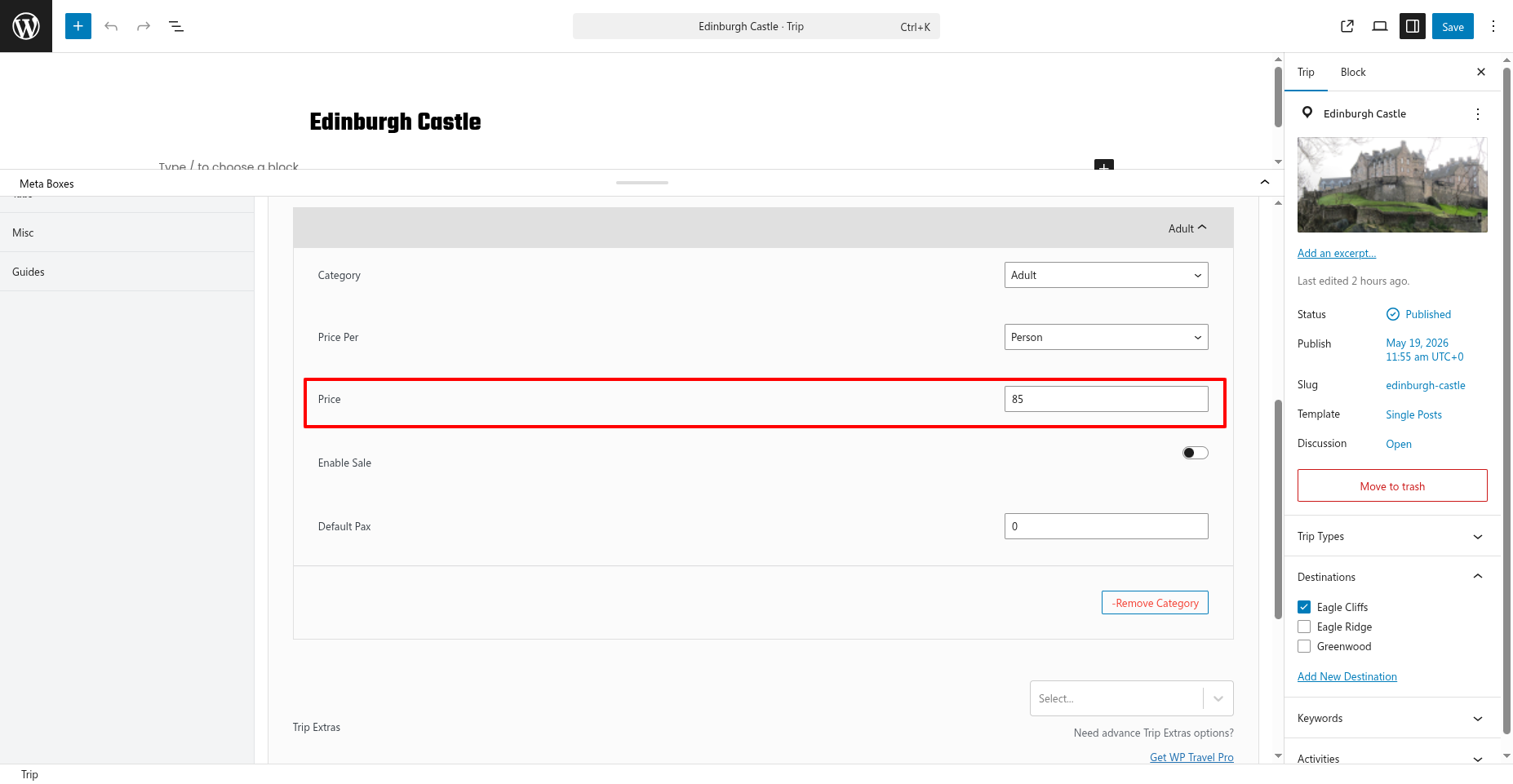
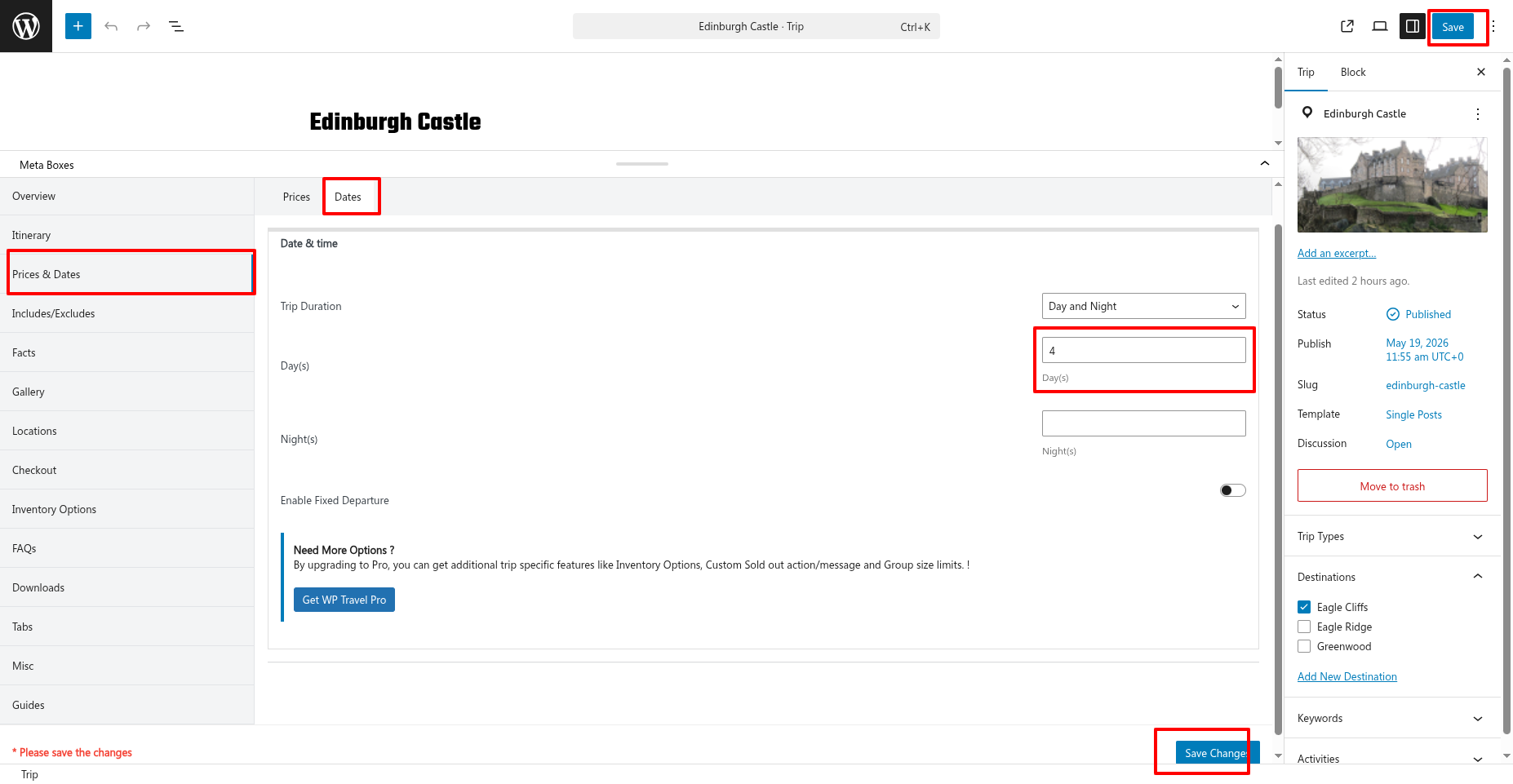
Go to Dashboard Trips Add New Trips.
Go to Dashboard Appearance Editor.
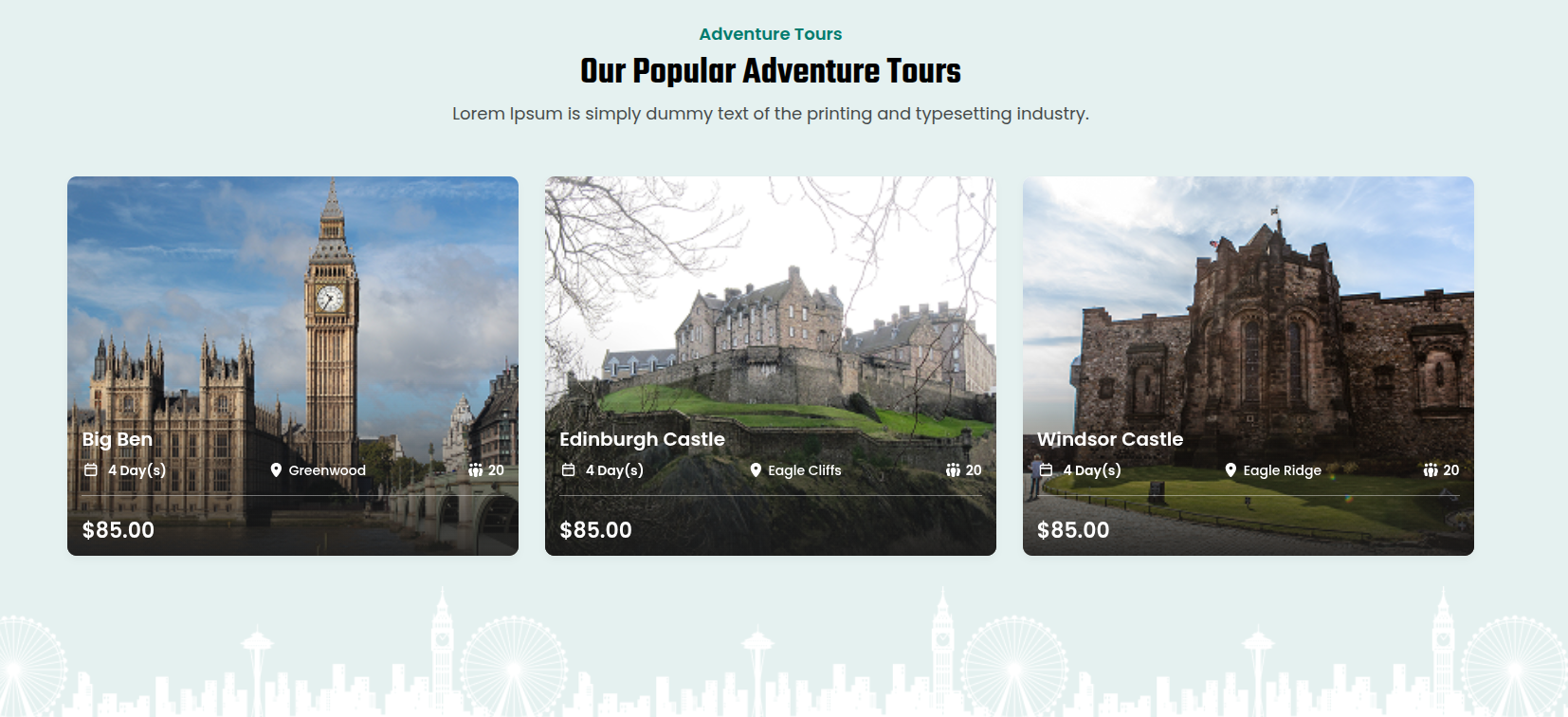
This is how you may set up and include the Adventure Tours section.
SETUP ABOUT US SECTION
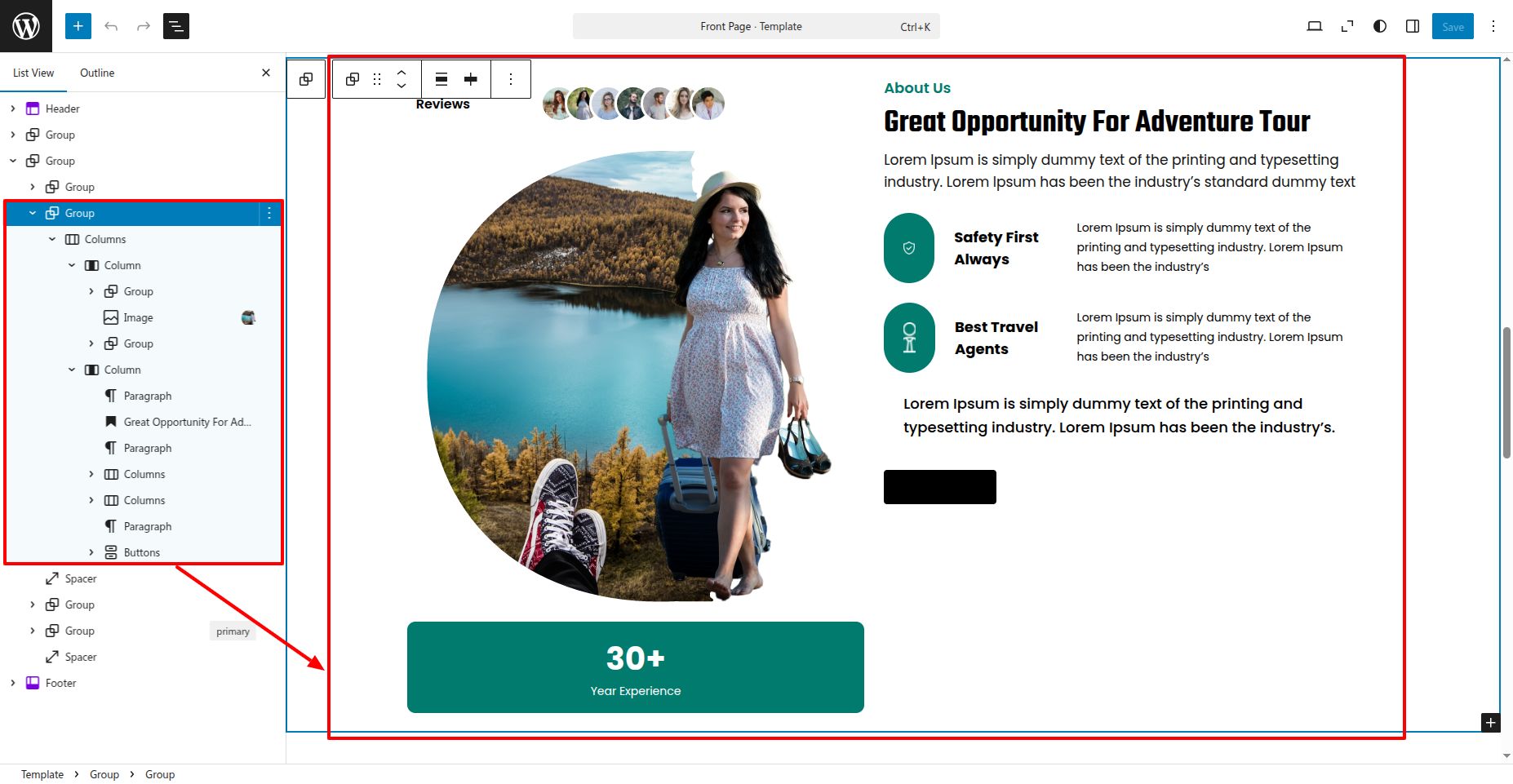
Set up the About Us Section according to the instructions below.
Go to Dashboard Appearance Editor.
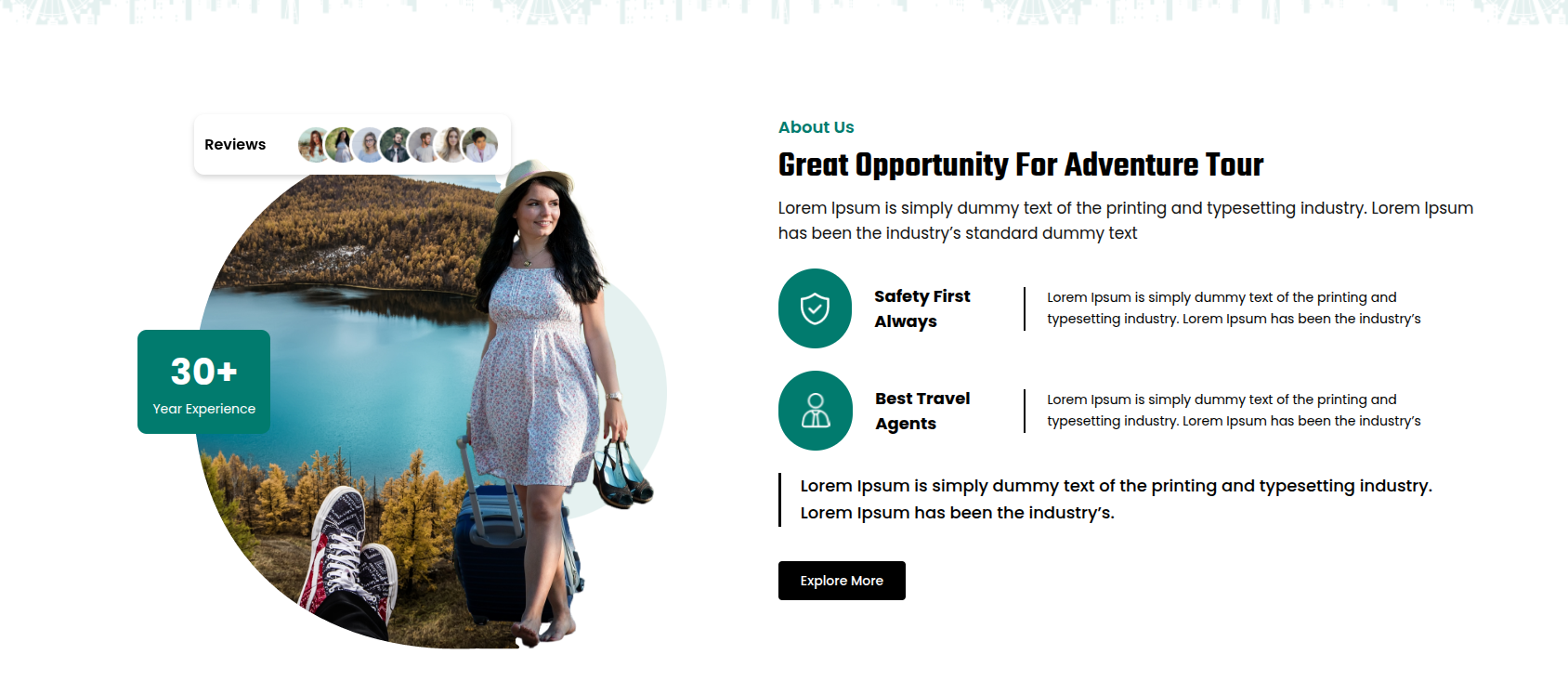
This is how you may set up and include the About Us section.
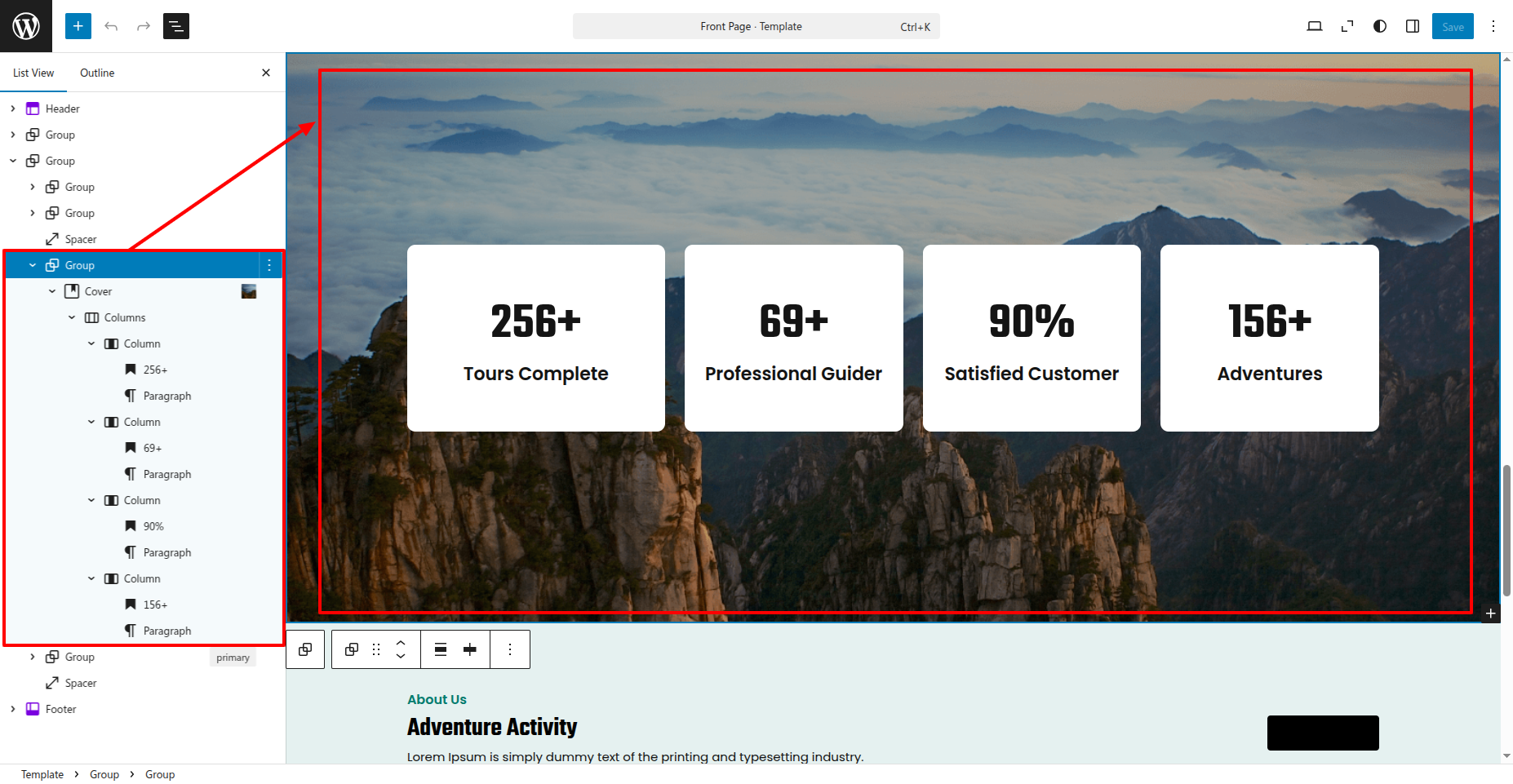
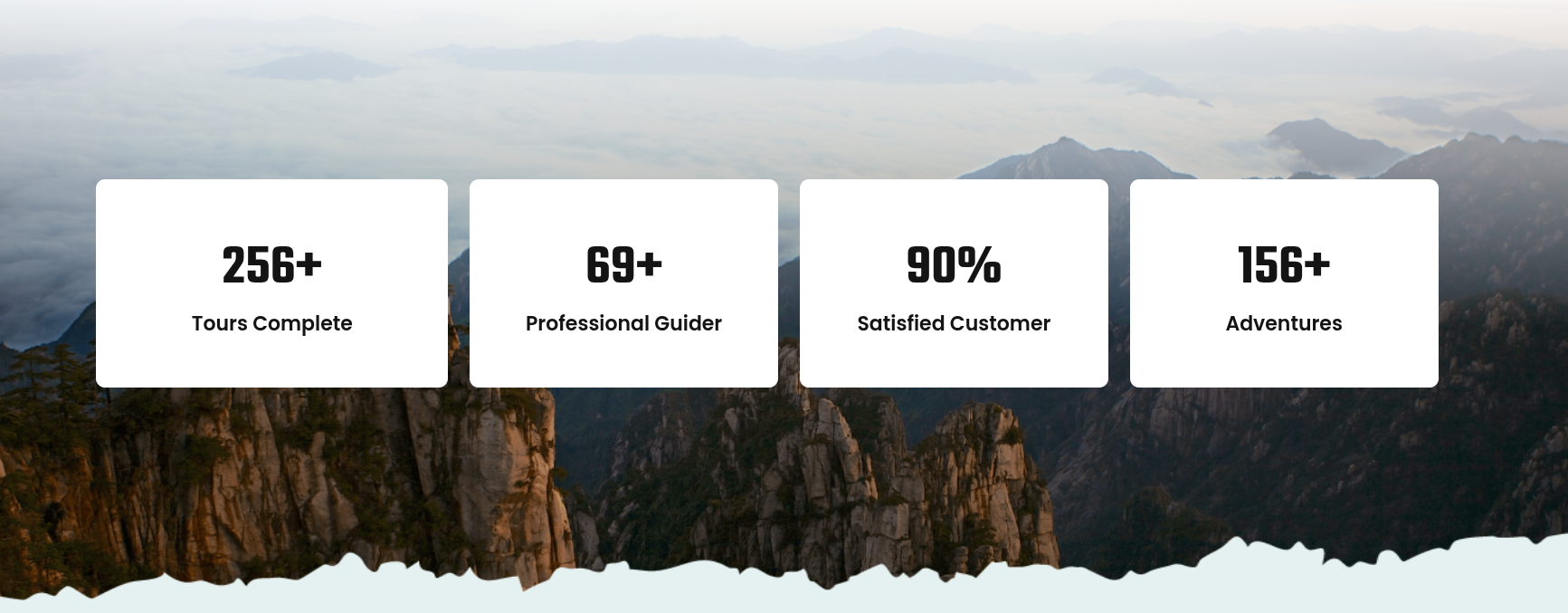
SETUP COUNTER SECTION
Set up the Counter Section according to the instructions below.
Go to Dashboard Appearance Editor.
This is how you may set up and include the Counter section.
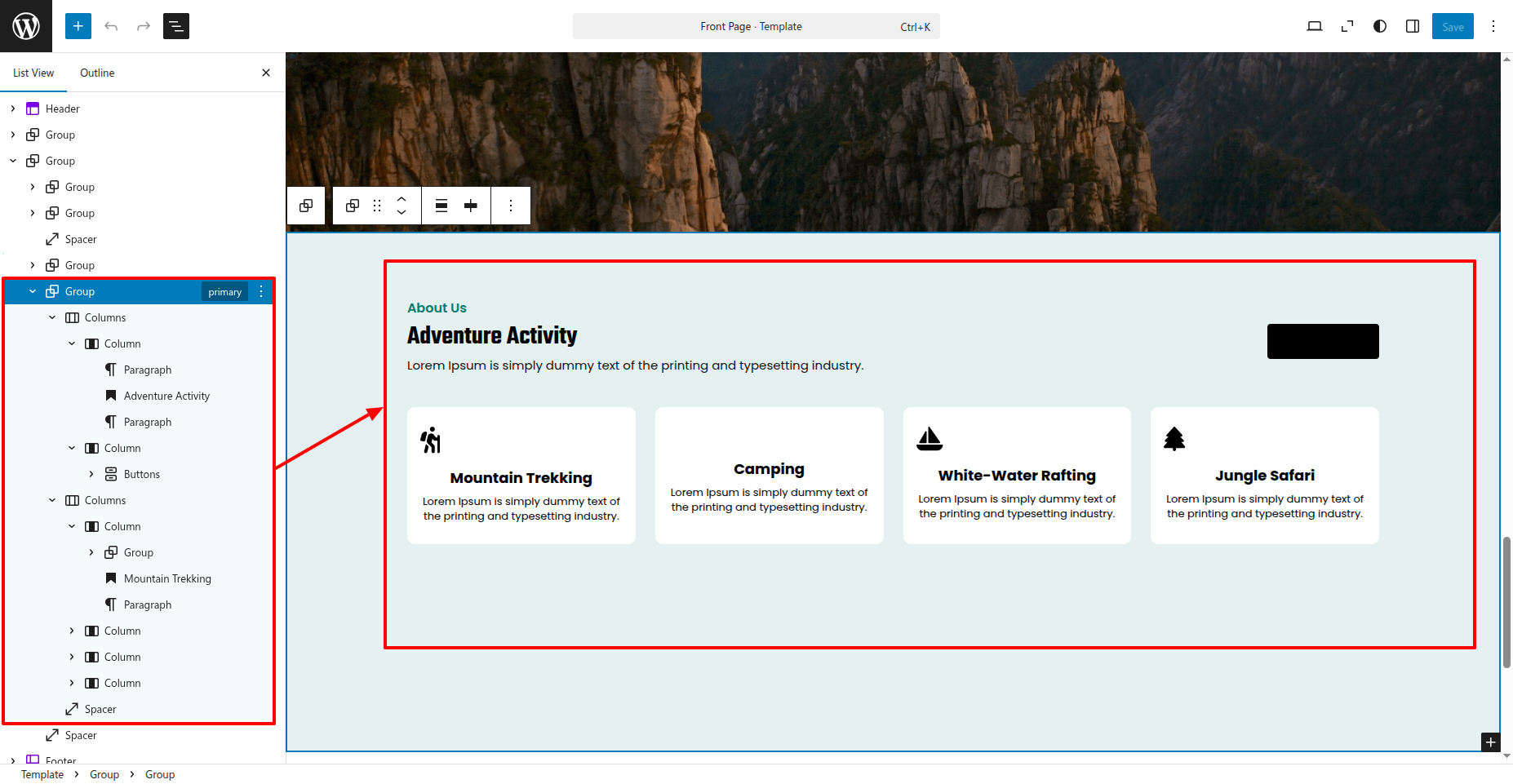
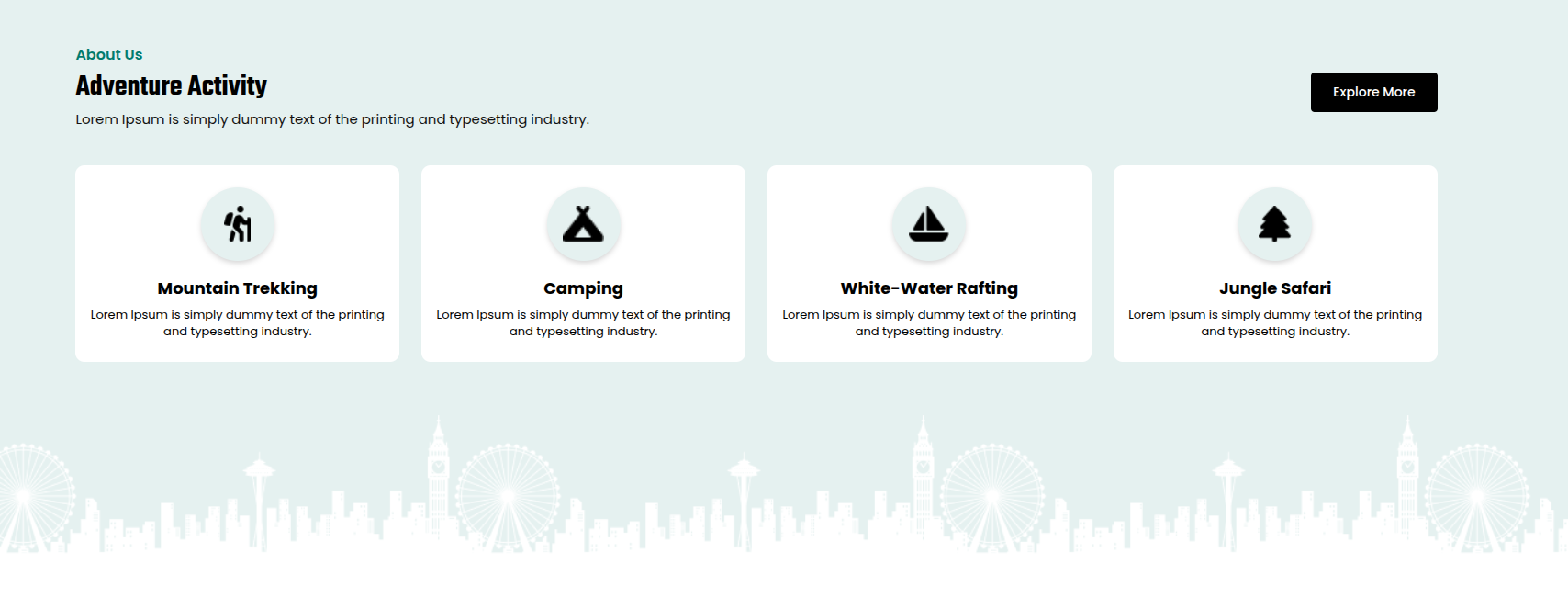
SETUP ACTIVITY SECTION
Set up the Activity Section according to the instructions below.
Go to Dashboard Appearance Editor.
This is how you may set up and include the Activity section.