THEME IMPLEMENTATION
HOW TO SET UP HOMEPAGE
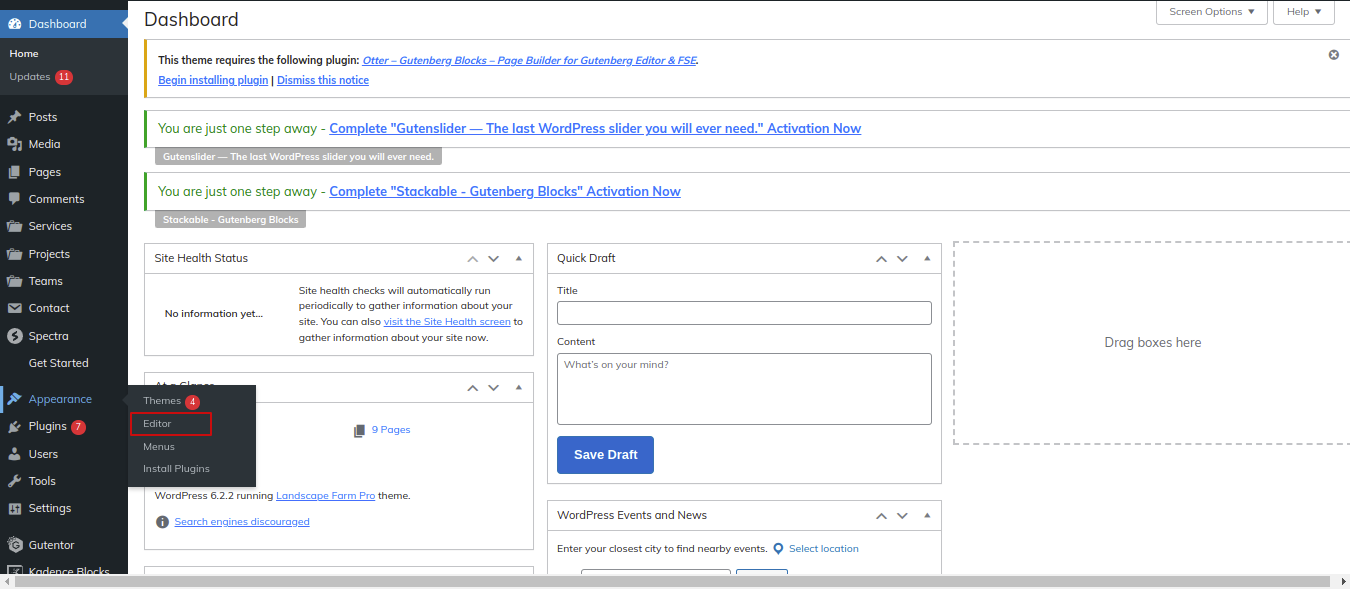
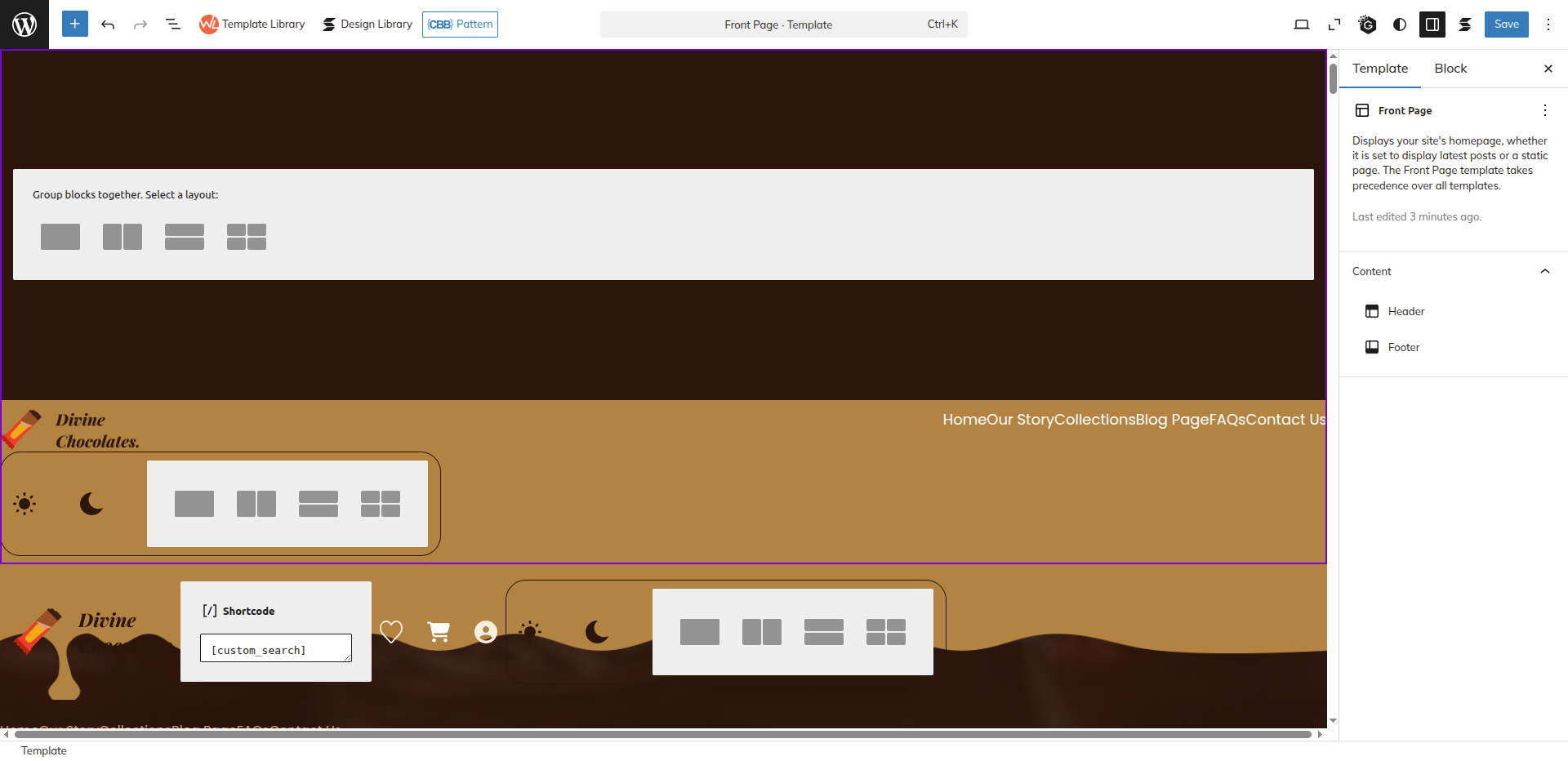
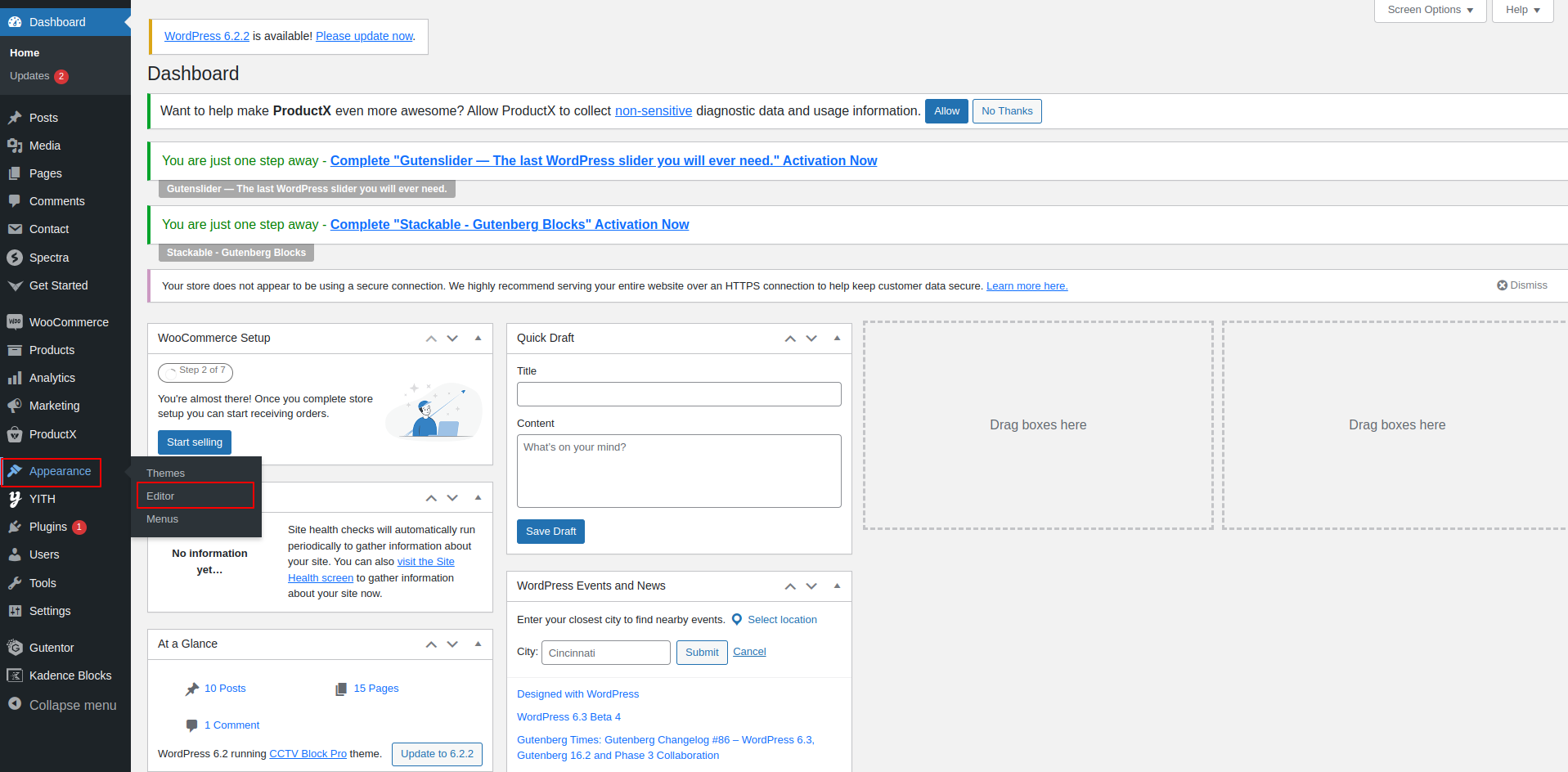
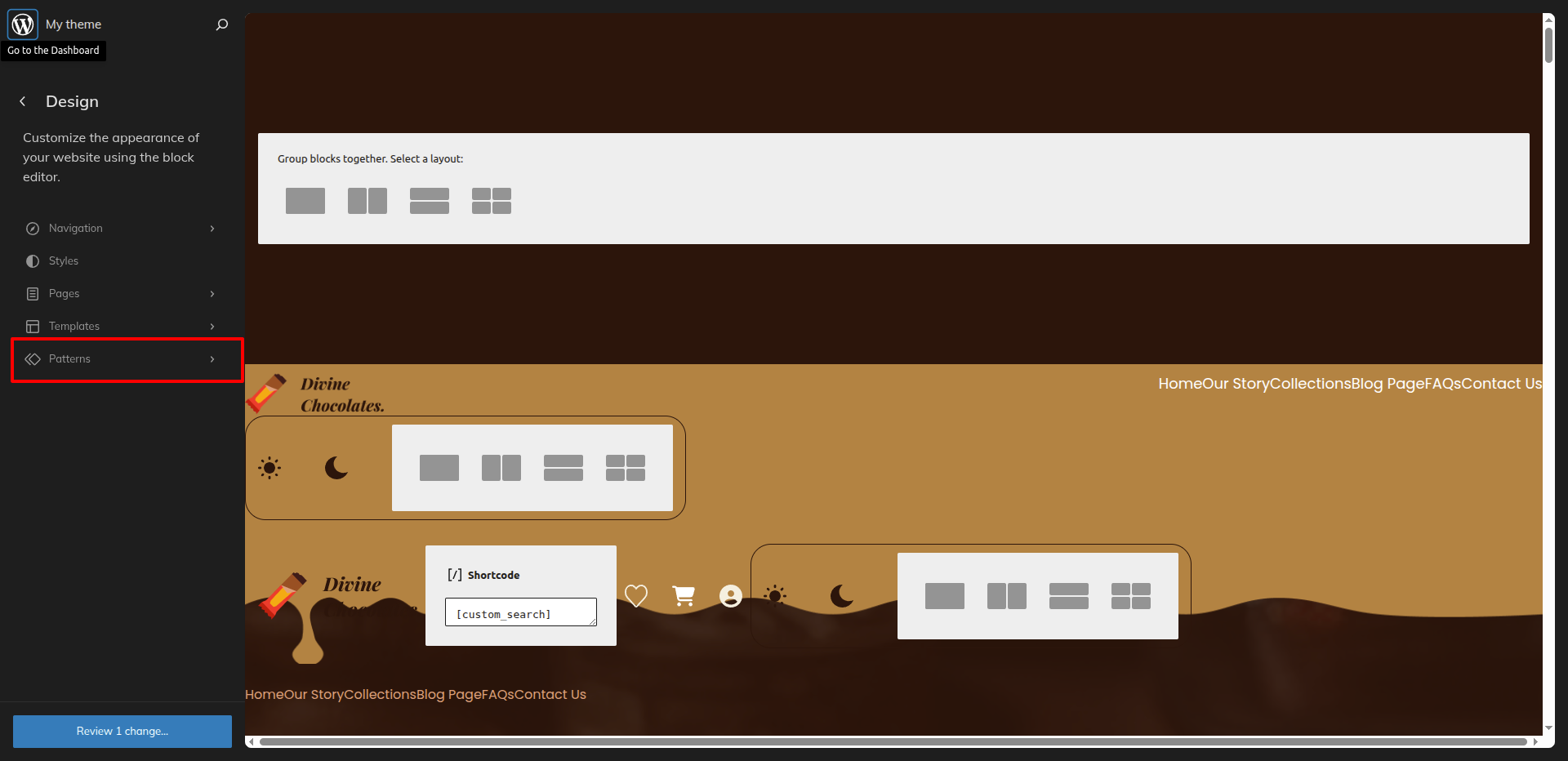
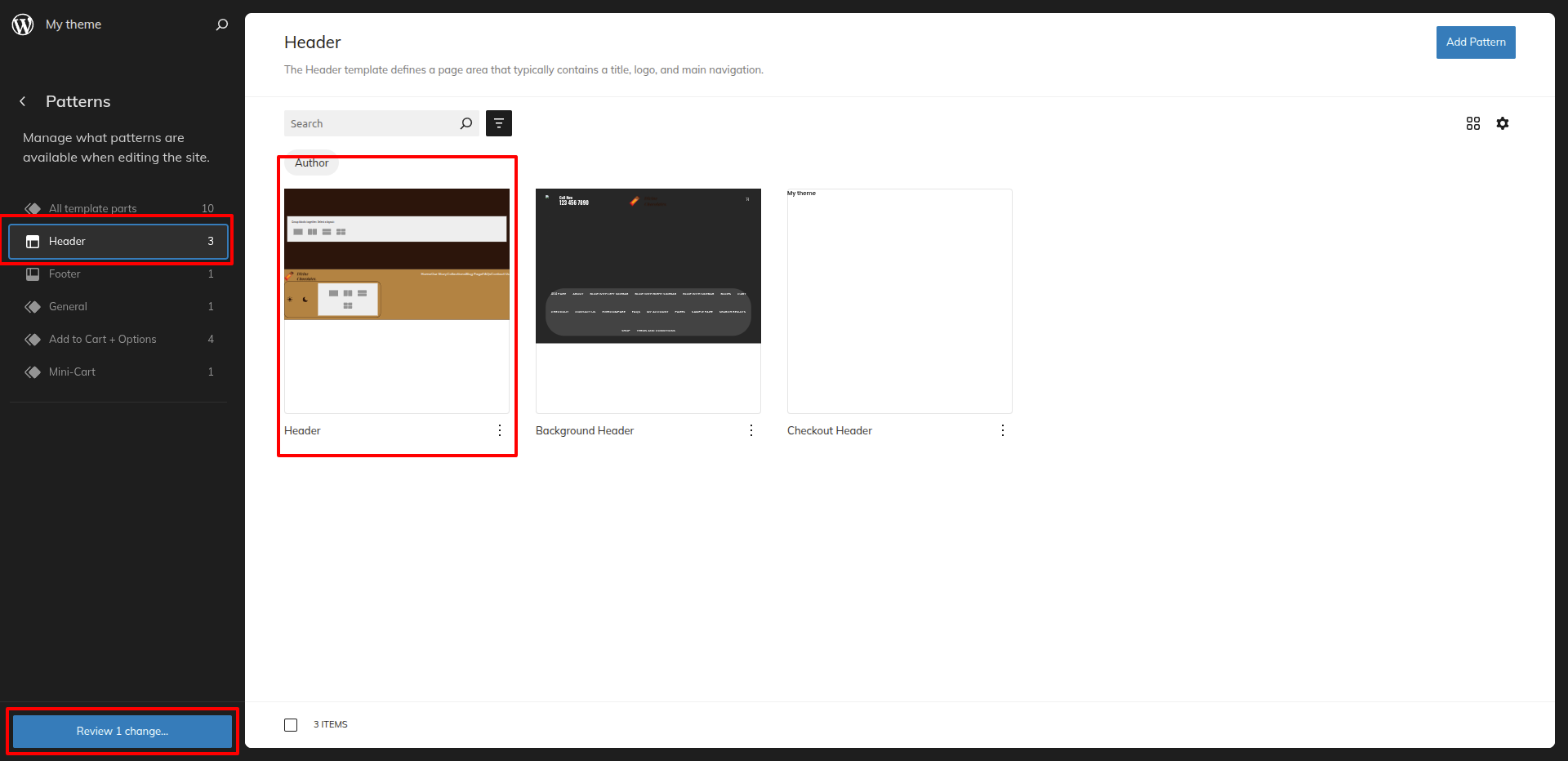
Go to the Dashboard Appearance Editor.
HOW TO INCLUDE PATTERNS AND BLOCKS IN A PAGE
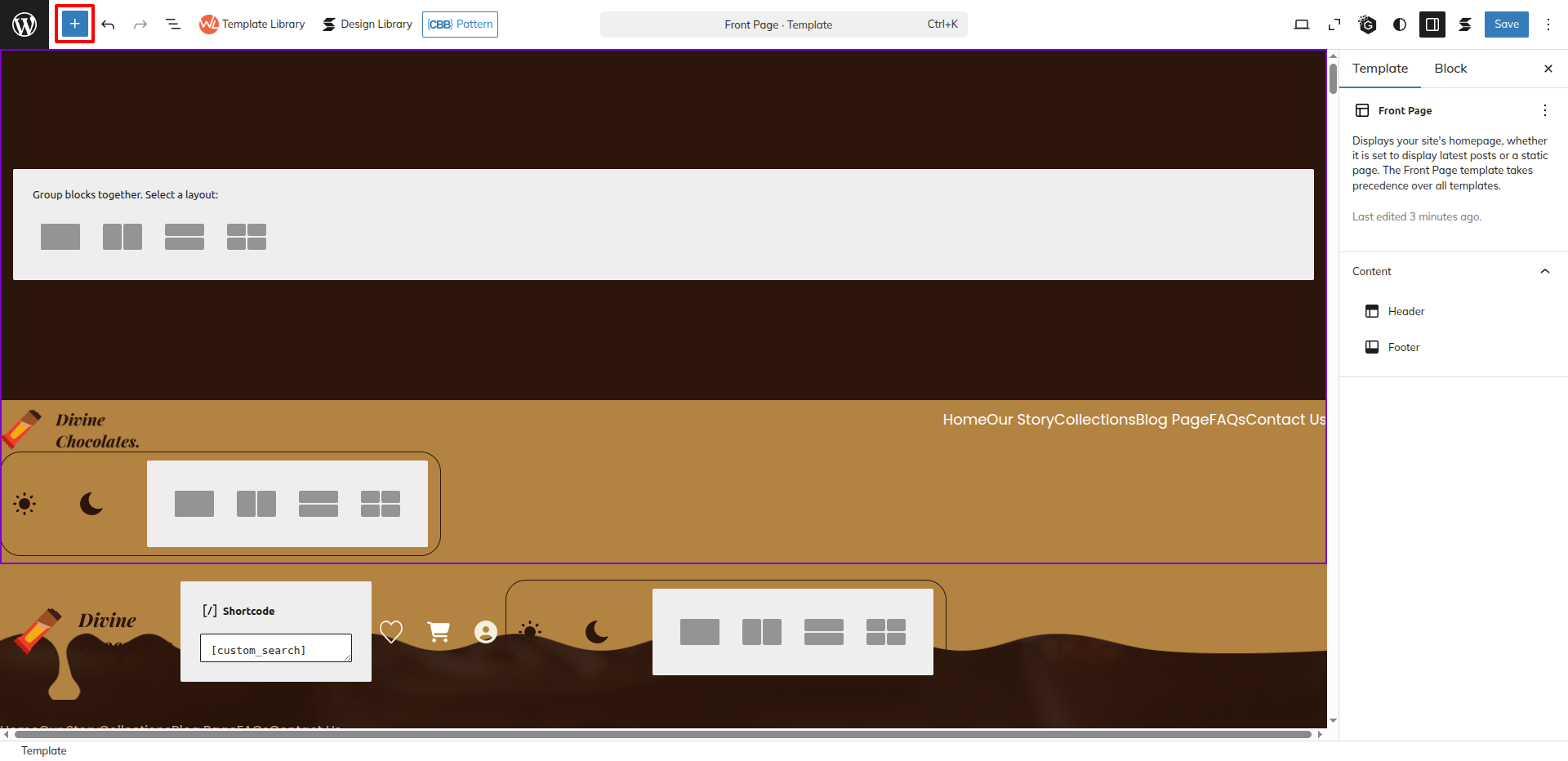
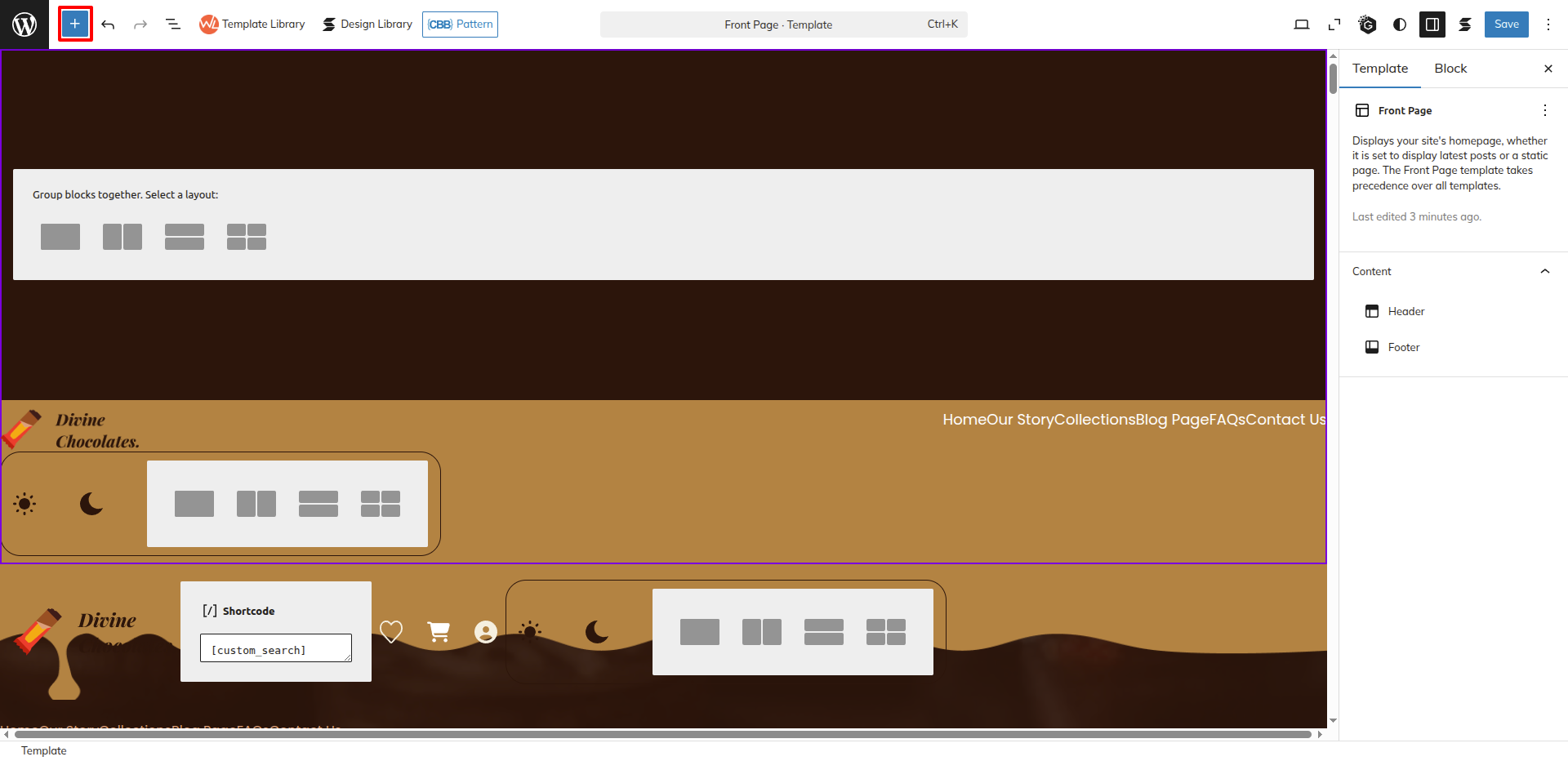
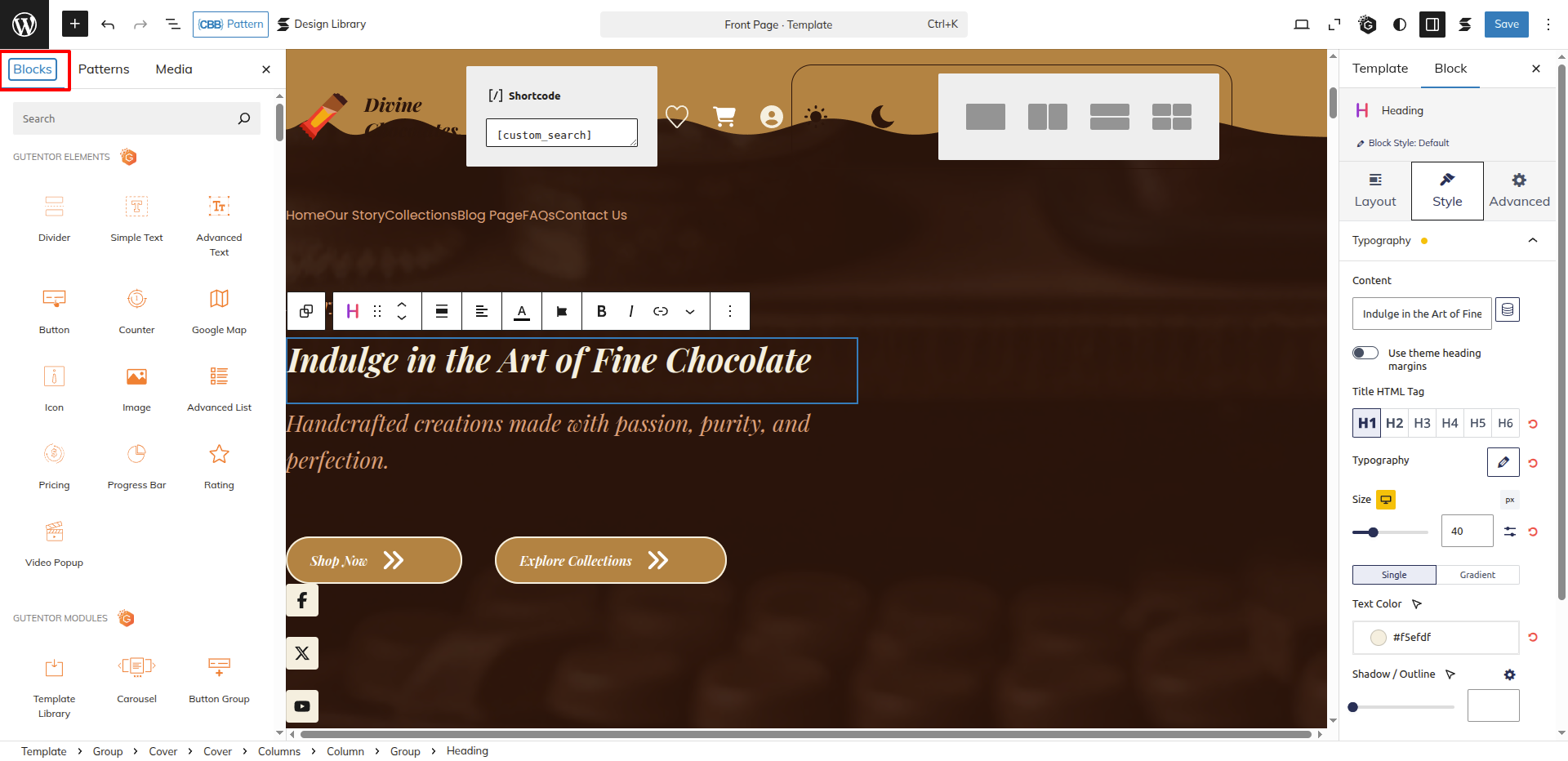
Please click the "Plus" icon as displayed in the screen below in order to add patterns and bocks.
Select "Patterns" from the dropdown as displayed in the screen below once a sidebar has opened.
All of the theme patterns are now displayed here, and you may use them on any page.
All of the blocks are now displayed here, and you may use them on any page.
Setup Banner Section
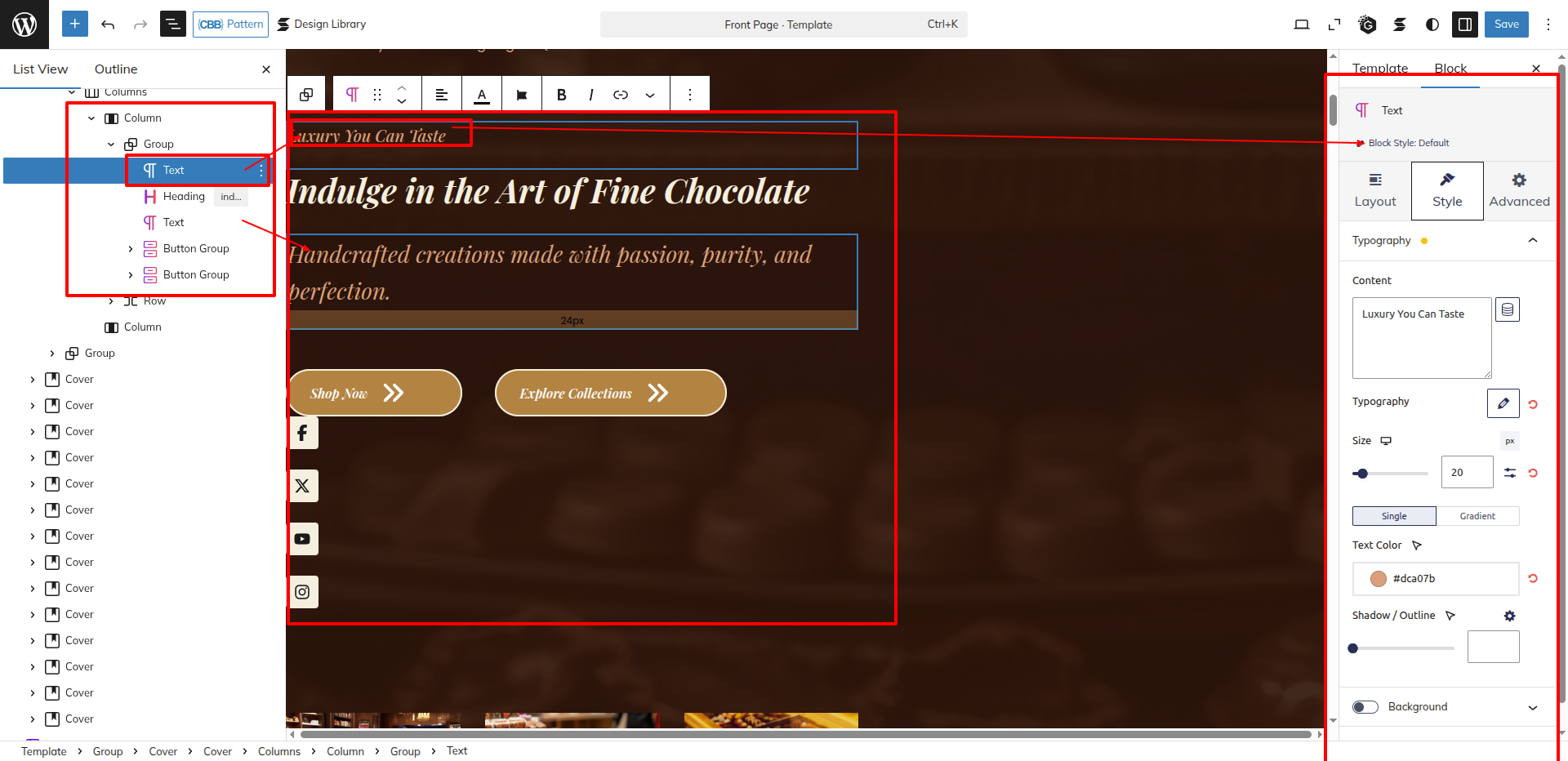
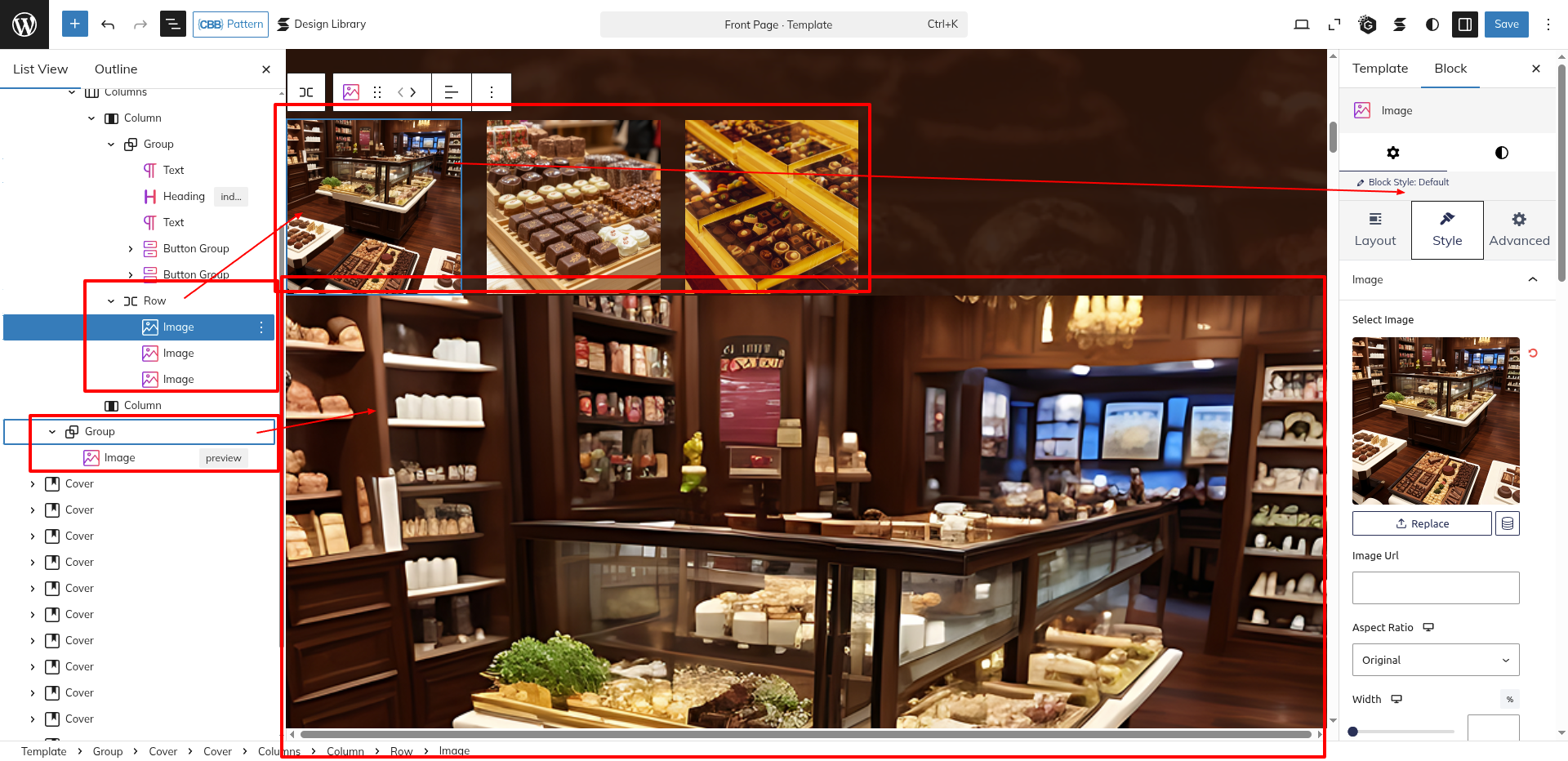
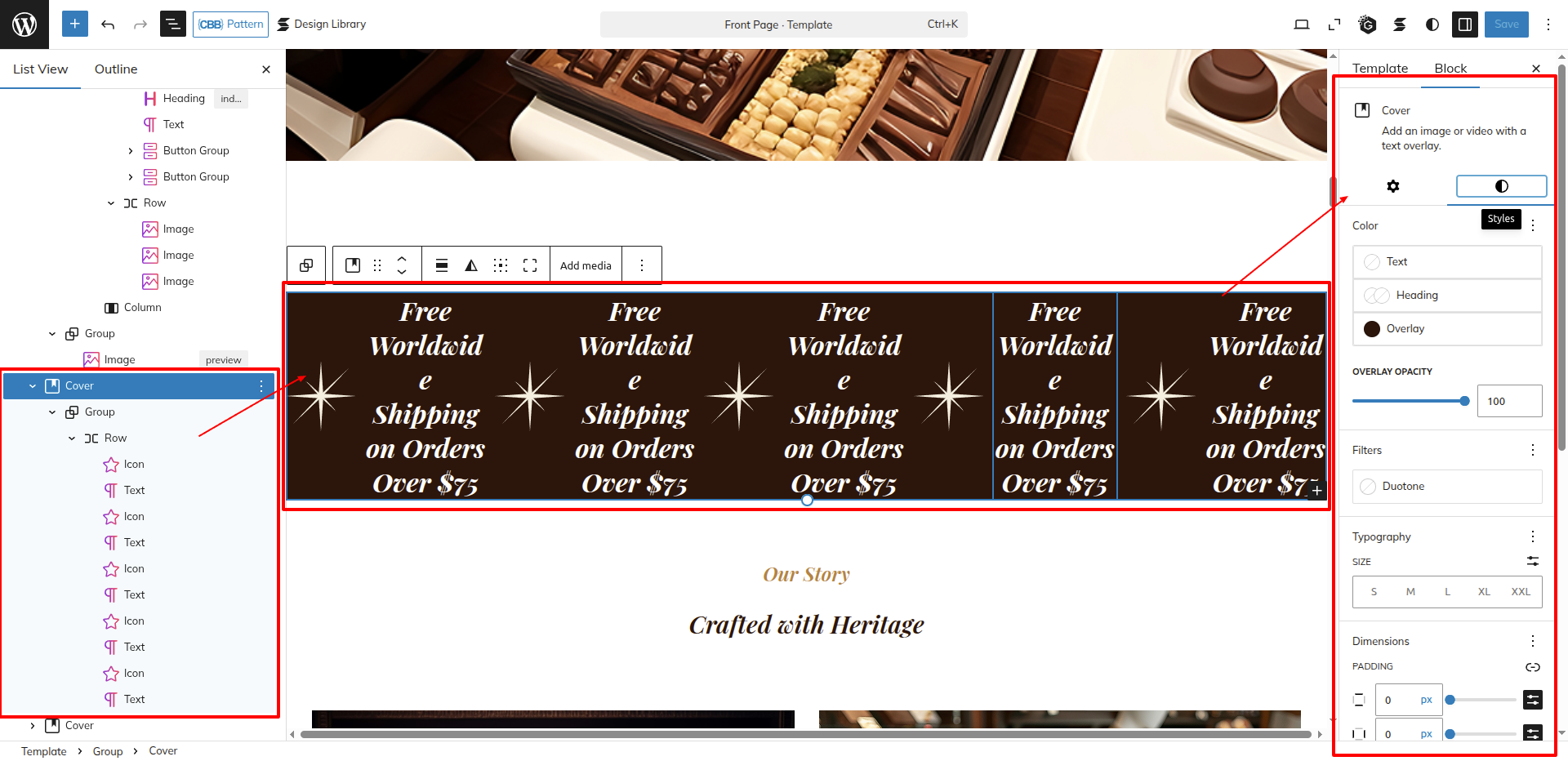
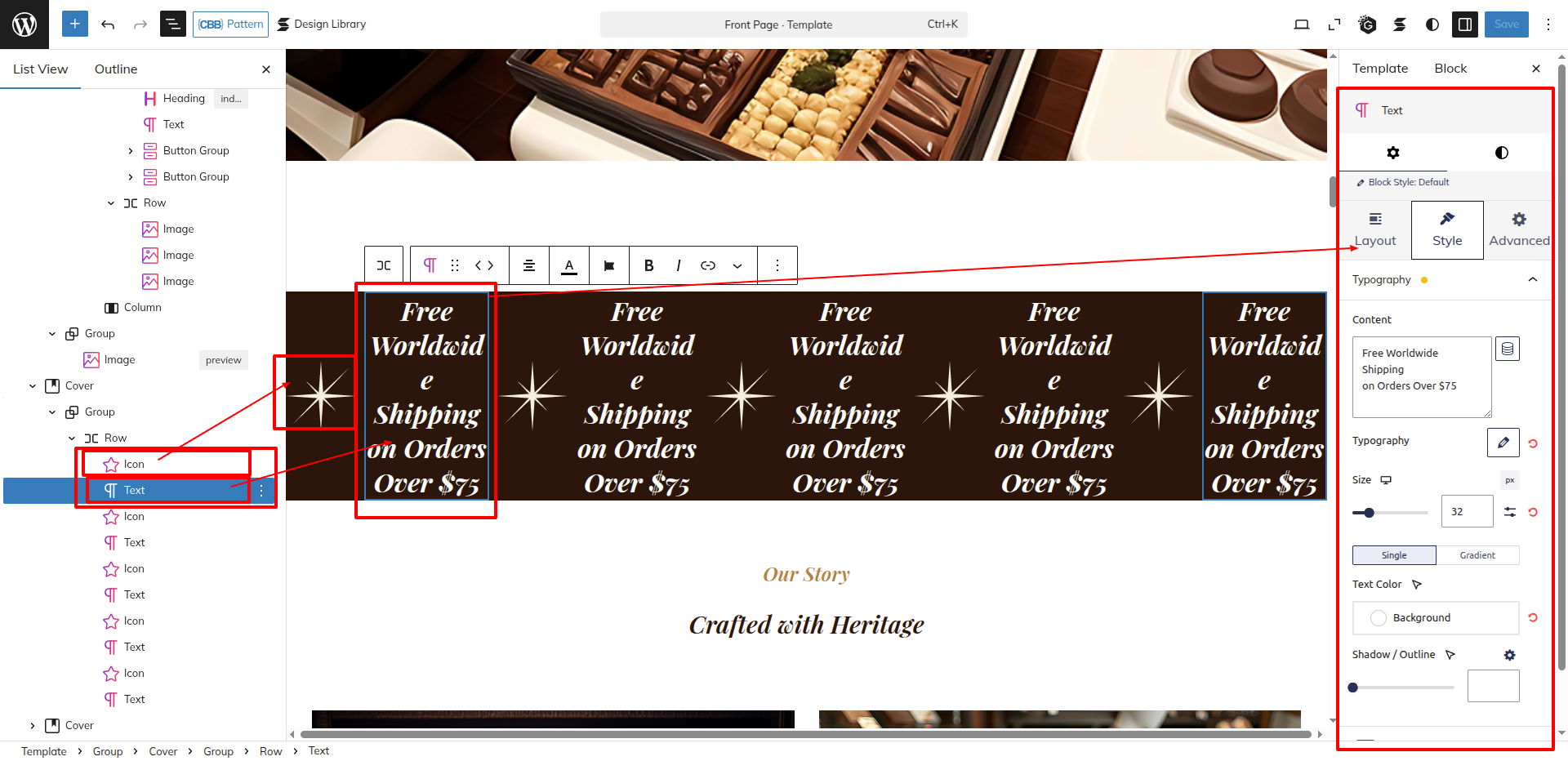
Set up the Banner Section according to the instructions below.
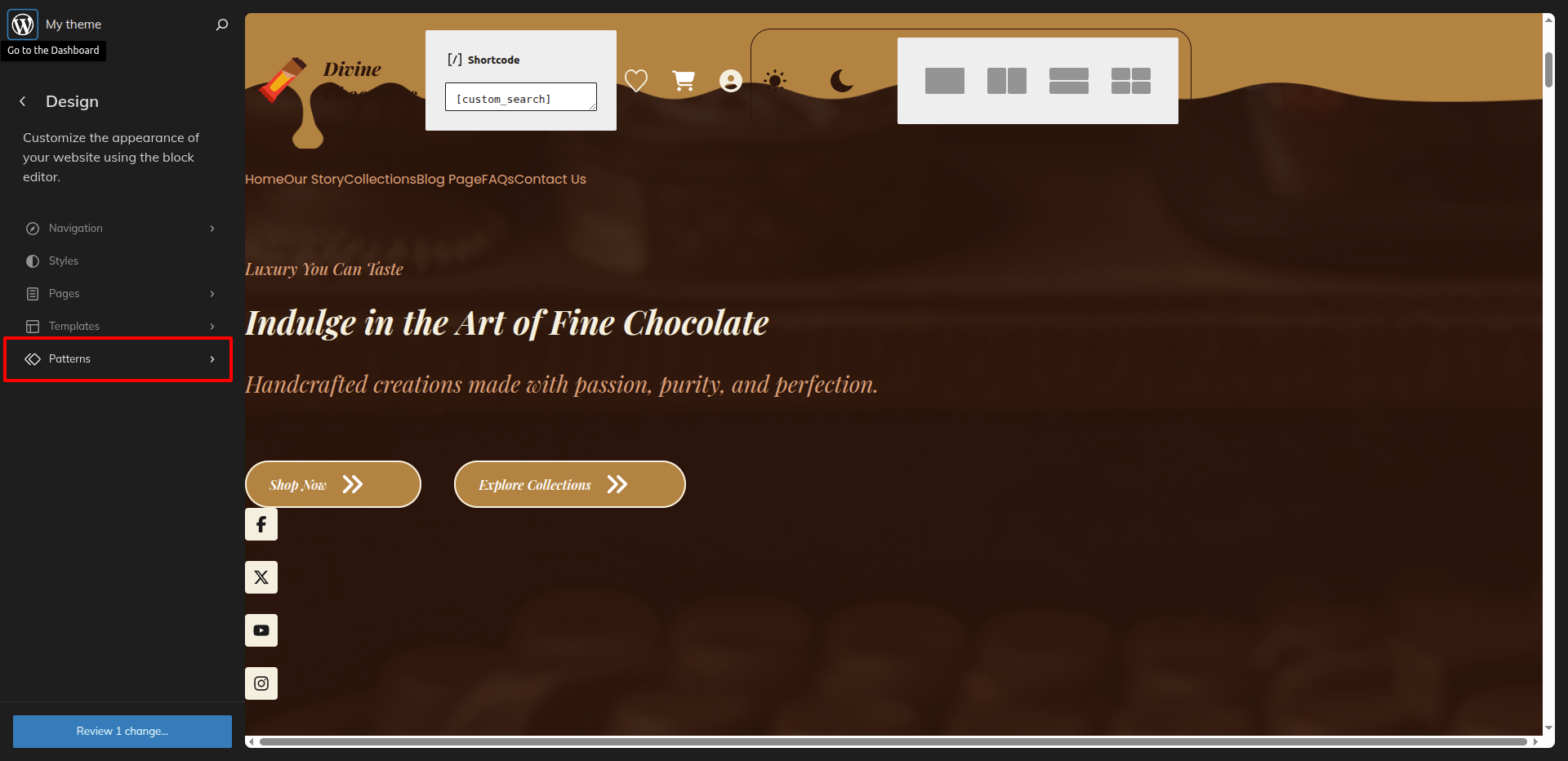
Go to the Dashboard Appearance Editor.
This is how you may set up and add the Slider Section.
Out Story Section
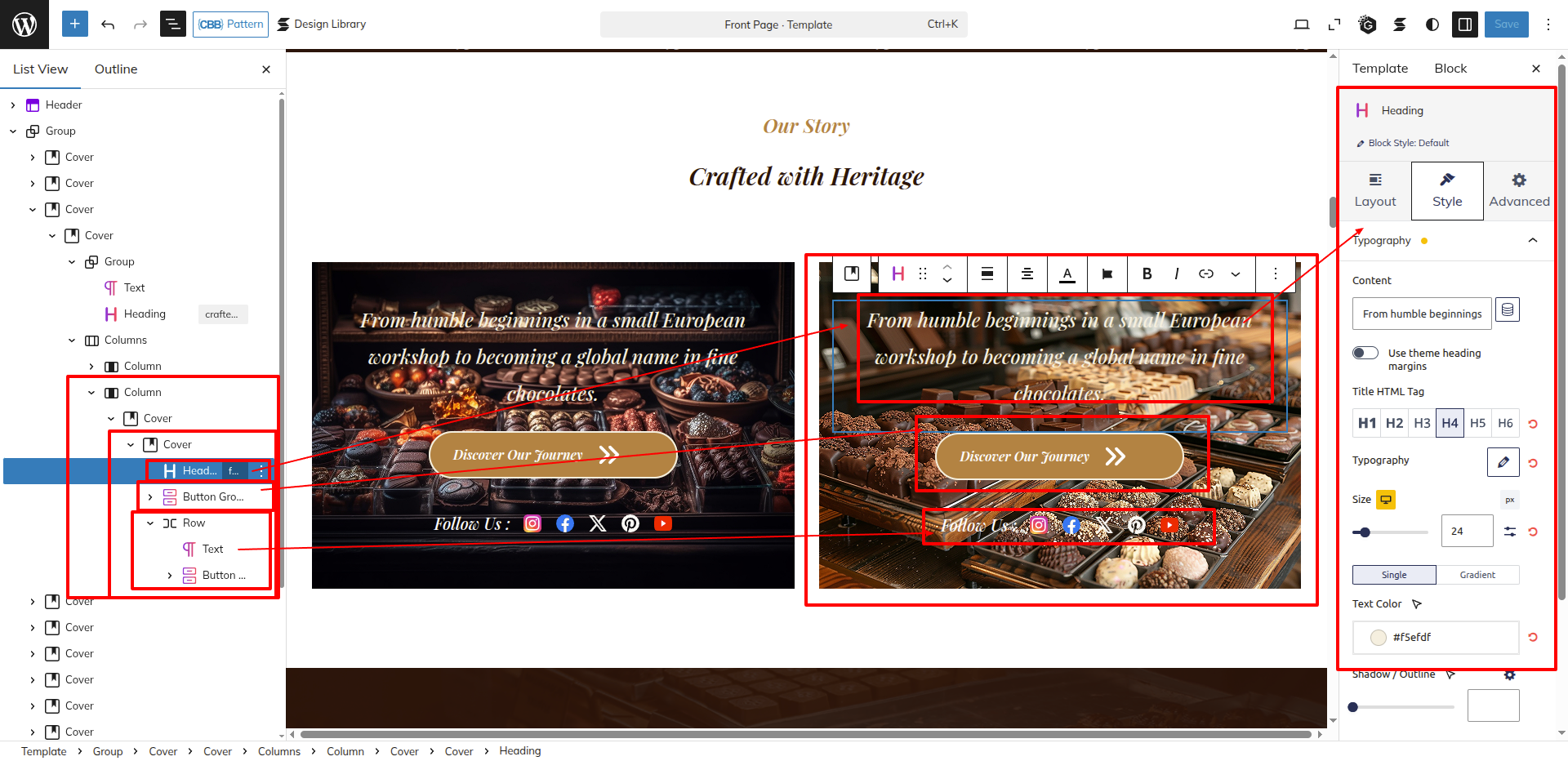
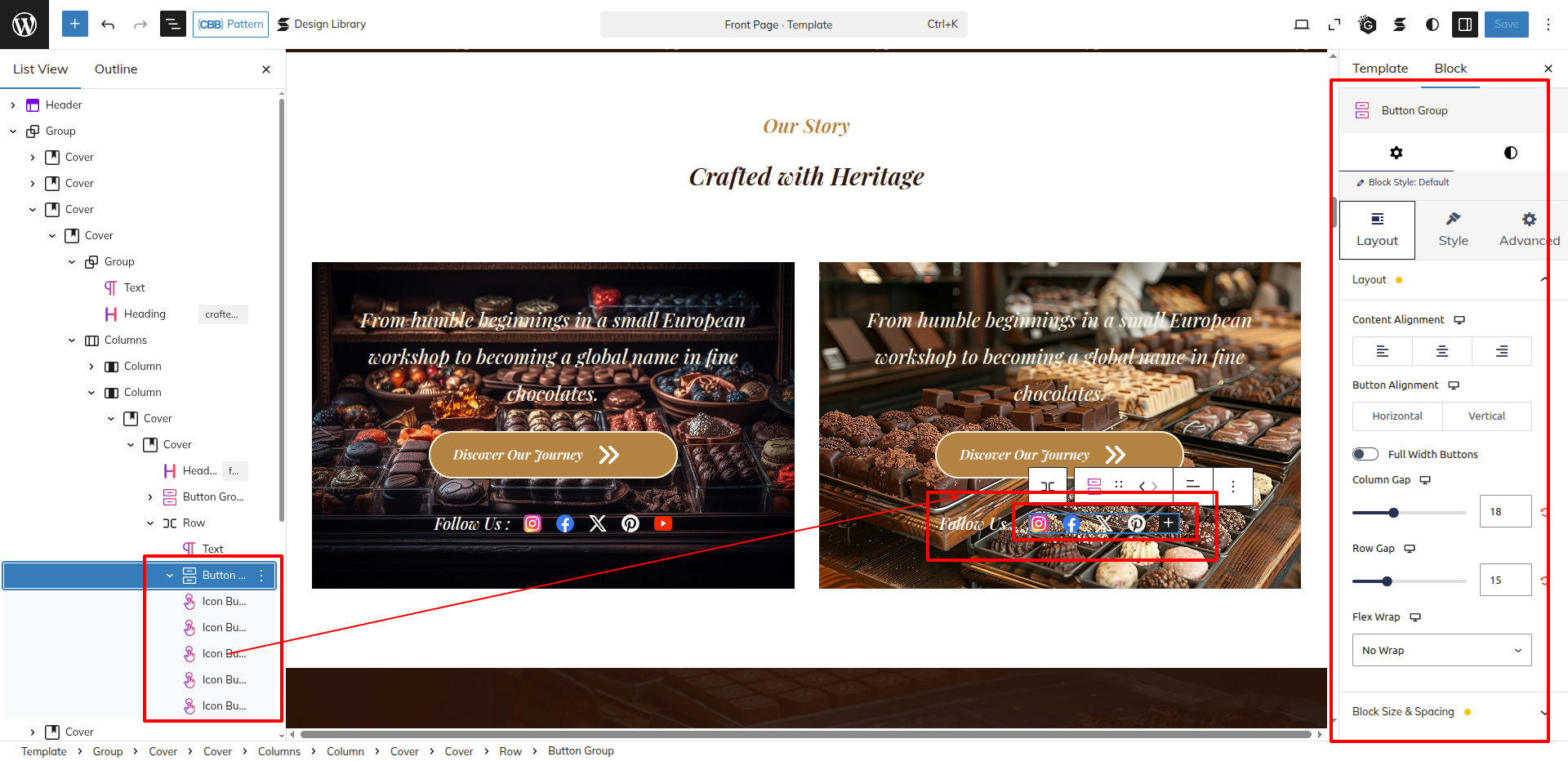
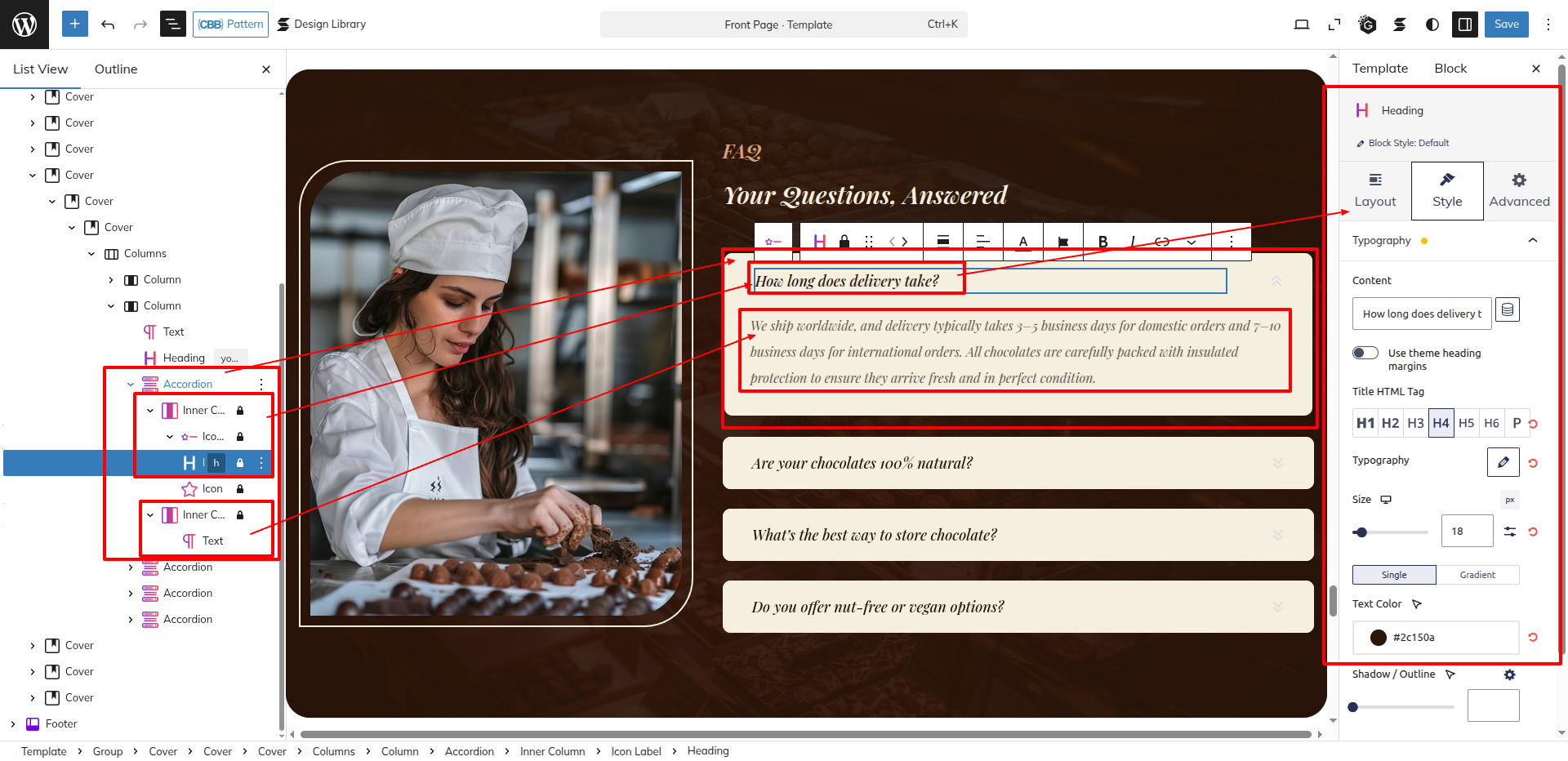
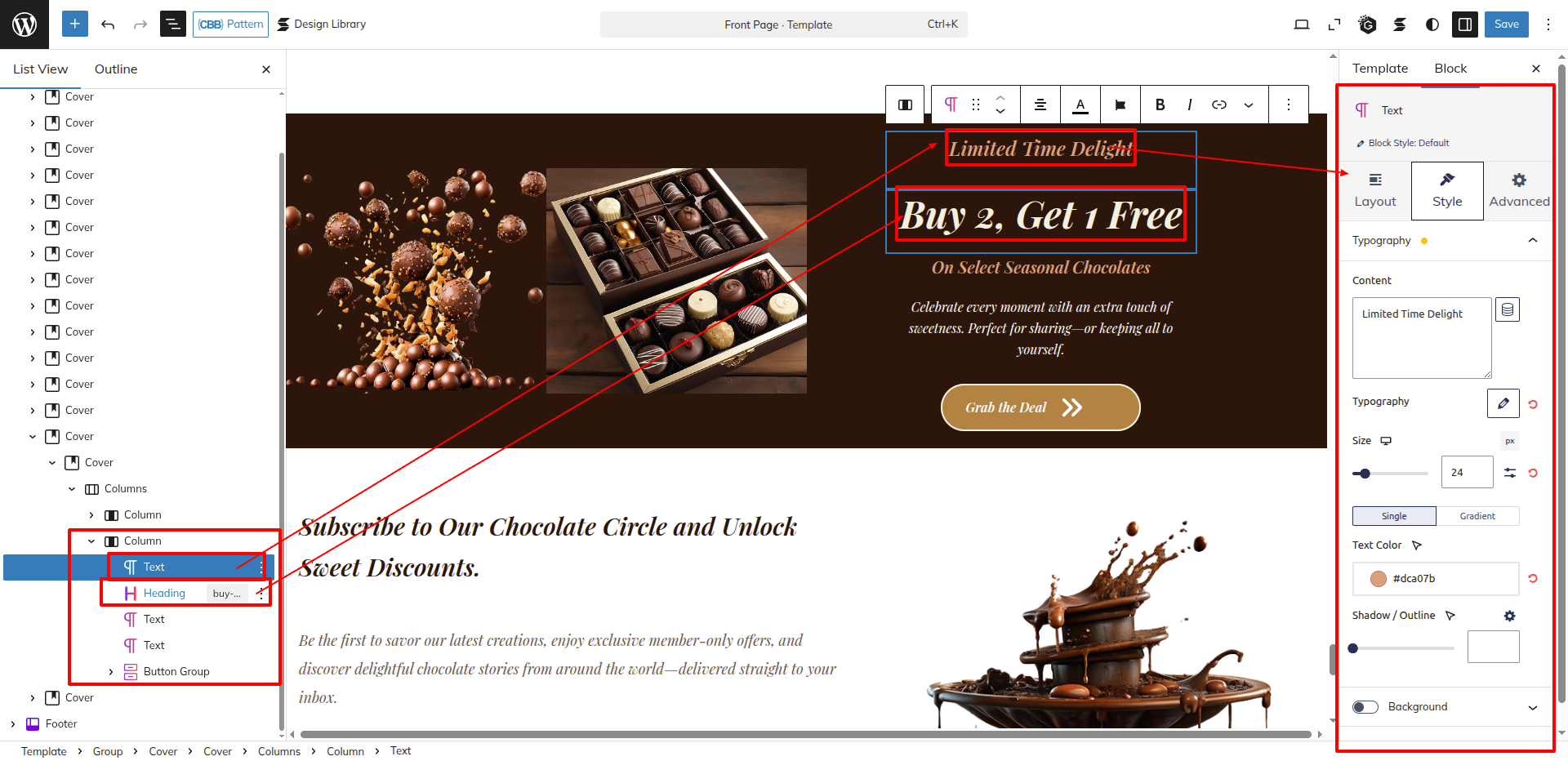
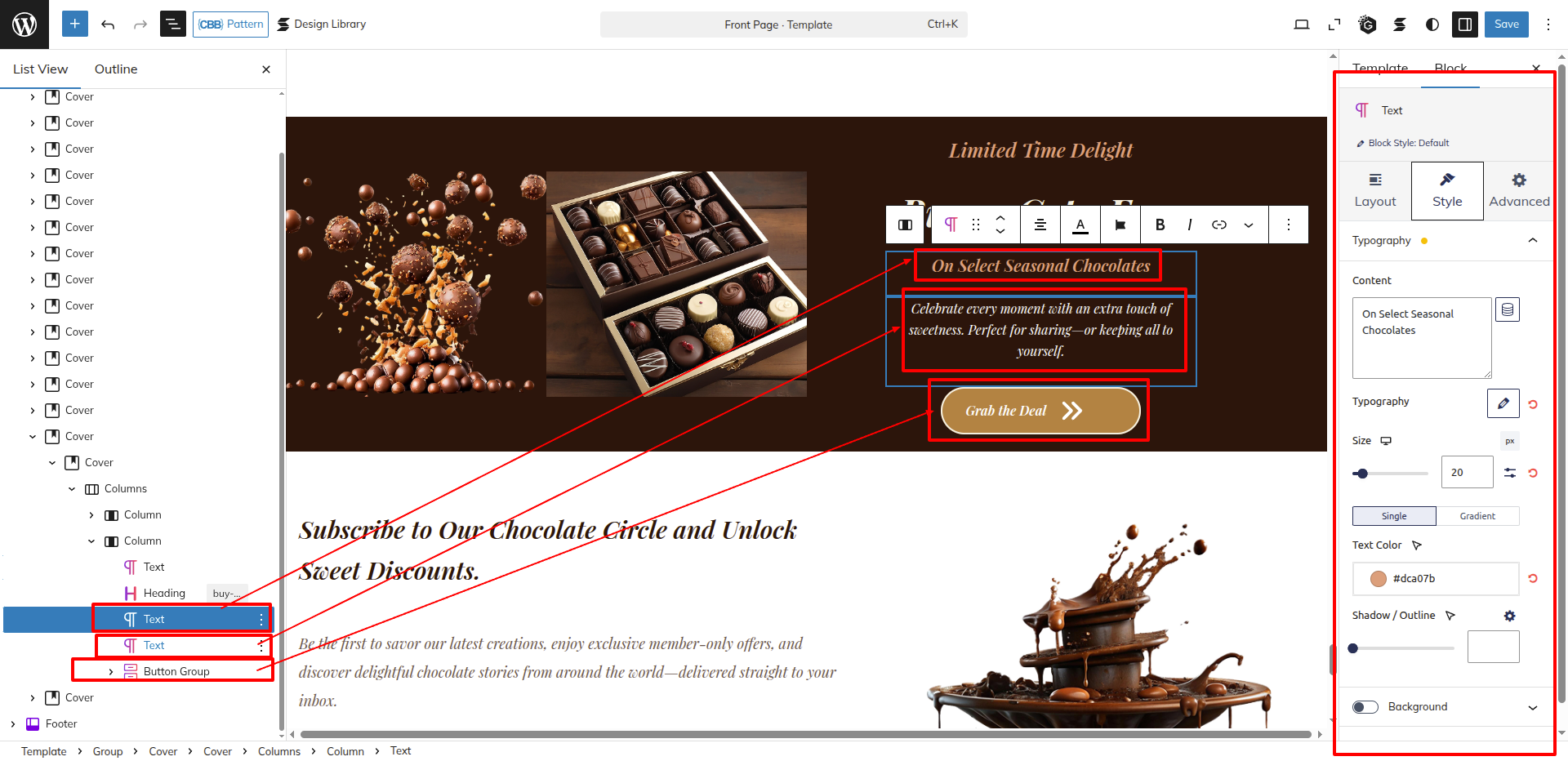
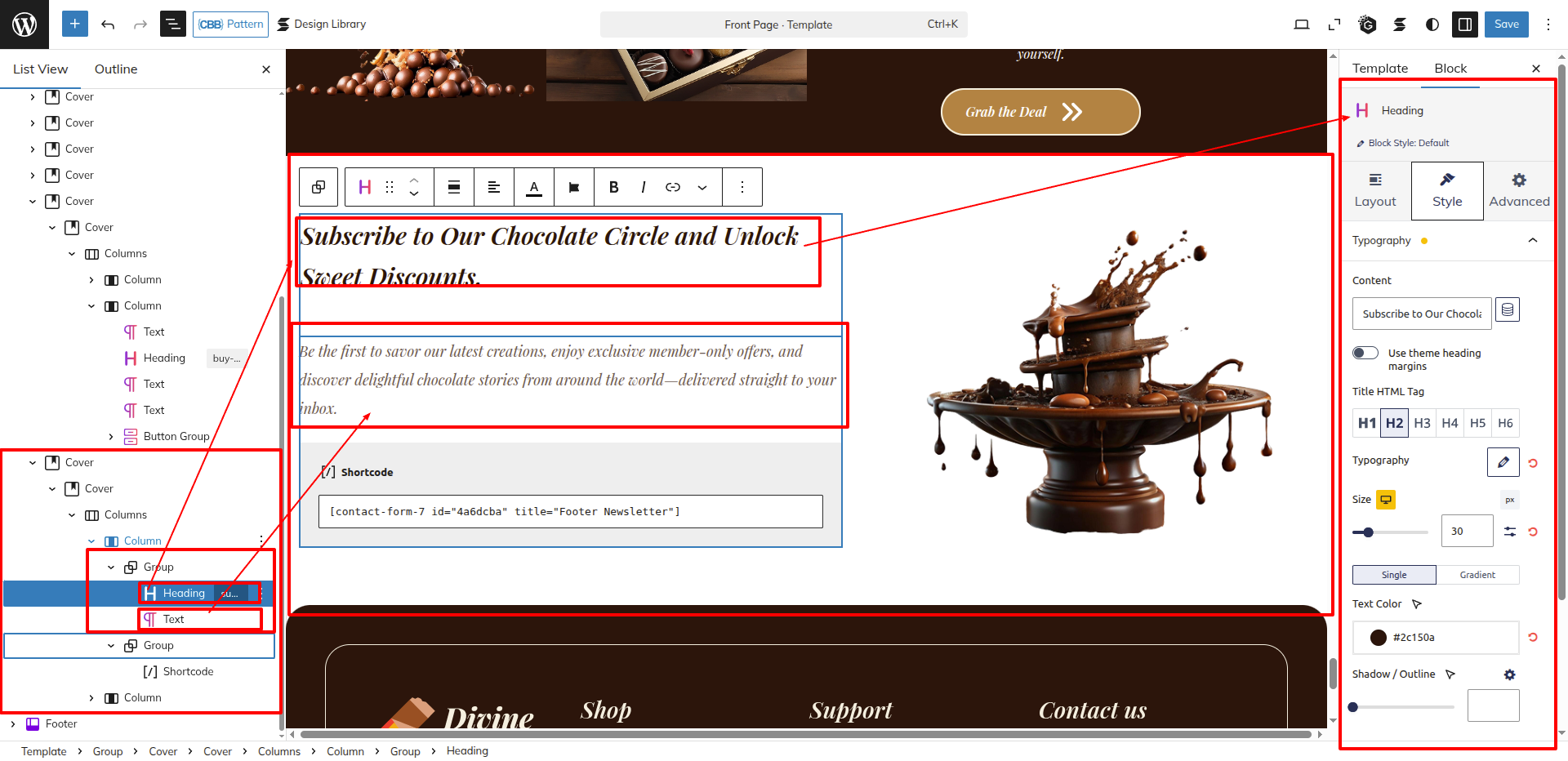
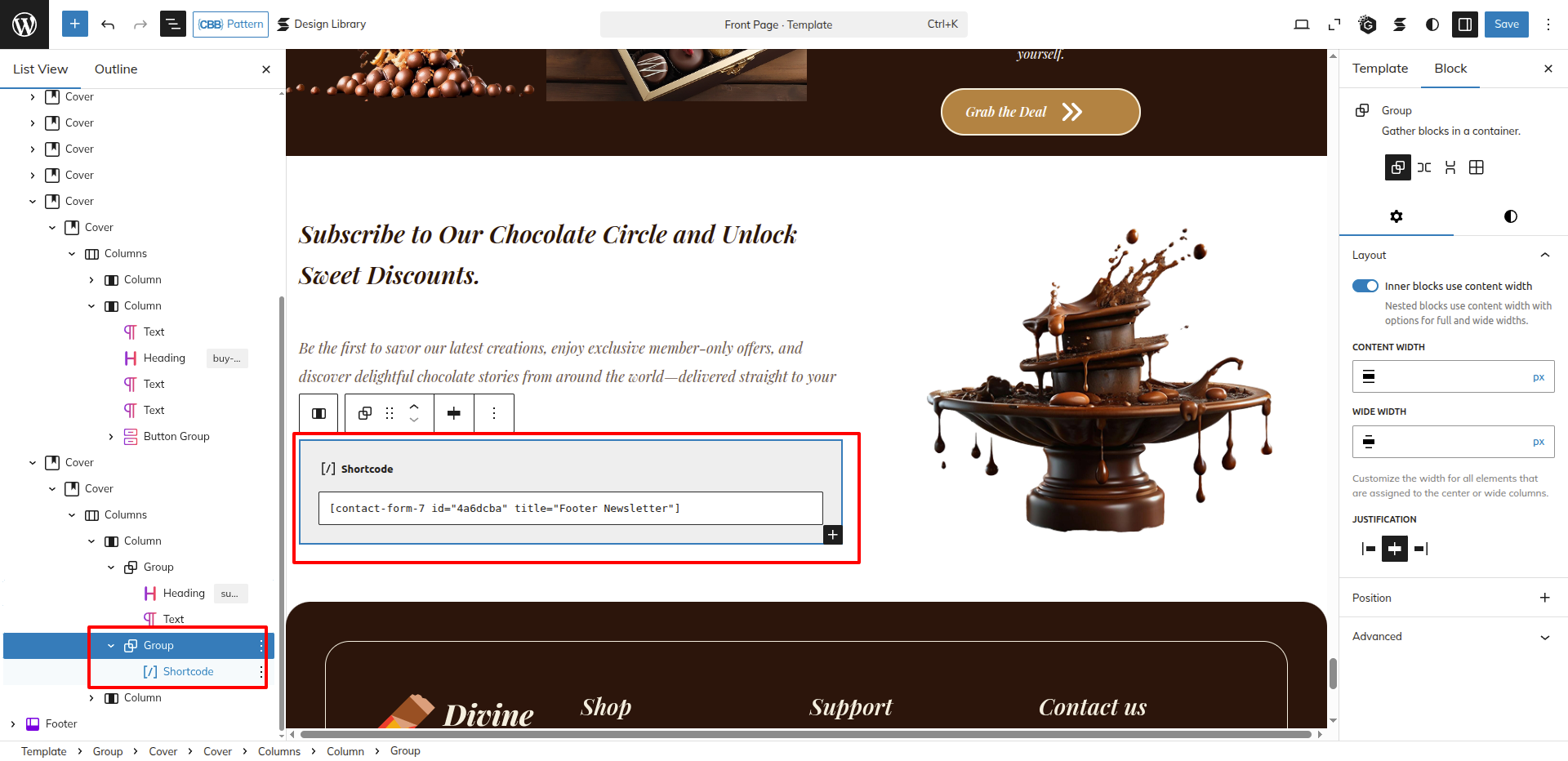
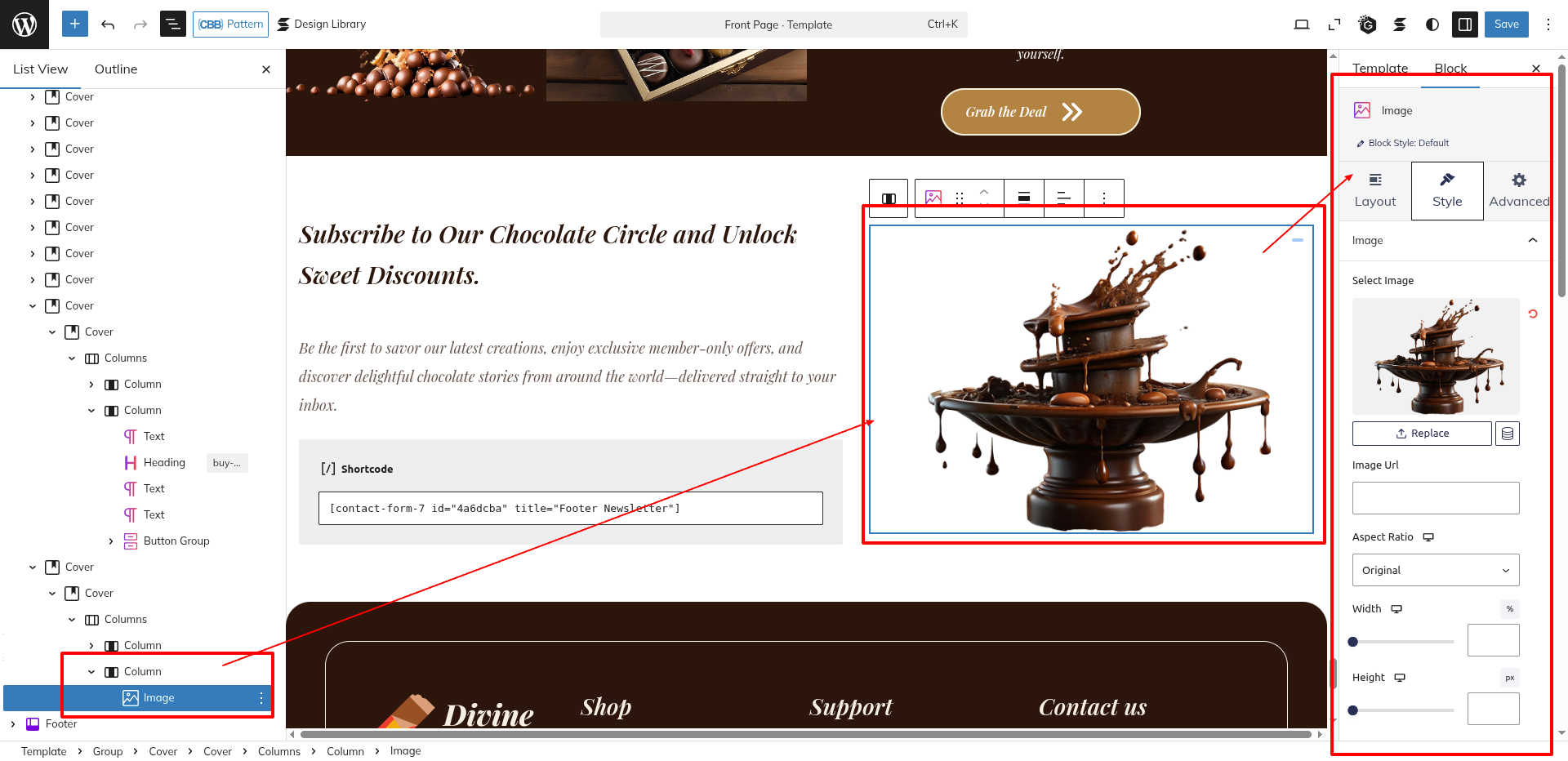
As seen in the screenshot, Enter the Title, Description, Image, the Shortcode and the Button.
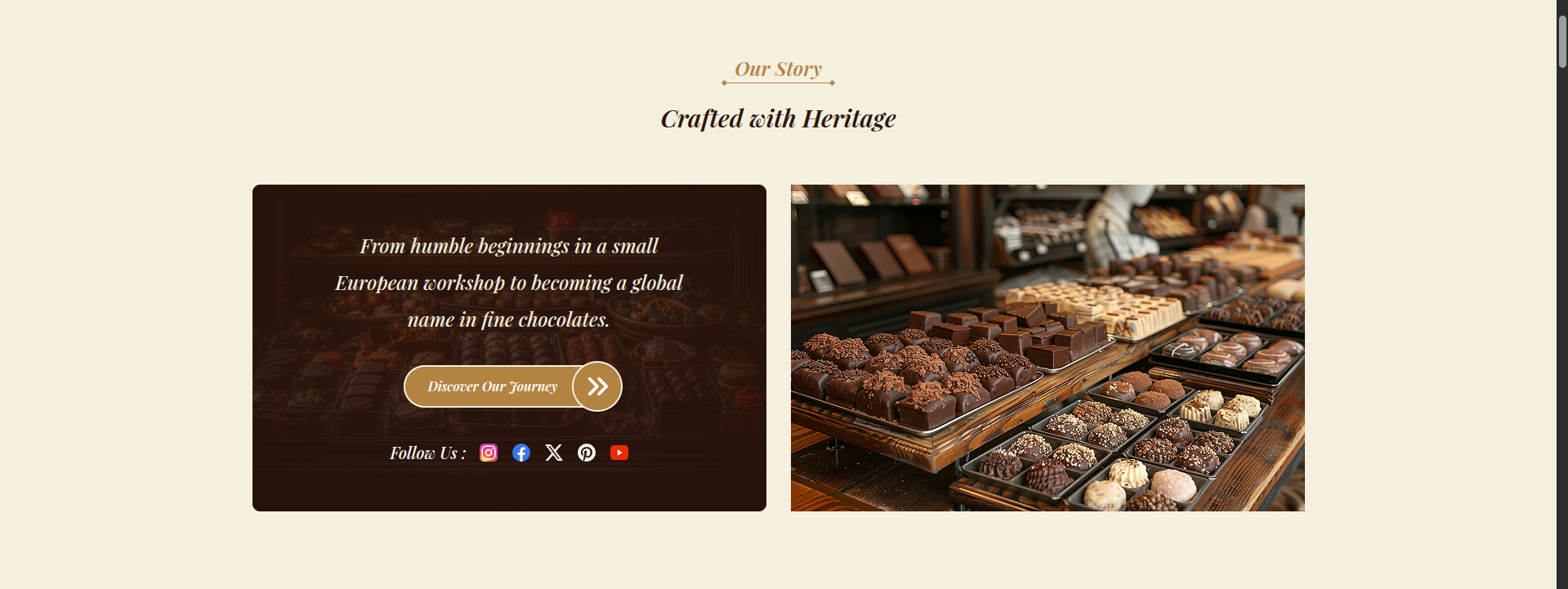
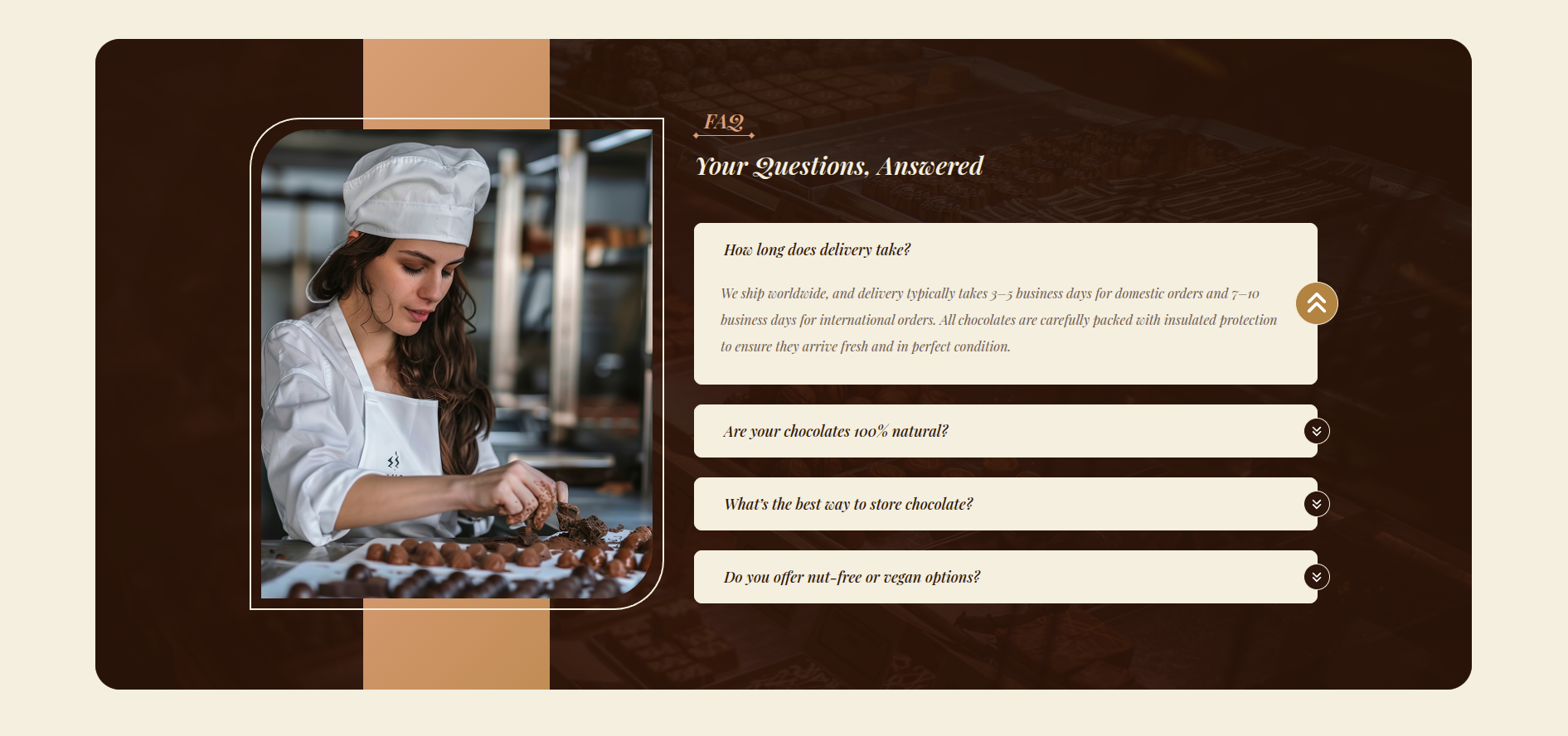
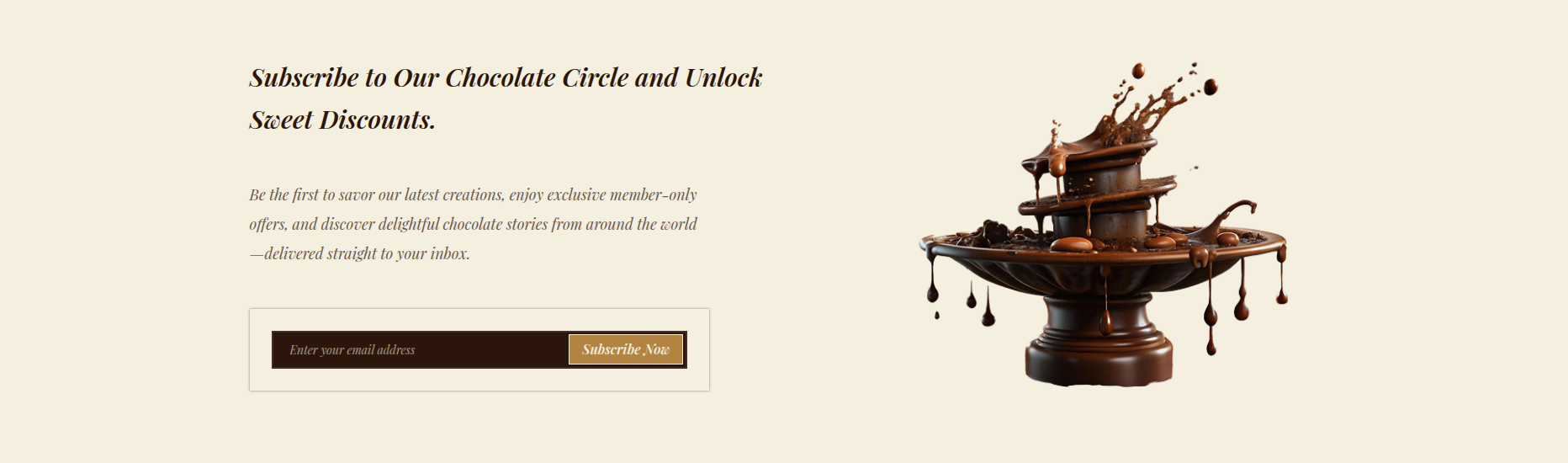
Then the Our Story Section would Look like This
Product Categories Section
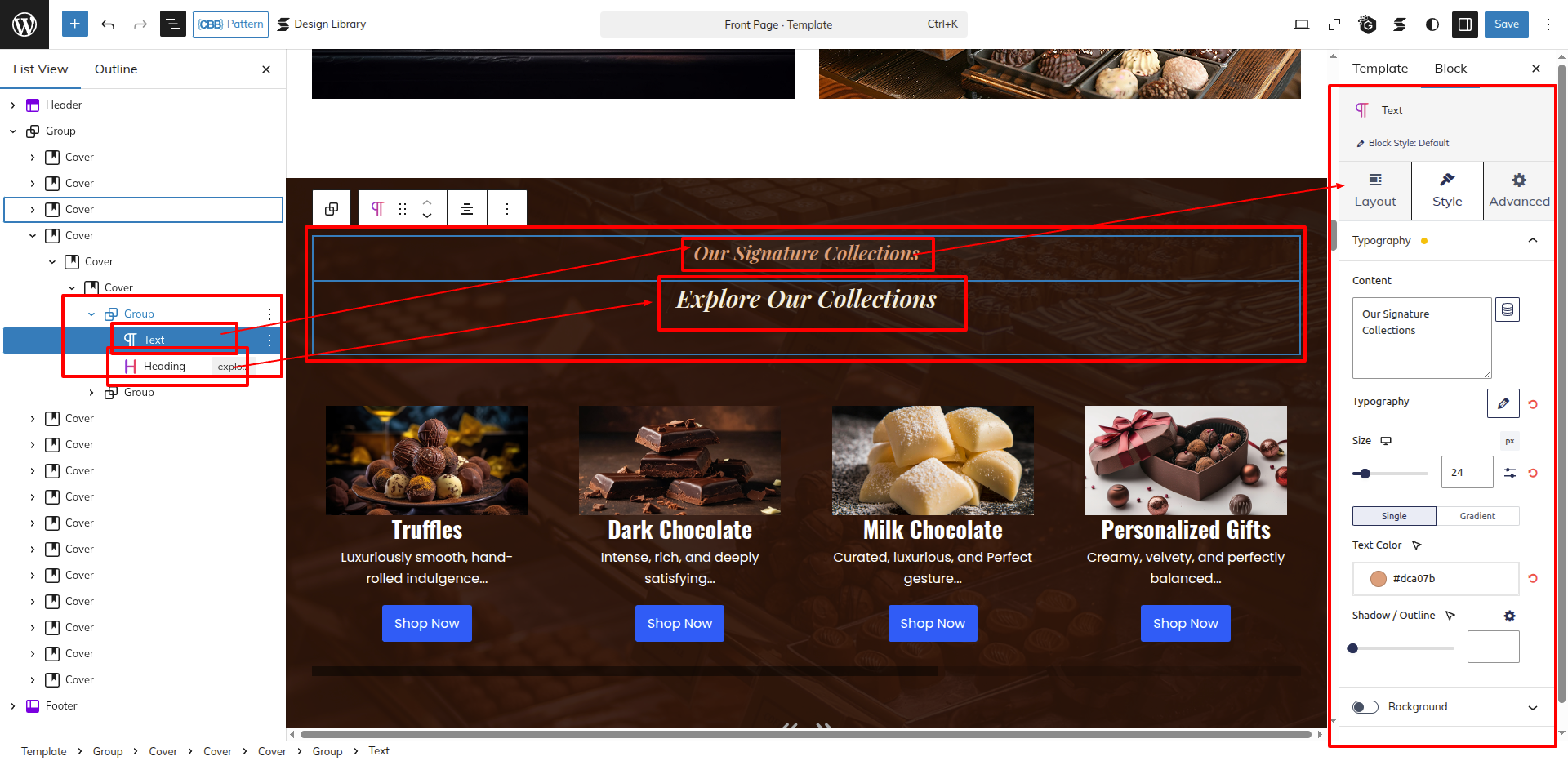
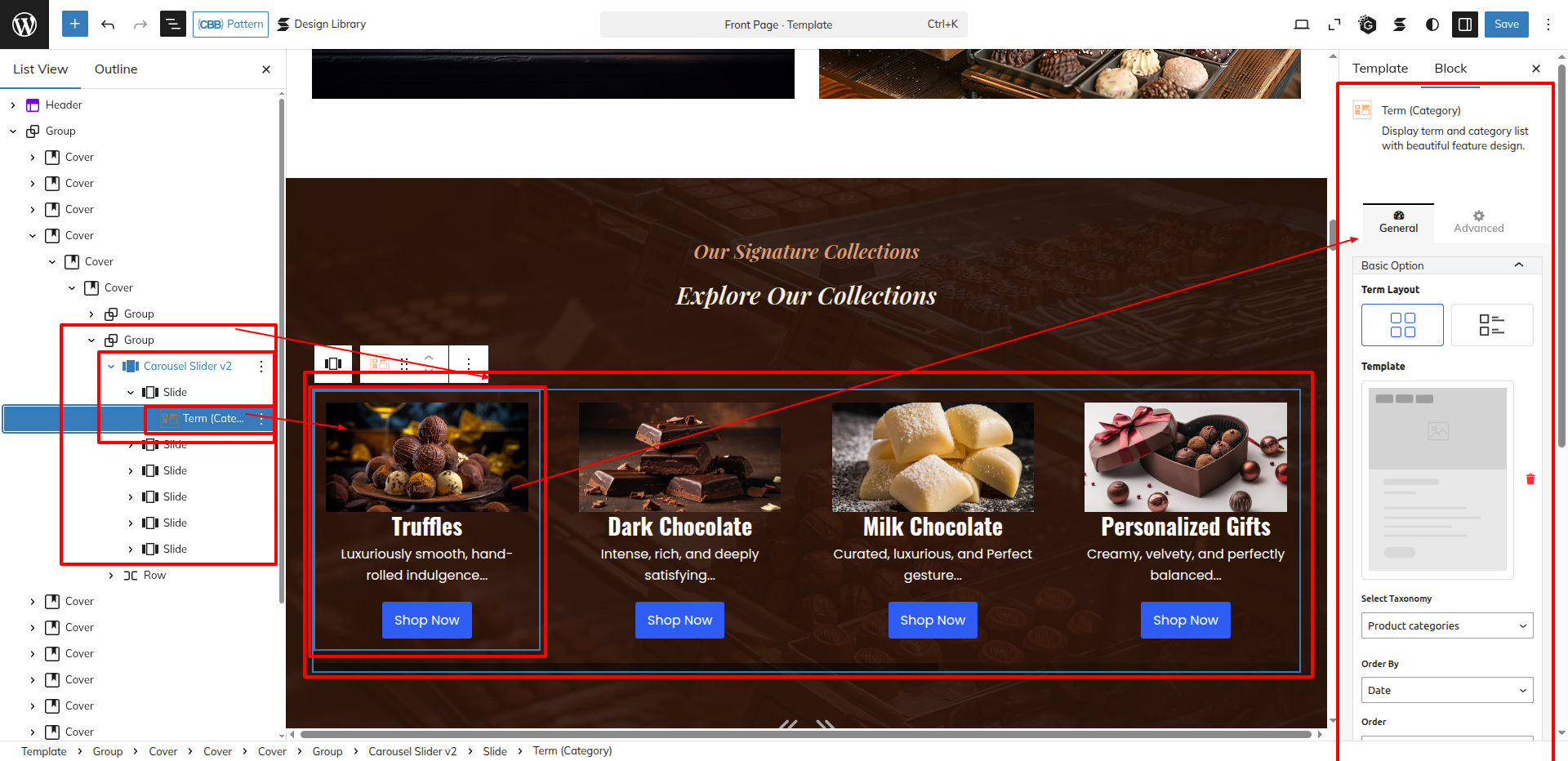
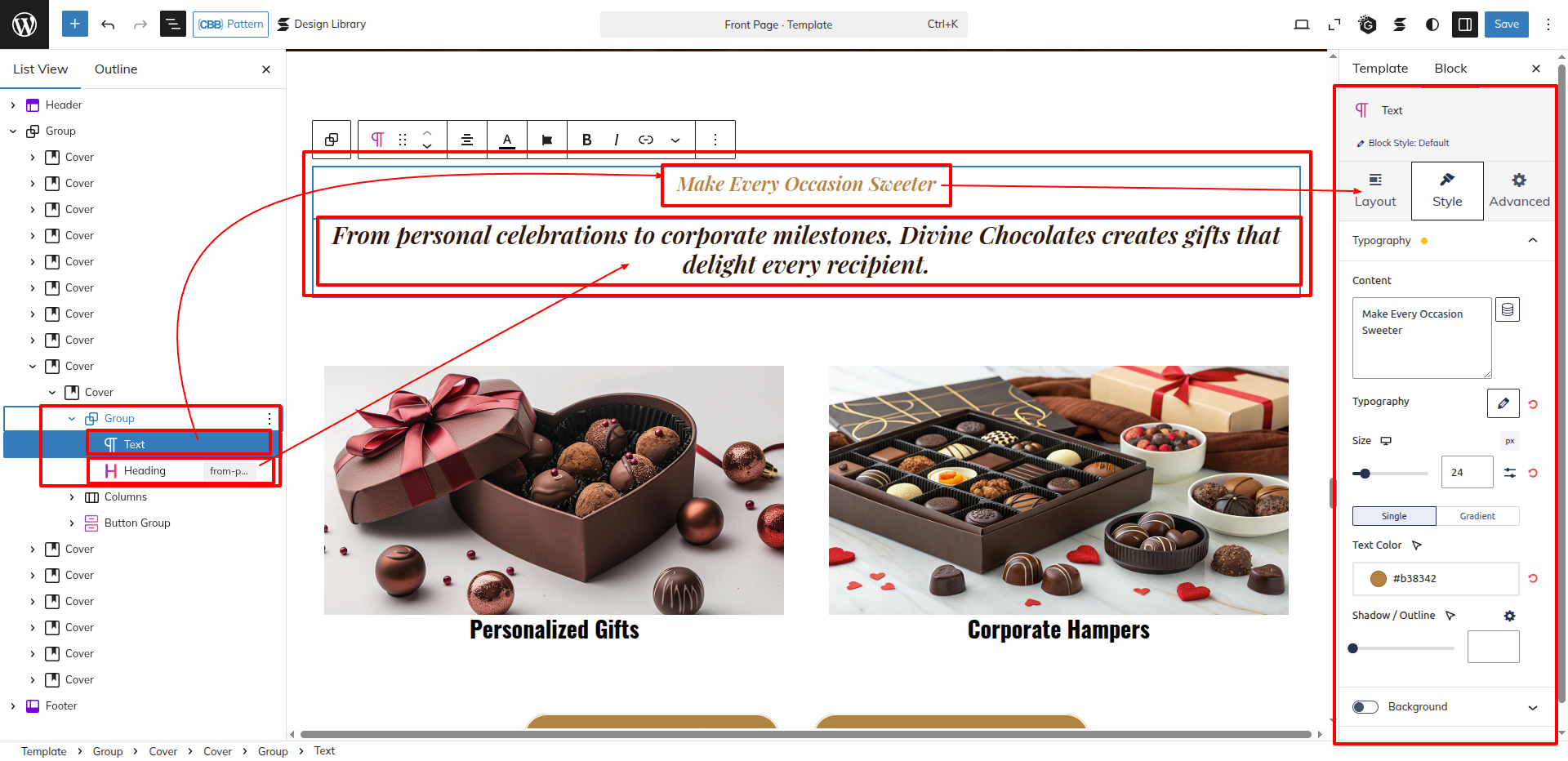
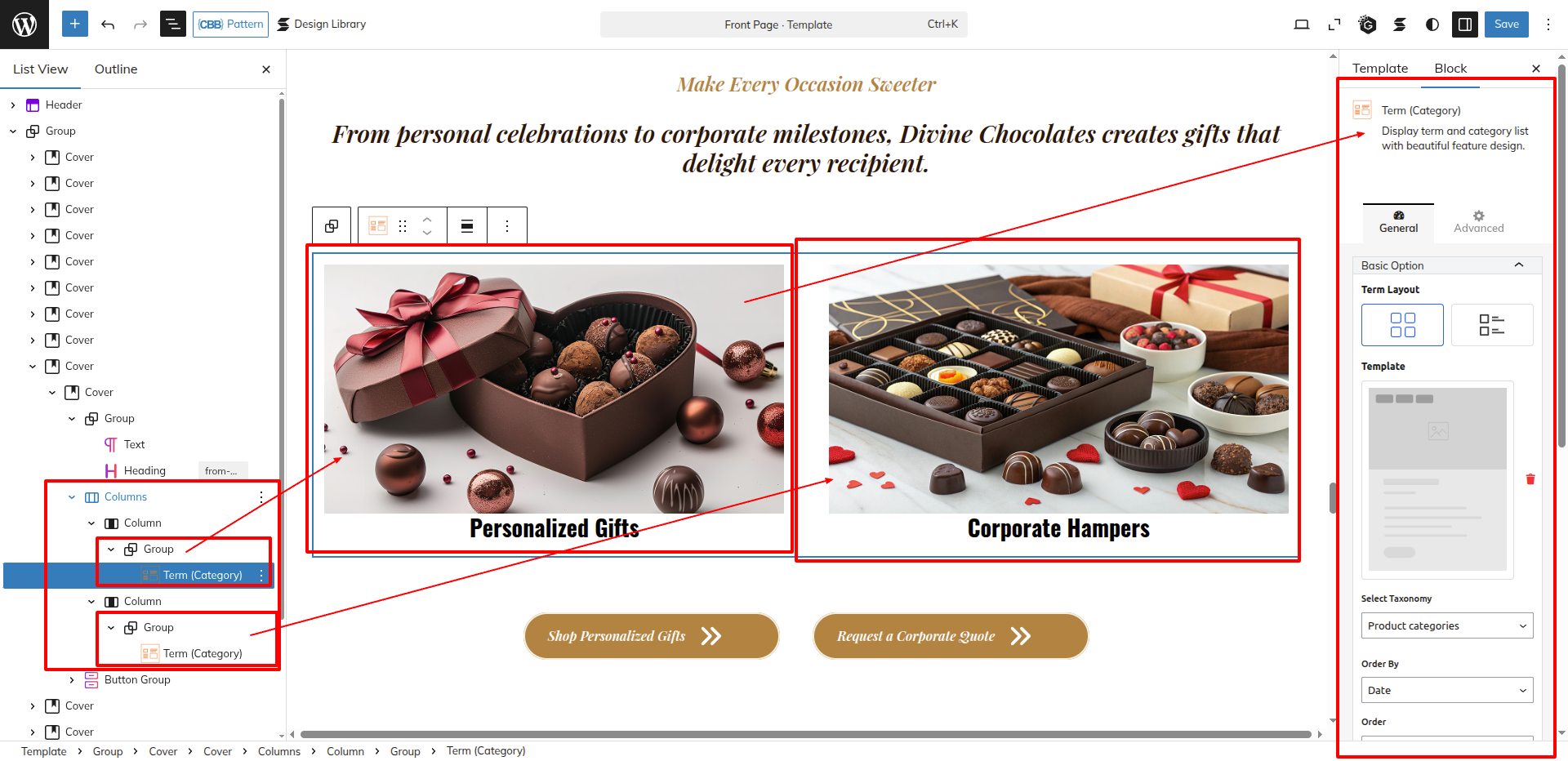
Set up the Product Categories Section according to the instructions below.
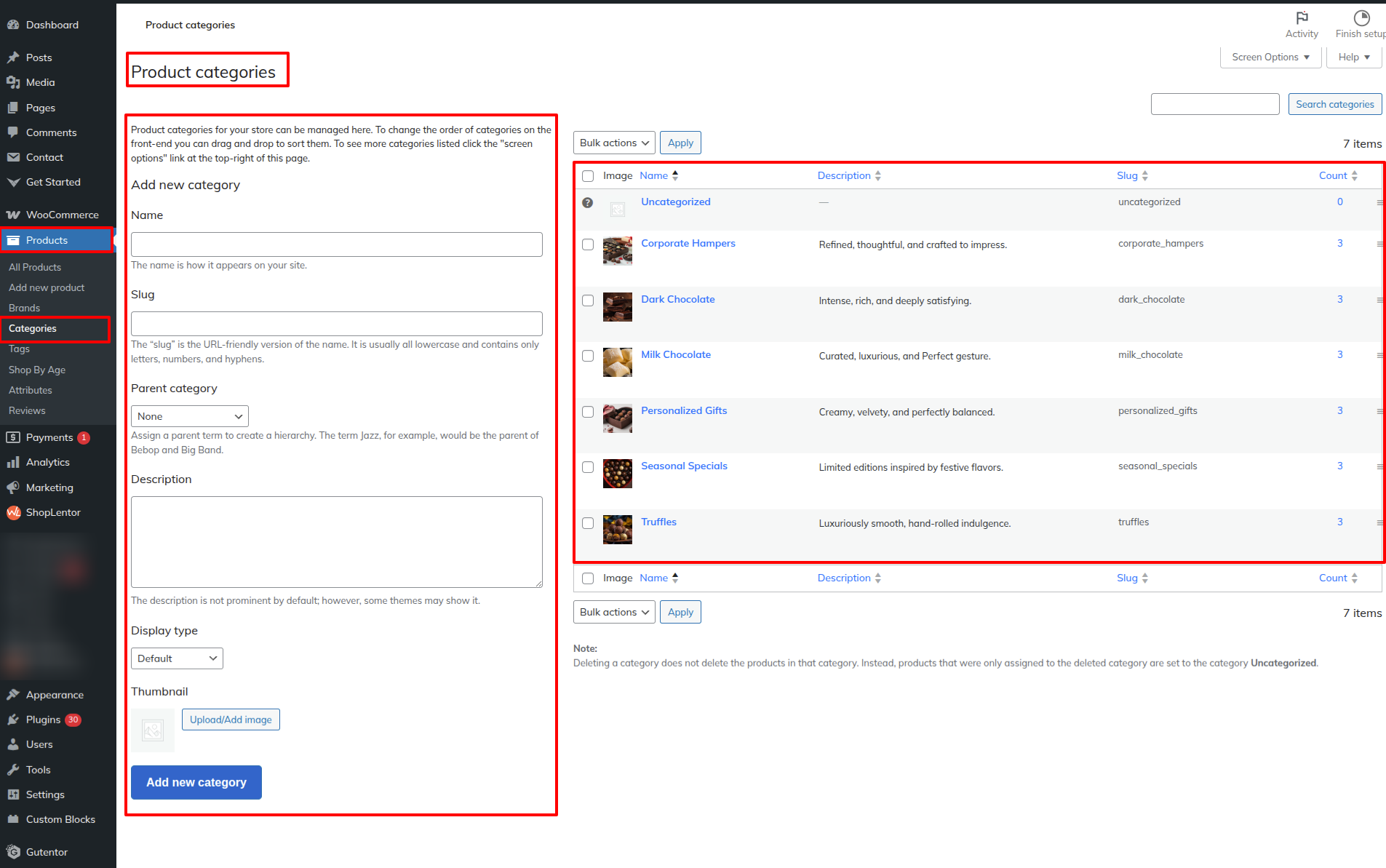
First, Install The Woocommerce plugin. This plugin is generally used to integrate all the ecommerce store functionalities and features with your wordpress site.
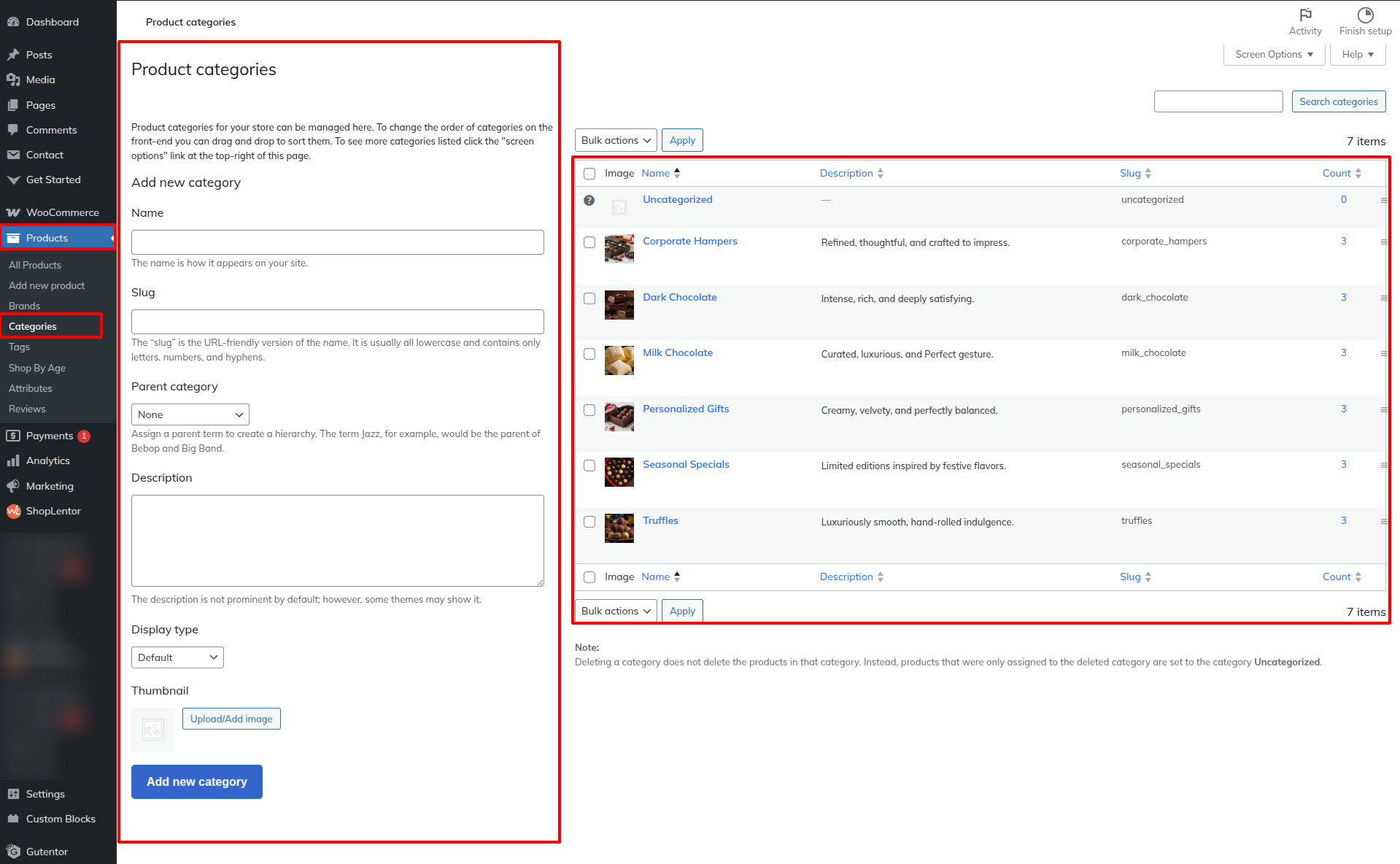
Dashboard Products Categories Add New
Now Add the products by Following the steps in the Best Seller Section given above, and assign the category to the products as per your Need.
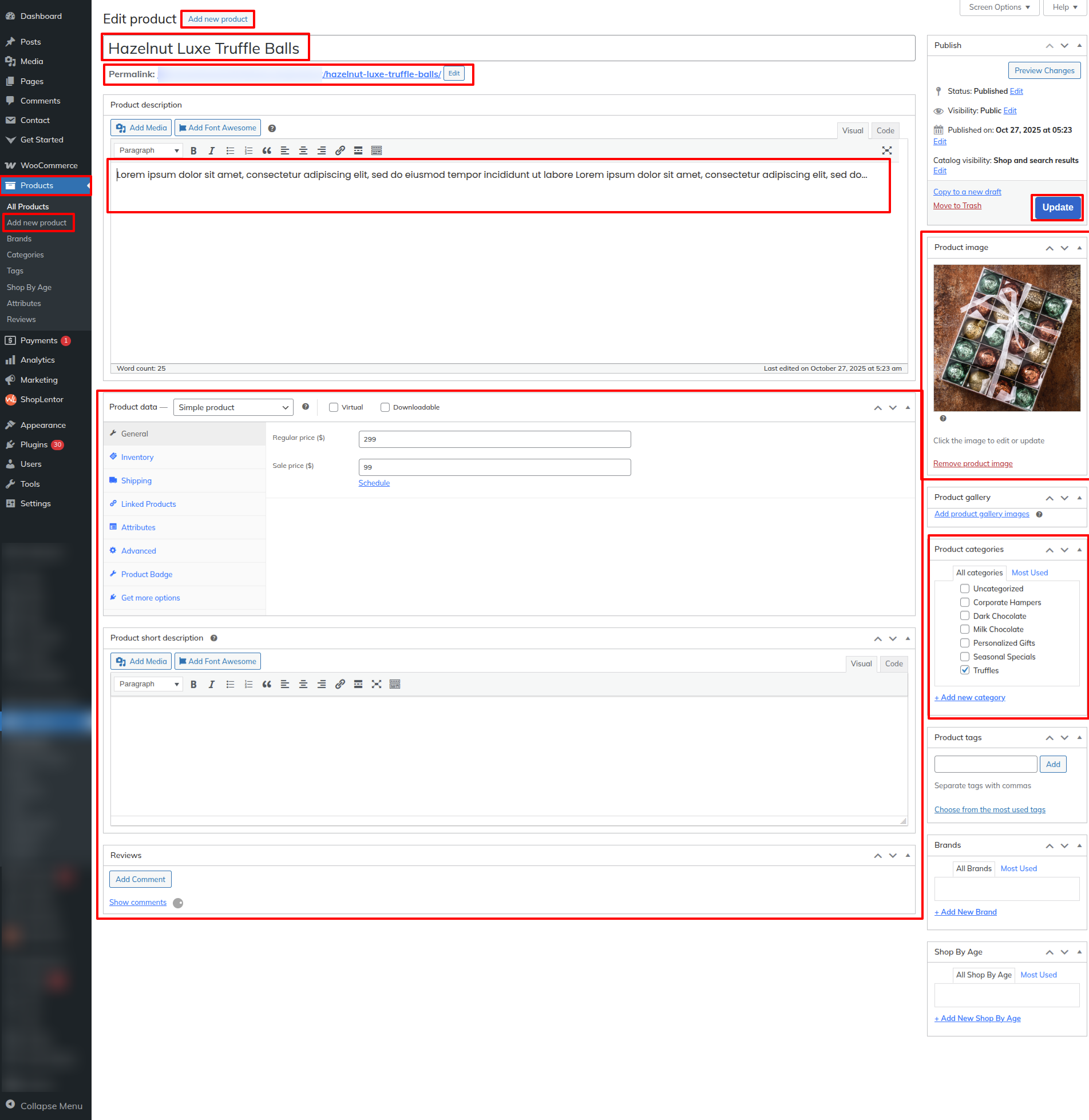
As seen in the screenshot, enter the title, Description, Image, the Shortcode and the Button.
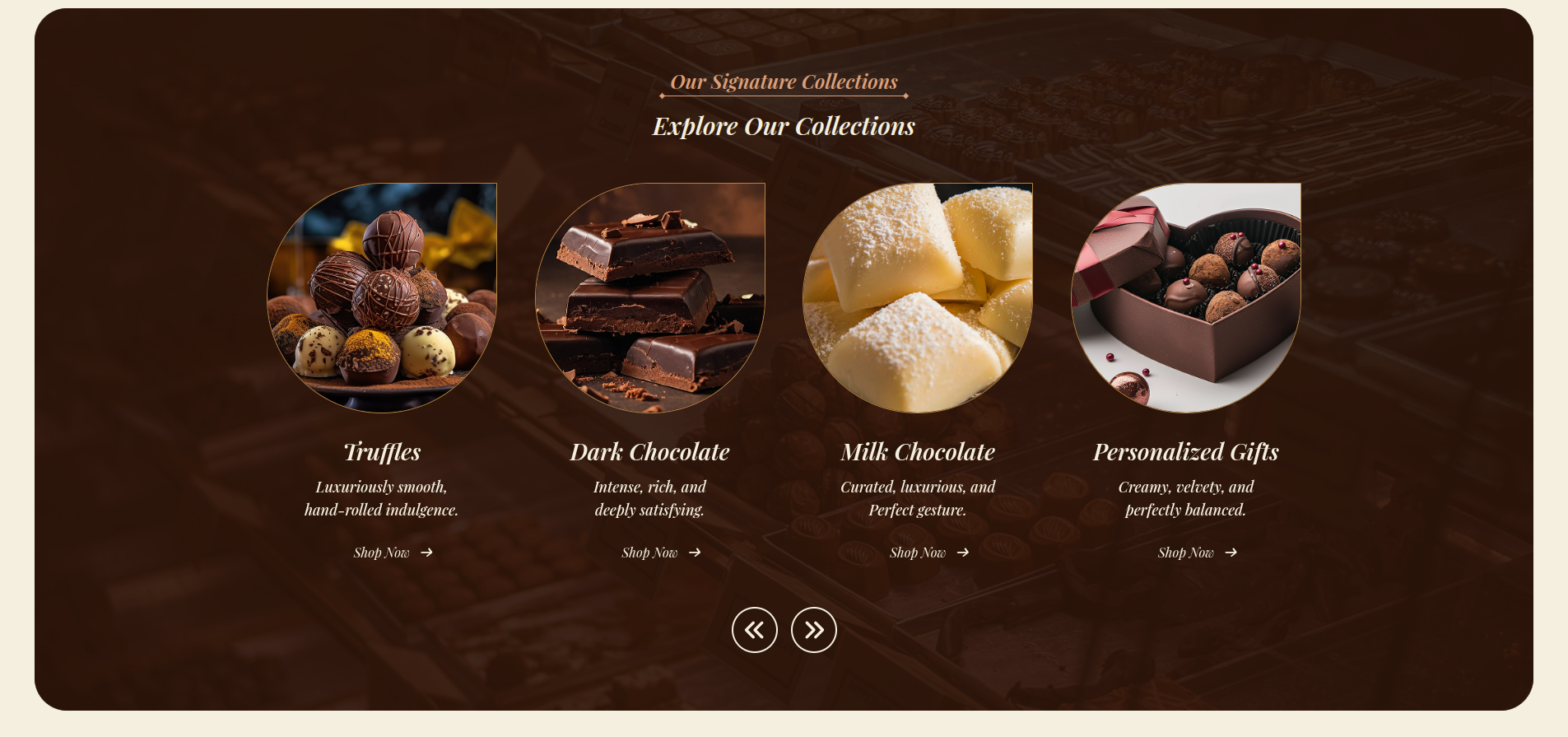
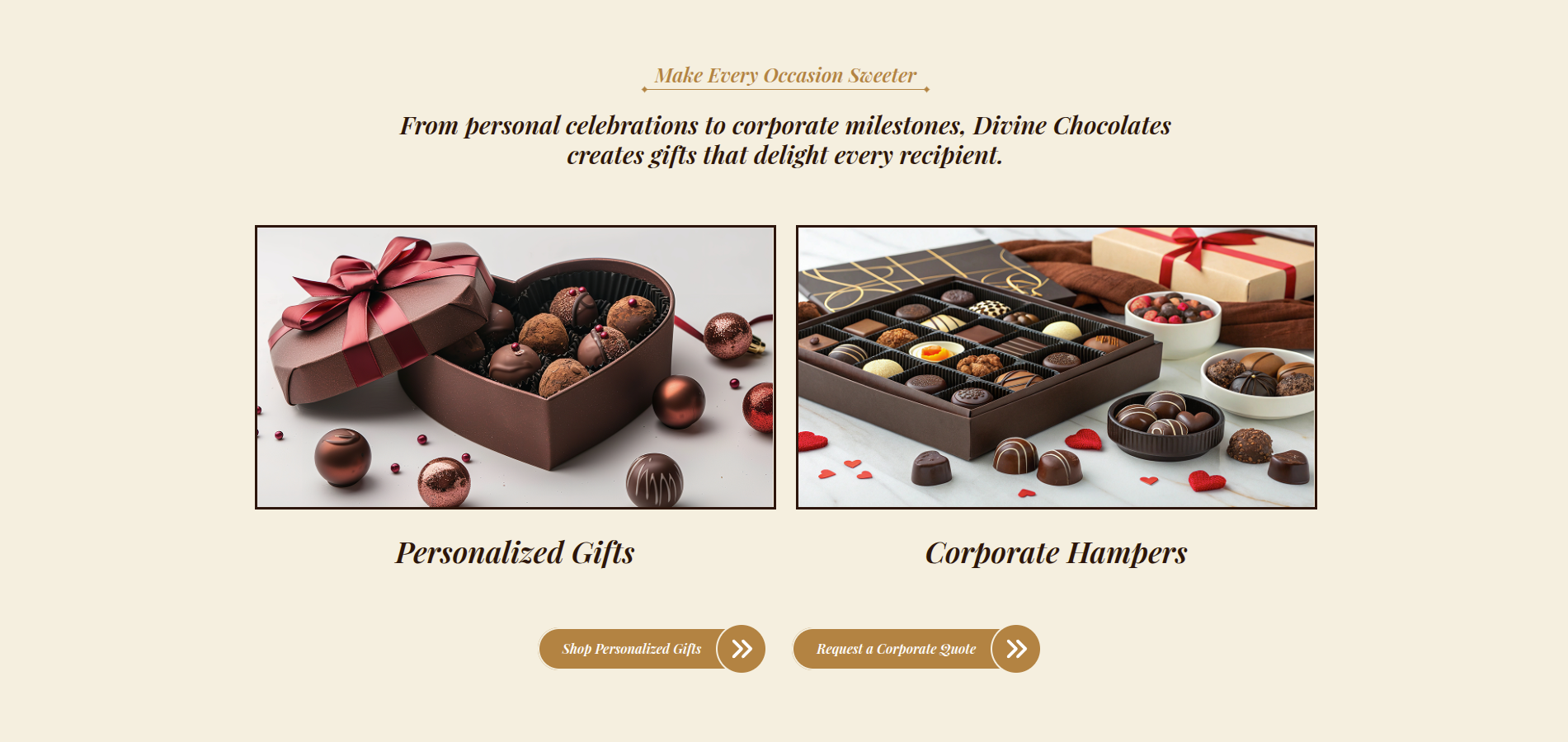
Then the Product Categories Section would Look like This
Setup Most Loved Products Section
Set up the Most Loved Products Section according to the instructions below.
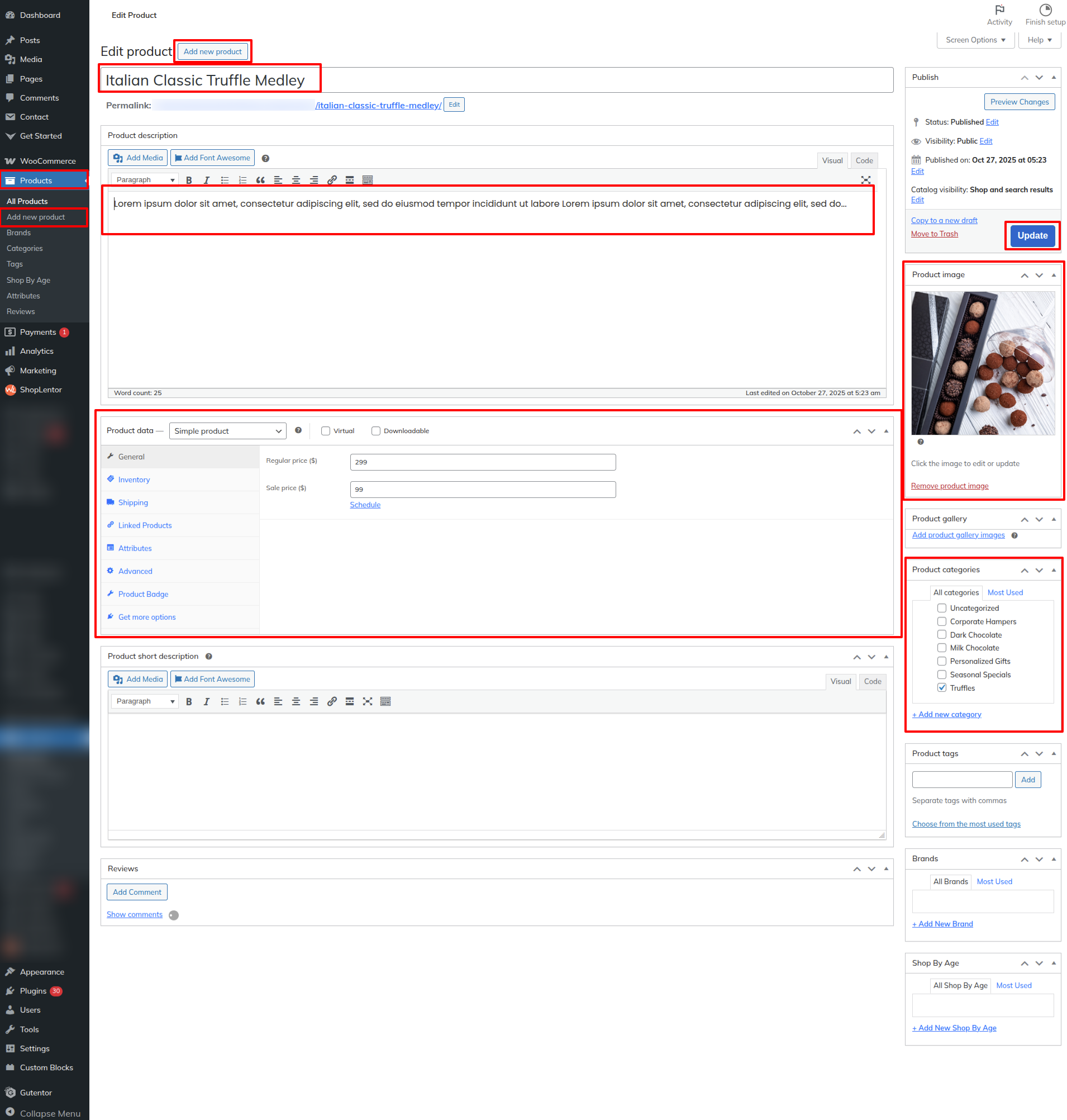
First, Install The Woocommerce plugin. This plugin is generally used to integrate all the ecommerce store functionalities and features with your wordpress site.
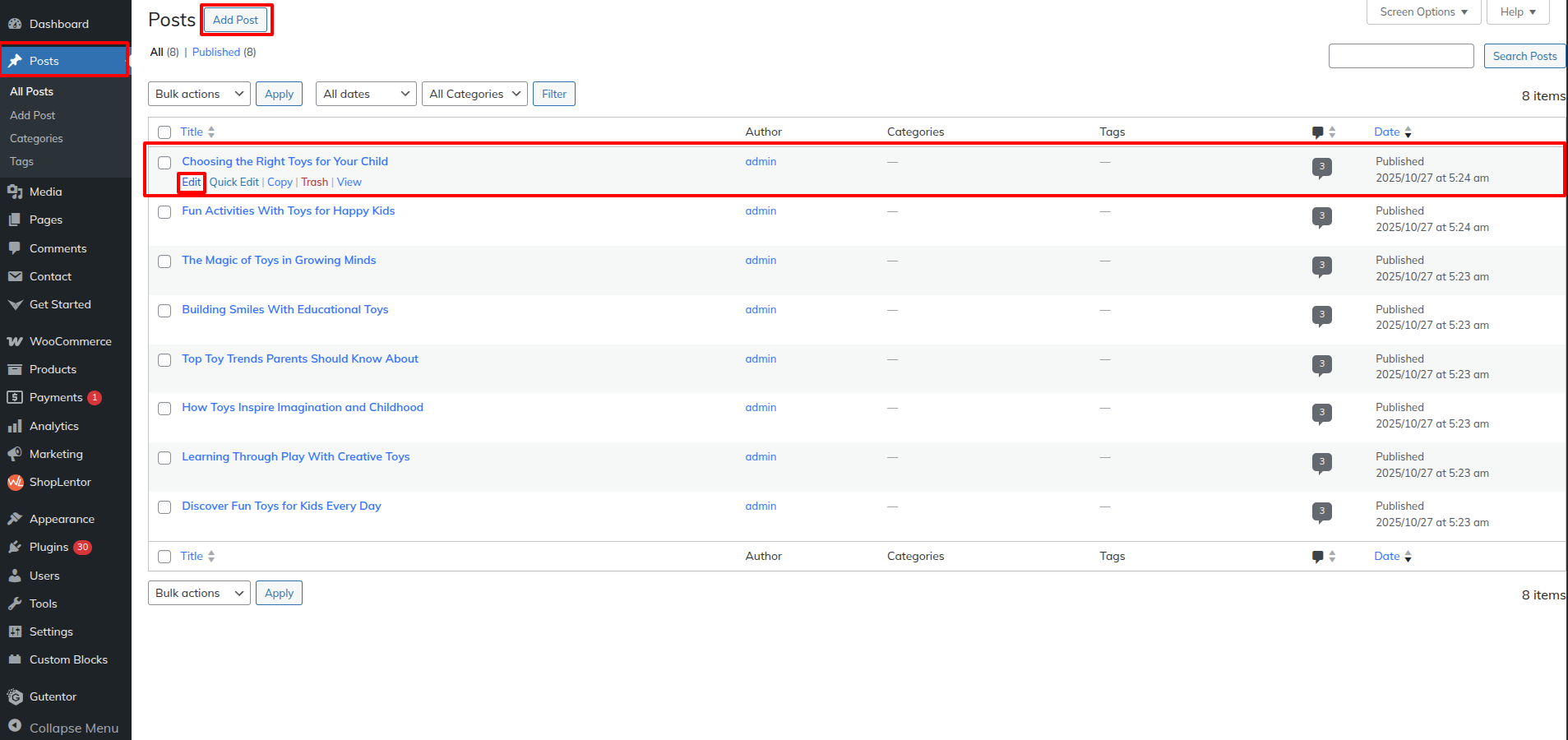
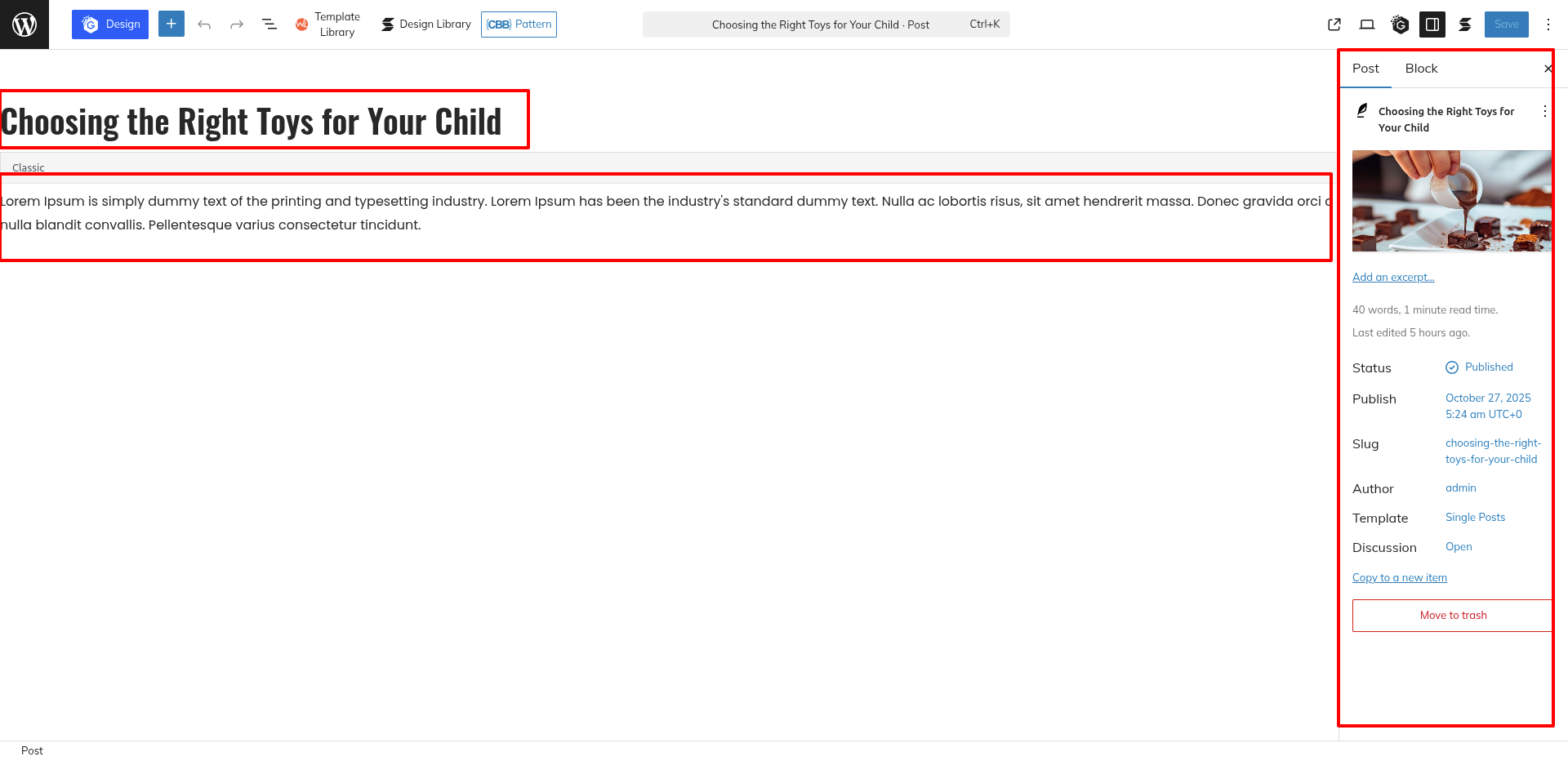
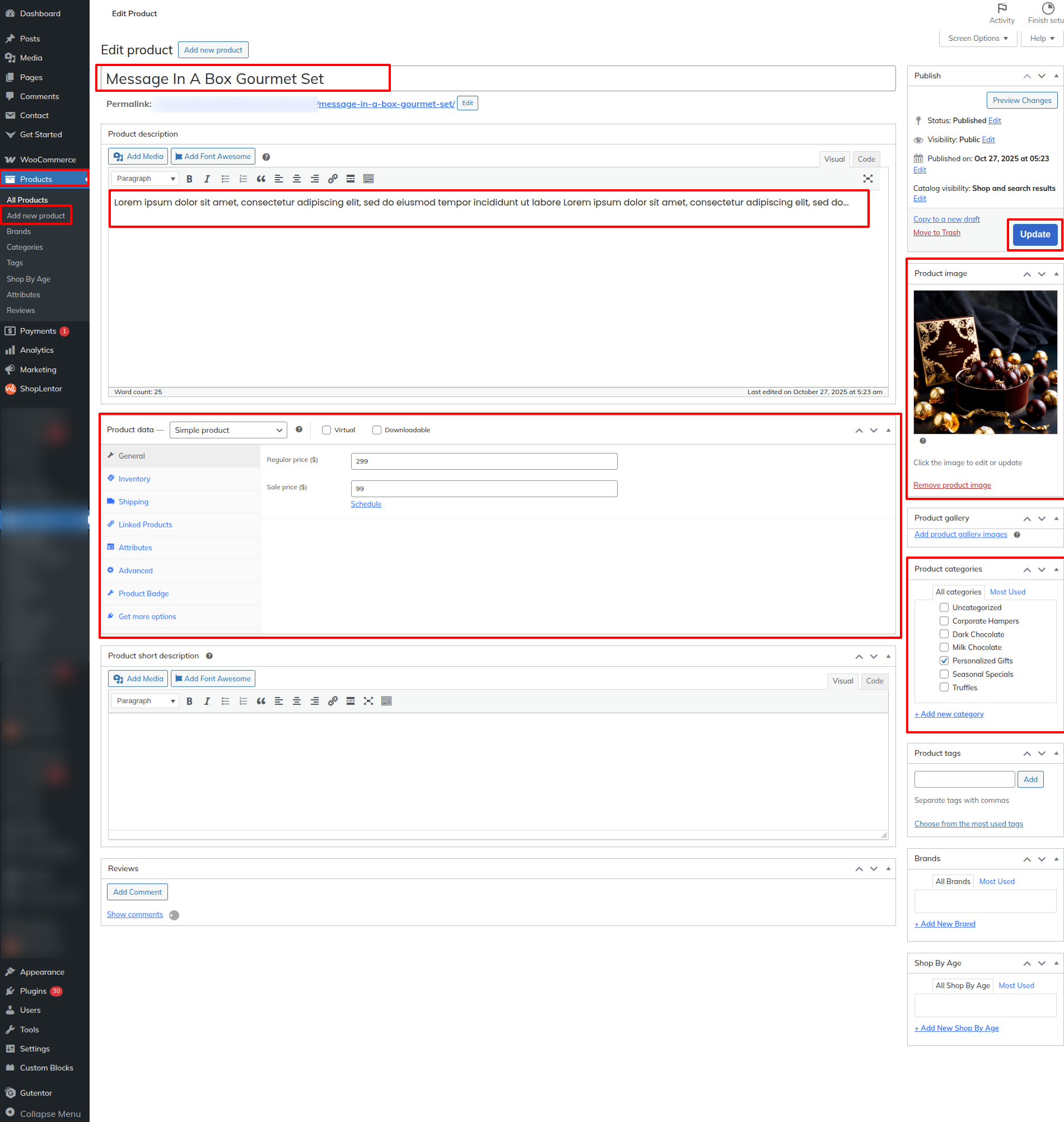
Go on Dashboard Products Add New.
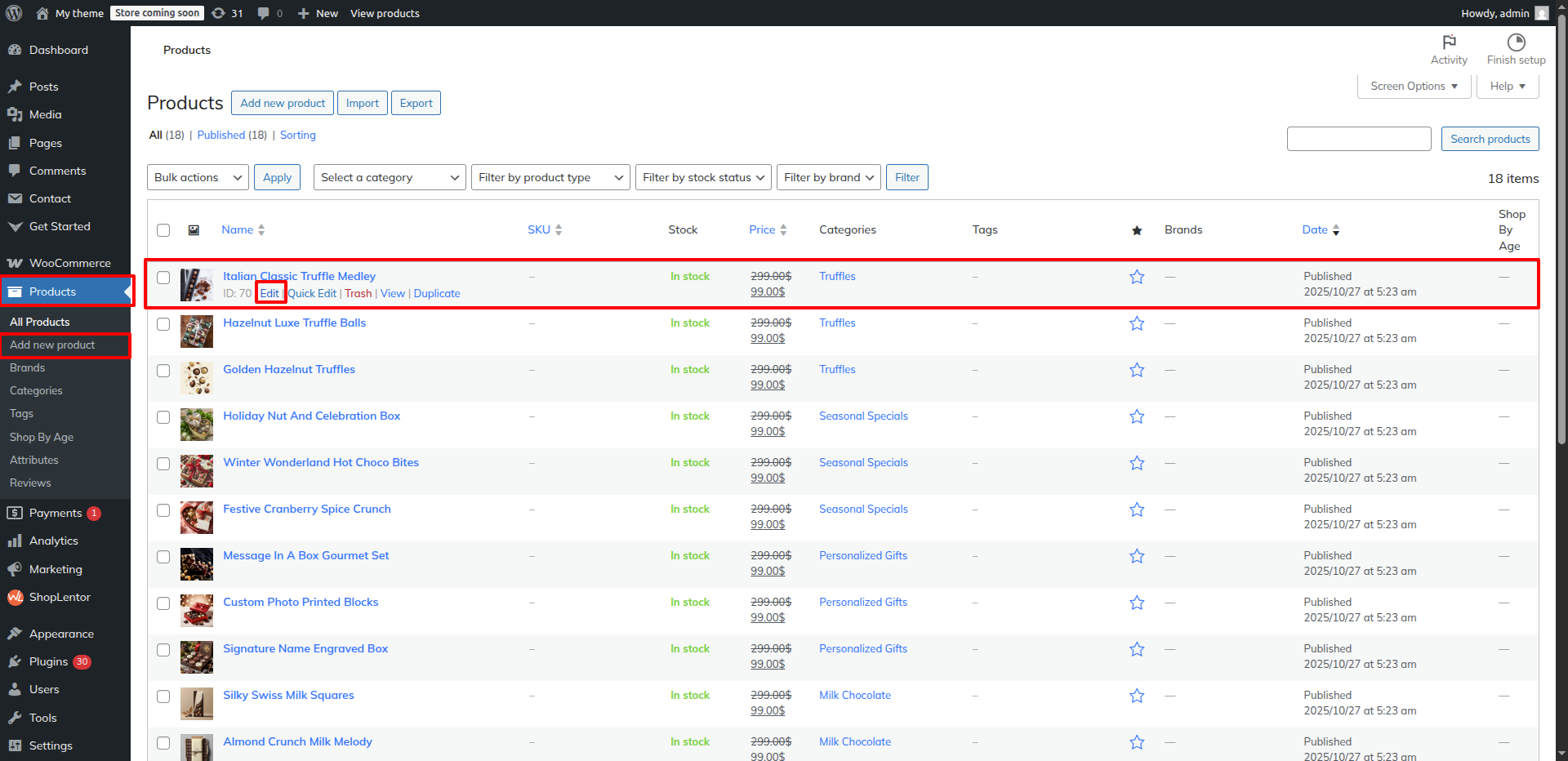
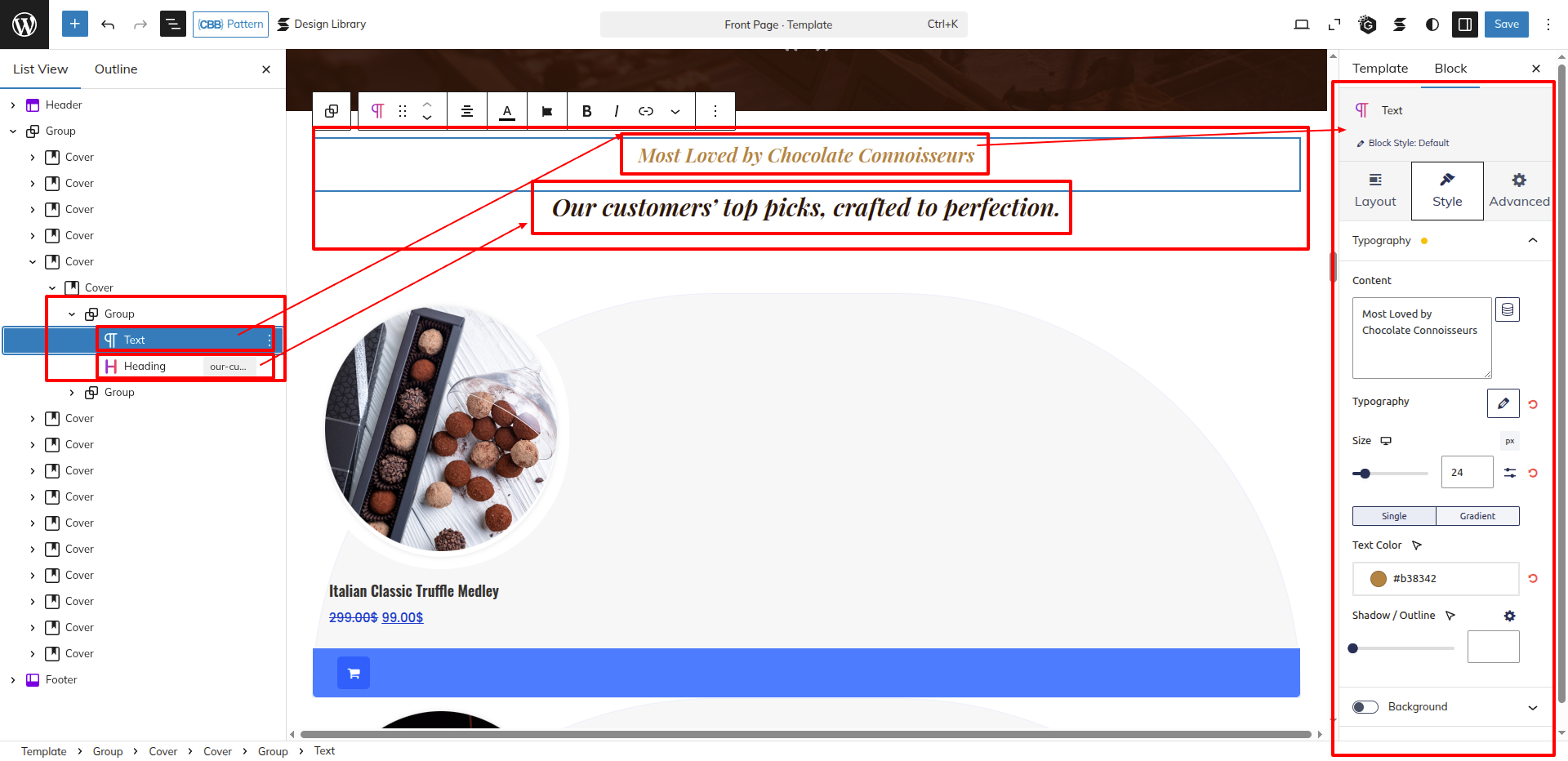
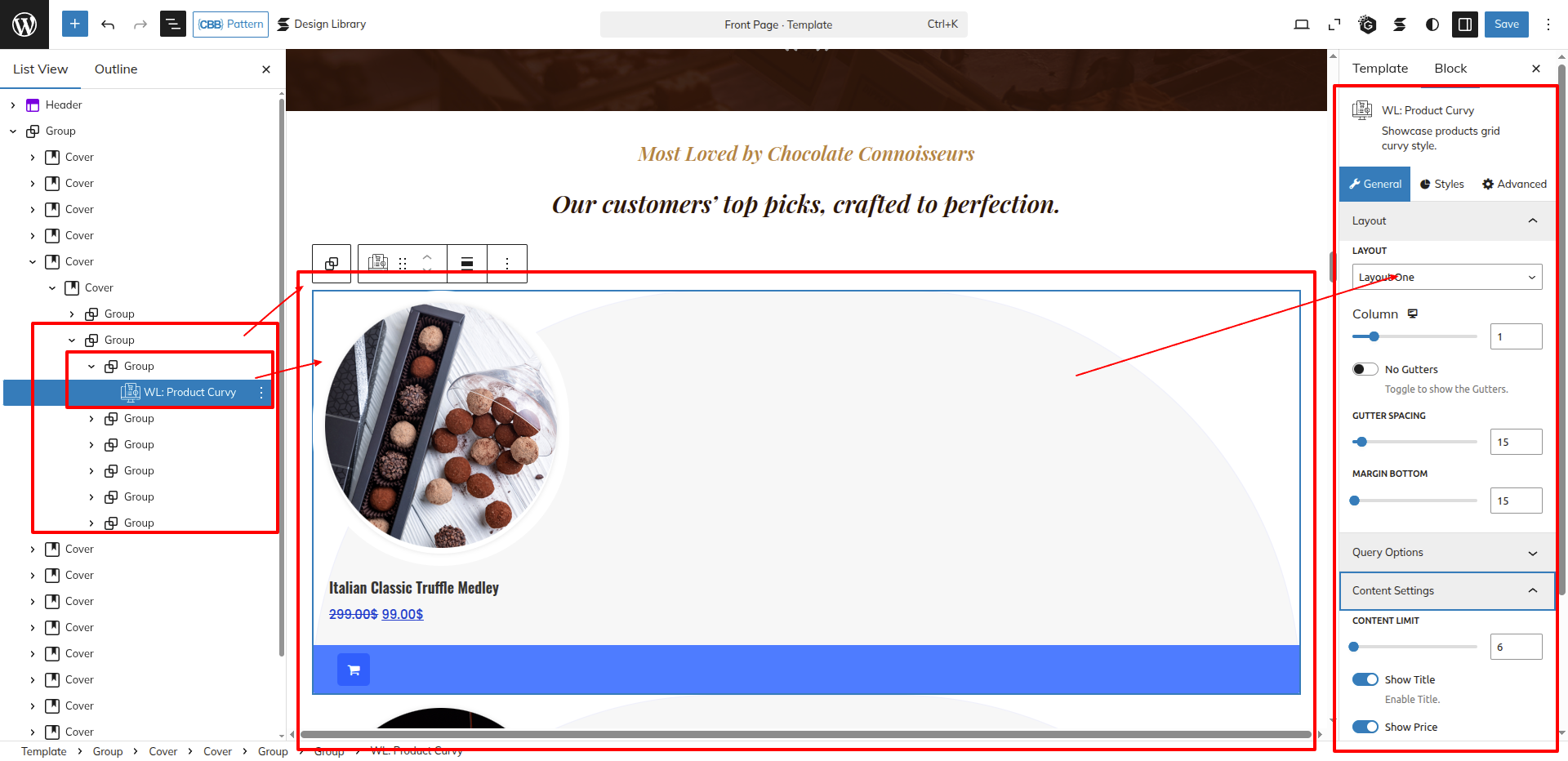
Now Go On to Dashboard Appearance Editor.
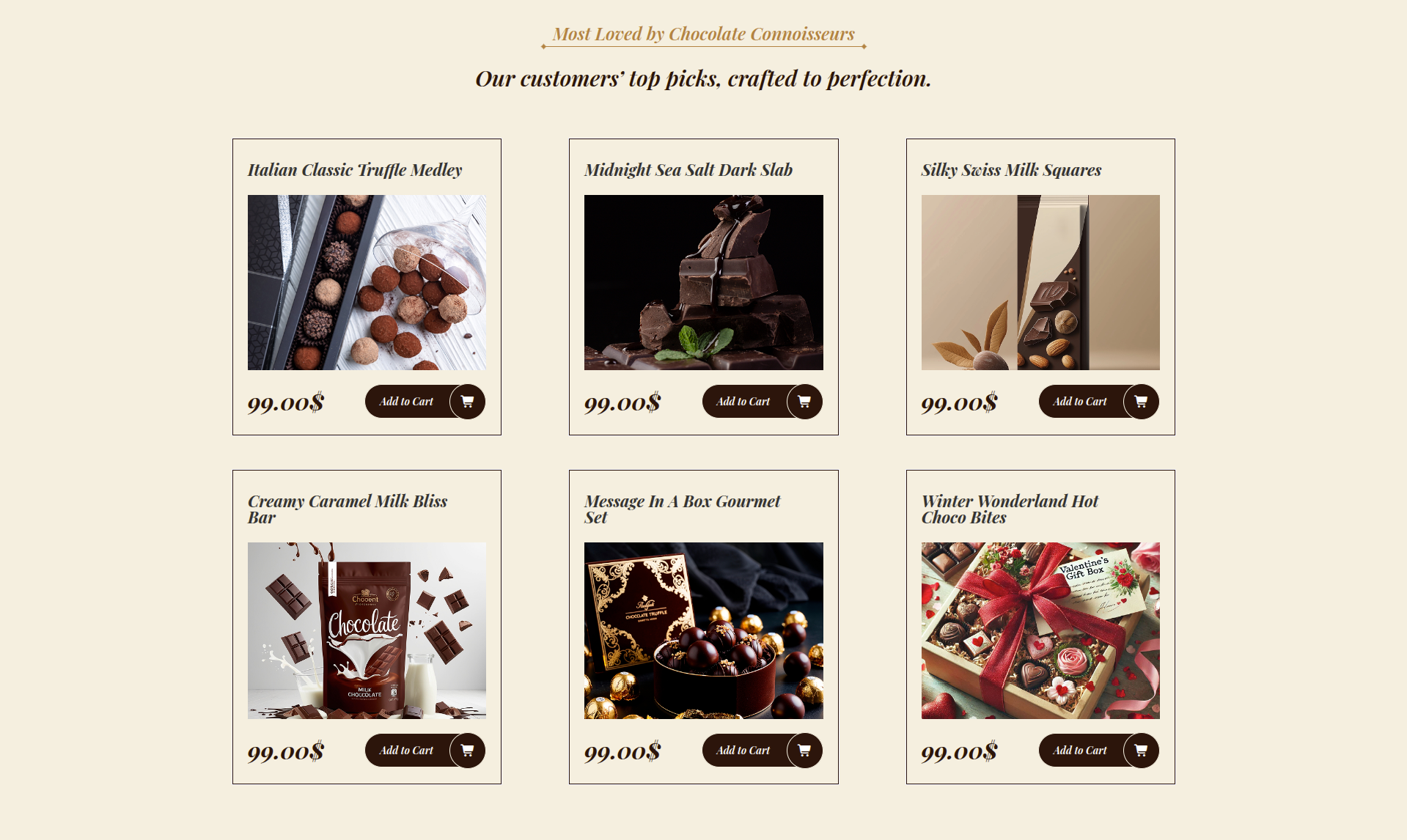
This is how you may set up Most Loved Products Section.
Setup Deal of the Day Section
Set up the Deal of the Day Section according to the instructions below.
First, Install The Woocommerce plugin. This plugin is generally used to integrate all the ecommerce store functionalities and features with your wordpress site.
Follow the steps given in the previous section to add products as per your requirement.
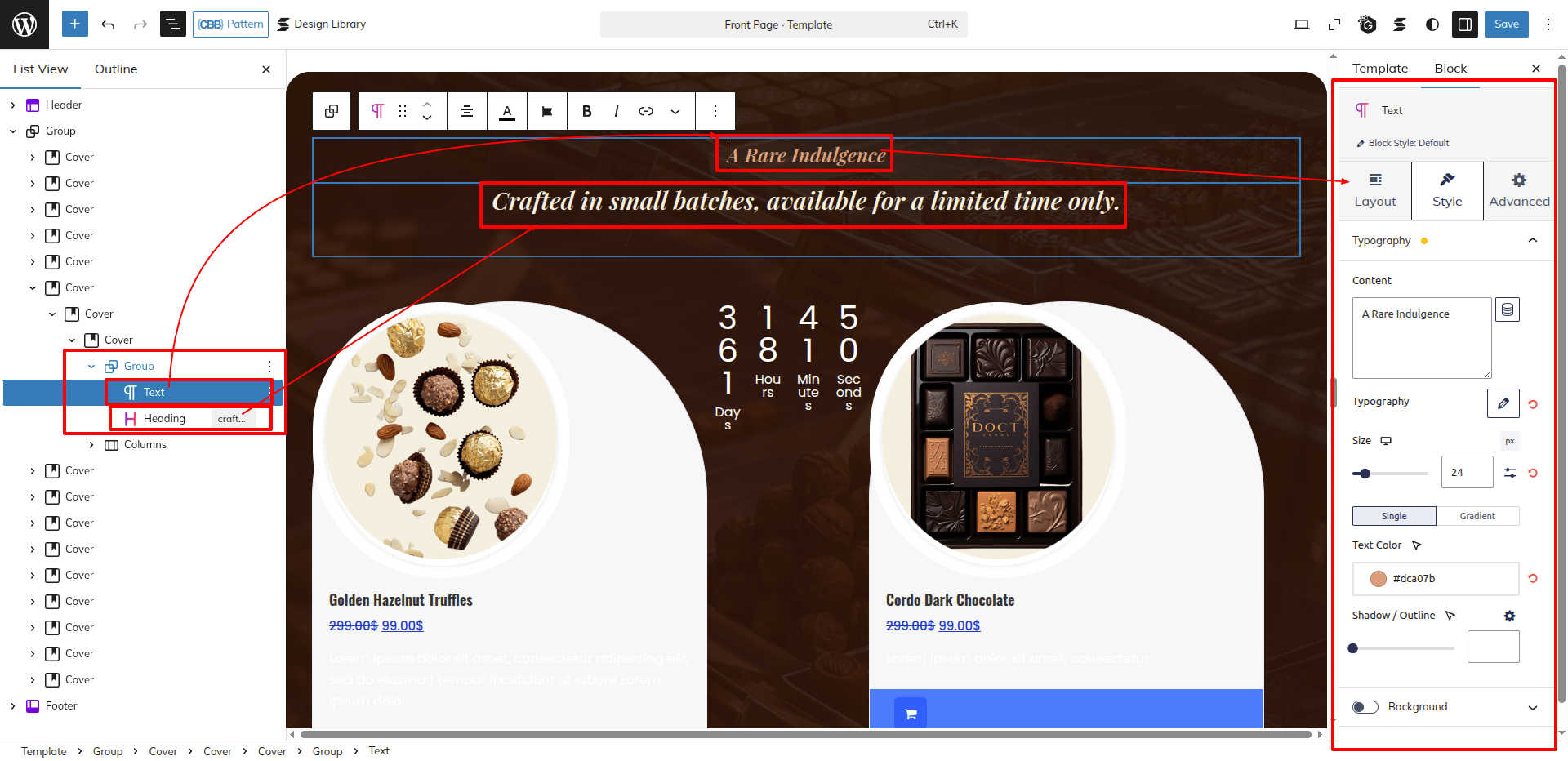
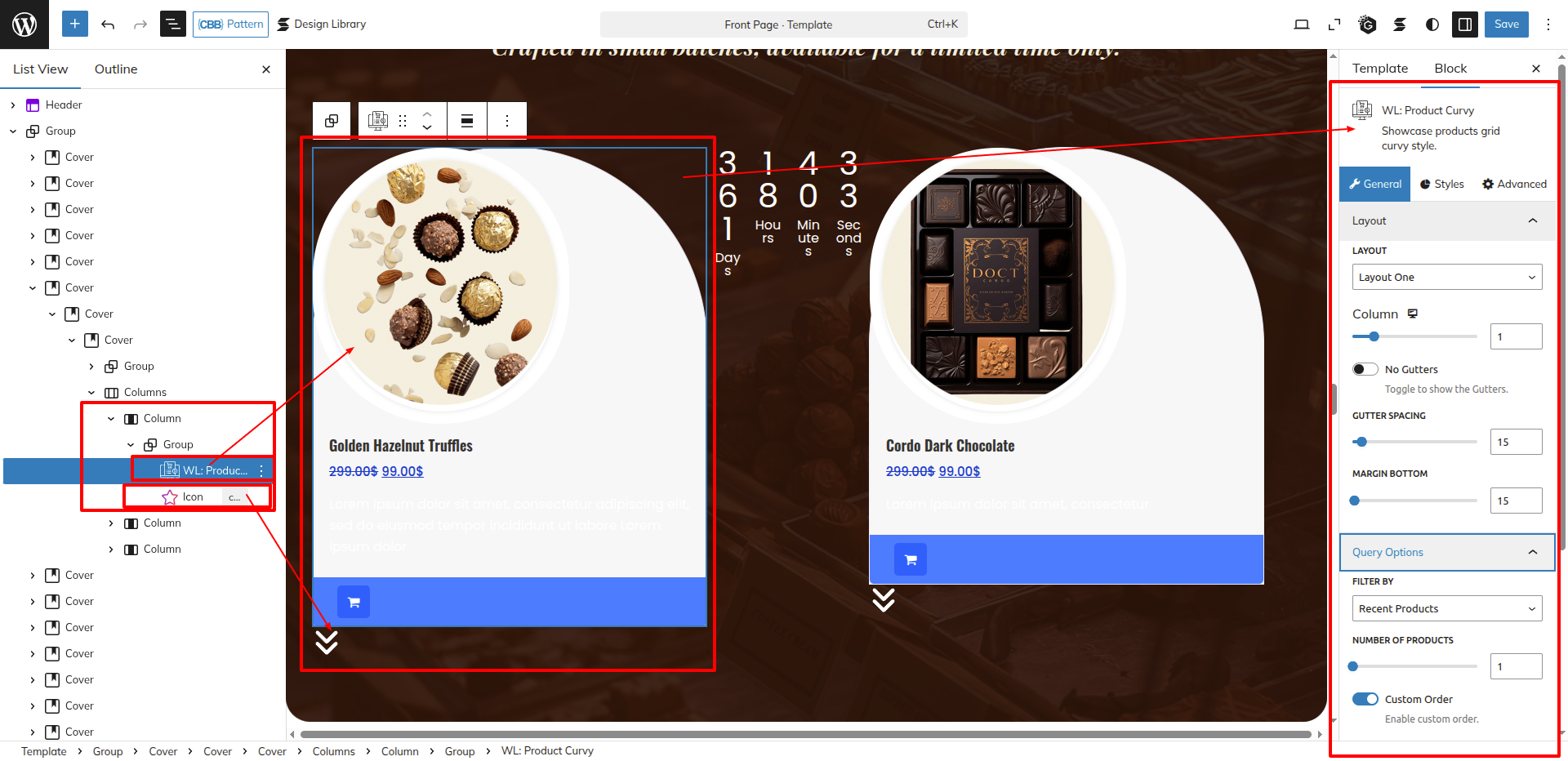
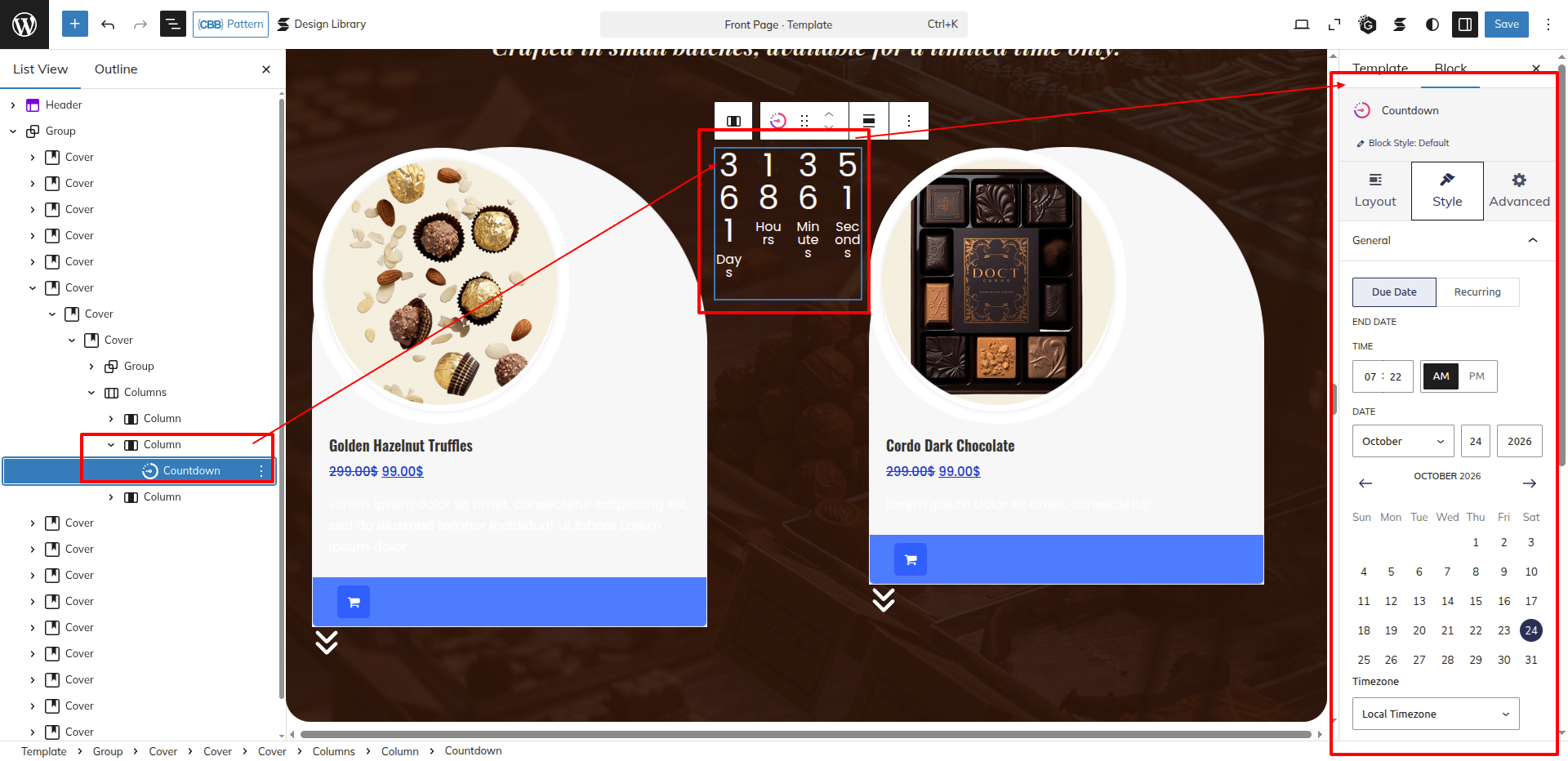
Now Go On to Dashboard Appearance Editor.
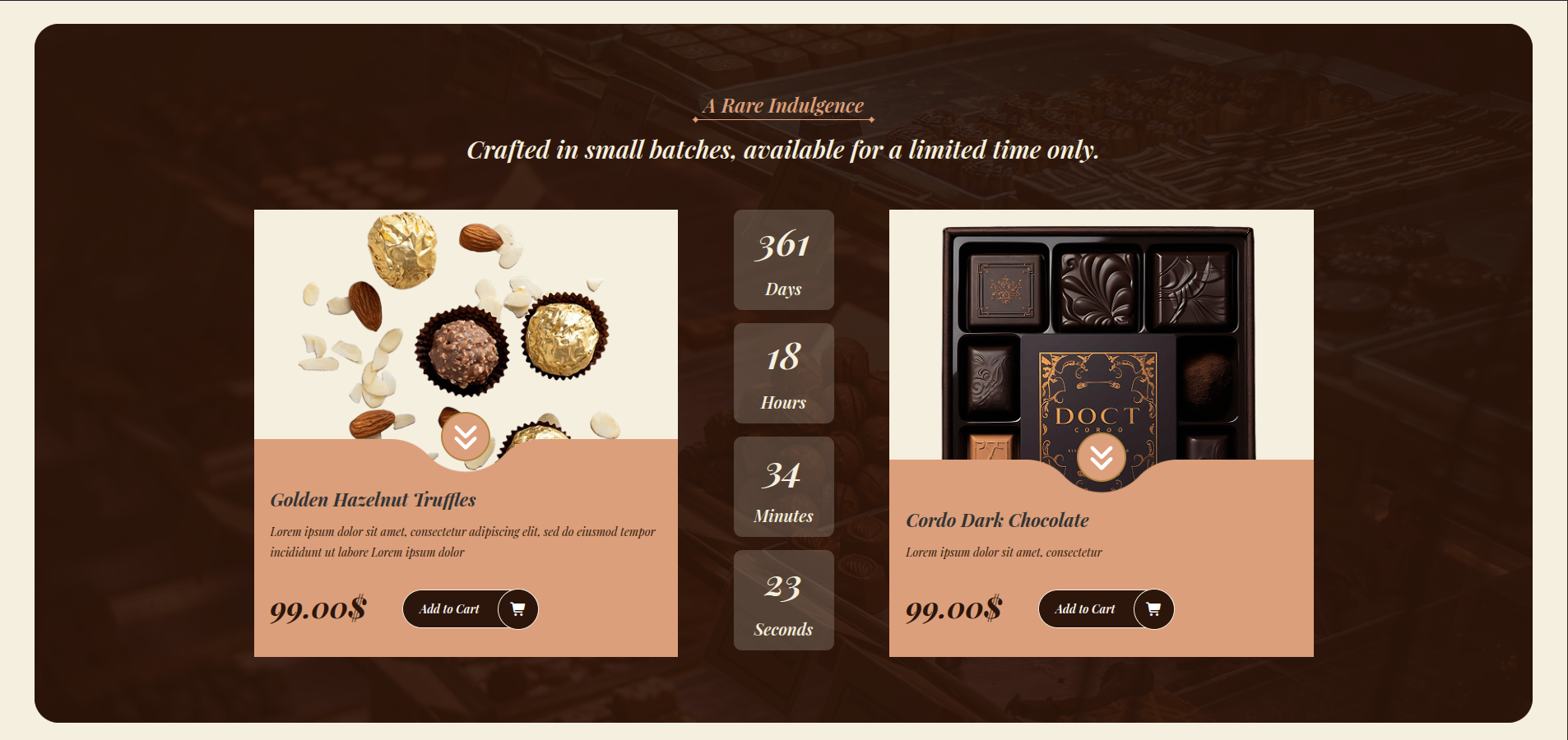
This is how you may set up Deal of the Day Section.
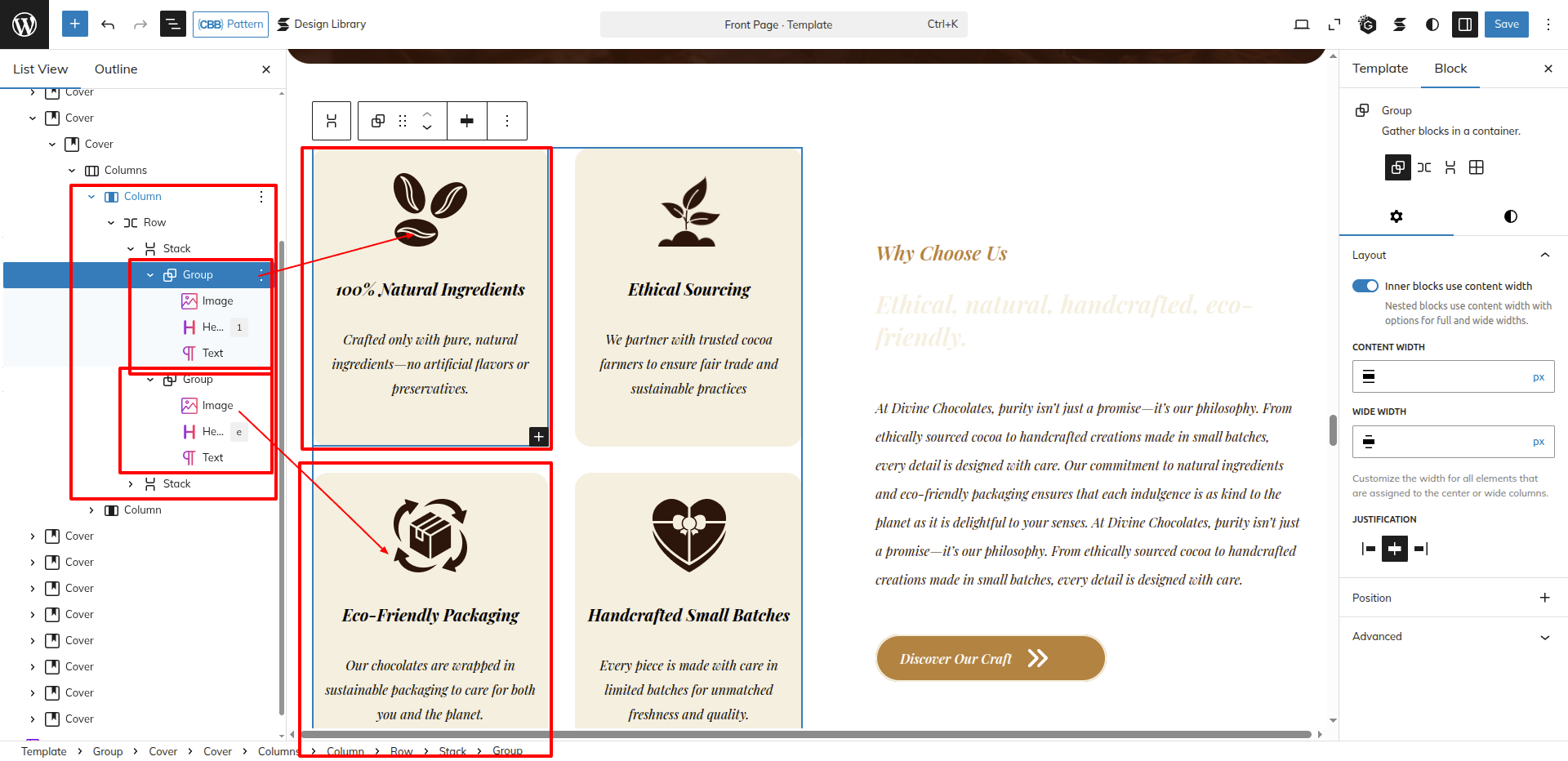
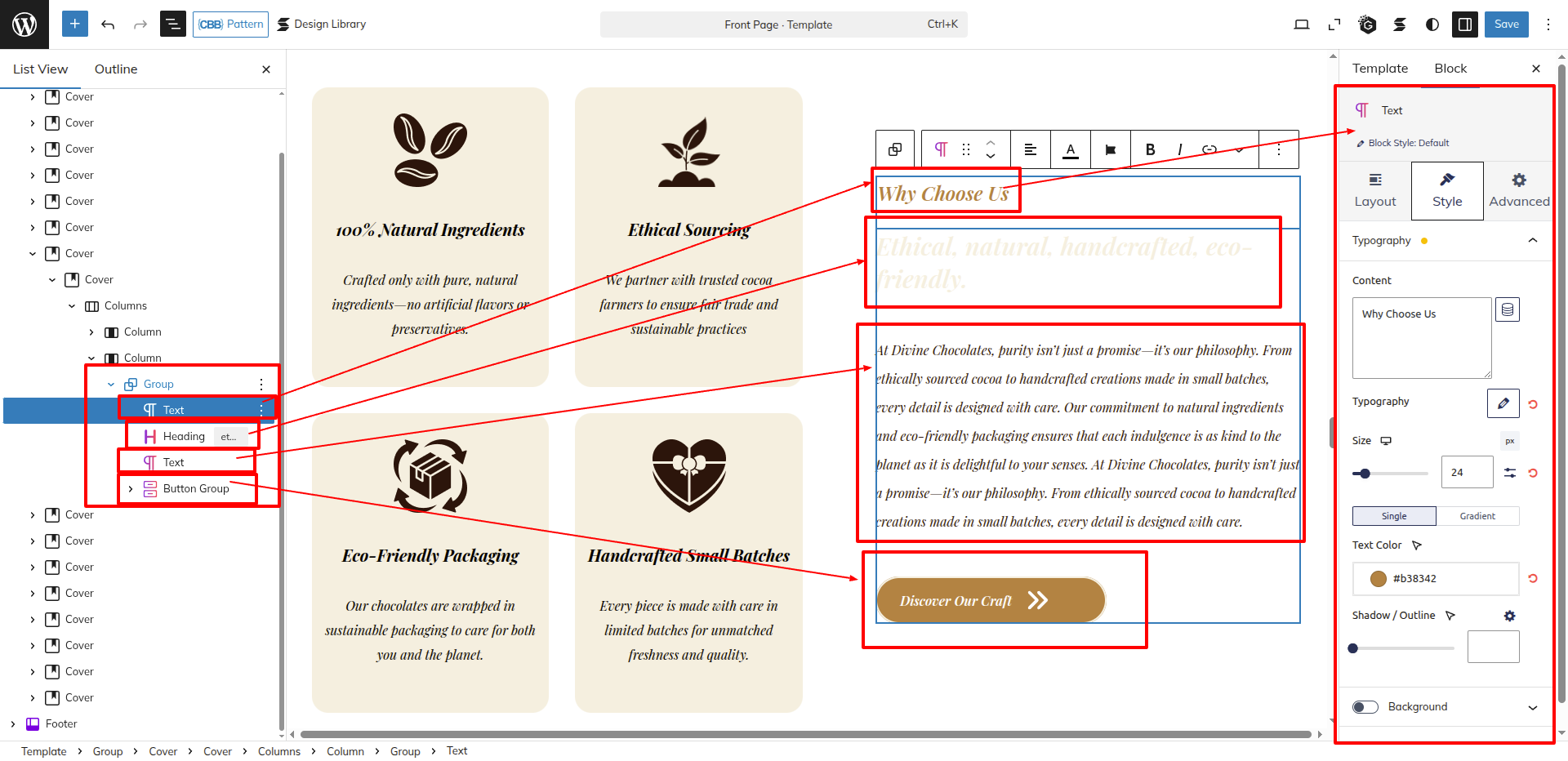
Setup Why Choose Us Section
Set up the Why Choose Us Section according to the instructions below.
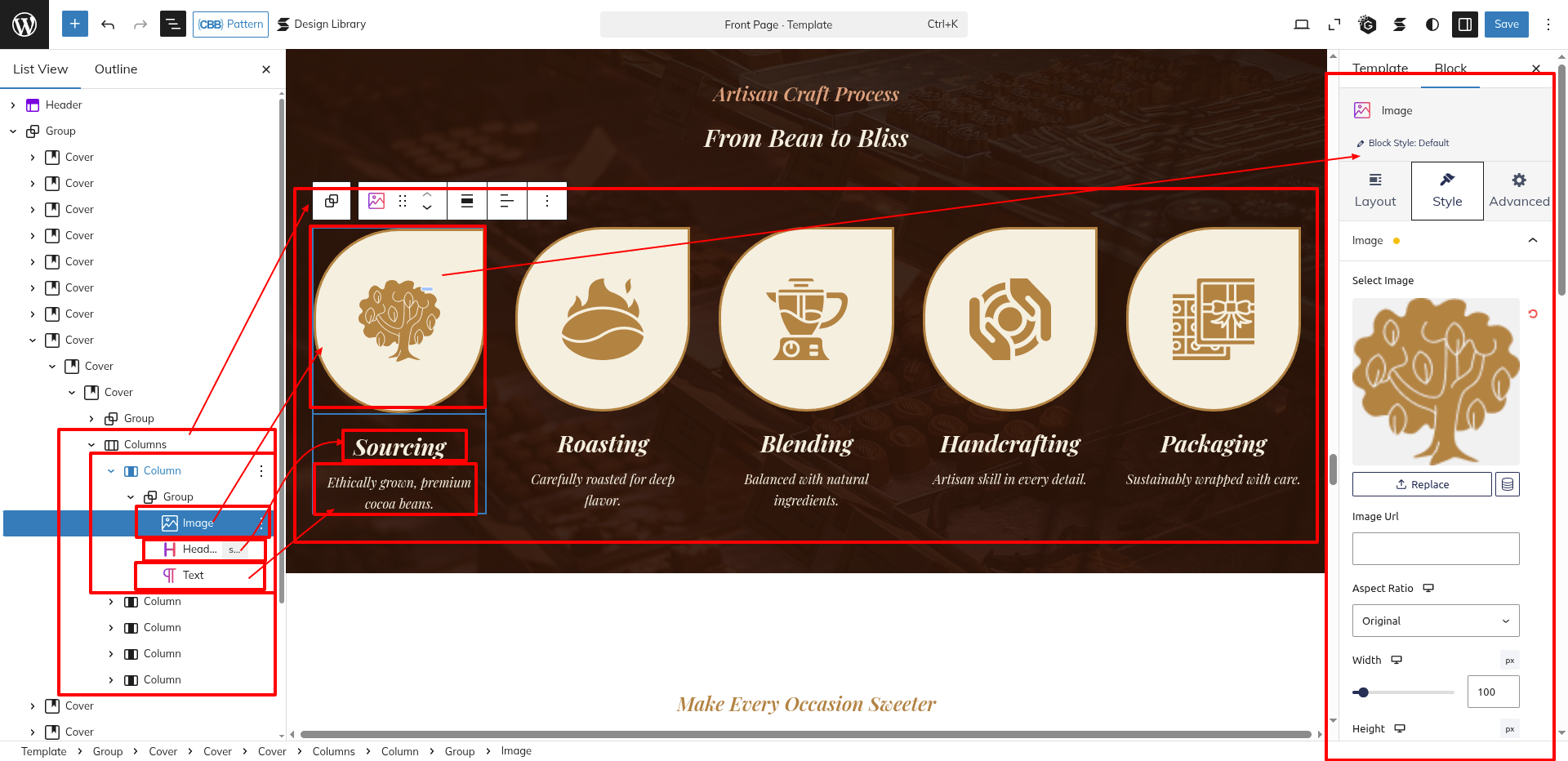
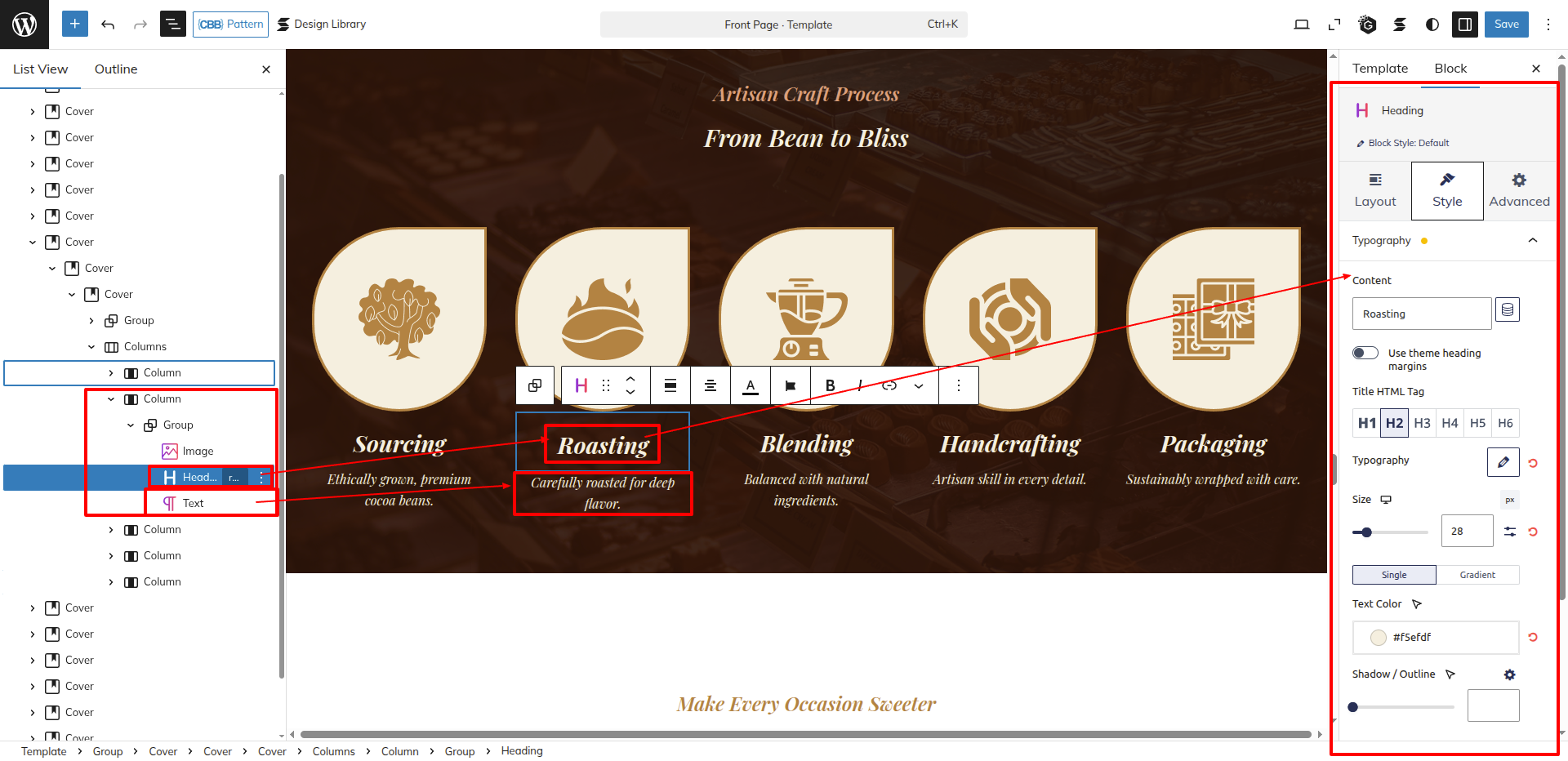
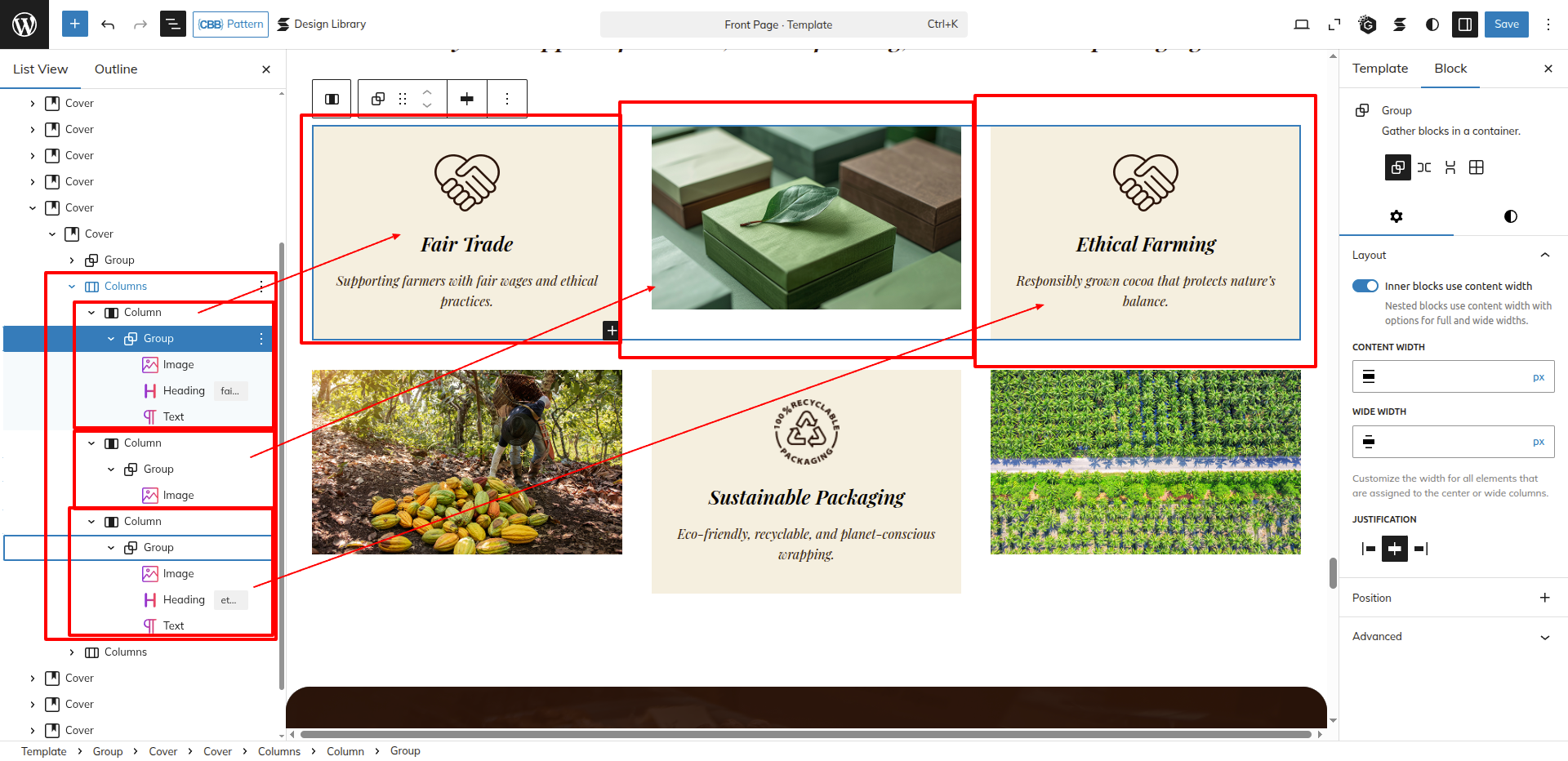
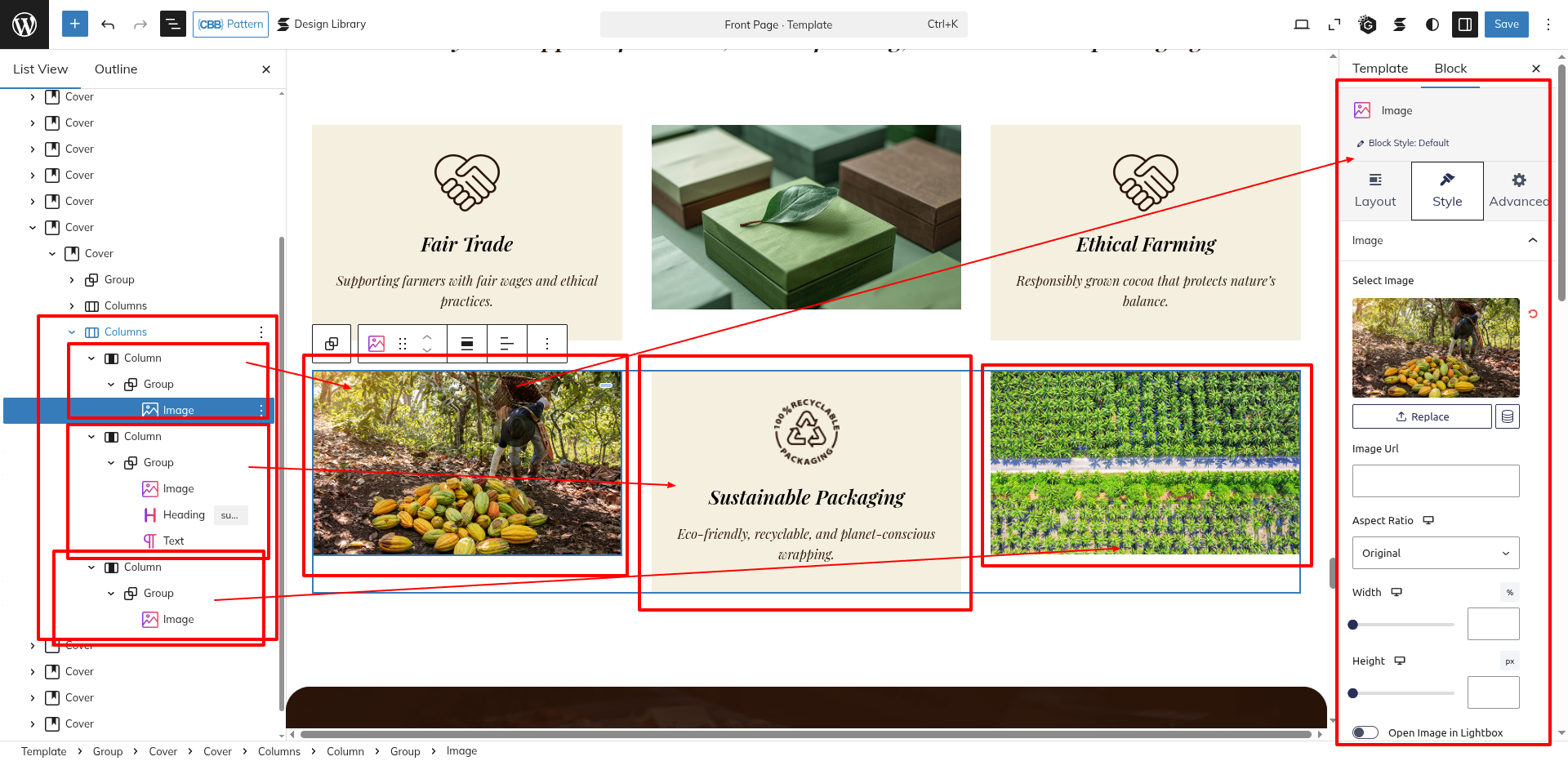
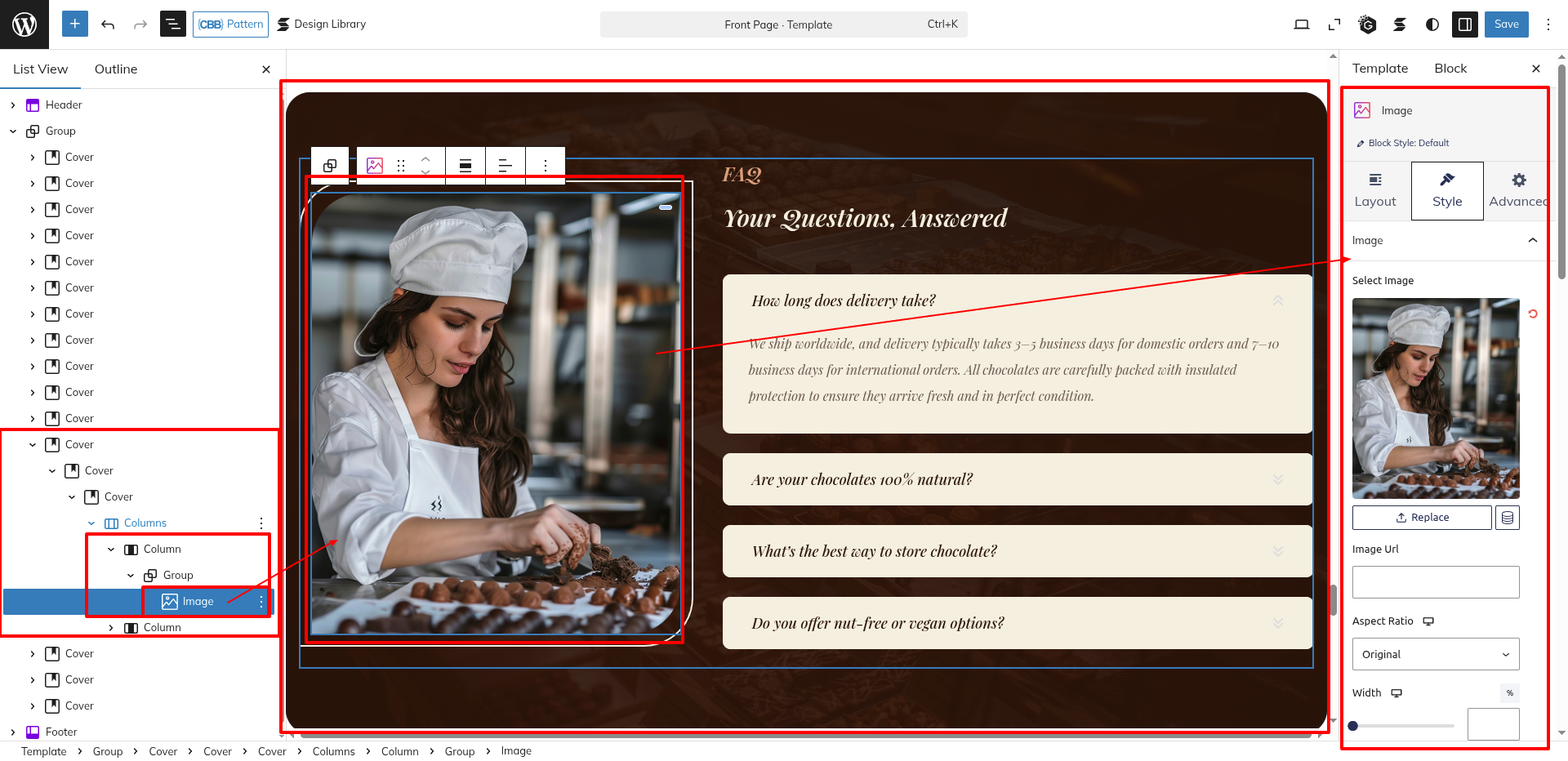
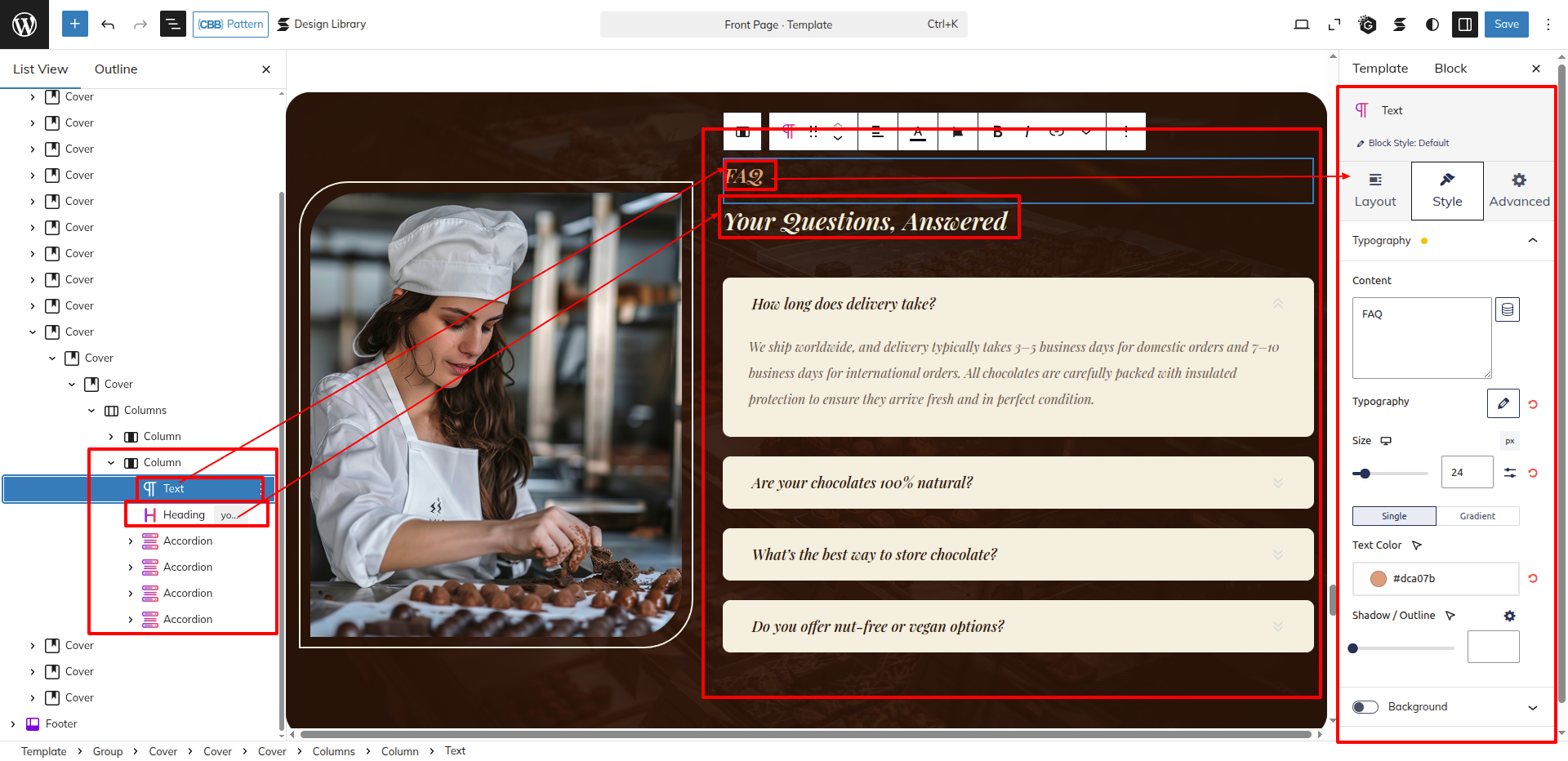
As seen in the screenshot, enter the title, description and feature image.
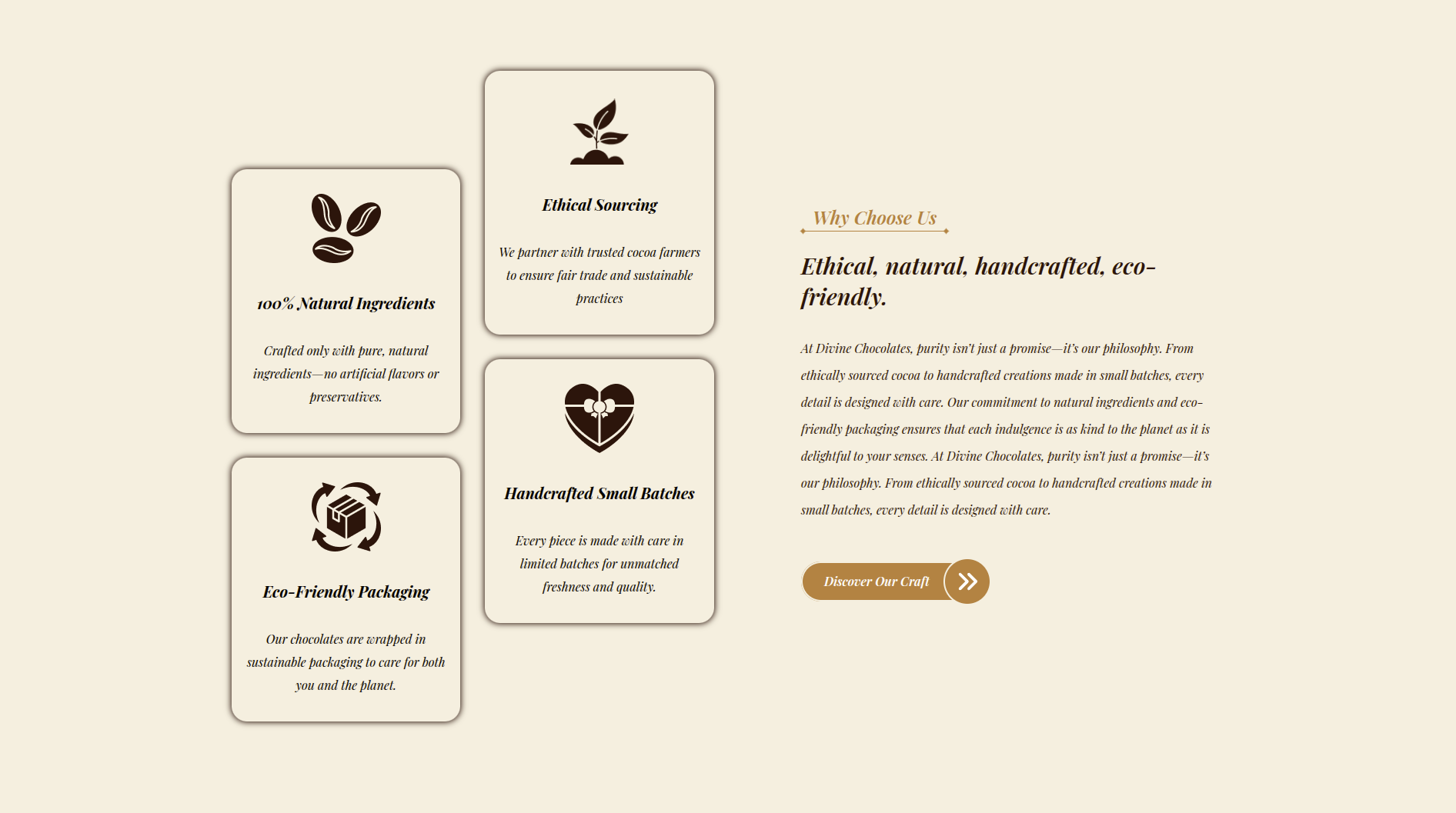
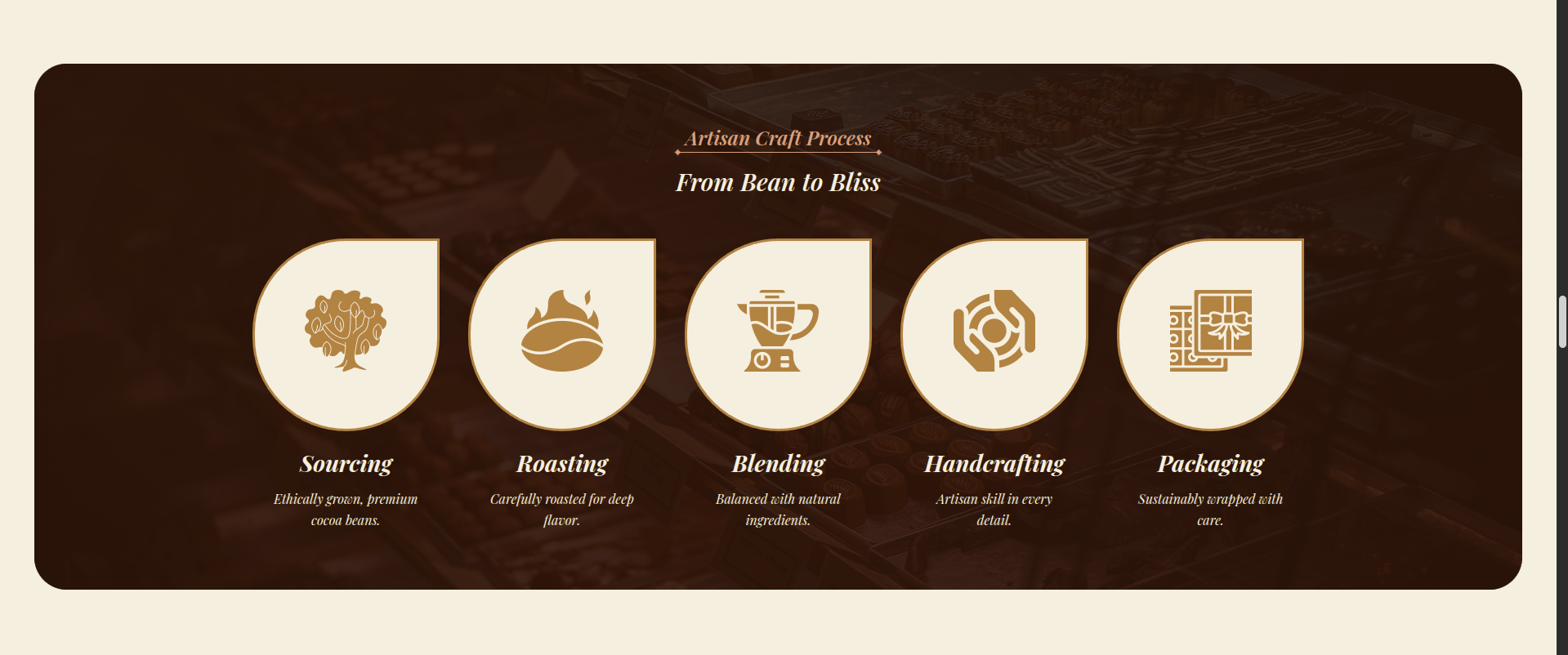
This is how you may set up and add the Why Choose Us Section.
Special Product Categories Section
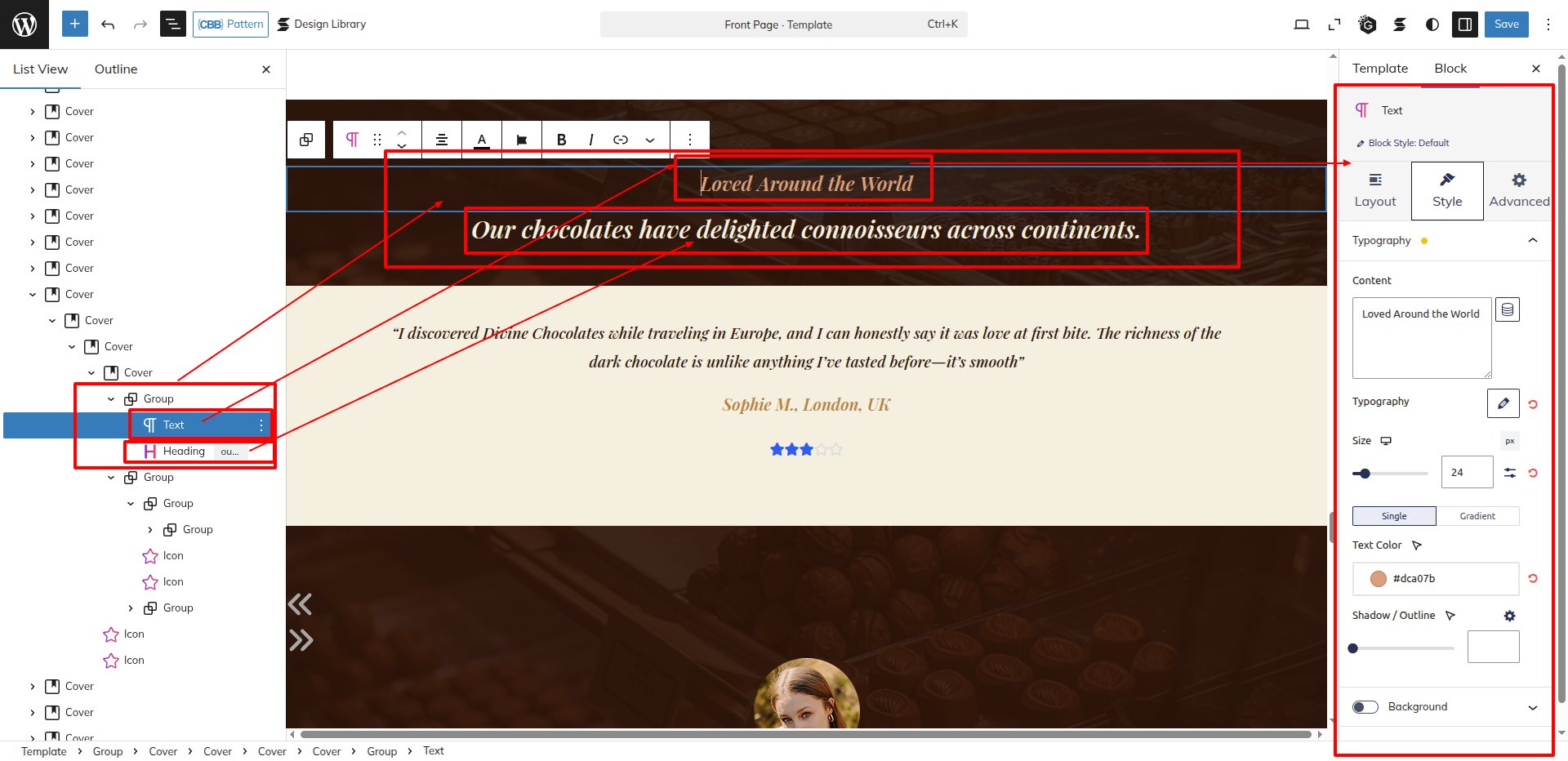
Set up the Special Product Categories Section according to the instructions below.
First, Install The Woocommerce plugin. This plugin is generally used to integrate all the ecommerce store functionalities and features with your wordpress site.
Dashboard Products Product Categories Add New
Now Add the products by Following the steps given above, and assign the category to the products as per your Need.
As seen in the screenshot, enter the title, Description, Image, the Shortcode and the Button.