Welcome to Coffee Shop Pro ! Make familiarity with block products:
Getting Started
Congratulations For purchasing our Coffee Shop Pro WordPress Blocks theme ! This article walks you through numerous phases of the WordPress website configuration and administration process.
What is CMS WordPress?
WordPress is a website that is open source. construction tool that is built on MySQL and PHP. It's apowerful blogging platform as well as a completely CMS, or content management system, for free. You may use this CMS to build dependable online apps and websites. It requires little technical knowledge or understanding to manage. WordPress has become the Events website development platform available for purchase due to several advantages, including ease of use and versatility.
A block theme is a WordPress theme with templates entirely composed of blocks so that in addition to the post content of the different post types (pages, posts, …), the block editor can also be used to edit all areas of the site: headers, footers, sidebars, etc.
The organisation of files
The bundle of templates What you downloaded is organised into many folders. Let's look at the contents of each folder:
Screenshot: Screenshots of templates are included. Not for use in manufacturing.
Theme : the WordPress theme files.
coffee-shop-pro.zip: This folder contains all of the theme's files.
license.txt : information about the licence.
readme.txt : include information about the theme's image paths and font use guidelines.
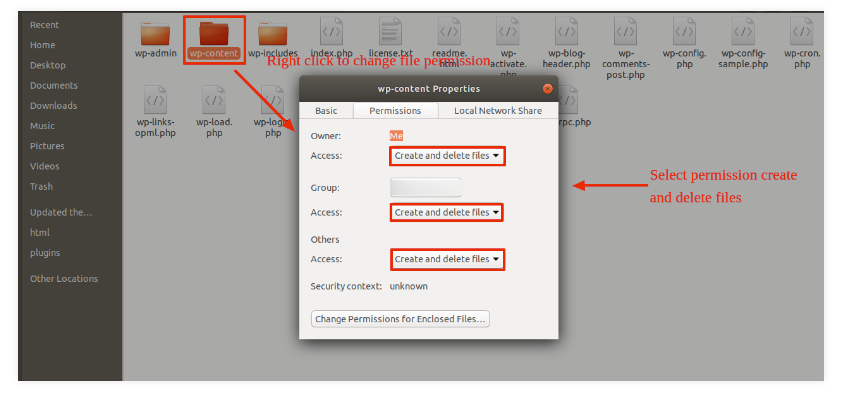
My website was previously operational? who changed the file's permissions?
If file permissions are wrongly specified, WordPress may be unable to create folders, upload photographs, or run some scripts.
WordPress requires rights to handle files and create folders on the server.
Then, when you right-click on all of the folders in the root directory, select "File Permissions" from the context menu.
wp-config
permissions dialog box
choose the checkbox read and write
To proceed, click the OK button.
Repeat the same with the wp-content folder.
Installation of Templates
Installing a template is a pretty simple and uncomplicated process.
STEP 1. FOLLOW THESE PROCEDURES TO INSTALL A THEME USING WORDPRESS ADMIN.
Go to your WordPress admin panel first.
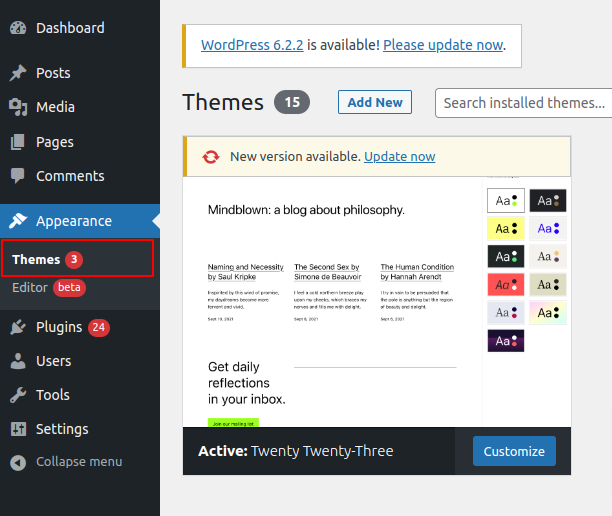
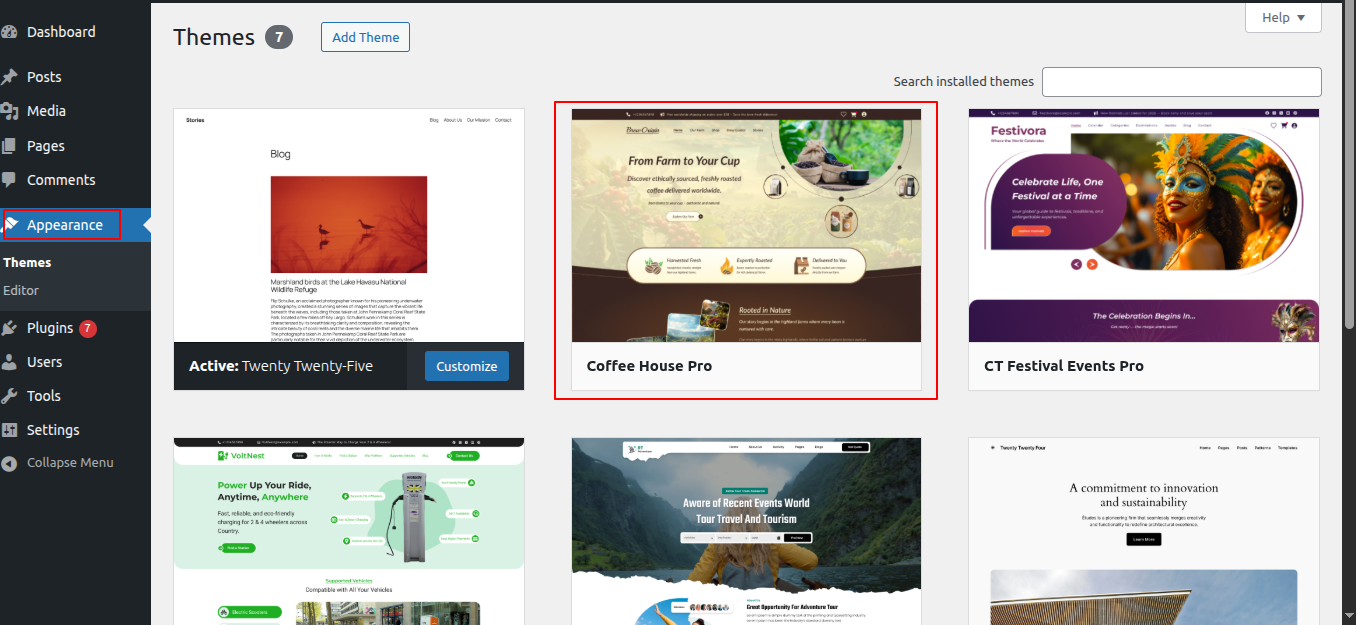
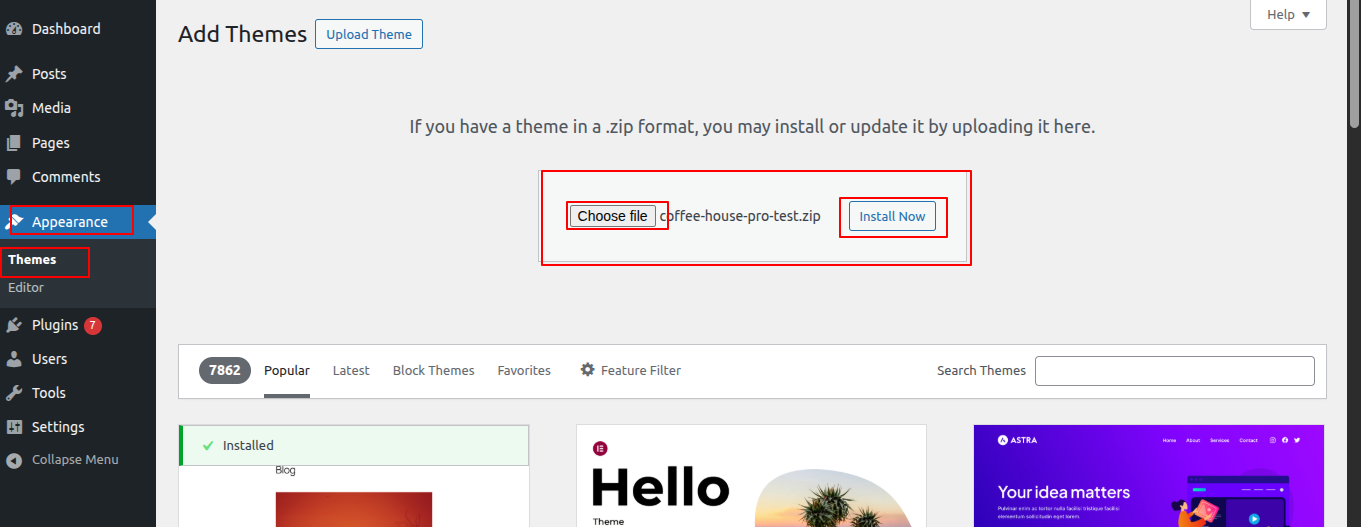
Then, go to the "Appearance" menu and pick "Themes."
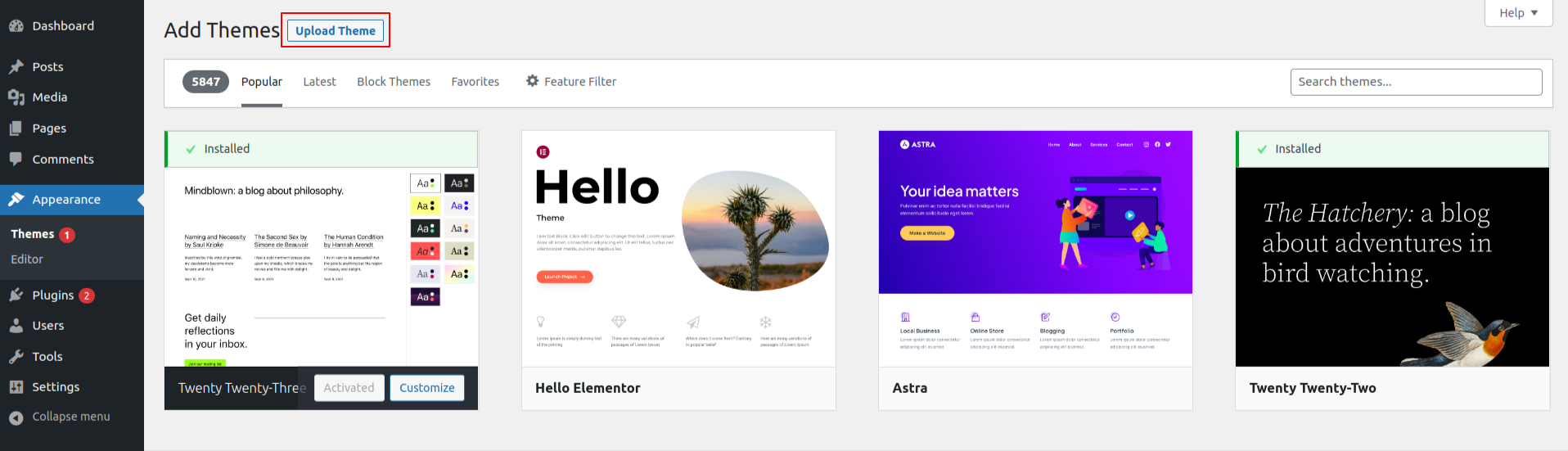
Select "Add New" from the menu at the top of the themes page after you've arrived there.
Choose the button for Upload Theme.
Click the Browse Button then select the coffee-shop-pro.zip theme of your choice Now Installing button.
WordPress will now carry out the installation of your chosen theme and provide a success message along with choices to activate or live-preview the theme.
STEP 2. IMPLEMENT A THEME VIA FTP
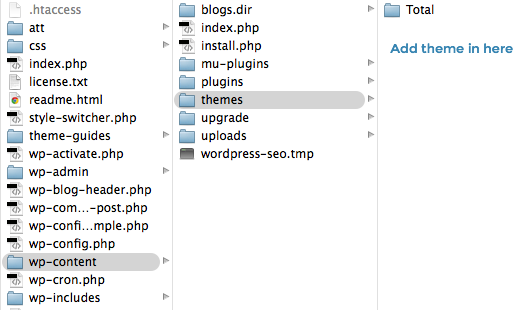
As a second installation method, the theme may be uploaded through FTP. You must first log into your website using FTP and go to the wp-content/themes folder to apply this technique. All you have to do is download the theme file to your server and extract the Total folder from it.
Then, log in to your WordPress website and navigate to "Appearance" "Themes" to activate the whole folder.
INSTALL REQUIRED PLUGINS
Plugins allow you to extend and expand the functionality of WordPress.
How to Enable Plugins If you want these functionalities in your theme, you must activate the plugin. To enable the plugin in your theme, follow the steps outlined below.
You may manually install a WordPress plugin from a.zip file using the techniques listed below.
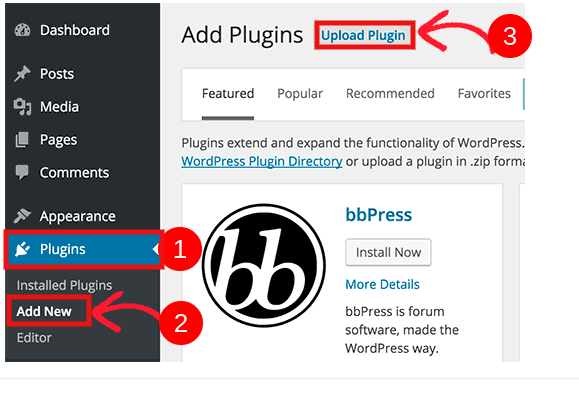
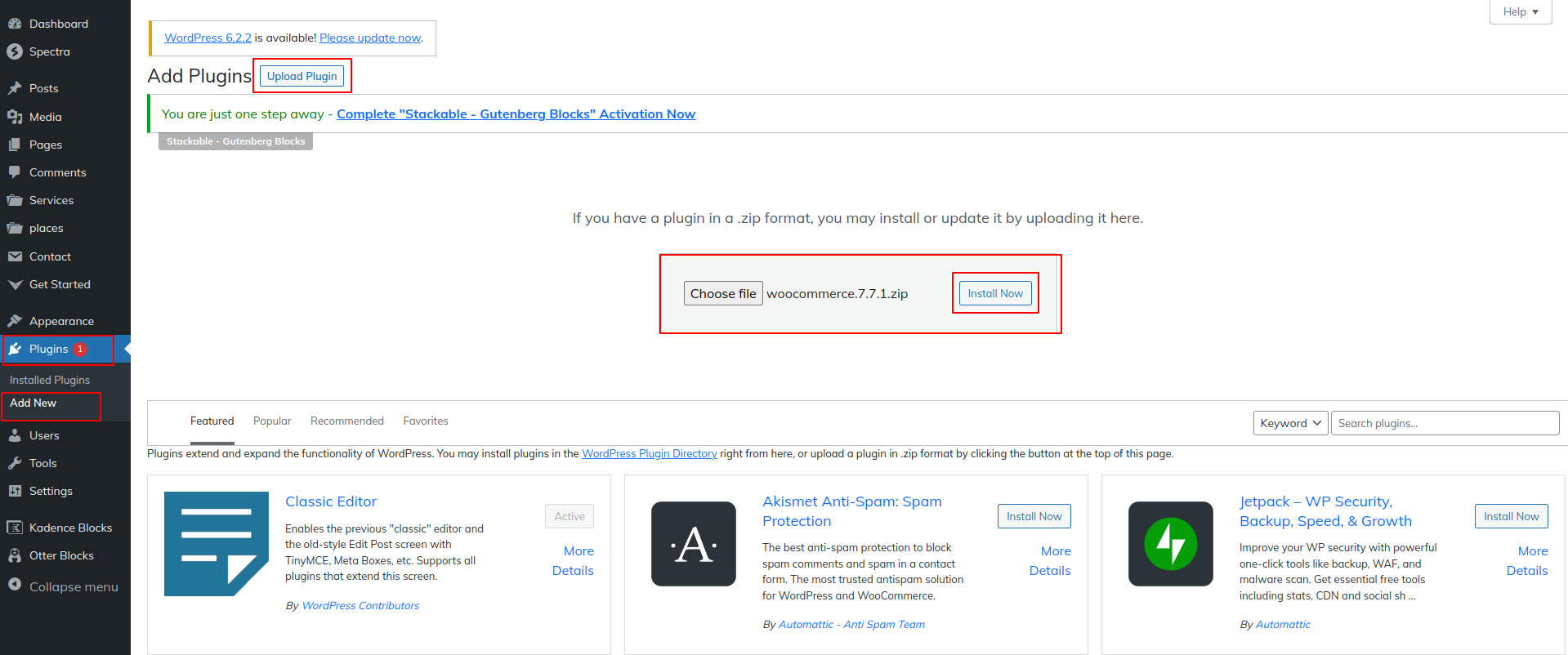
1. Add Plugin : Go to Dashboard Plugin Add New Upload plugin.
Once you've clicked "install now," activate.
Installation of the Demo Importer Plugin.
Important Steps After Visiting the Site
After clicking "Visit Site", go to the "Edit Site" option located at the top notification bar.
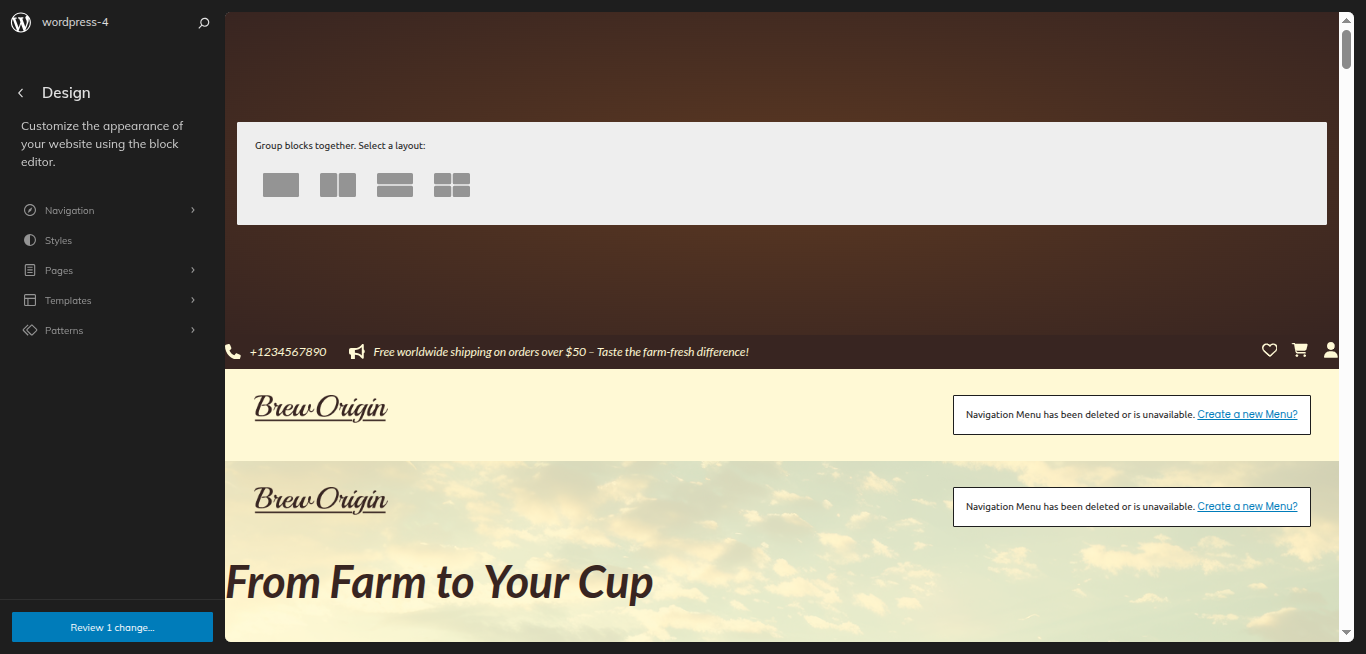
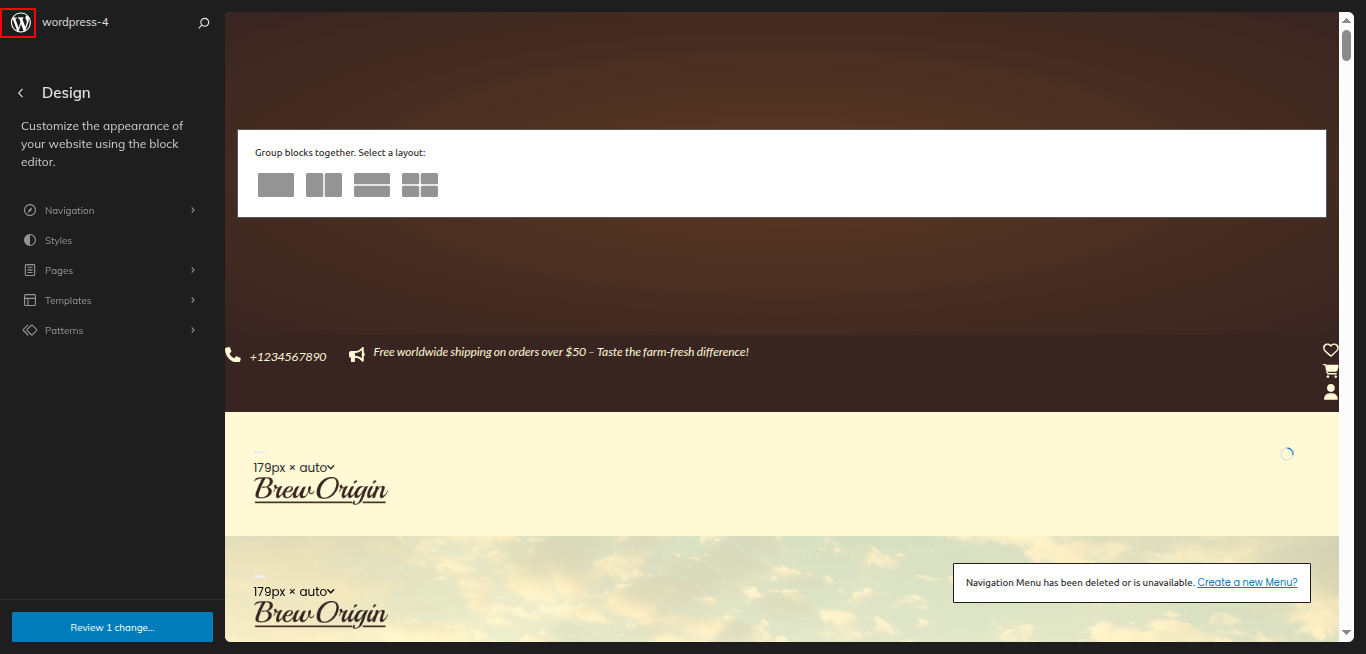
The full Site Editor panel will open, displaying all the design blocks.
Make the necessary changes according to your requirements.
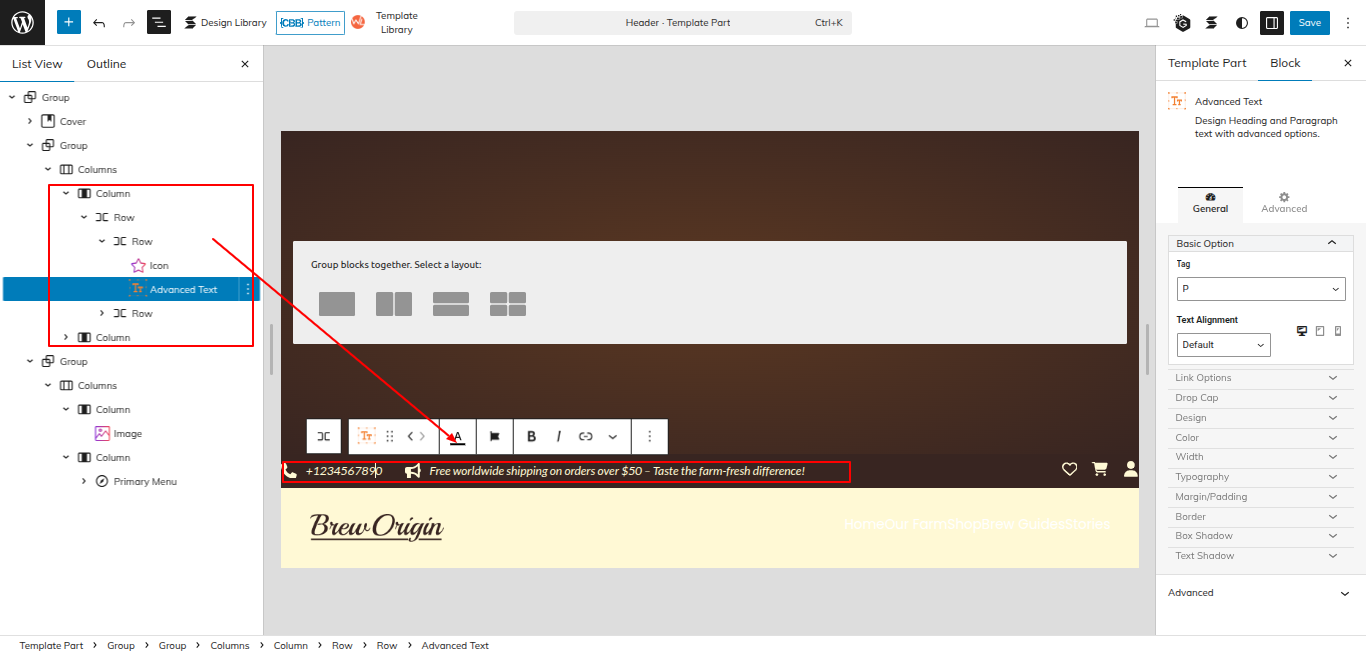
Some sections use Gutentor plugin blocks (e.g., links, contact info, call, email). Locate those blocks, go to their settings, and apply minor changes as needed.
Once done, click the "Save" button at the top-right corner of the screen.
Perform a hard refresh on the Site Editor page (Ctrl + Shift + R or Cmd + Shift + R).
Repeat the process by making additional small changes in any Gutentor block, then save the site again.
Finally, go to your website’s home page, do one more hard refresh, and your updated site will be ready to use.
The setup of the theme
Utilise these steps to establish the theme.
After installing the plugin, you must visit the Get Started.
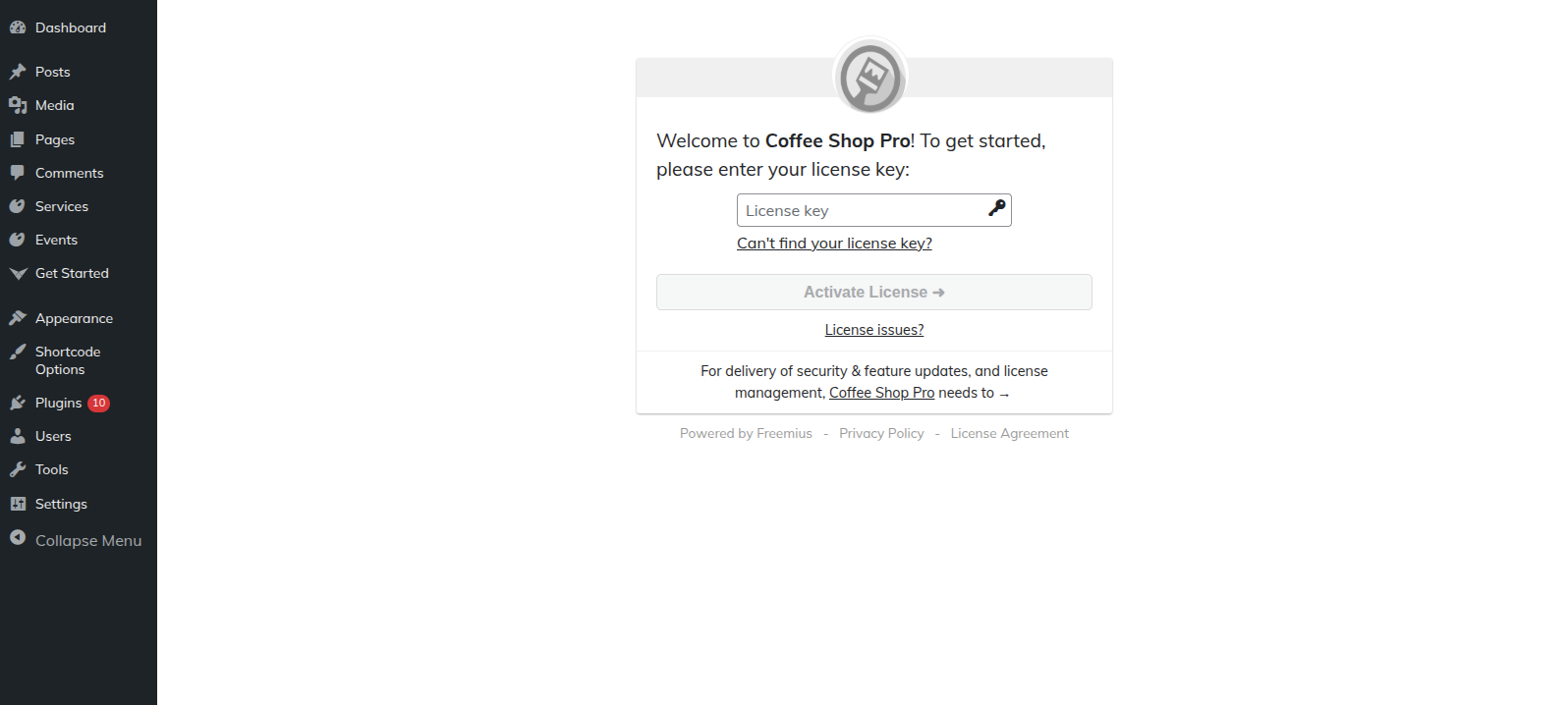
STEP 1: LICENSE ACTIVATION
The steps for activating a License are as follows.
Use the Licence Key you will receive through Email, to Activate Your Licence.
Go to the Dashboard Get Started.
Click the Activate button following the entry of the licence key
Click the Next button once the licence has been activated.
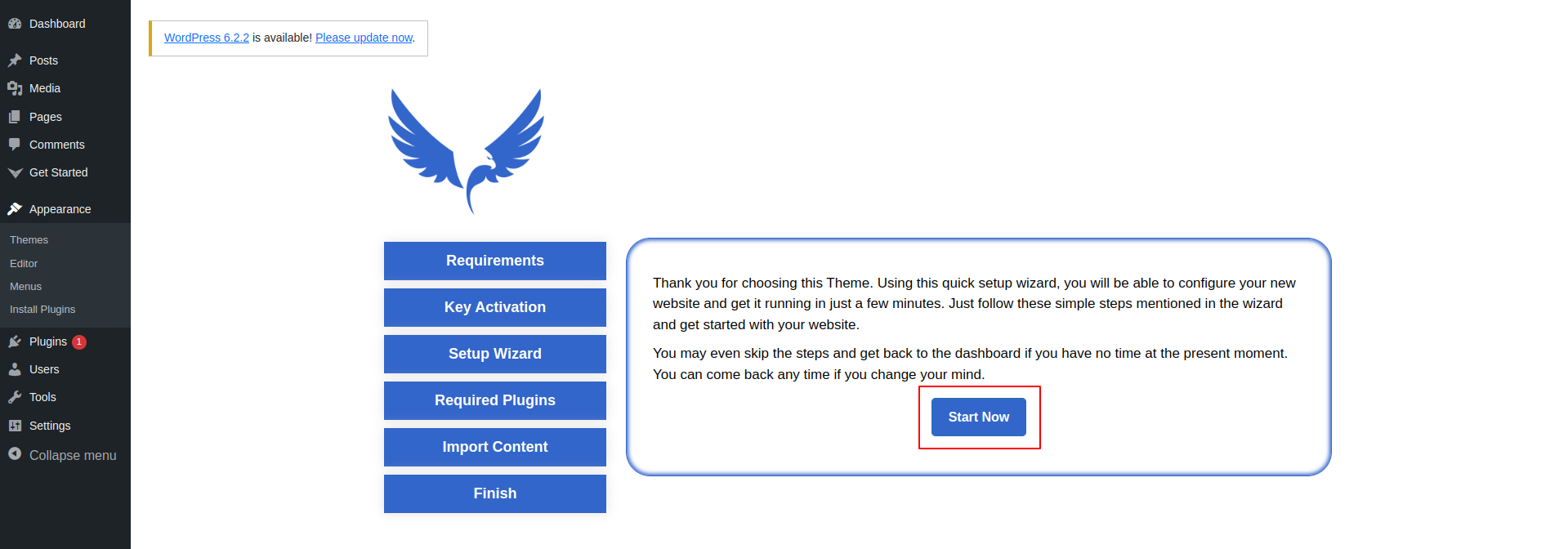
STEP 2: SETUP WIZARD
Select "Start Now" to begin the setup wizard.
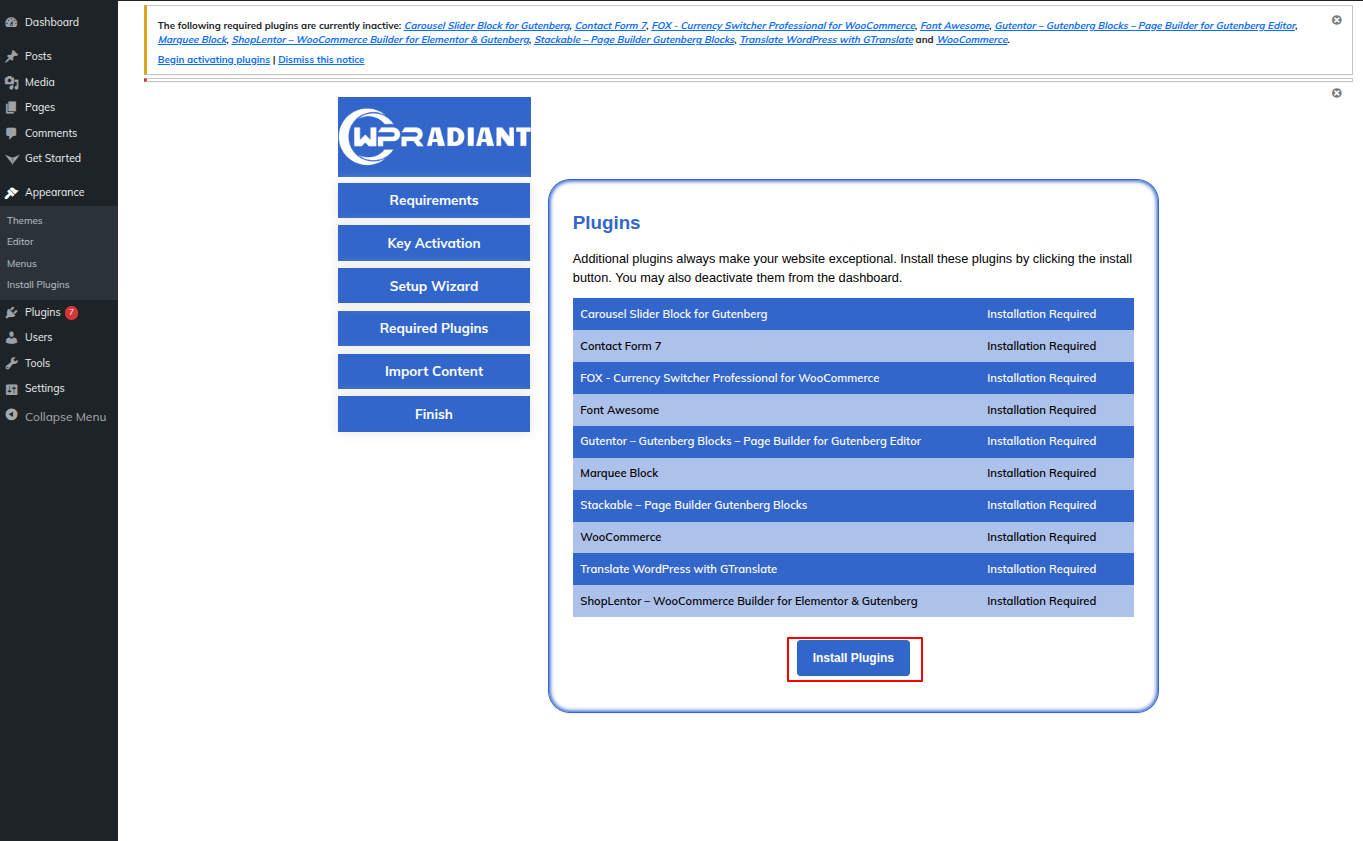
STEP 3: REQUIRED PLUGINS
To install the necessary plugins, click the "Install Plugin" option.
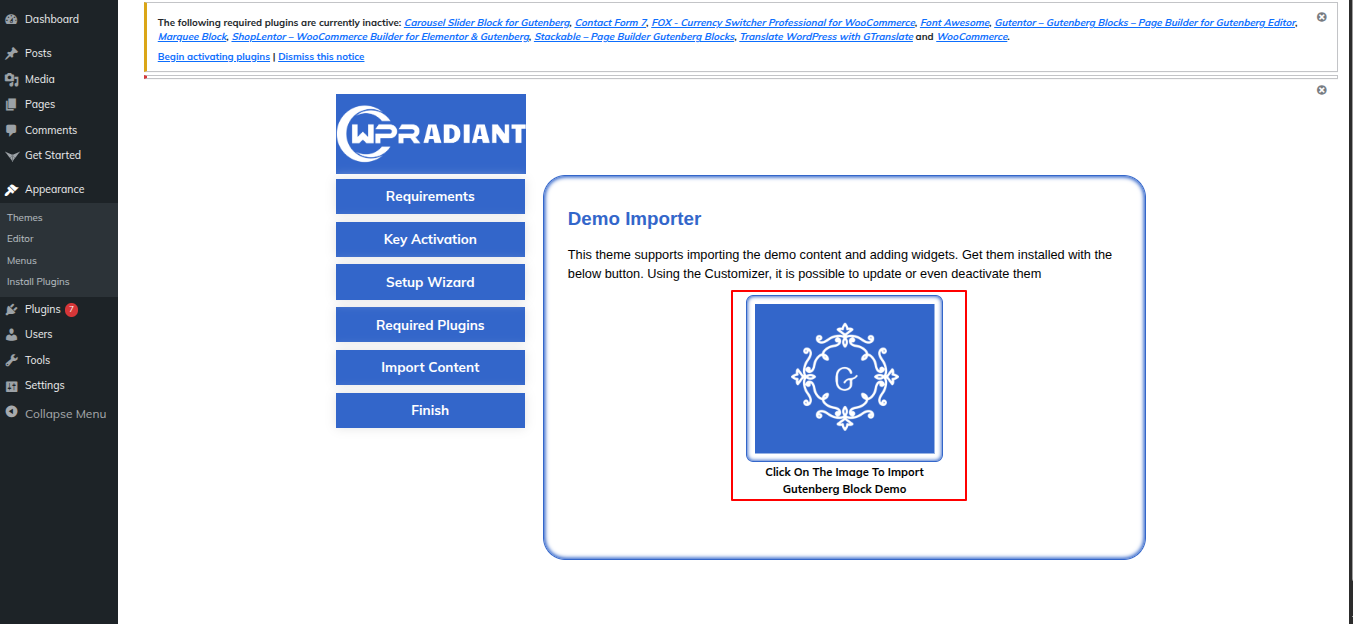
STEP 4: IMPORT CONTENT
Once the plugin has been installed, click the image to import content.
Once the demo has been imported, select Edit Themes from the menu and click "Save" to finish creating your theme.
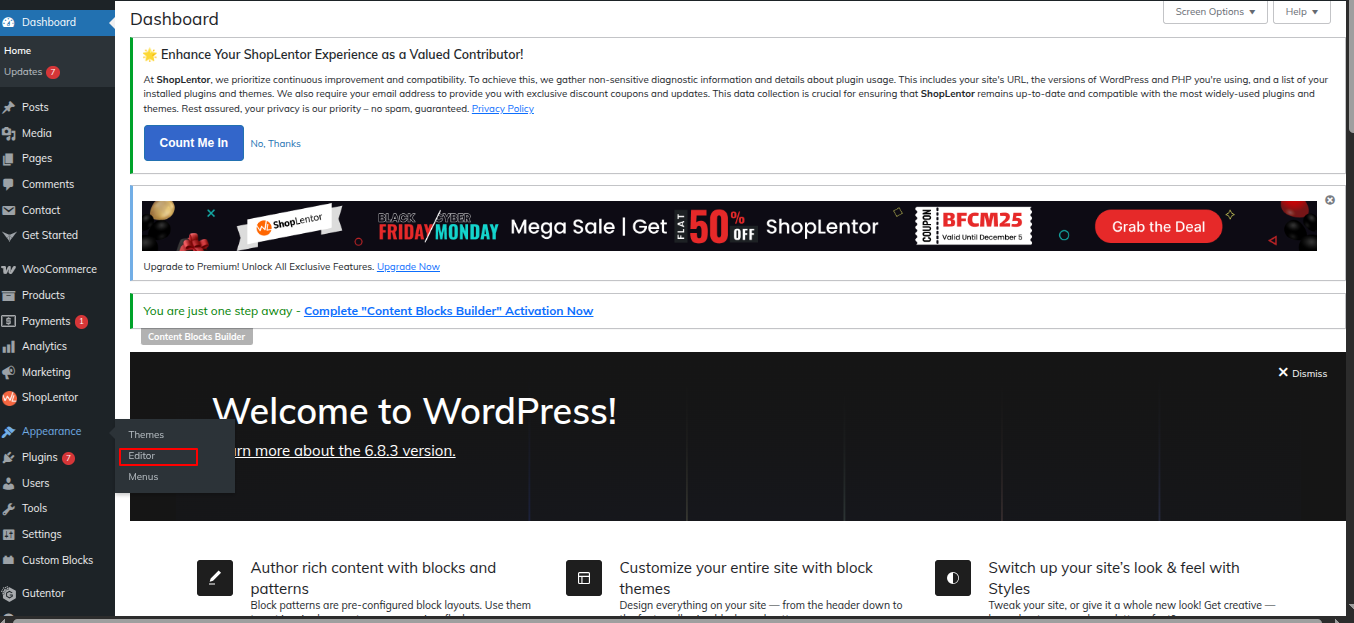
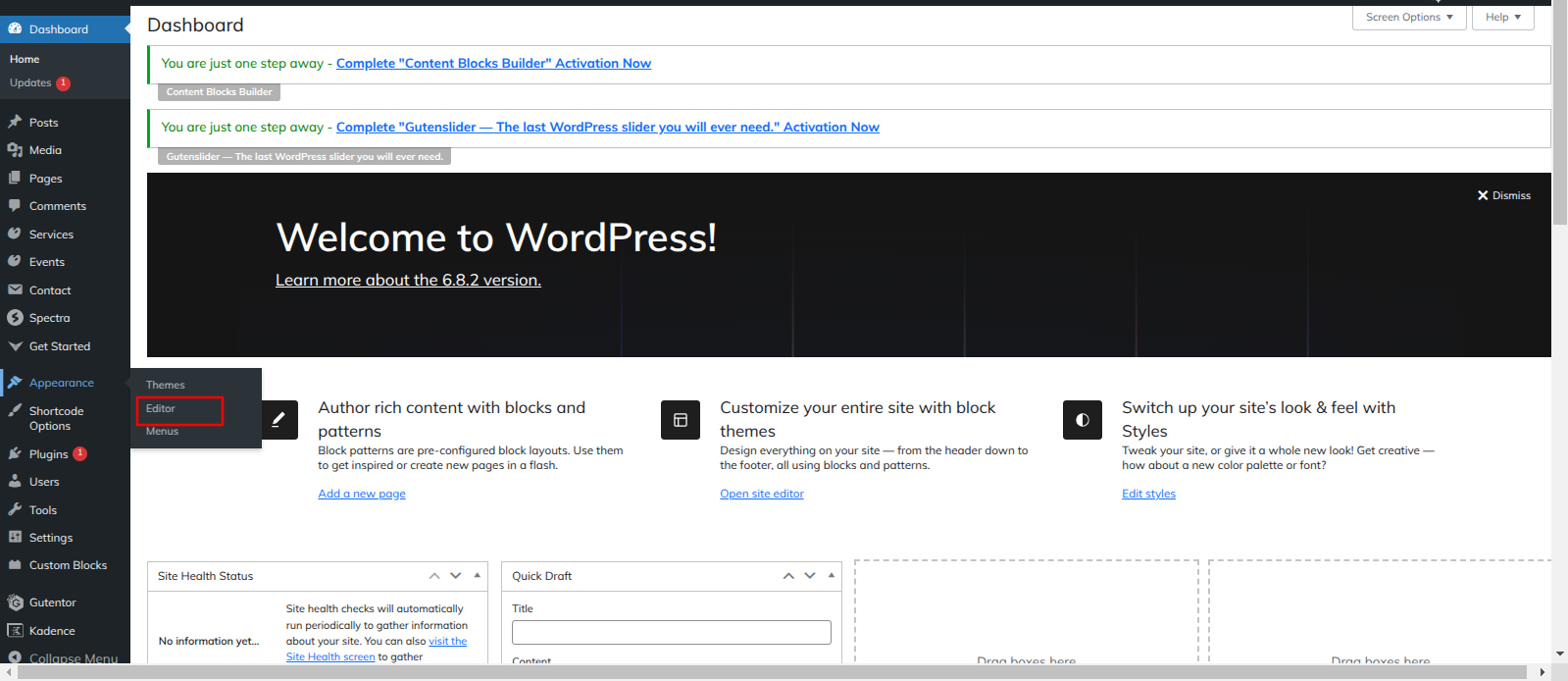
Go to the Dashboard Appearance Editor.
THEME IMPLEMENTATION
HOW TO SET UP HOMEPAGE
Go to the Dashboard Appearance Editor.
HOW TO INCLUDE PATTERNS AND BLOCKS IN A PAGE
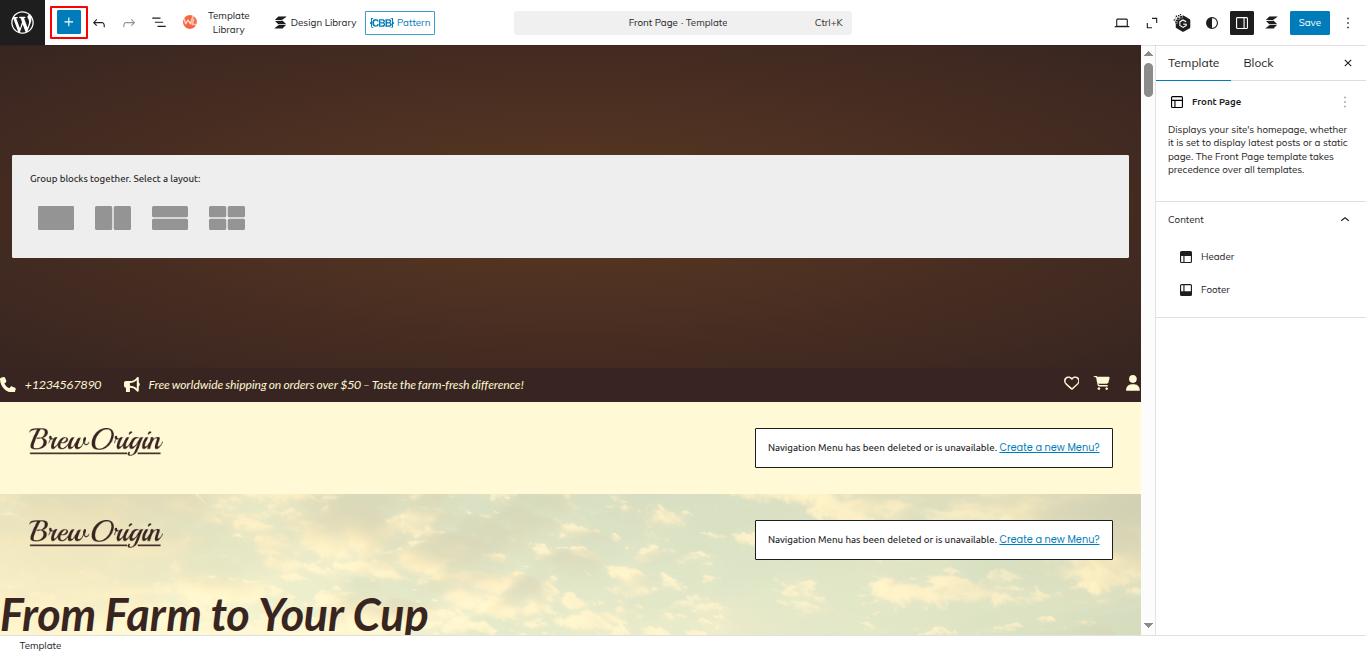
Please click the "Plus" icon as displayed in the screen below in order to add patterns and bocks.
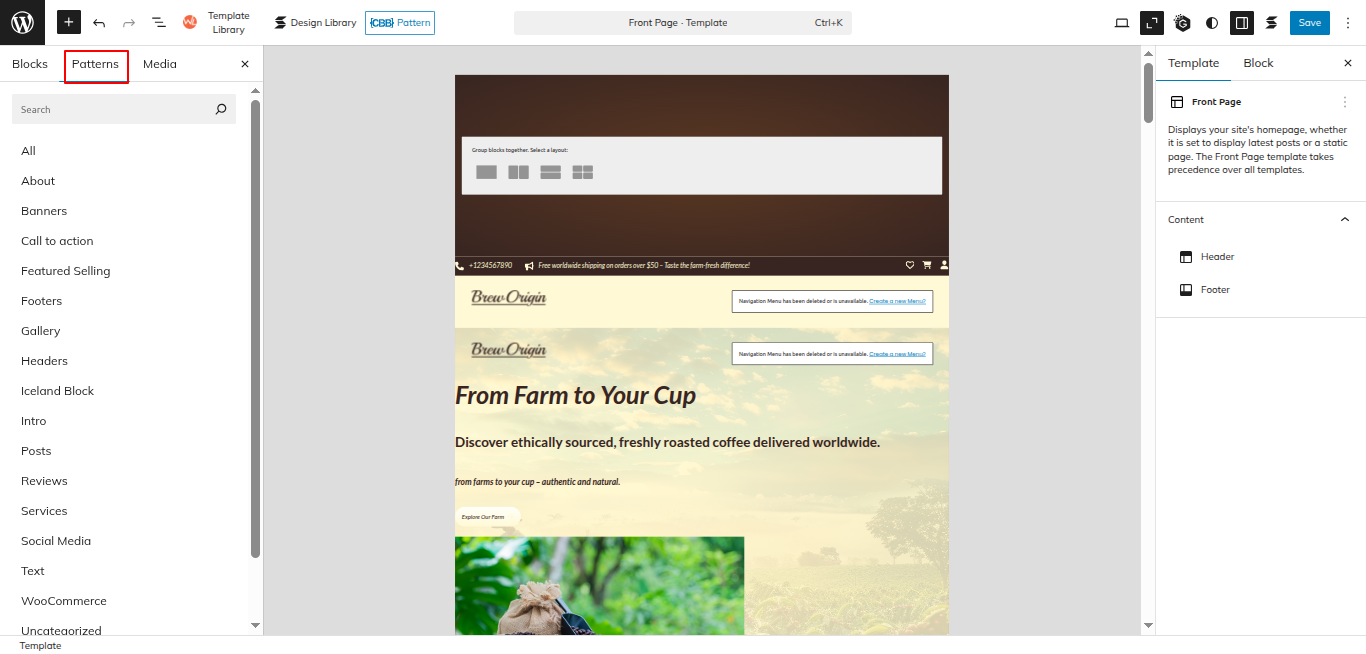
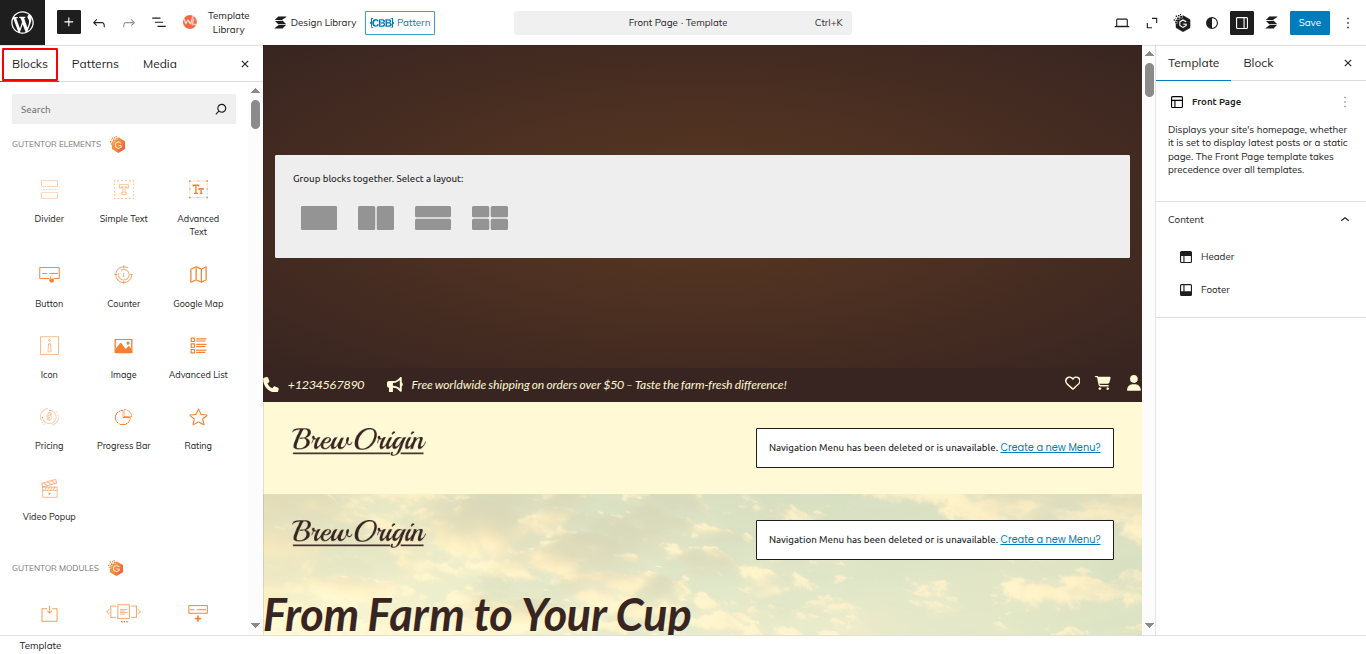
Select " Coffee Shop Pro" from the dropdown as displayed in the screen below once a sidebar has opened.
All of the theme patterns are now displayed here, and you may use them on any page.
All of the blocks are now displayed here, and you may use them on any page.
SETUP HEADER
Set up the header by following the steps mentioned below.
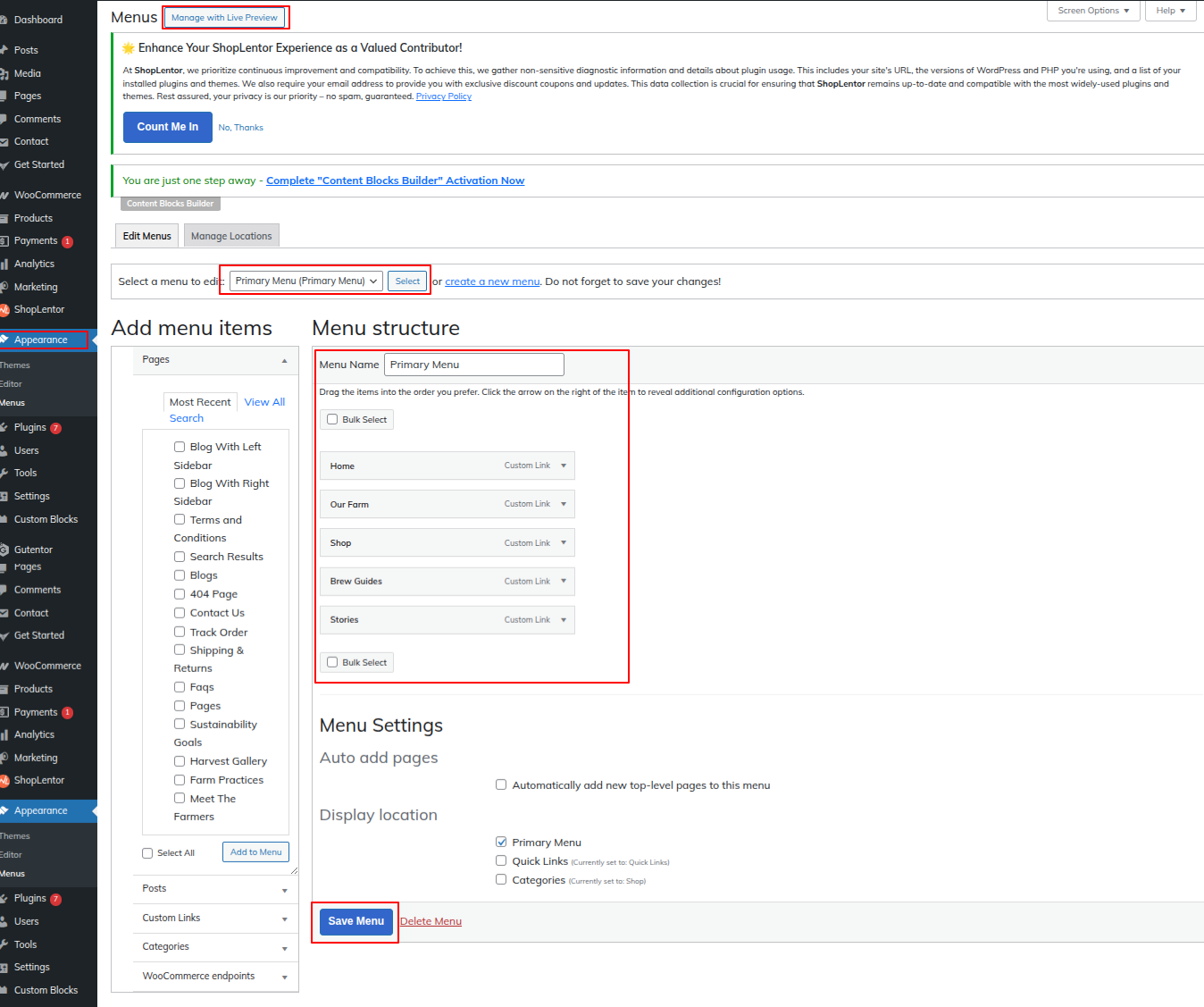
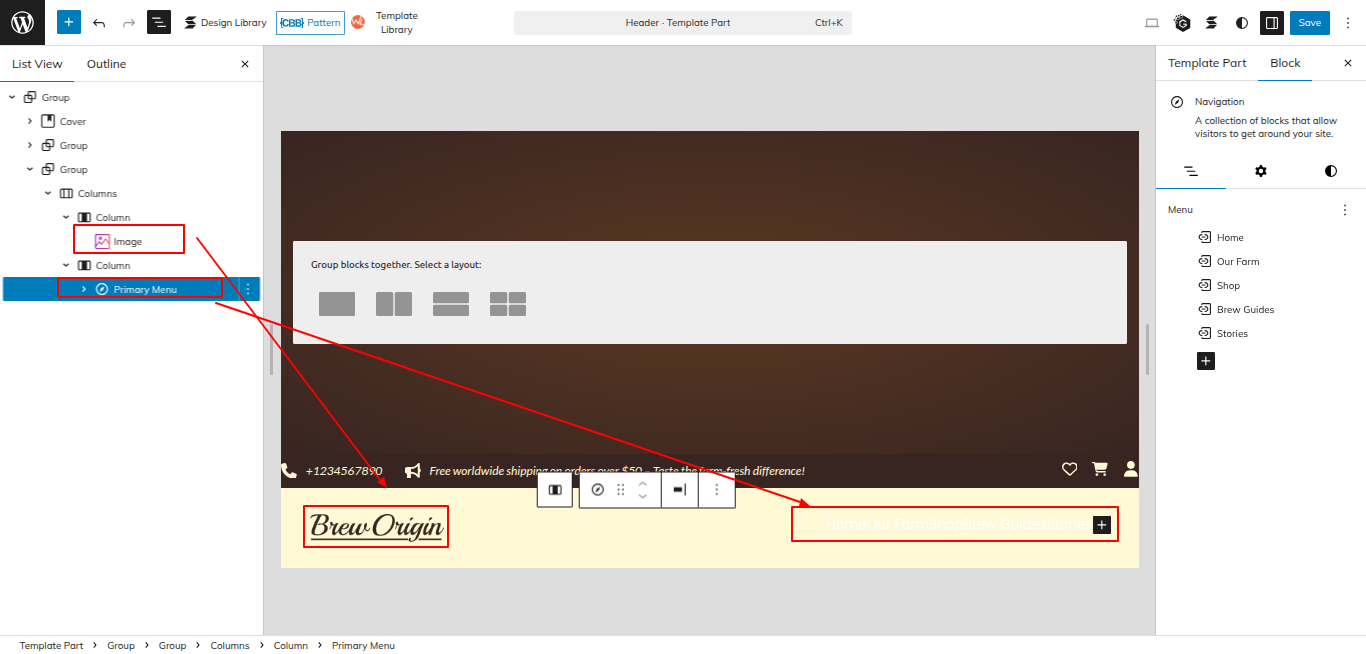
Before adding menus from the Add menu items menu, you must first create a menu.
Go to Dashboard Appearance Menus.
Go to the Dashboard Appearance Editor.
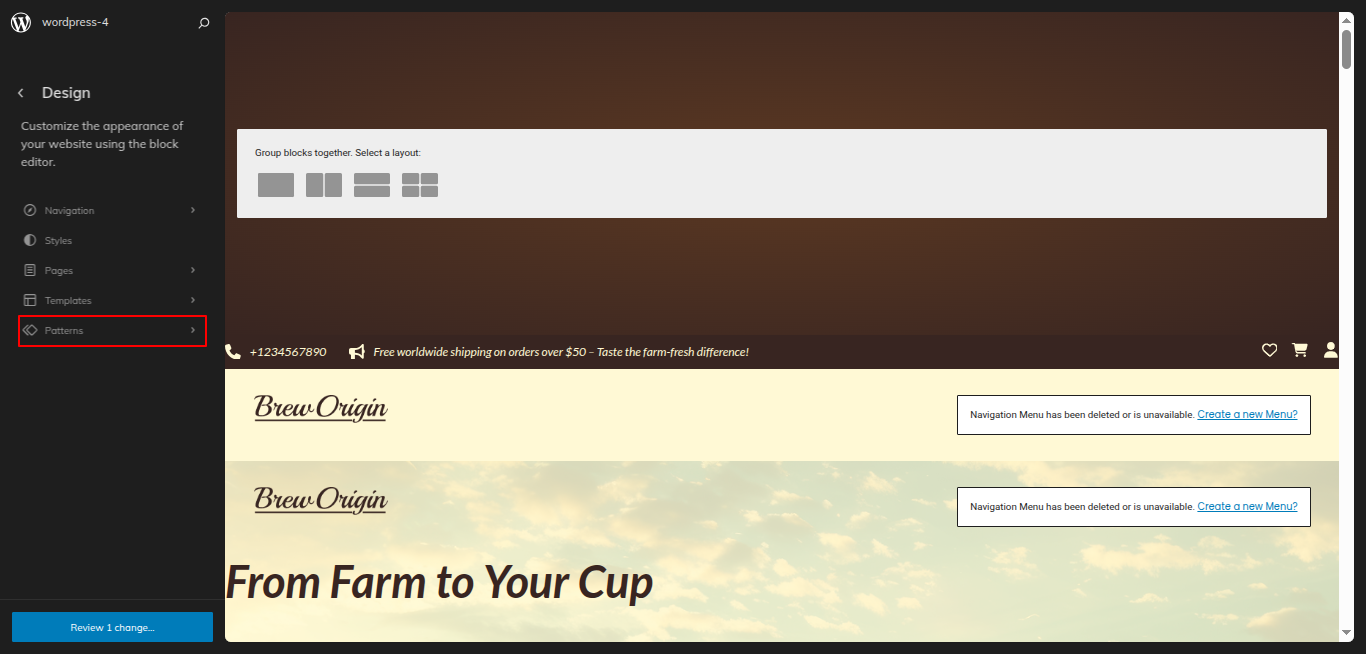
Click on "Patterns" as indicated in the screenshot below.
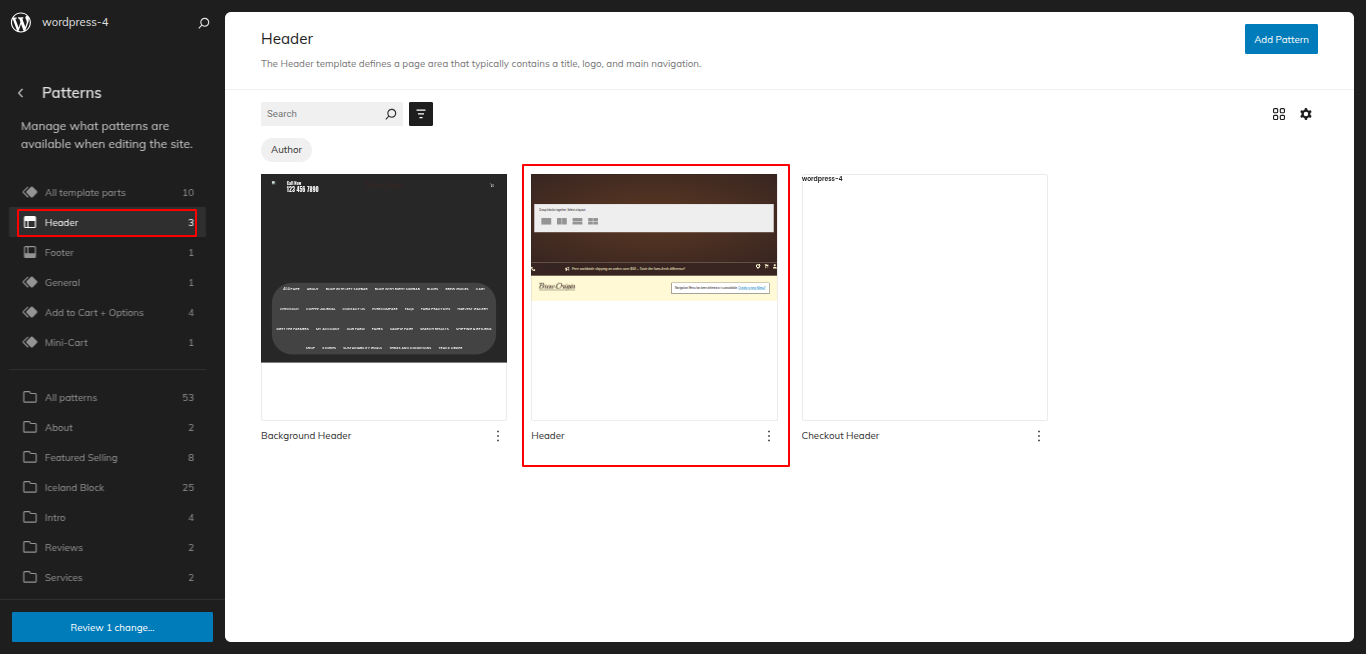
To modify, click Header Section from here.
This is how you may set up and add the Header section.
Setup Banner Section
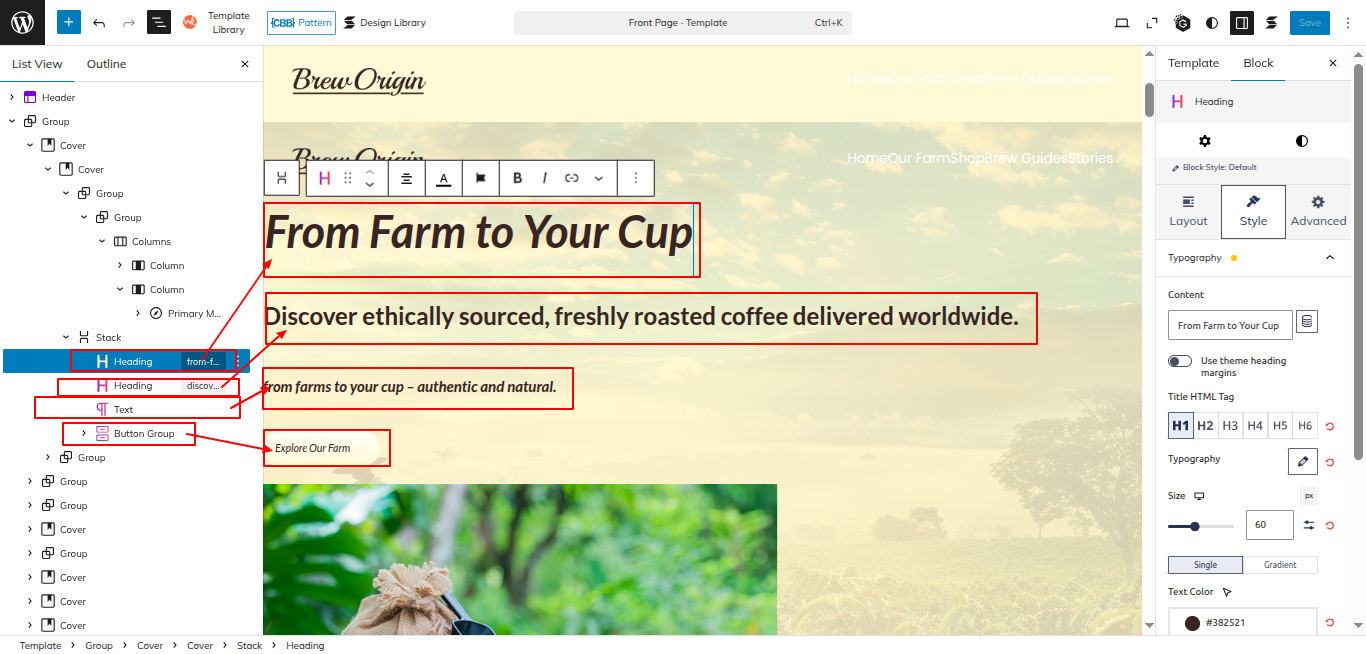
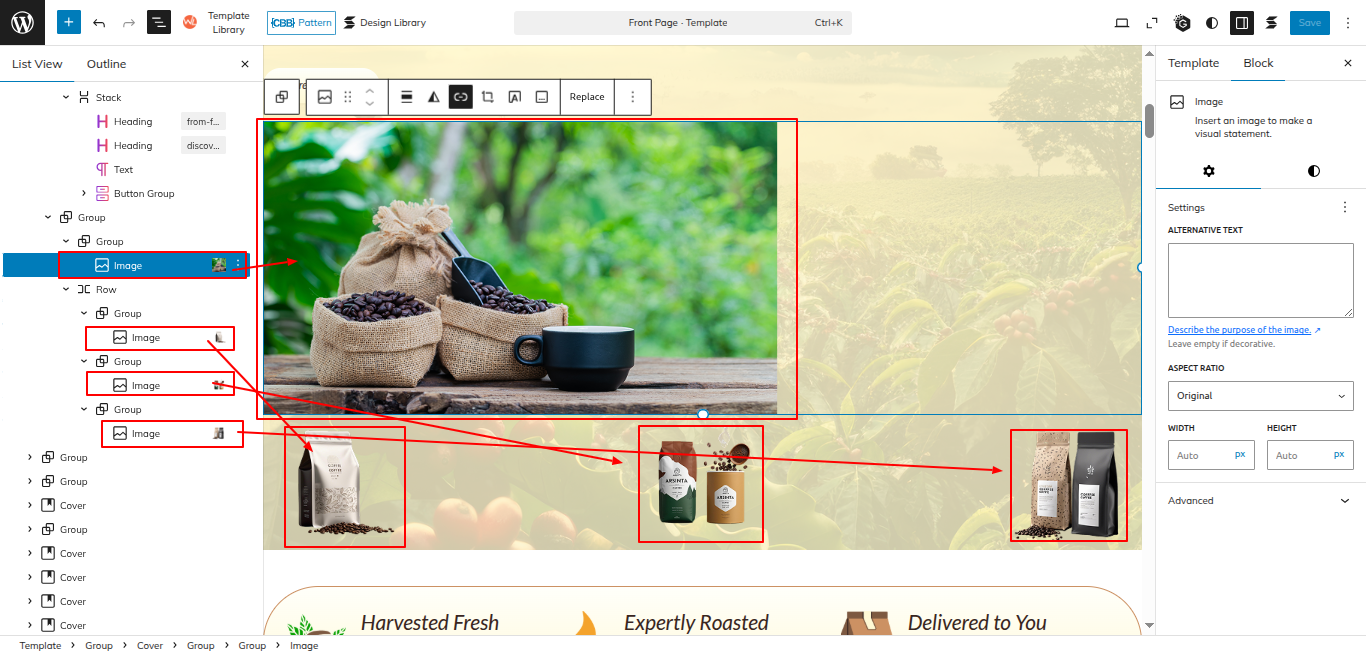
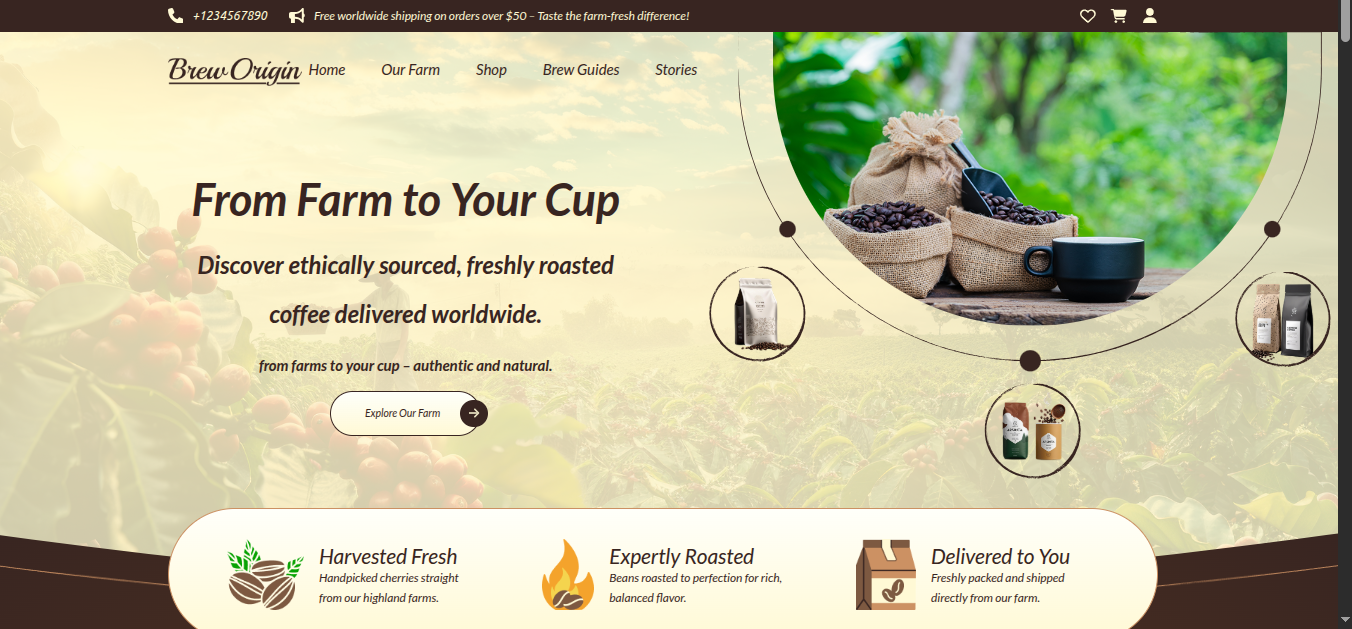
Set up the Banner Section according to the instructions below.
Go to the Dashboard Appearance Editor.
This is how you may set up and add the Banner Section.
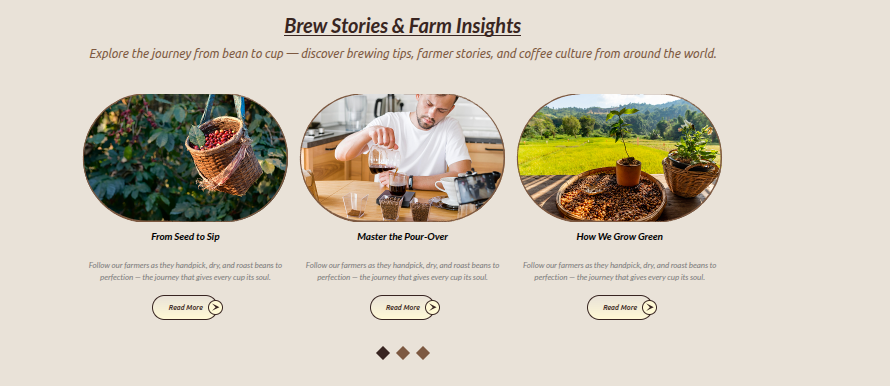
Setup Farm Section
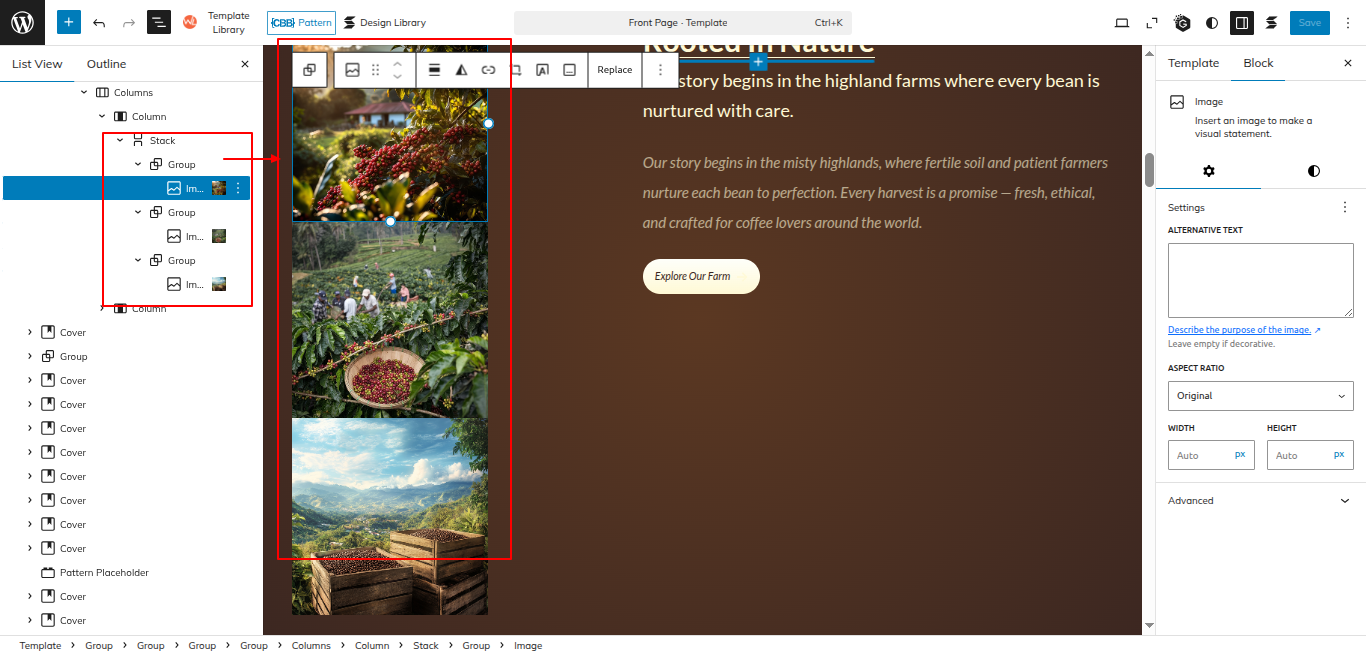
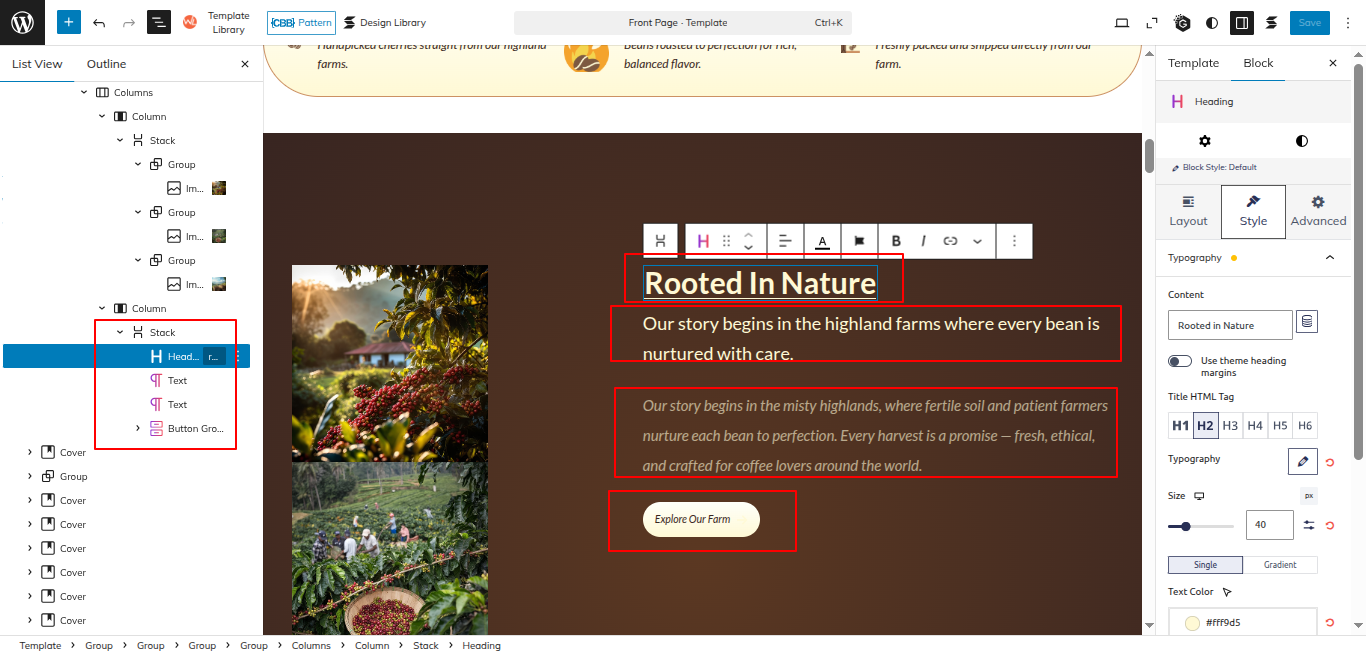
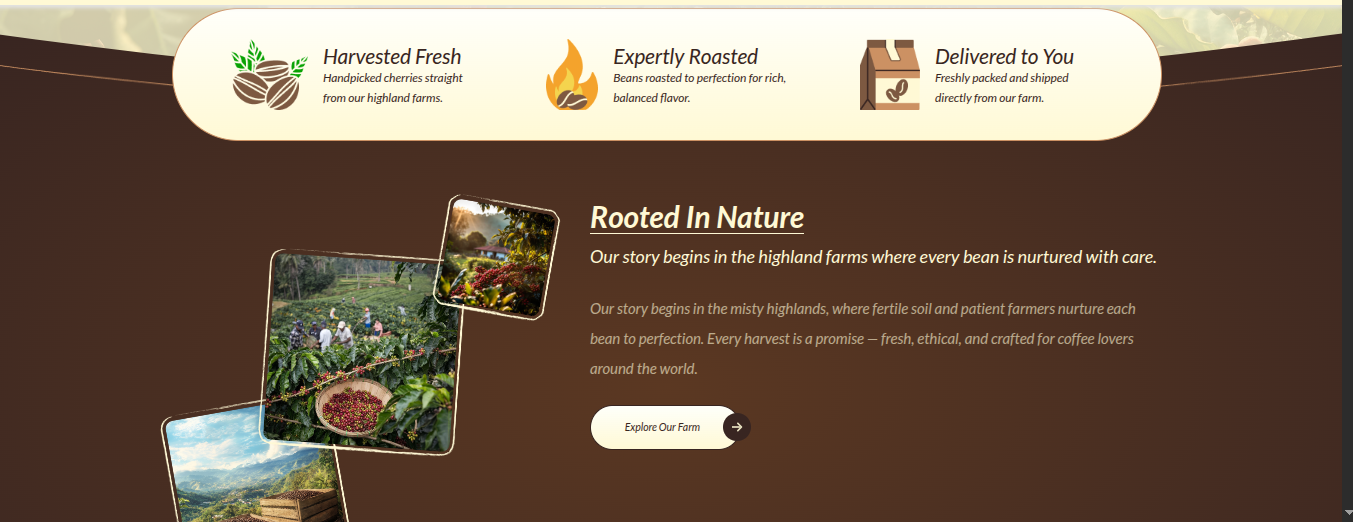
Set up the Farm Section according to the instructions below.
Go to Dashboard Appearance Editor.
This is how you may set up and add the Farm Section.
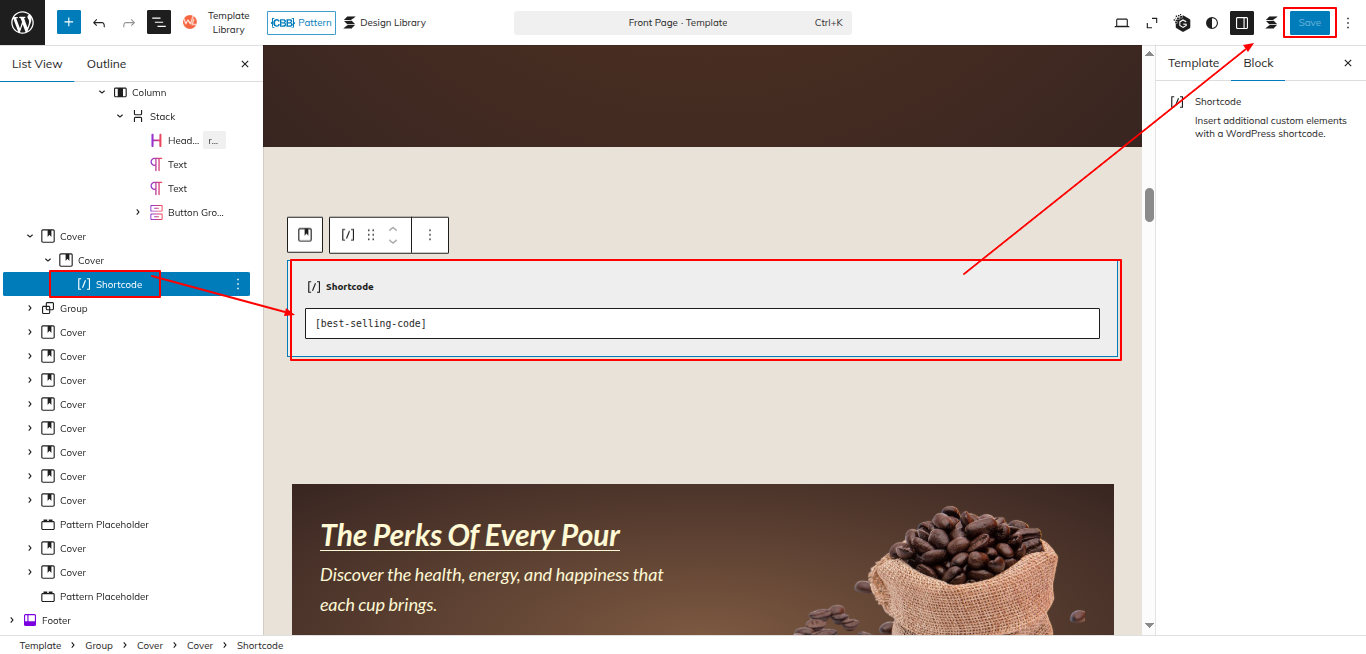
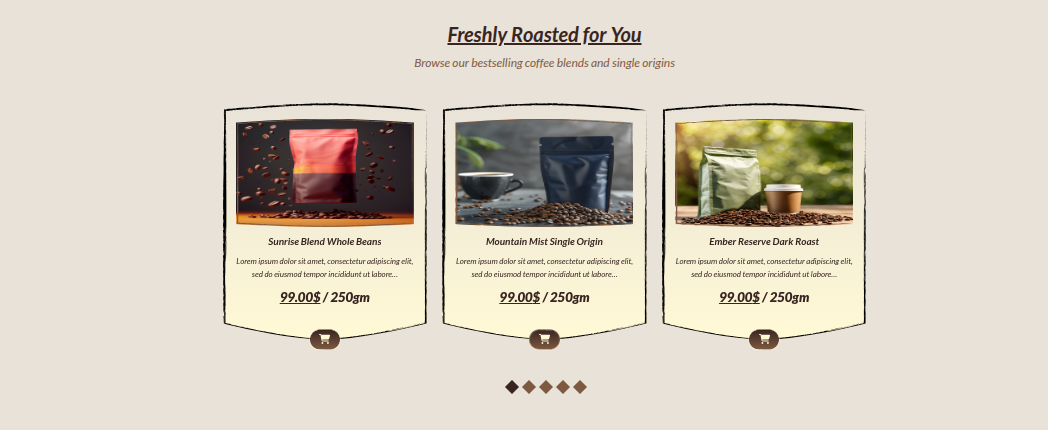
Setup Best Selling Section
Set up the Best Selling Section according to the instructions below.
Go to Dashboard Appearance Editor.
This is how you may set up and add the Best Selling Section.
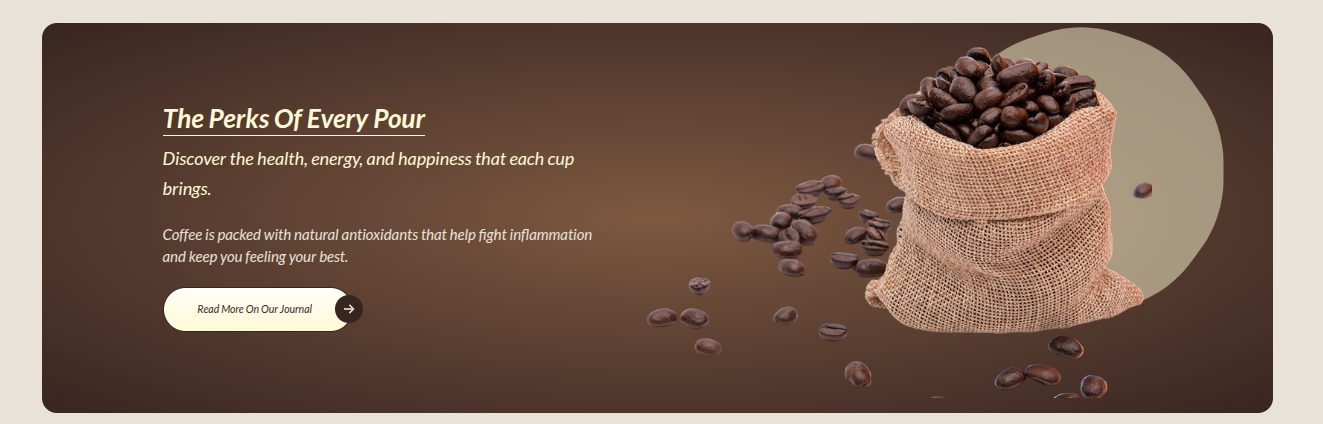
Setup Perks Section
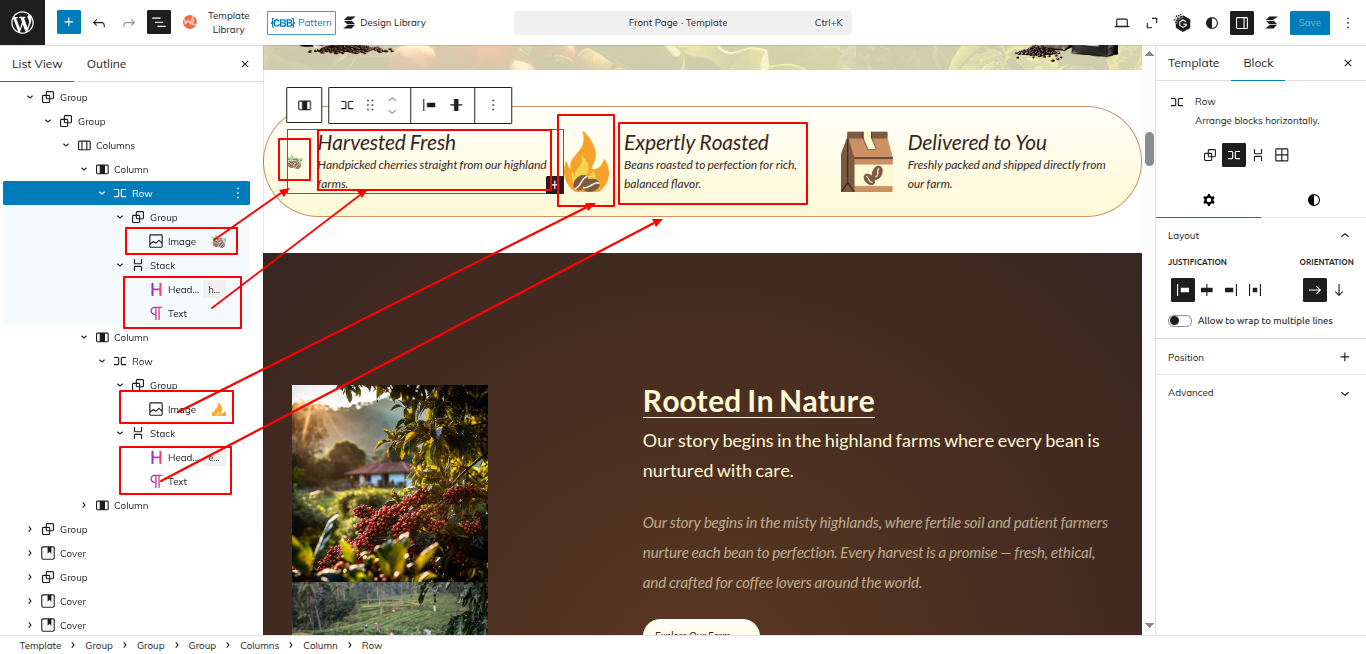
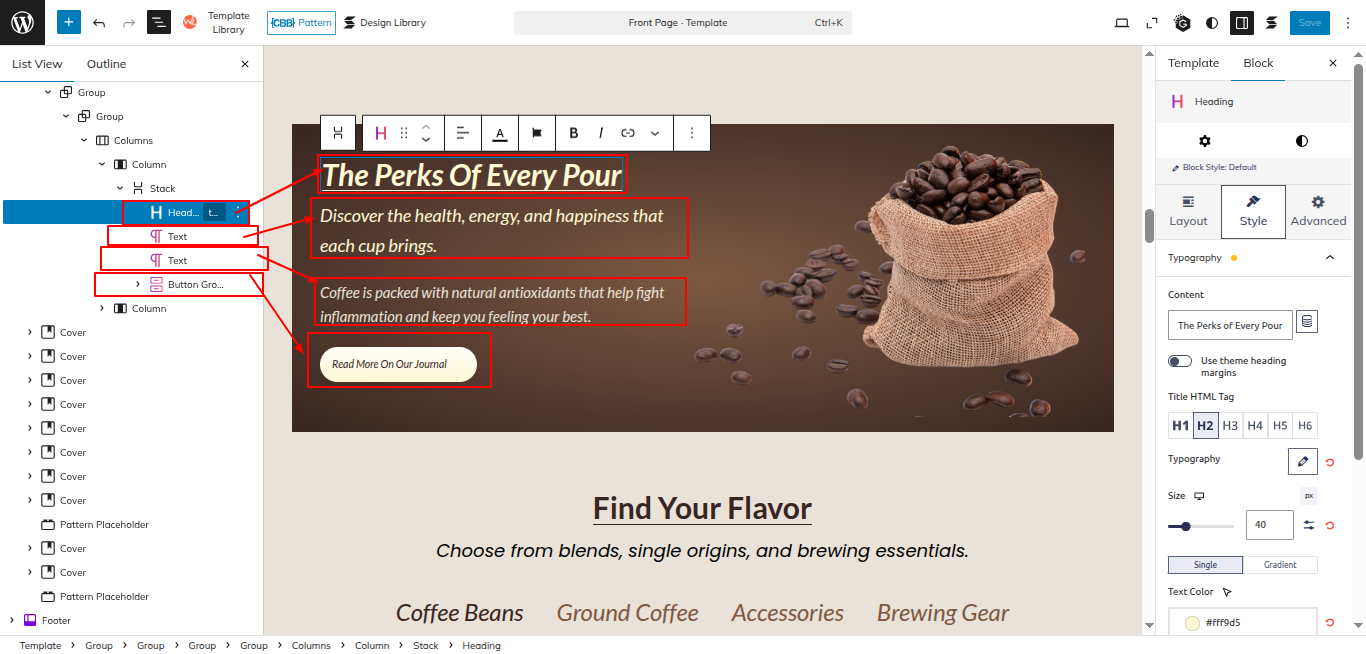
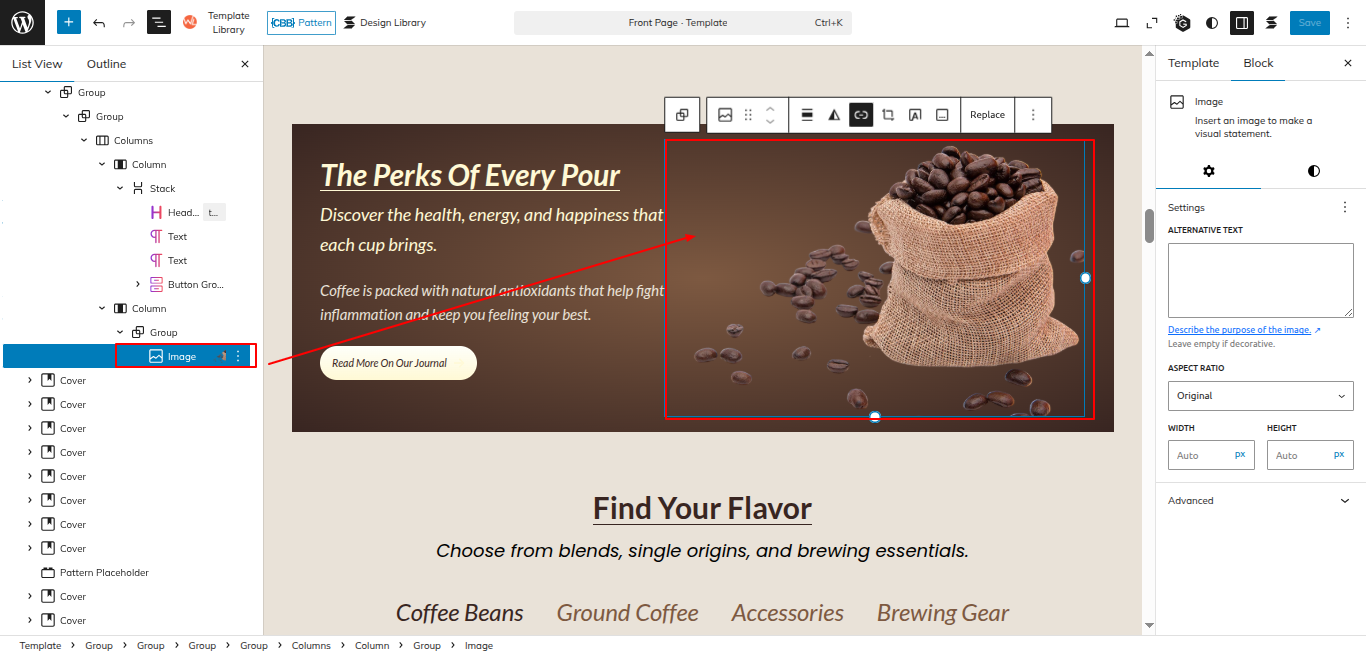
Set up the Perks Section according to the instructions below.
Go to Dashboard Appearance Editor.
This is how you may set up and add the Perks Section.
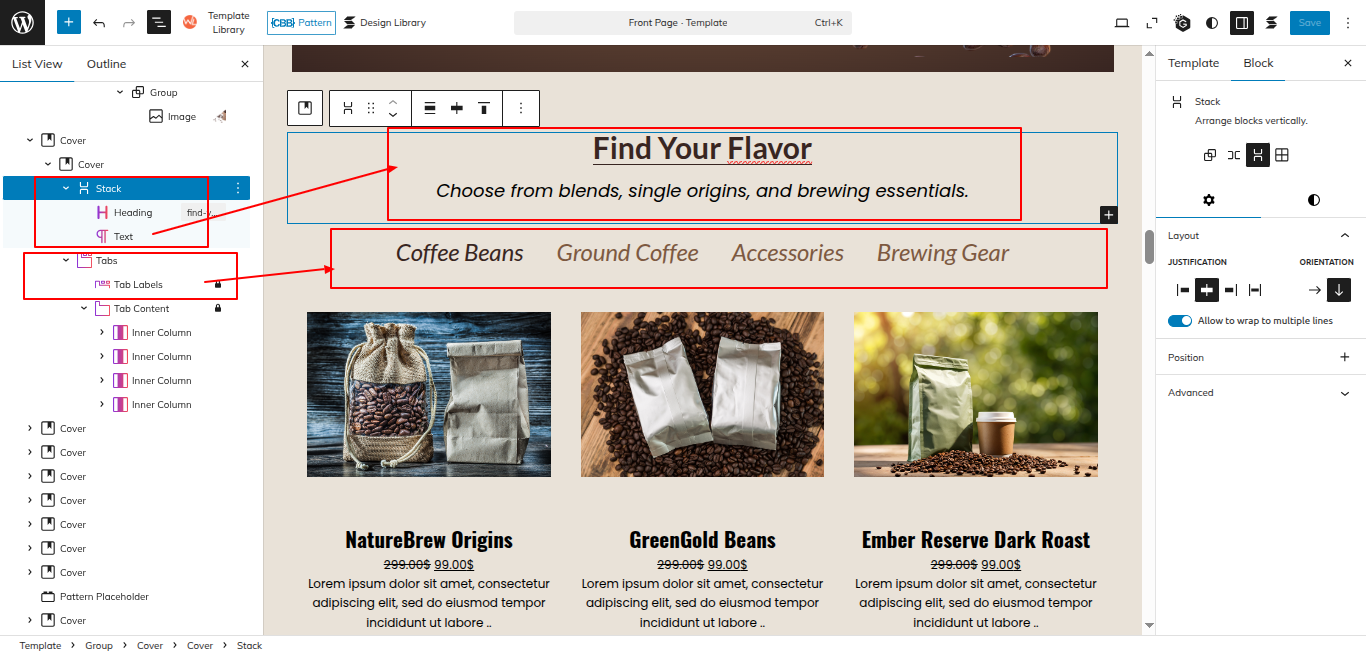
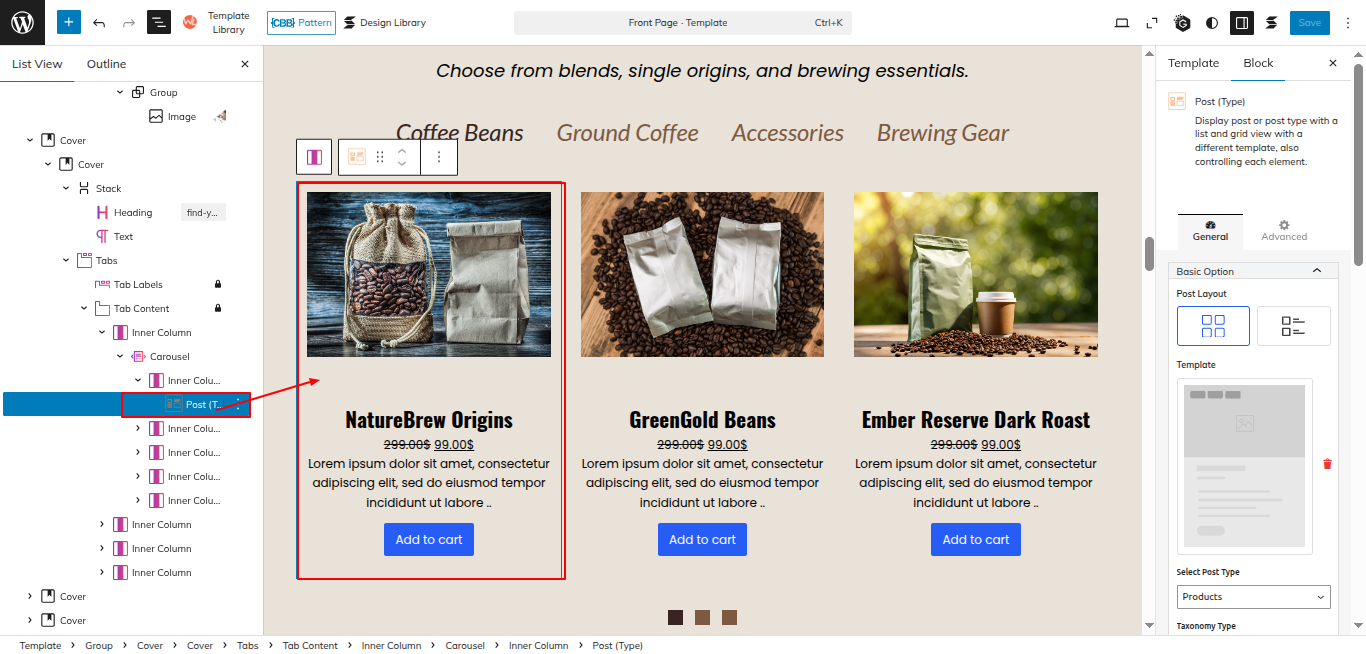
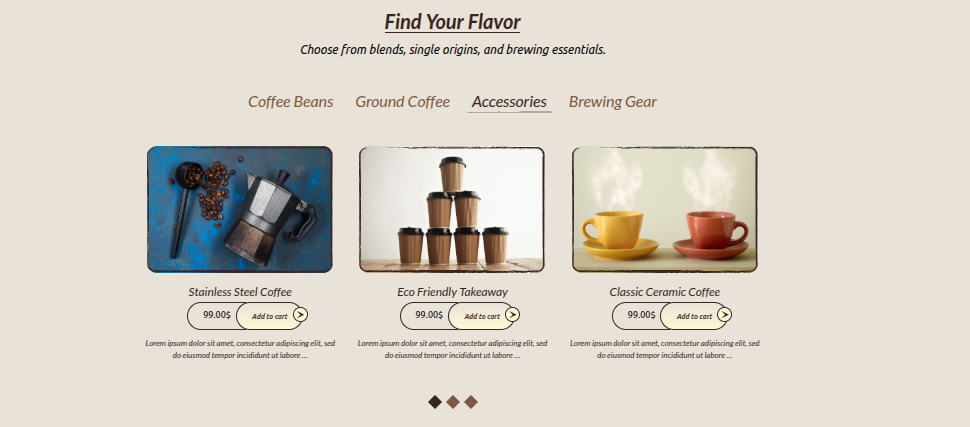
Setup Find Flavor Section
Set up the Find Flavor Section according to the instructions below.
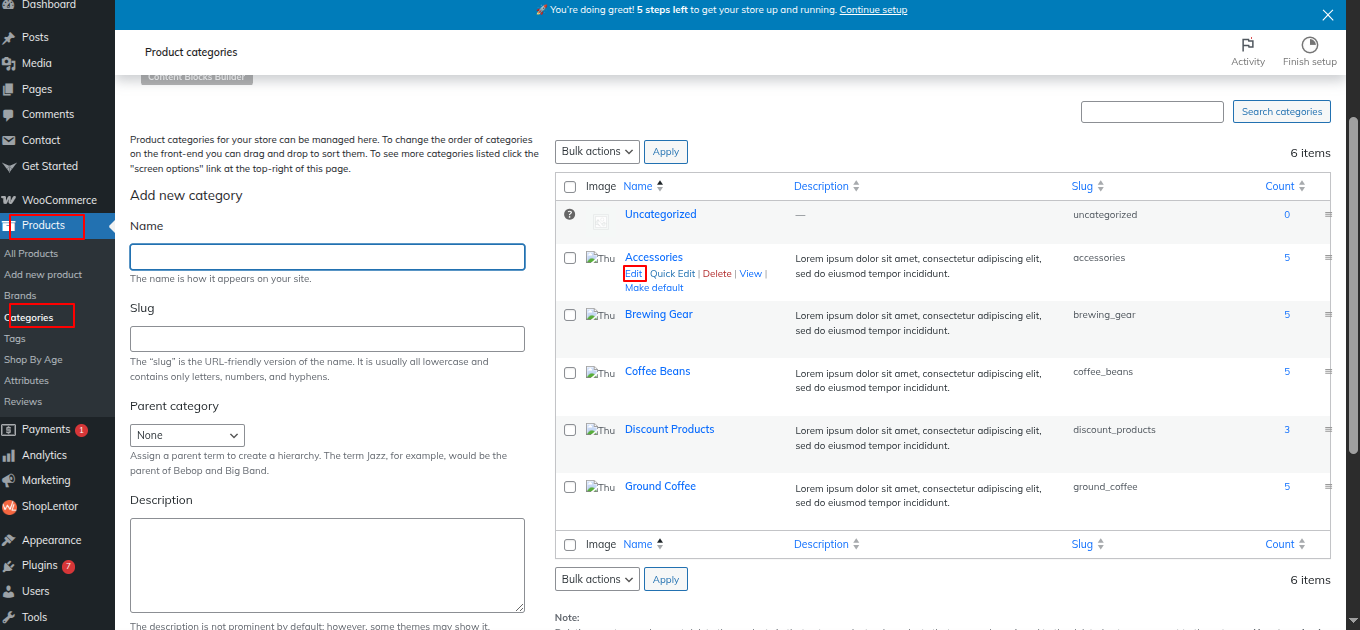
Go to the Dashboard Product Edit
Set up the Services Section according to the instructions below.
Go to Dashboard Appearance Editor.
This is how you may set up and add the Services Section.
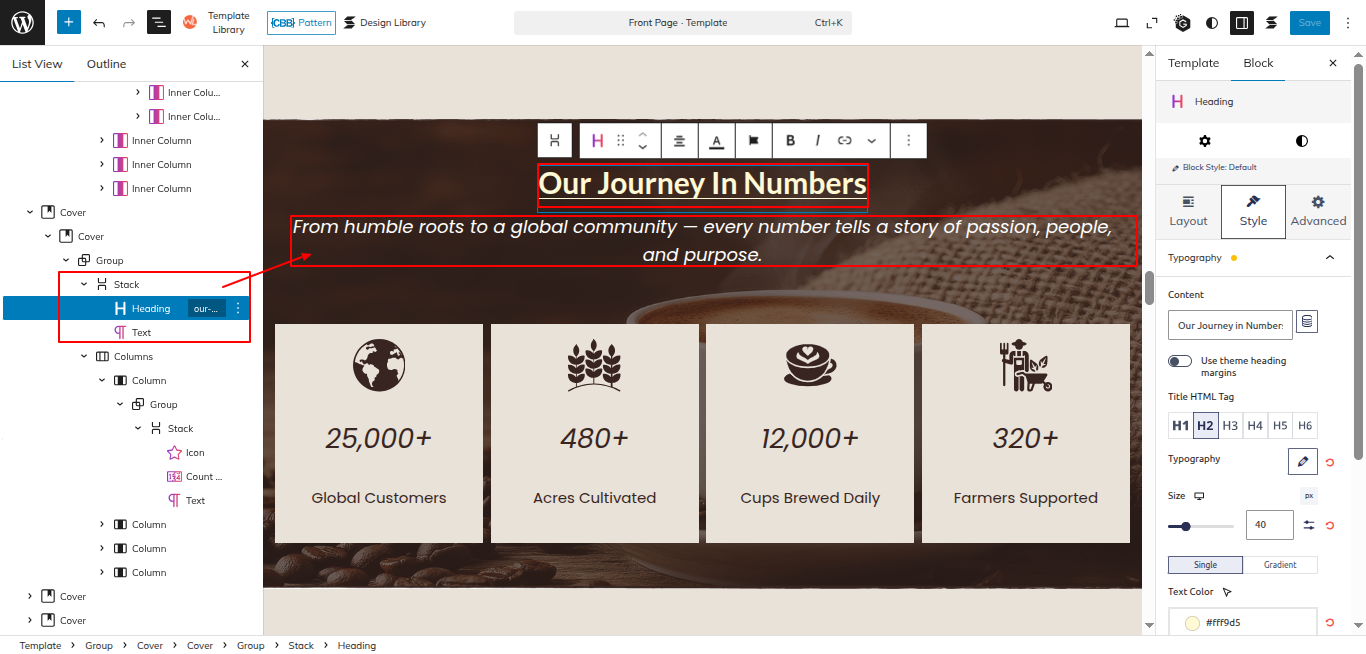
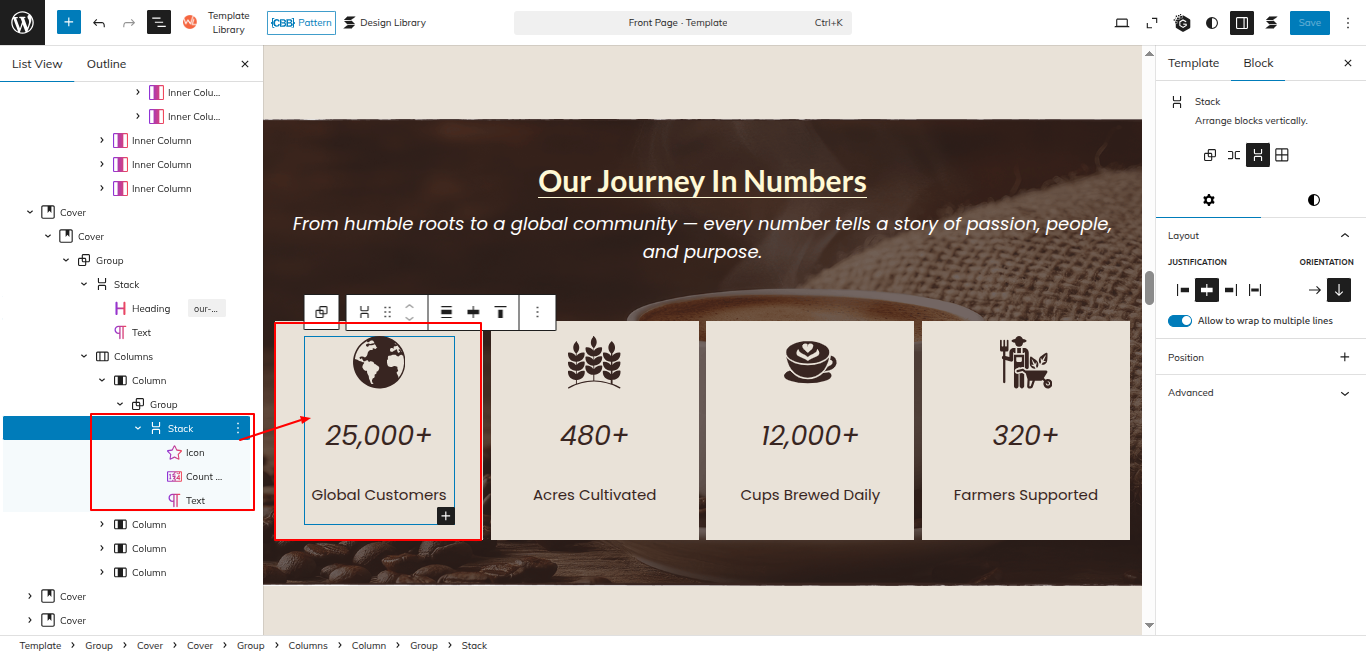
Setup Journey Section
Set up the Journey Section according to the instructions below.
Go to Dashboard Appearance Editor.
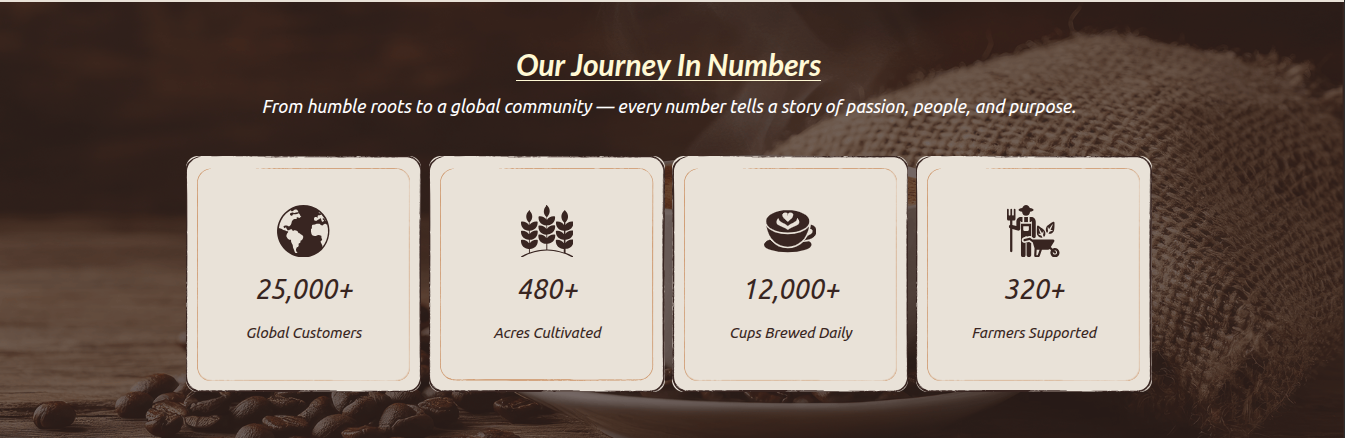
This is how you may set up and add the Journey Section.
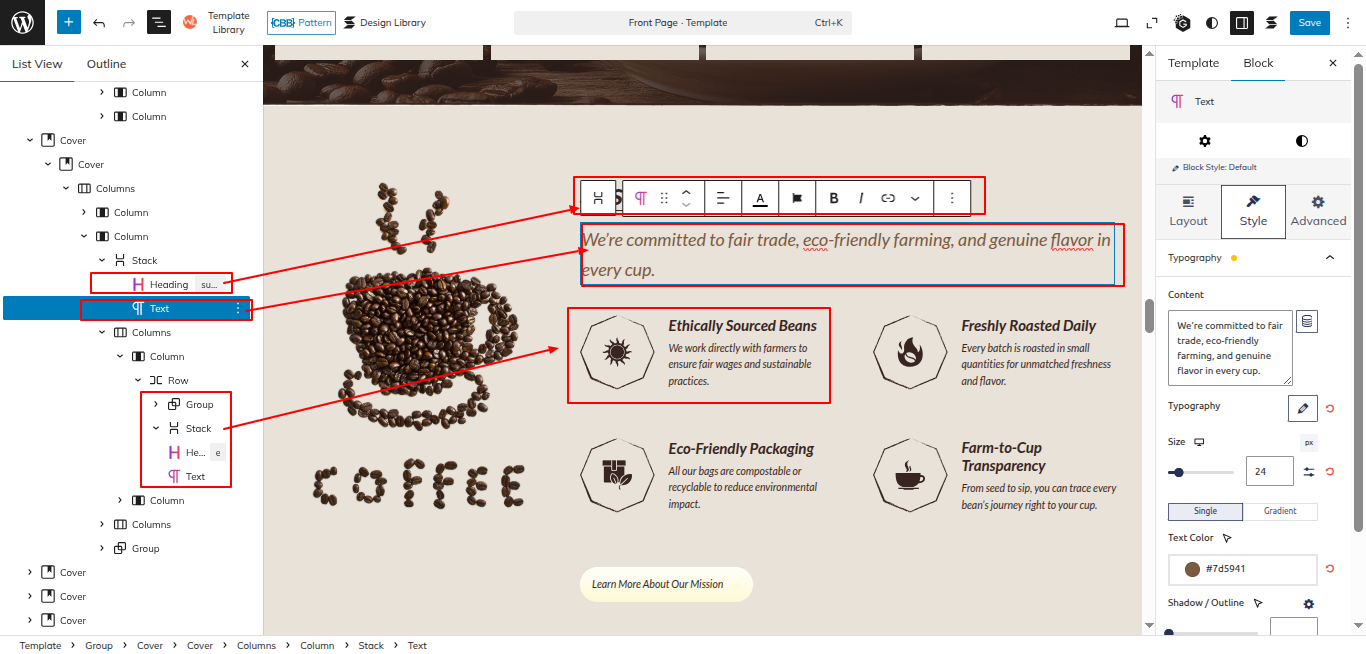
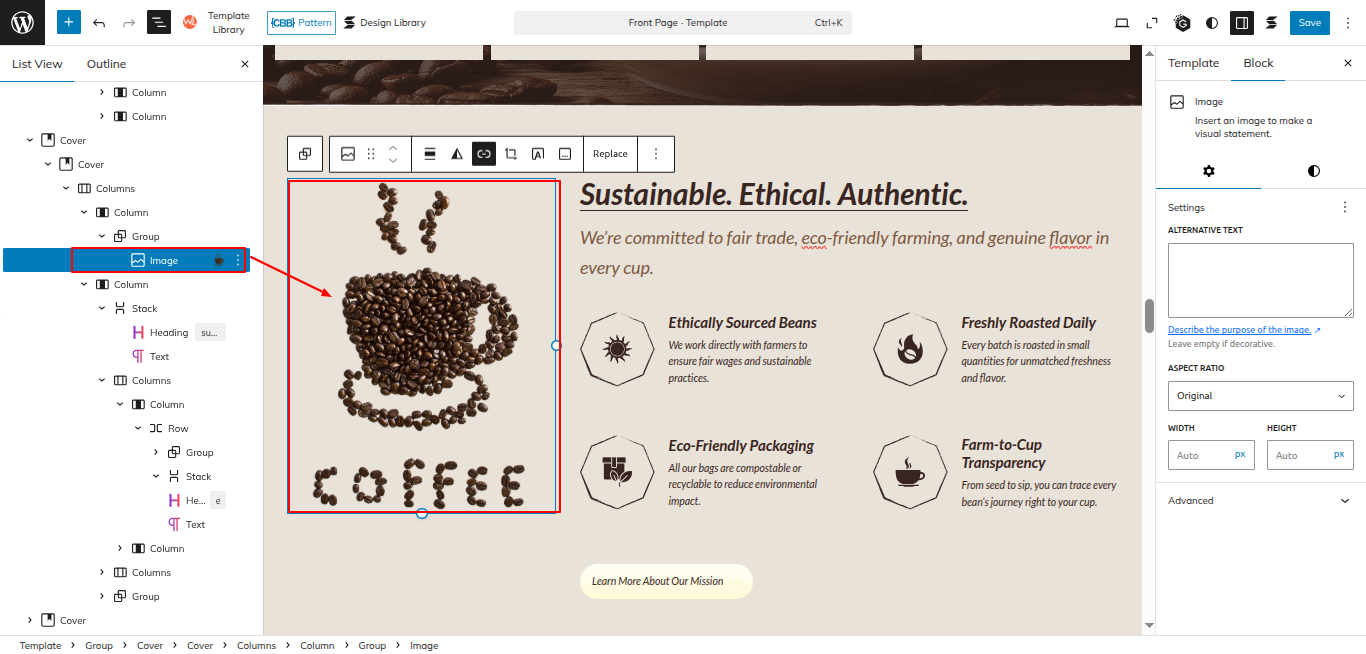
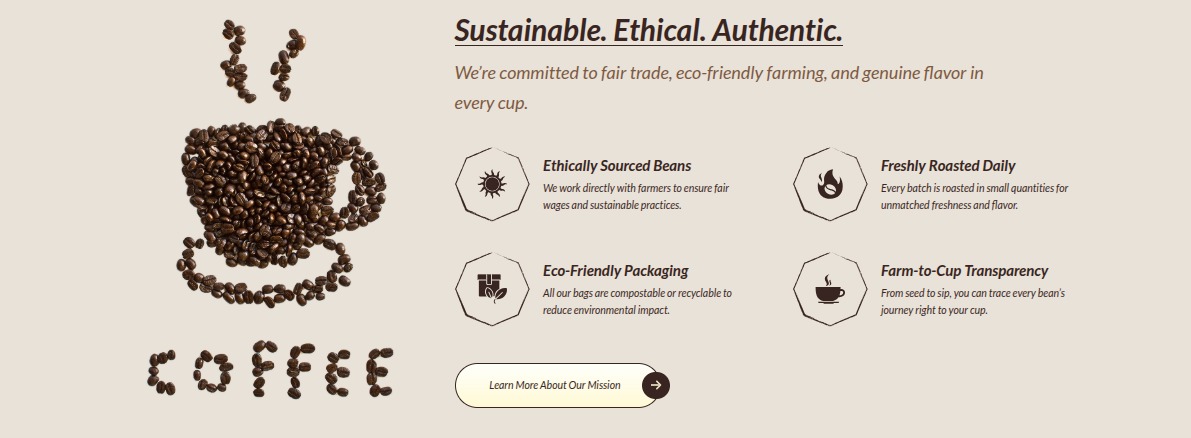
Setup Sustainable Section
Set up the Sustainable Section according to the instructions below.
Go to Dashboard Appearance Editor.
This is how you may set up and add the Journey Section.
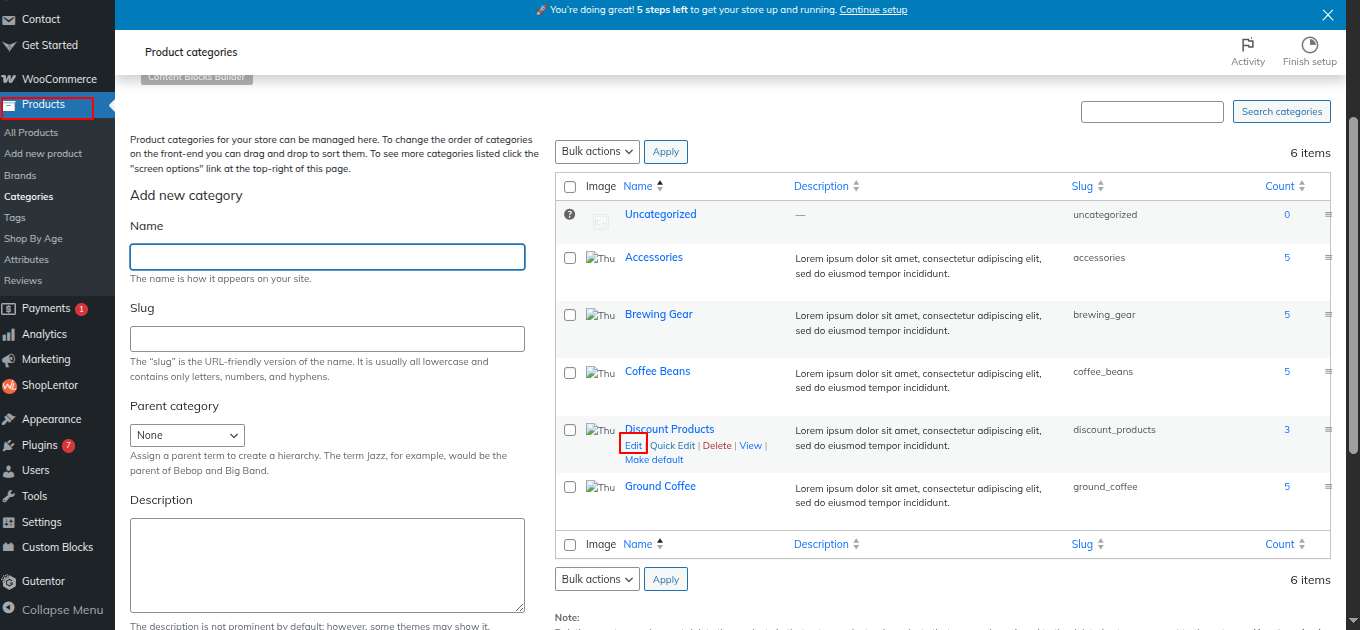
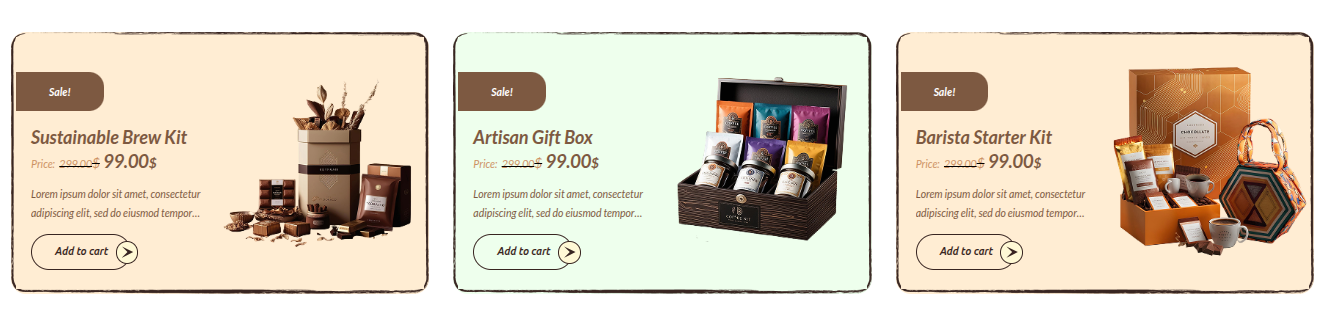
Setup Sale Section
Set up the Sale Section according to the instructions below.
Go to the Dashboard Product Edit
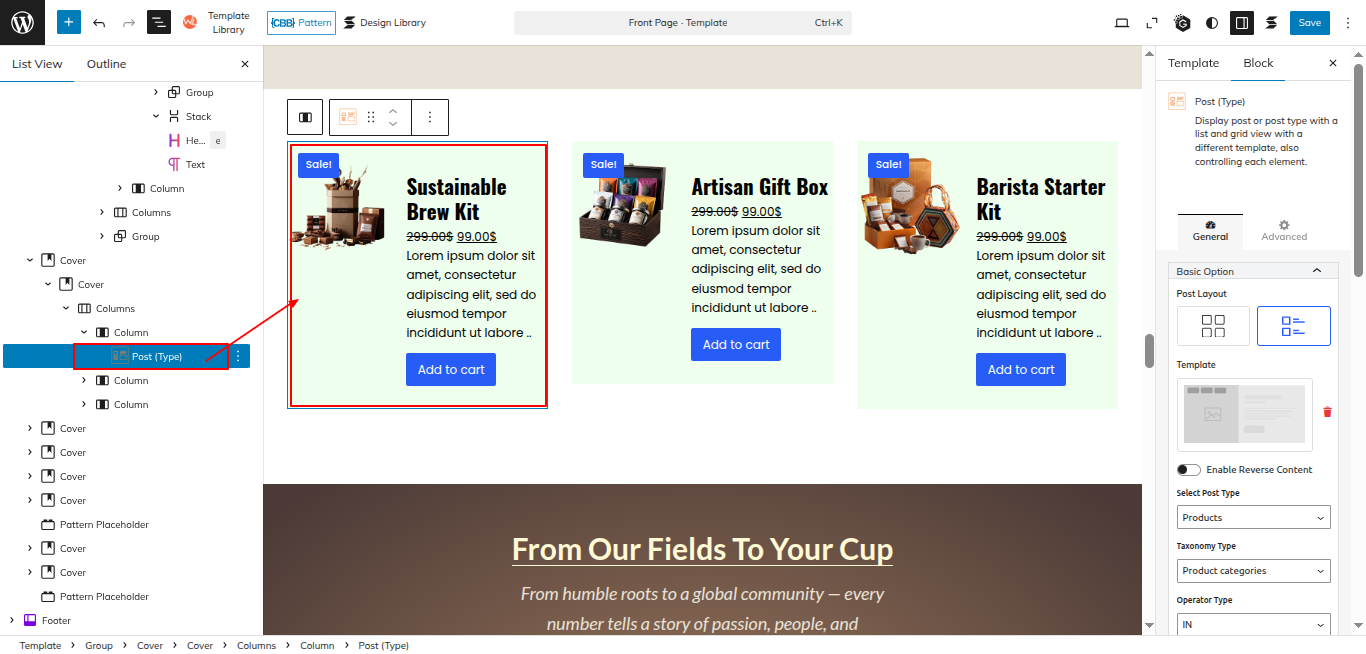
Set up the Sale Section according to the instructions below.
Go to Dashboard Appearance Editor.
This is how you may set up and add the Sale Section.
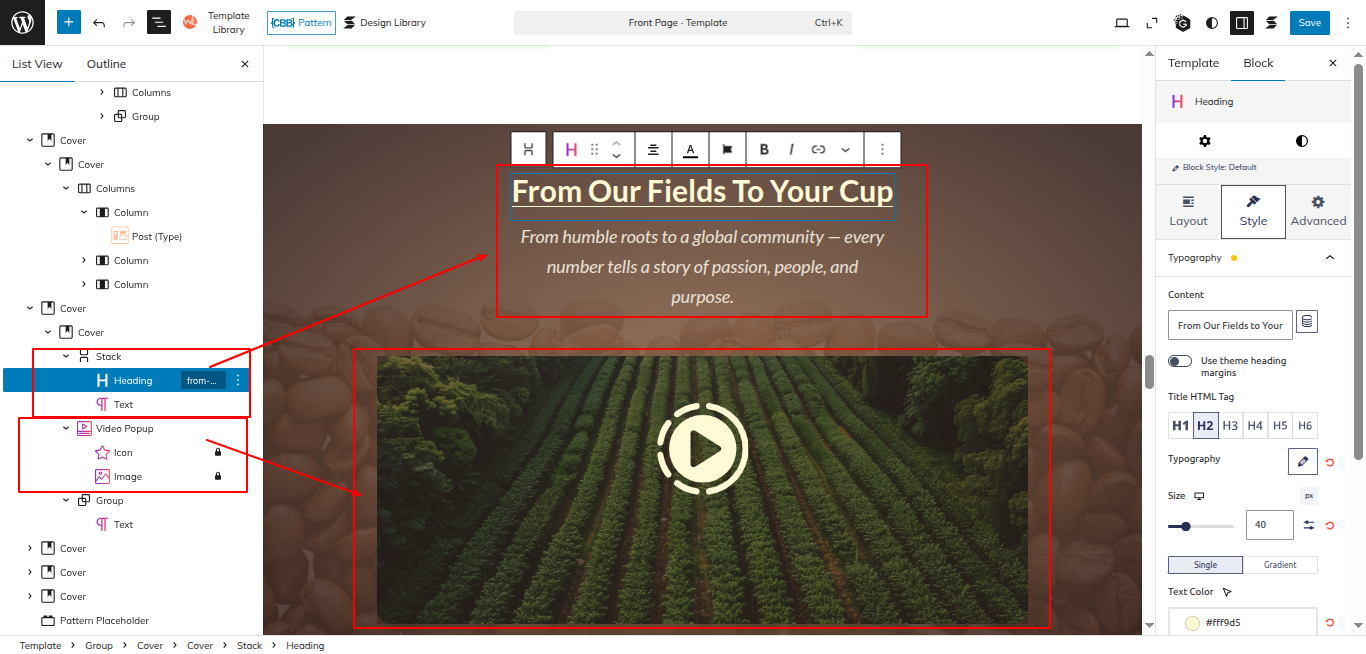
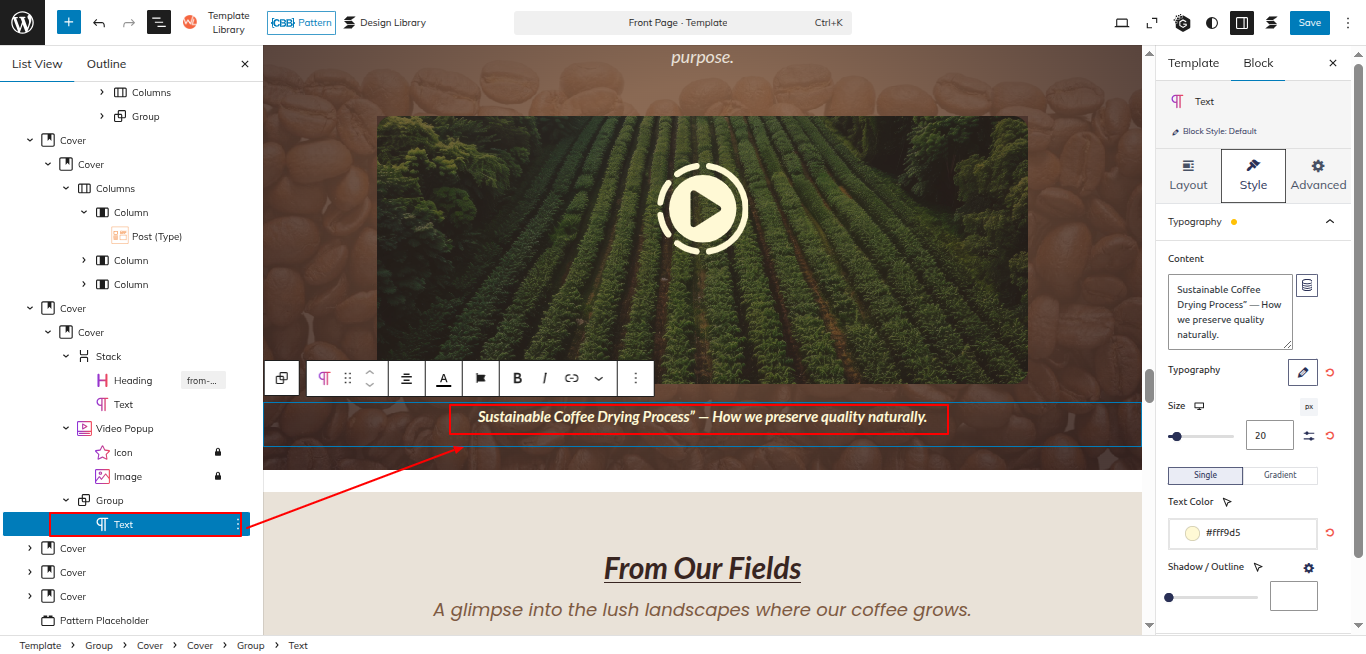
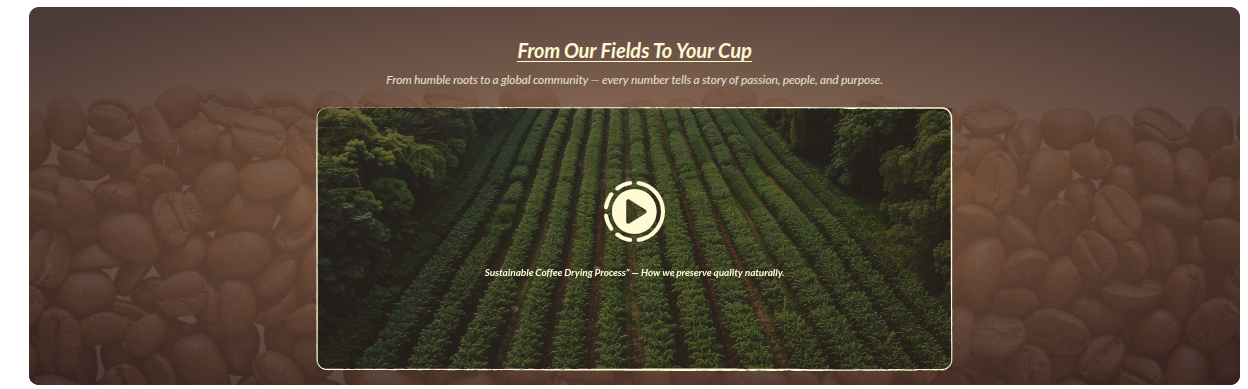
Setup Field Video Section
Set up the Field Video Section according to the instructions below.
Go to Dashboard Appearance Editor.
This is how you may set up and add the Field Video Section.
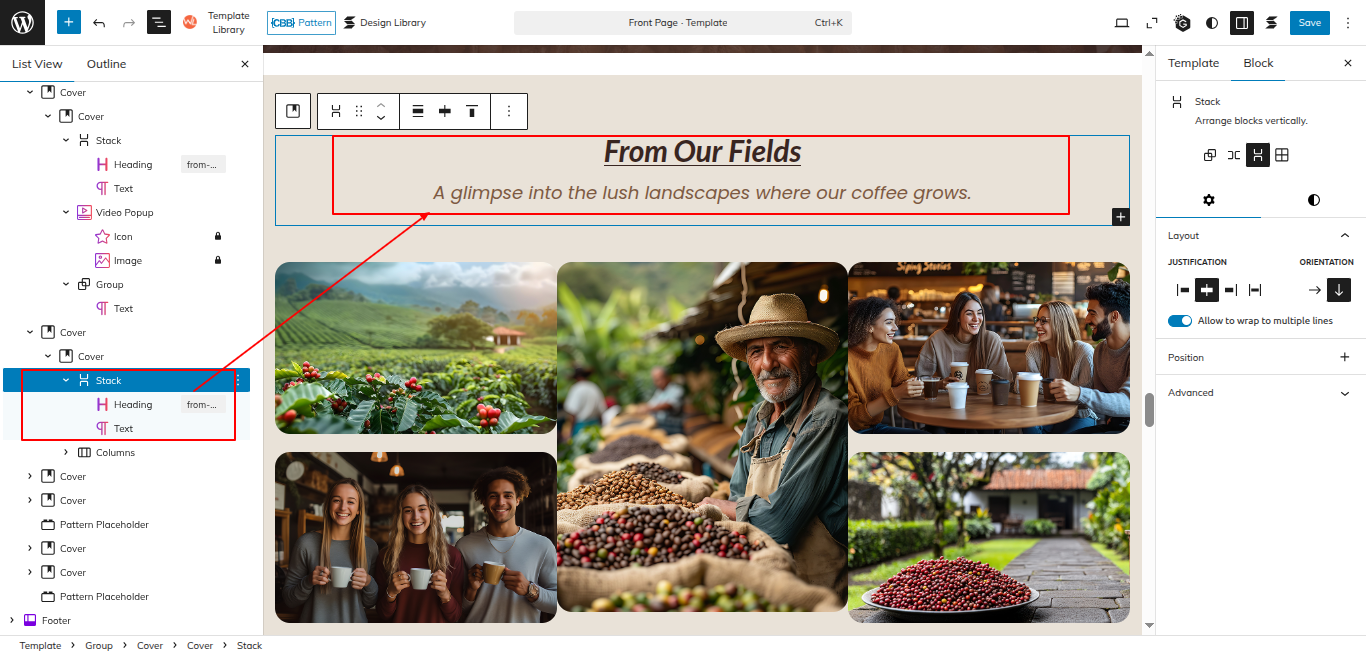
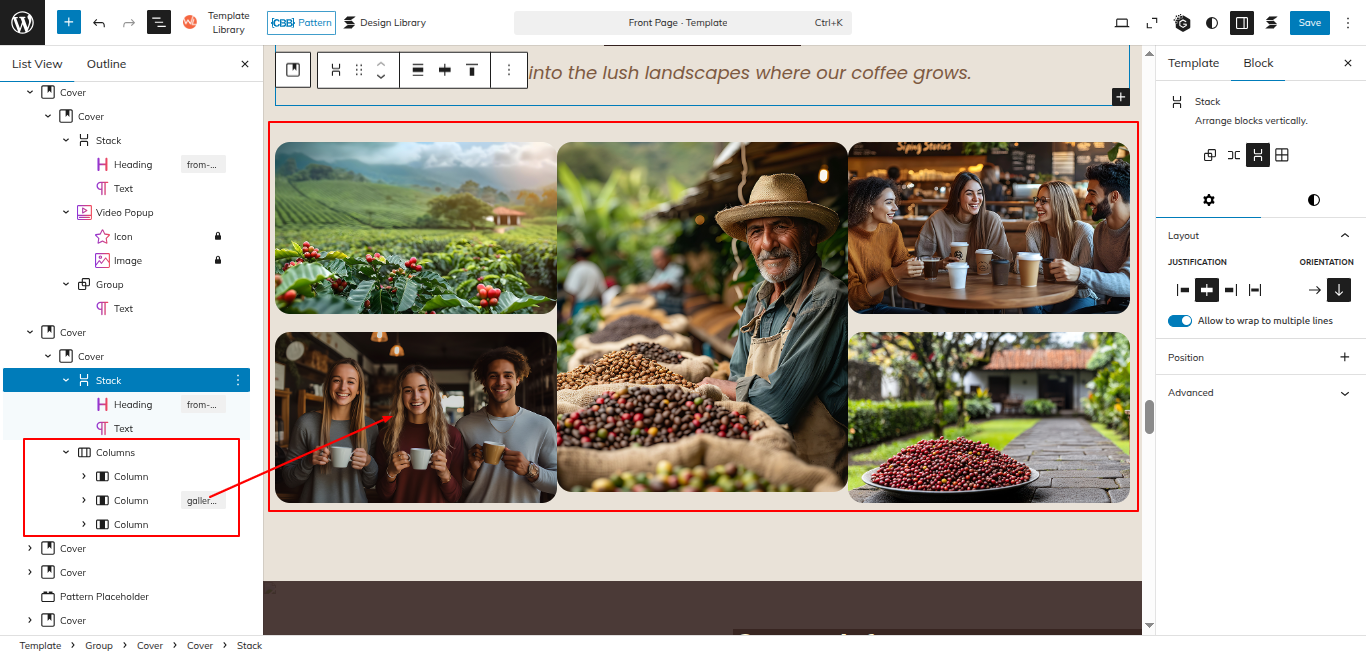
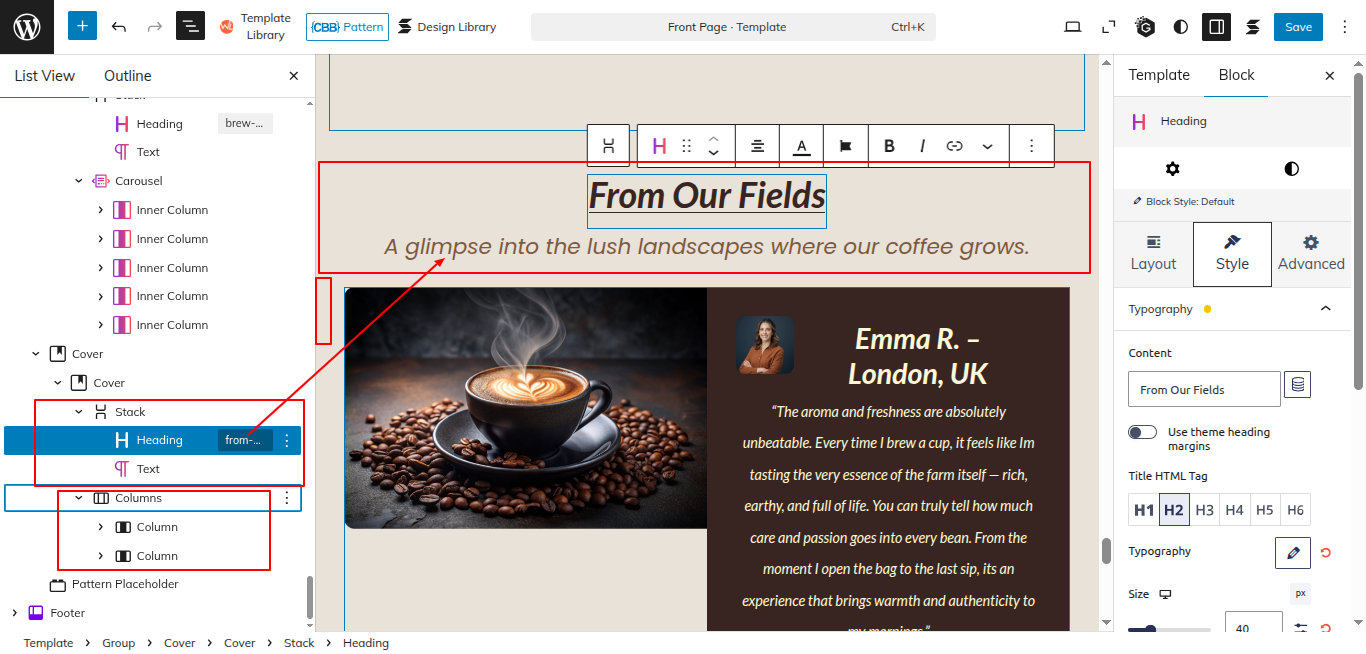
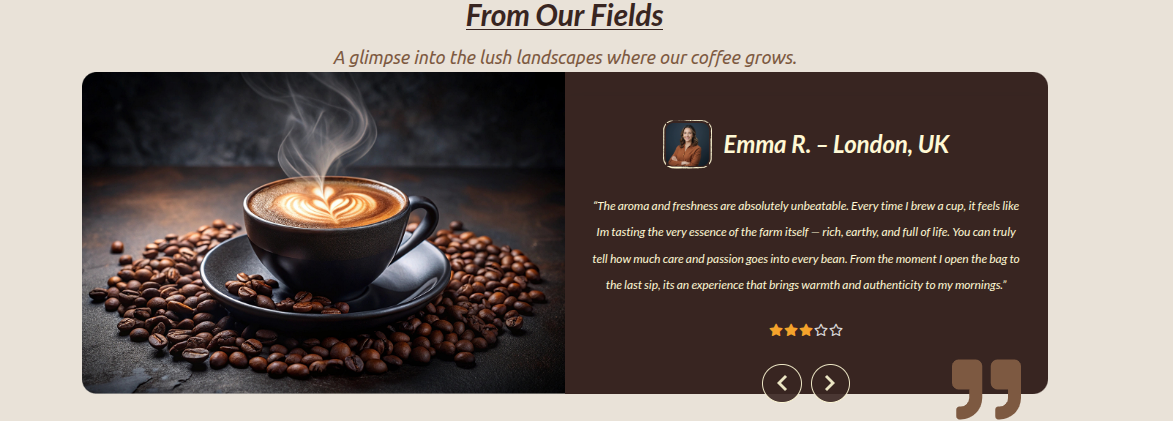
Setup Our Fields Section
Set up the Our Fields Section according to the instructions below.
Go to Dashboard Appearance Editor.
This is how you may set up and add the Our Fields Section.
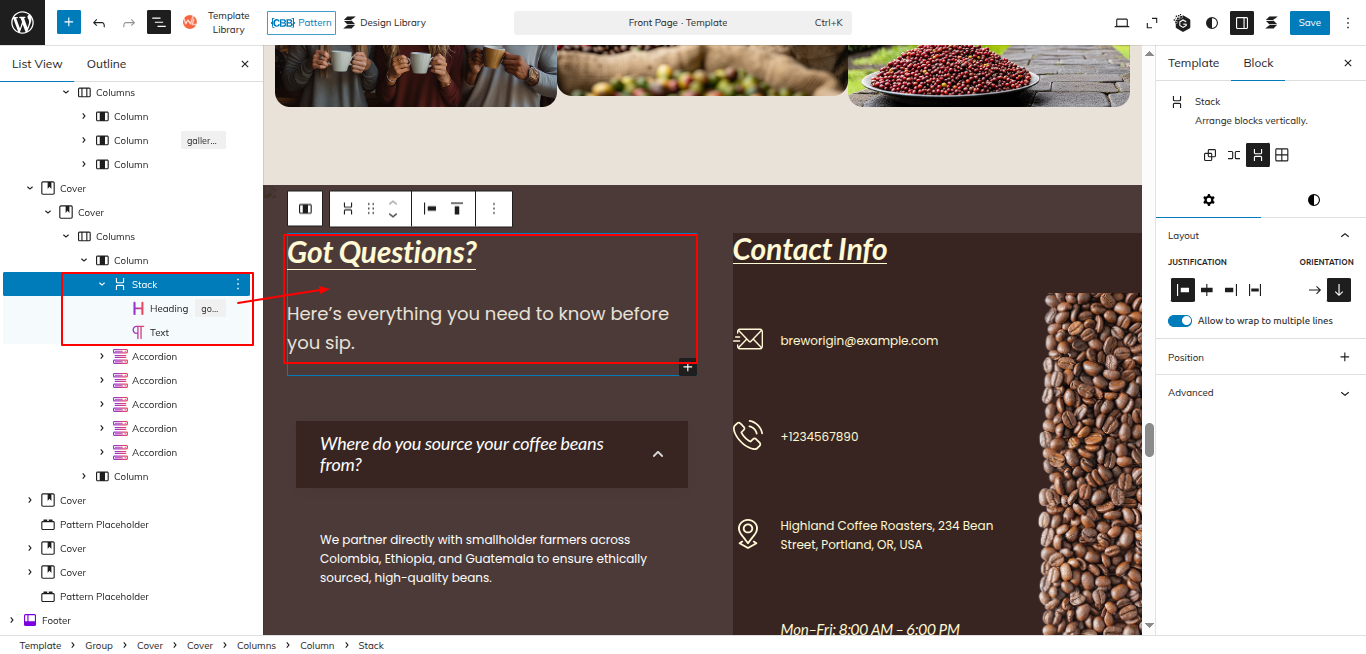
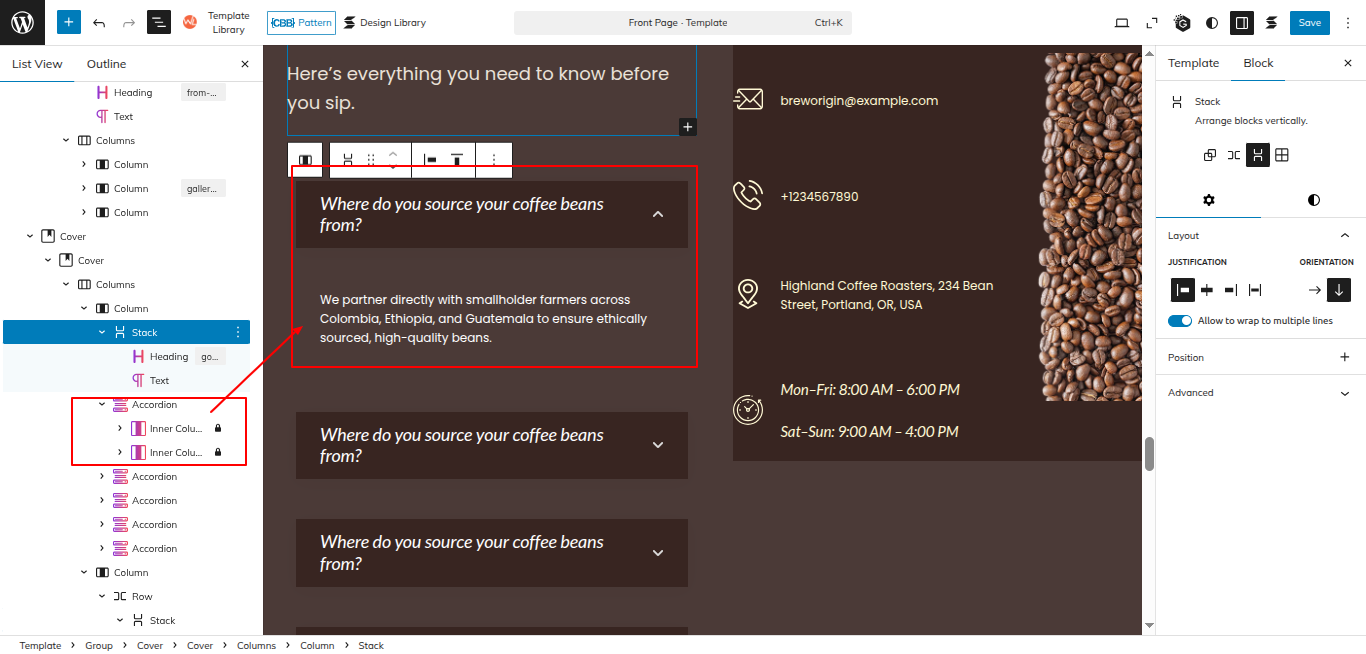
Setup Faqs Section
Set up the Faqs Section according to the instructions below.
Go to Dashboard Appearance Editor.
This is how you may set up and add the Faqs Section.
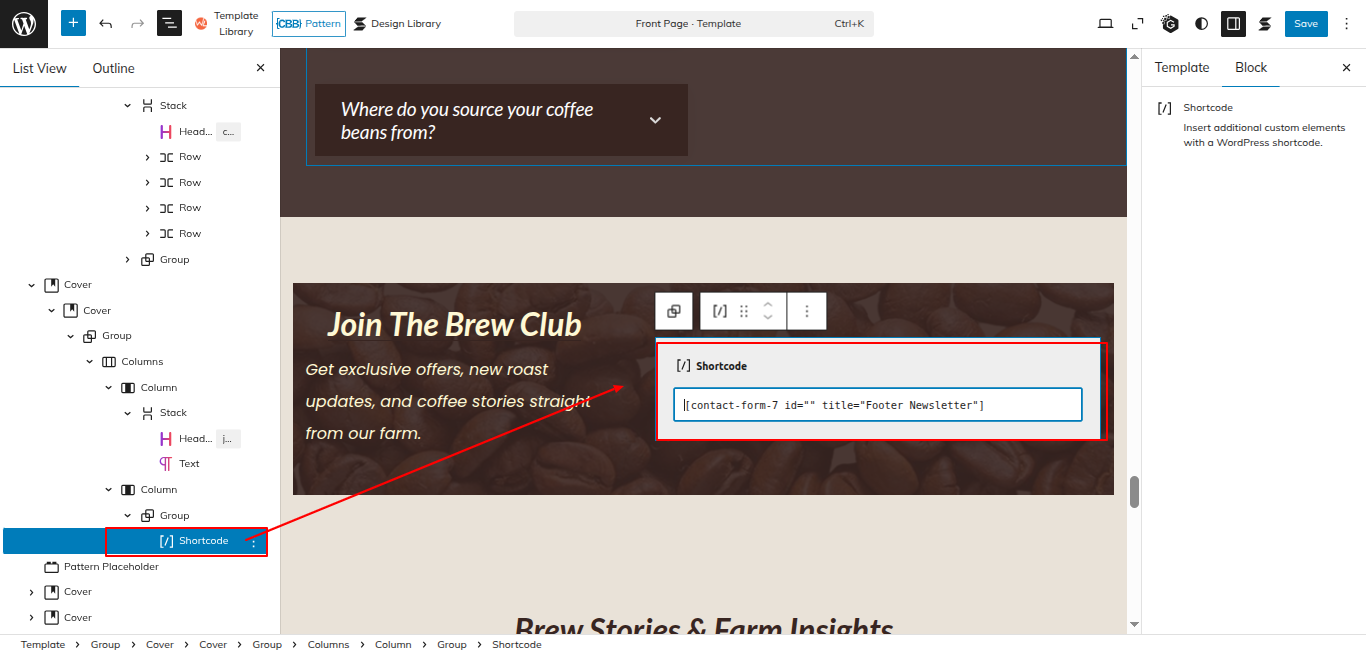
Setup Newsletter Section
Set up the Newsletter Section according to the instructions below.
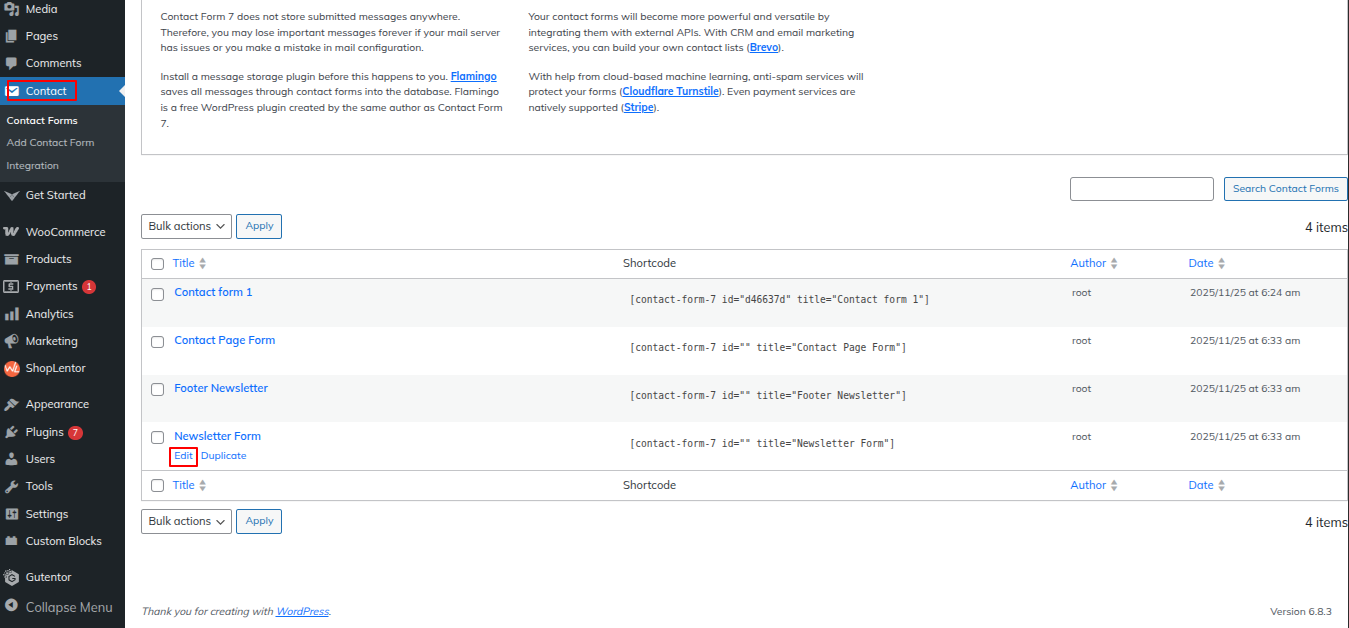
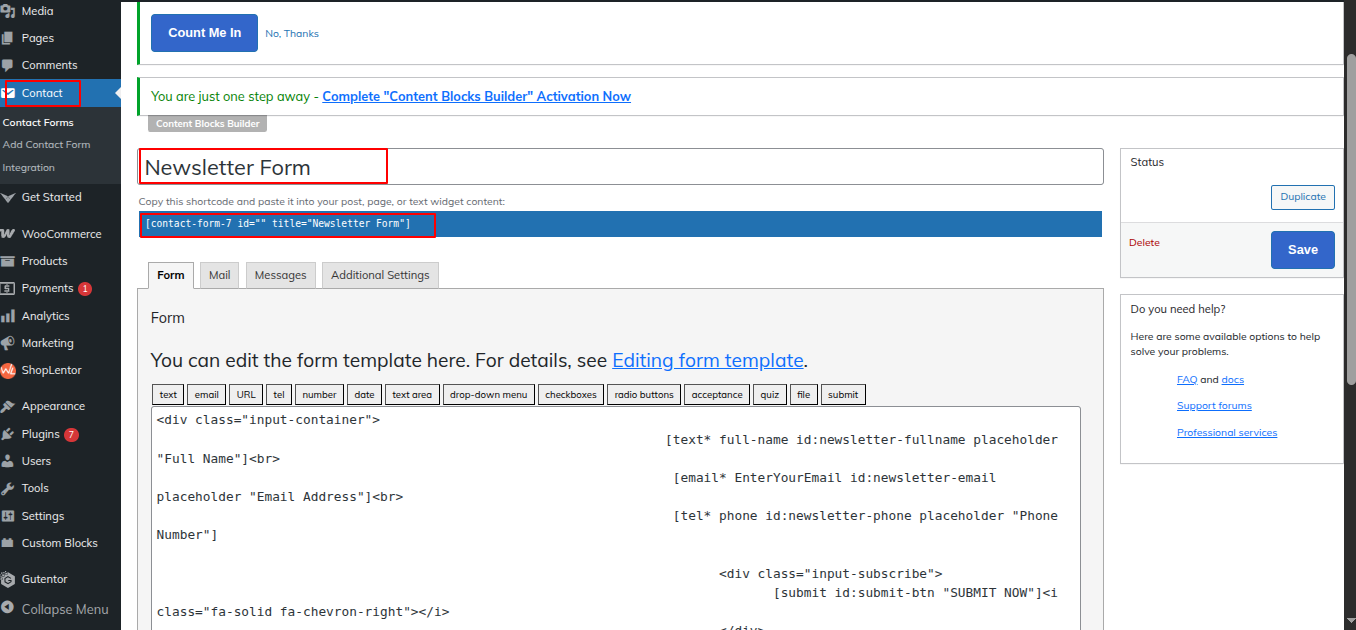
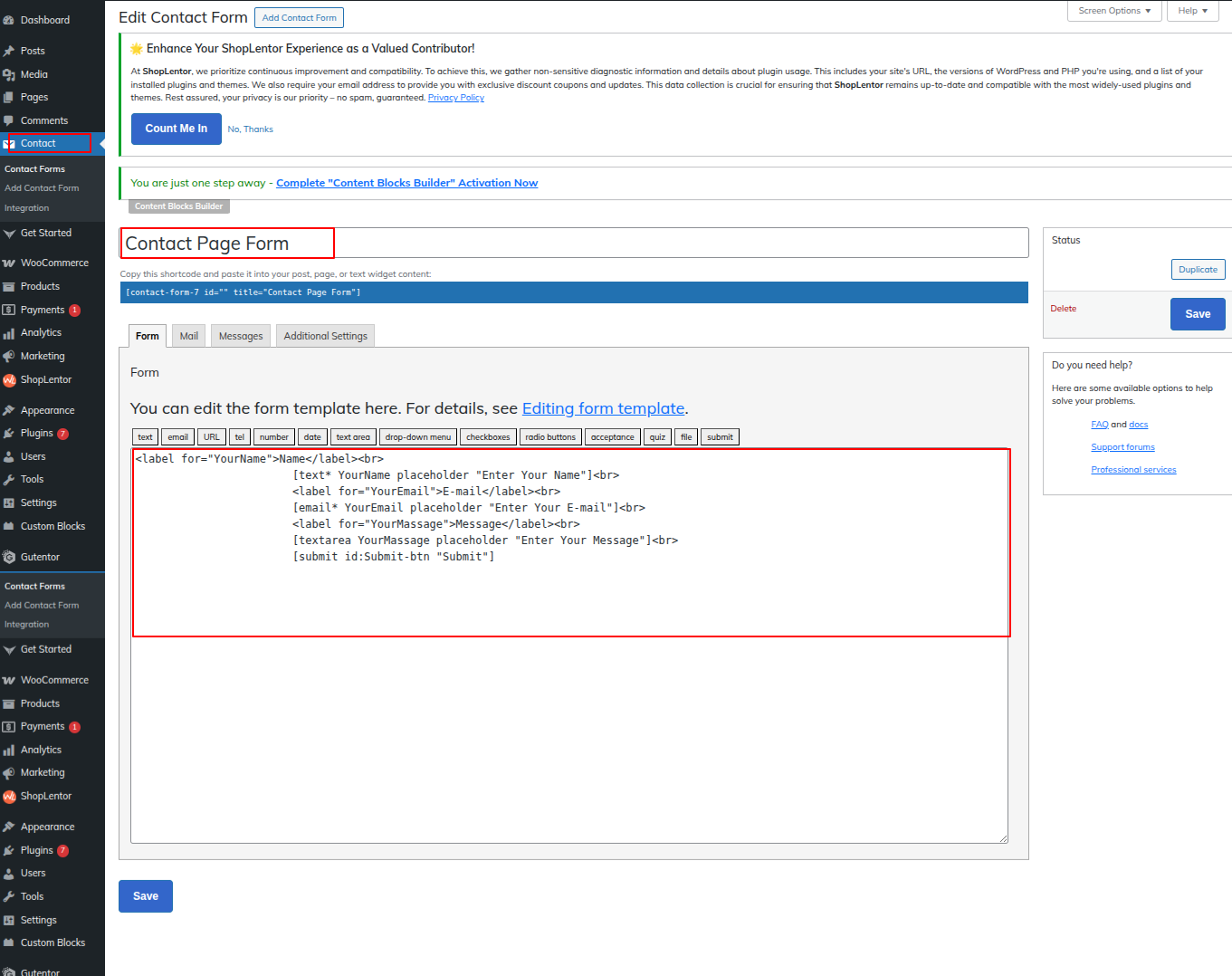
Go to the Dashboard Contact Edit
Set up the Newsletter Section according to the instructions below.
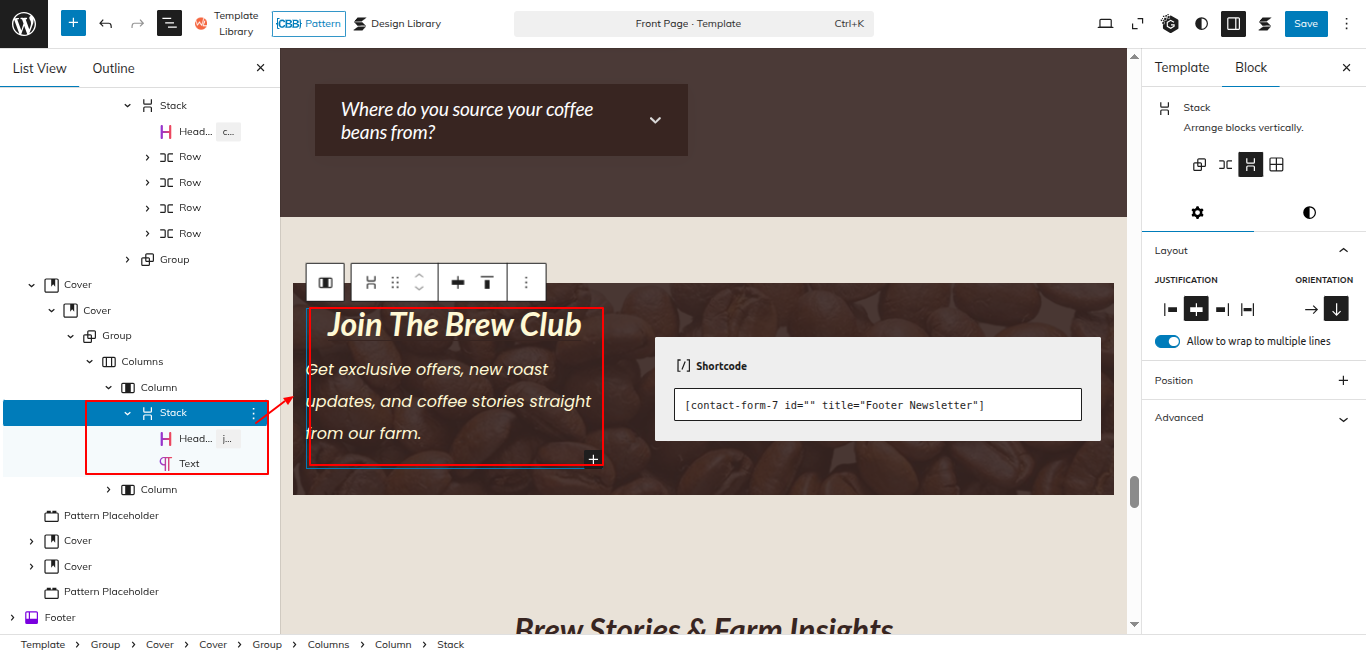
Go to Dashboard Appearance Editor.
This is how you may set up and add the Newsletter Section.
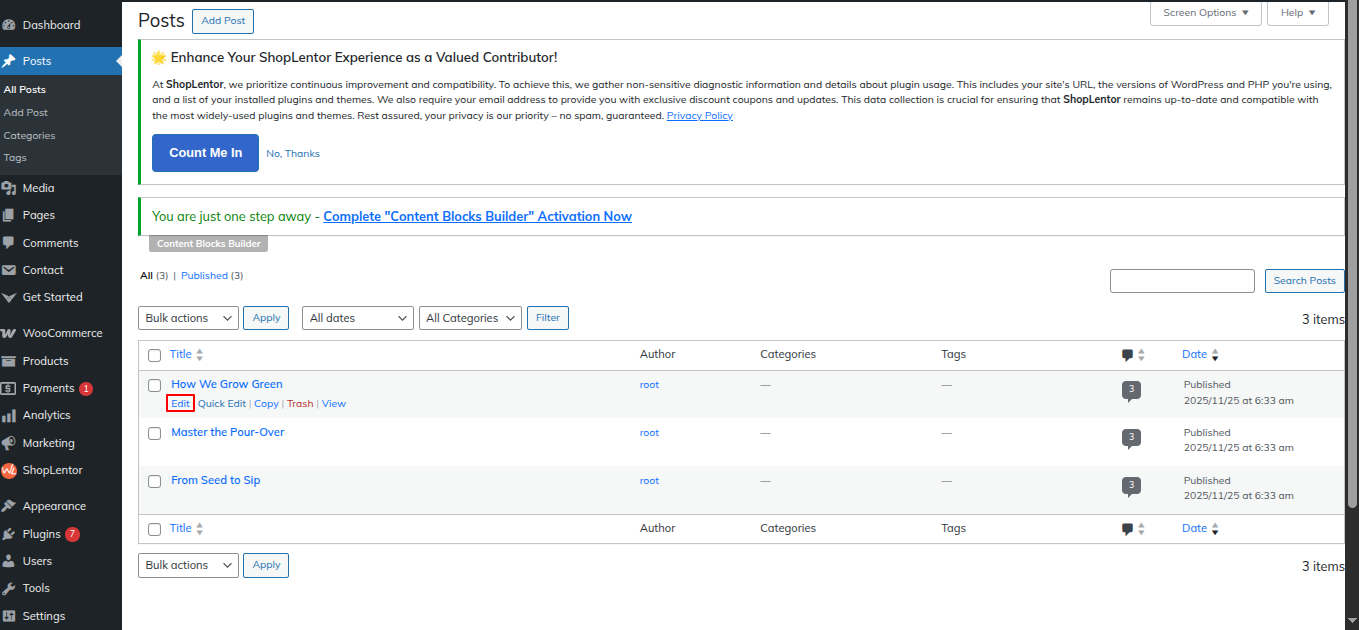
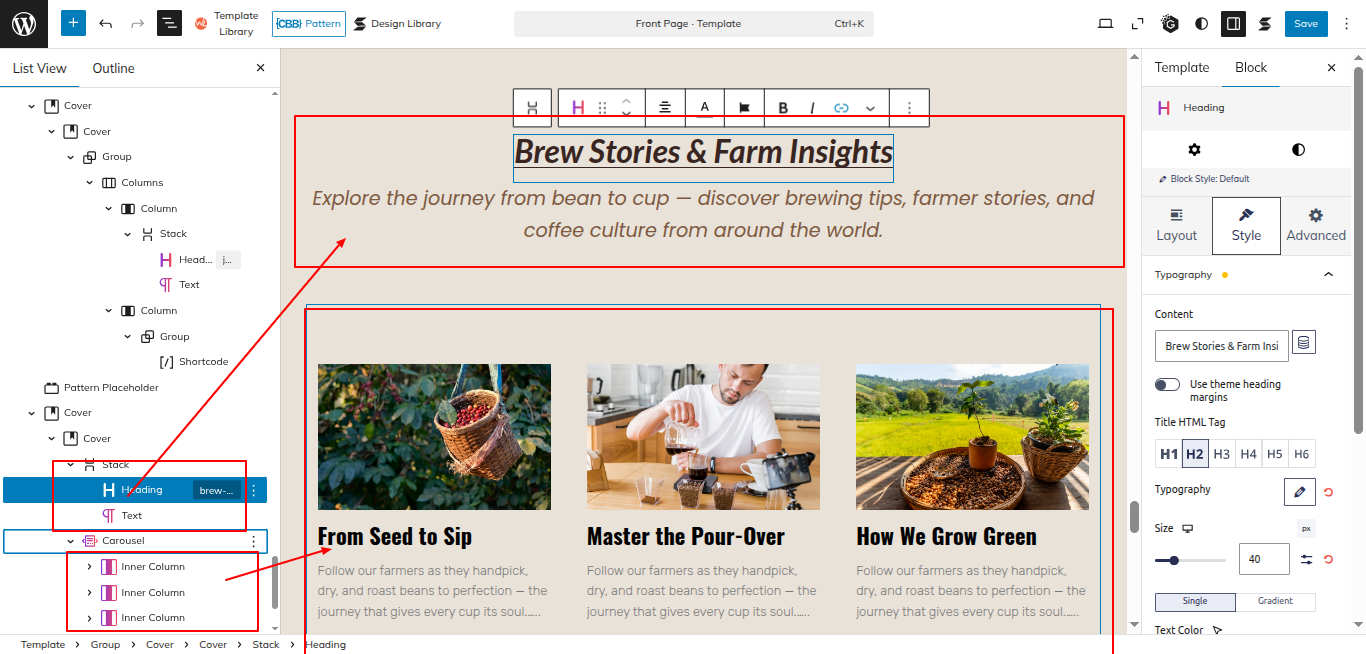
Setup Blogs Section
Set up the Blogs Section according to the instructions below.
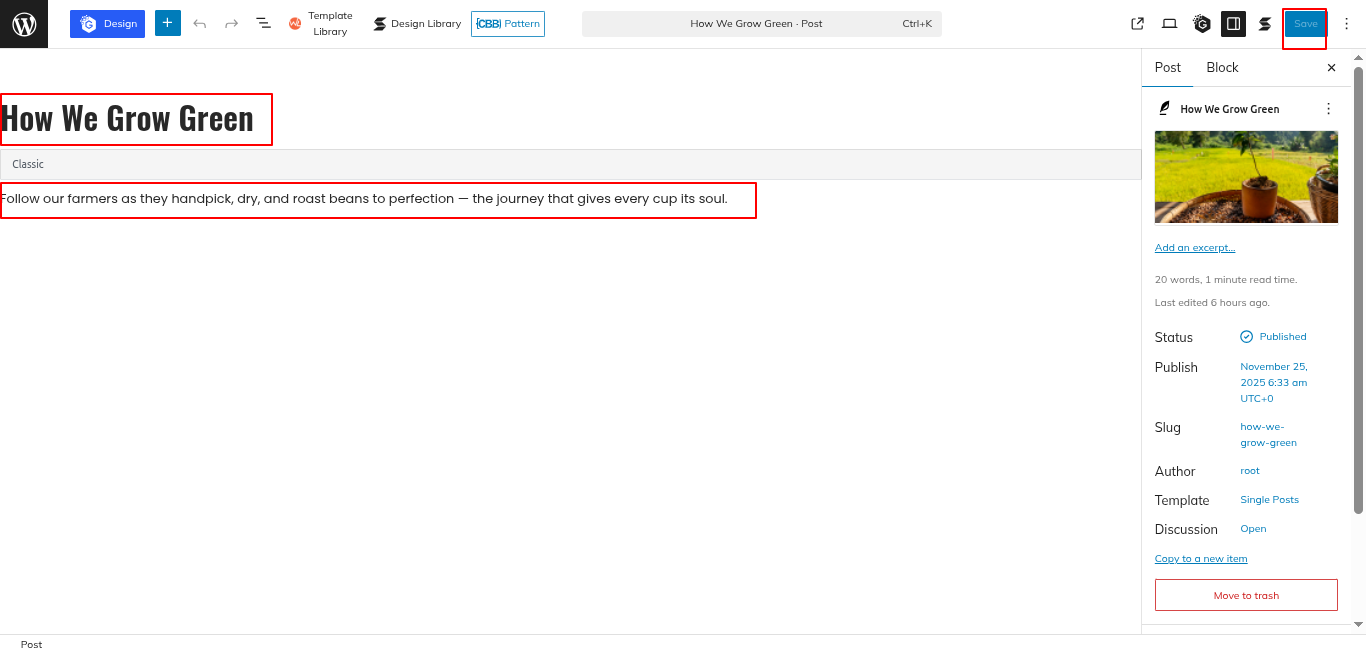
Go to the Dashboard Posts Edit
Set up the Blogs Section according to the instructions below.
Go to Dashboard Appearance Editor.
This is how you may set up and add the Blogs Section.
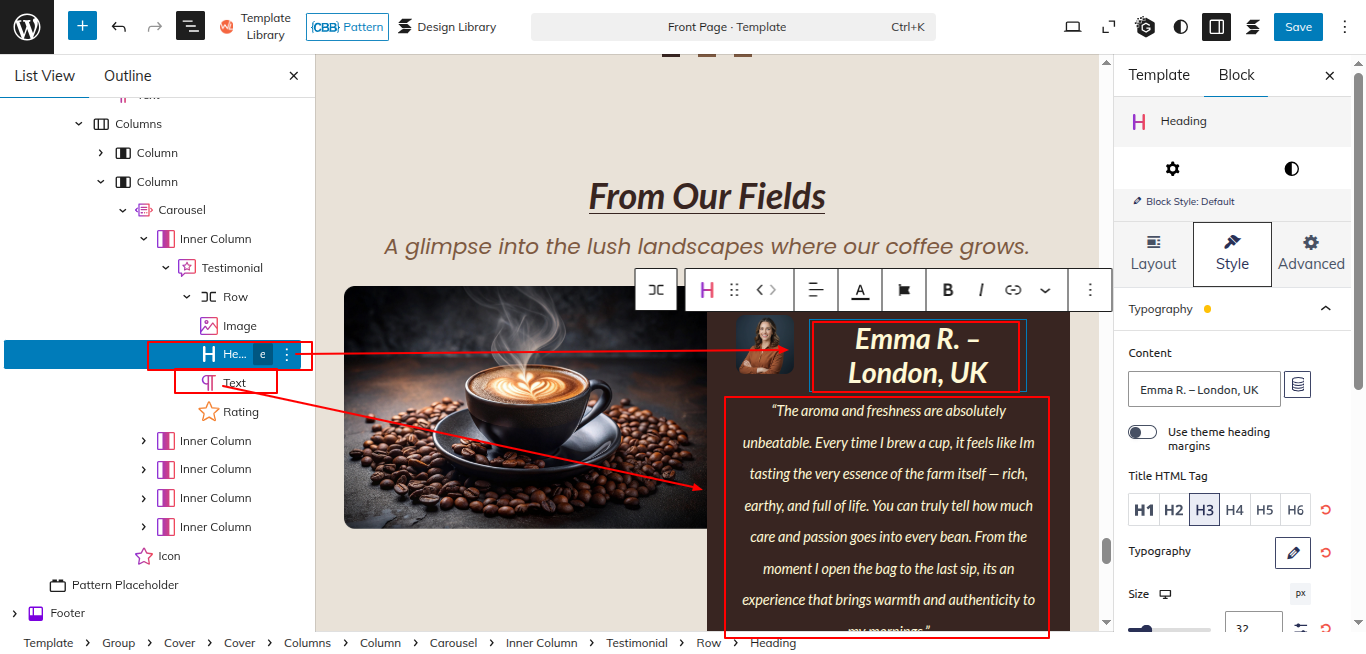
Setup Testimonial Section
Set up the Testimonial Section according to the instructions below.
Go to Dashboard Appearance Editor.
This is how you may set up and add the Testimonial Section.
INNER PAGES
SETUP CONTACT US PAGE
Set up the Contact Us Page by following the steps mentioned below.
Step 1. Go to Dashboard Page Add New
Step 2. Add Page Name
Step 3. On the right side of the page, select contact-us template
Step 4. Click the Update button
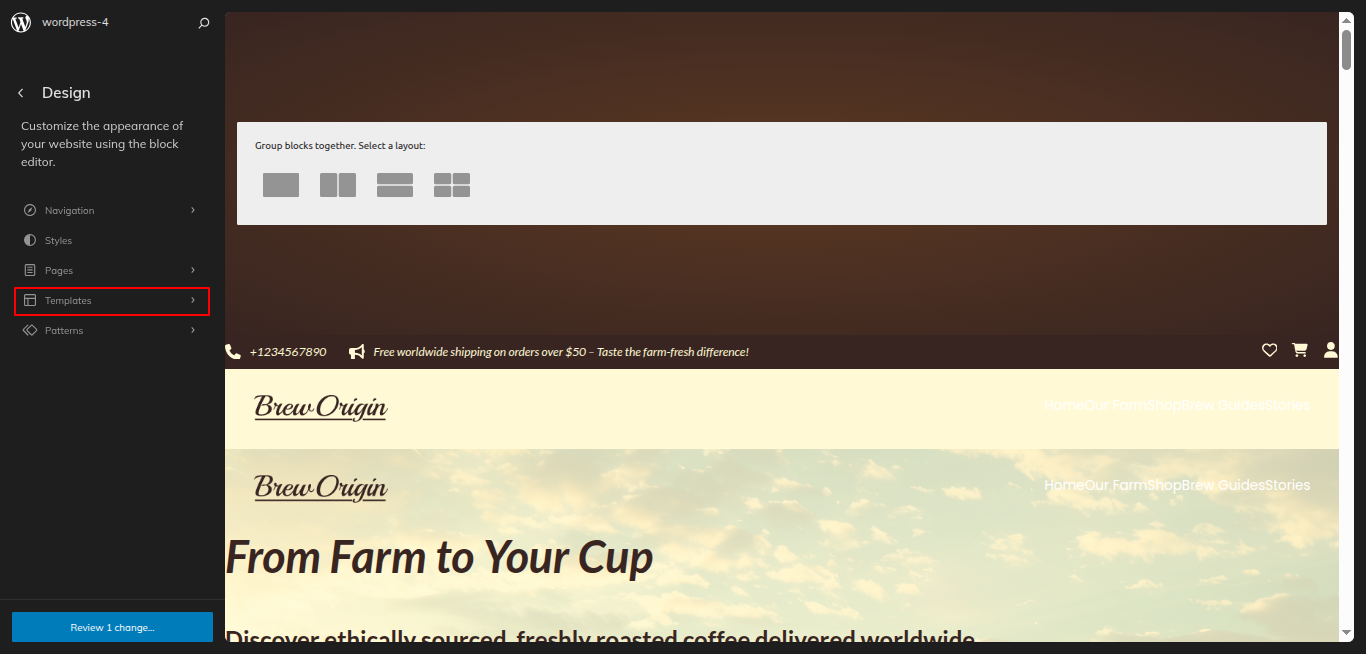
Go to the Dashboard Appearance Editor.
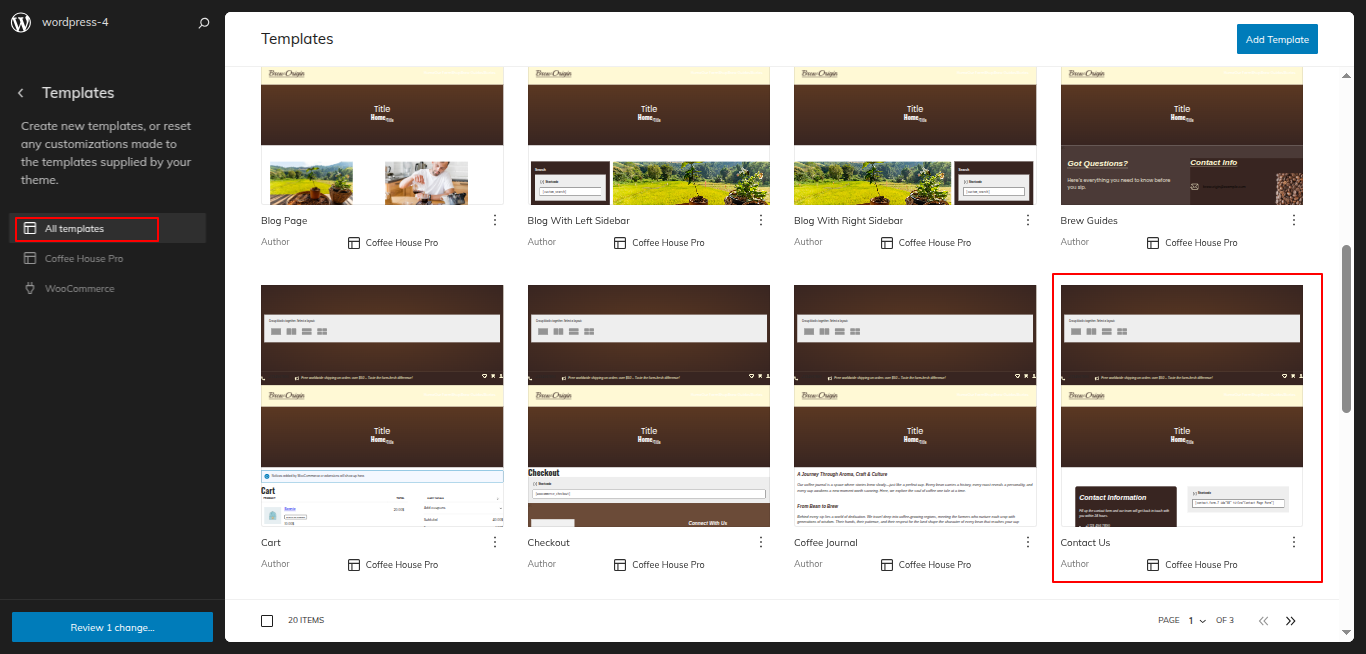
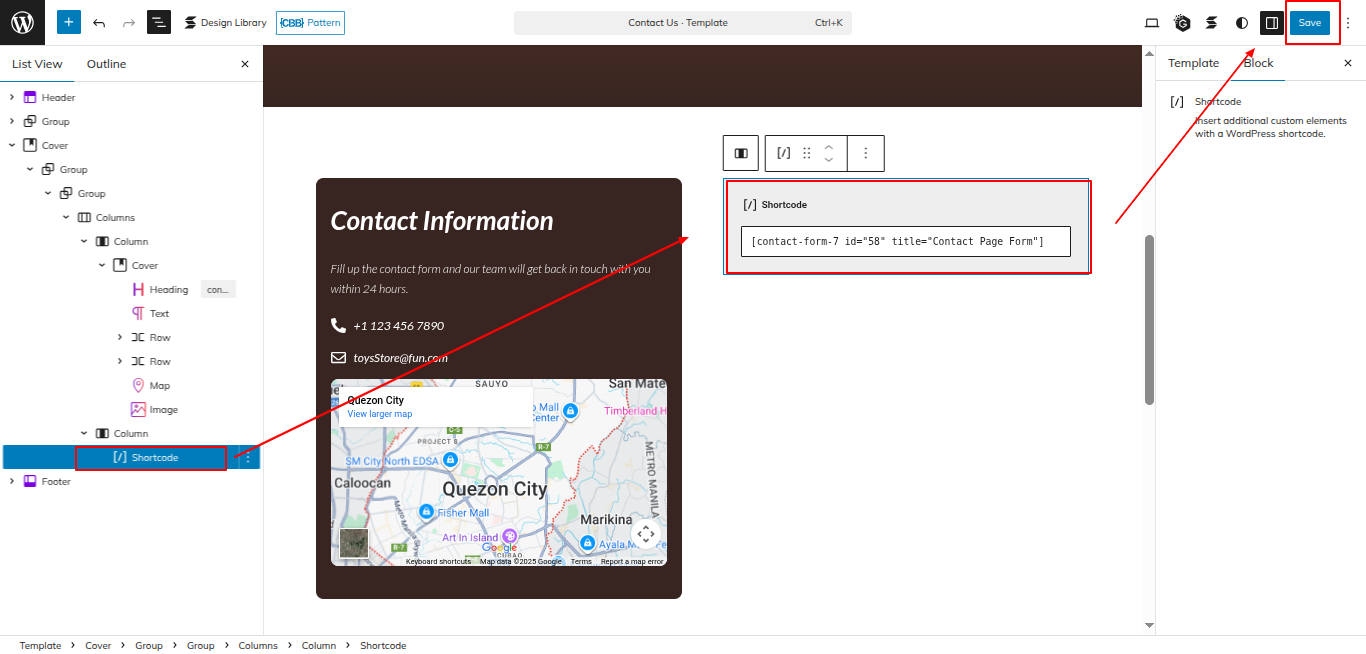
Click on "Template" as indicated in the screenshot below
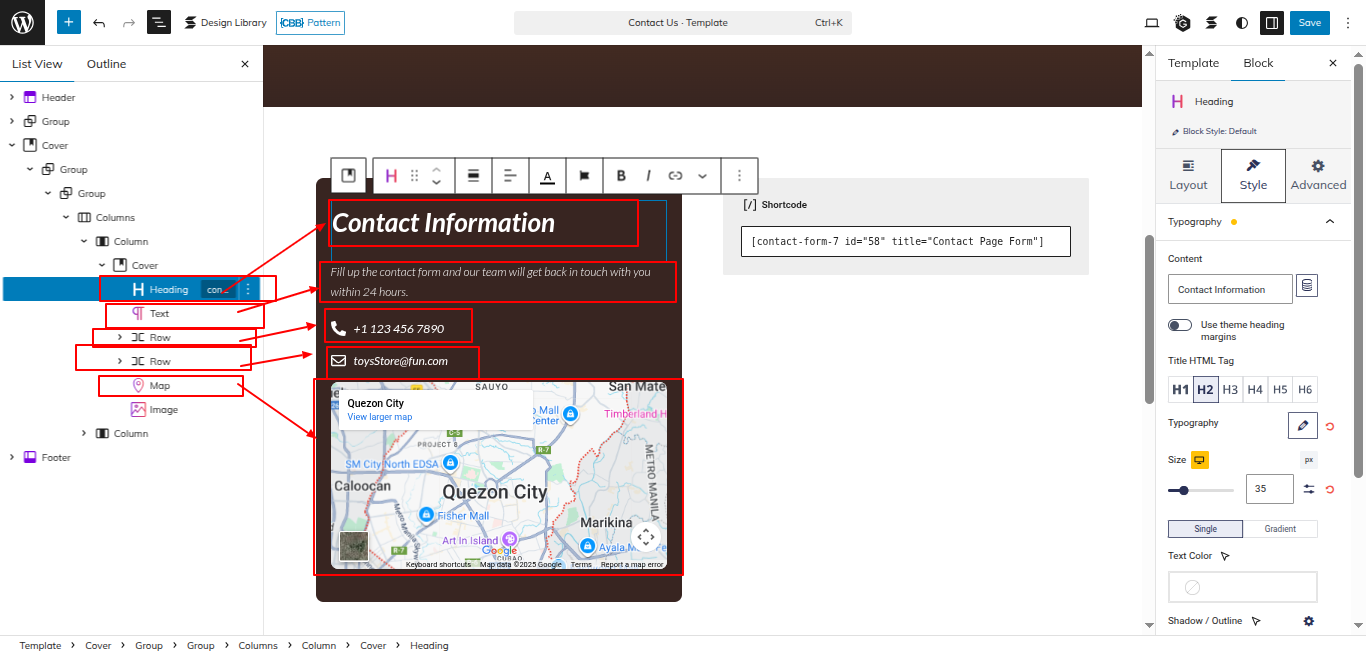
After that, a sidebar will appear now, as seen in the screenshot below, pick "Contact Us" from the dropdown.
Using the contact form 7 plugin, I built a shortcode for the Contact Us Page Form and then used the shortcode block to enter the generated shortcode.
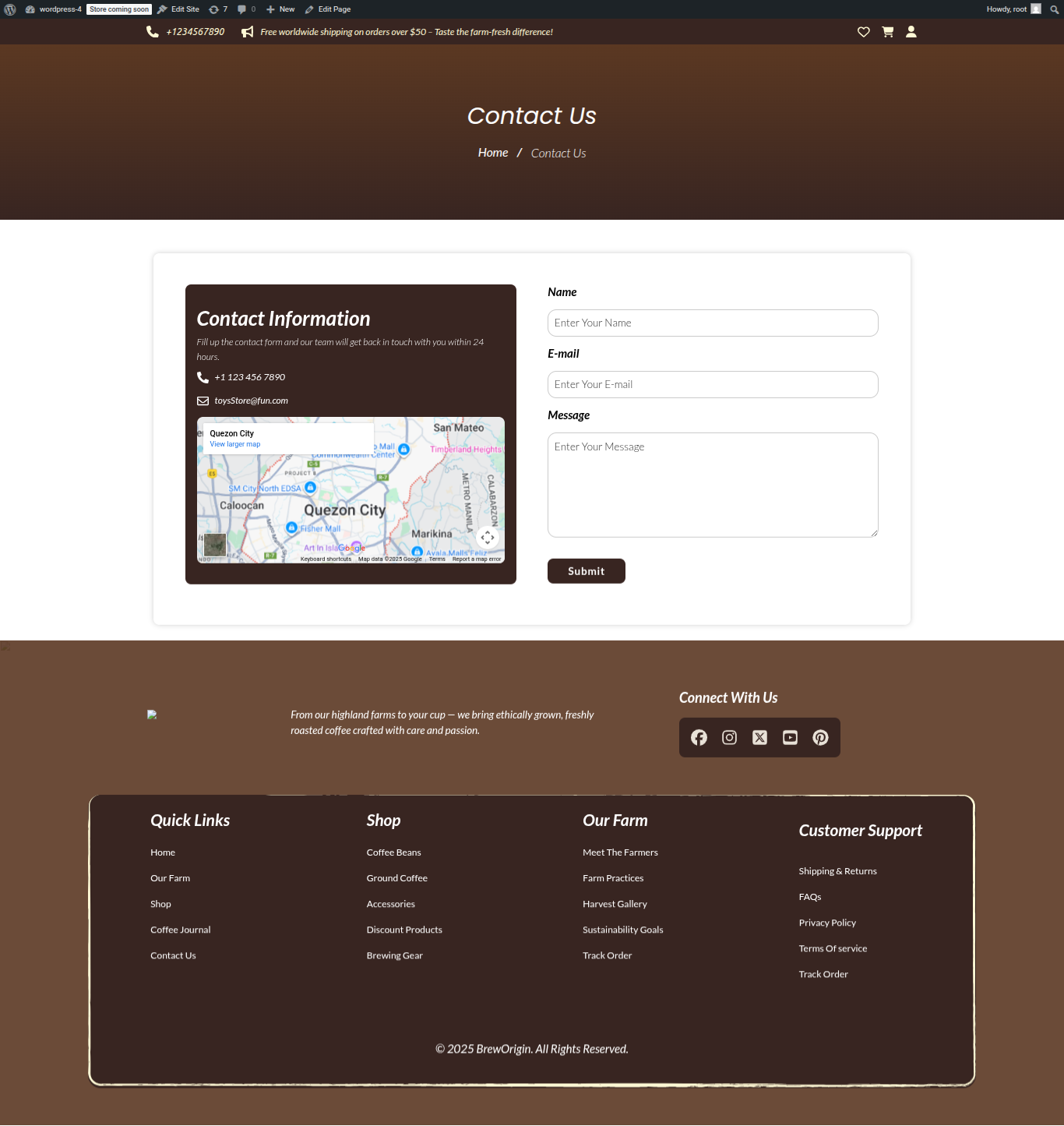
This is how you may set up and add the Contact Us Page.
Support
Support
Once again, thank you so much for purchasing this theme. As I said at the beginning, I'd be glad to help you if you have any questions relating to this theme. If you have any queries, please feel free to contact us at Support Center.