THEME IMPLEMENTATION
HOW TO SET UP HOMEPAGE
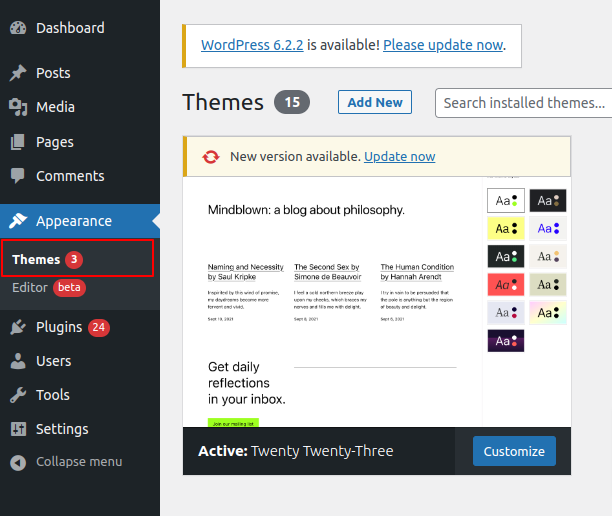
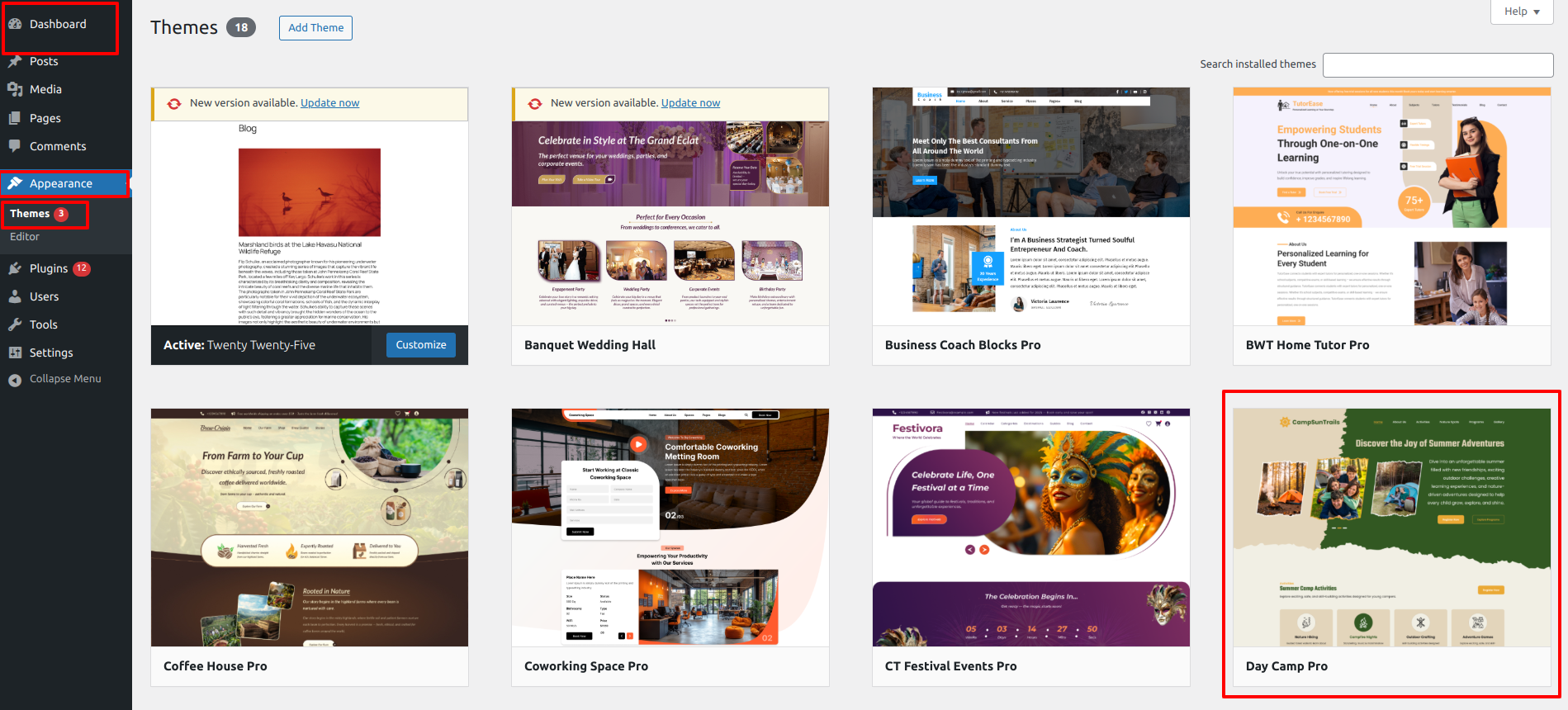
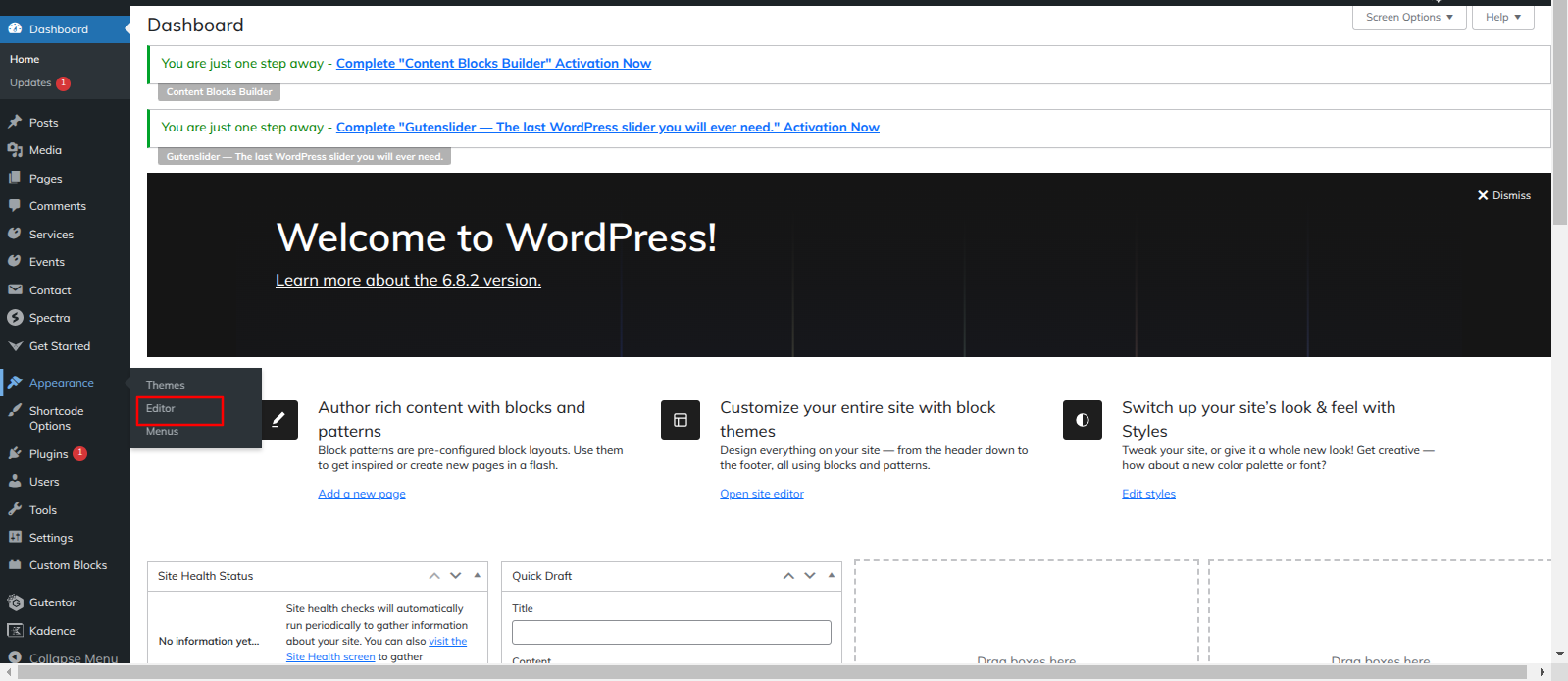
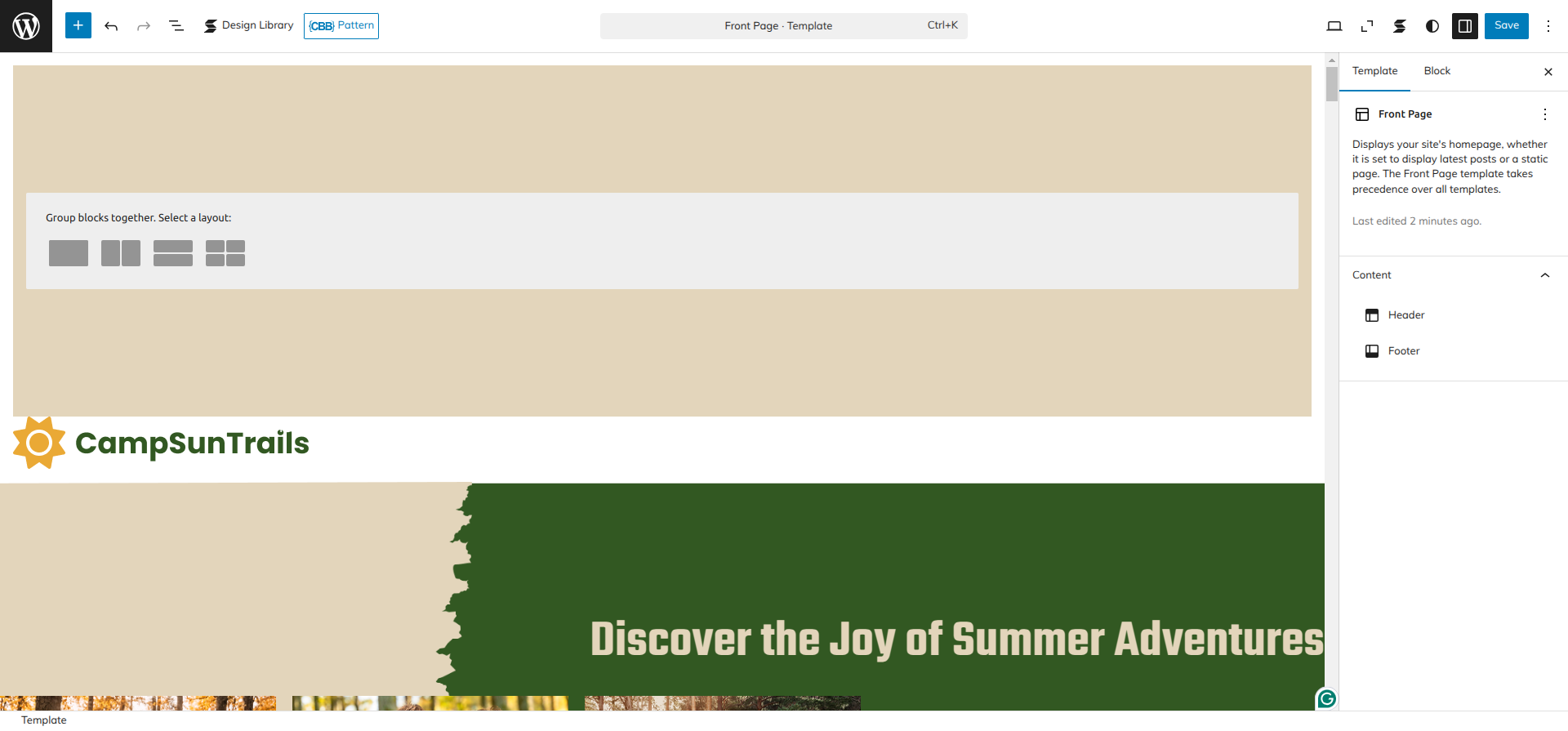
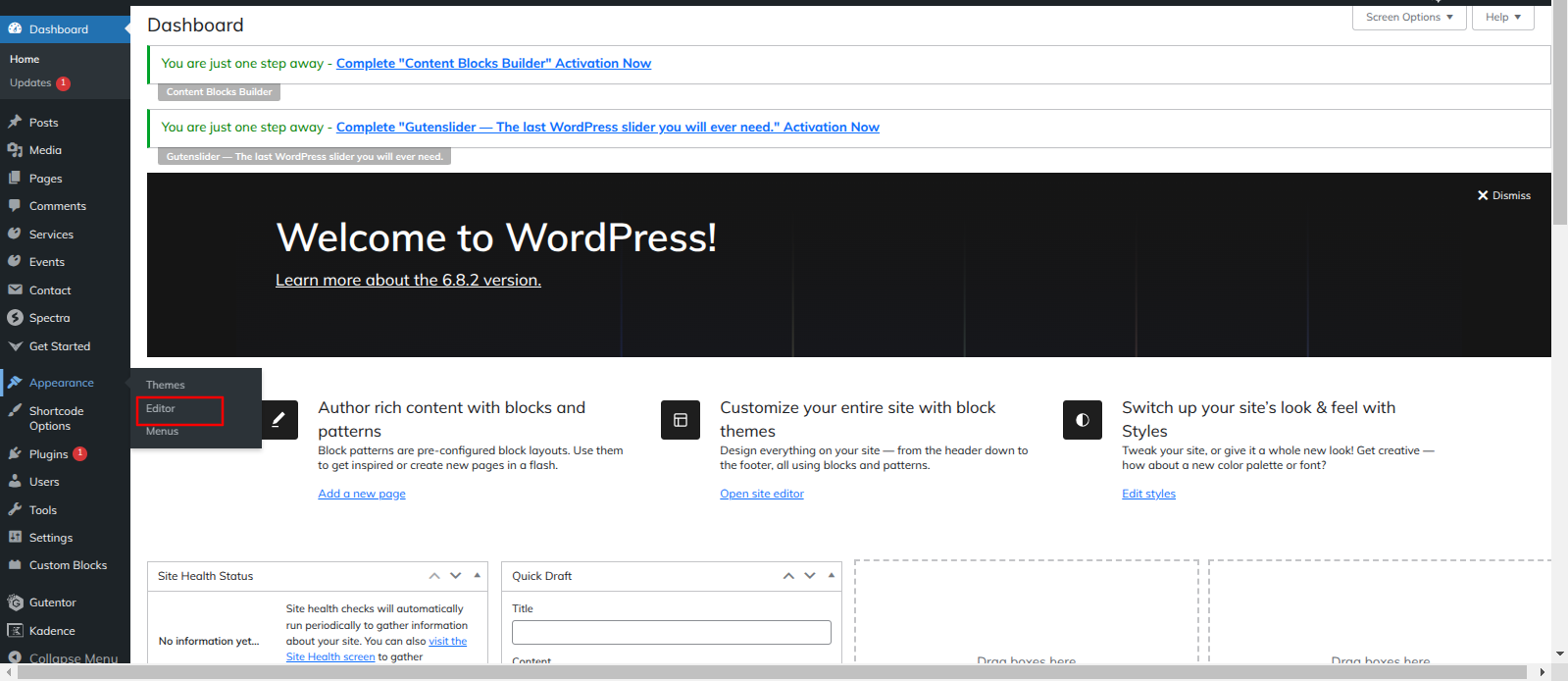
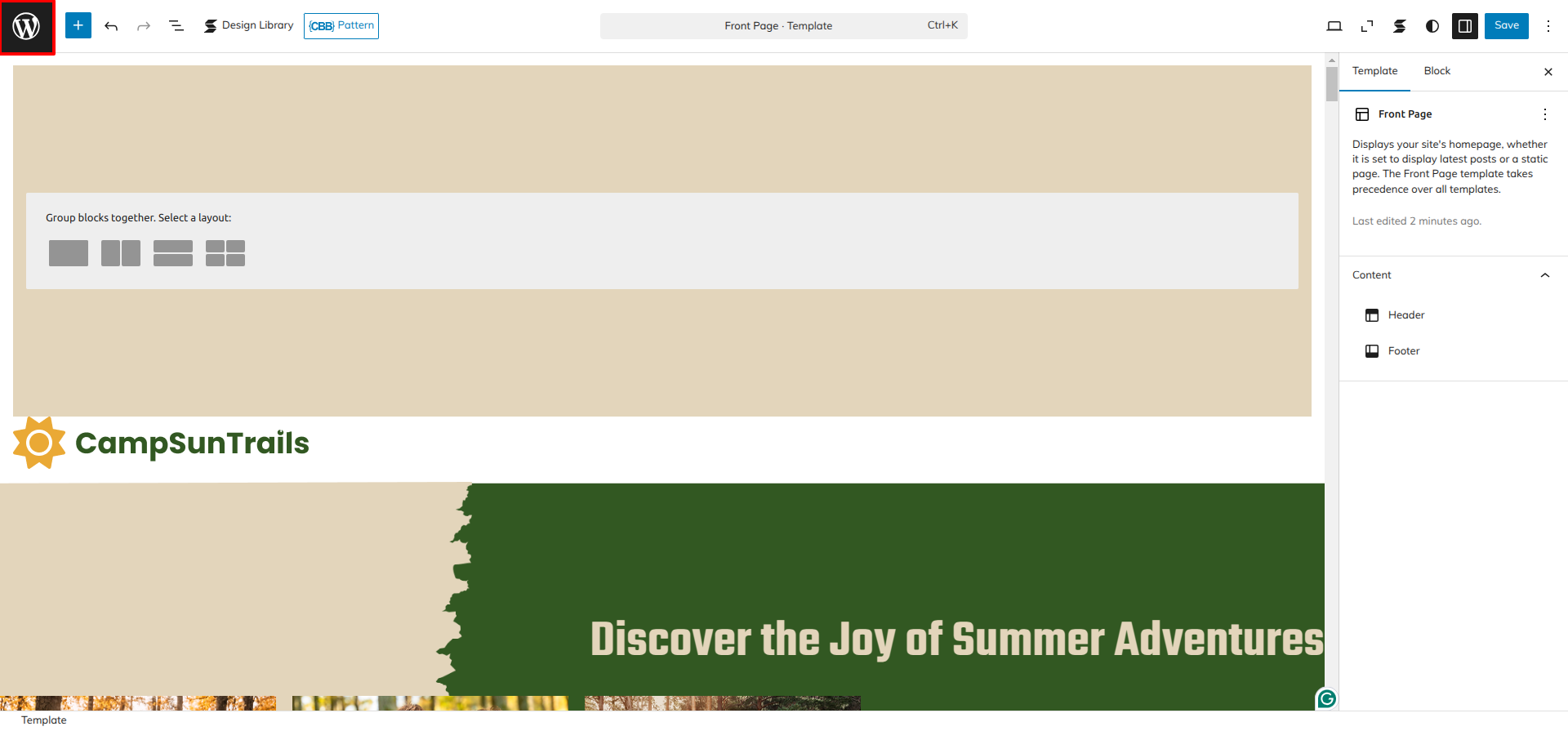
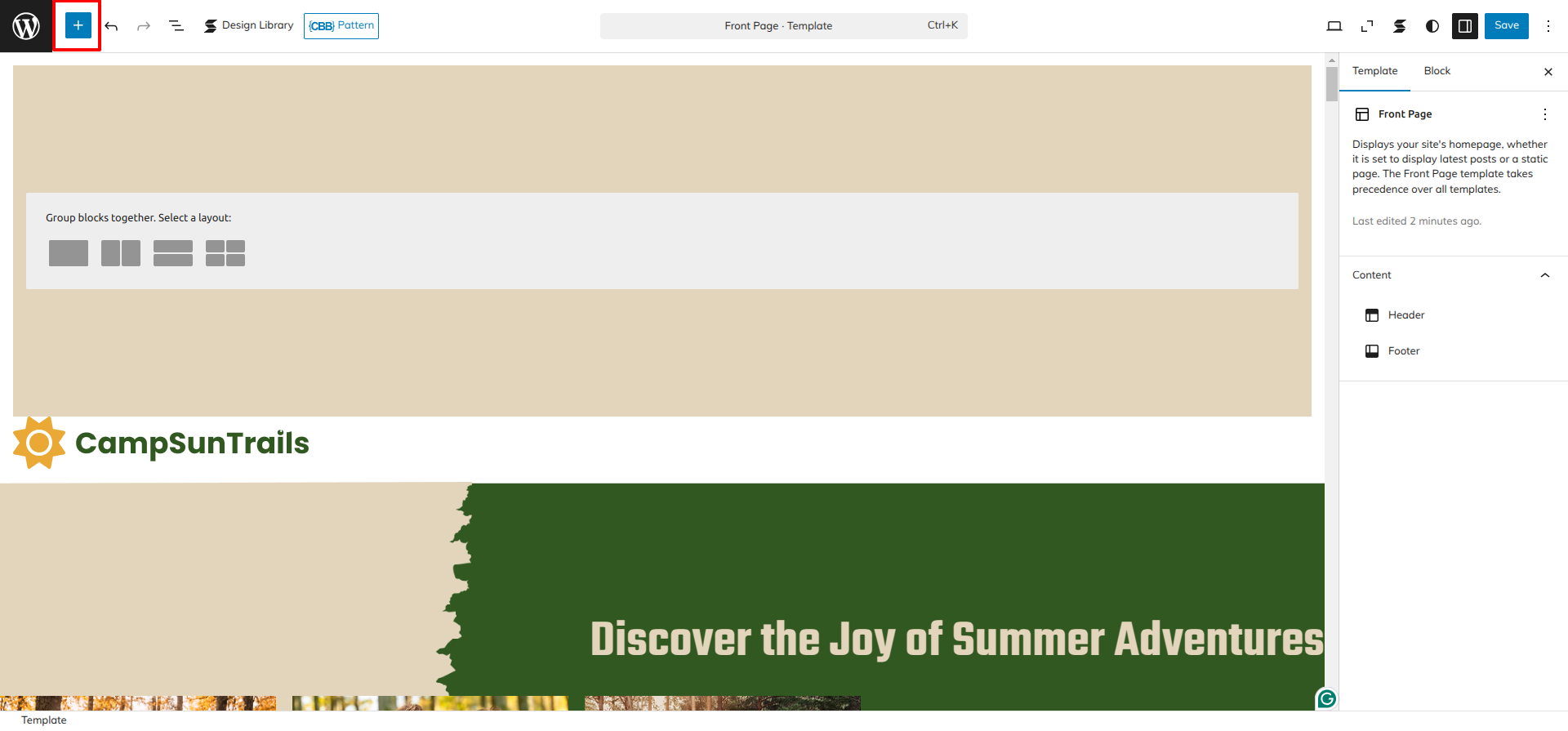
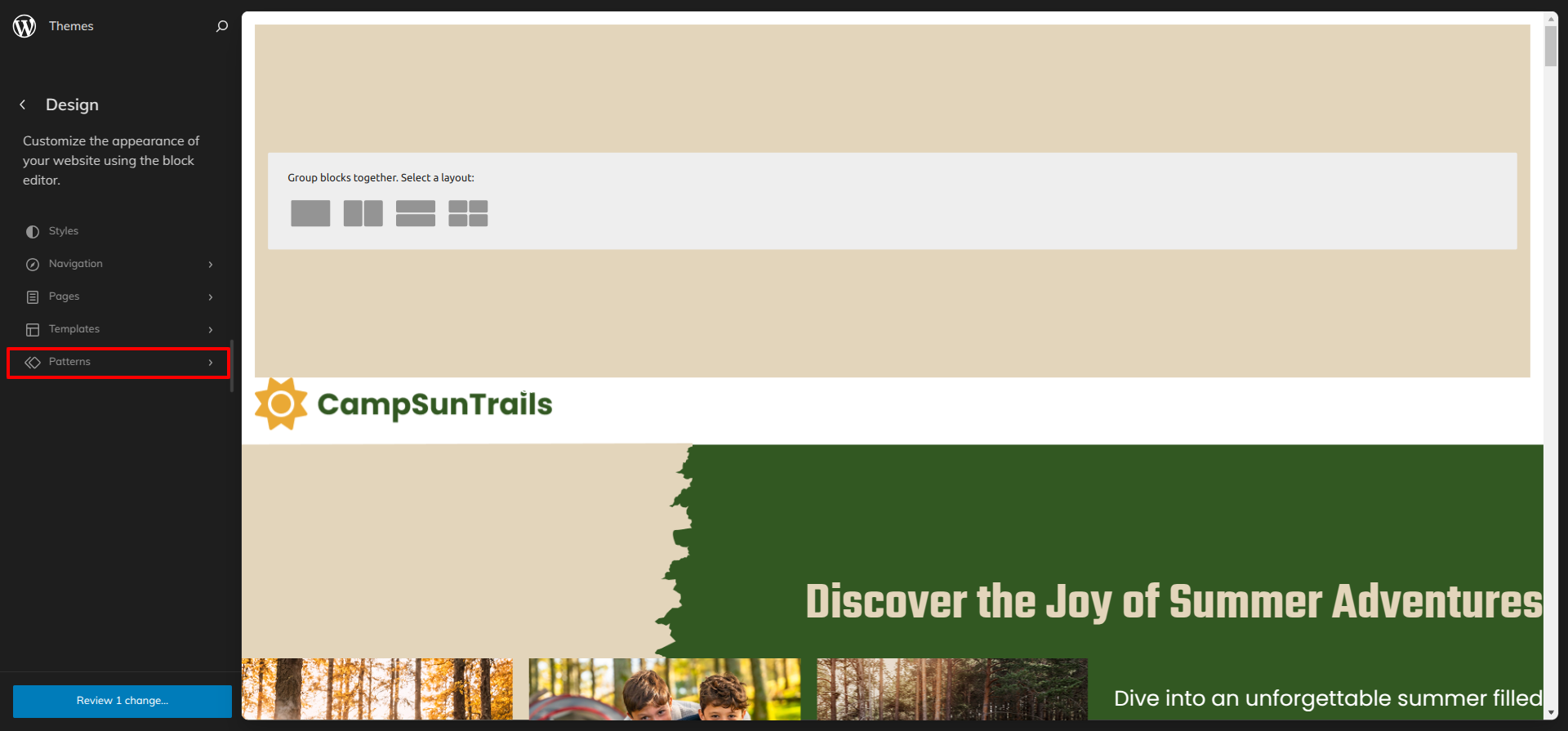
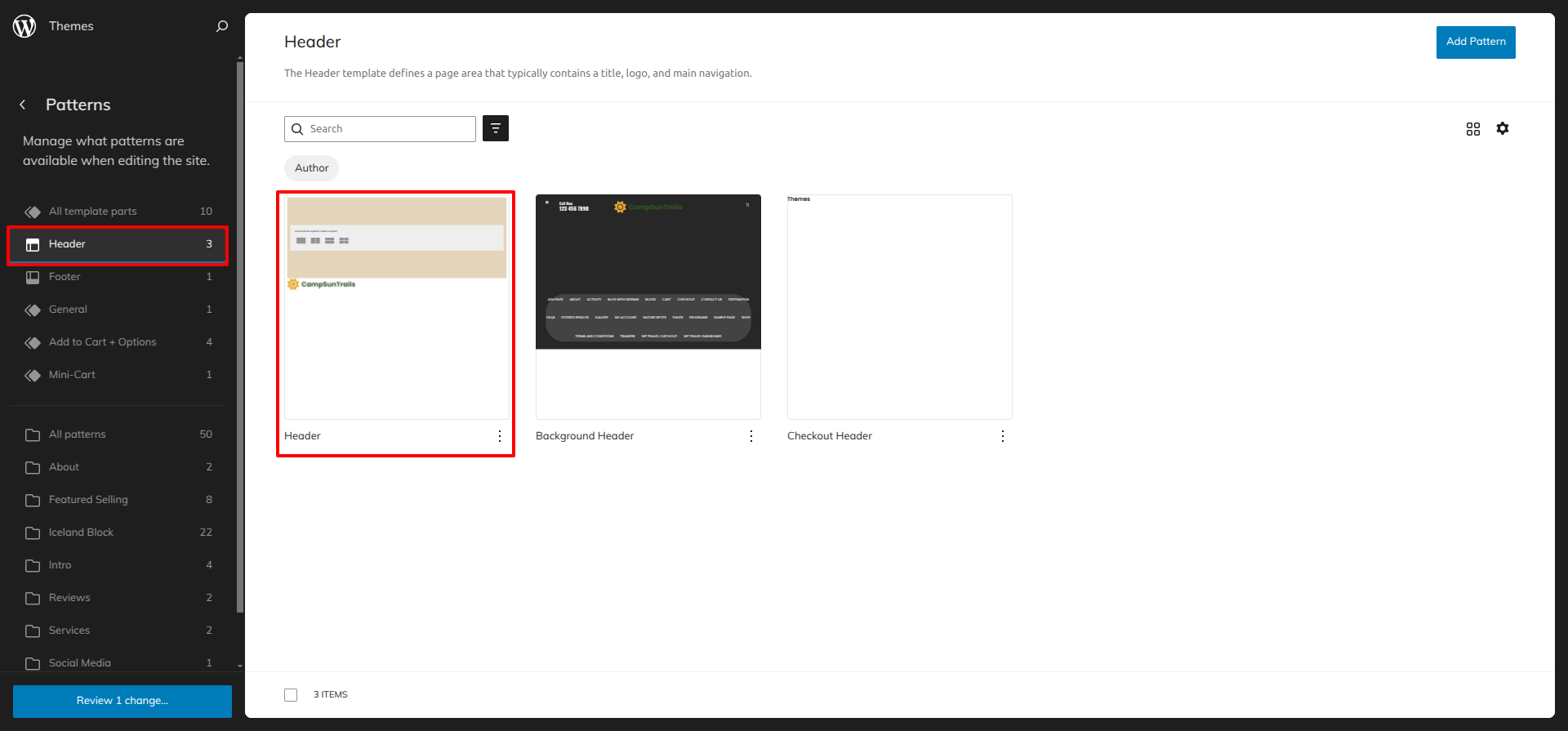
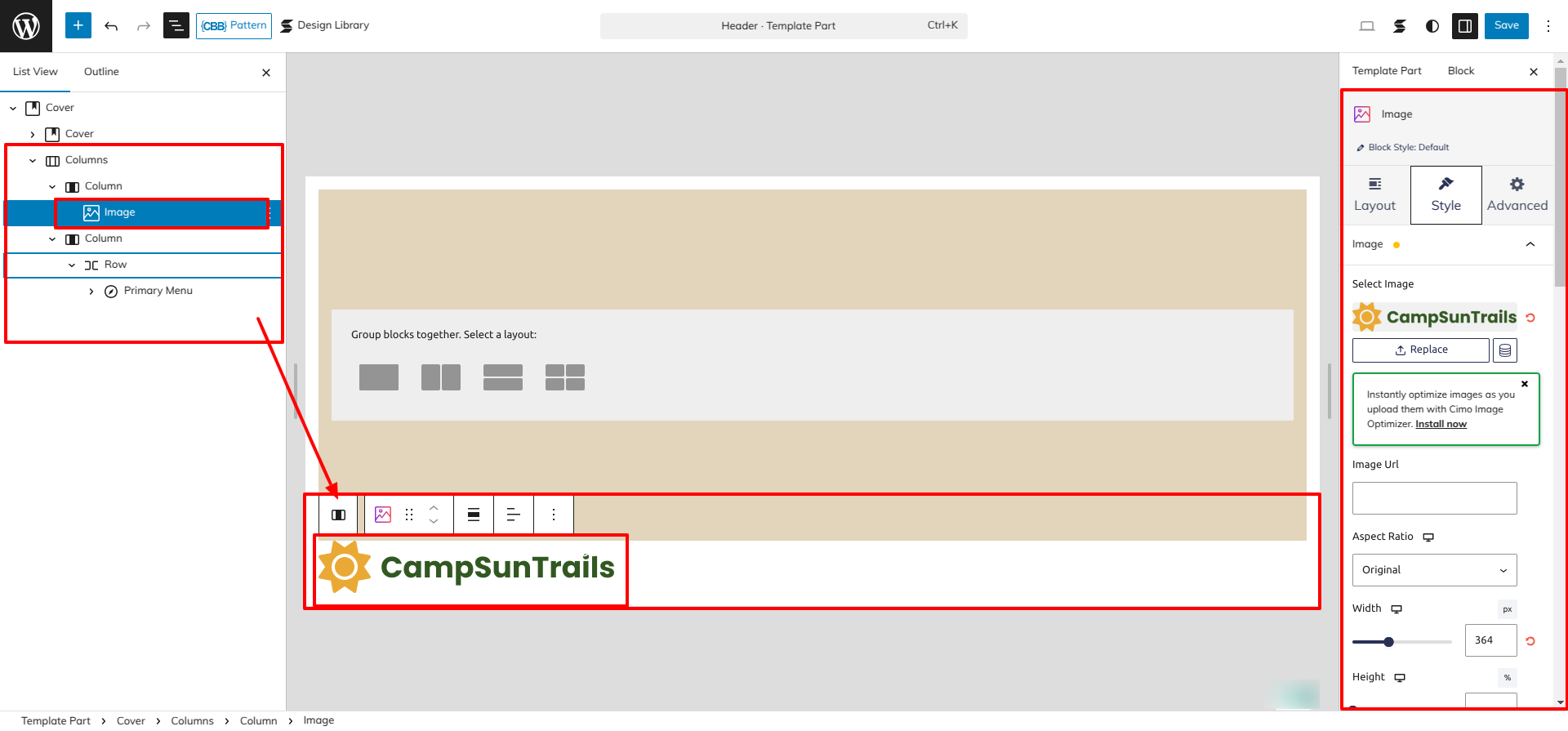
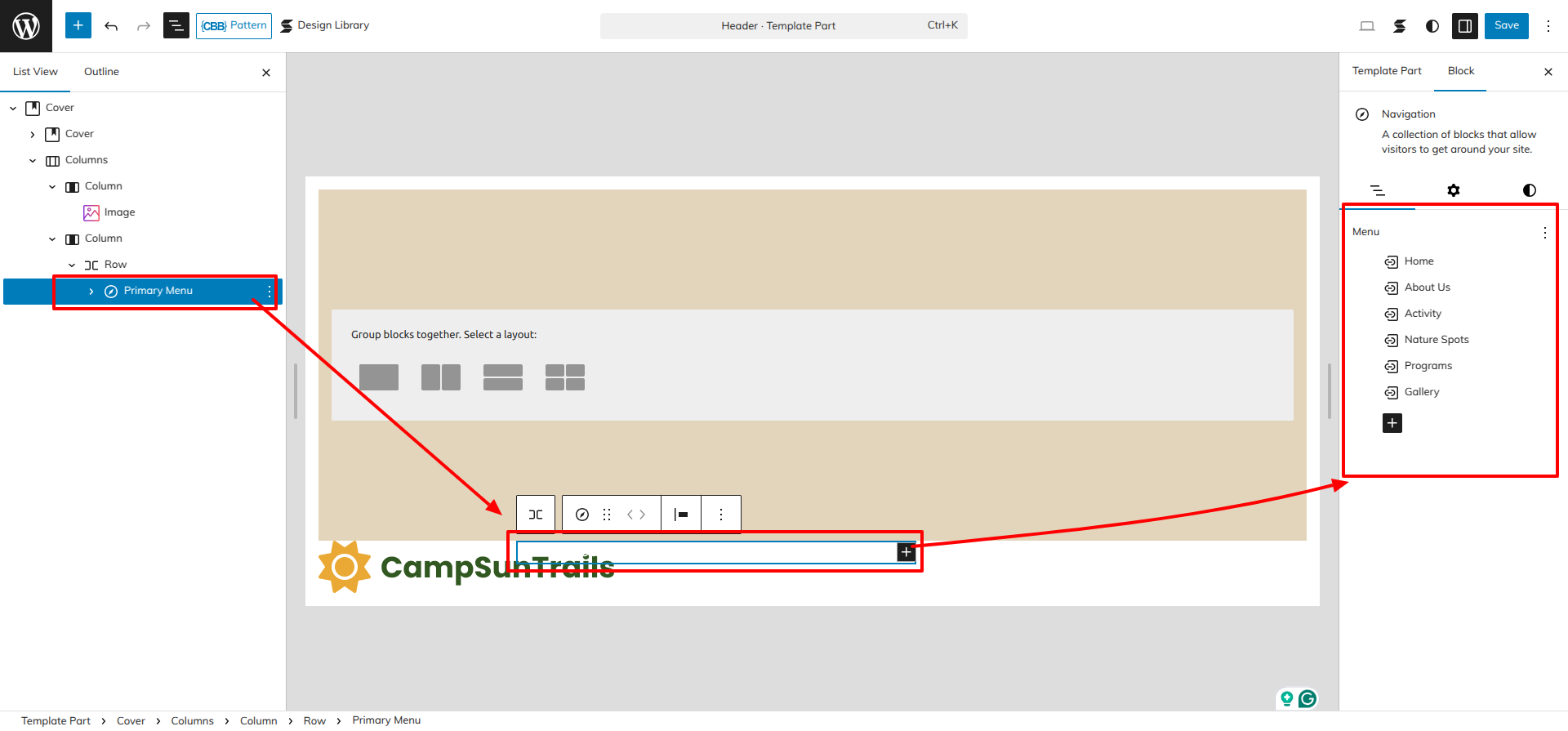
Go to the Dashboard Appearance Editor.
HOW TO INCLUDE PATTERNS AND BLOCKS IN A PAGE
Please click the "Plus" icon as displayed in the screen below in order to add patterns and bocks.
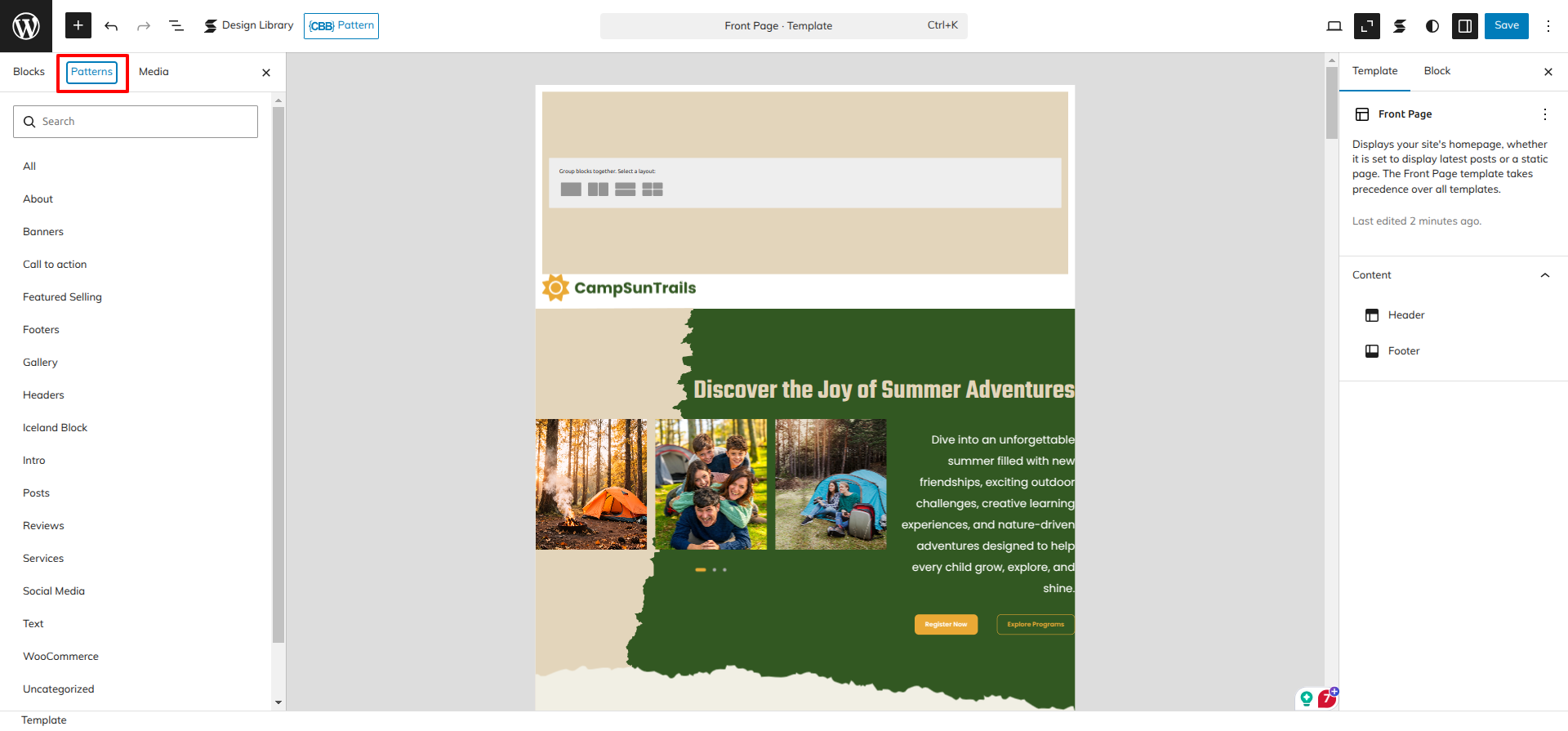
Select "Day Camp Pro" from the dropdown as displayed in the screen below once a sidebar has opened.
All of the theme patterns are now displayed here, and you may use them on any page.
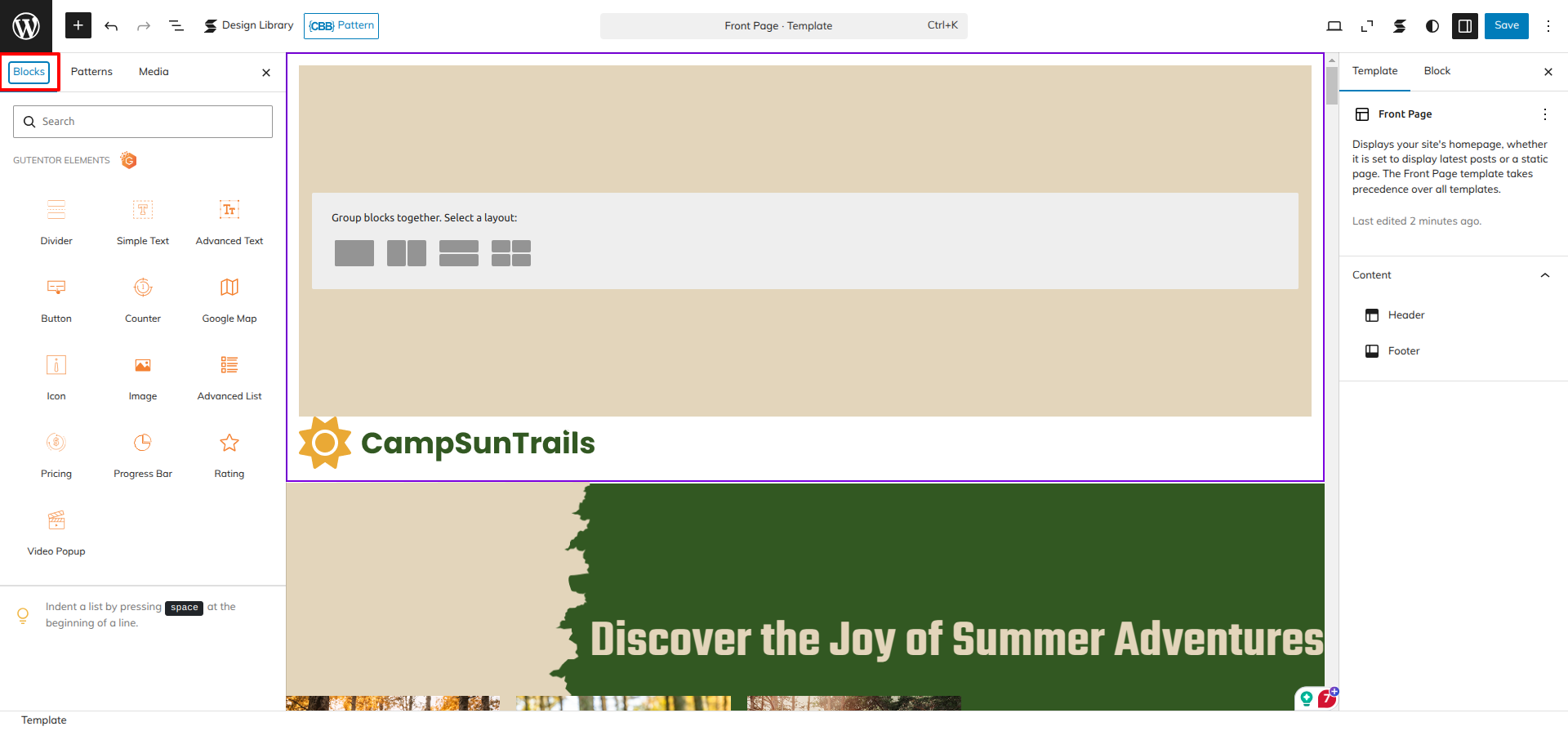
All of the blocks are now displayed here, and you may use them on any page.
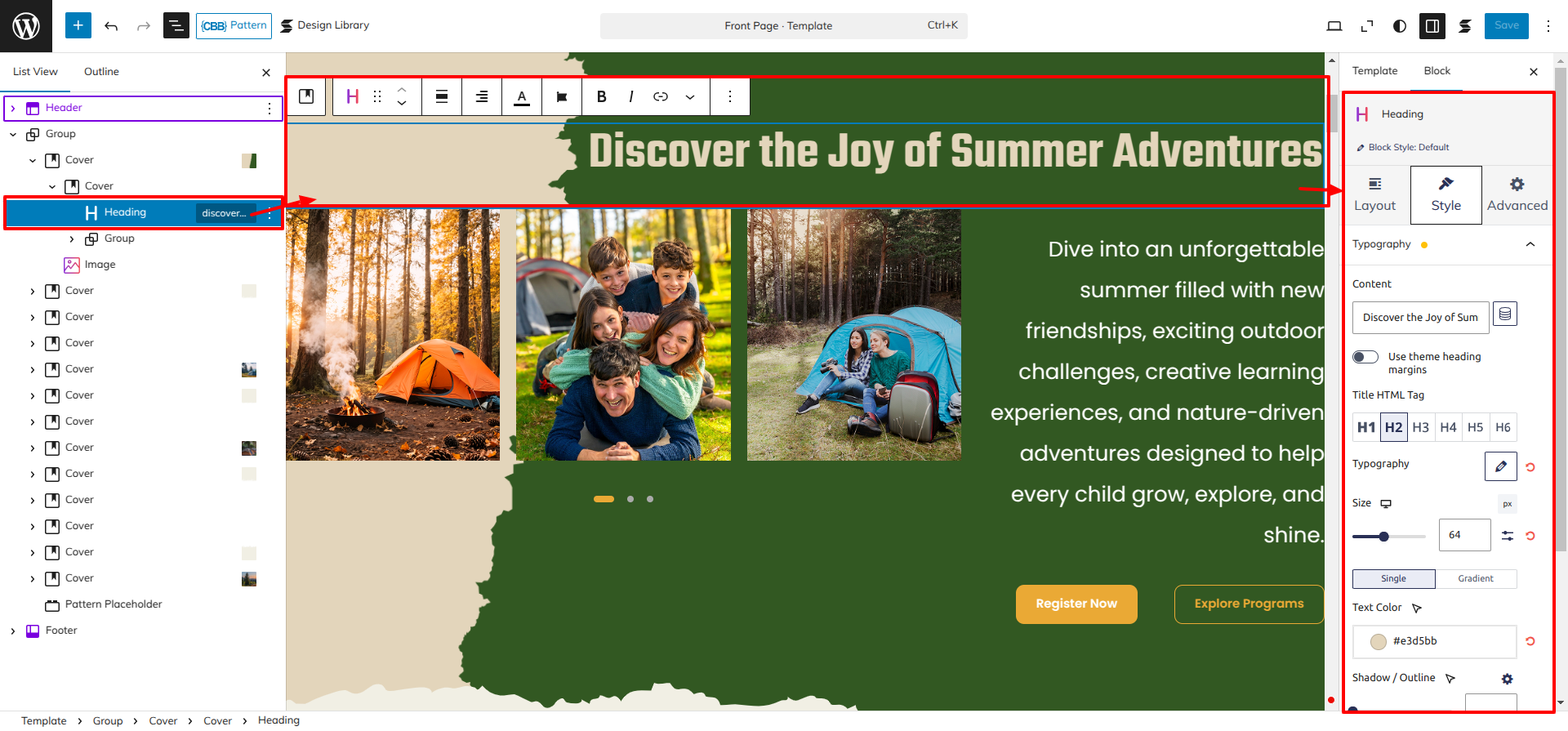
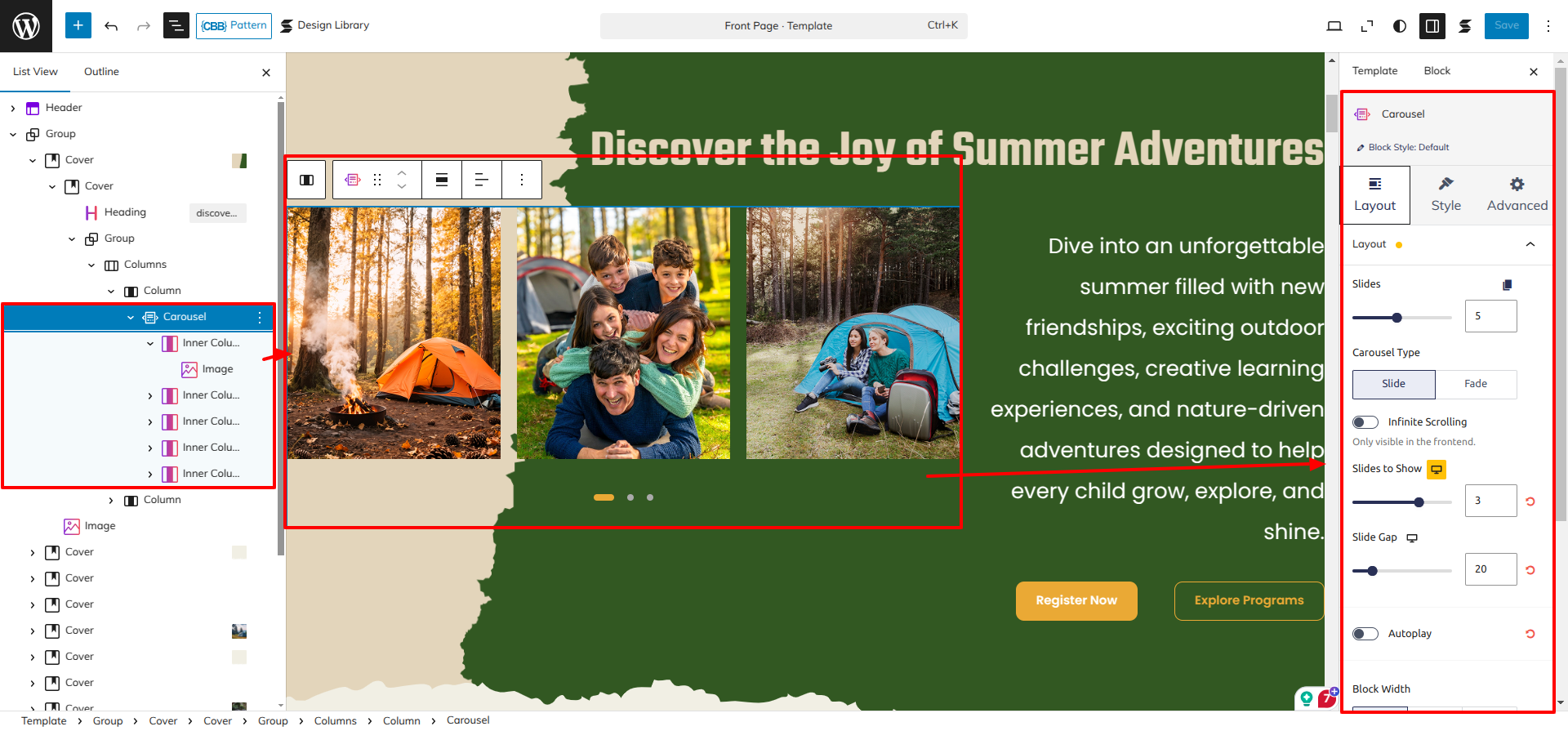
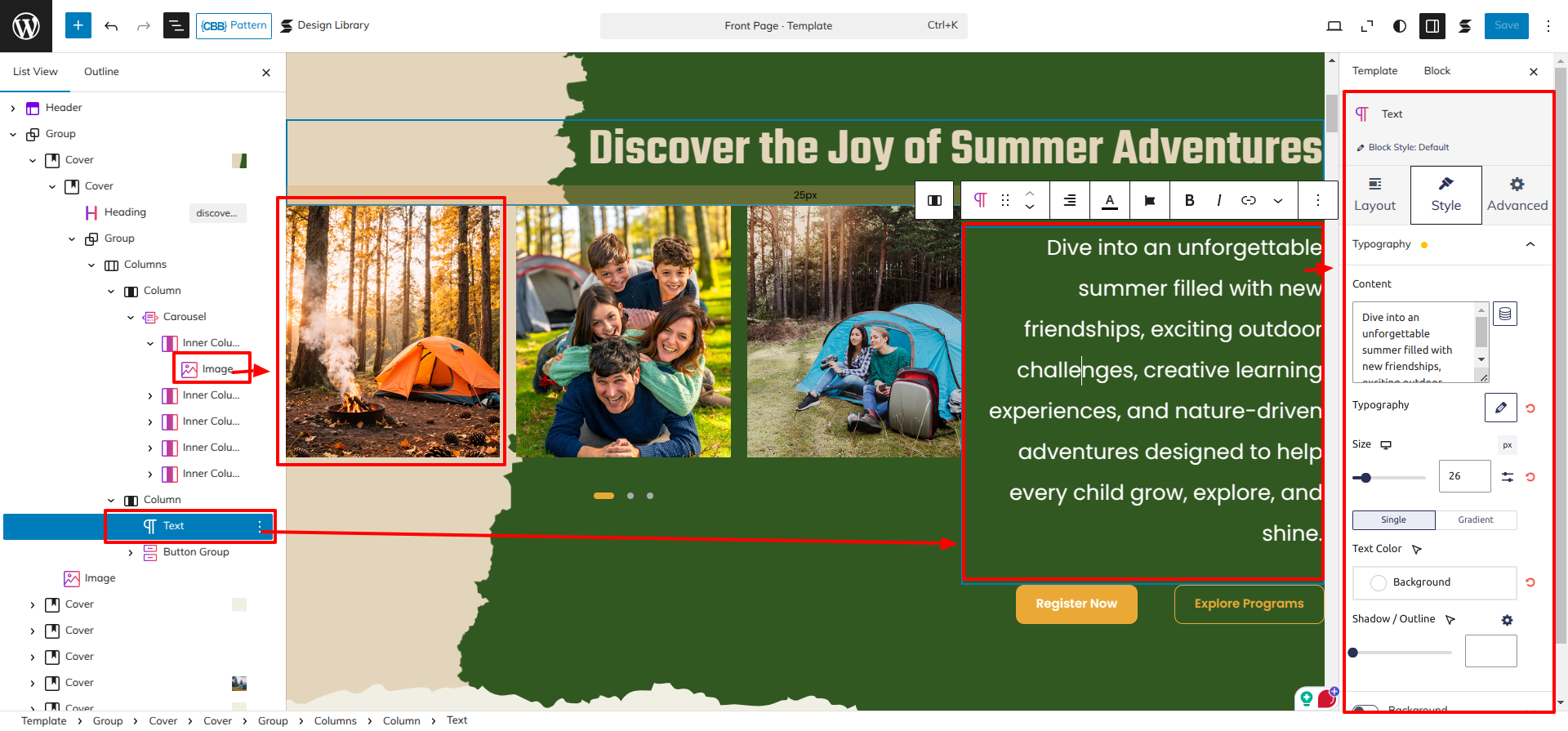
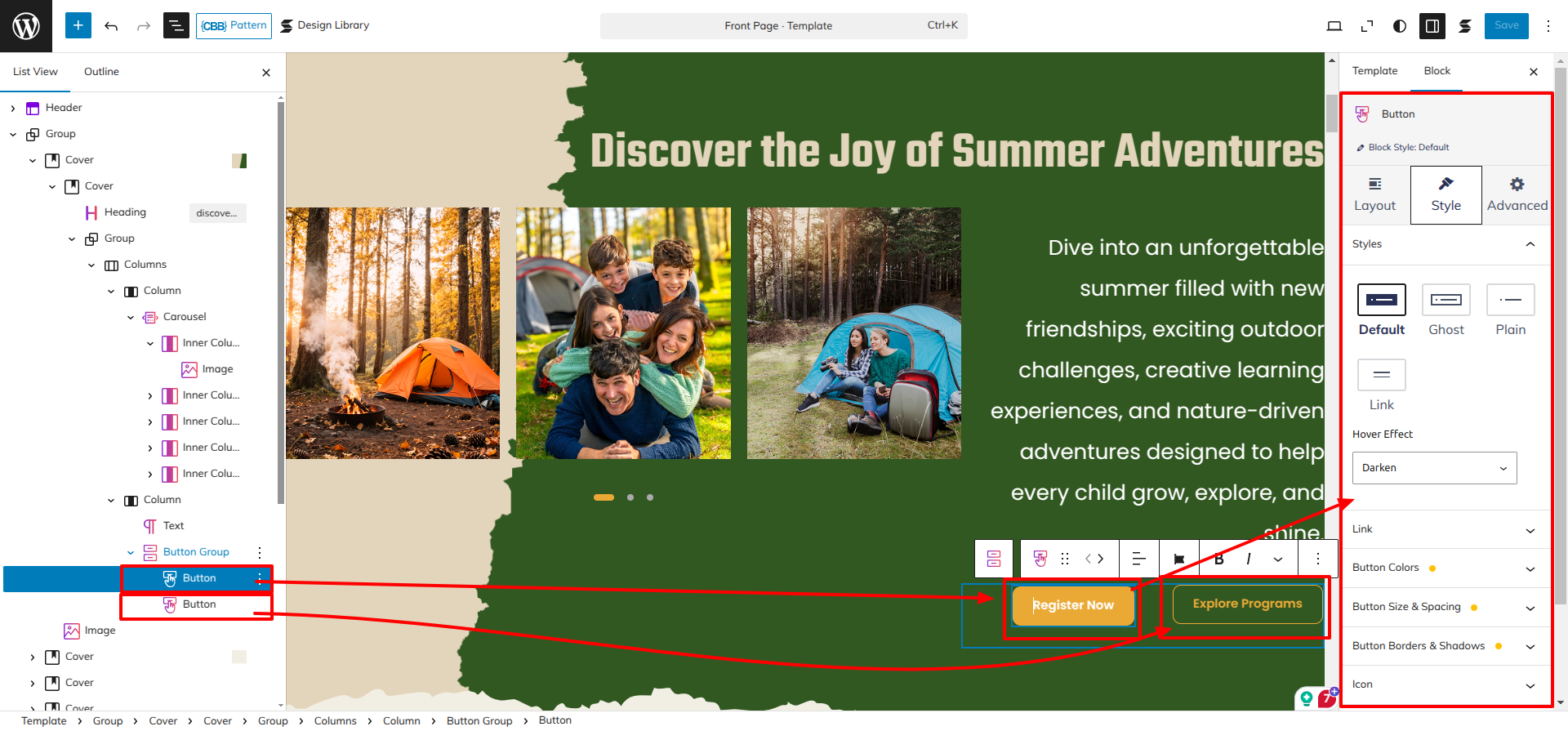
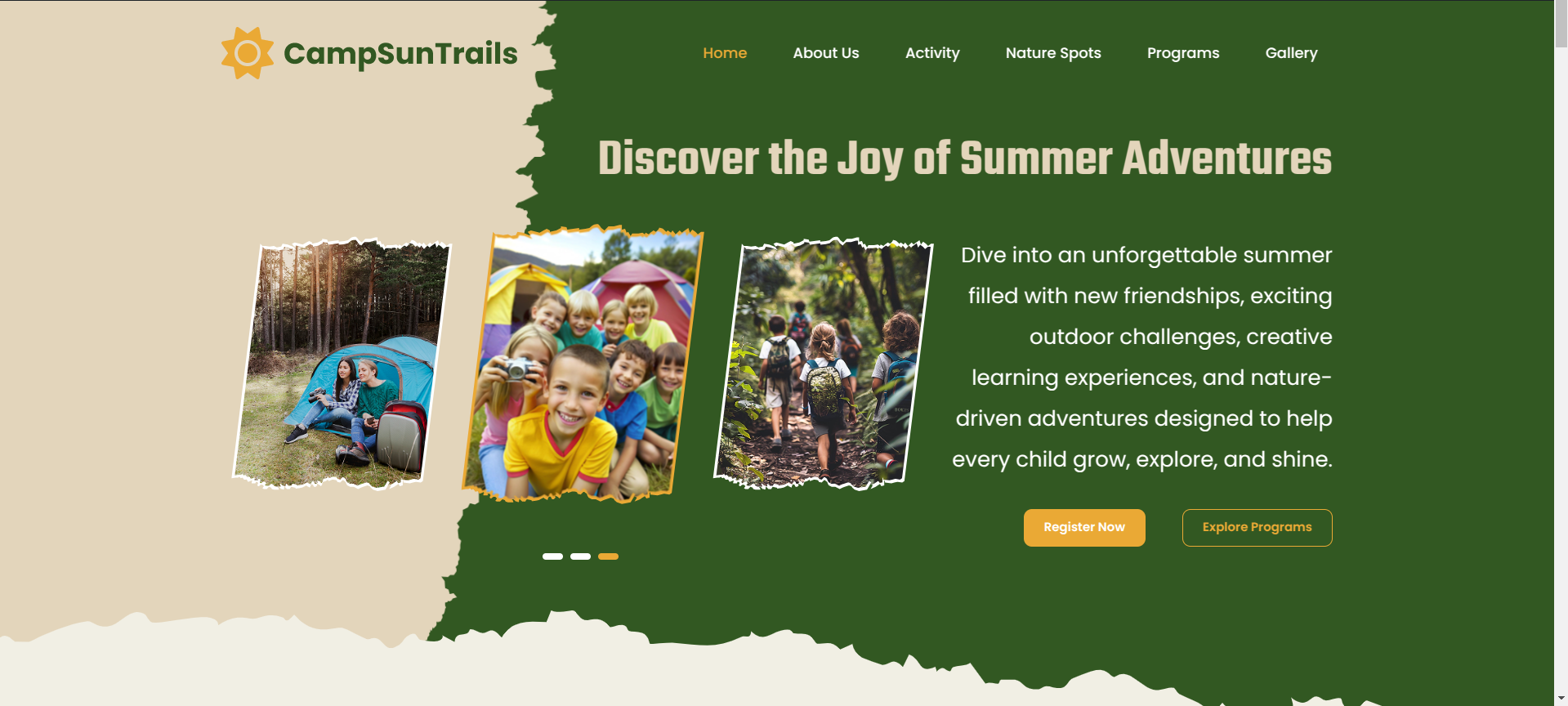
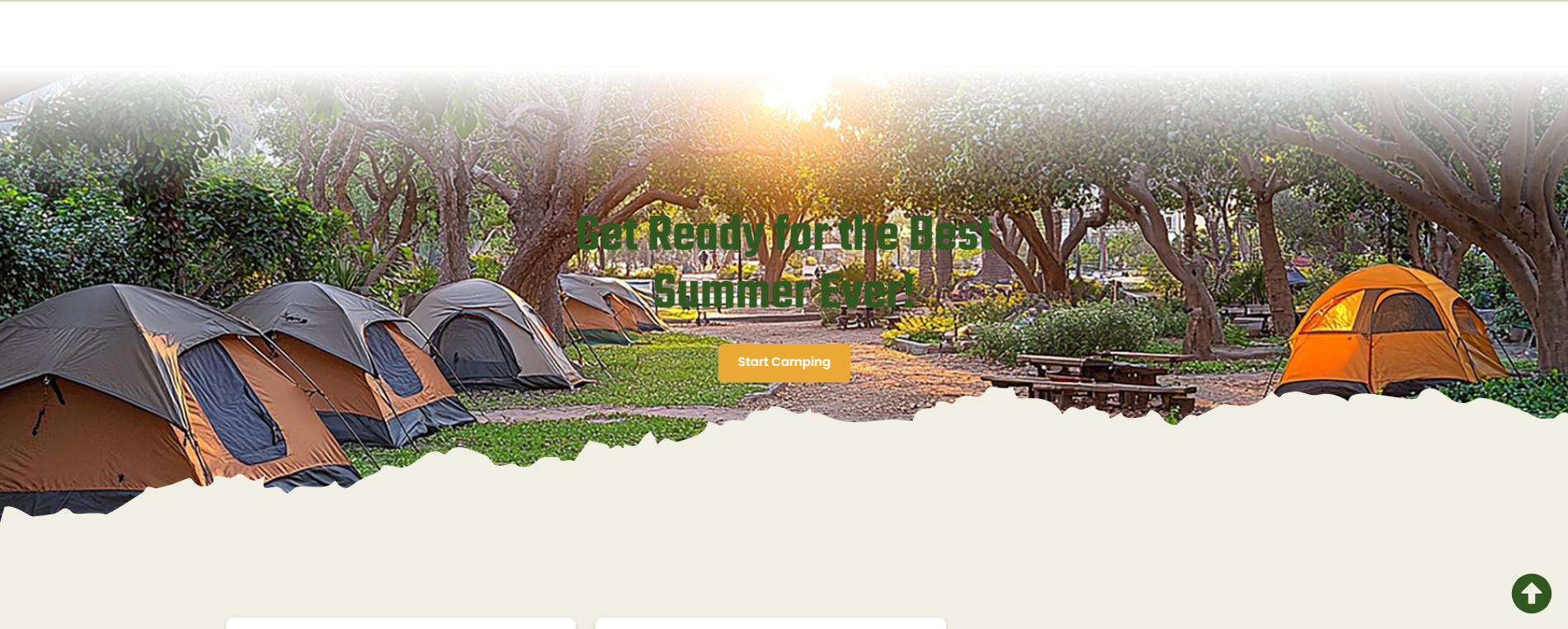
Setup Banner Section
Set up the Banner Section according to the instructions below.
Go to the Dashboard Appearance Editor.
This is how you may set up and add the Banner Section.
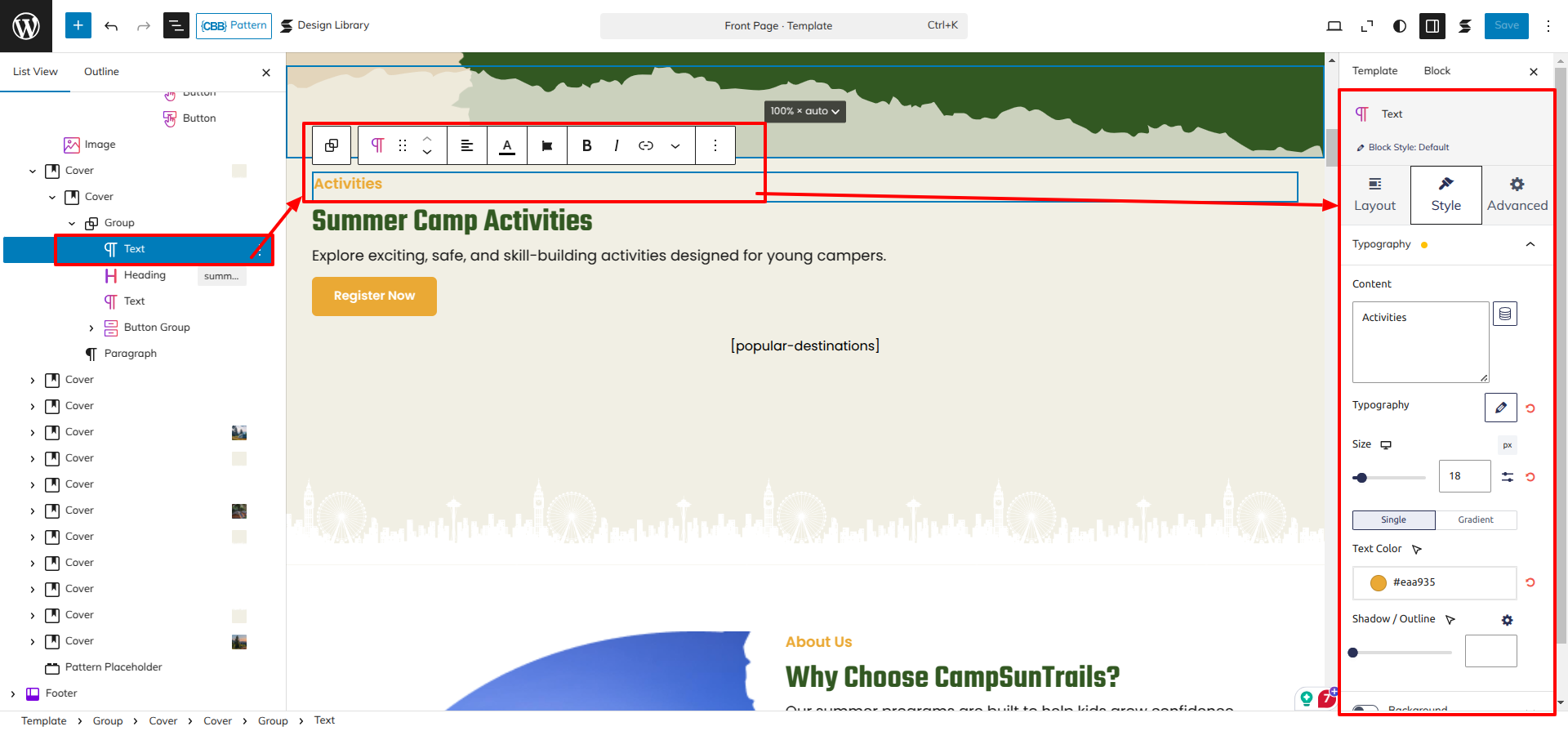
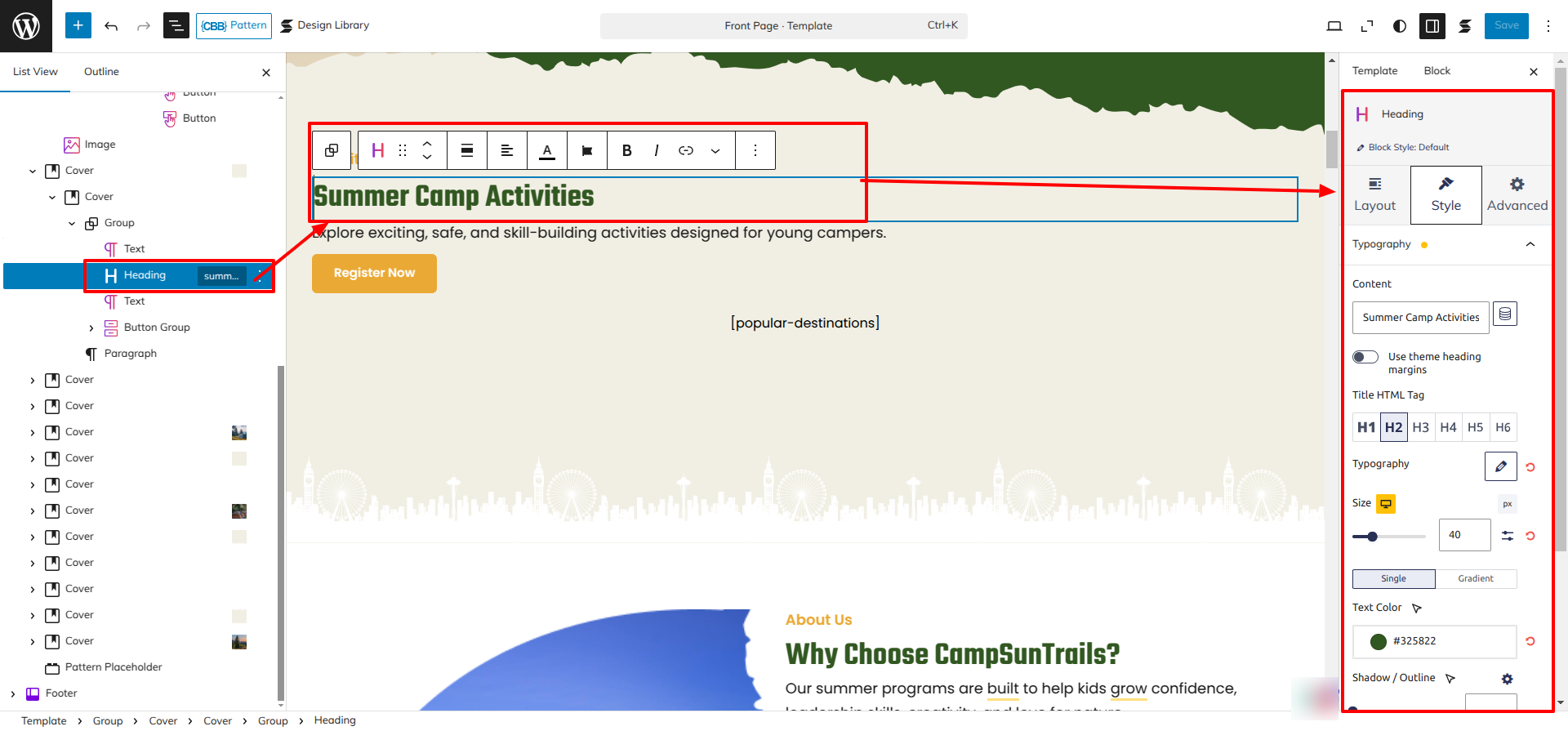
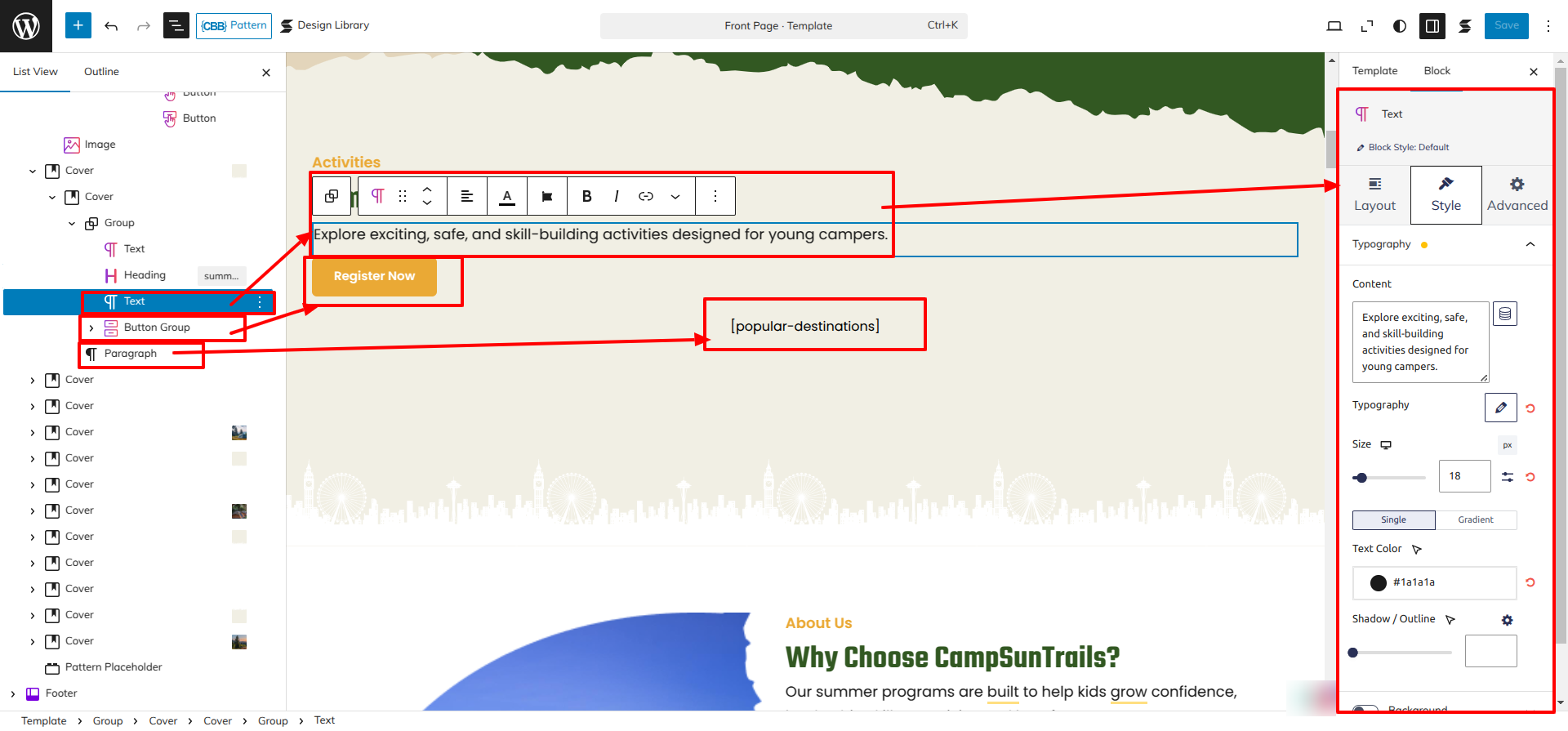
Setup Activities Section
Set up the Activities Section according to the instructions below.
Go to Dashboard Appearance Editor.
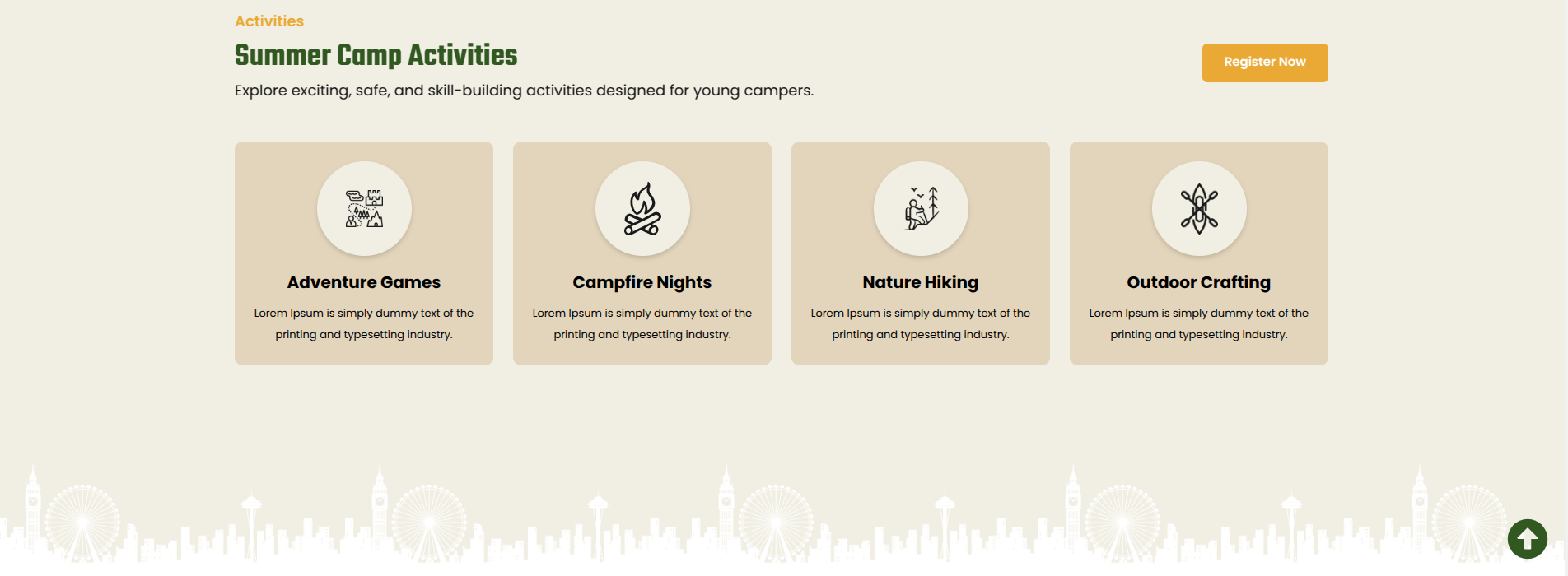
This is how you may set up and add the Activities Section.
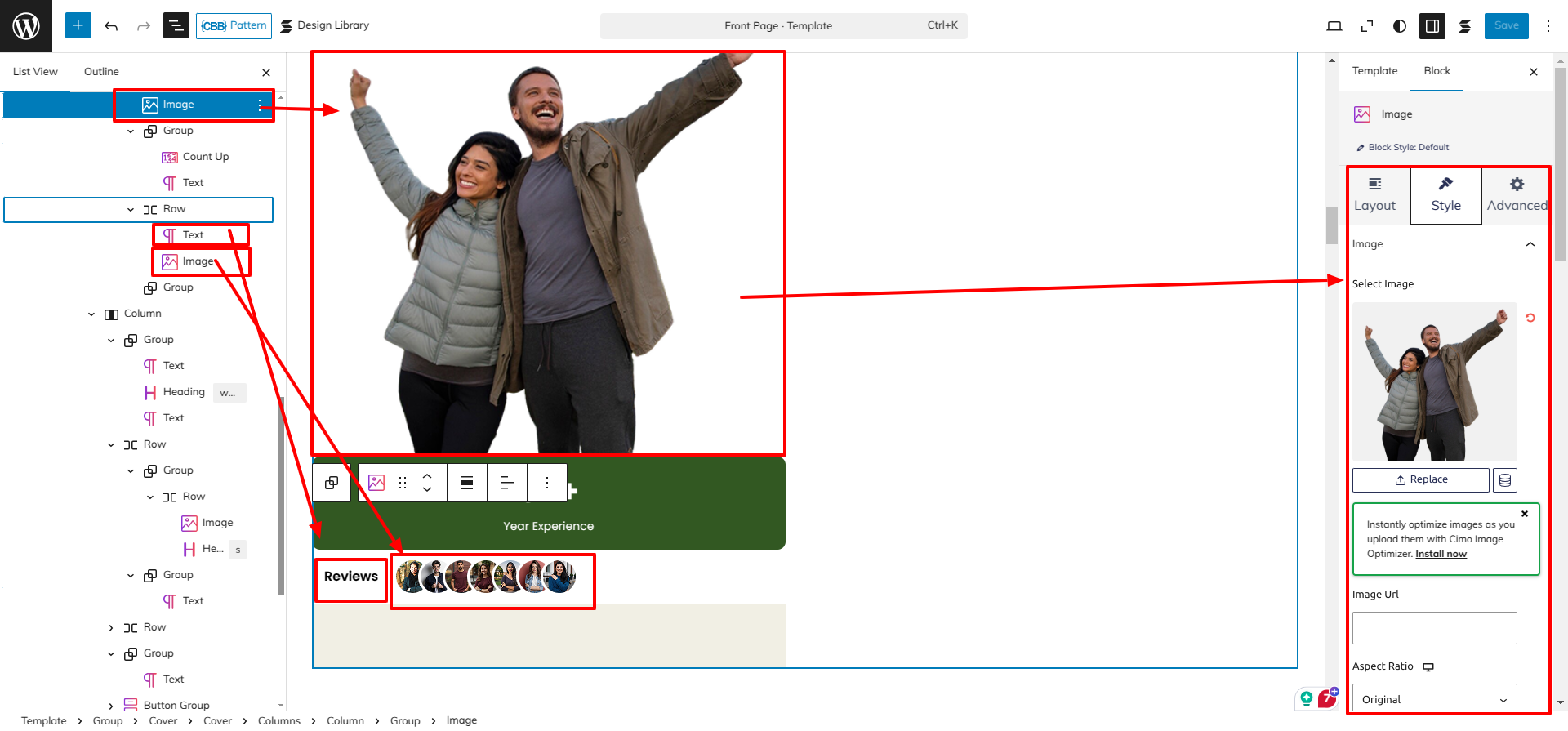
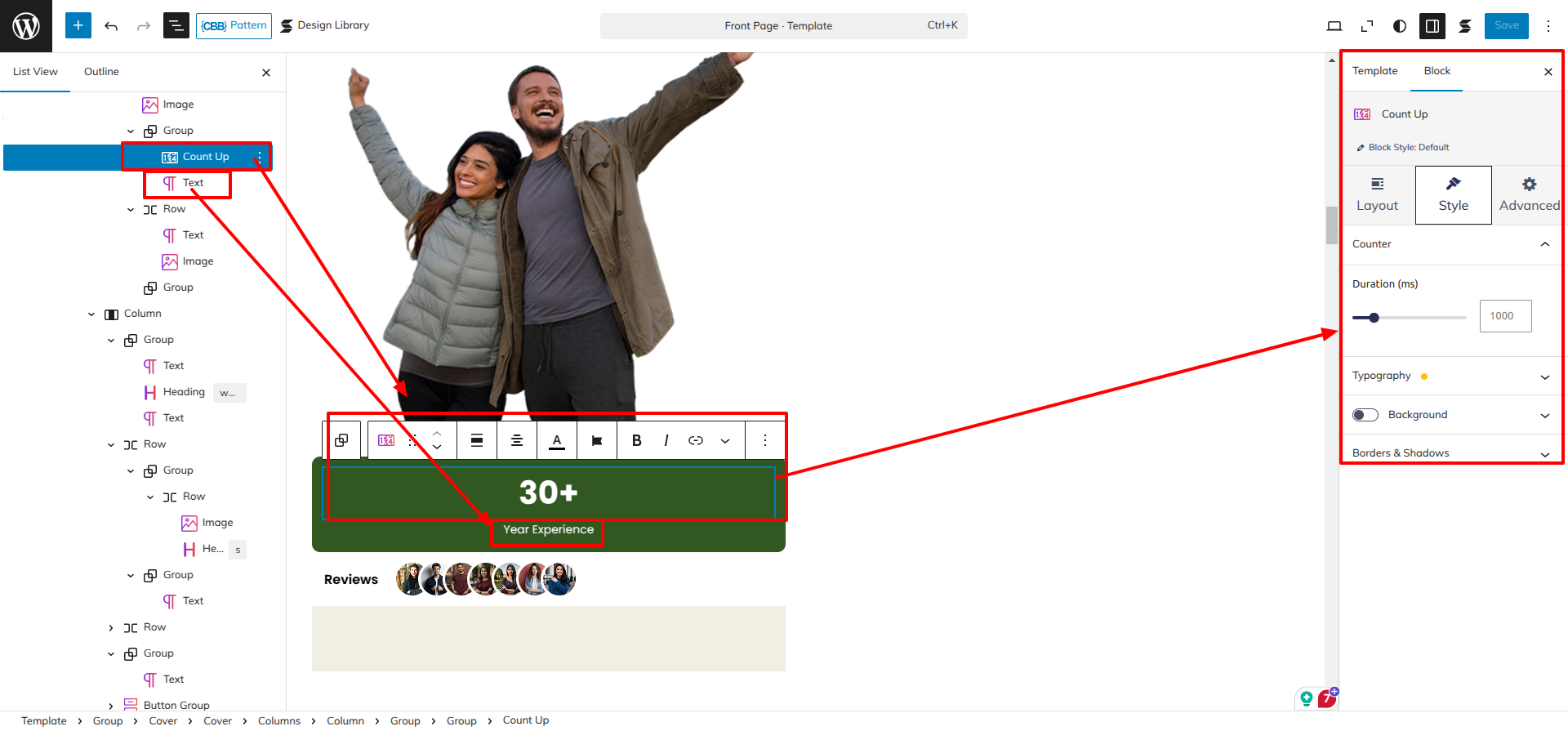
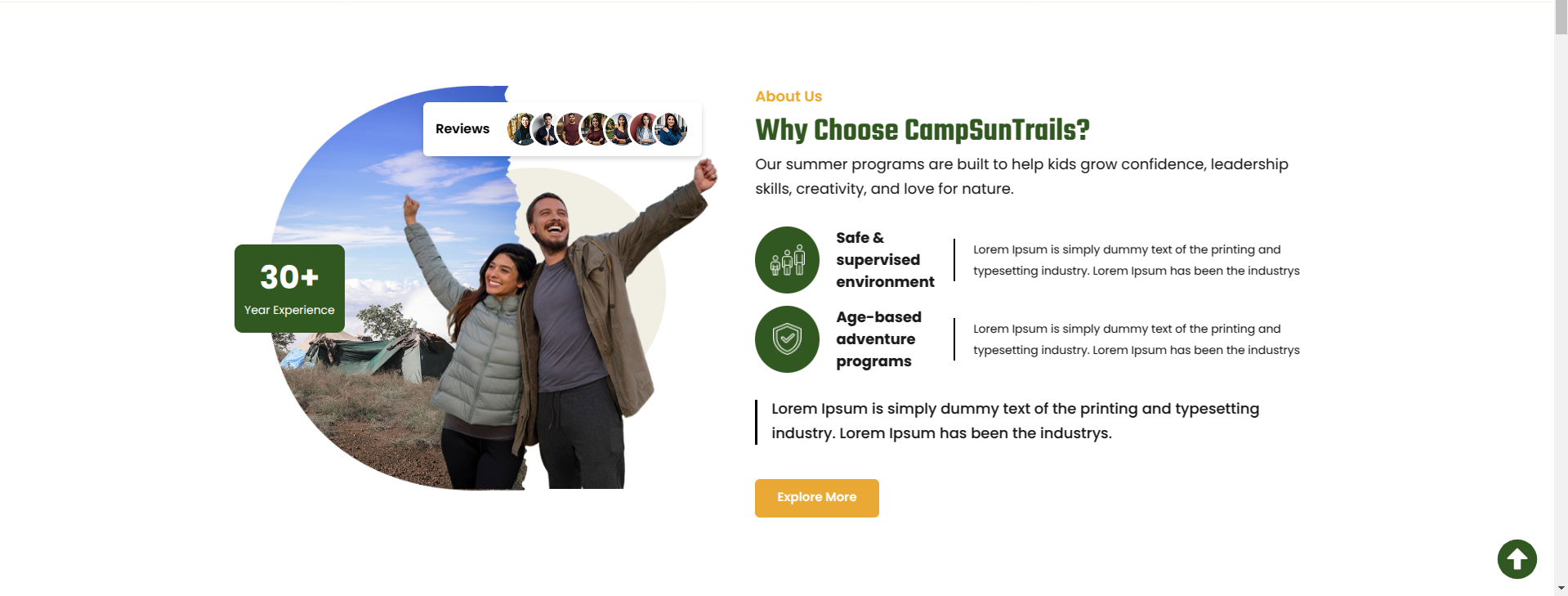
Setup About Us Section
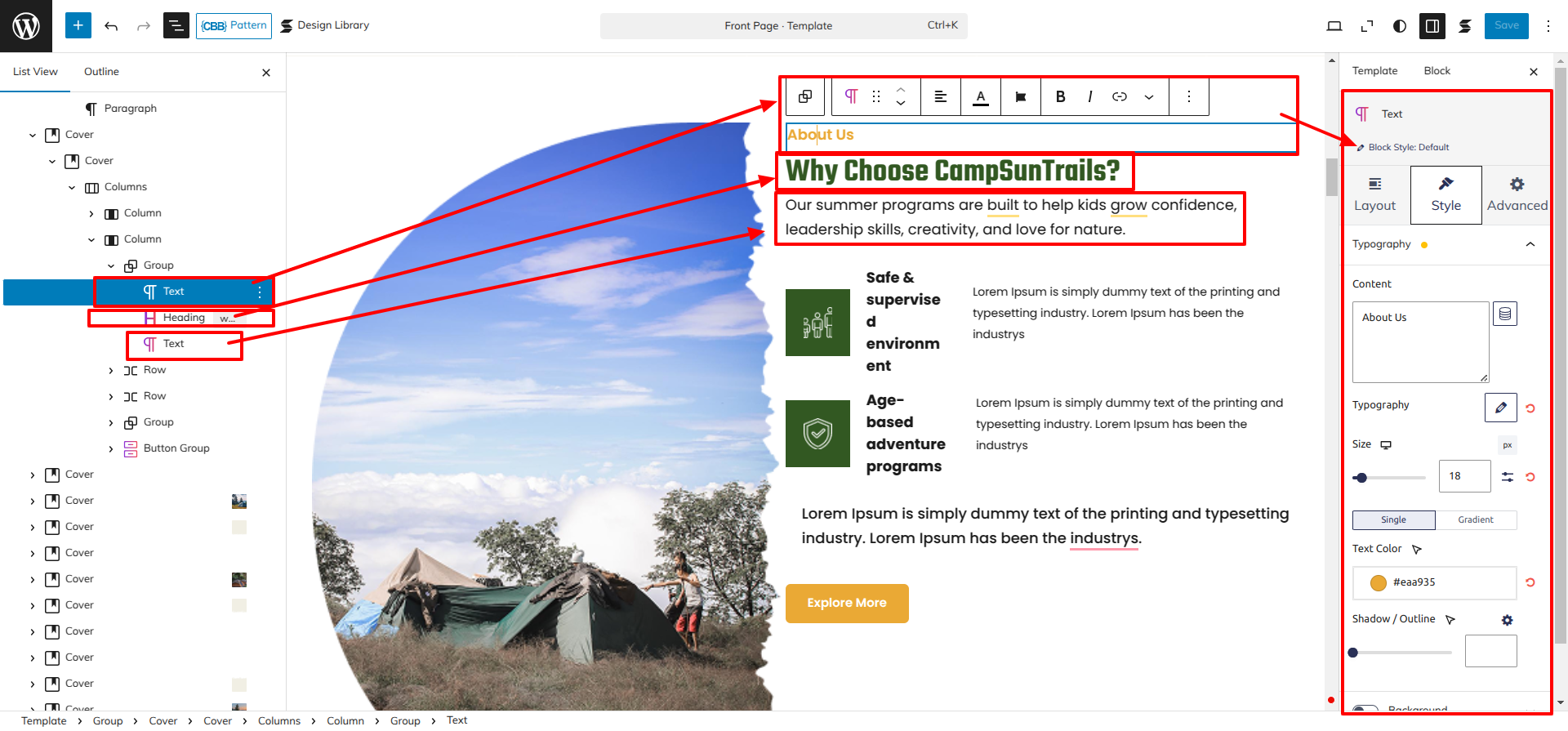
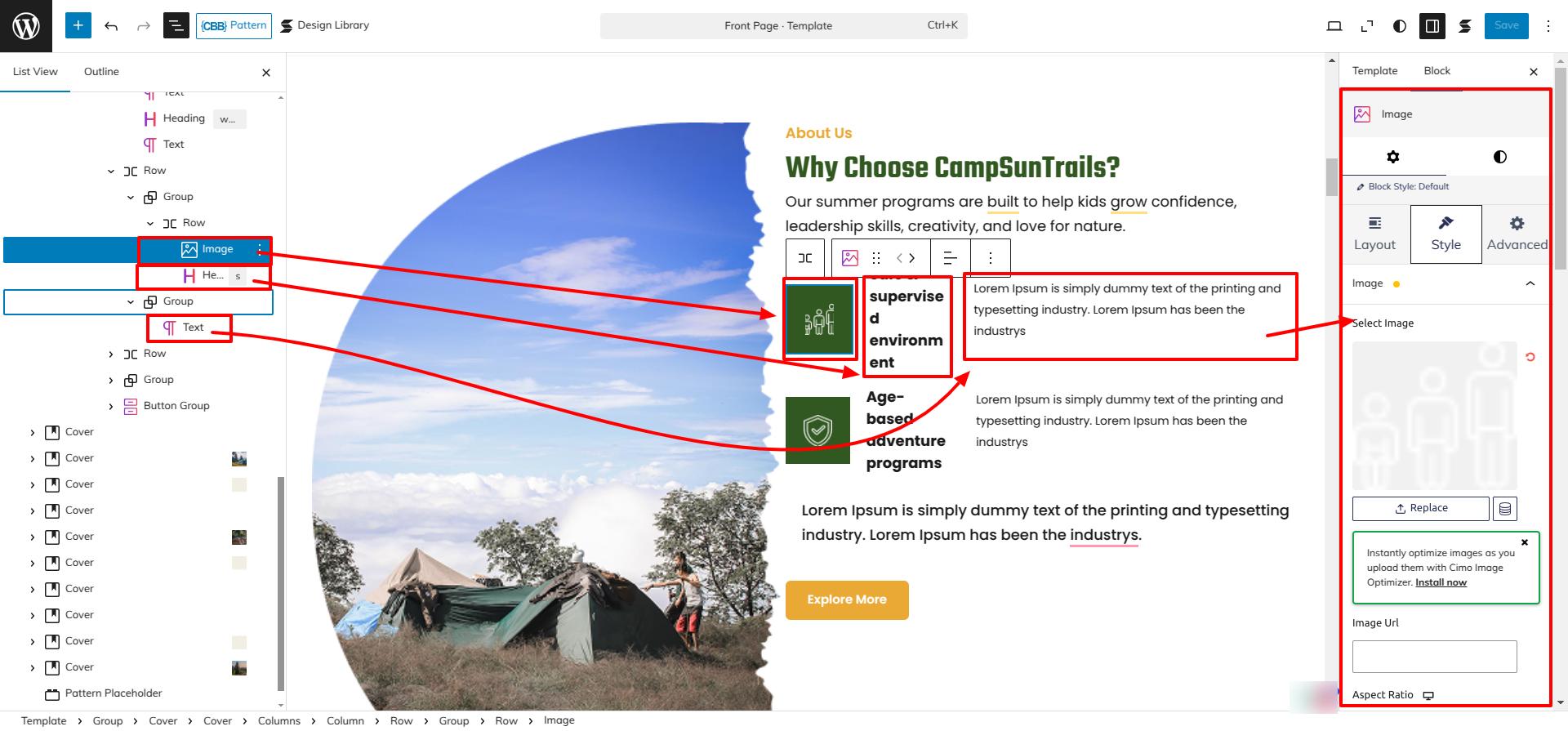
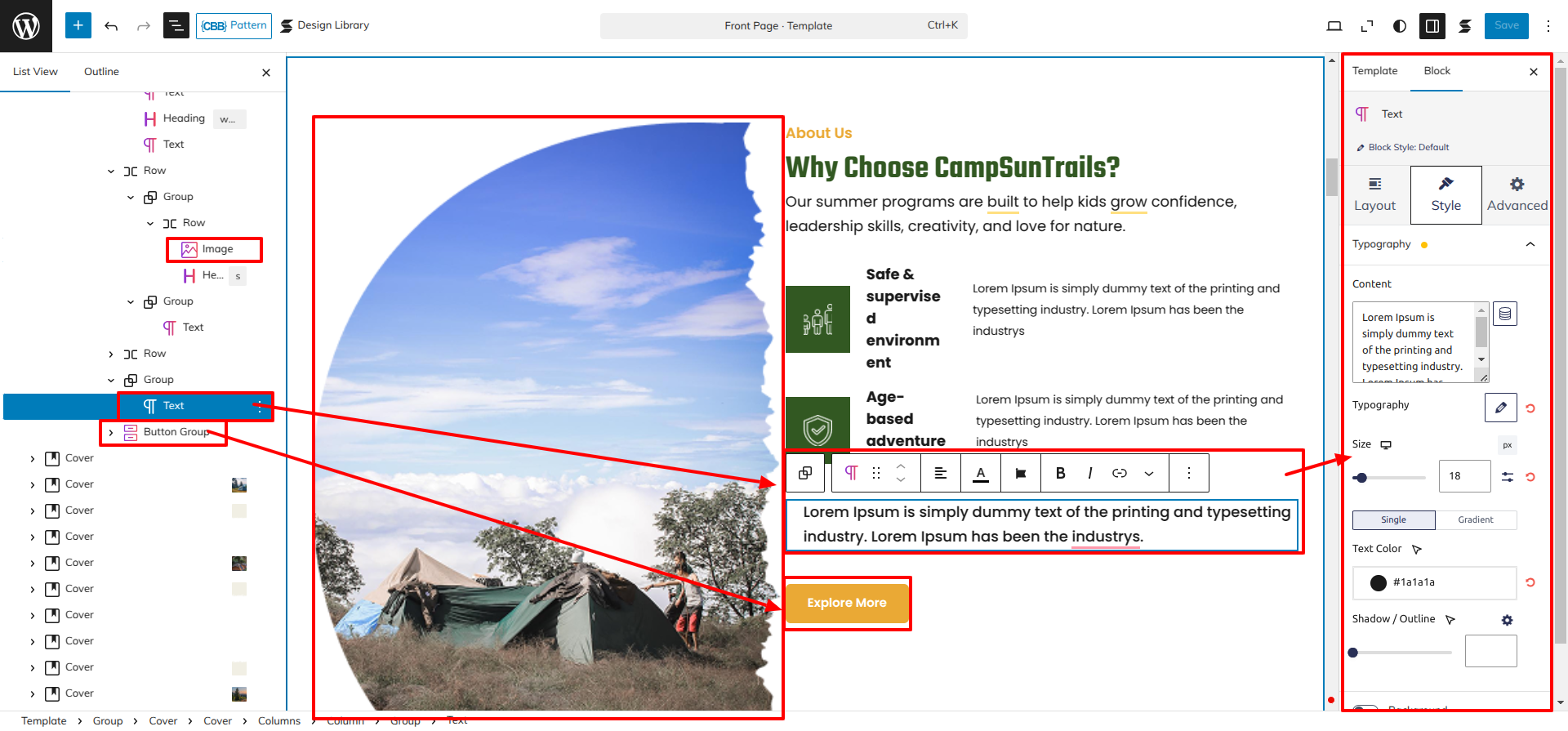
Go to Dashboard Appearance Editor.
This is how you may set up and add the About Us Section.
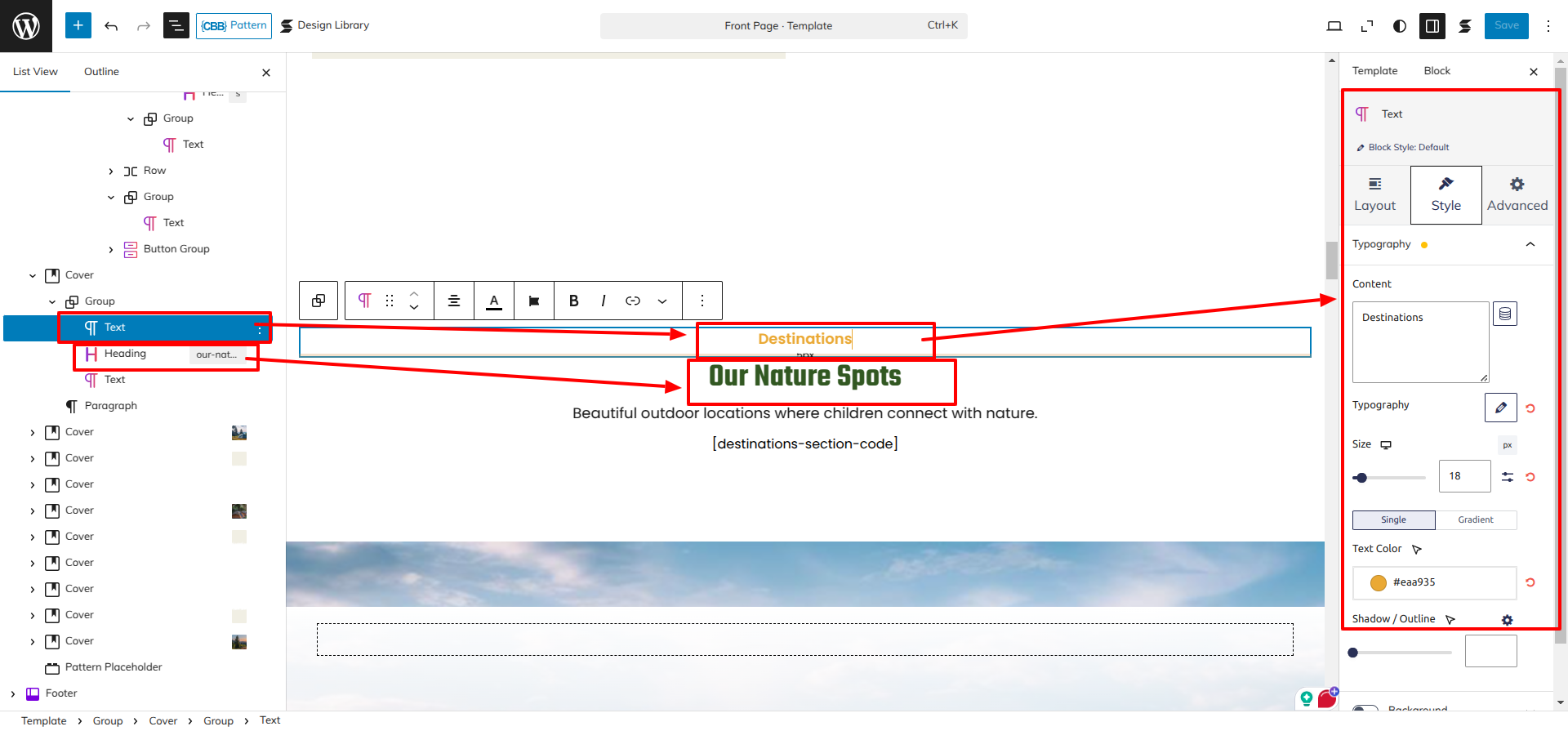
Setup Destinations Section
Set up the Destinations Section according to the instructions below.
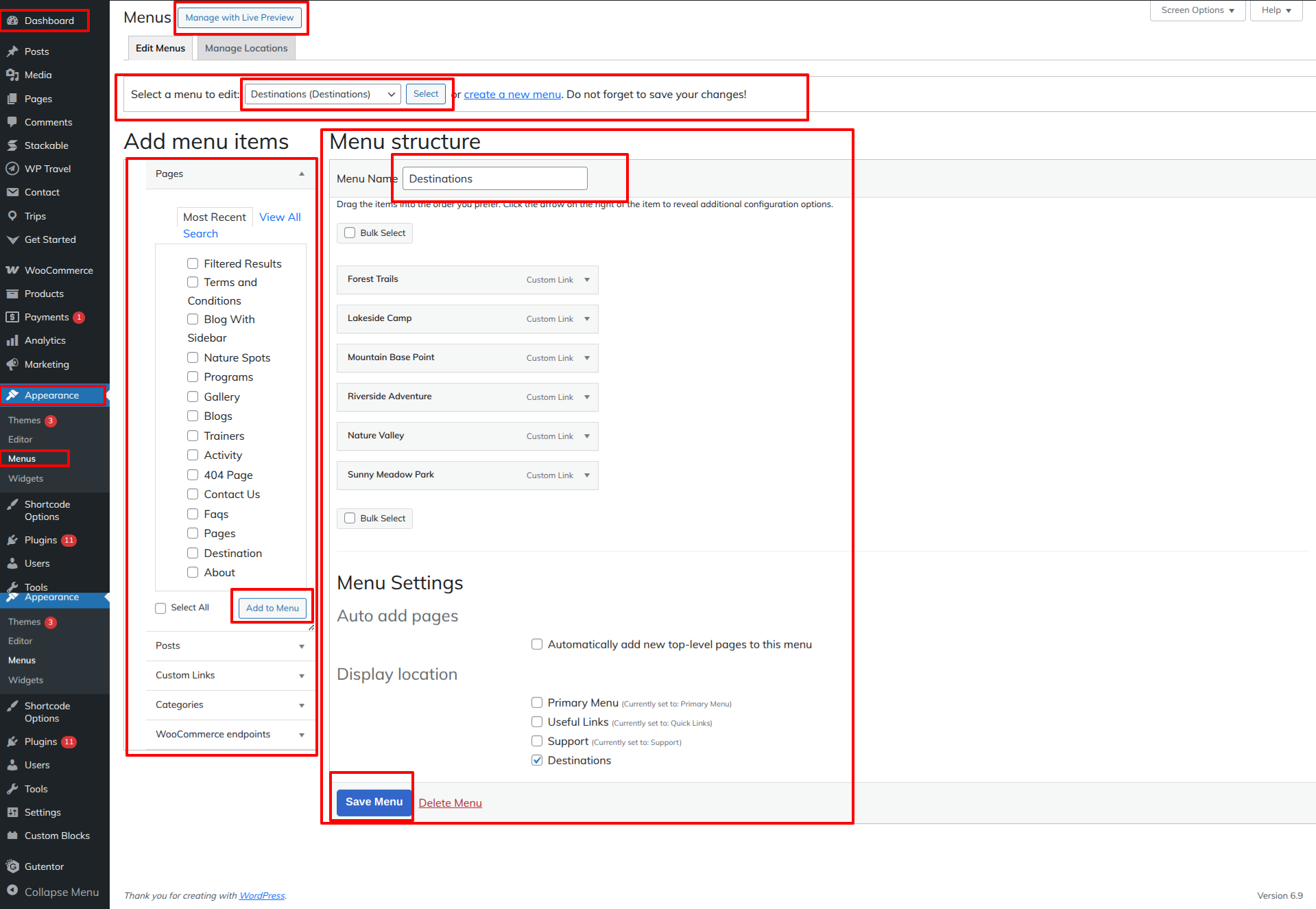
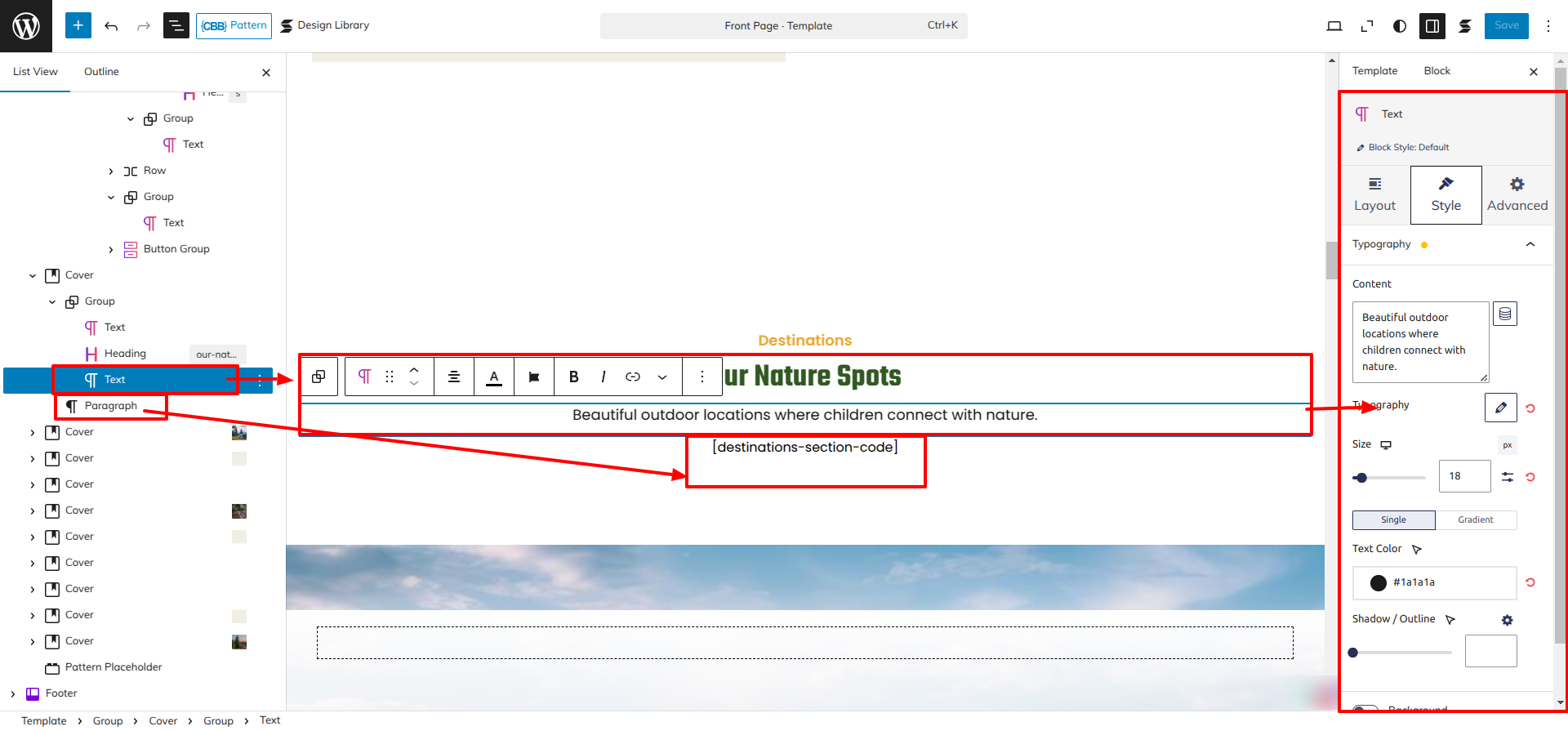
Go to Dashboard Appearance Editor.
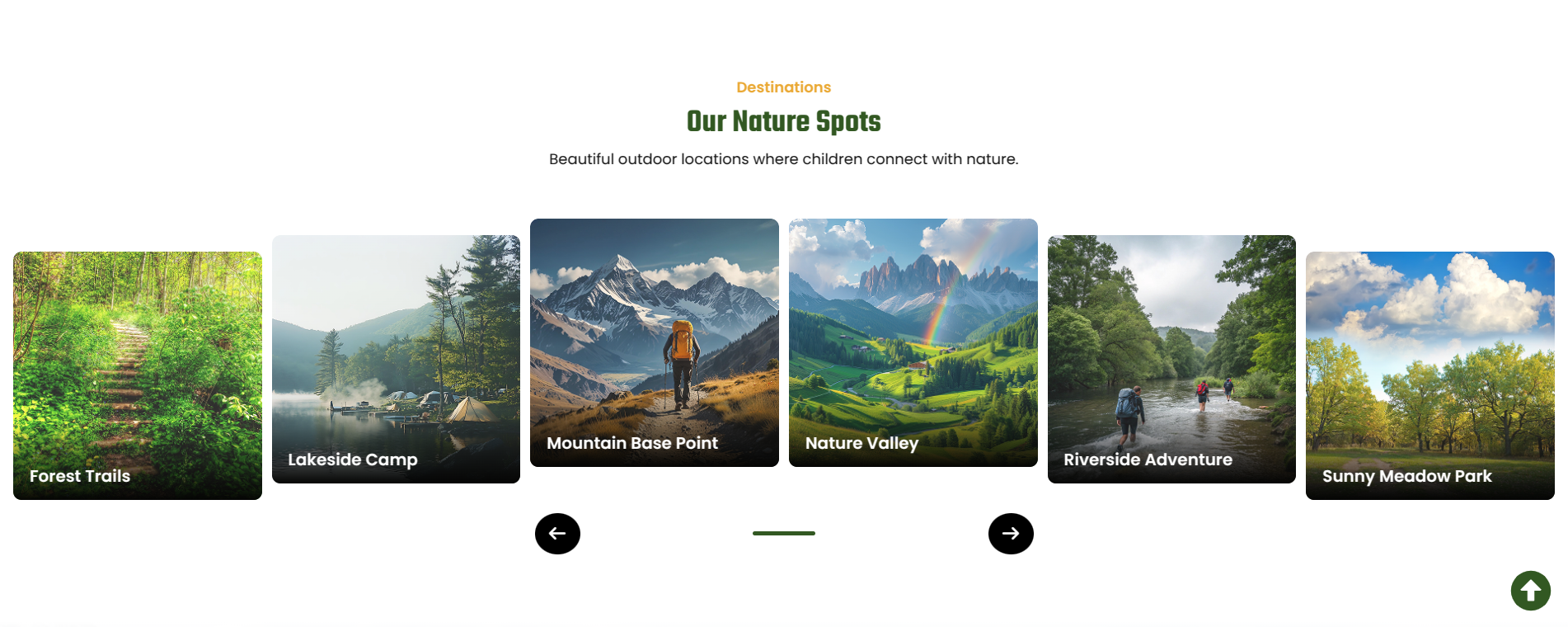
This is how you may set up and add the Destinations Section.
Setup Counter Section
Set up the Counter Section according to the instructions below.
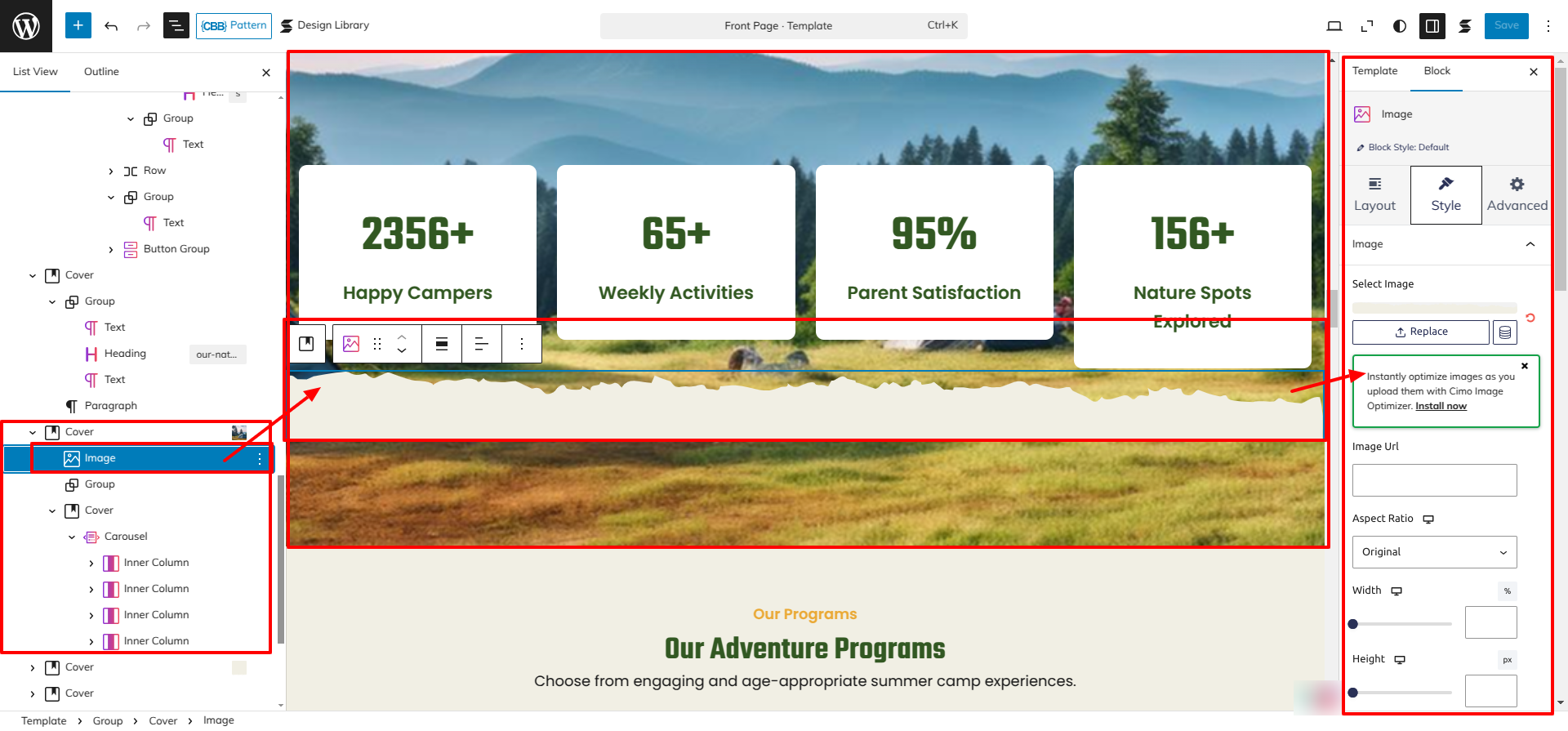
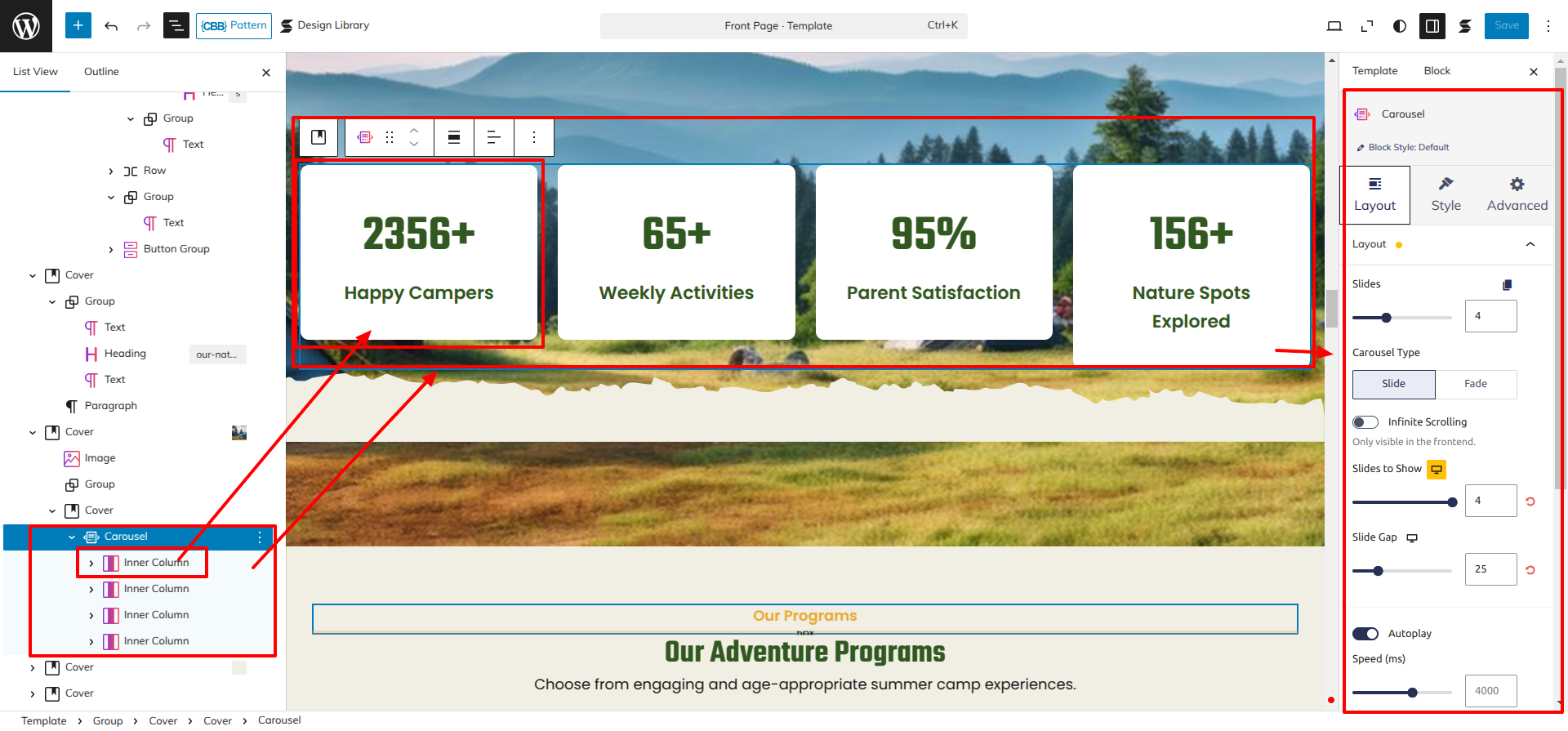
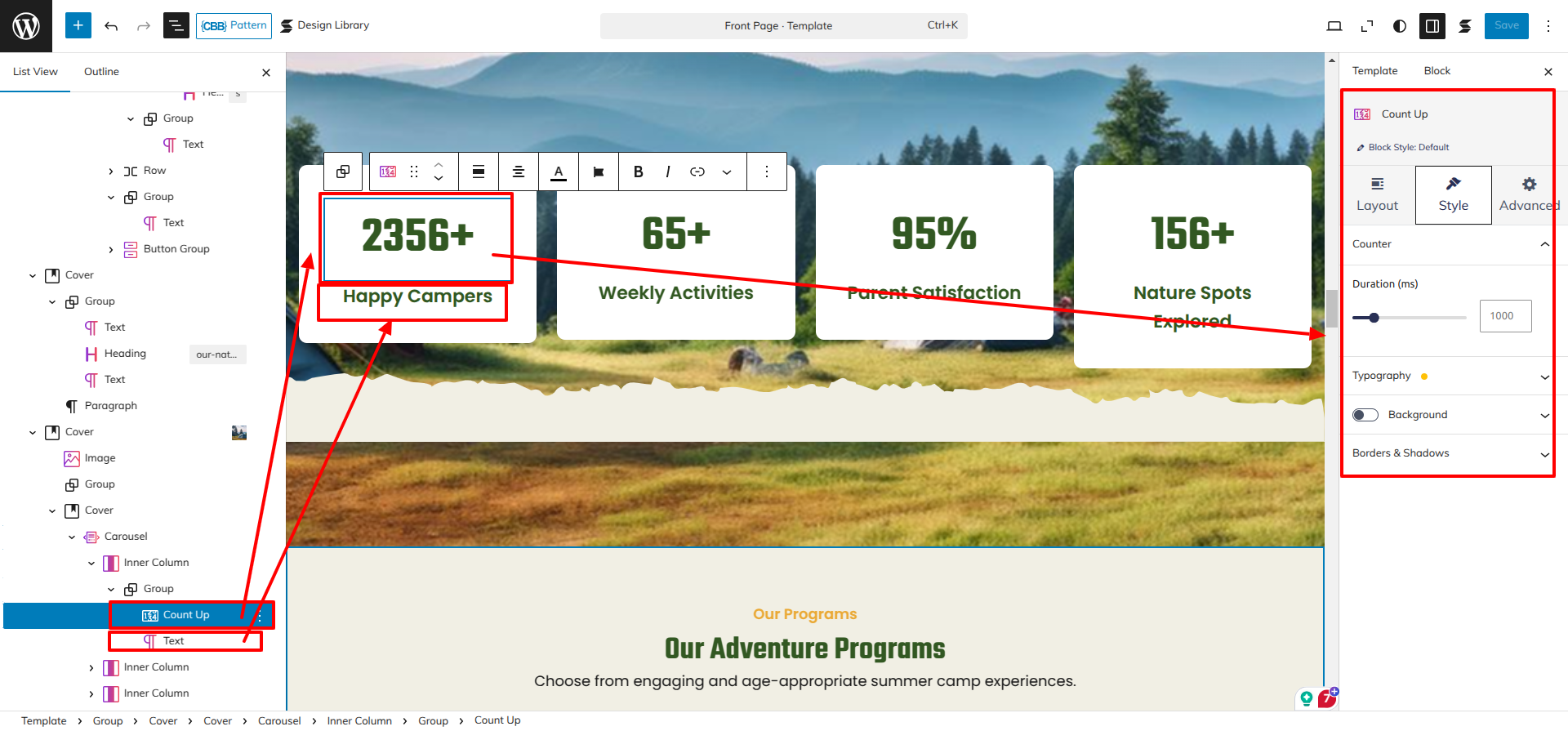
Go to Dashboard Appearance Editor.
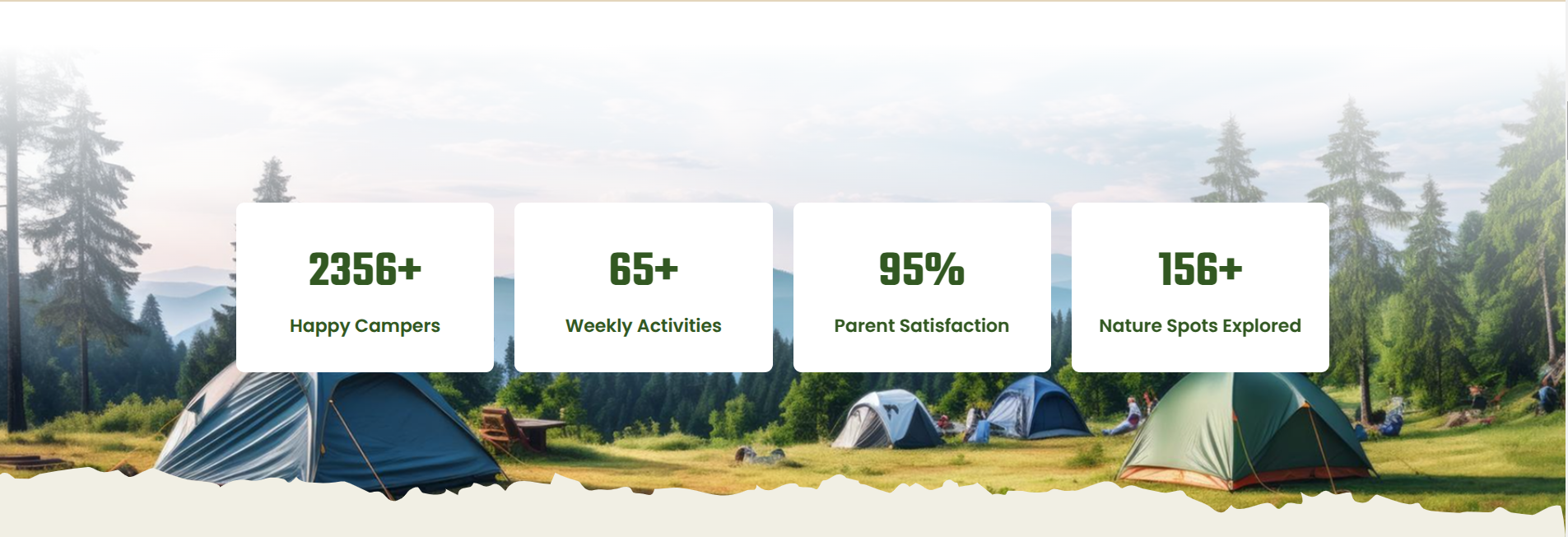
This is how you may set up and add the Counter Section.
Setup Our Programs Section
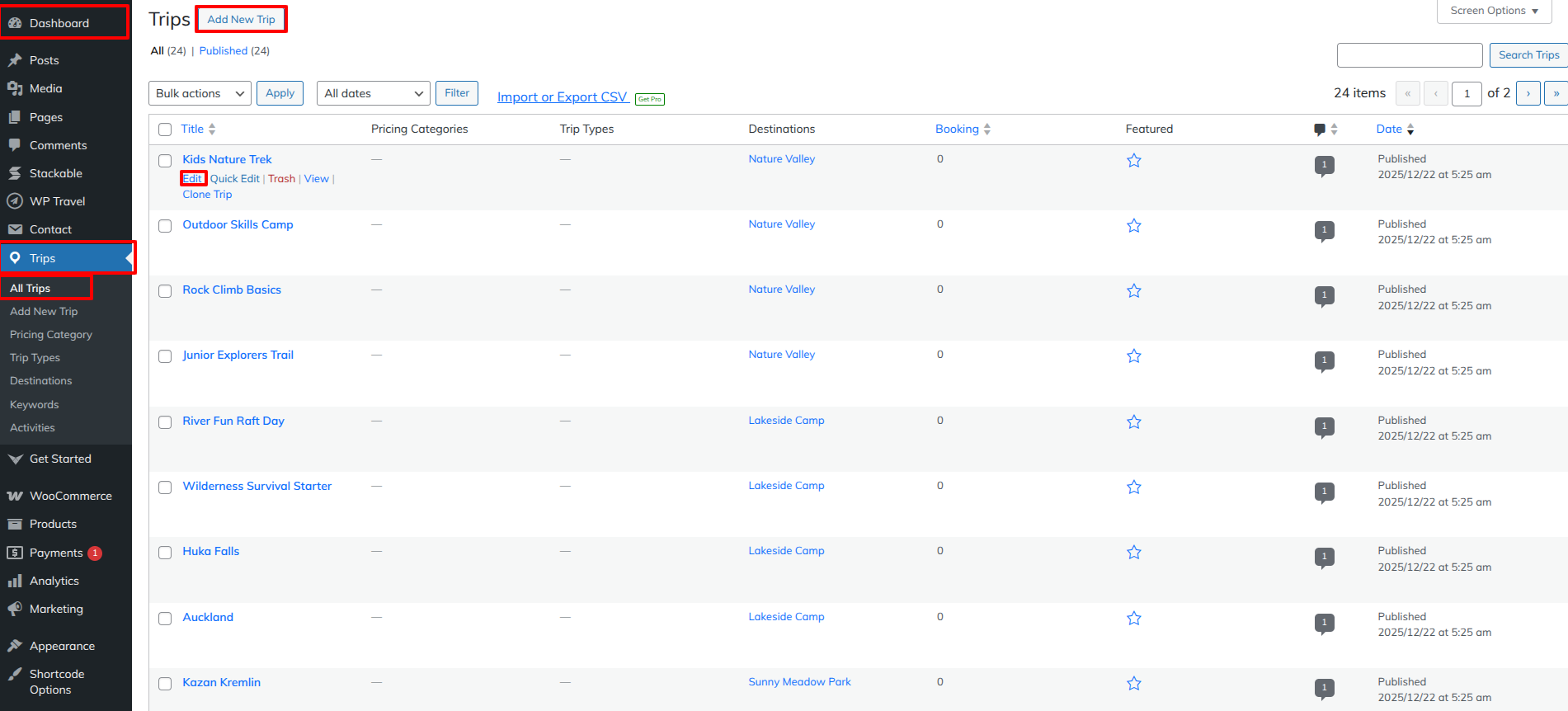
Go to the Dashboard Tools Add New.
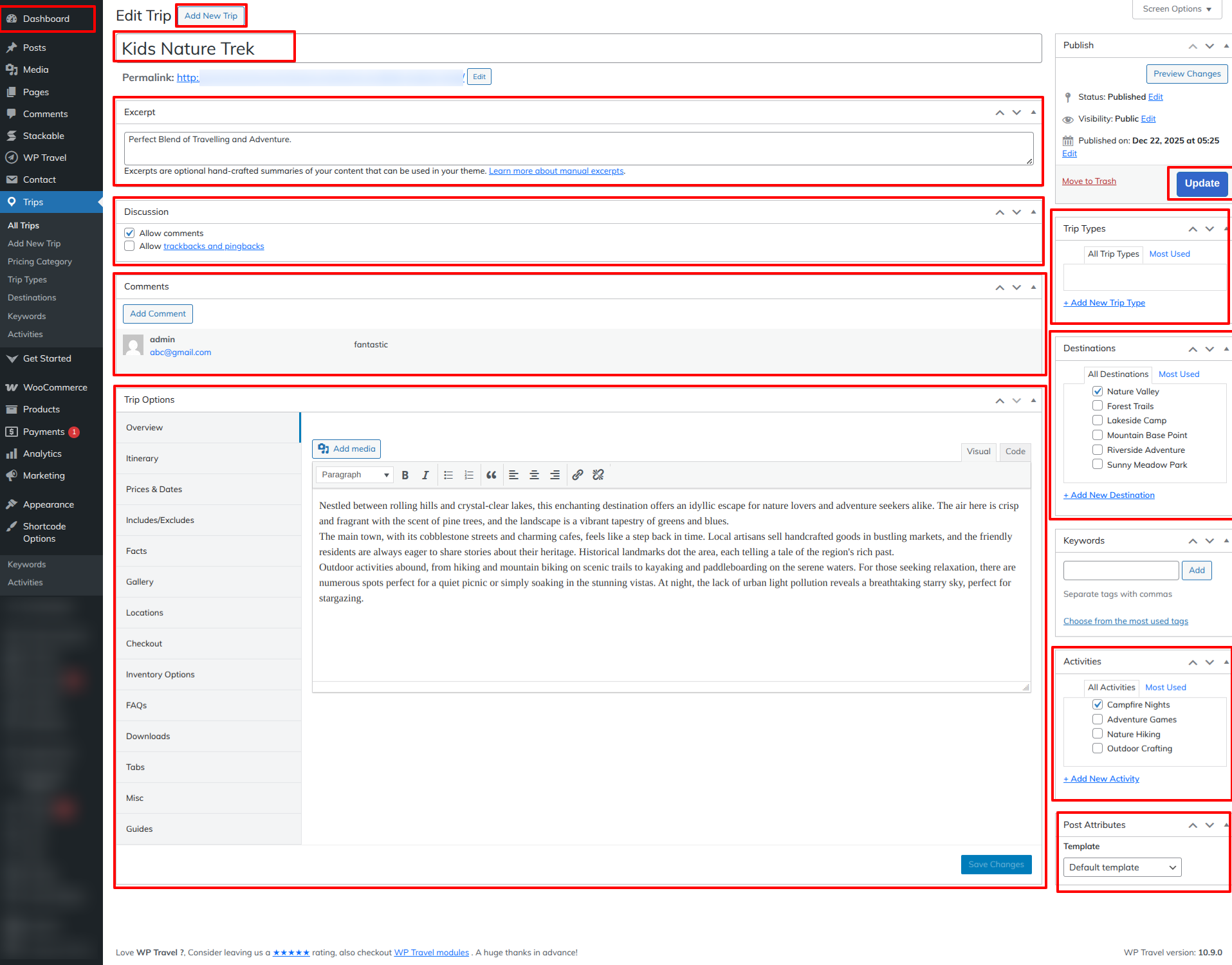
As seen in the screenshot, enter the title, Description, Shot Description, Image, Gallery, Price and Category for the Product.
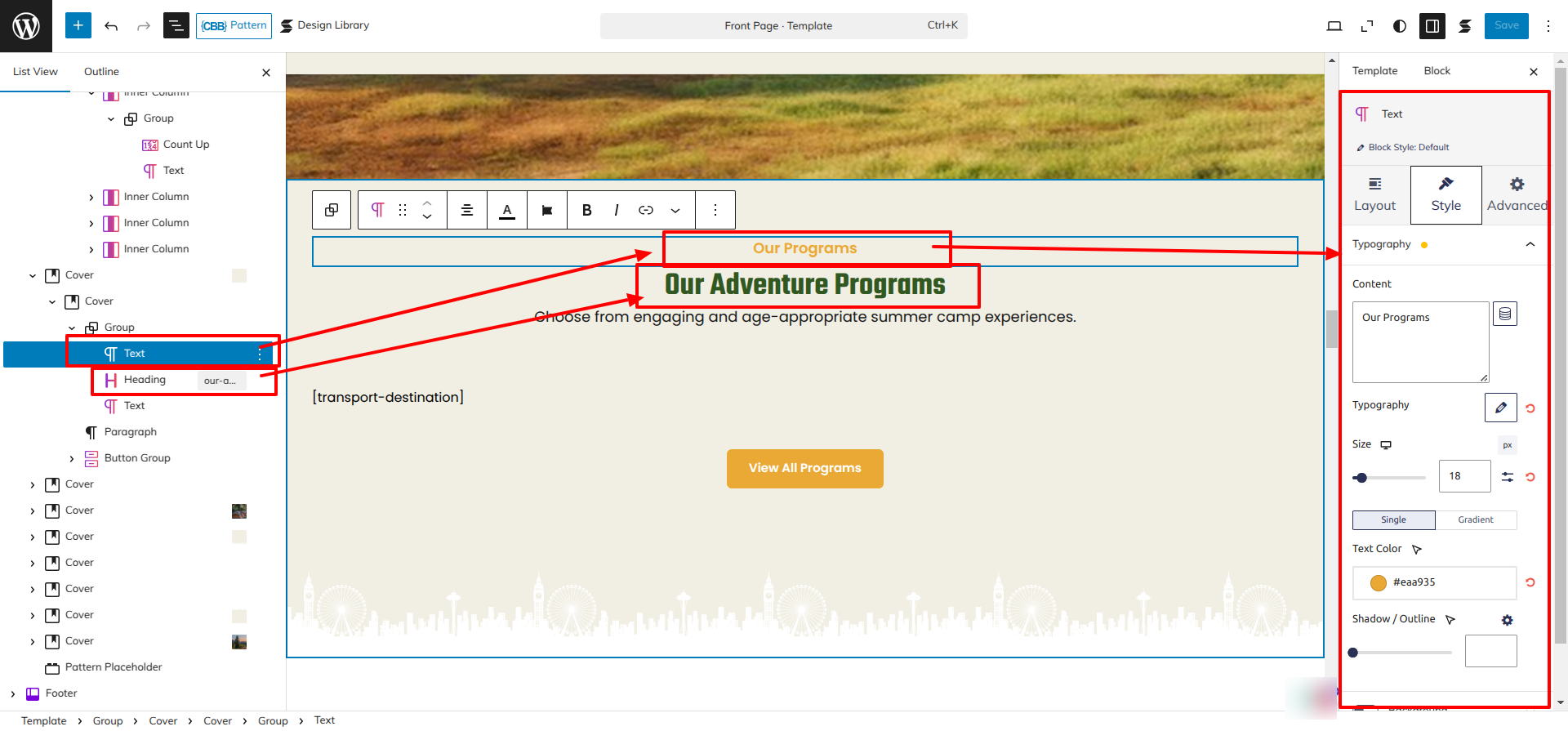
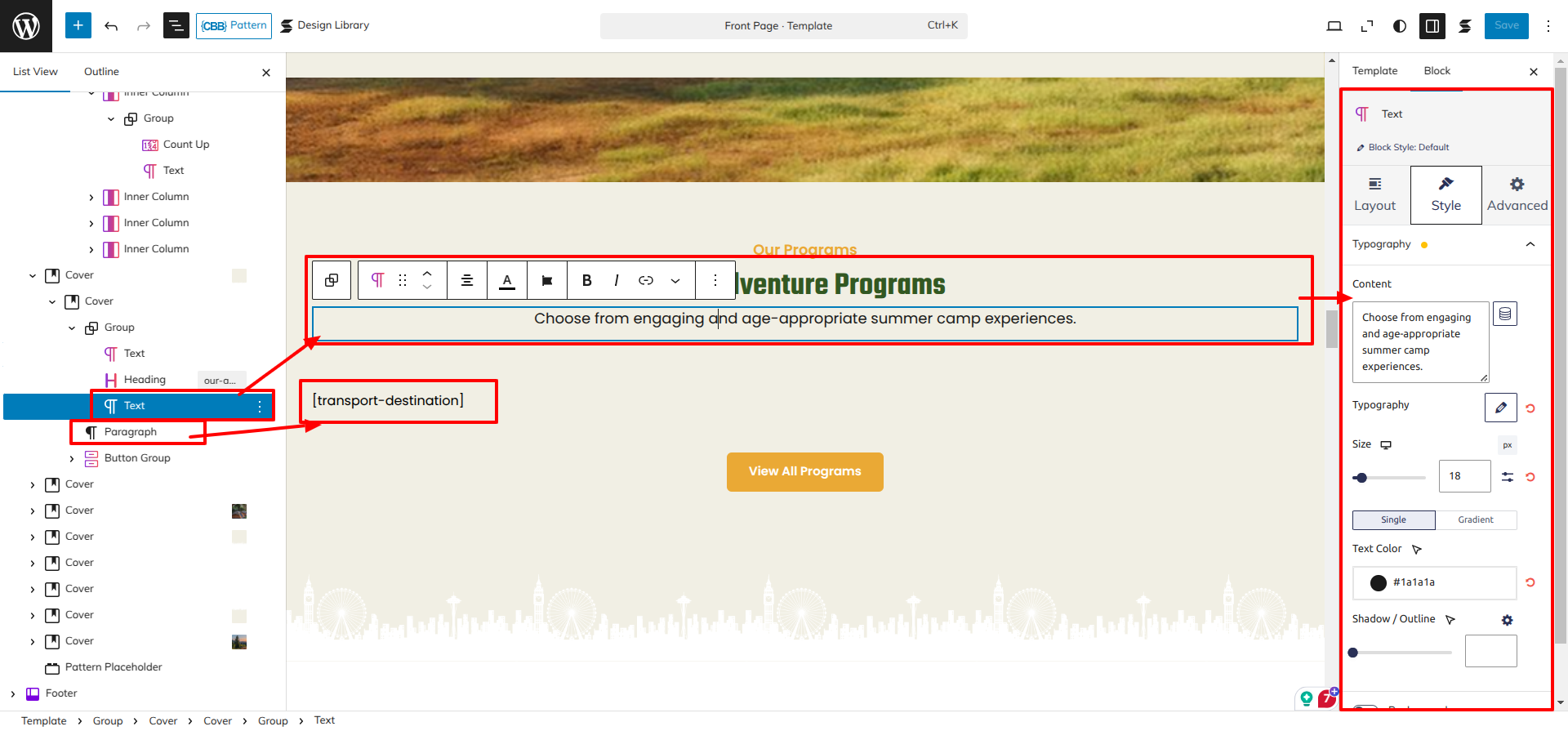
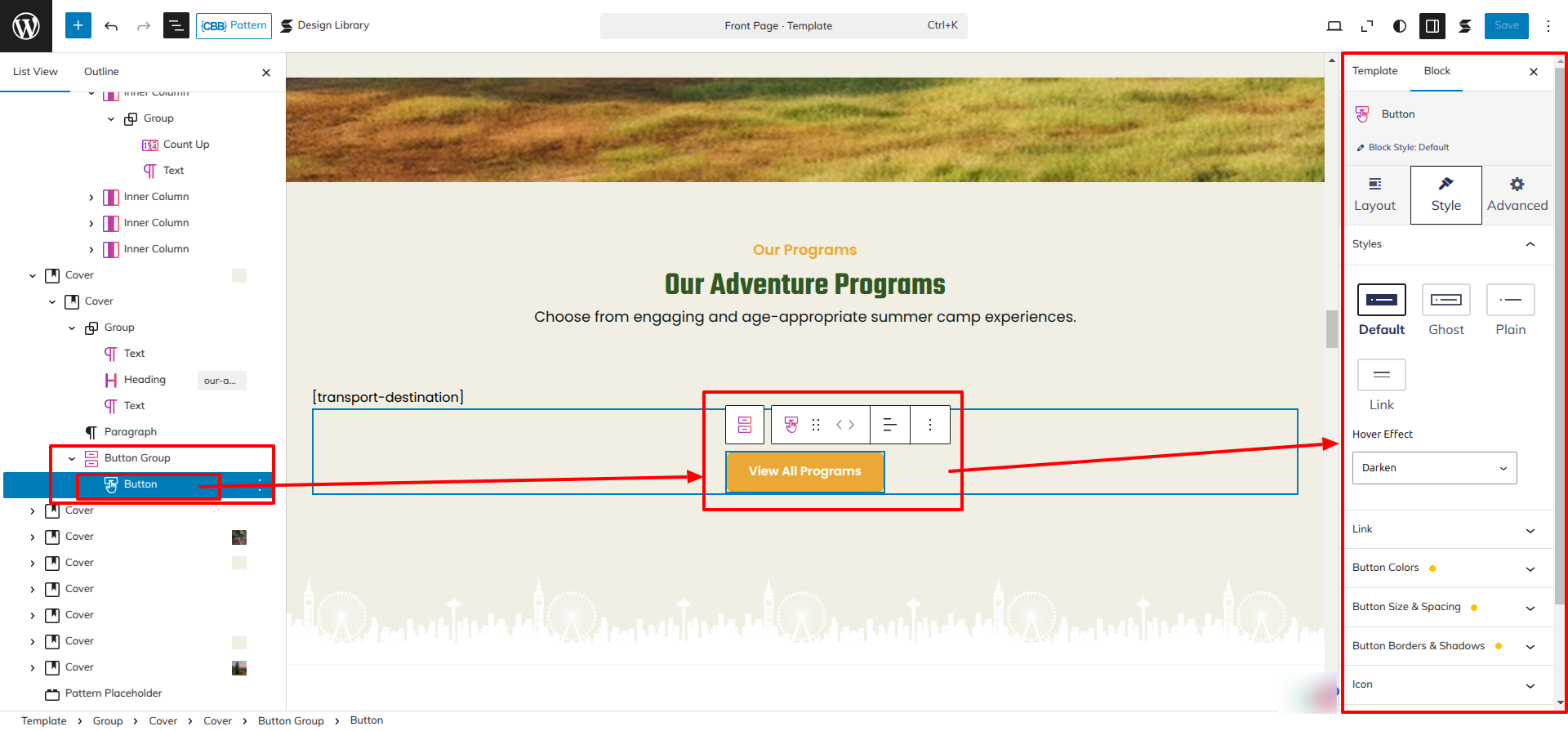
Set up the Our Programs Section according to the instructions below.
Go to the Dashboard Appearance Editor.
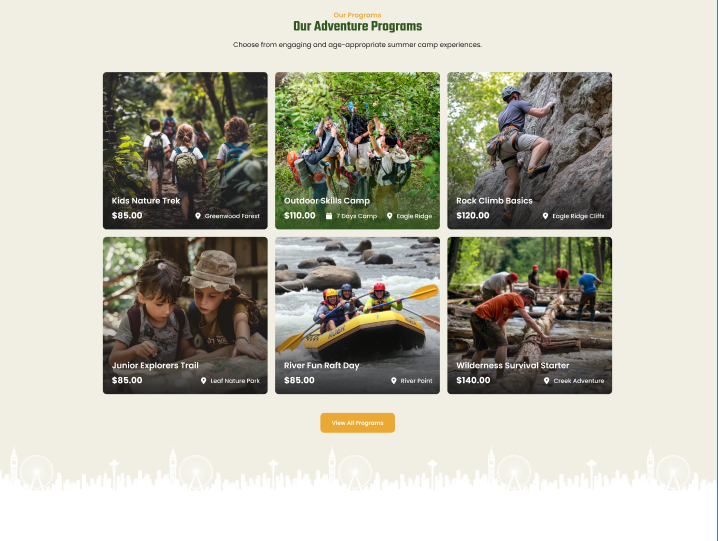
This is how you may set up and add the Our Programs Section.
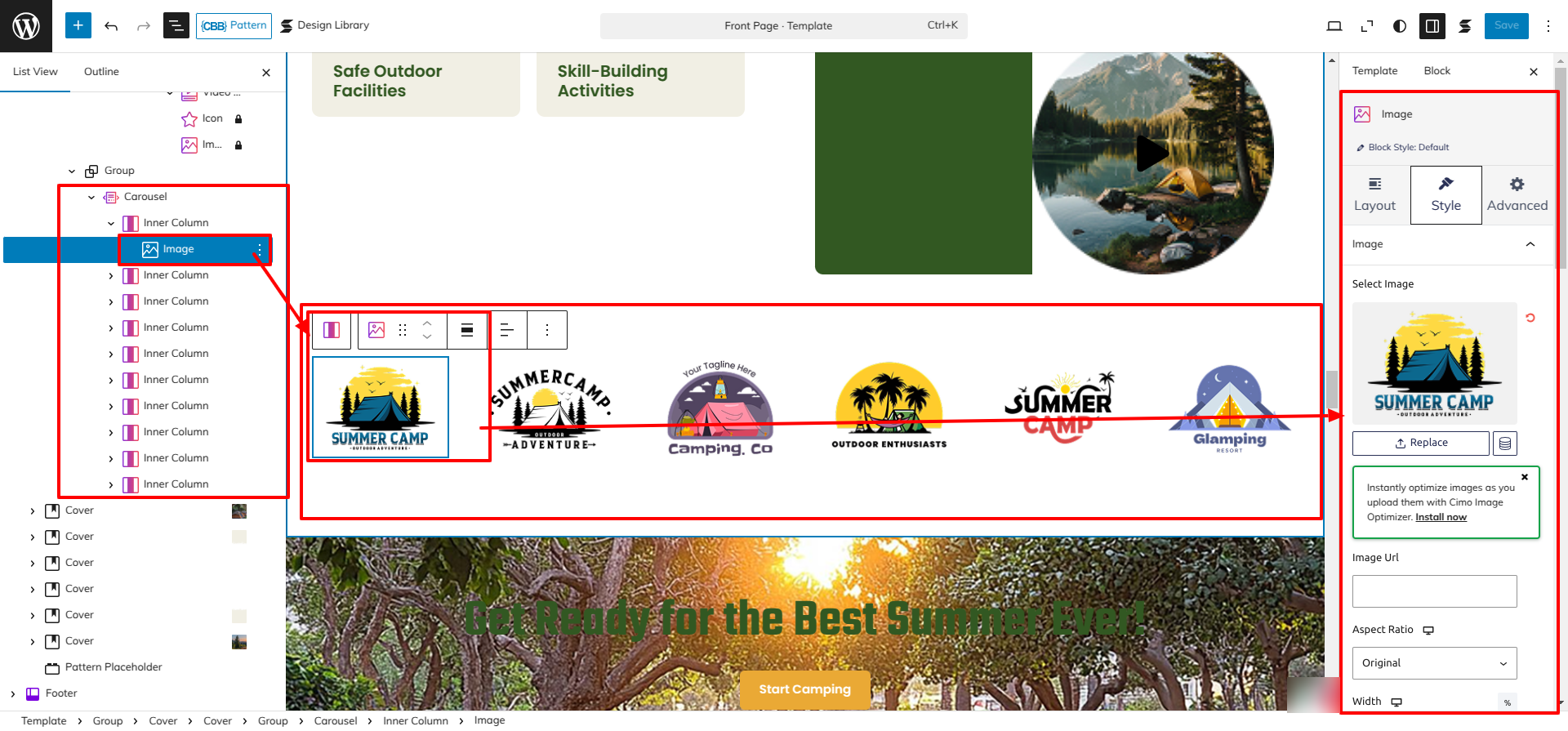
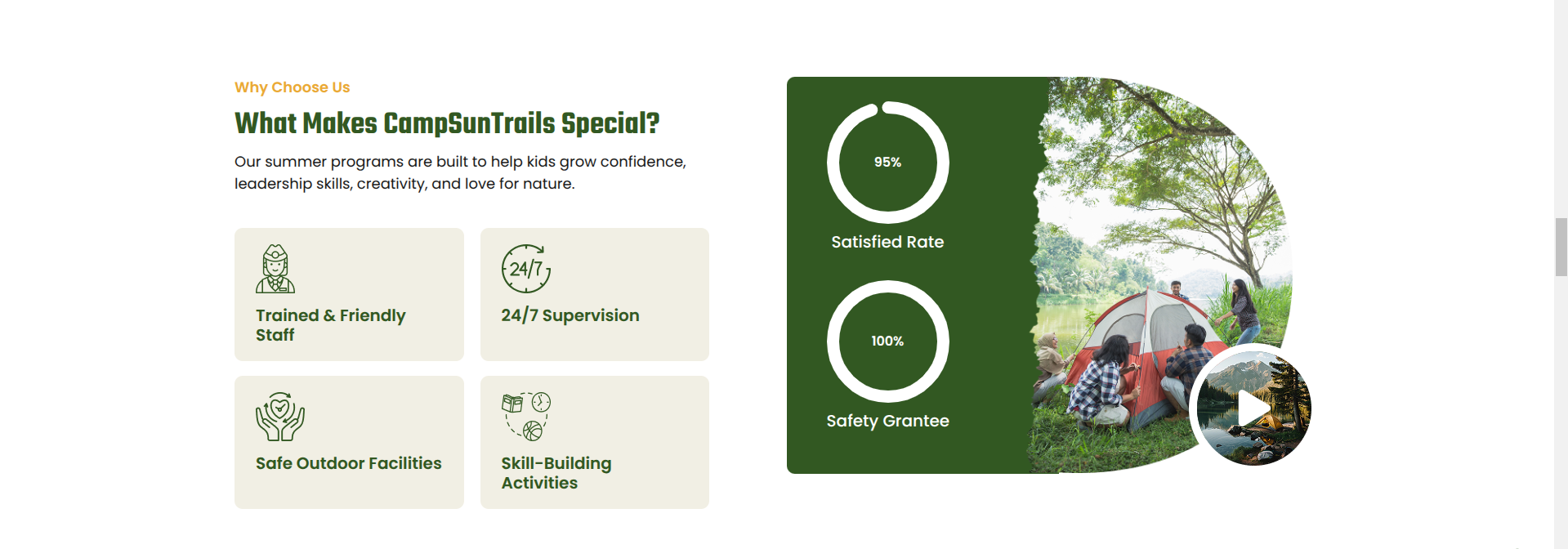
Setup Why Choose Us Section
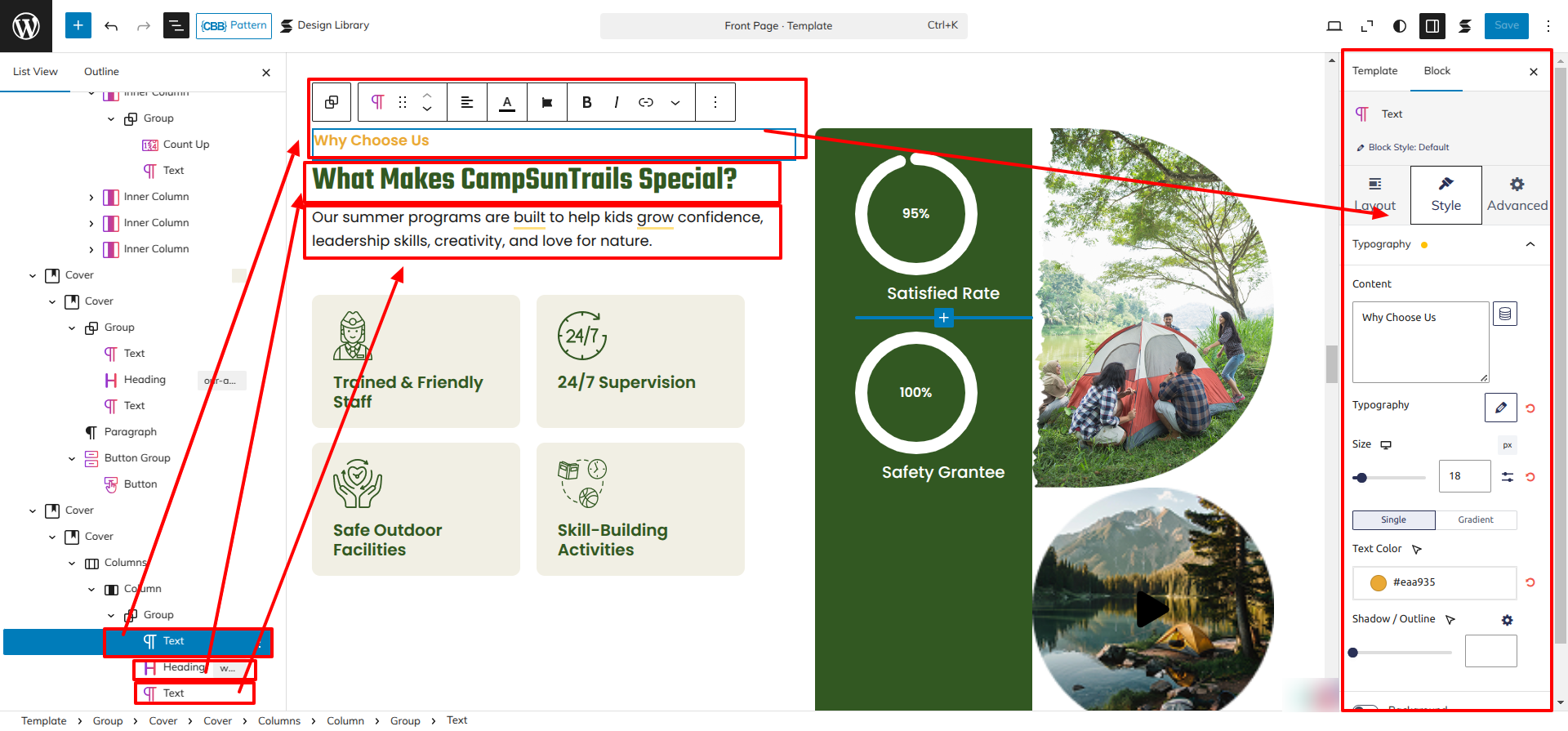
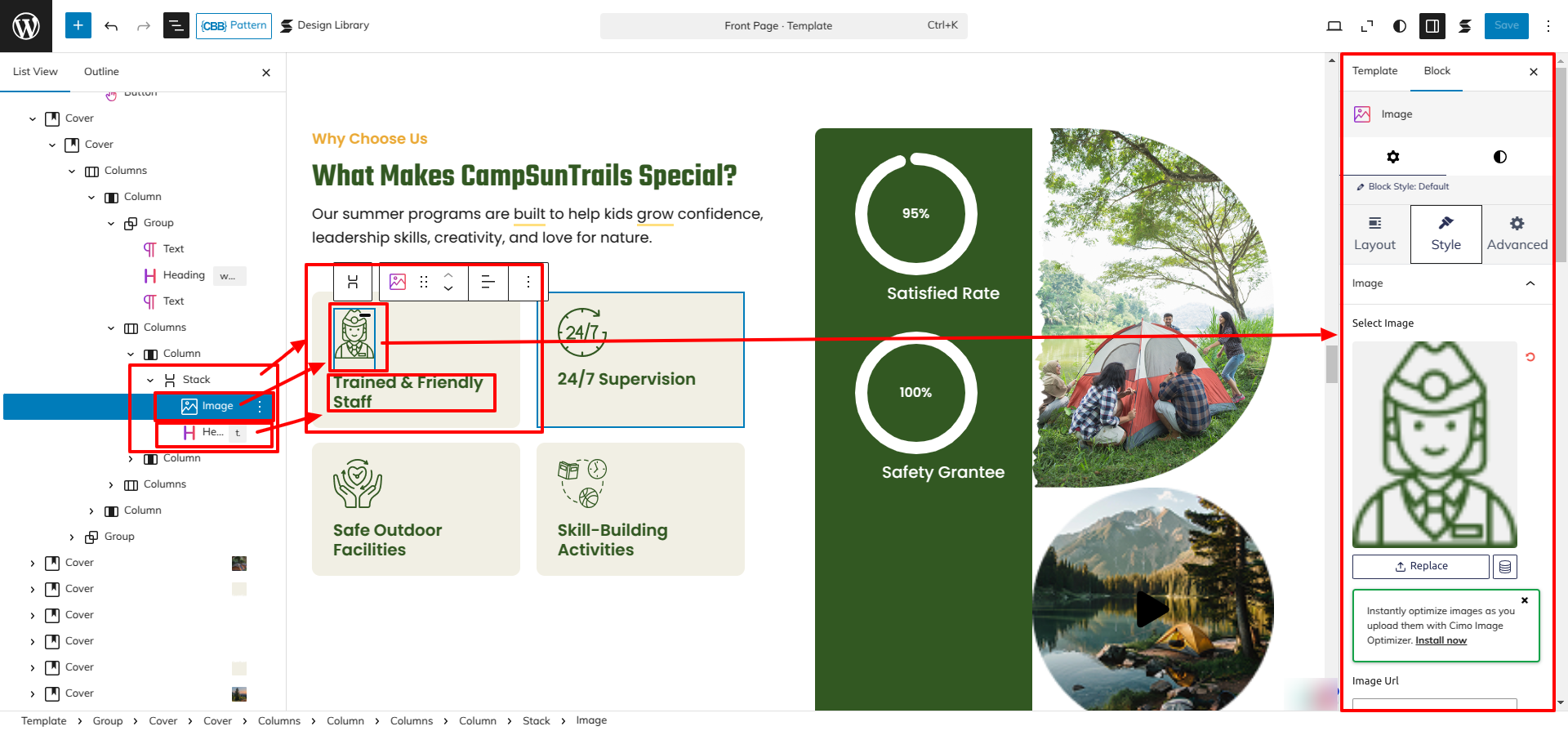
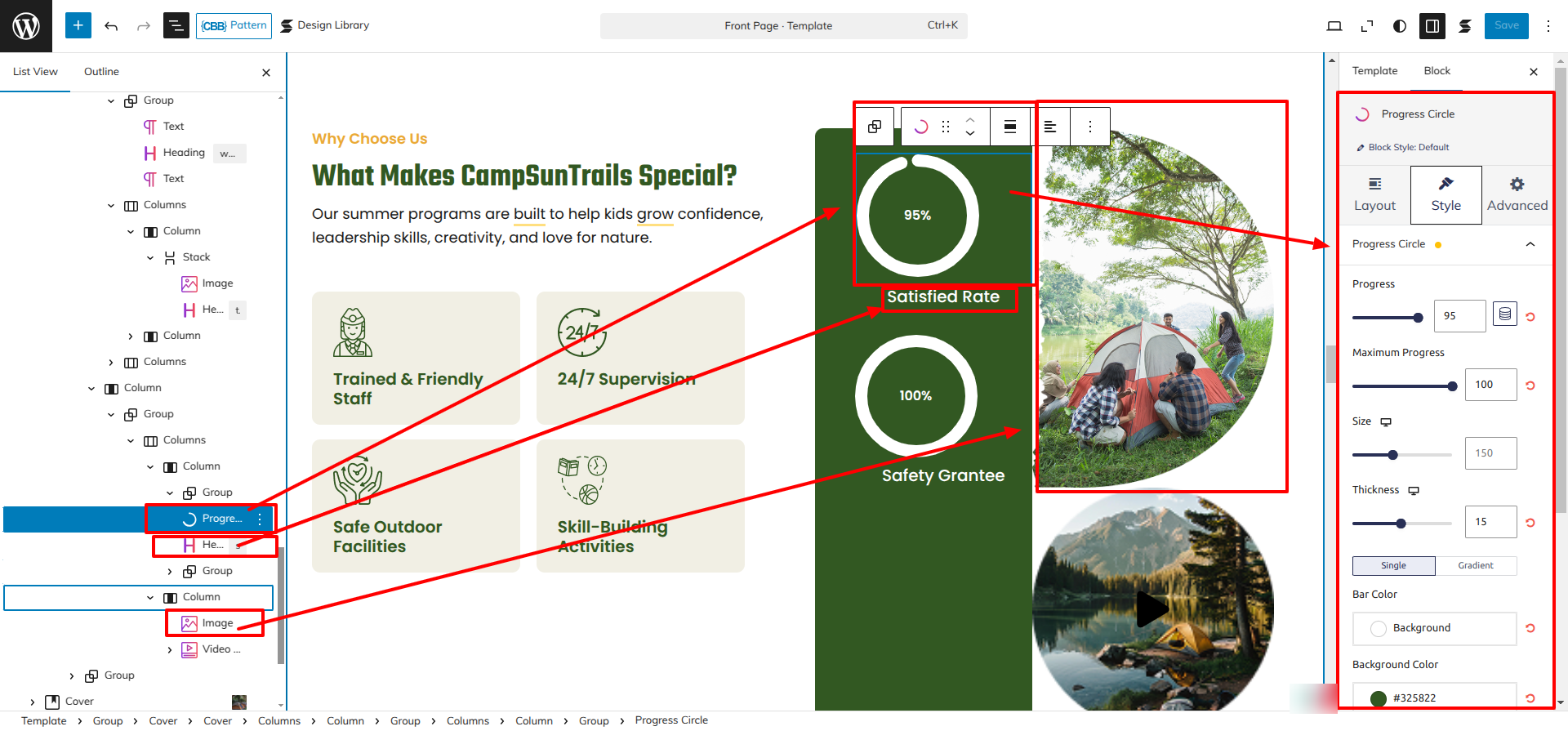
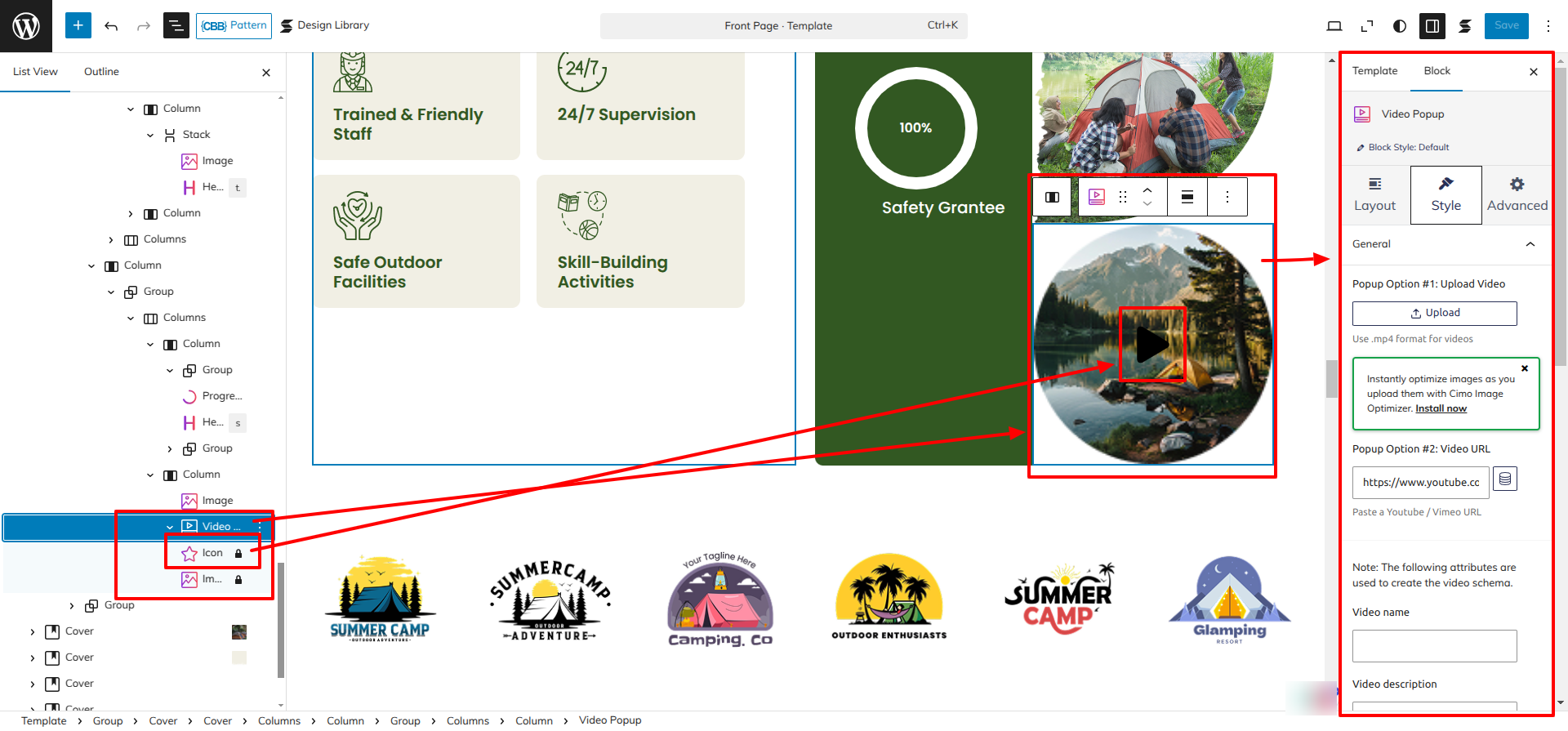
Set up Why Choose Us Section according to the instructions below.
Go to Dashboard Appearance Editor.
This is how you may set up and add the Why Choose Us Section.
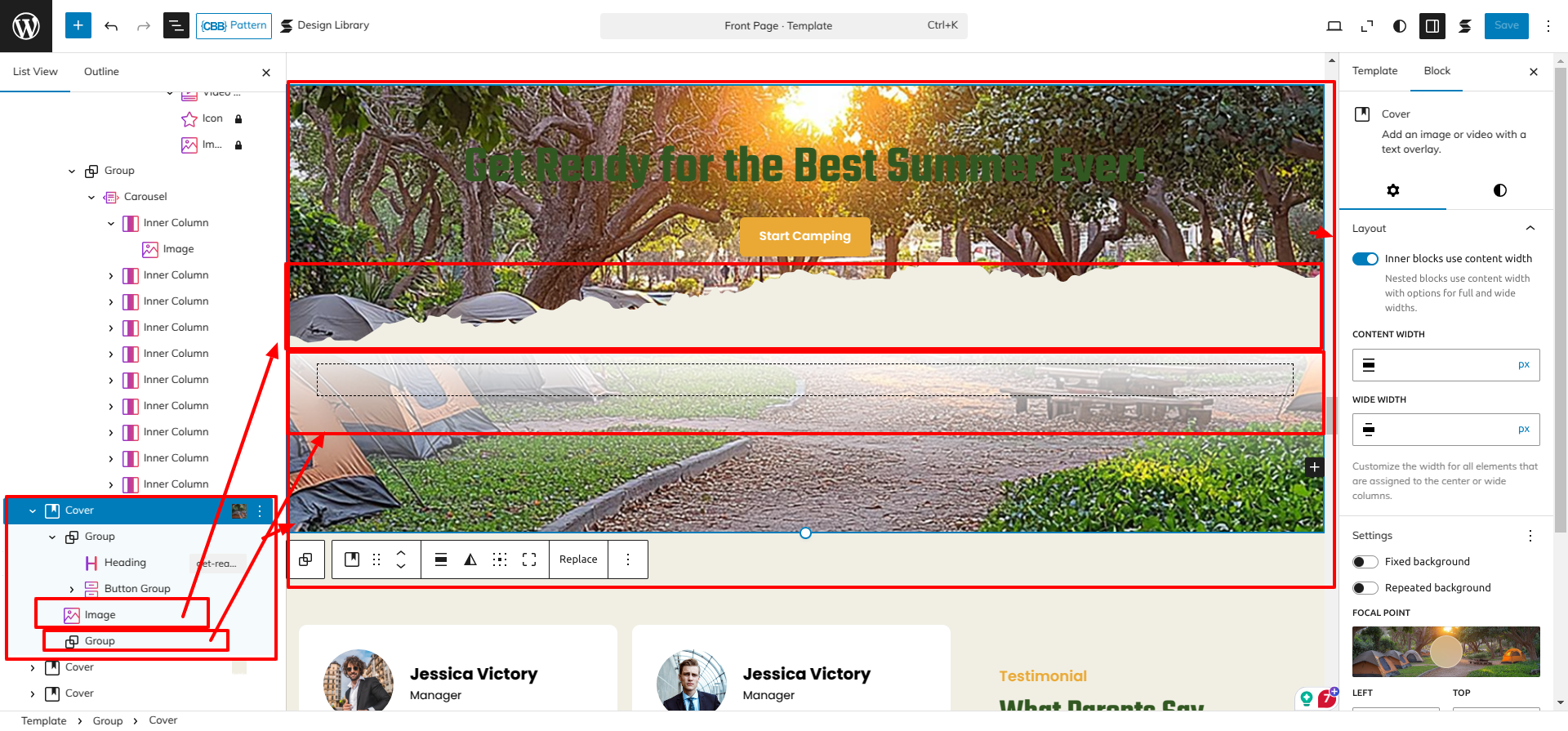
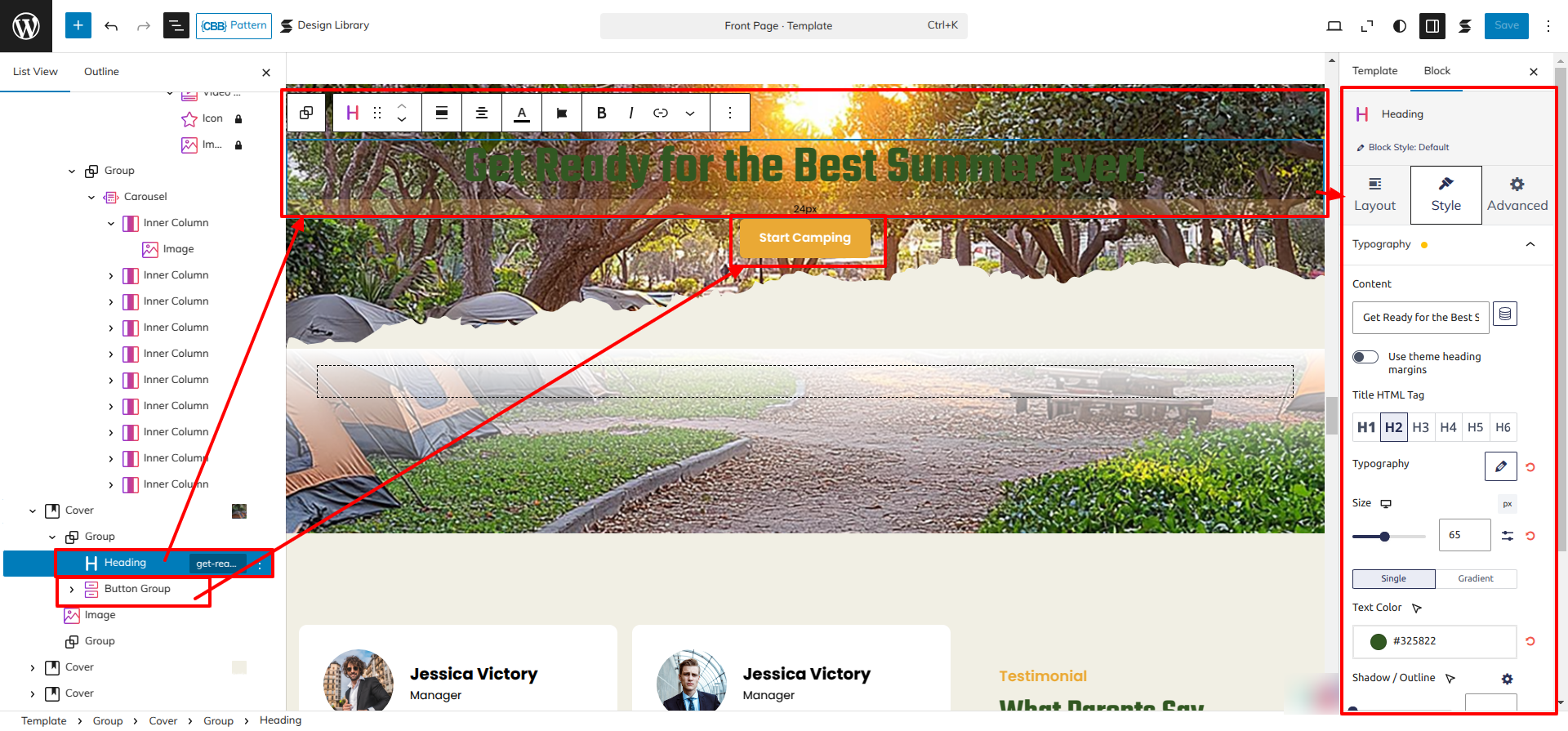
Setup Camping Section
Set up the CampingSection Section according to the instructions below.
Go to Dashboard Appearance Editor.
This is how you may set up and add the CampingSection.
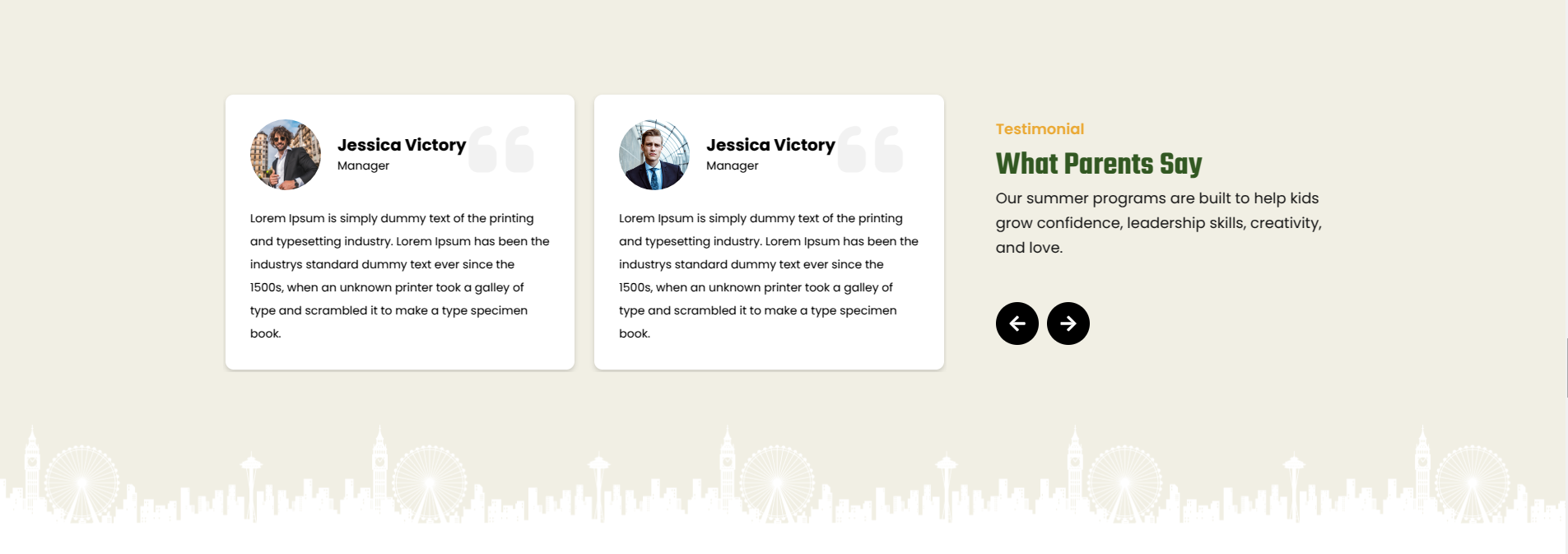
Setup Testimonial Section
Set up the Testimonial Section according to the instructions below.
Go to Dashboard Appearance Editor.
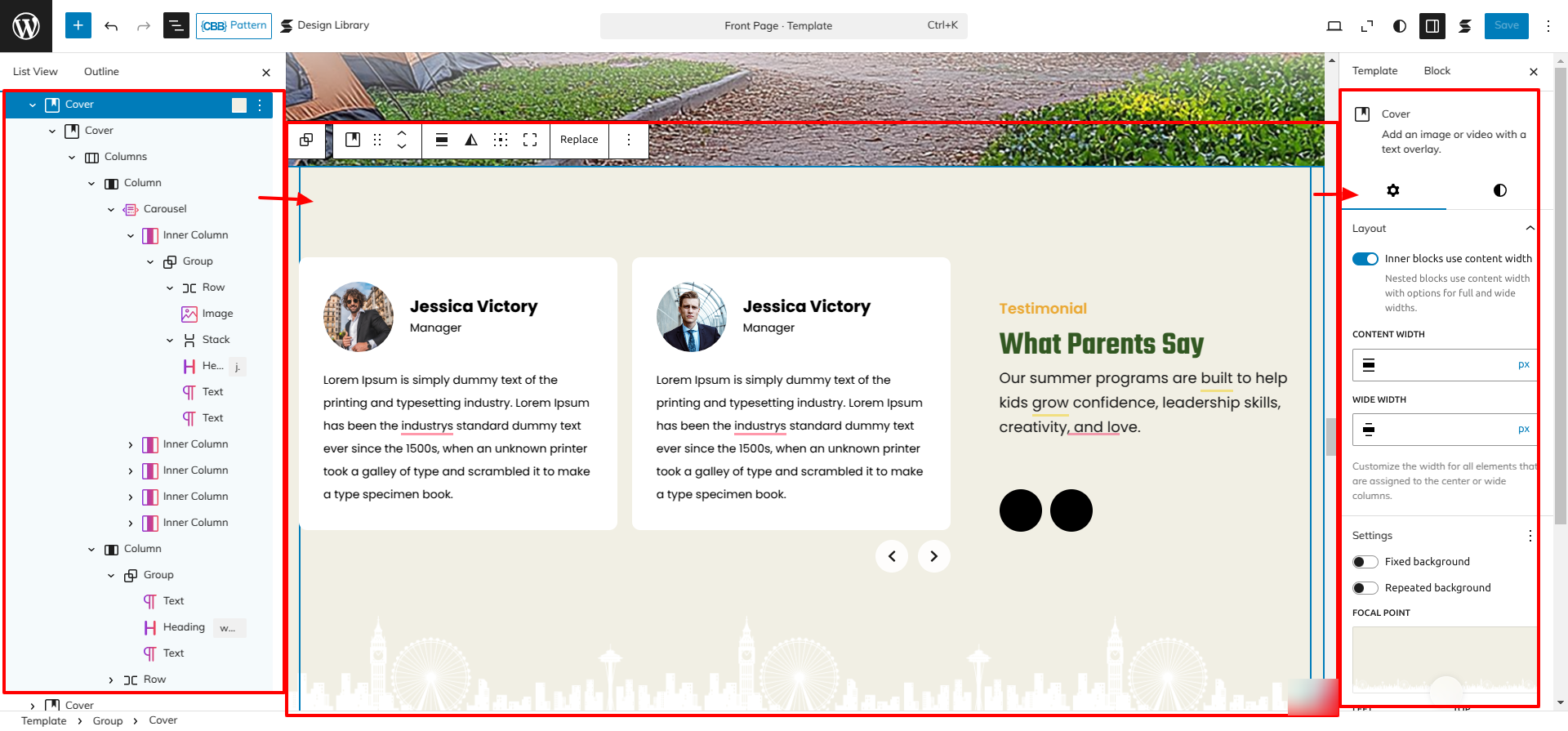
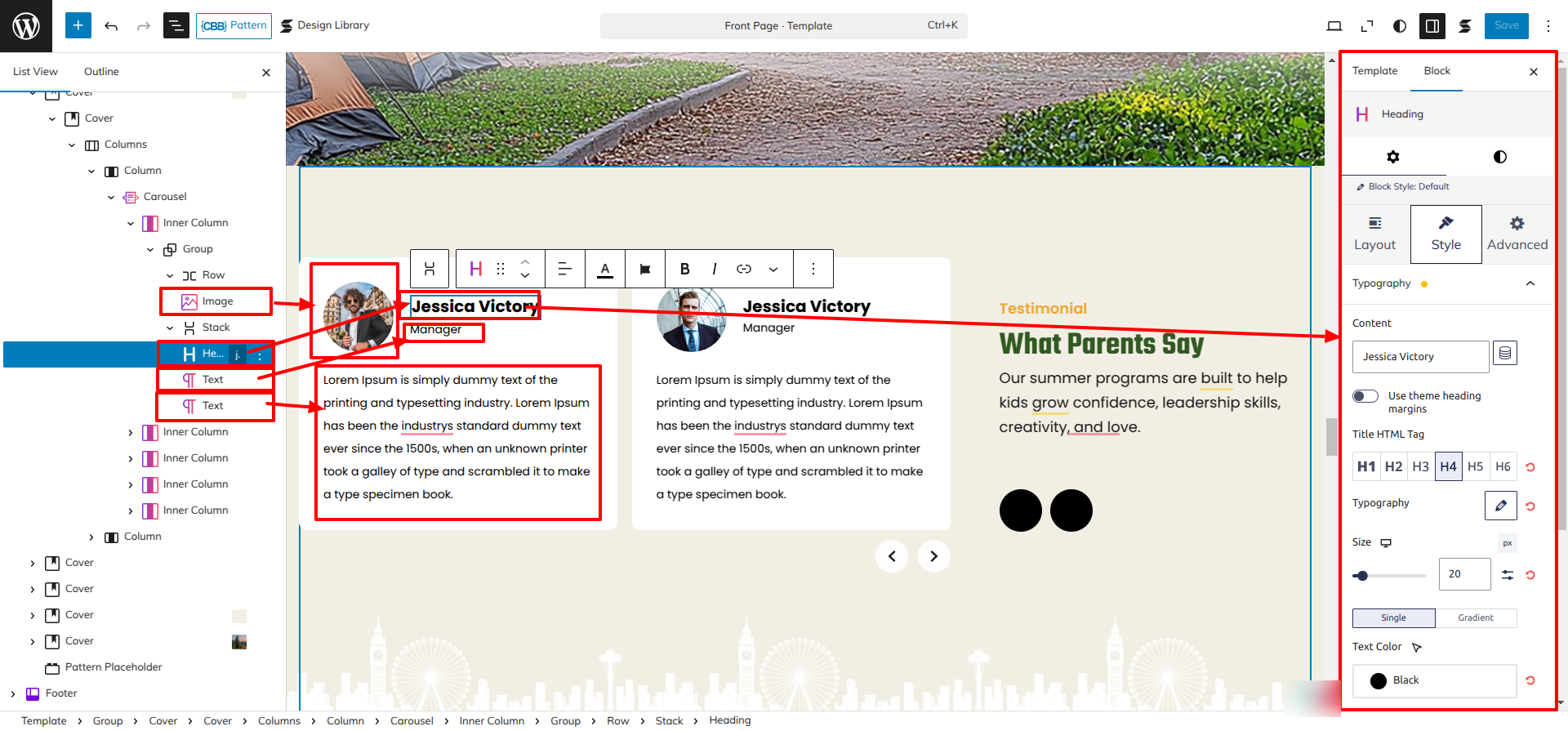
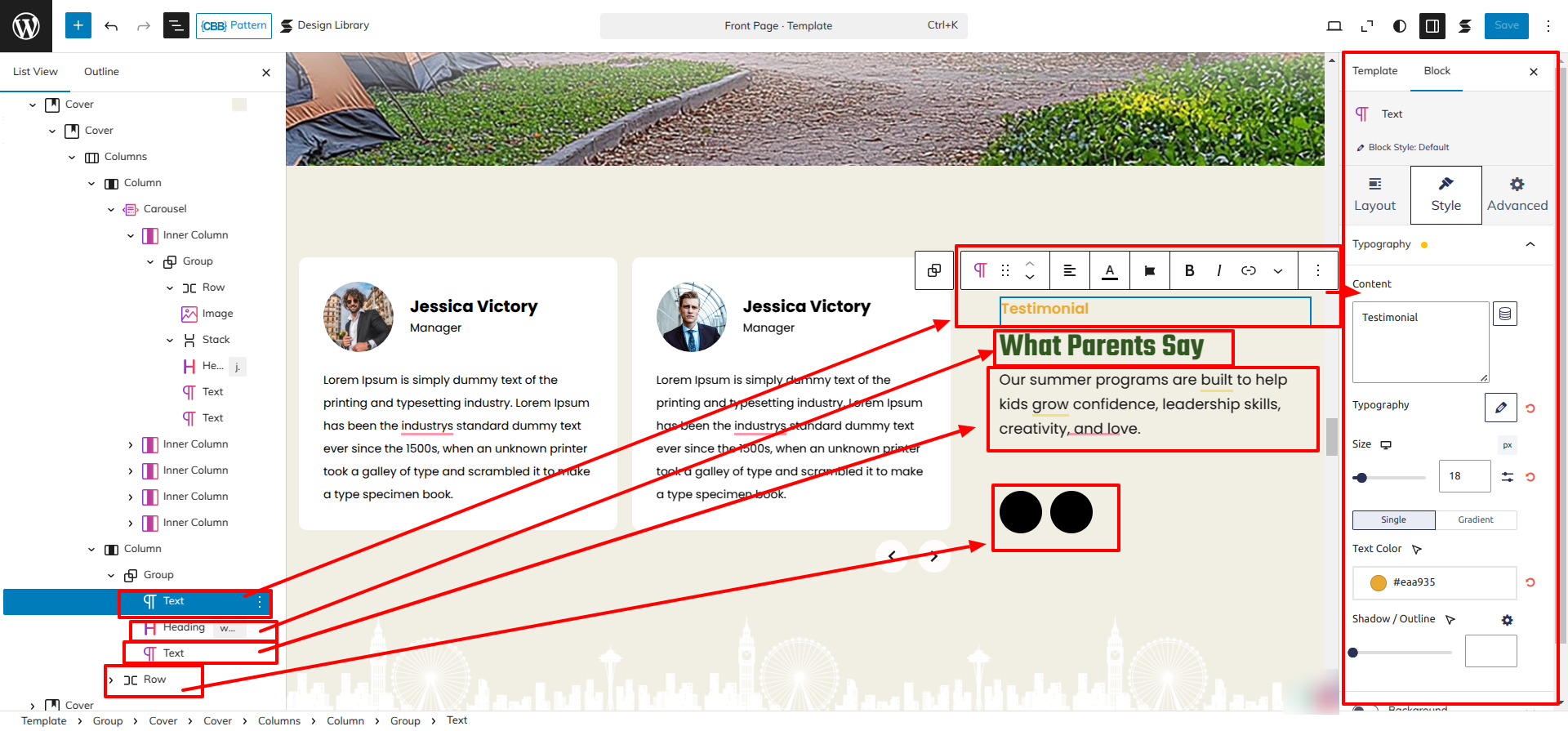
This is how you may set up and add the Testimonial Section.
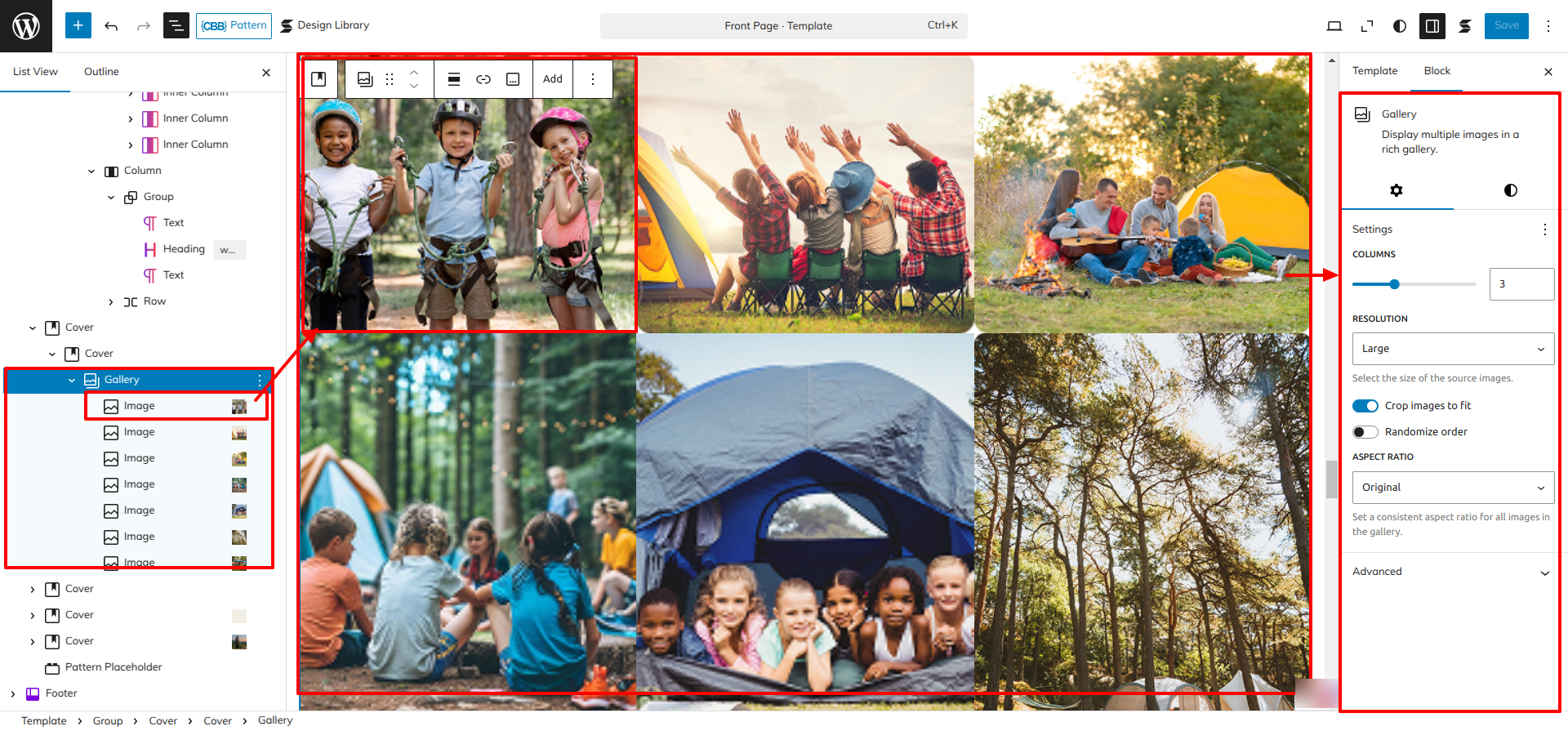
Setup Gallery Section
Set up the Gallery Section according to the instructions below.
Go to Dashboard Appearance Editor.
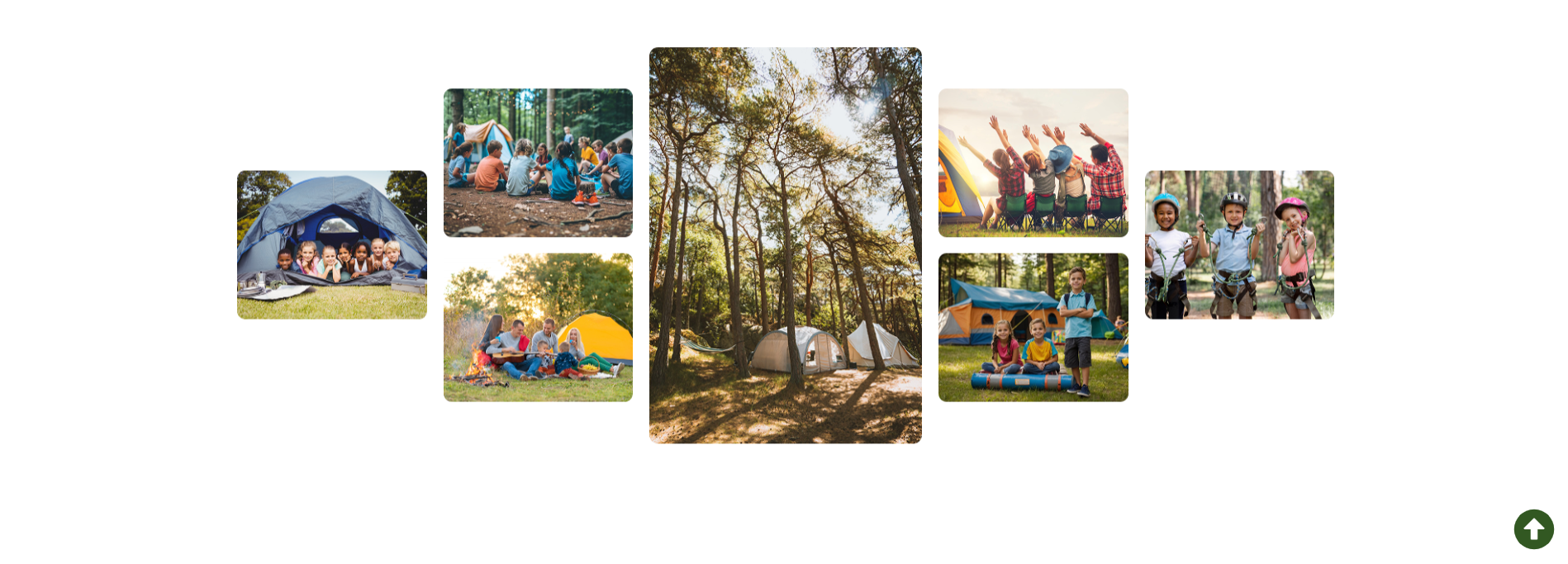
This is how you may set up and add the Gallery Section.
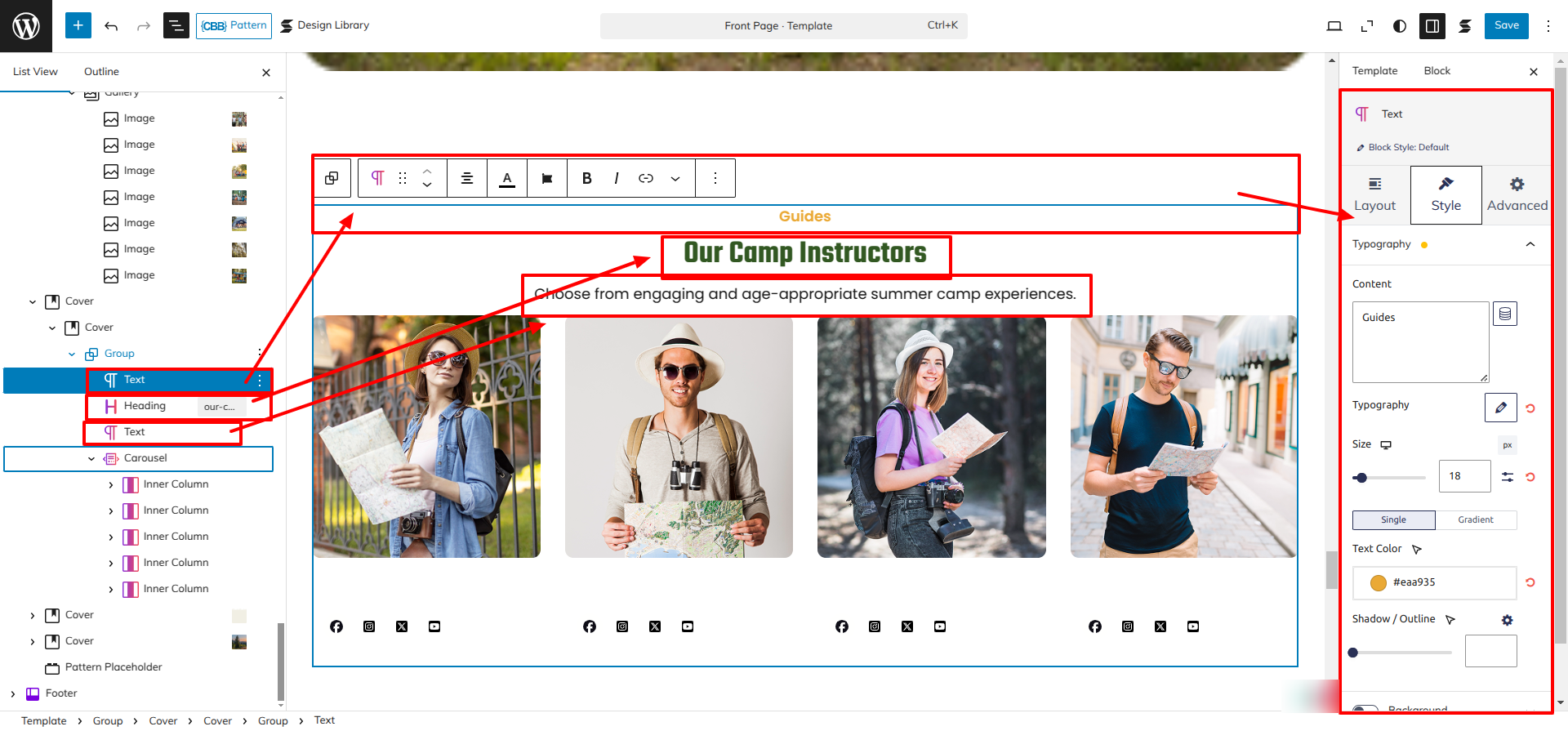
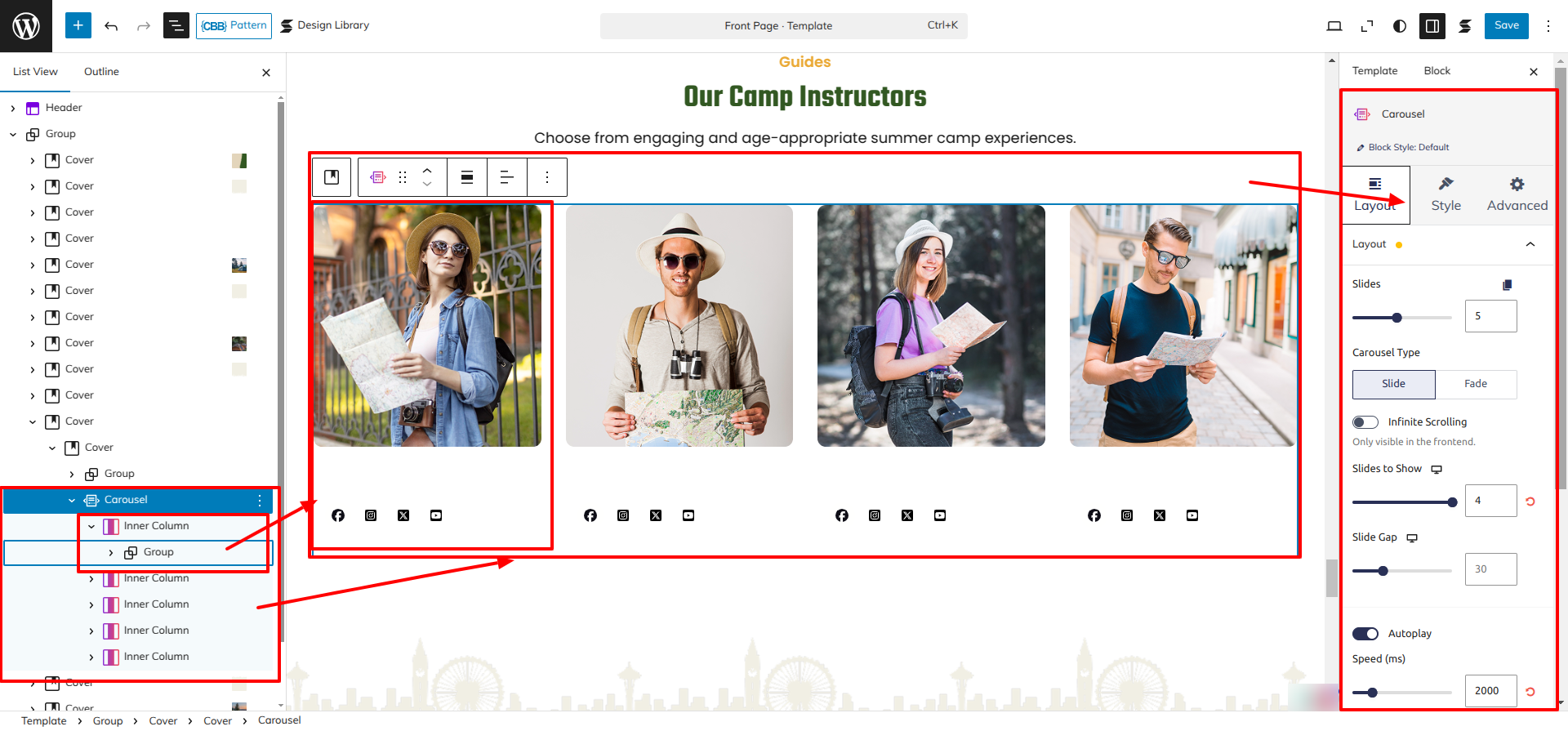
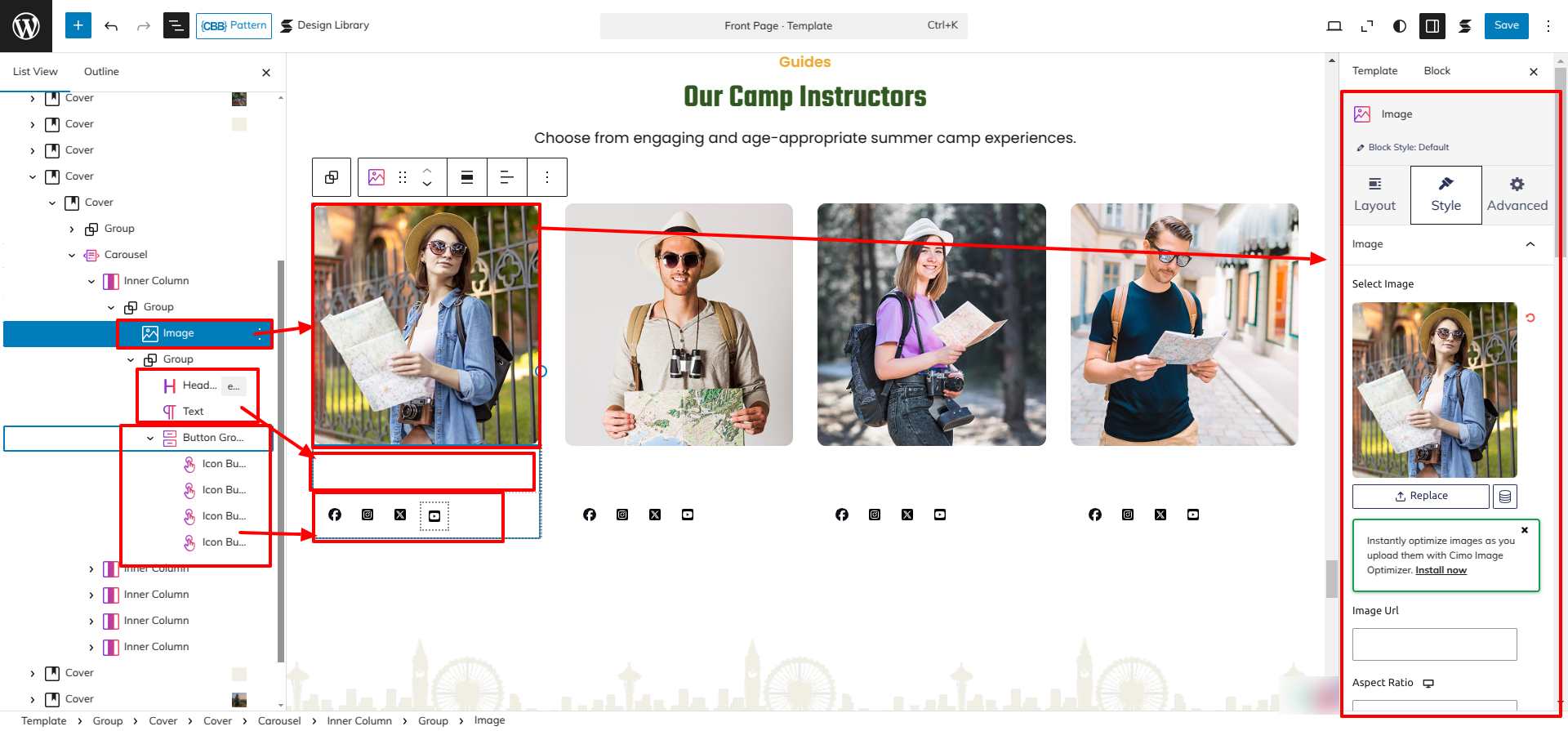
Setup Team Section
Set up the Team Section according to the instructions below.
Go to the Dashboard Appearance Editor.
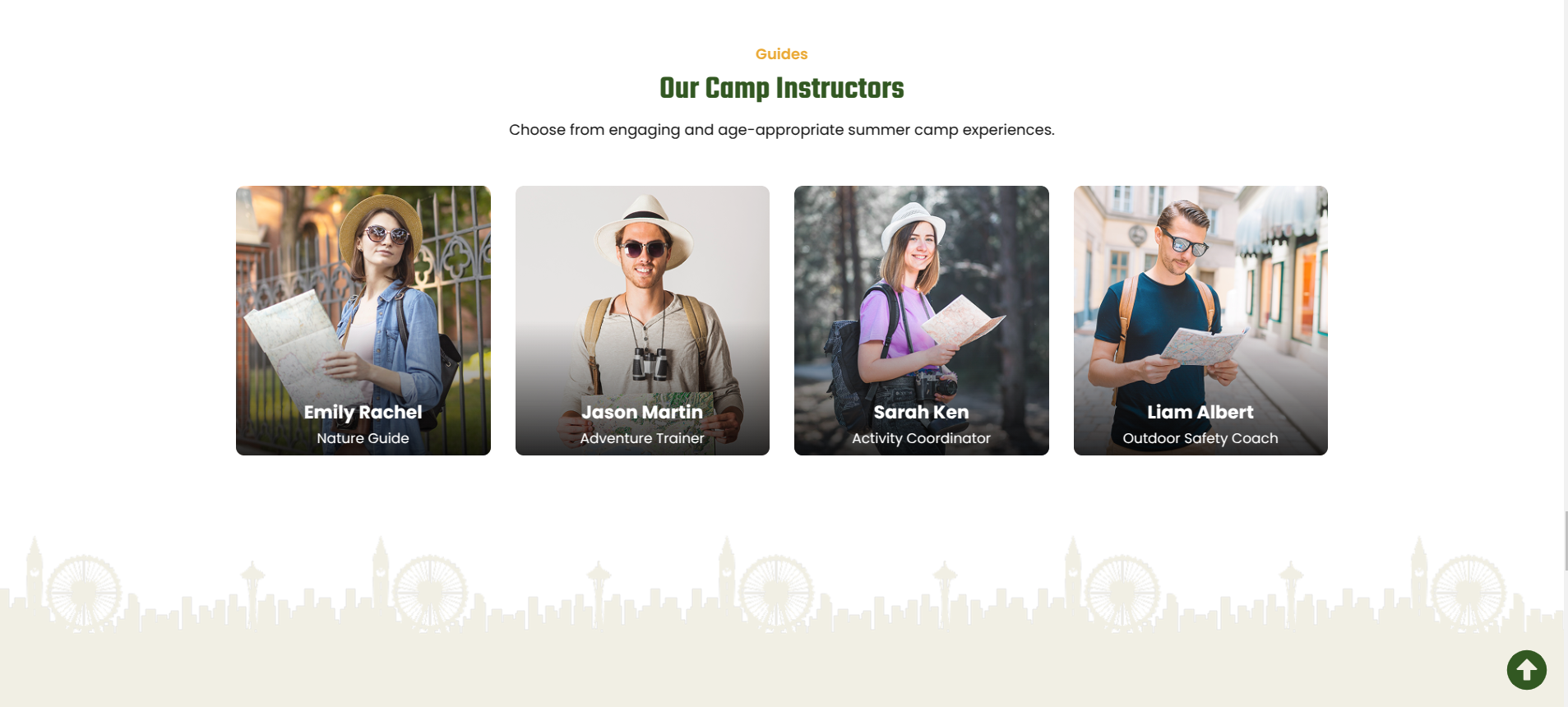
This is how you may set up and add the Team Section.
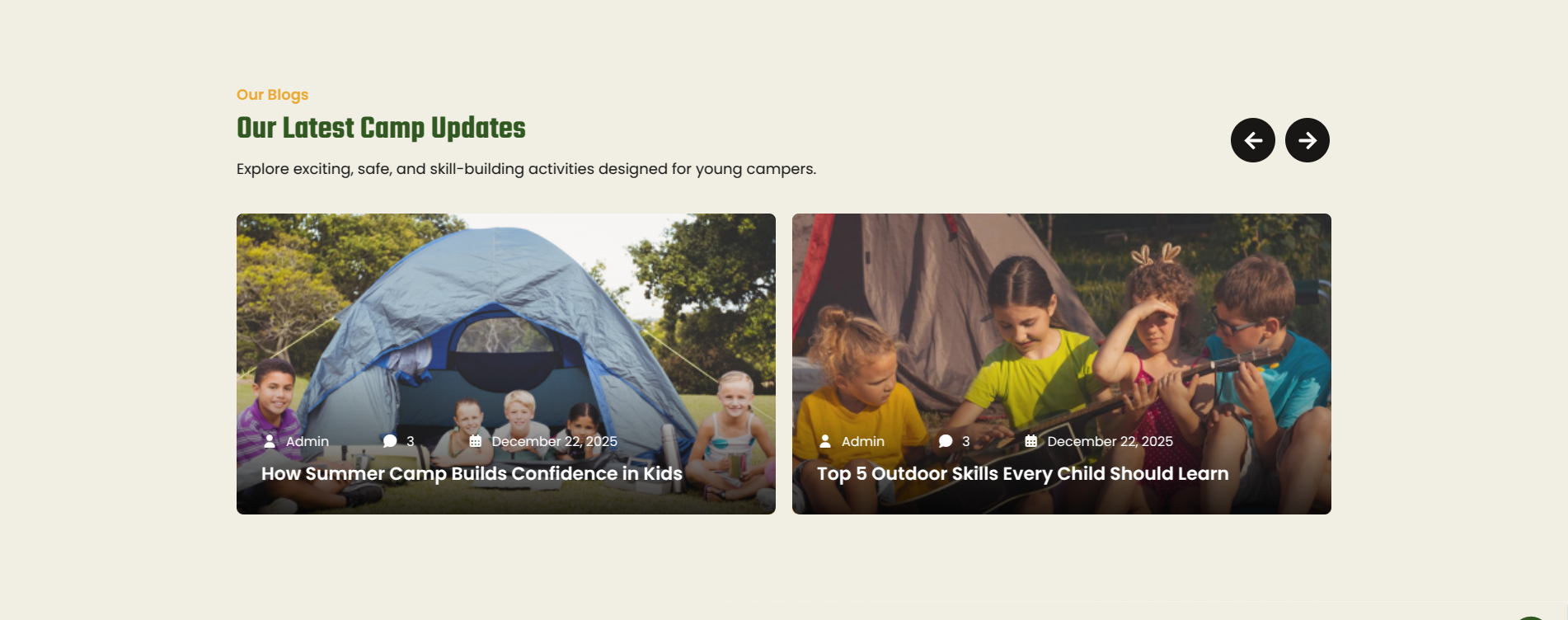
Setup Blogs Section
Set up the Blogs Section Section according to the instructions below.
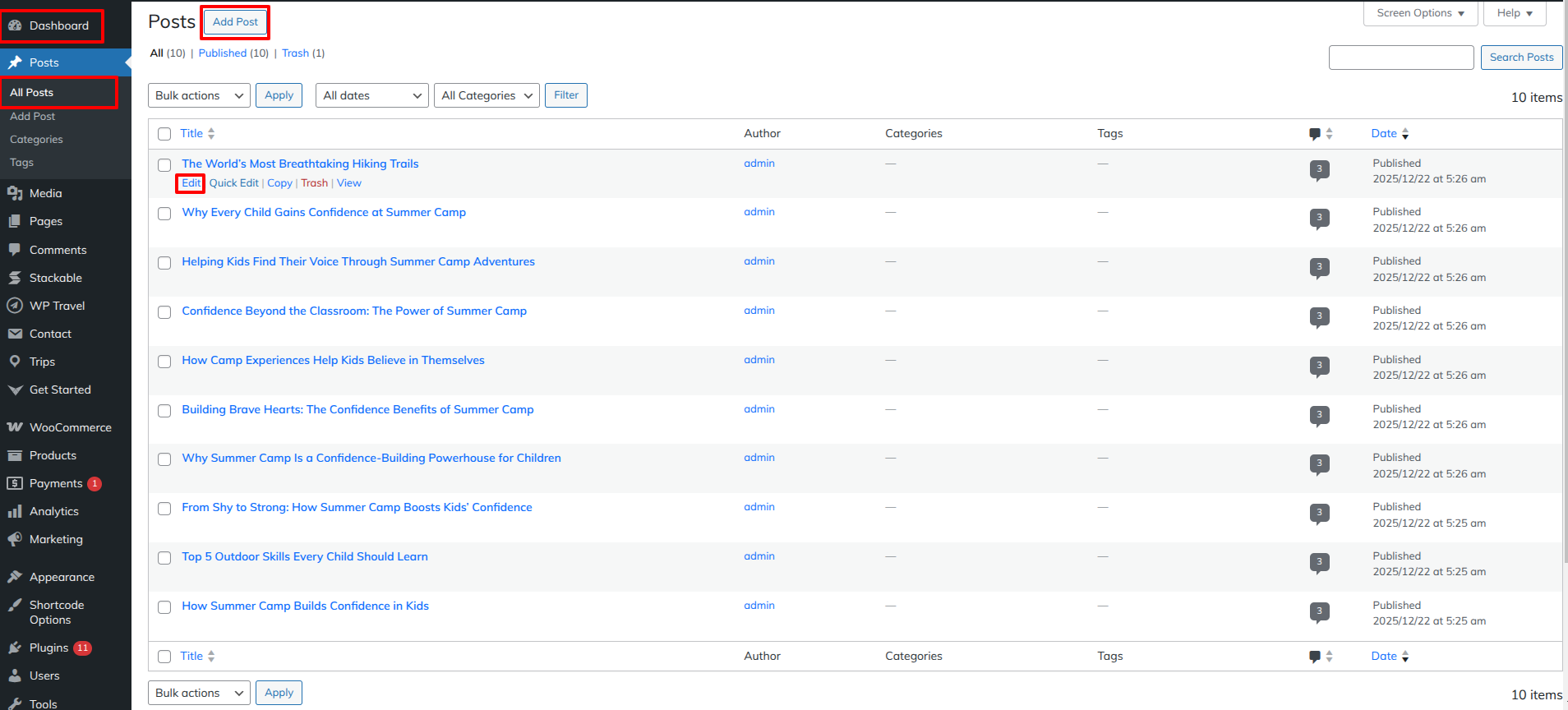
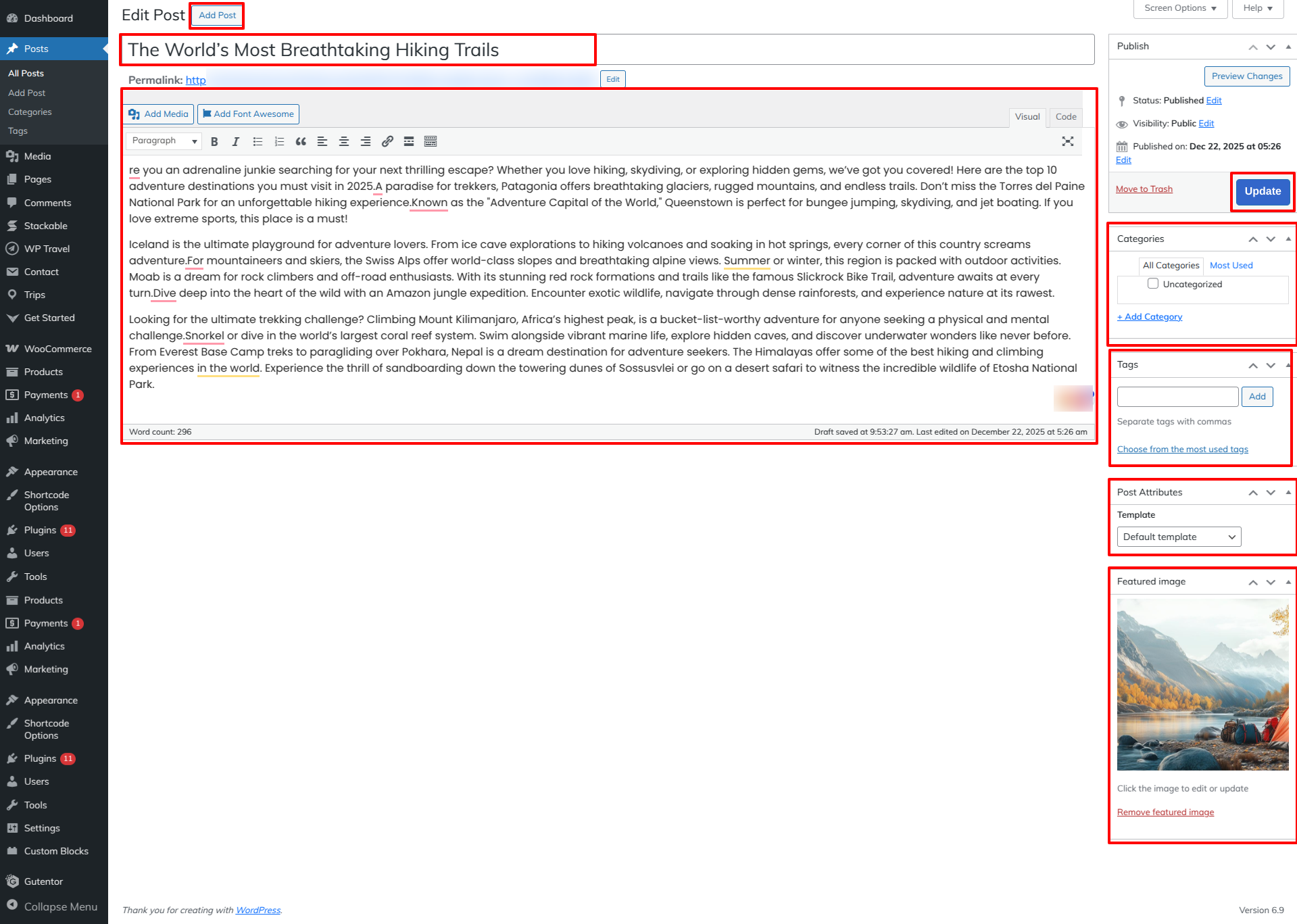
Go to the Dashboard Posts Edit.
As seen in the screenshot, enter the title, Description, Shot Description, Image, Gallery and Category for the Blog.
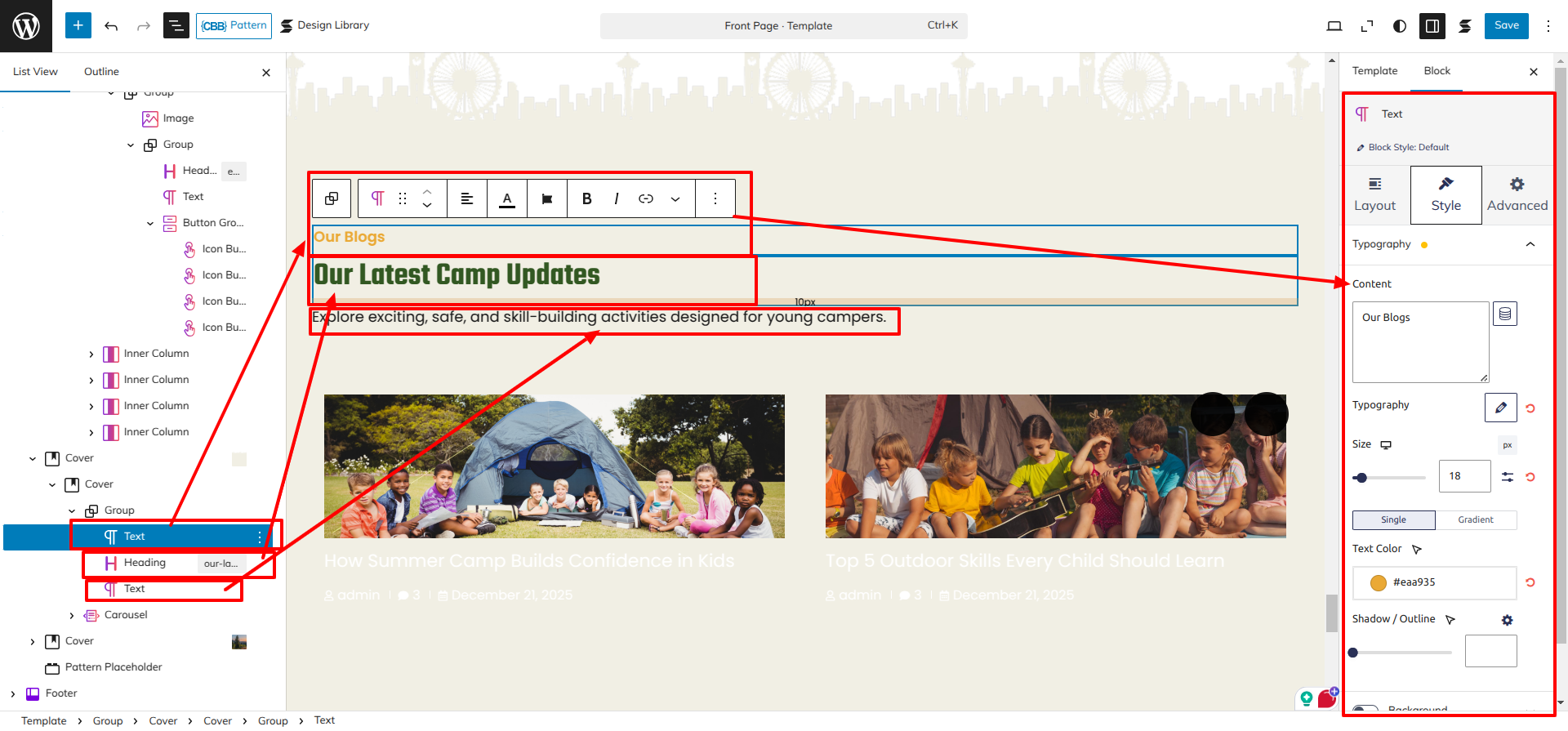
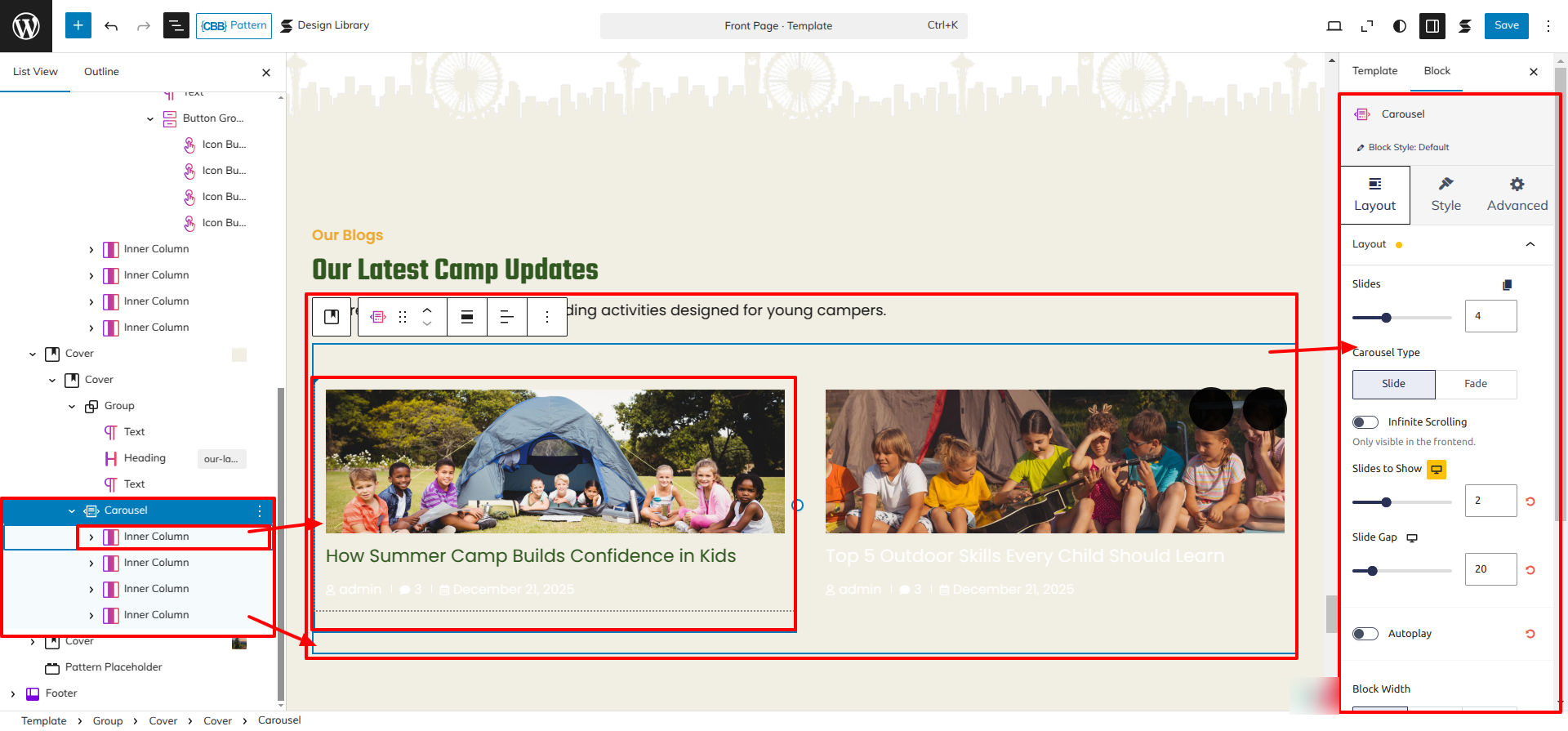
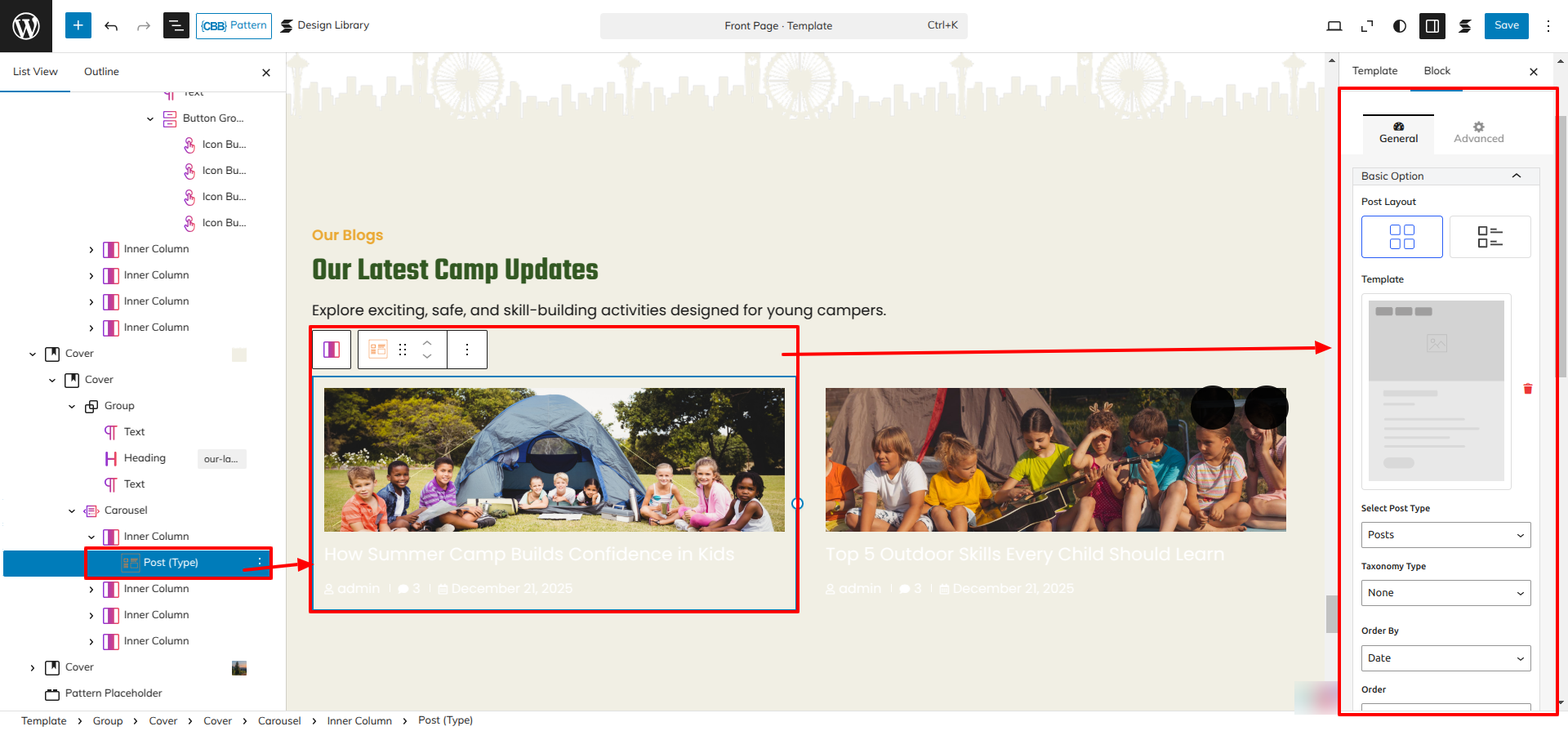
Go to Dashboard Appearance Editor.
This is how you may set up and add the Blogs Section Section.
Meet Newsletter Section
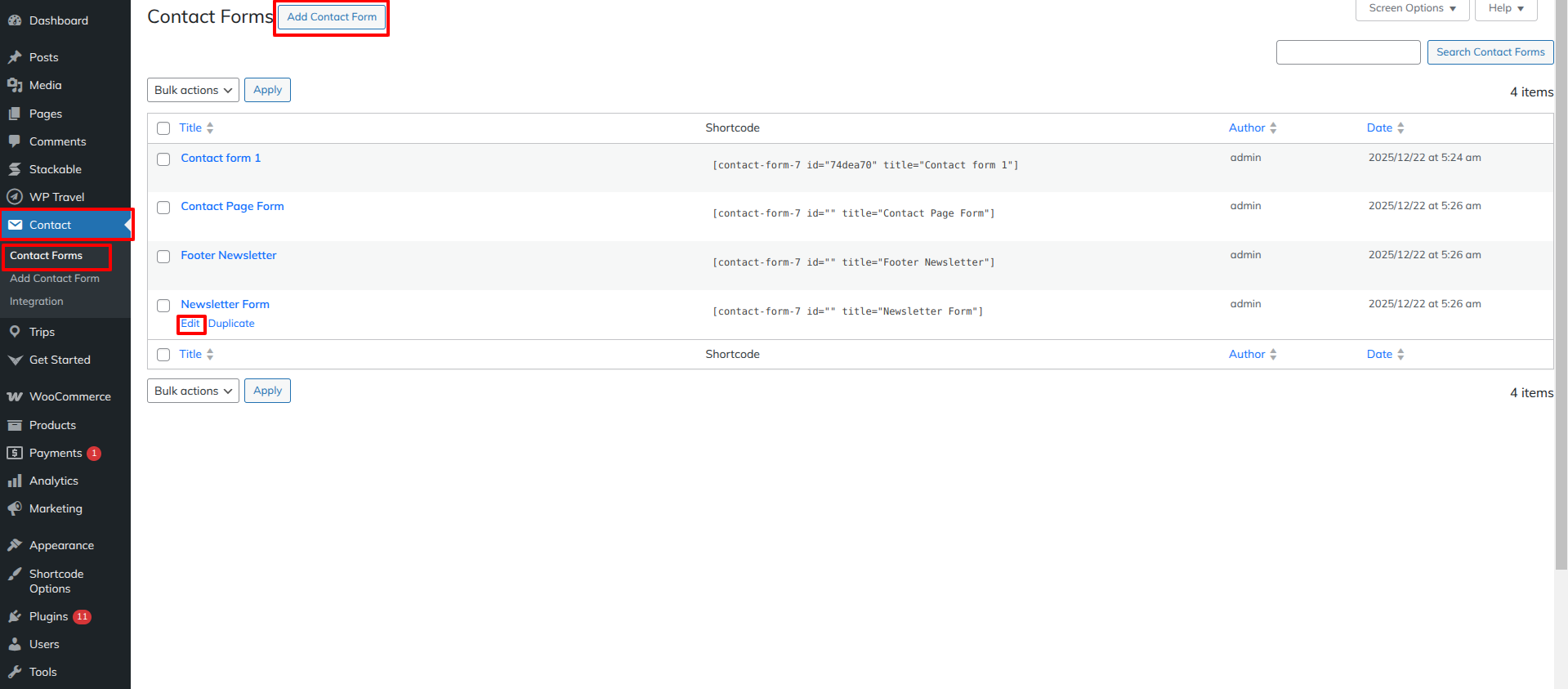
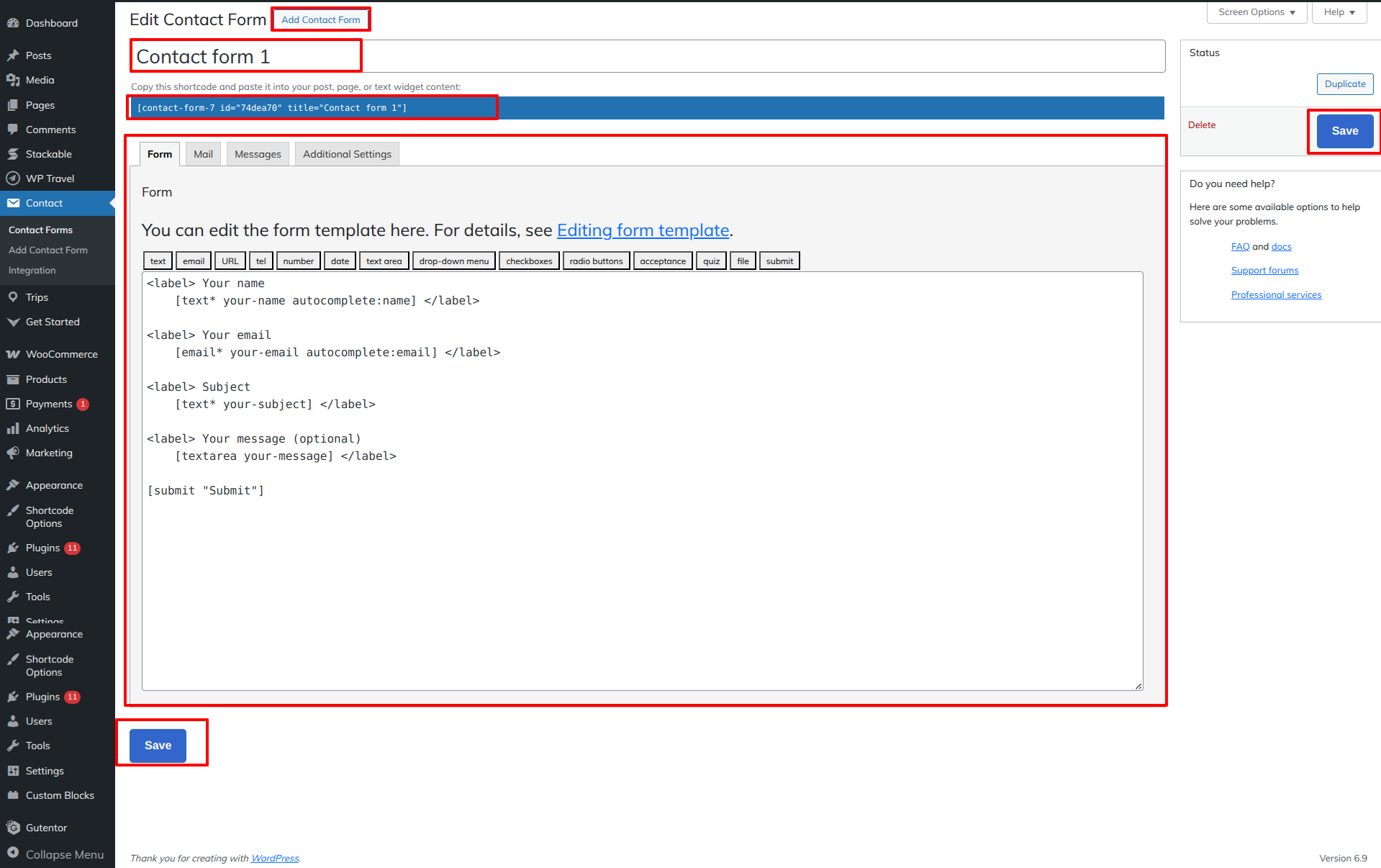
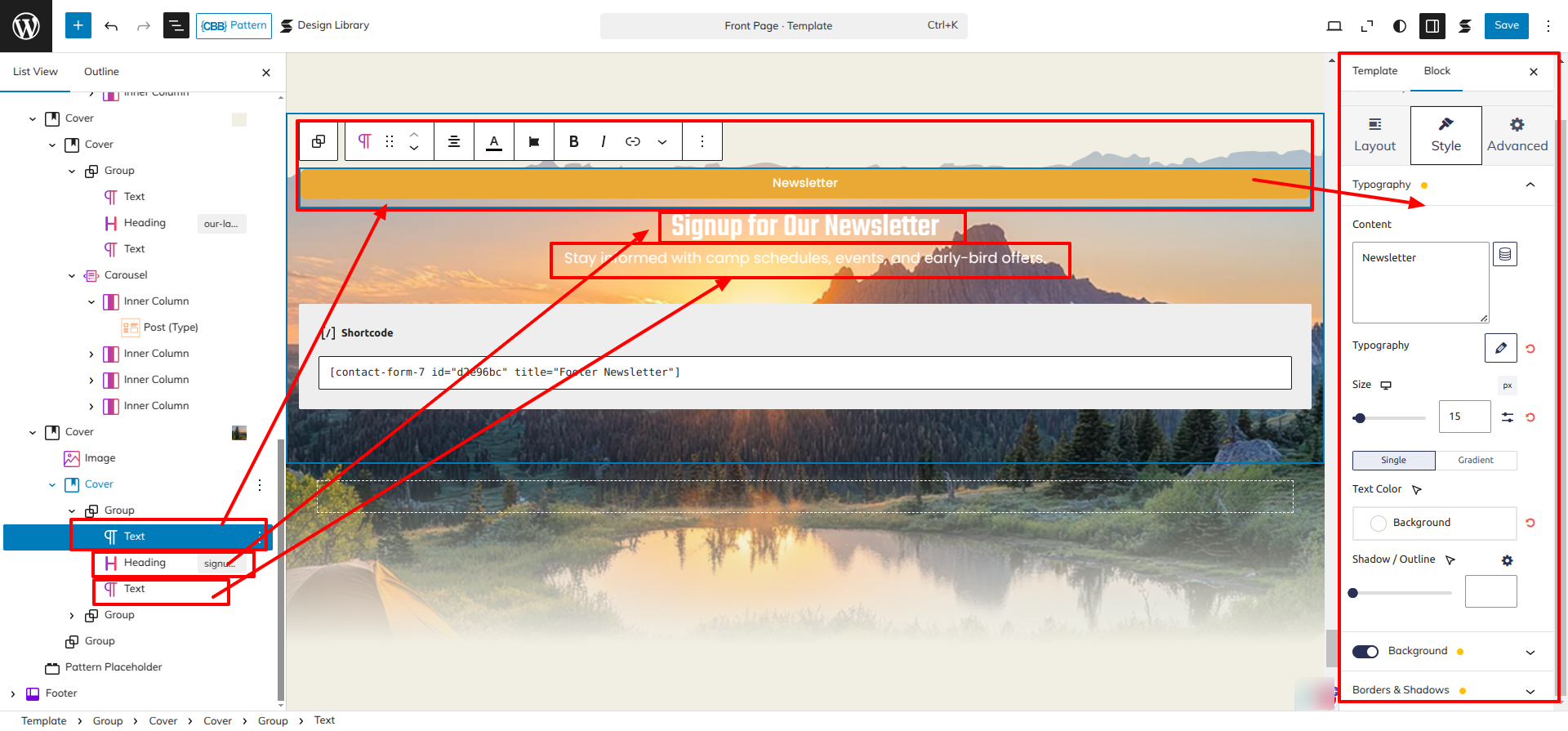
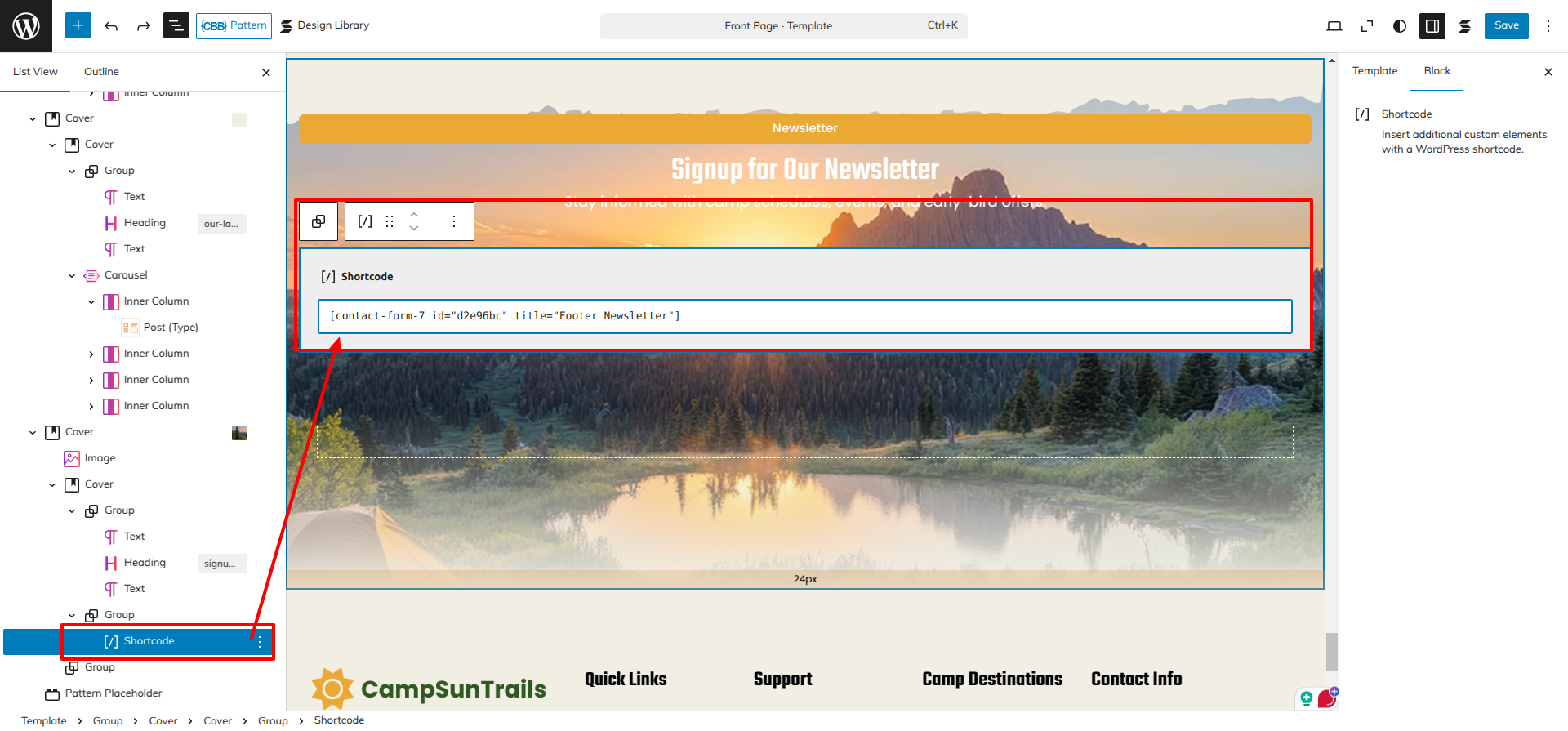
Set up the Meet Newsletter Section according to the instructions below.
Go to the Dashboard Contact Contact Forms.
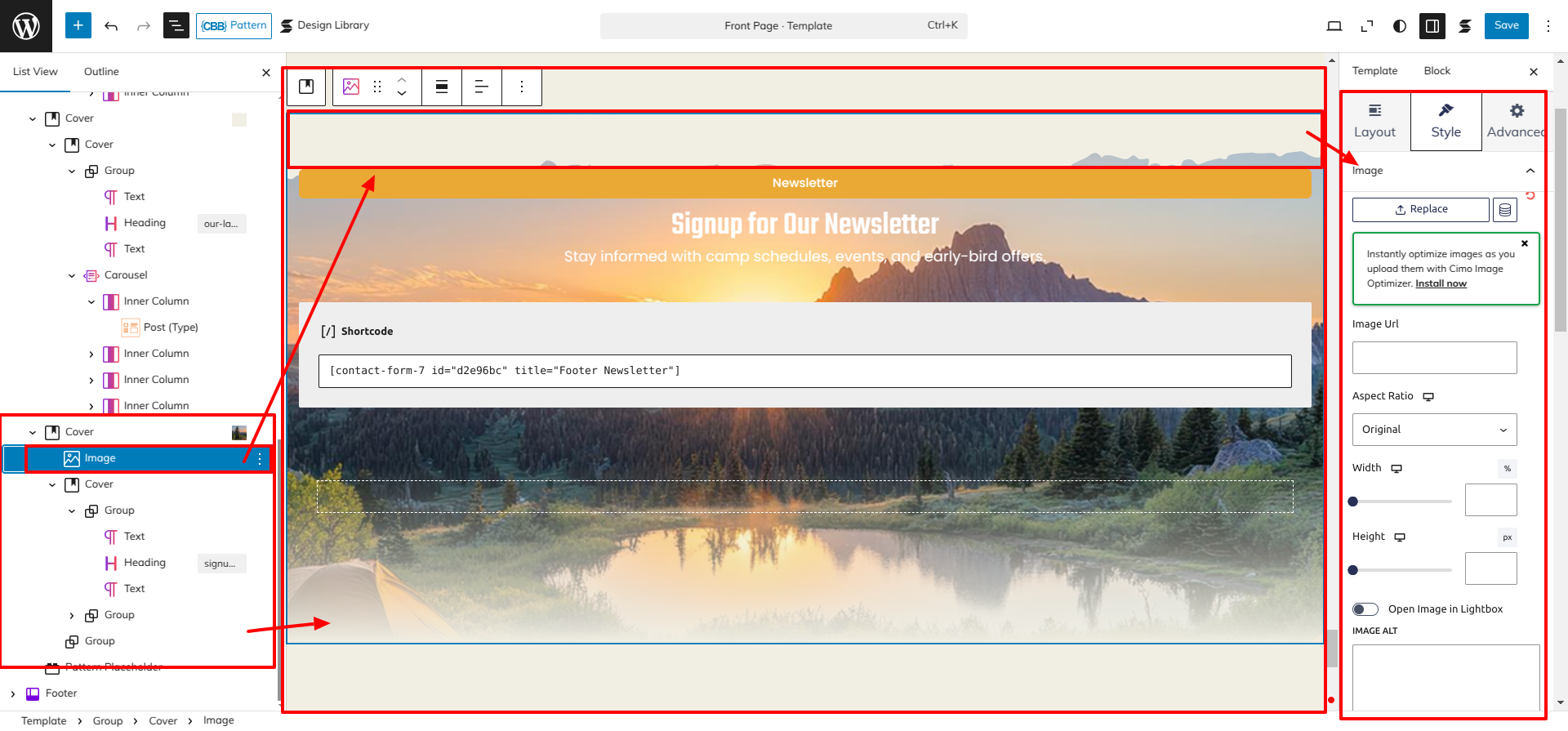
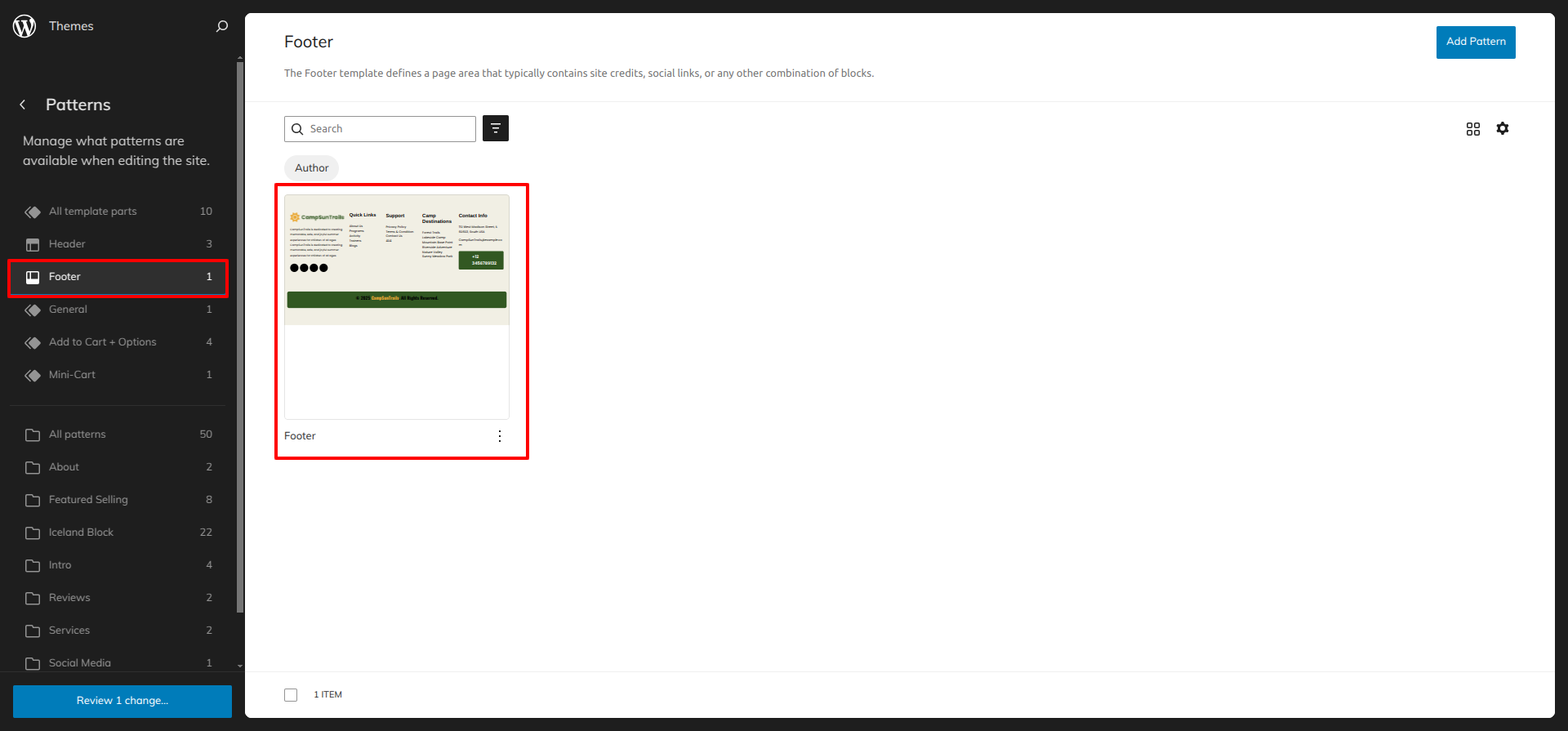
Go to Dashboard Appearance Editor.
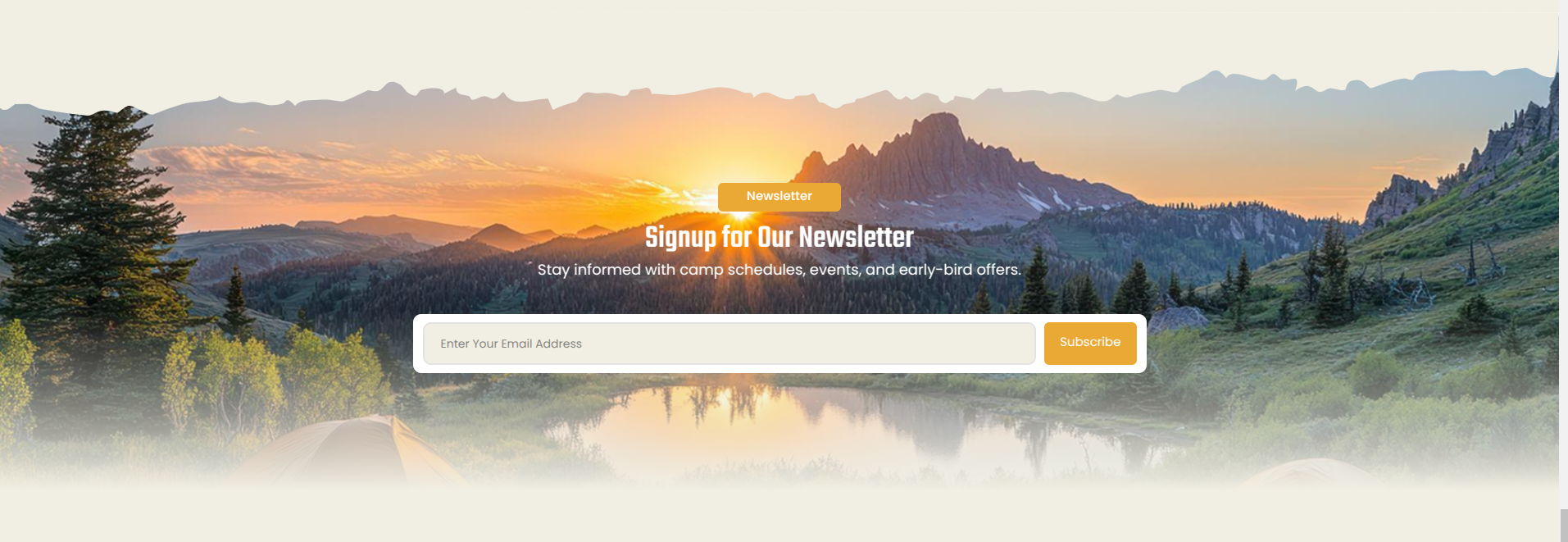
This is how you may set up and add the Meet Newsletter Section.
INNER PAGES
SETUP CONTACT US PAGE
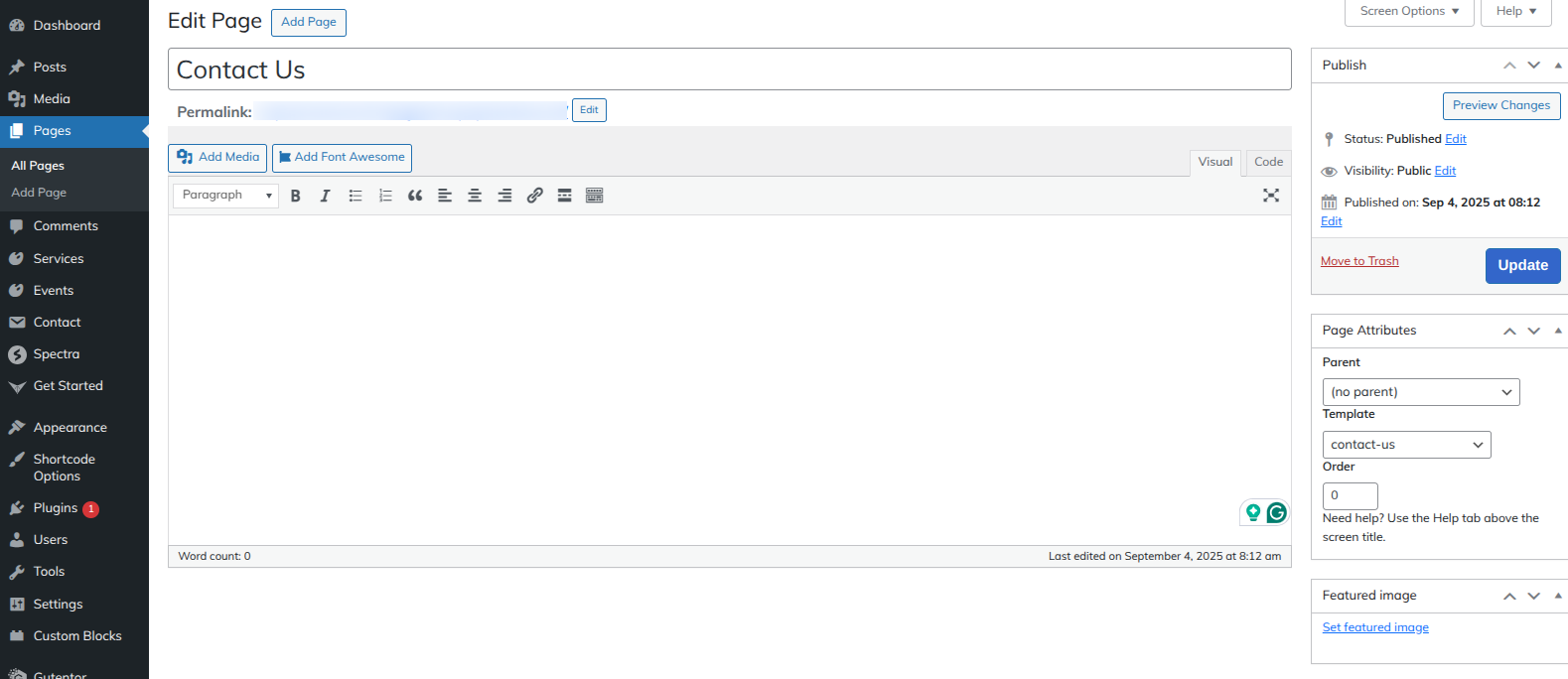
Set up the Contact Us Page by following the steps mentioned below.
- Step 1. Go to Dashboard Page Add New
- Step 2. Add Page Name
- Step 3. On the right side of the page, select contact-us template
- Step 4. Click the Update button
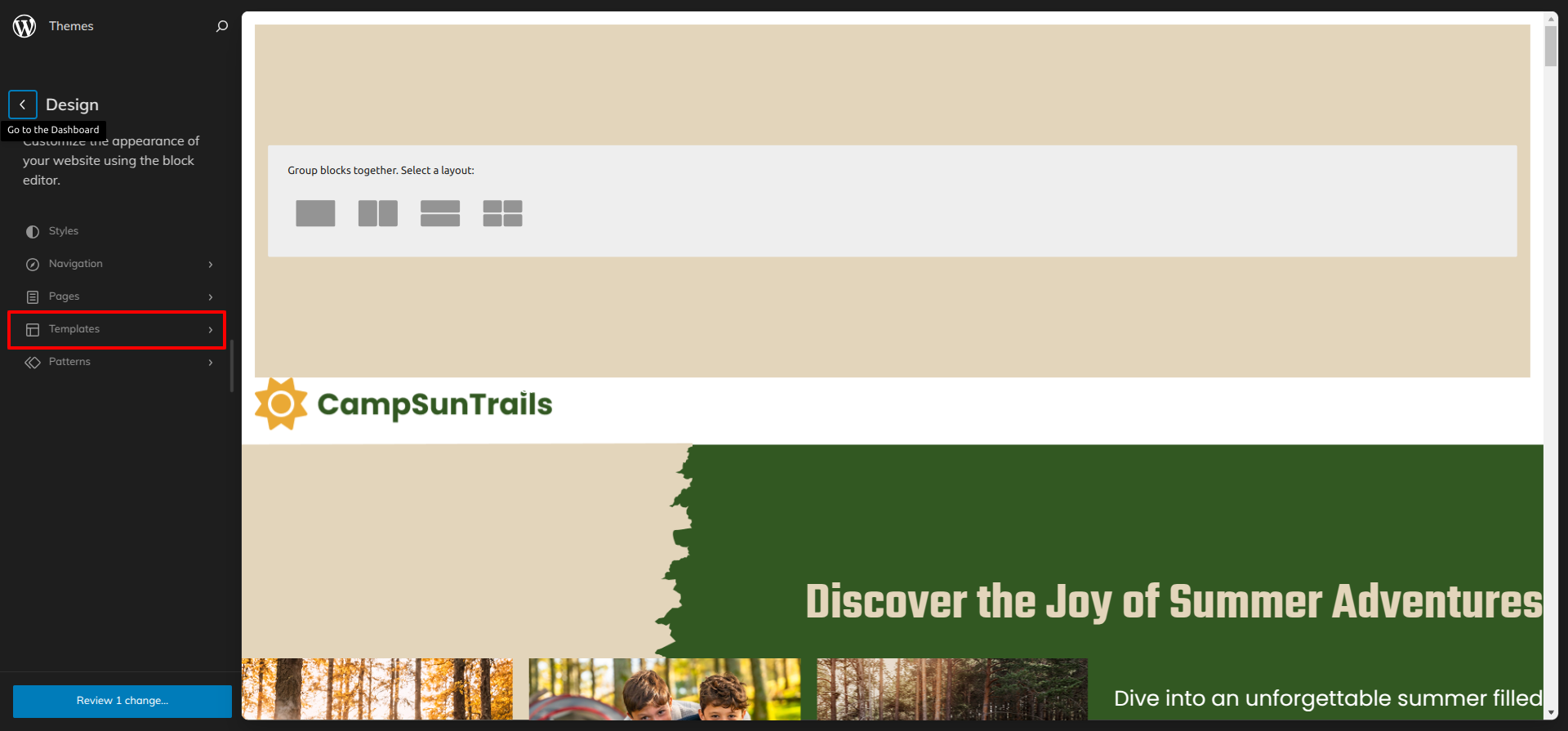
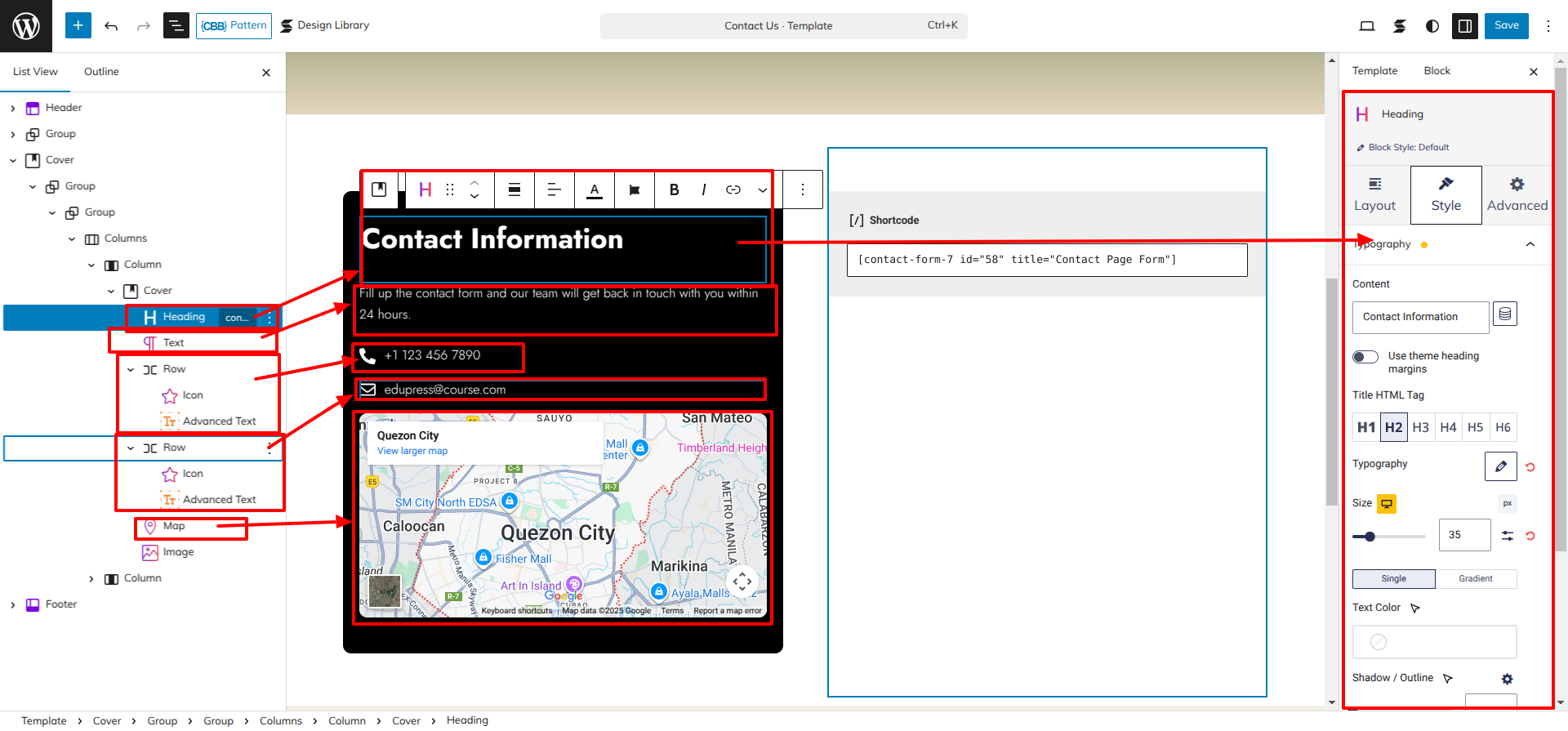
Go to the Dashboard Appearance Editor.
Click on "Template" as indicated in the screenshot below
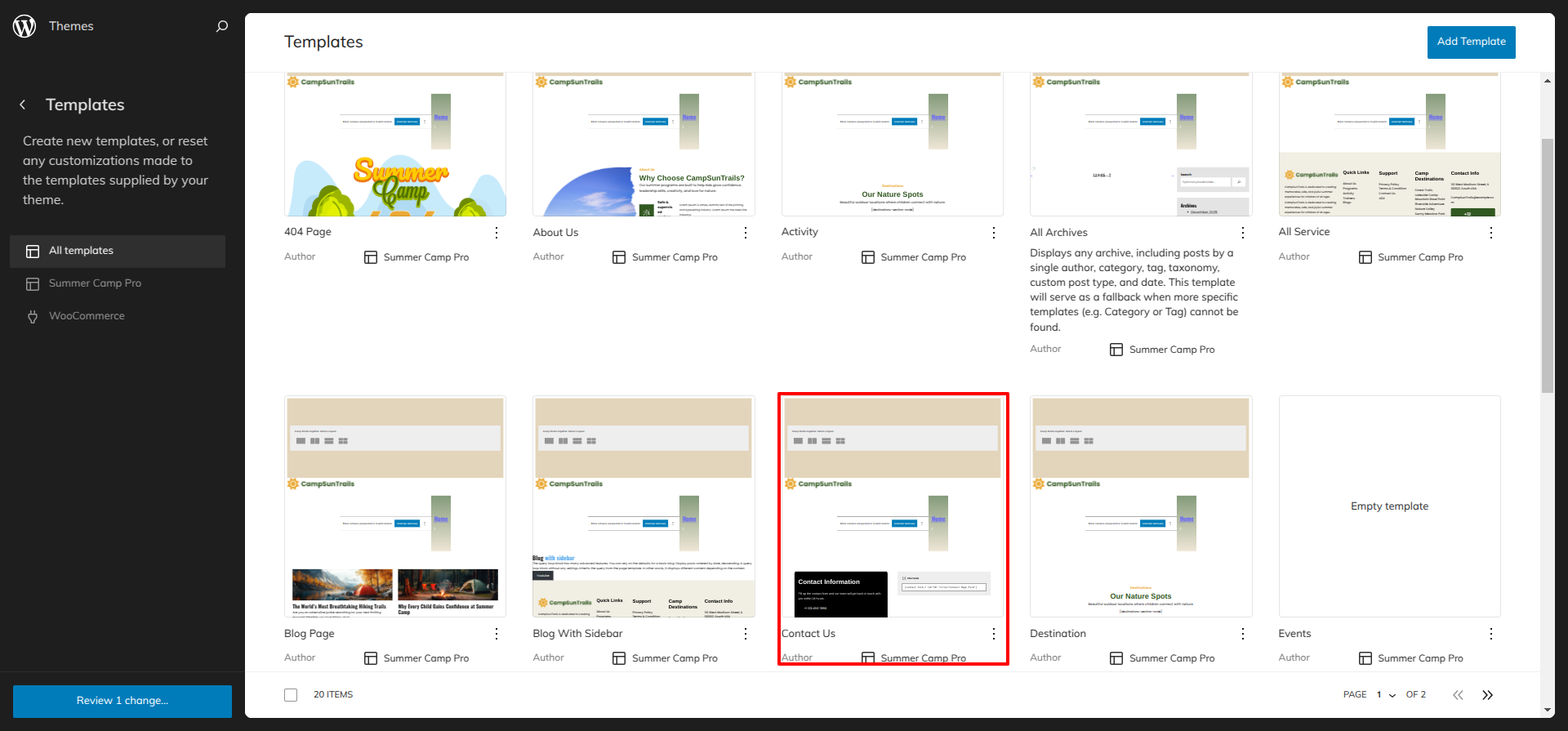
After that, a sidebar will appear now, as seen in the screenshot below, pick "Contact Us" from the dropdown.
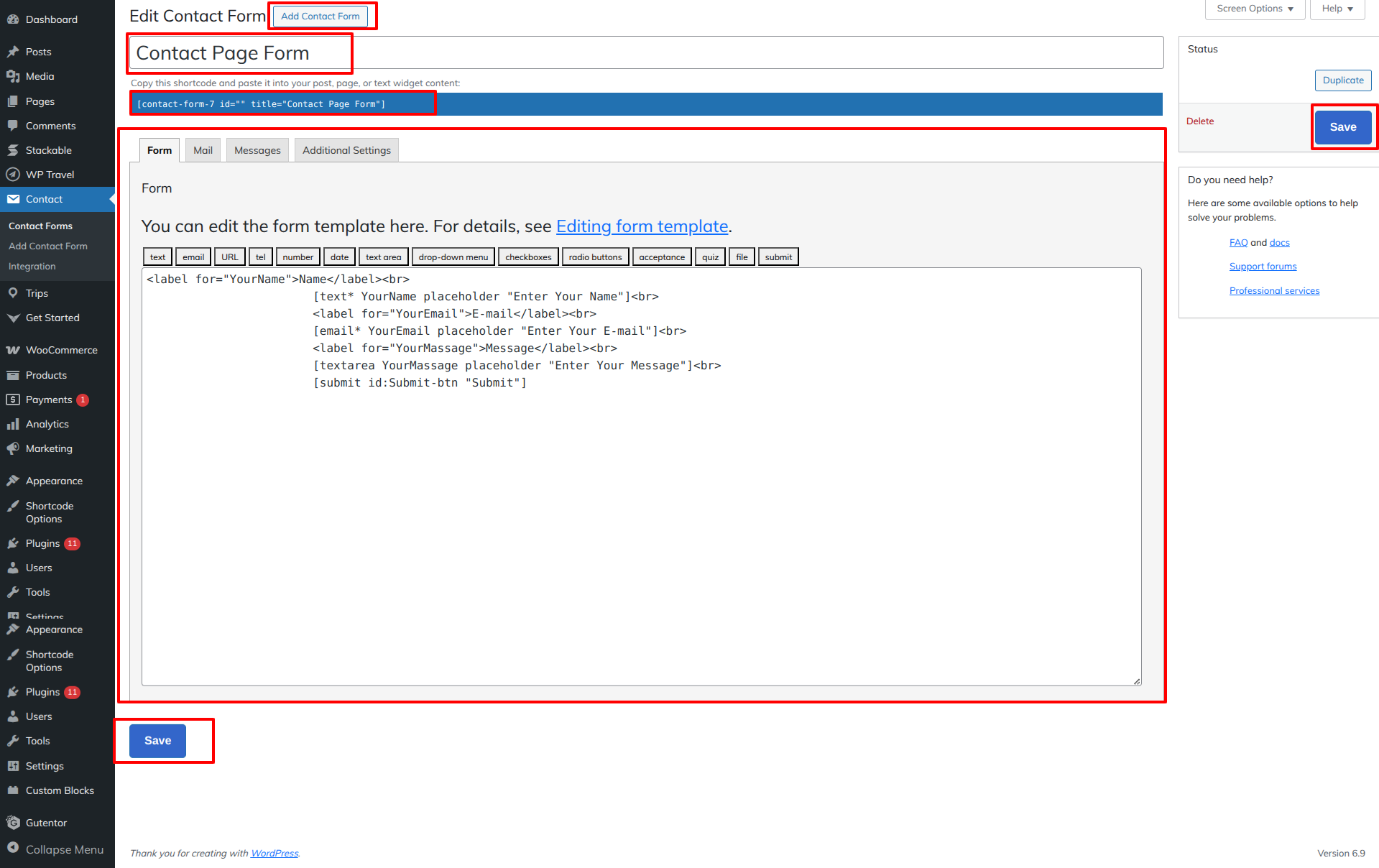
Created a Contact Form in accordance with the guidelines below.
Go to the Dashboard Contact Add New.
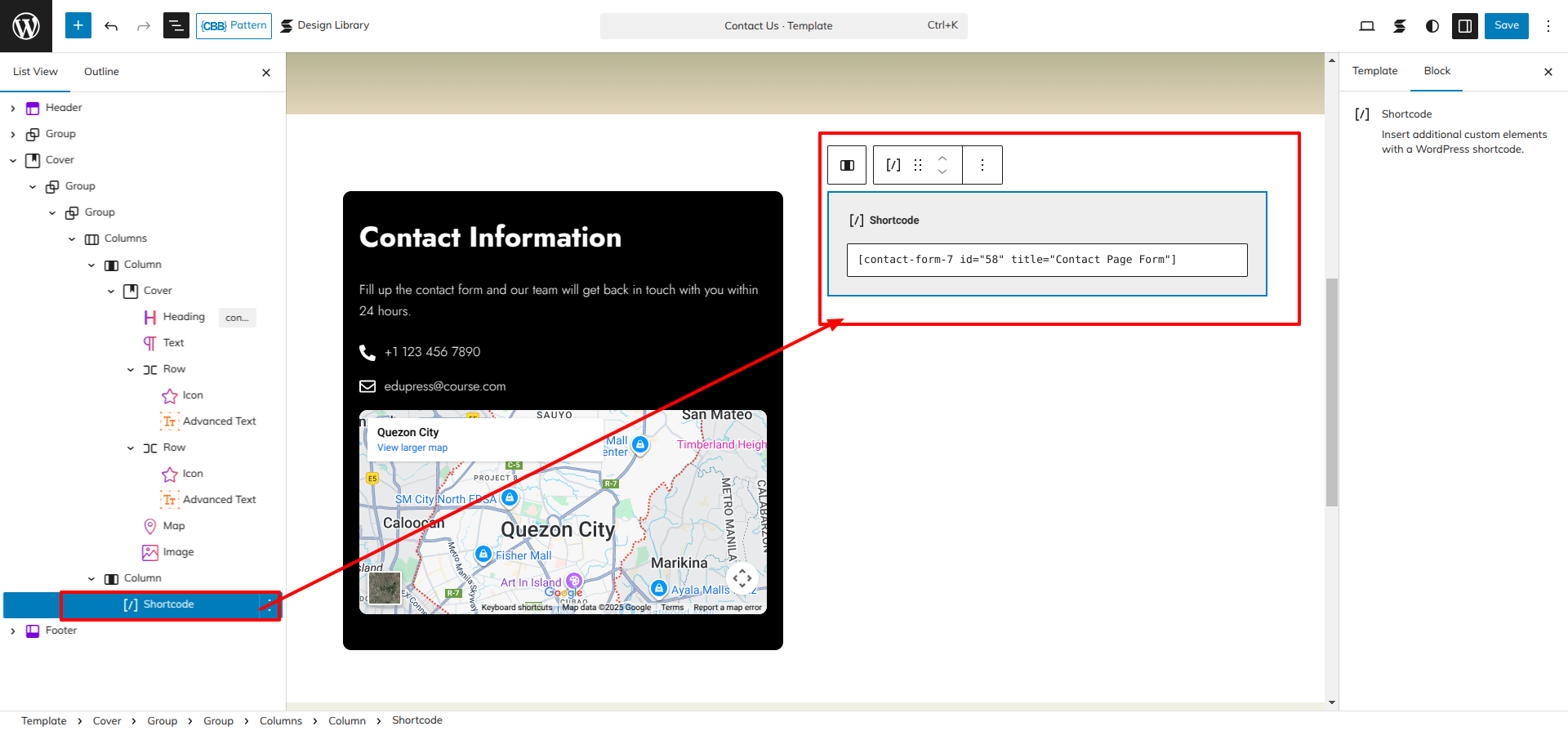
Using the contact form 7 plugin, I built a shortcode for the Contact Us Page Form and then used the shortcode block to enter the generated shortcode.
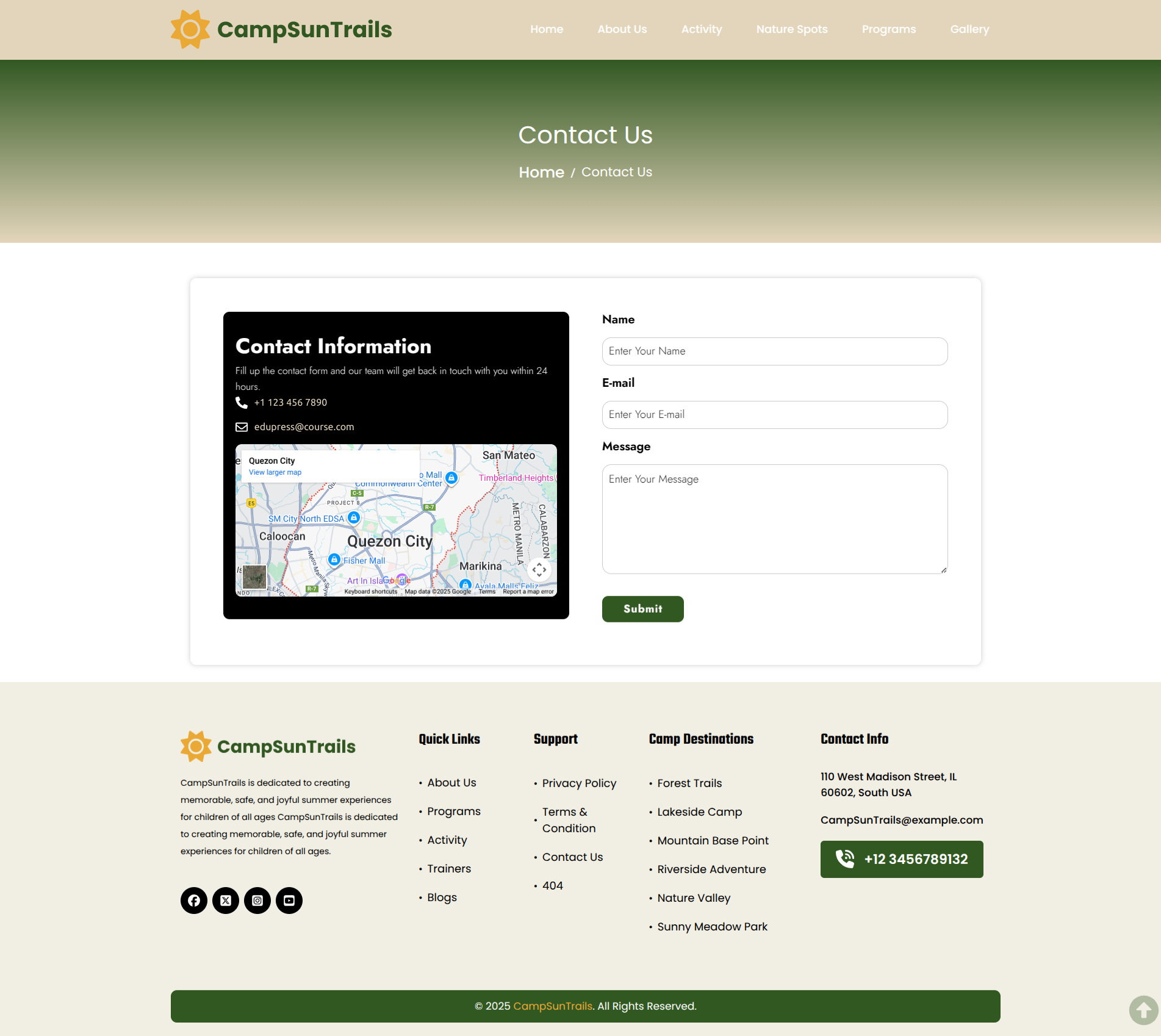
This is how you may set up and add the Contact Us Page.