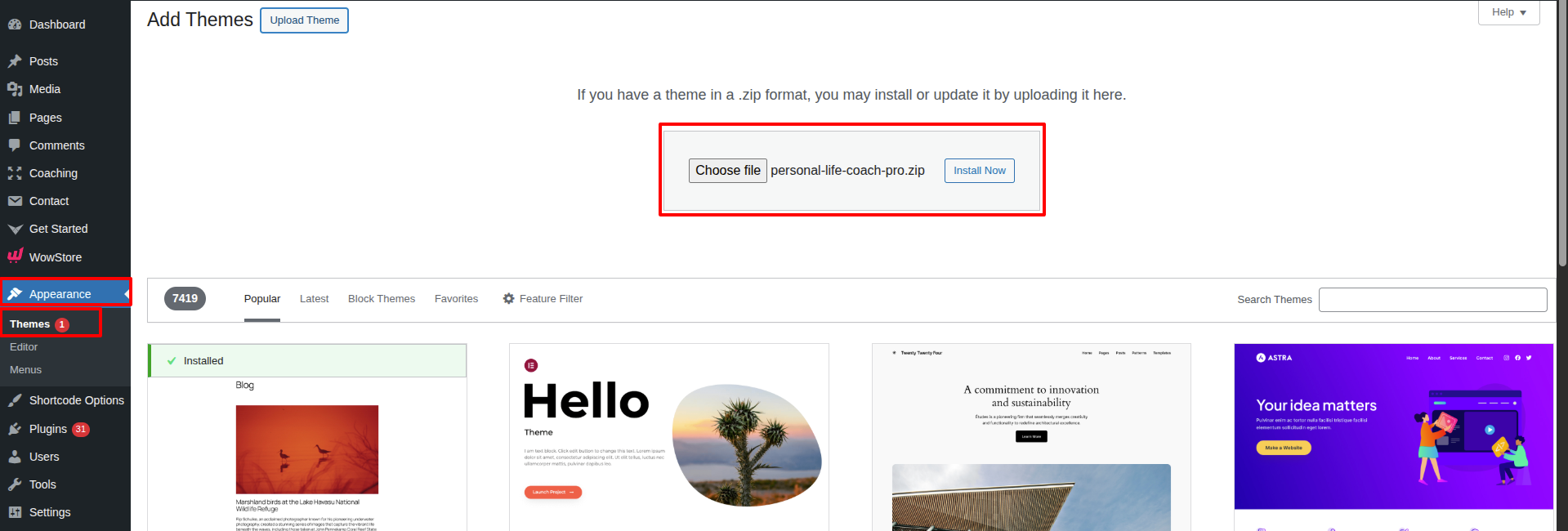
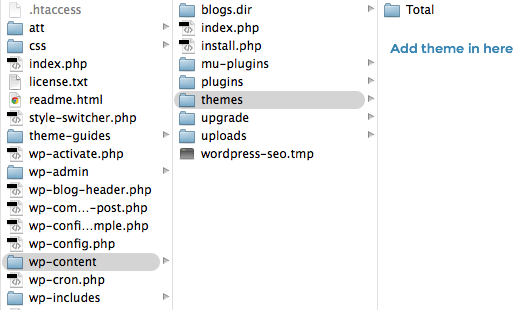
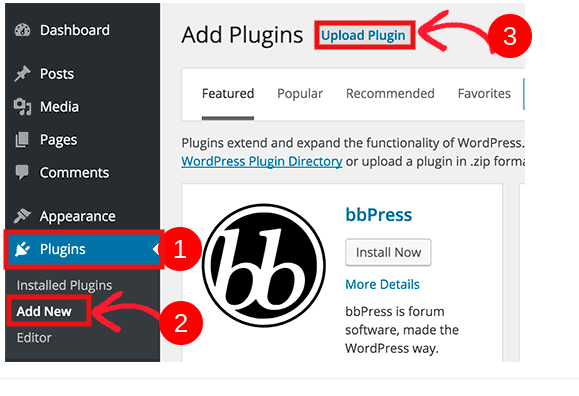
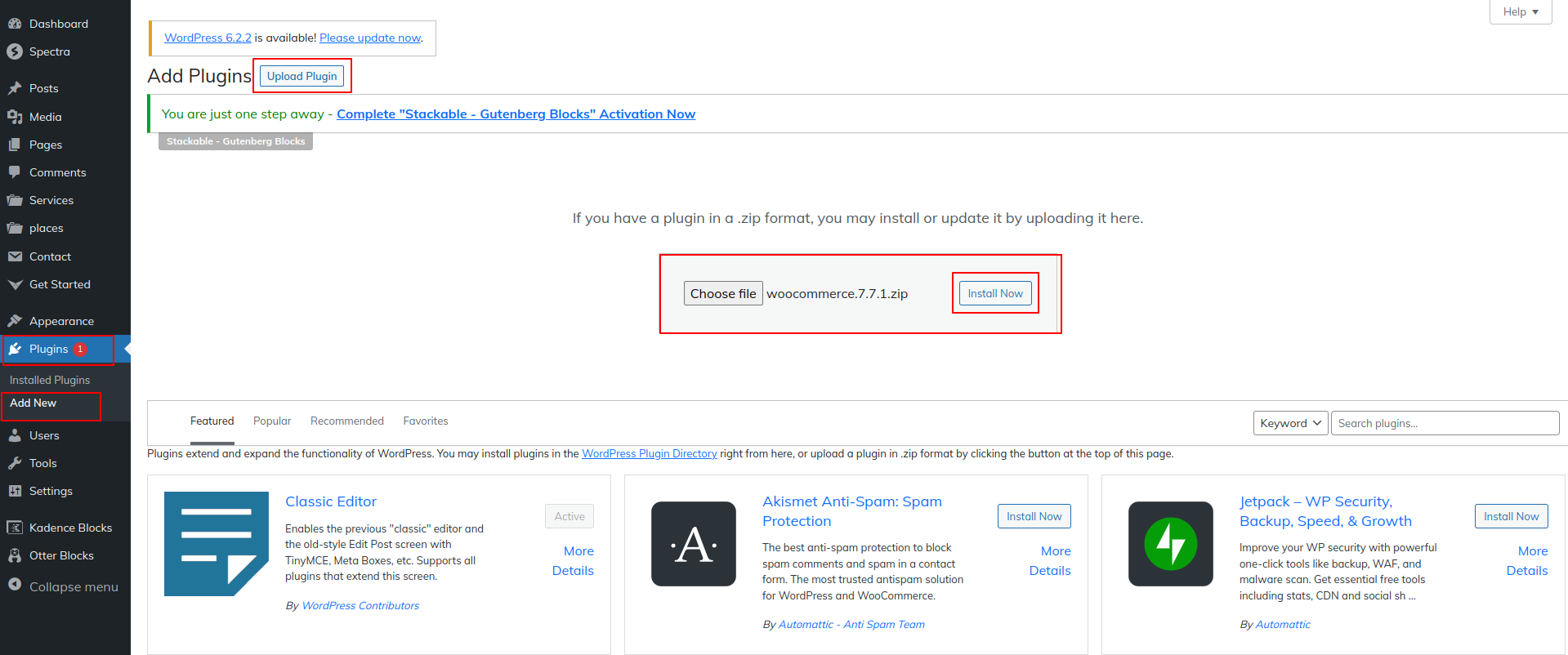
THEME IMPLEMENTATION
HOW TO SET UP HOMEPAGE
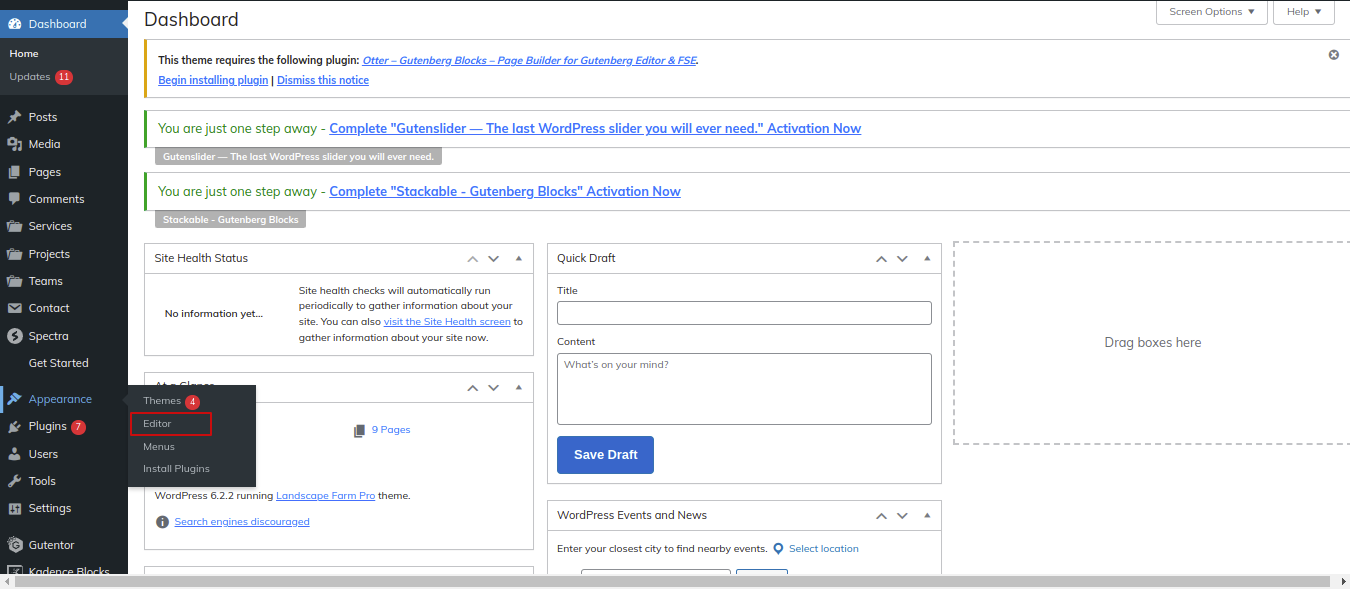
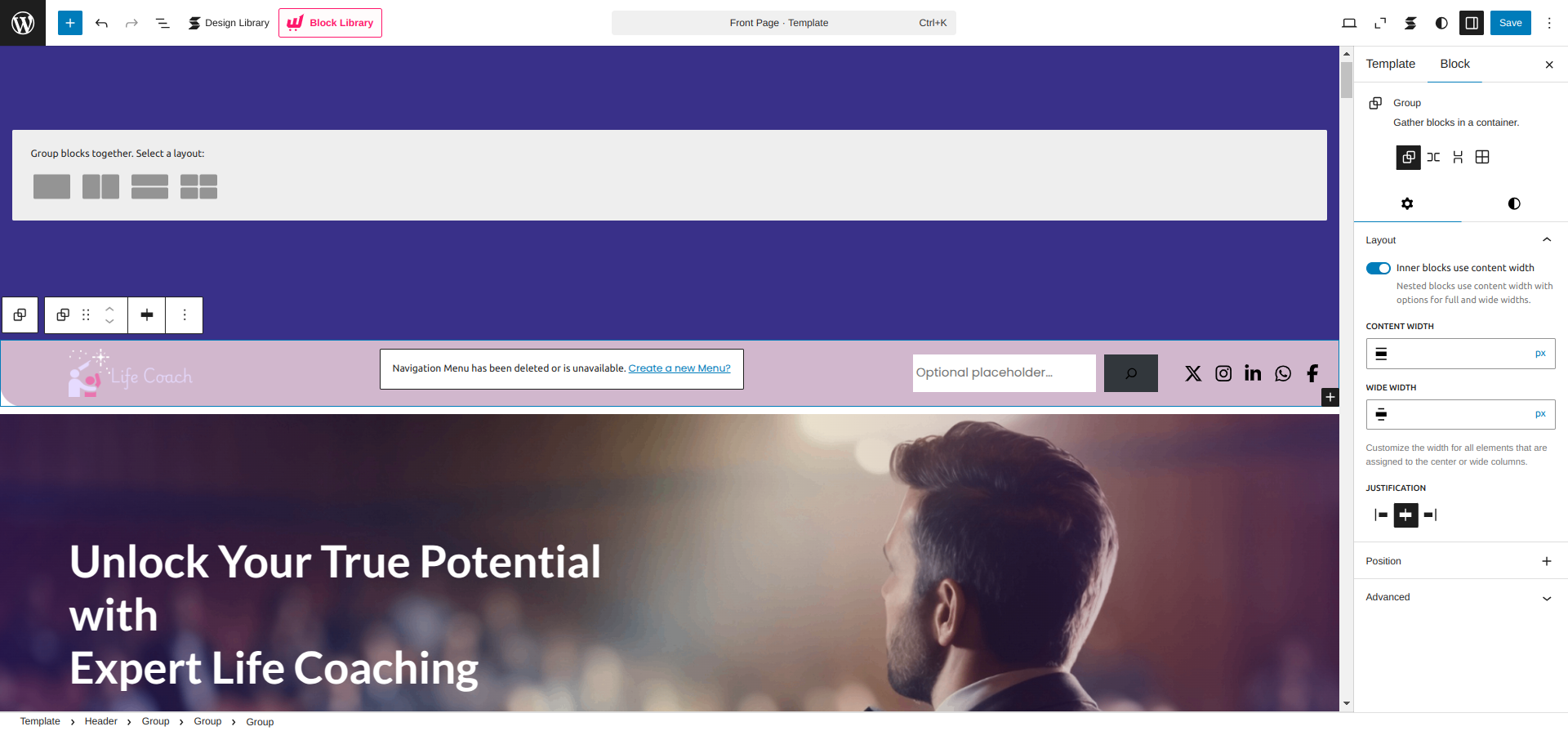
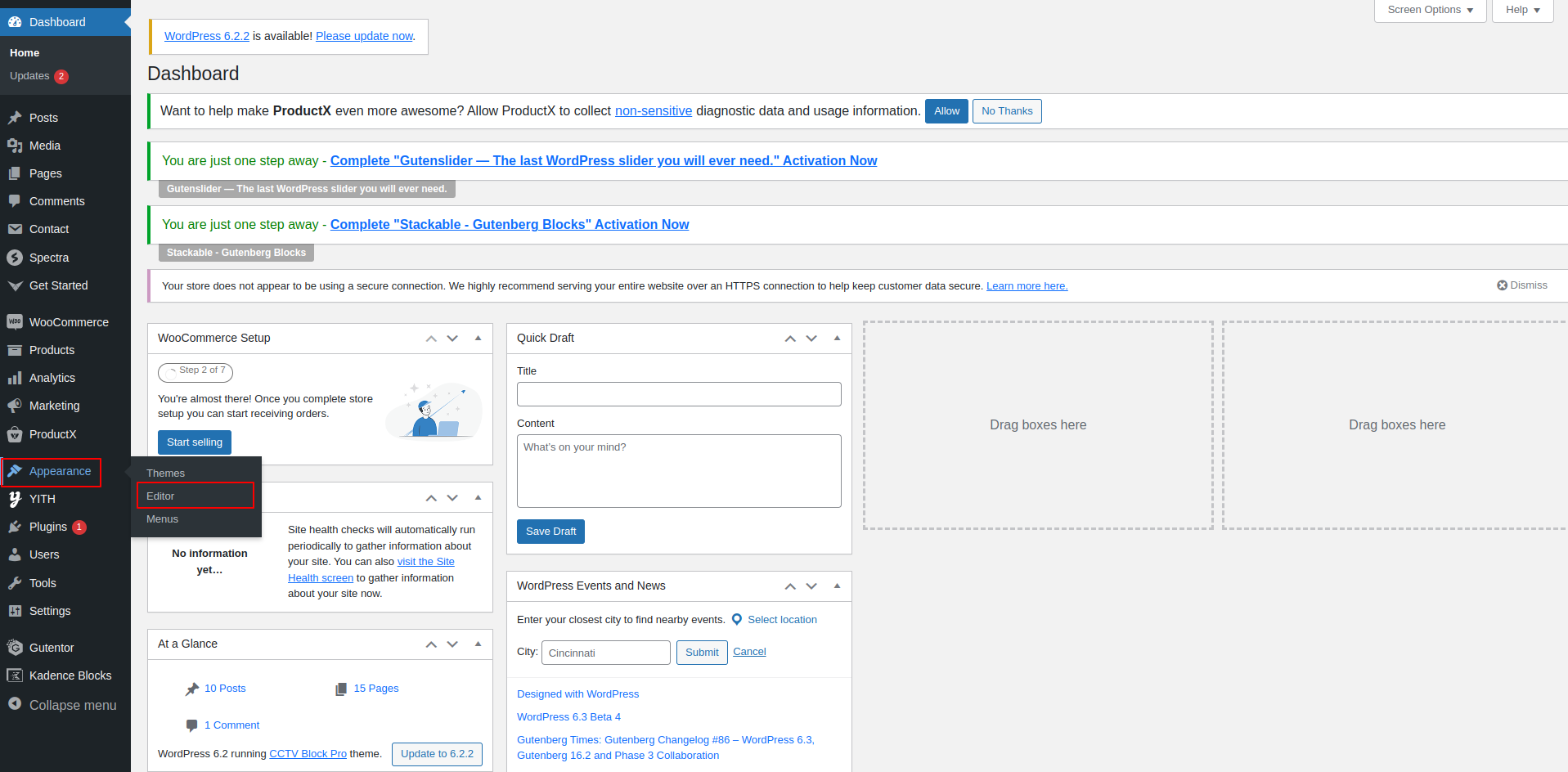
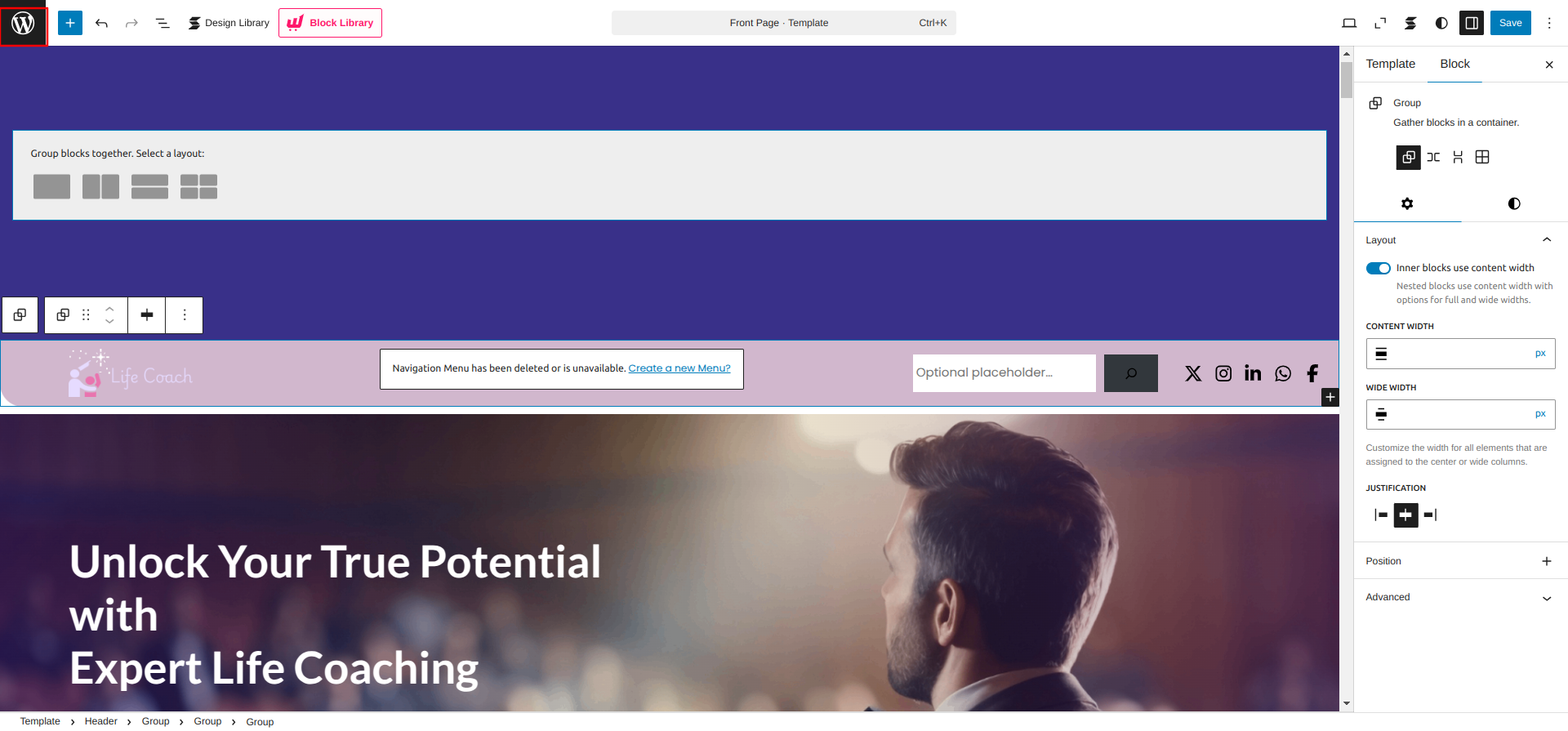
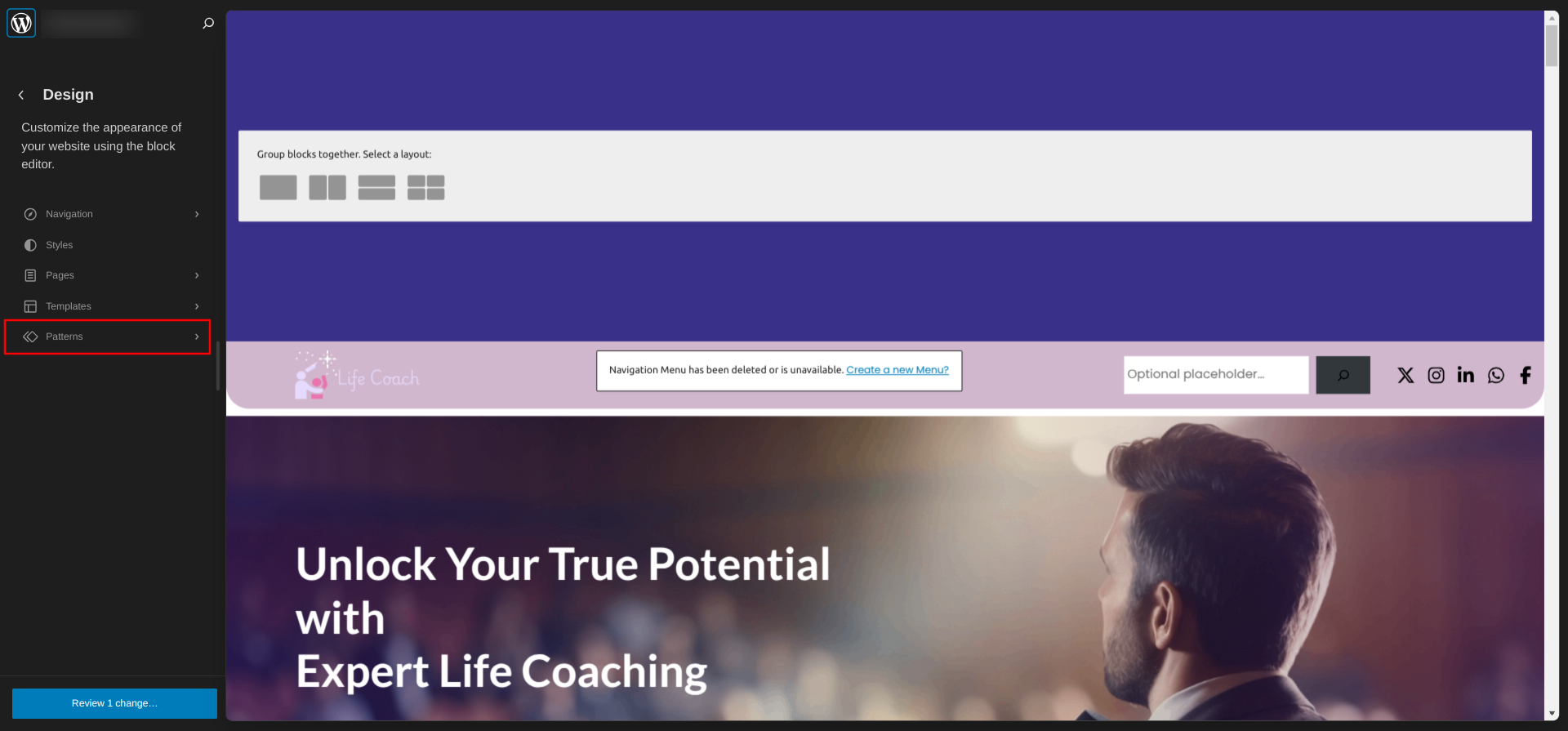
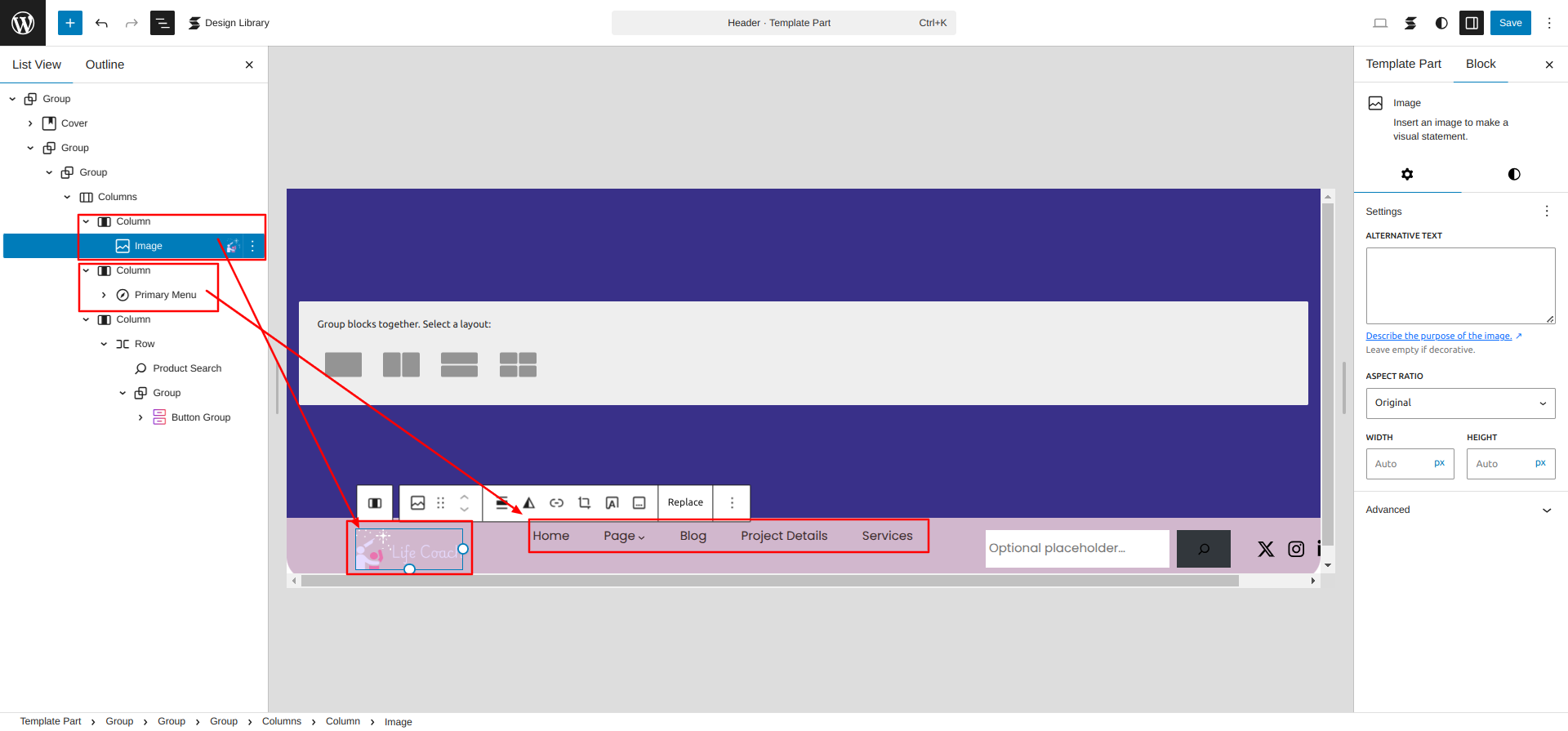
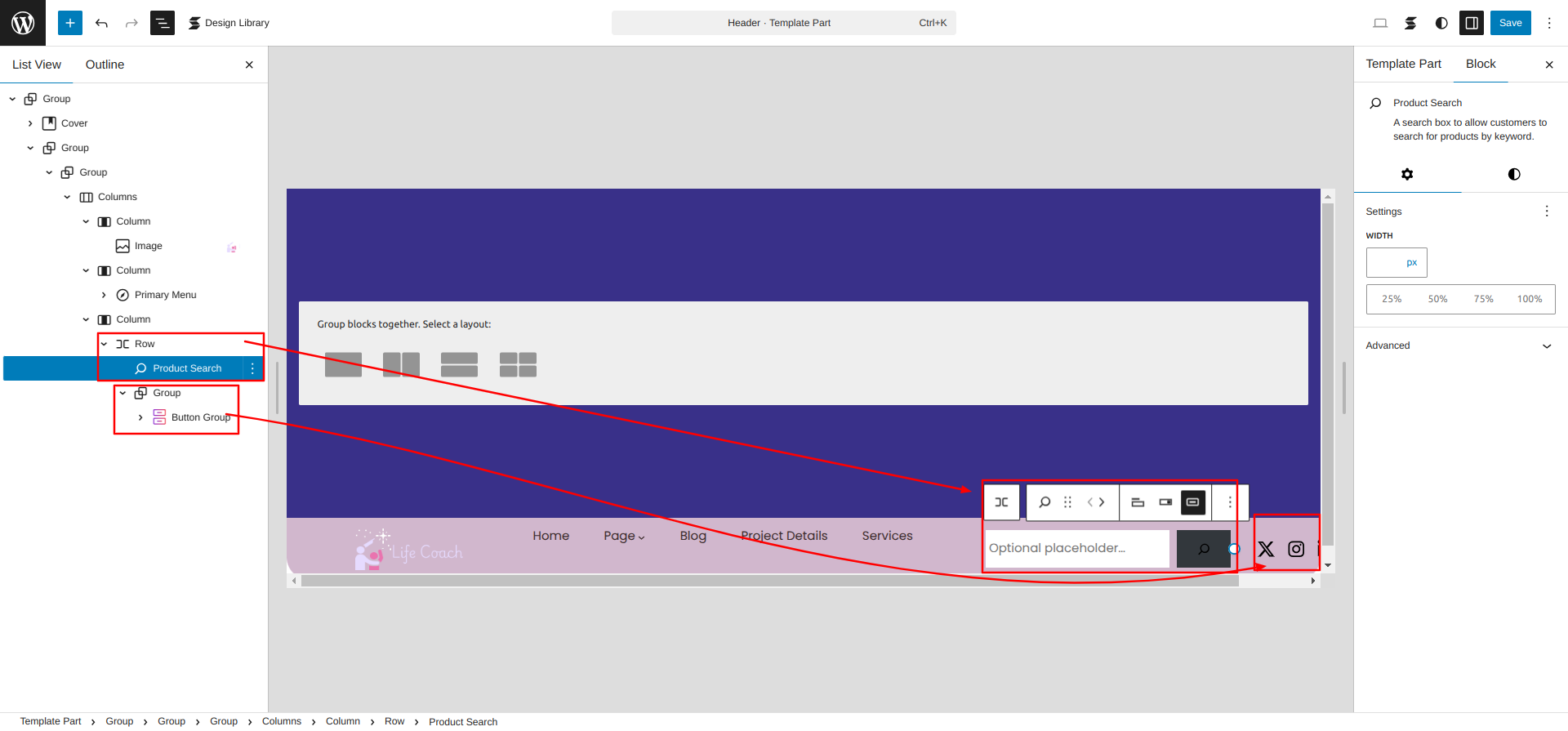
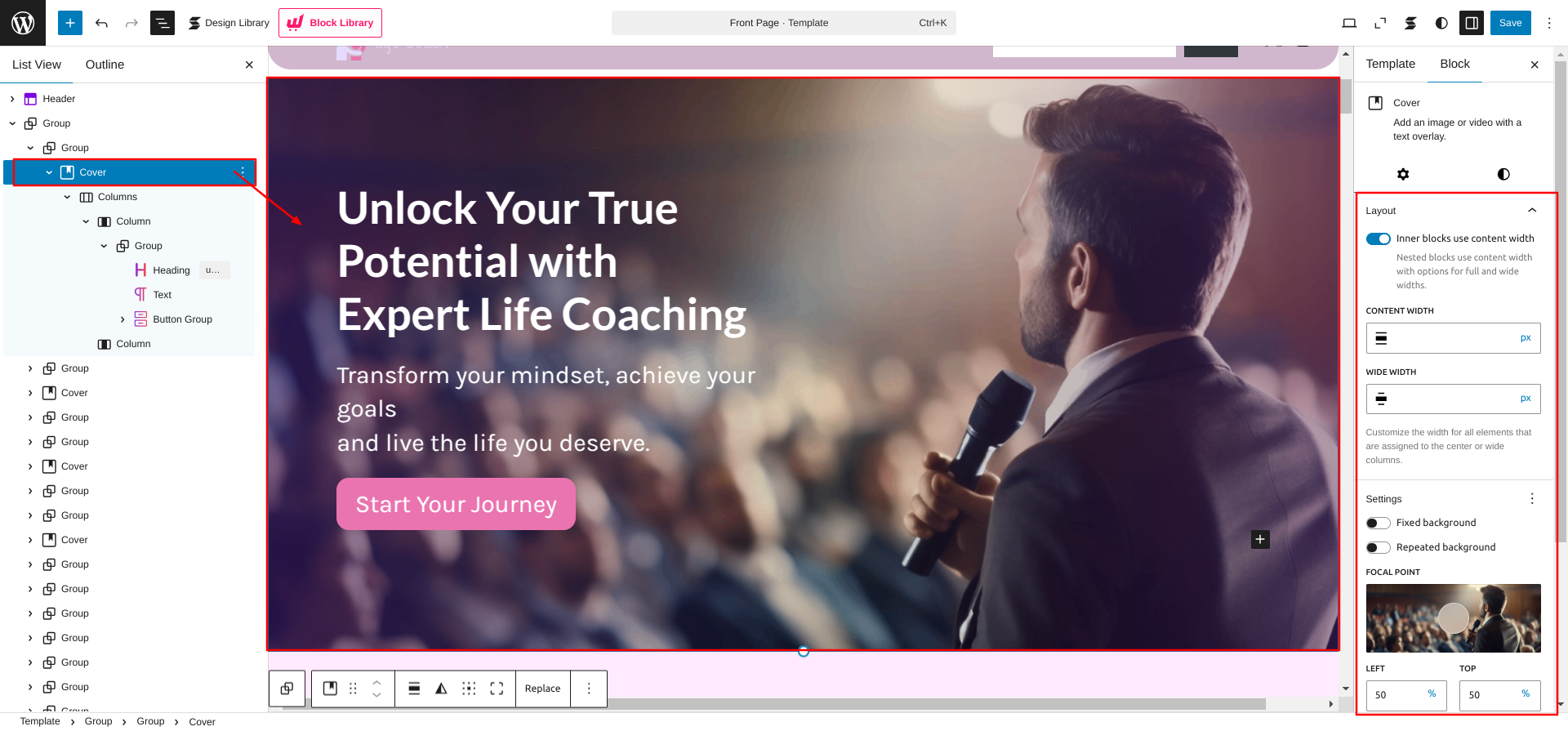
Go to the Dashboard Appearance Editor.
HOW TO INCLUDE PATTERNS AND BLOCKS IN A PAGE
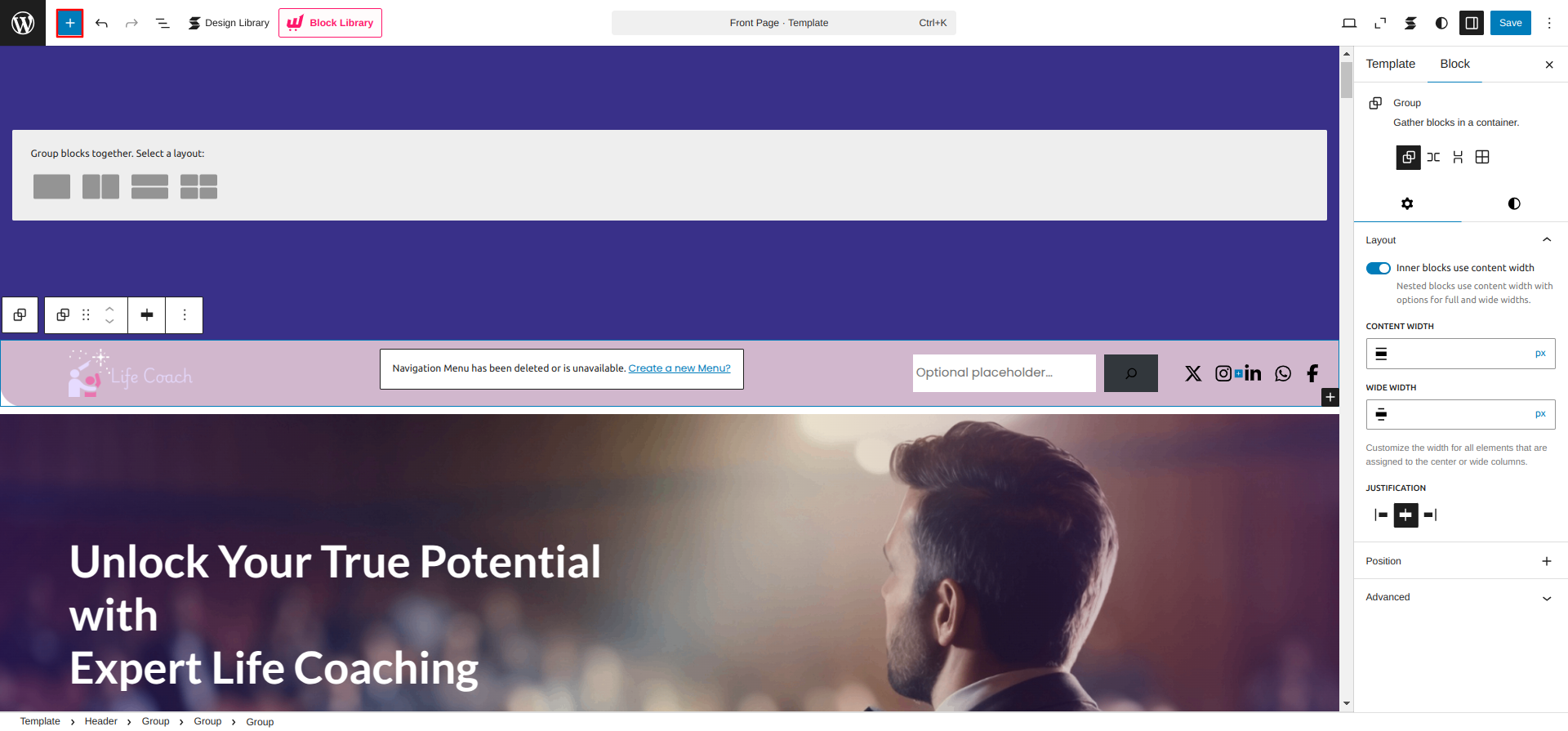
Please click the "Plus" icon as displayed in the screen below in order to add patterns and bocks.
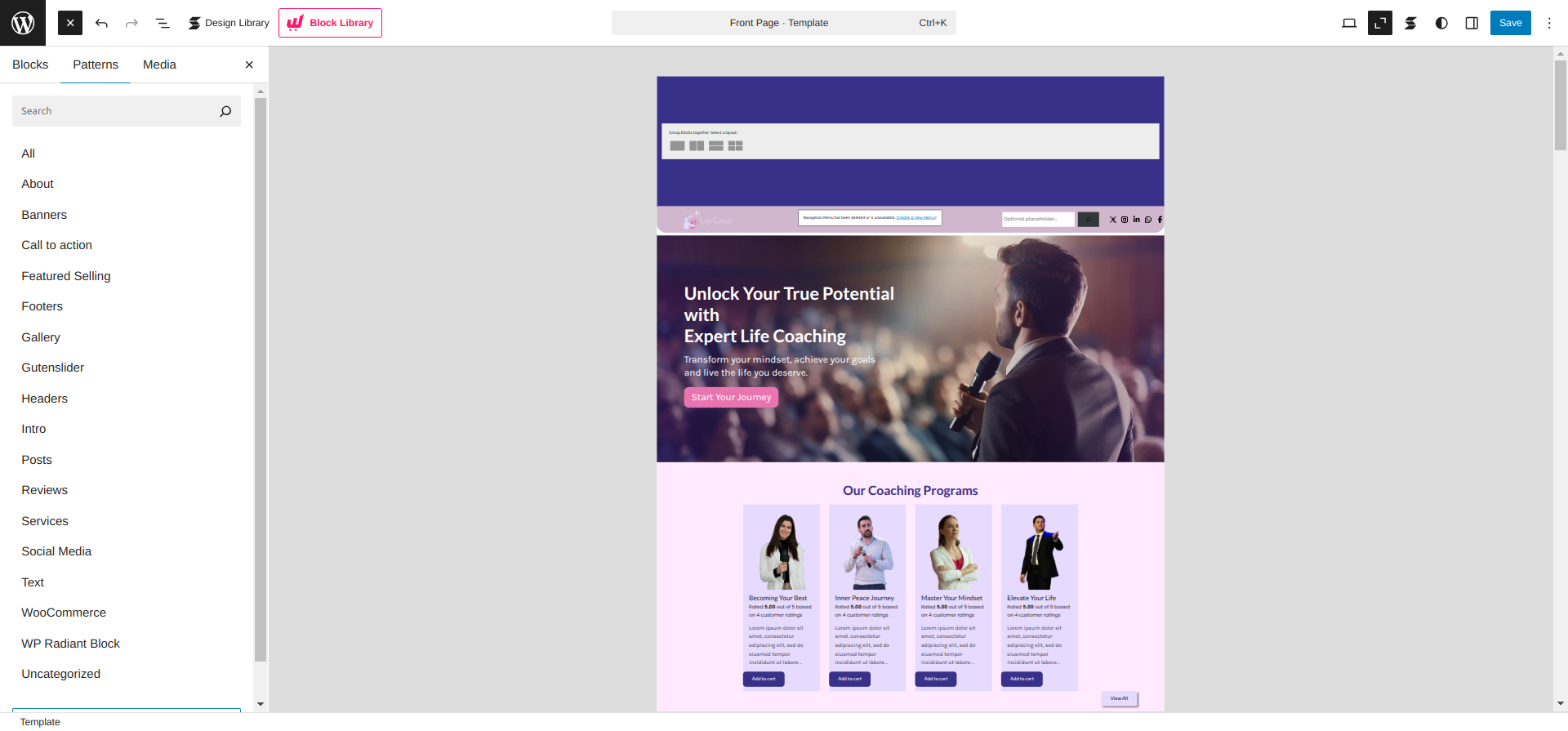
Select " Personal Life Coach Pro" from the dropdown as displayed in the screen below once a sidebar has opened.
All of the theme patterns are now displayed here, and you may use them on any page.
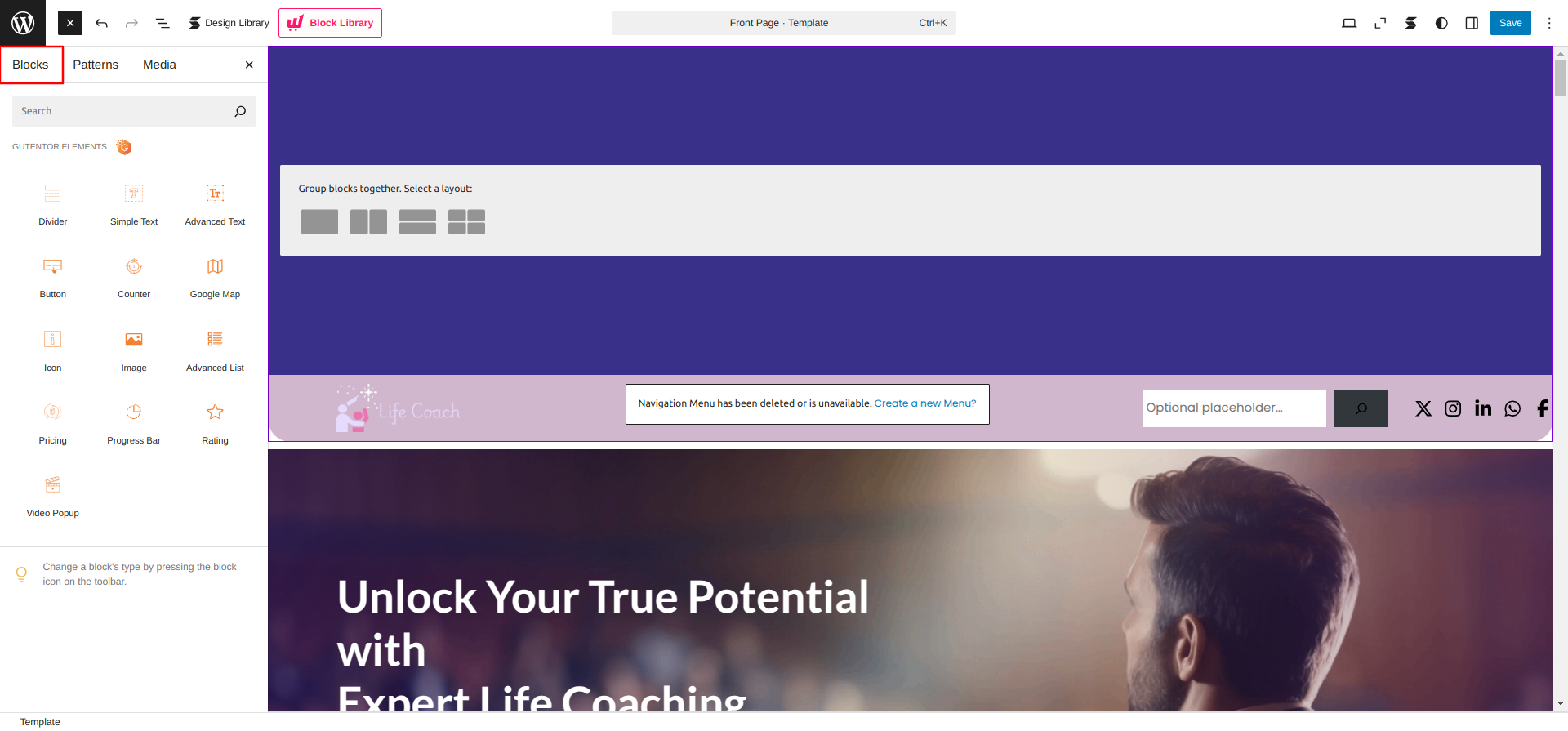
All of the blocks are now displayed here, and you may use them on any page.
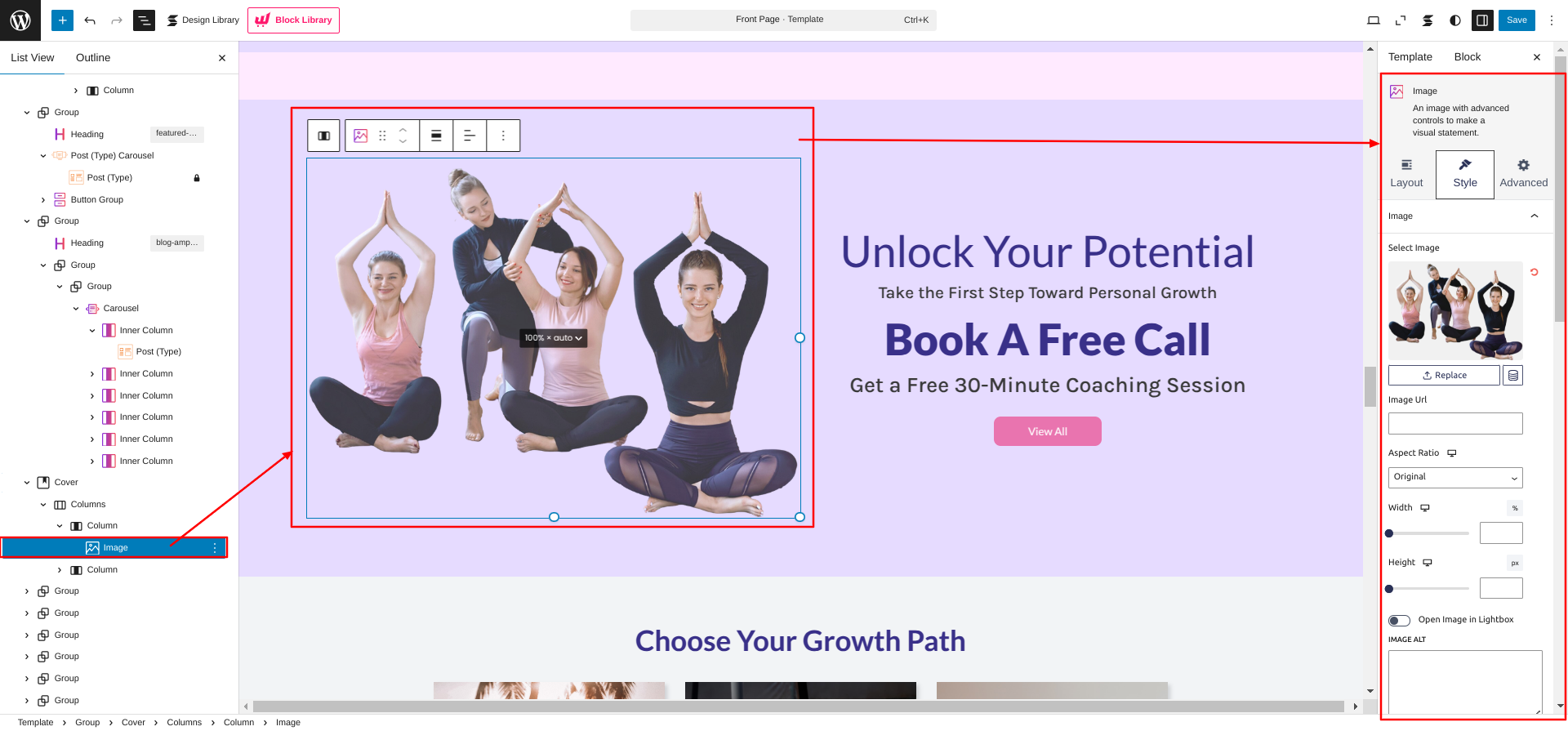
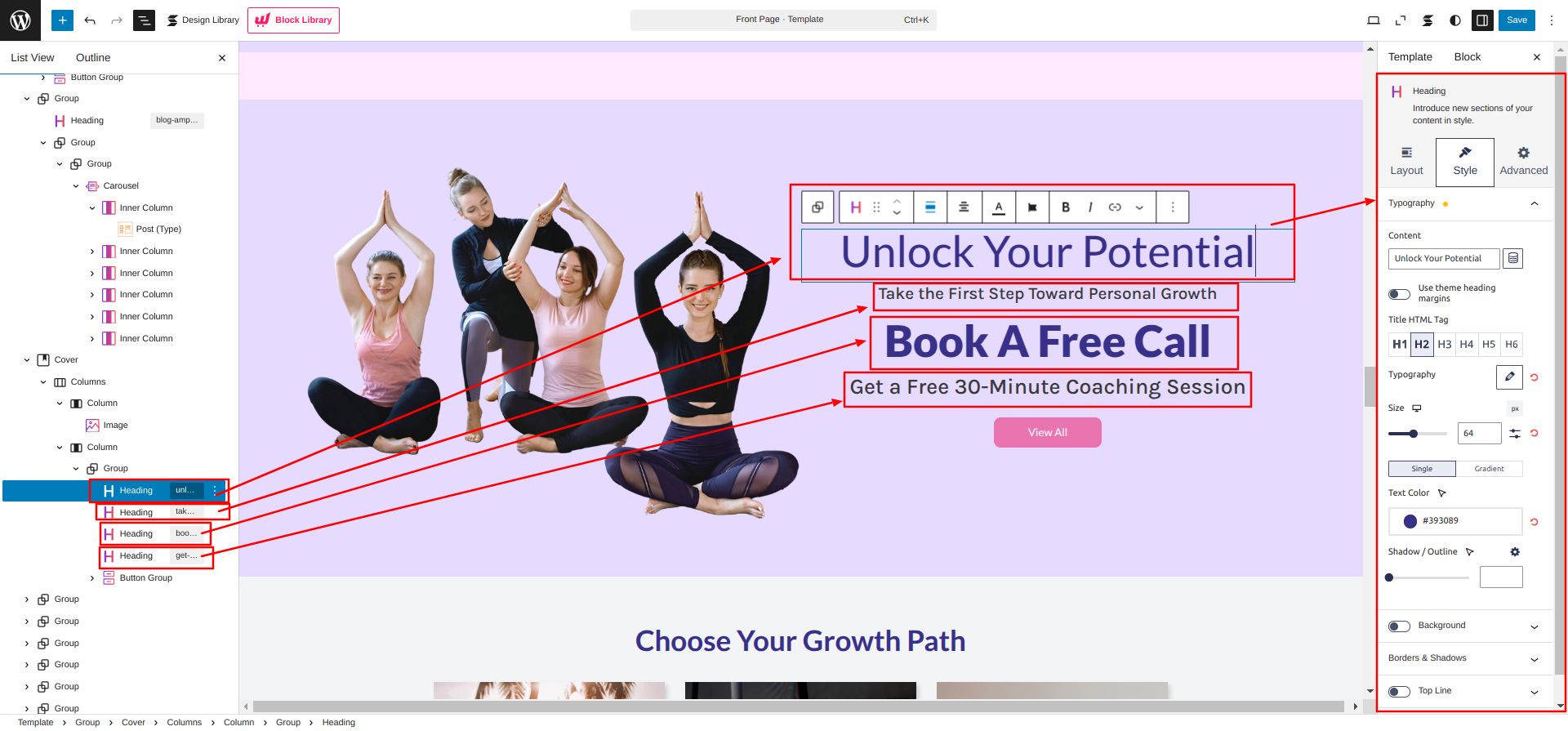
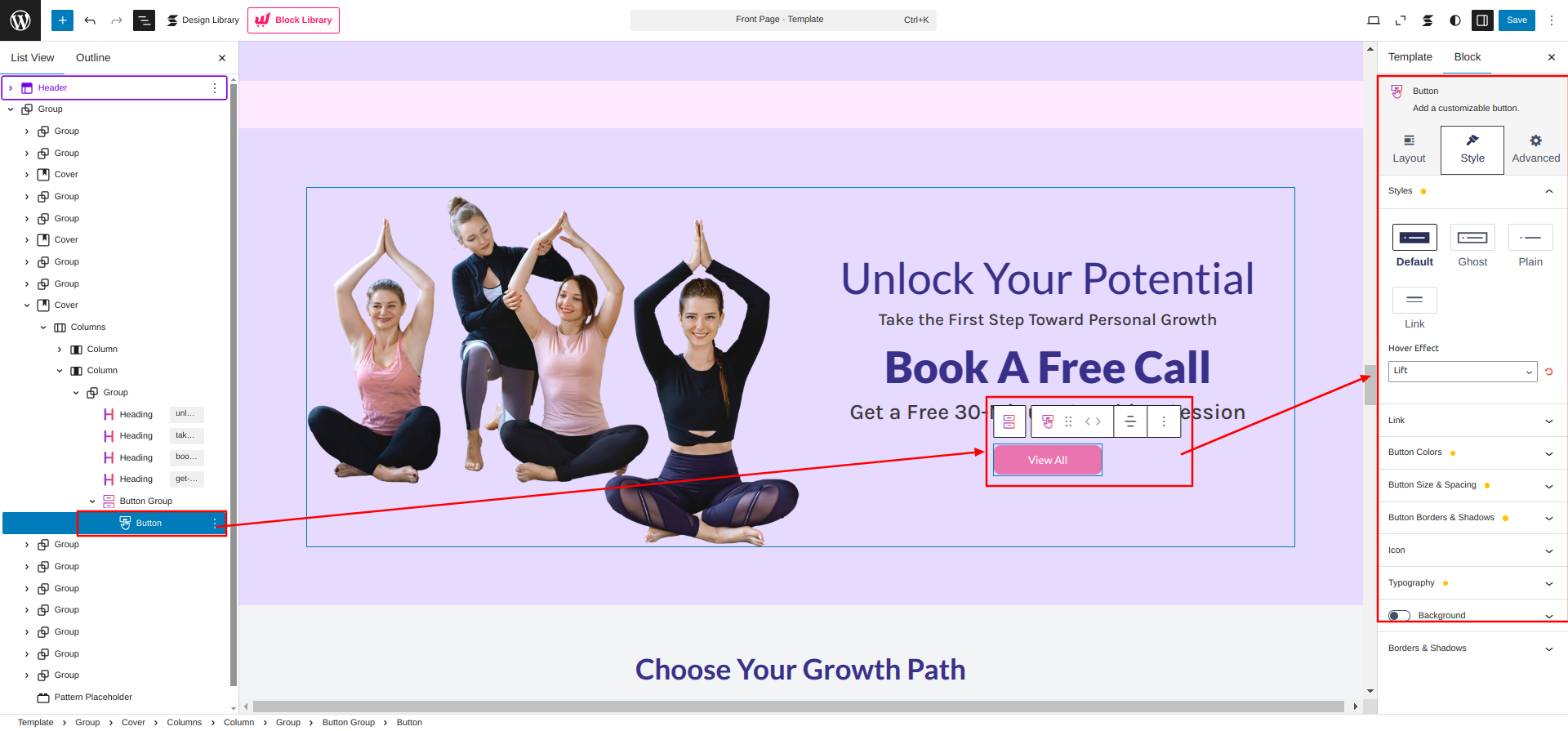
Setup Slider Section
Set up the Slider Section according to the instructions below.
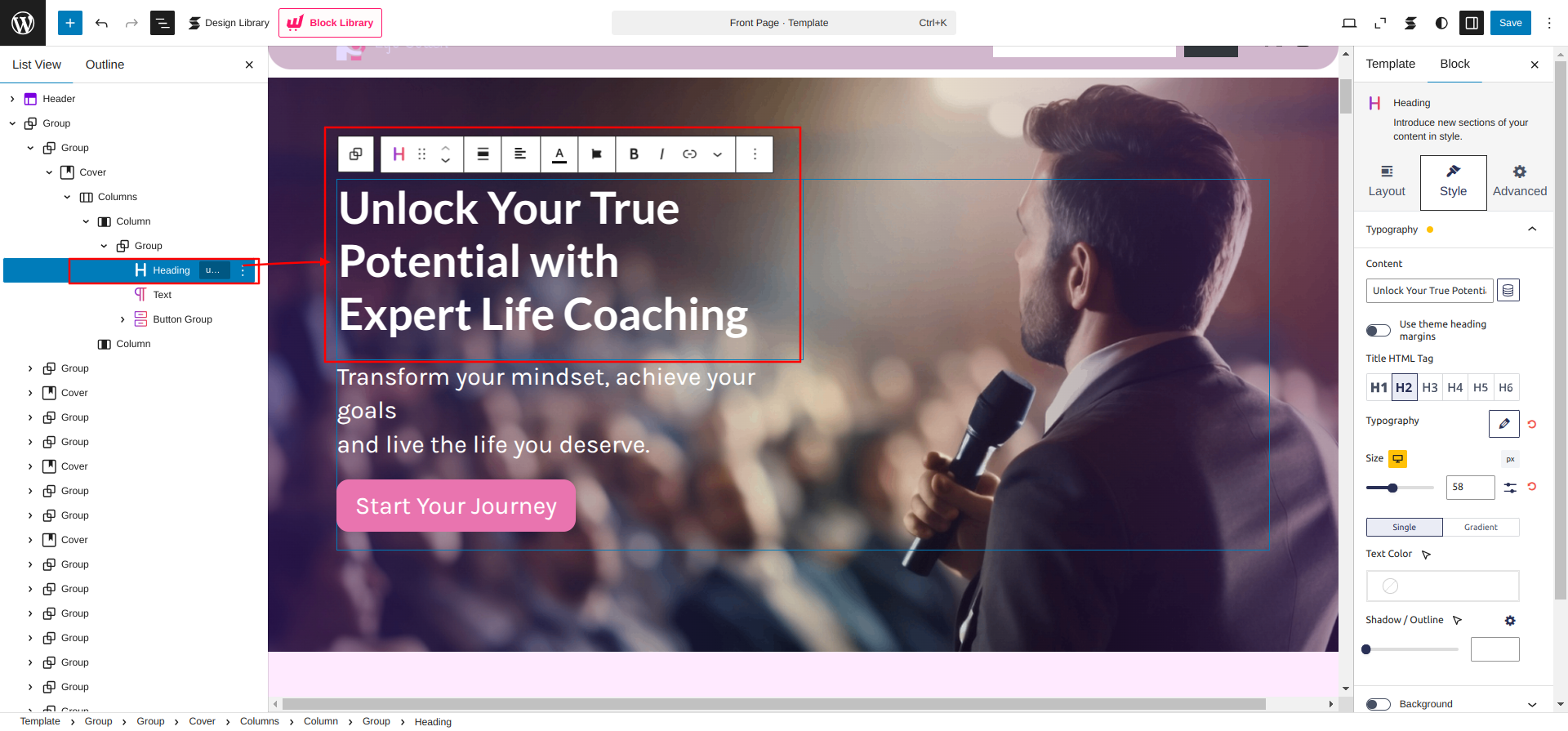
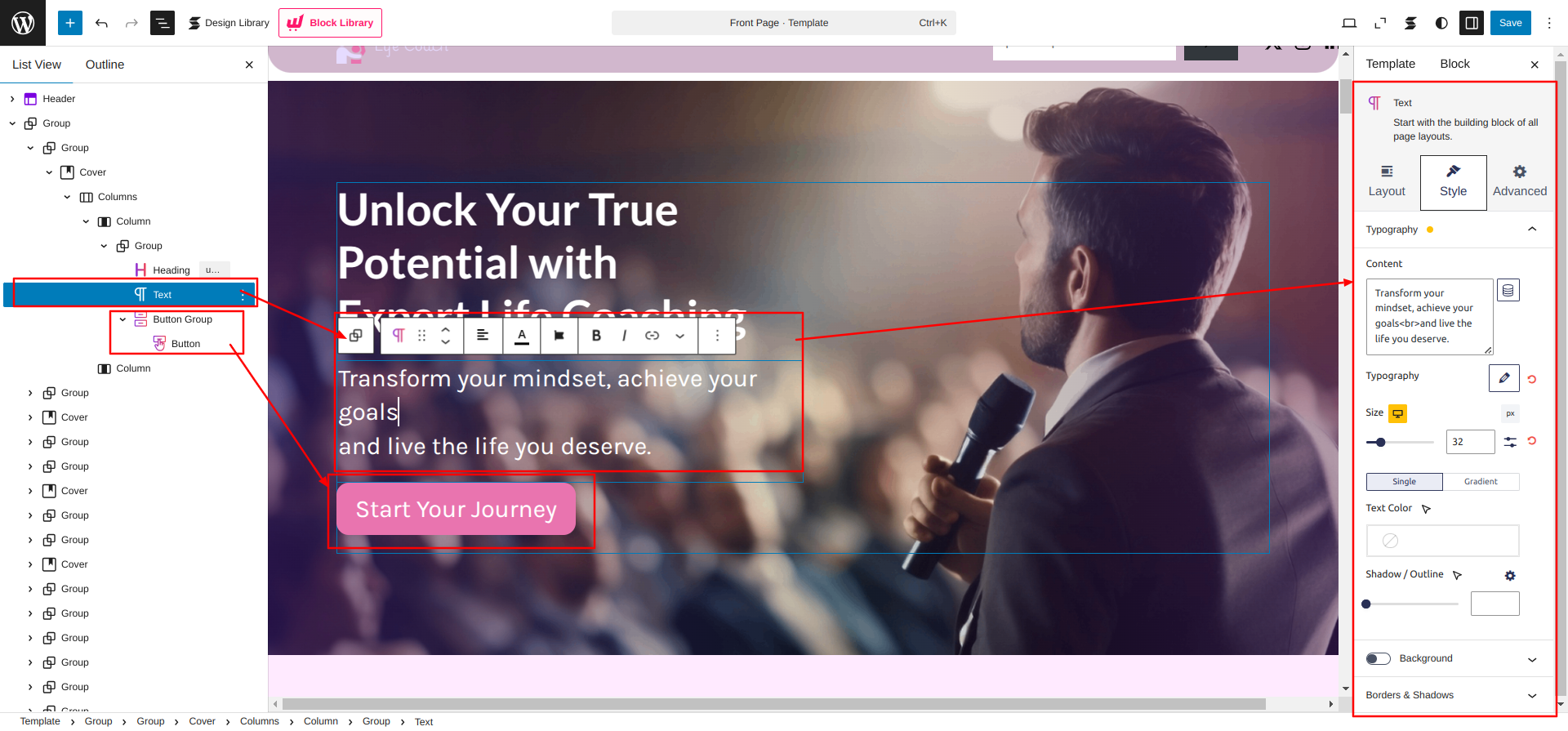
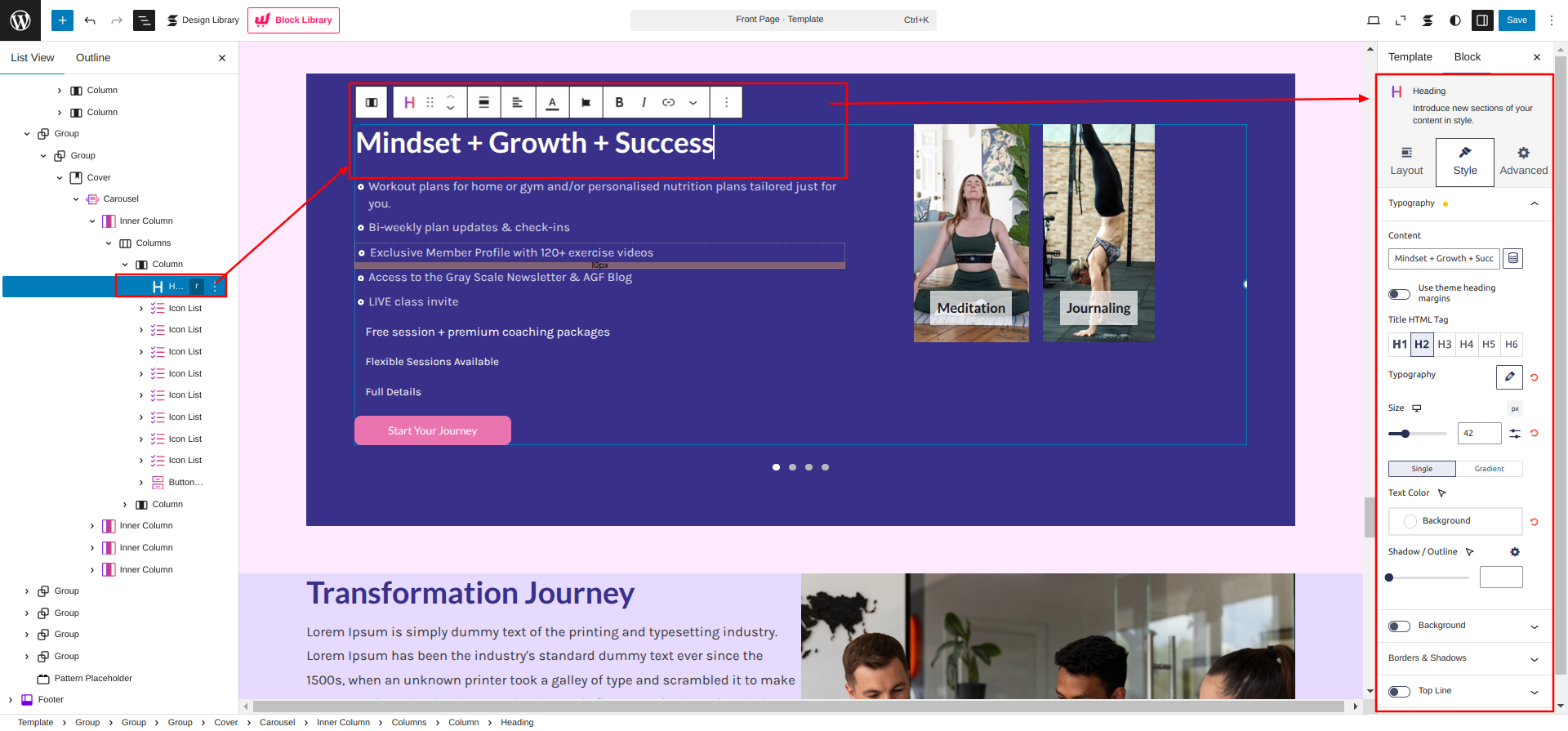
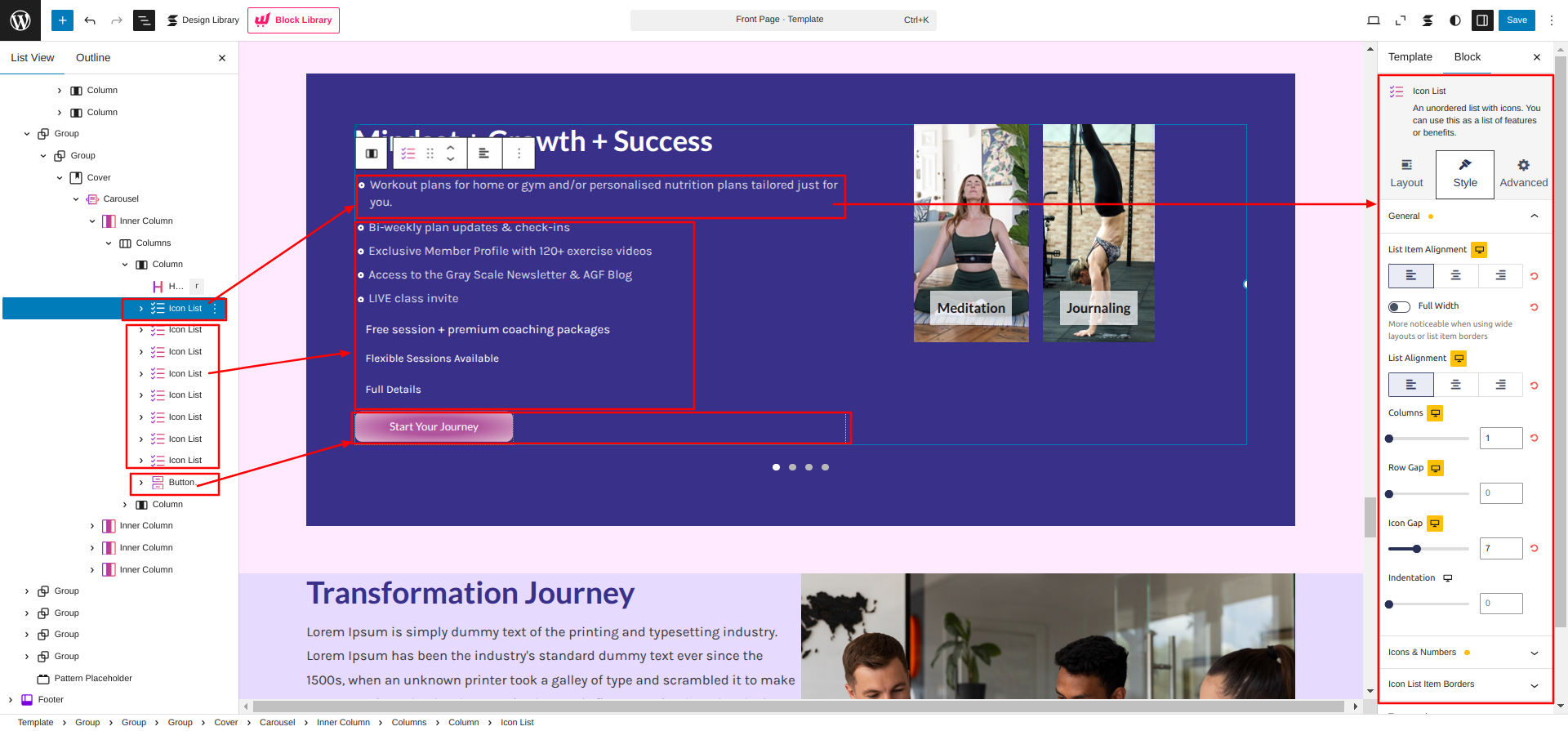
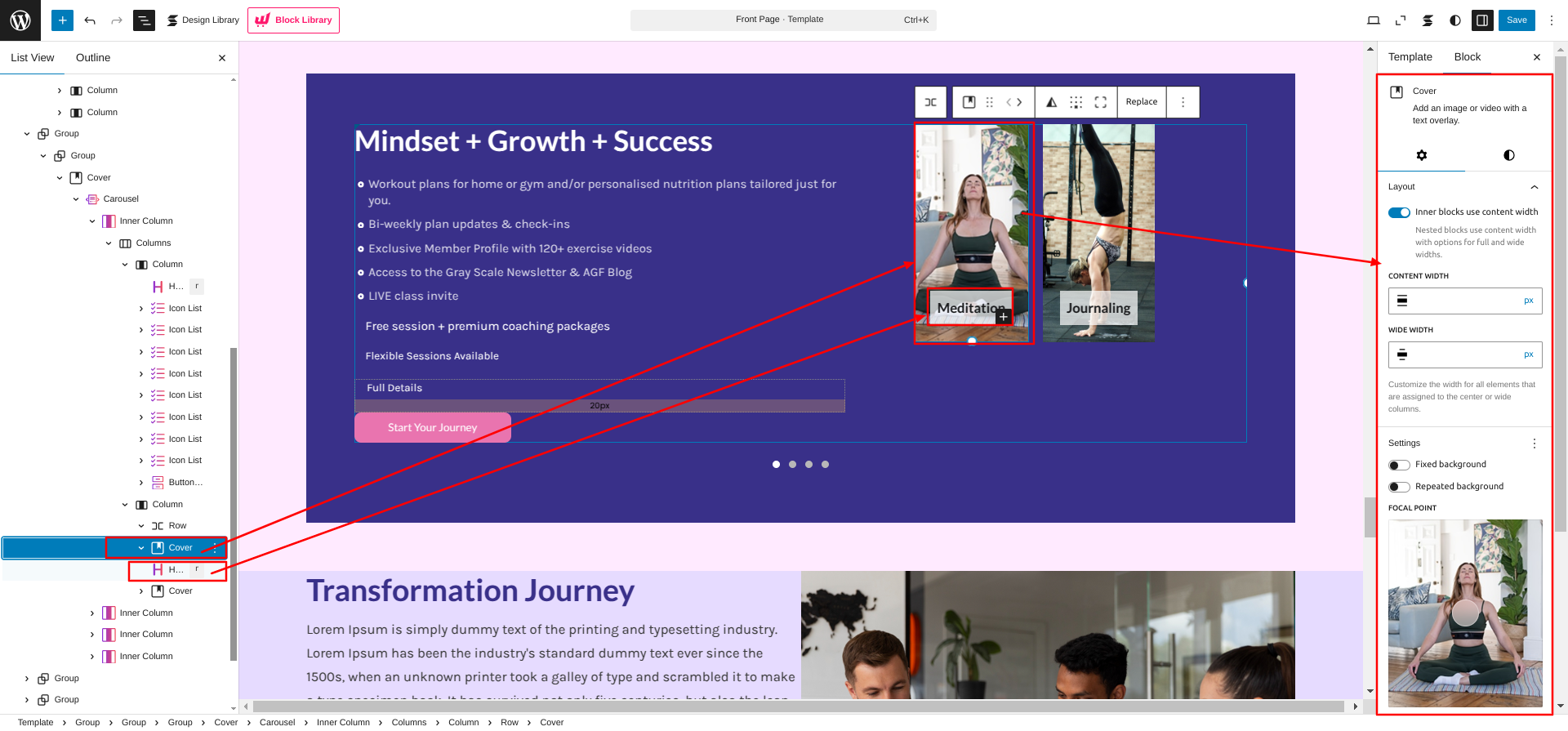
Go to the Dashboard Appearance Editor.
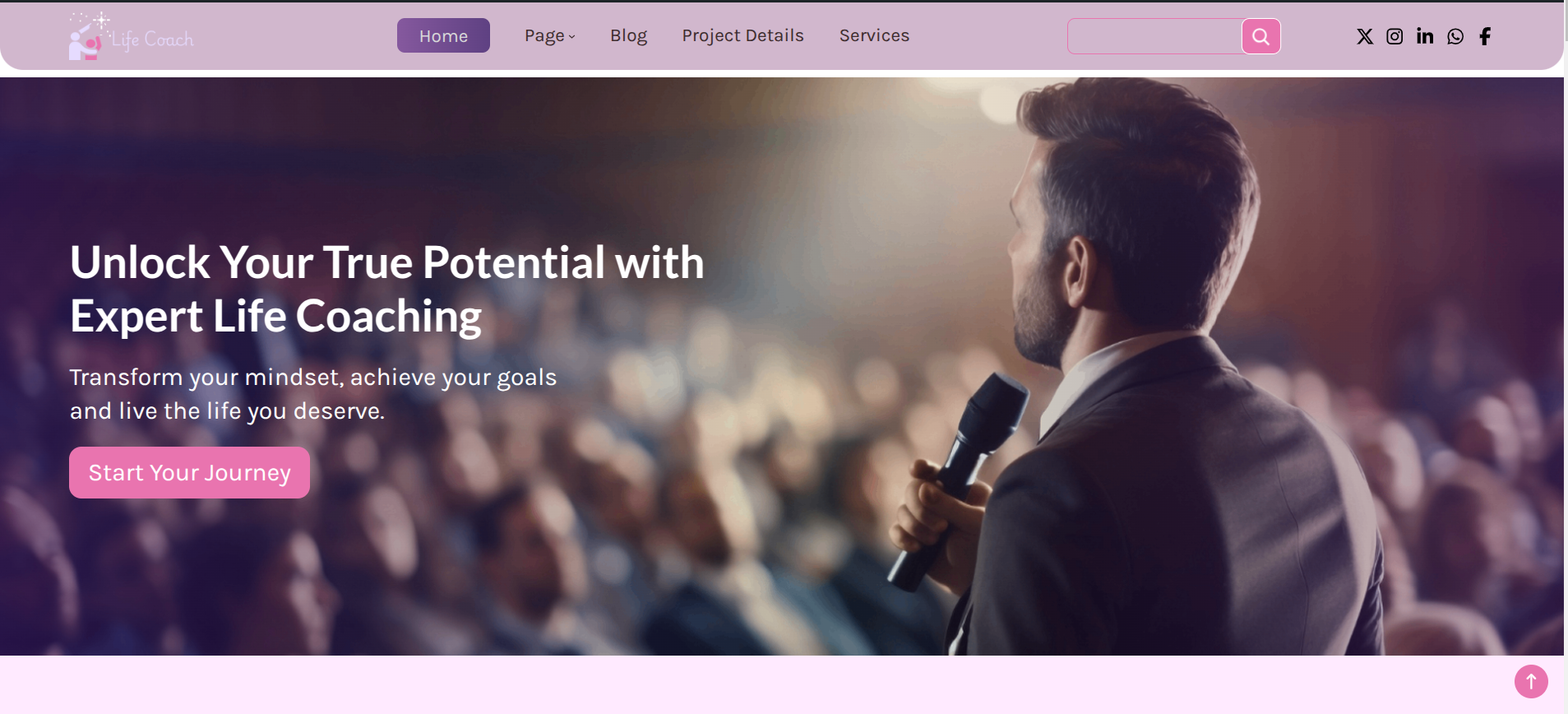
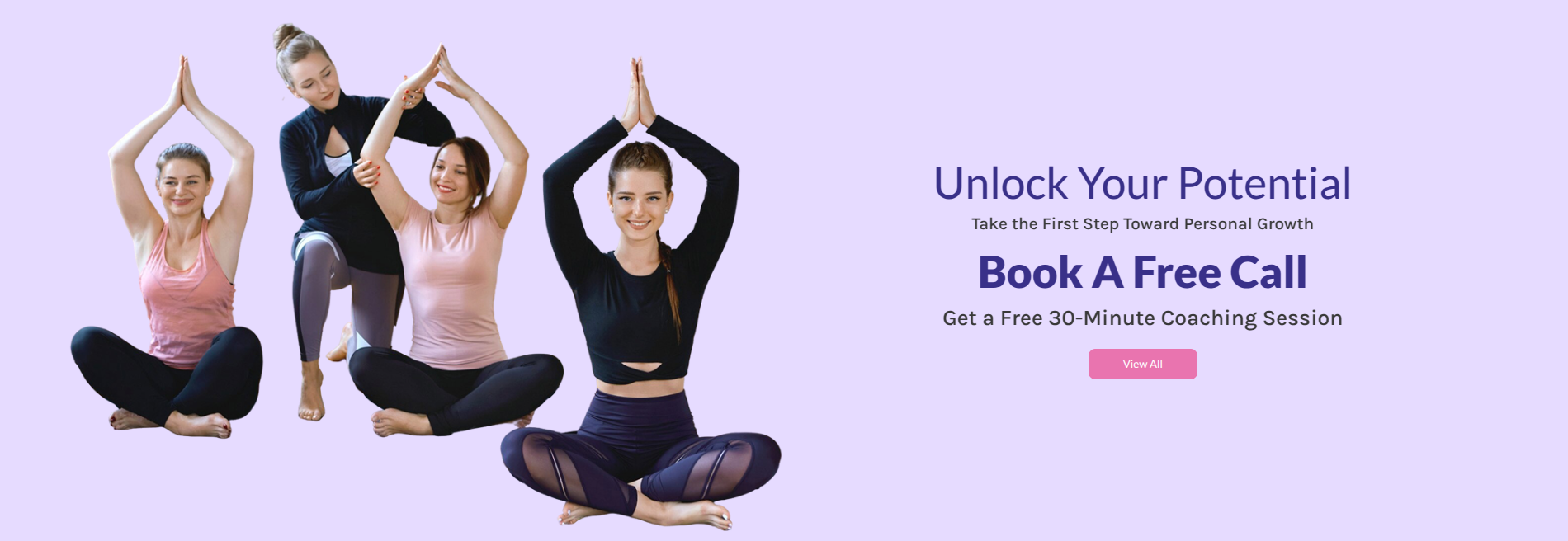
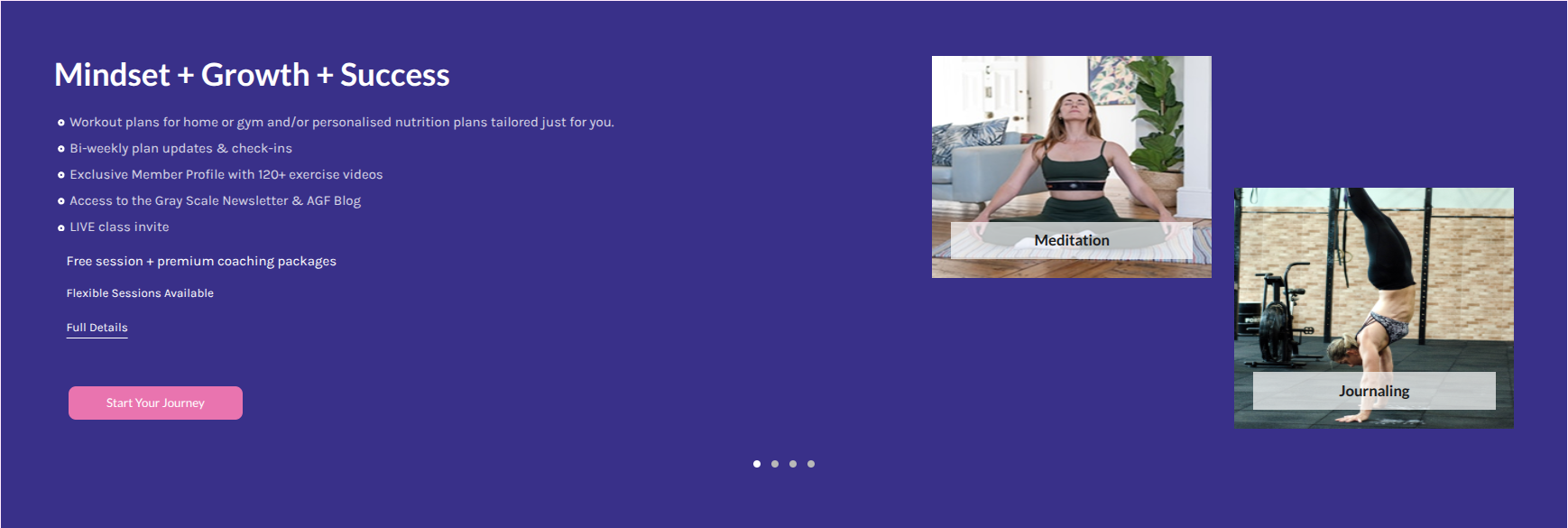
This is how you can add and set up the Slider Section.
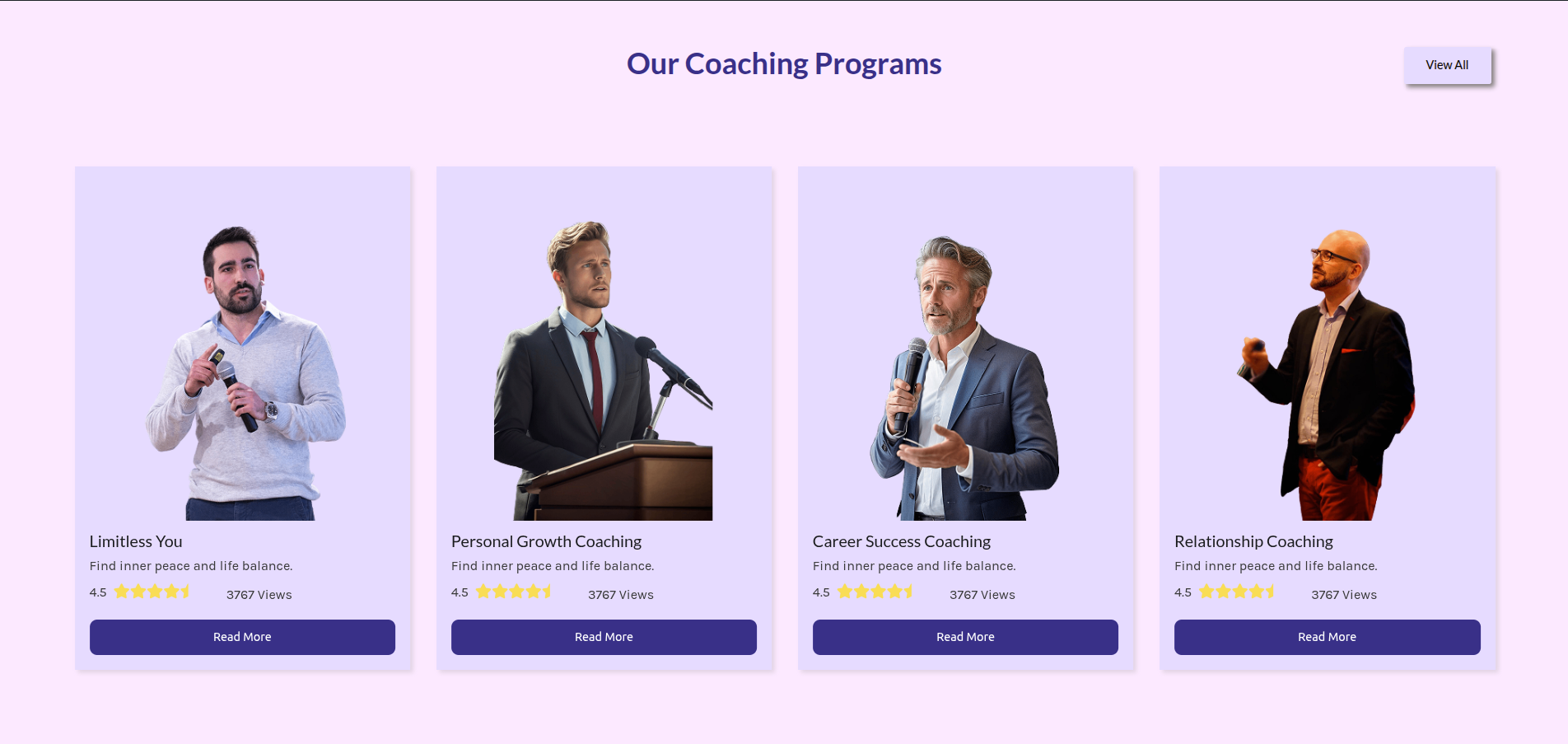
Setup Our Coaching Programs Section
Set up the Our Coaching Programs Section according to the instructions below.
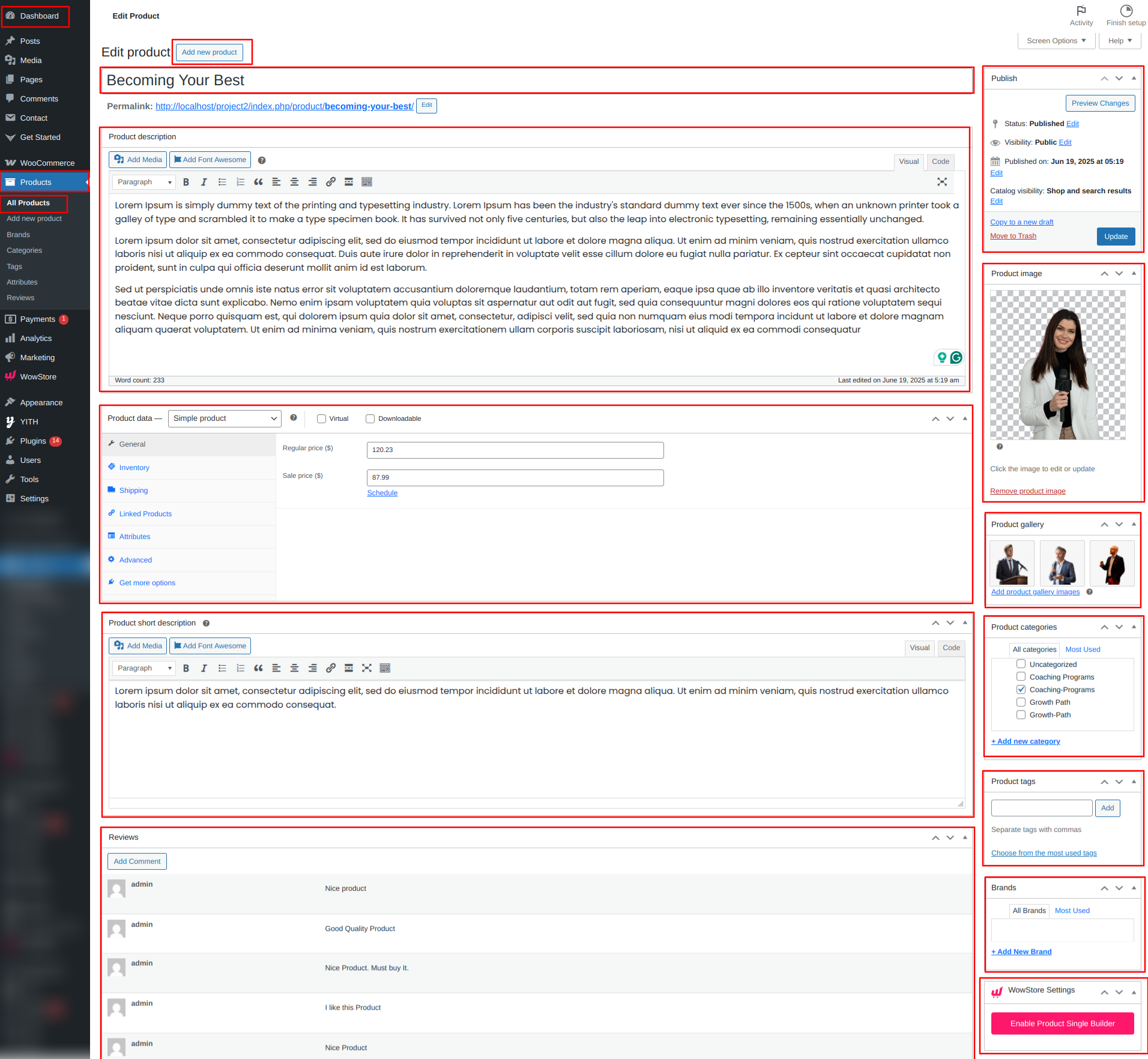
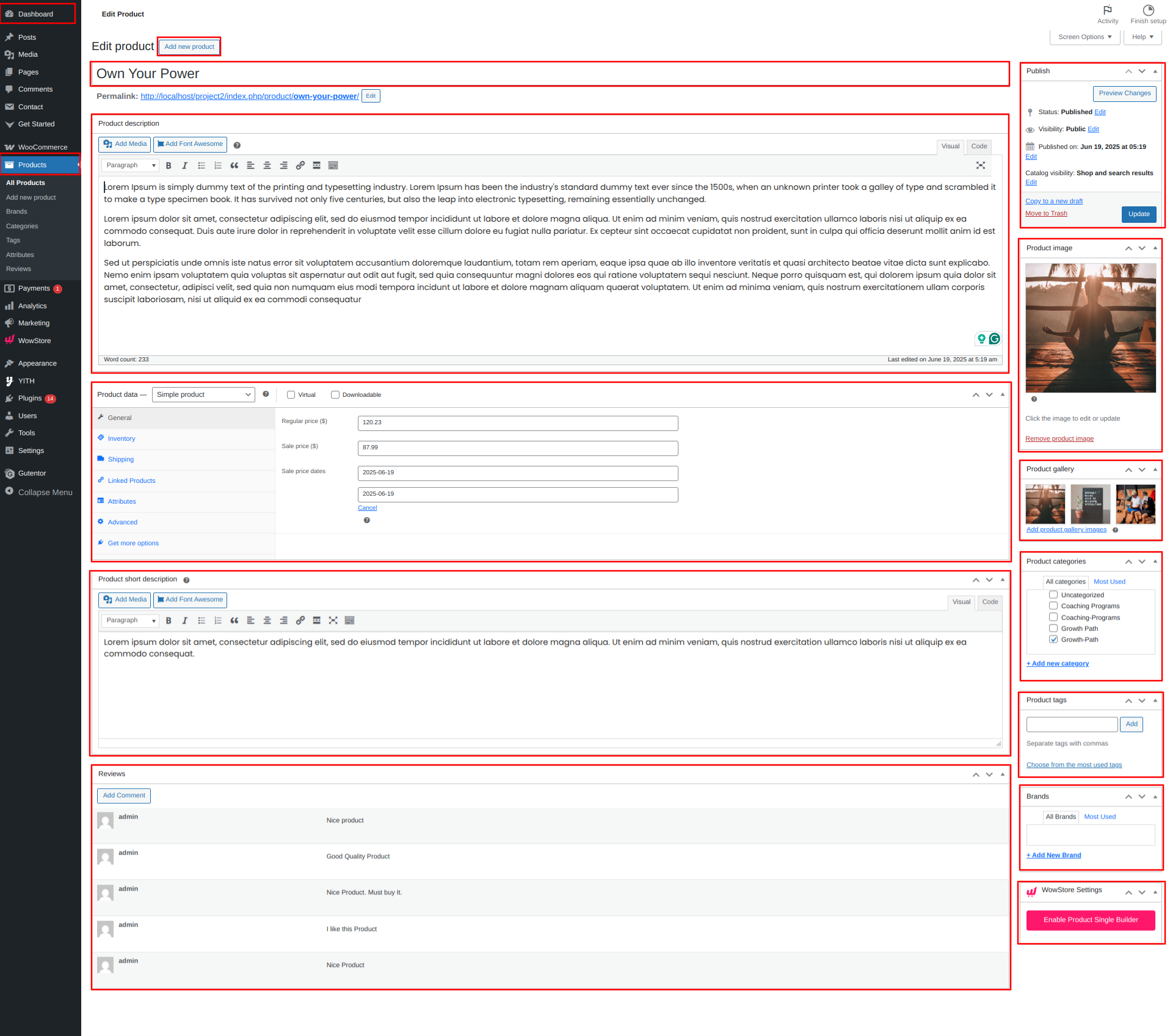
Go to the Dashboard Prroducts Add New.
As seen in the screenshot, enter the title, Description, Shot Description, Image, Gallery, Price and Category for the Product.
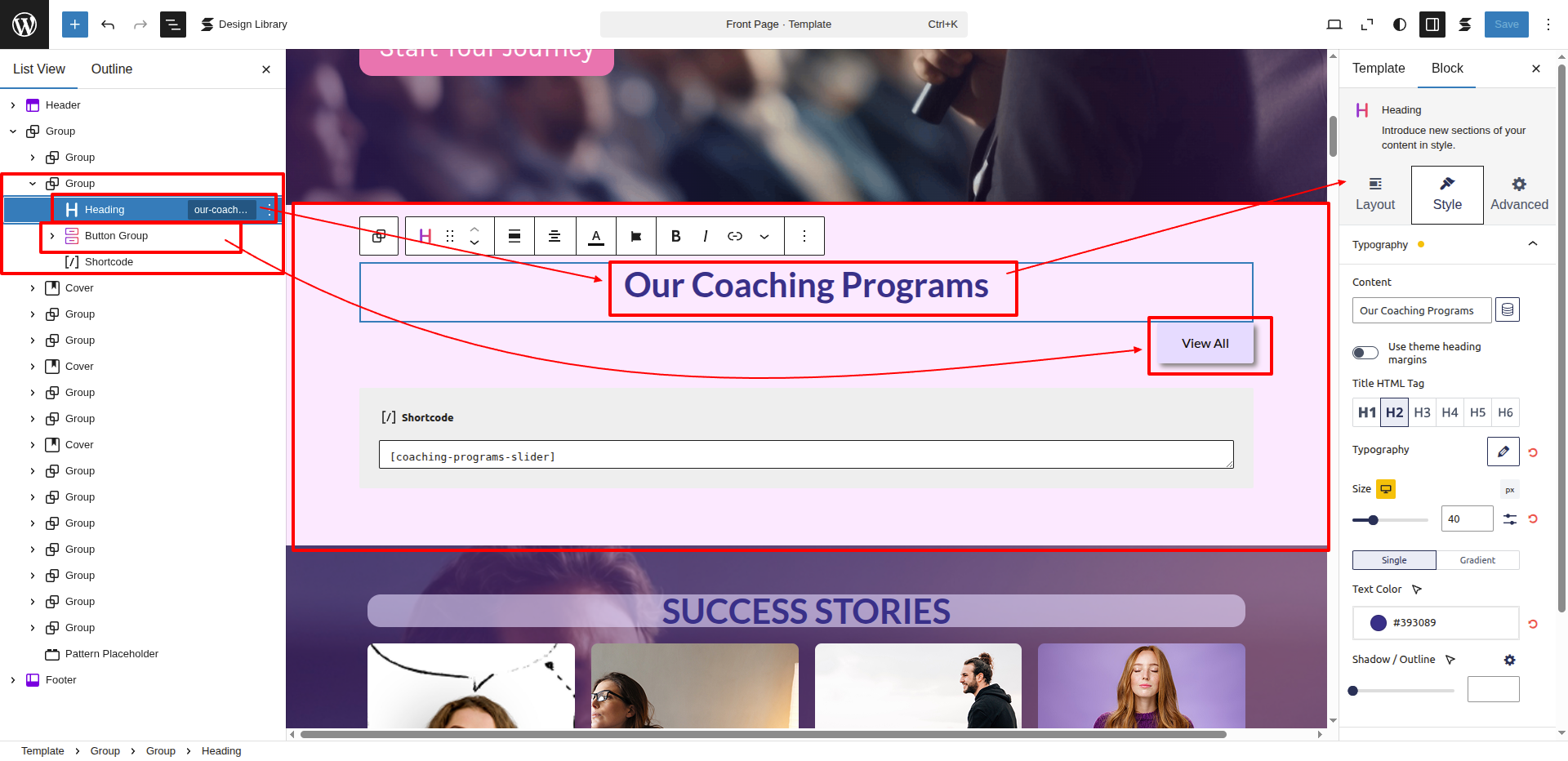
Go to Dashboard Appearance Editor.
This Section's Main Content is being fetched by using the ShortCode.
A shortcode is a special tag enclosed in square brackets ([ ]) that lets you execute code inside posts, pages, or widgets without writing any PHP.
In This Section, the shortcode is [coaching-programs-slider], from here the section is being displayed from a custom file which consists of the php code used to fetch the posttype sections.
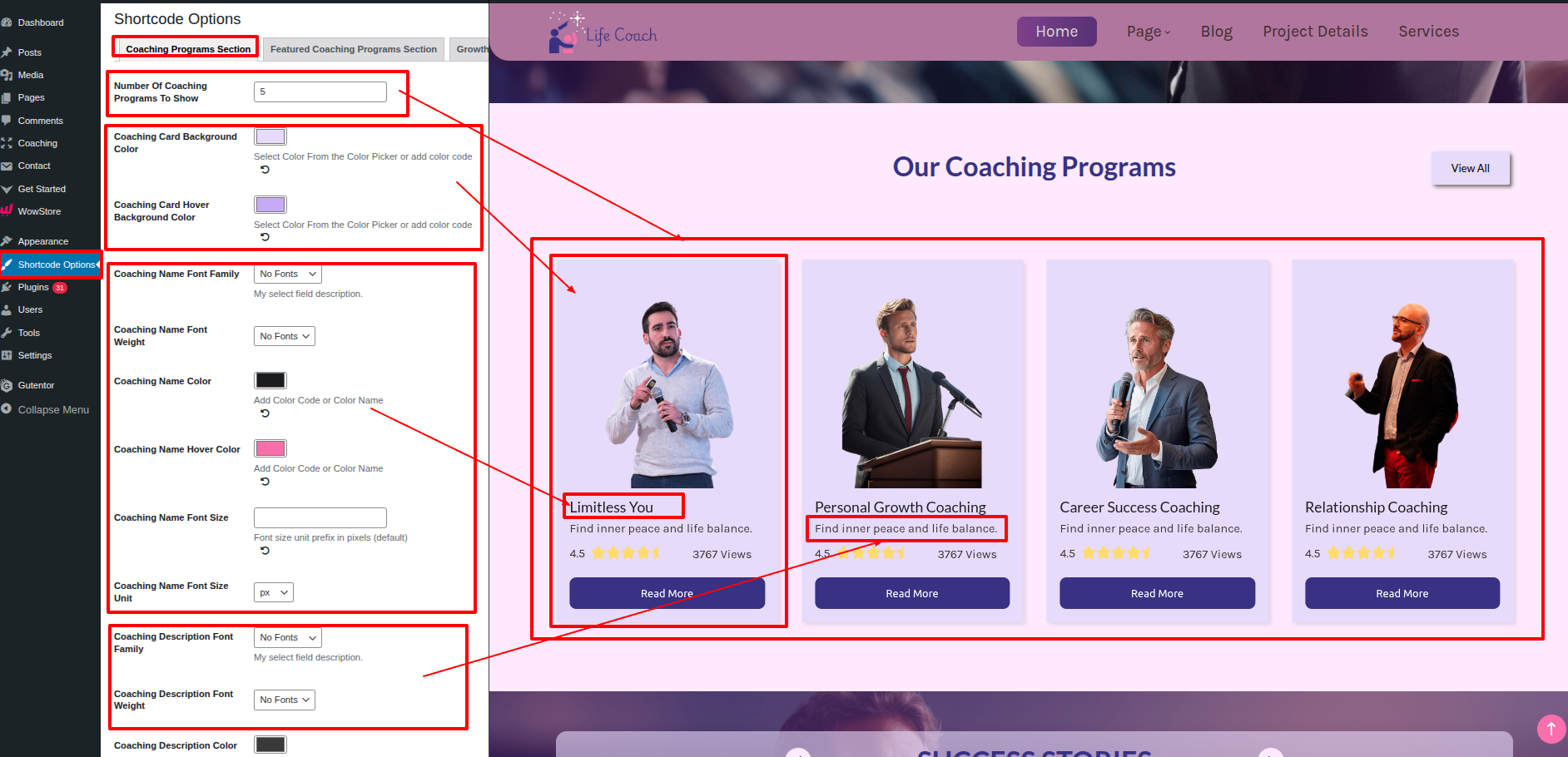
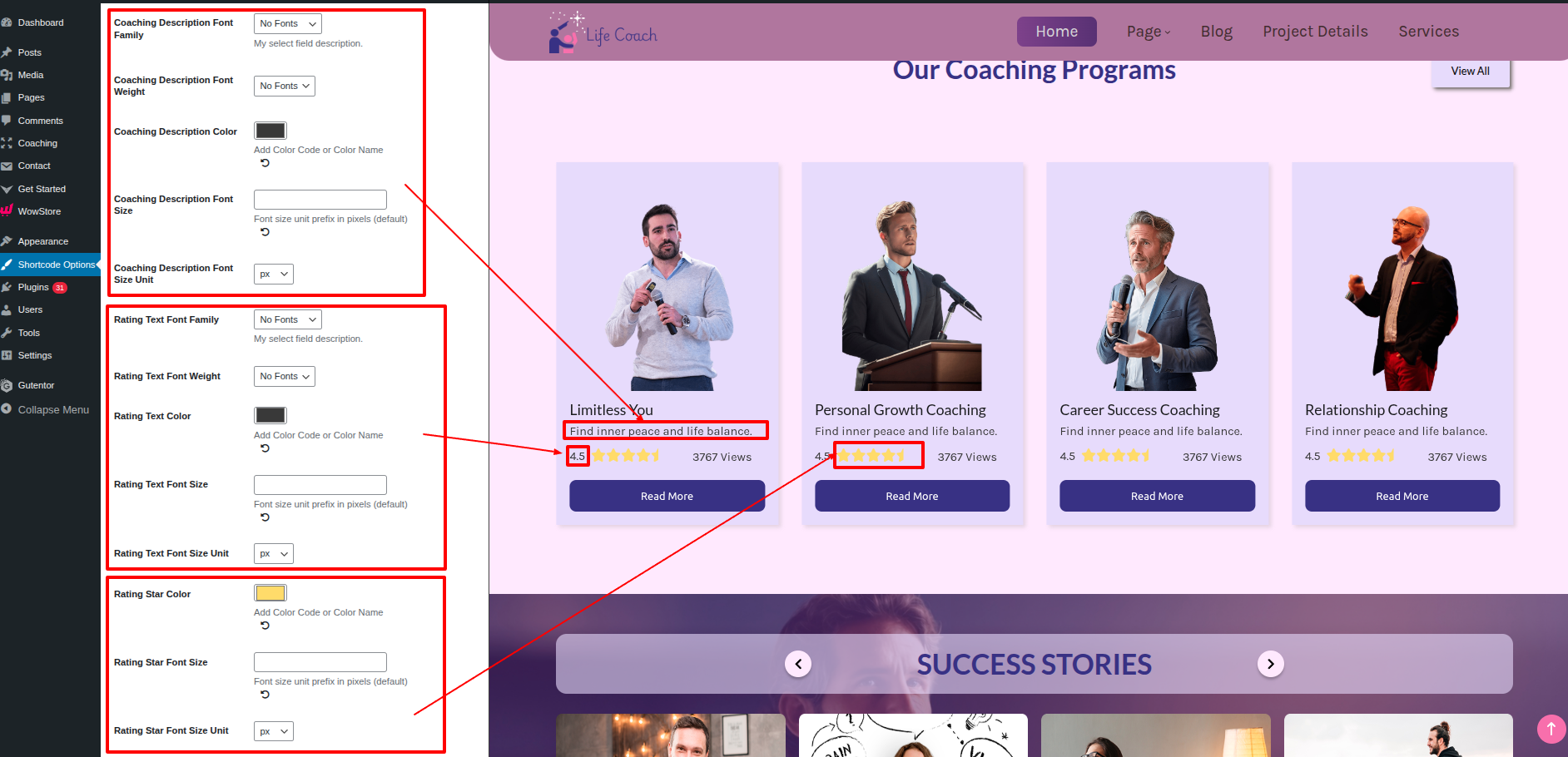
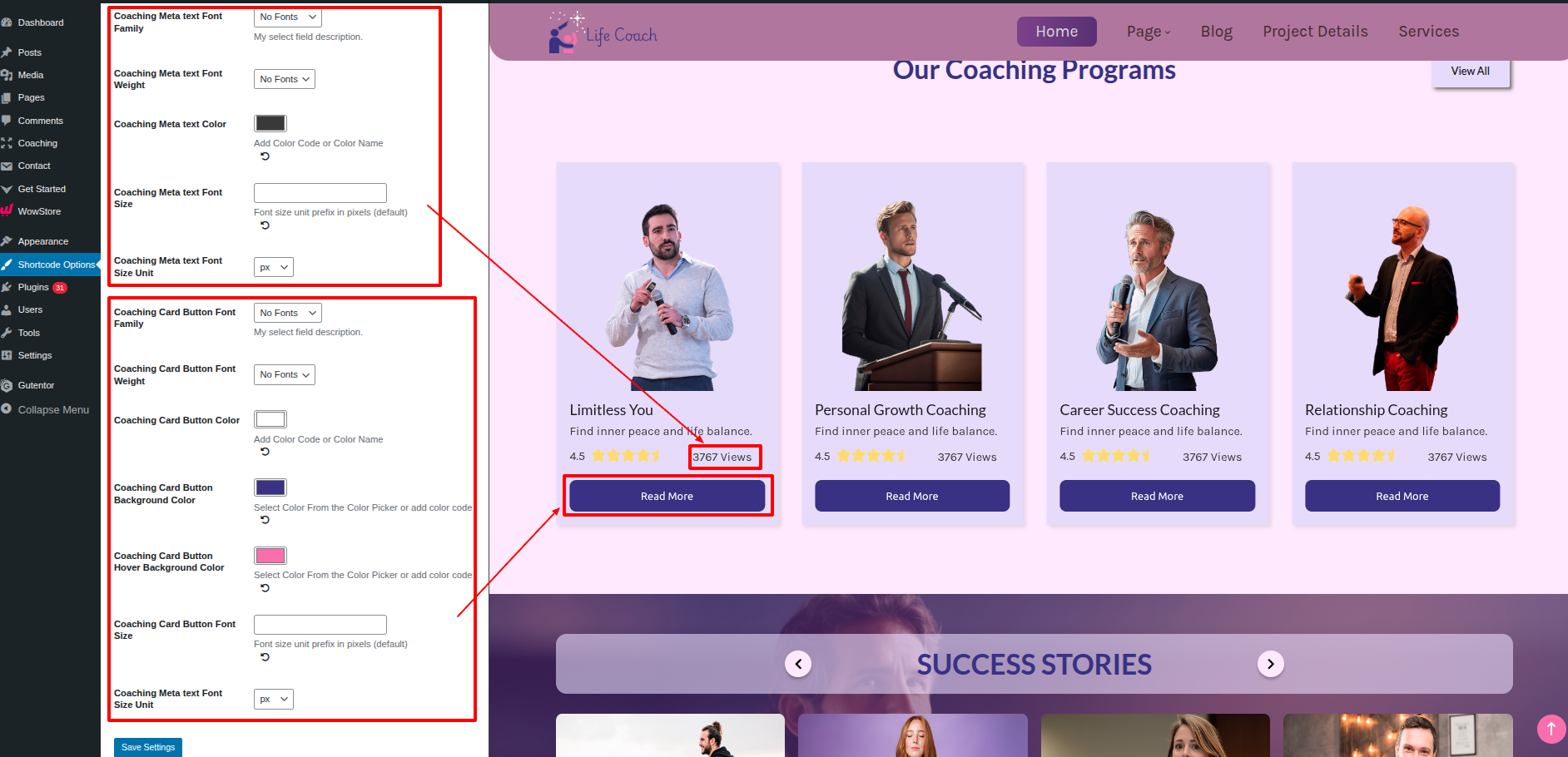
To Customize the section visually go to Dashboard Shortcode Options Coaching Programs Slider.
This is how you can add and set up the Our Coaching Programs Section.
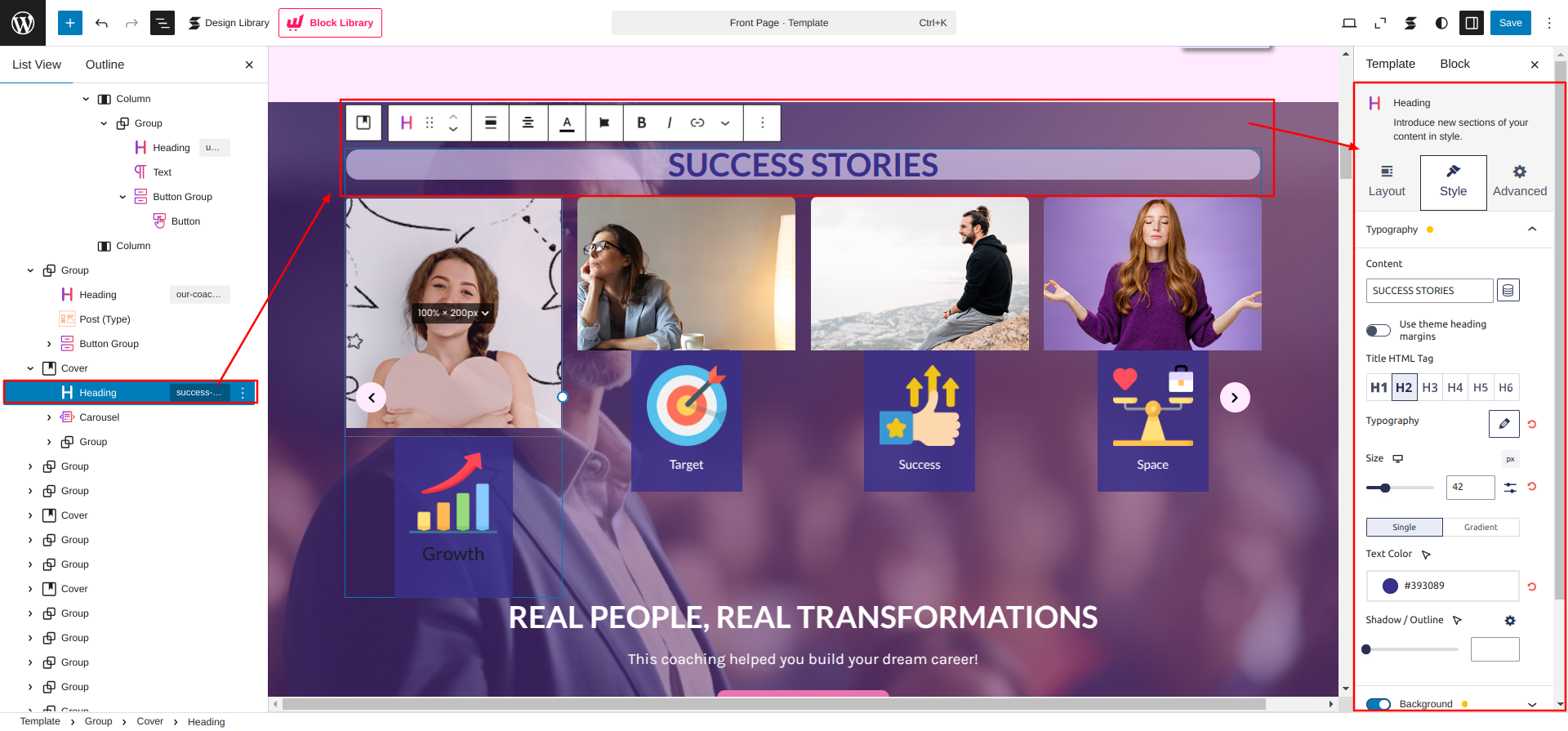
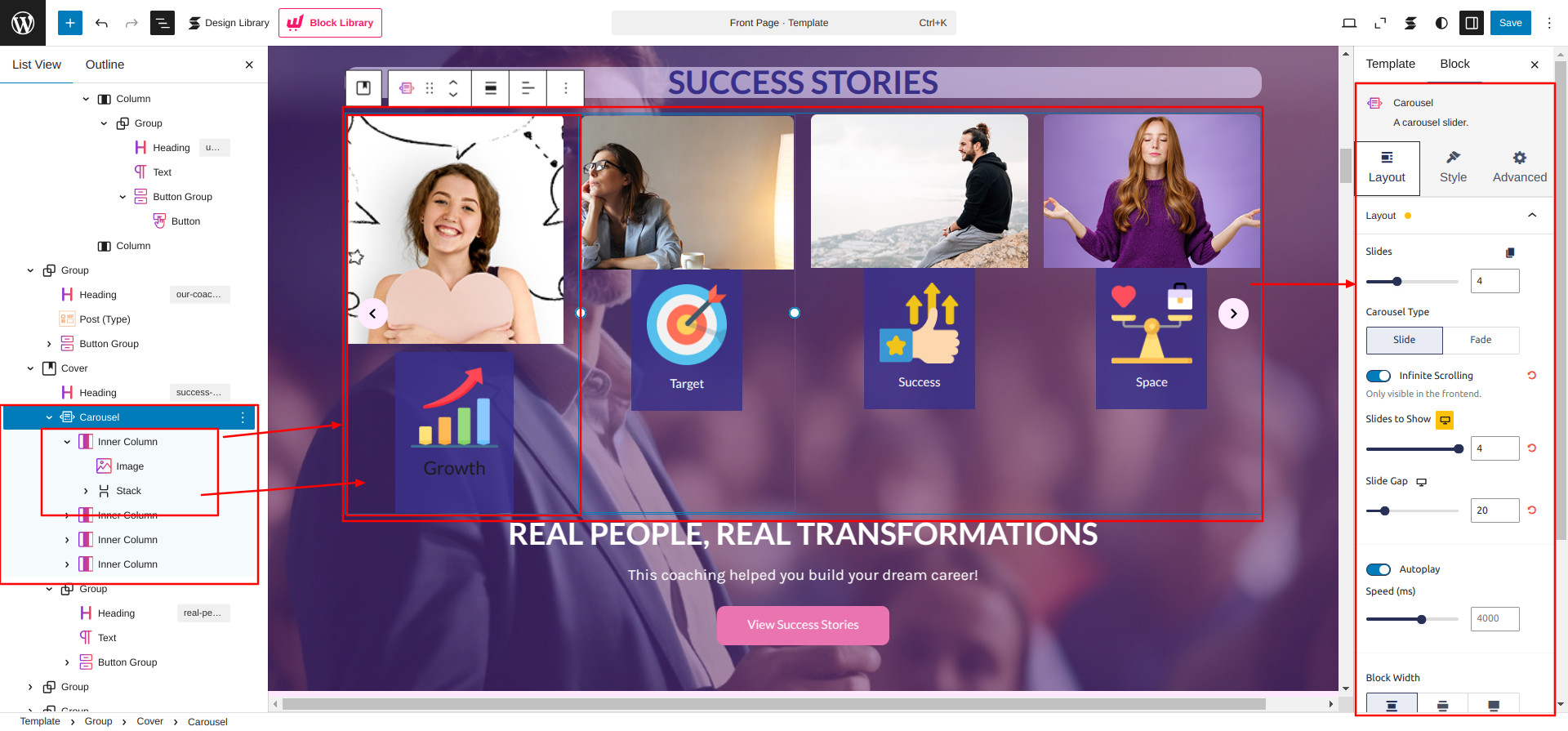
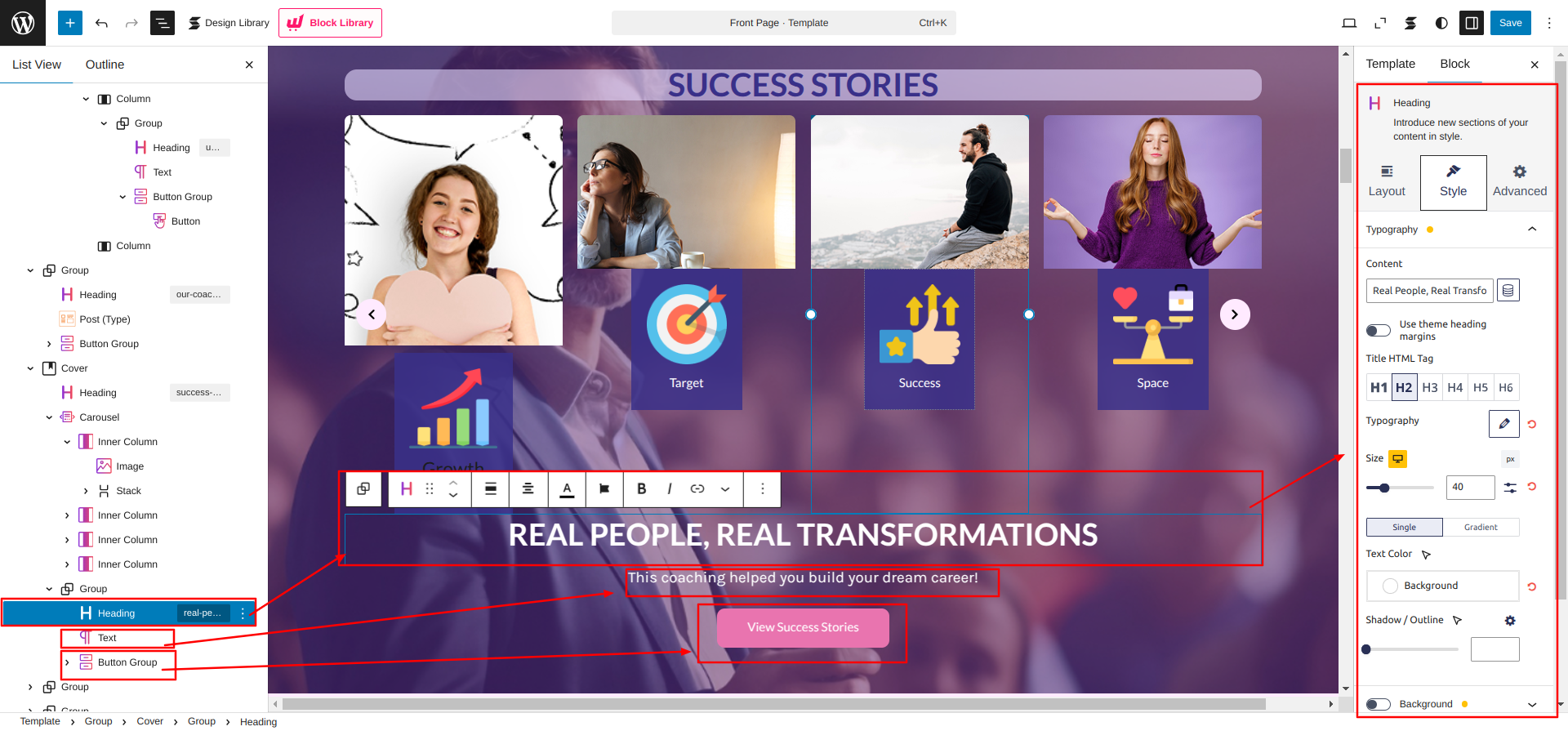
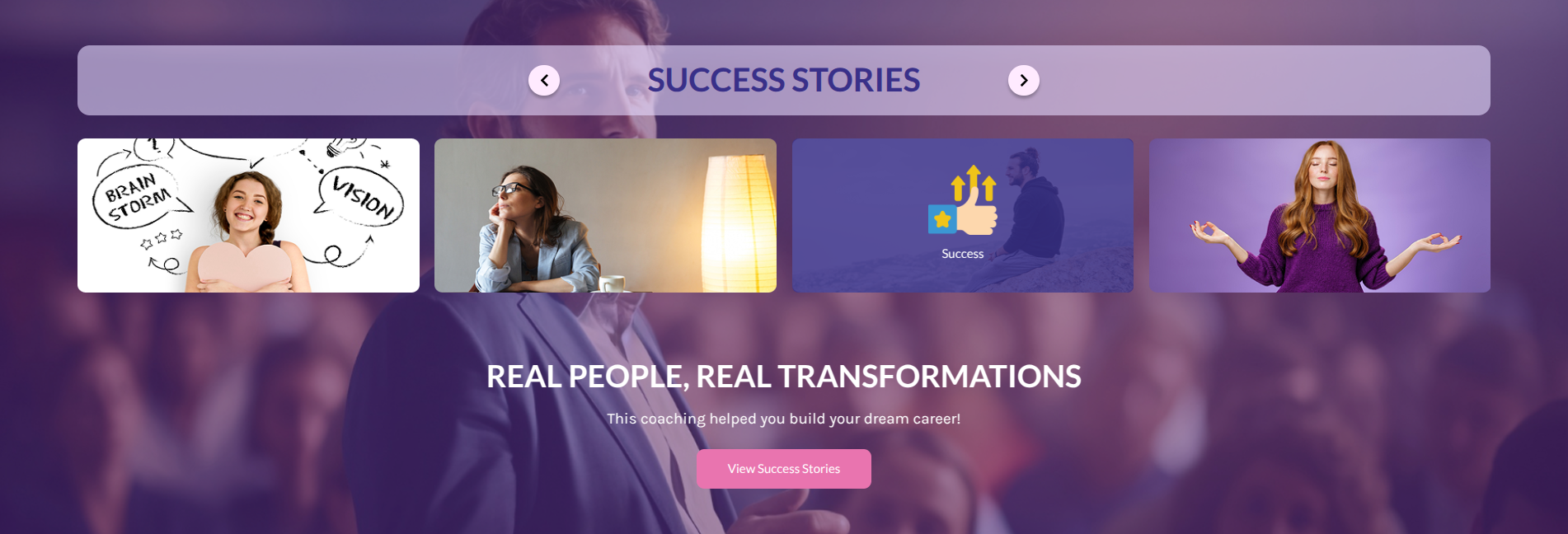
Setup Our Success Stories Section
Set up the Our Success Stories Section according to the instructions below.
Go to Dashboard Appearance Editor.
This is how you can add and set up the Our Success Stories Section.
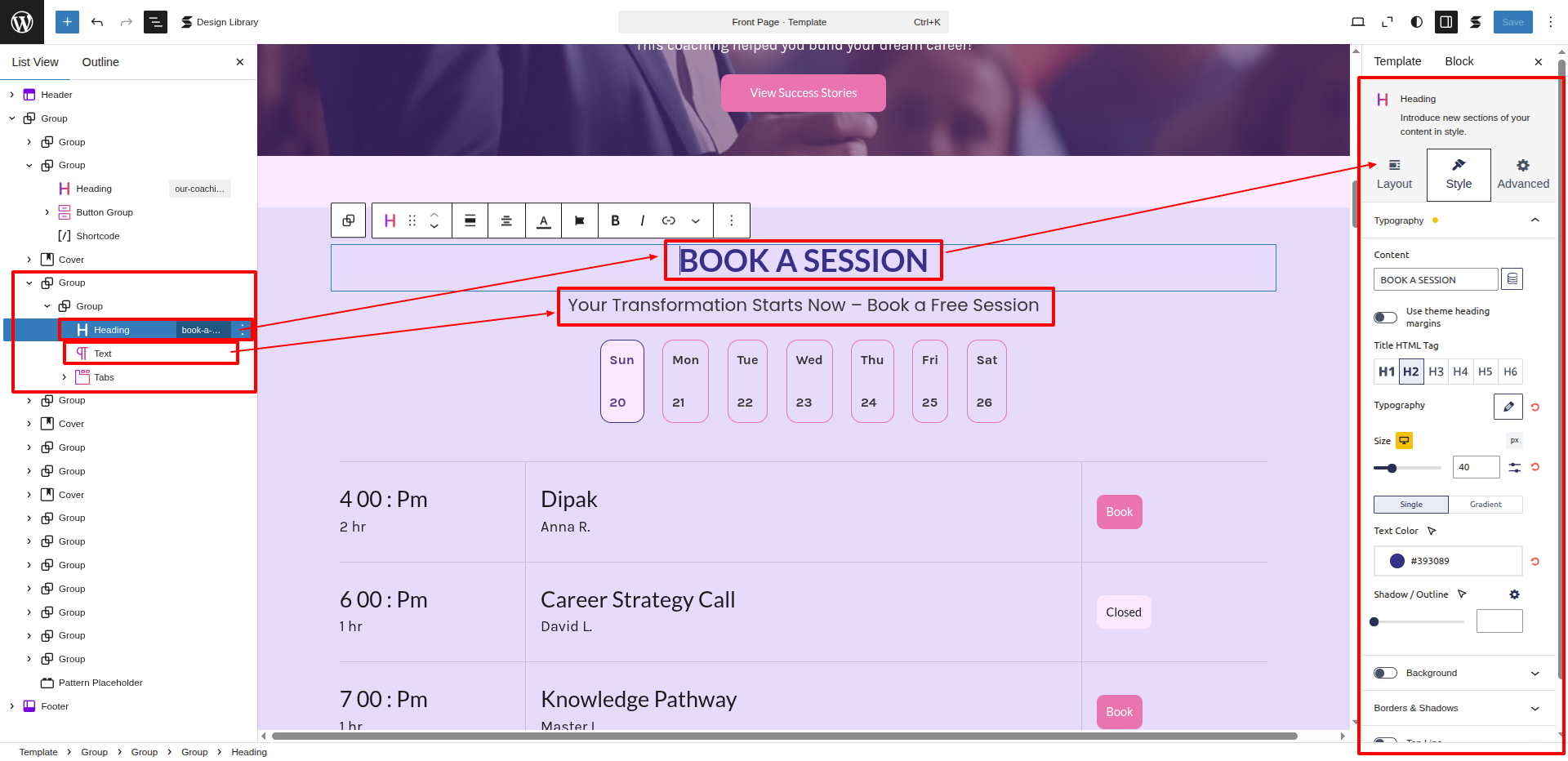
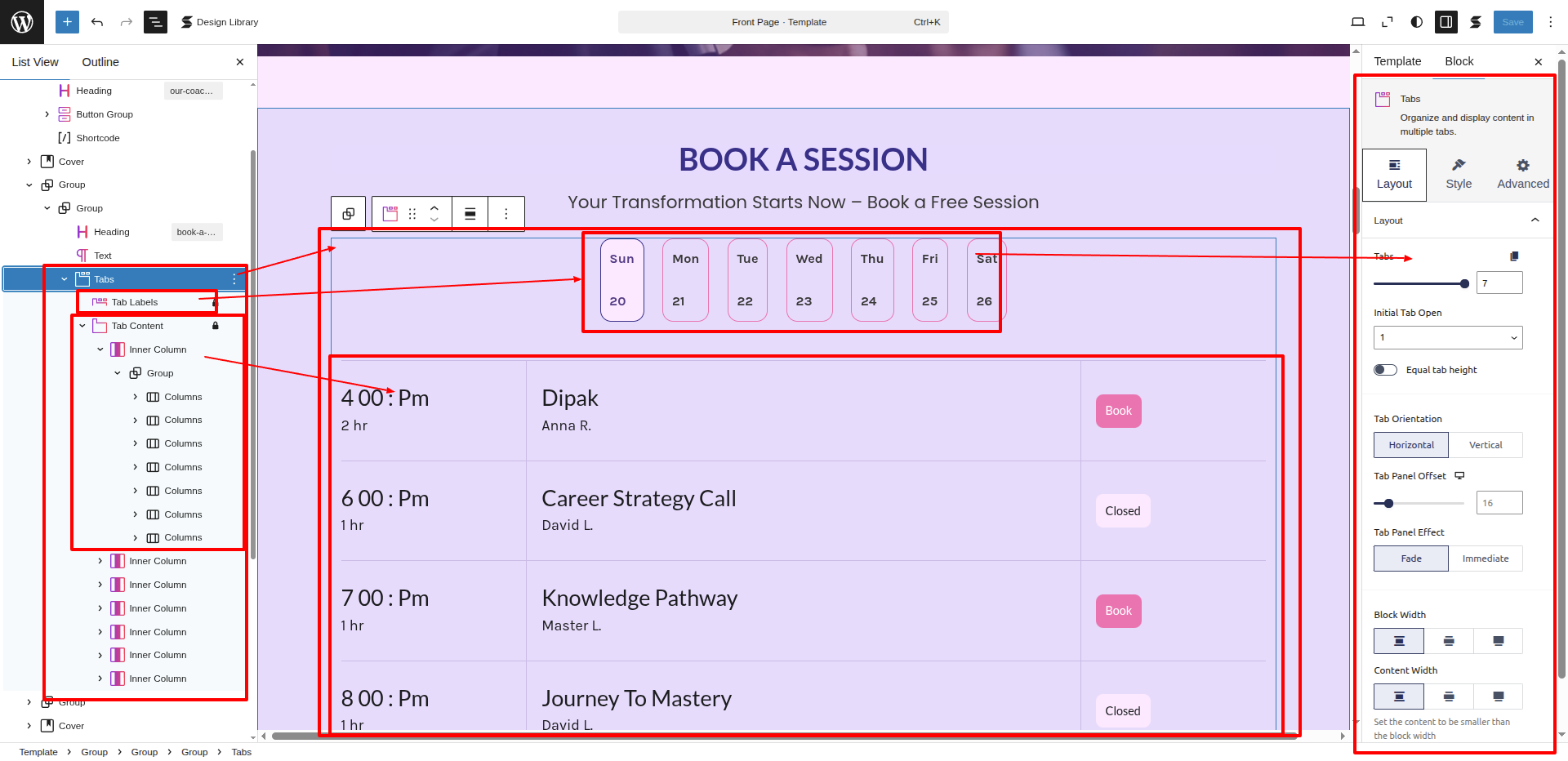
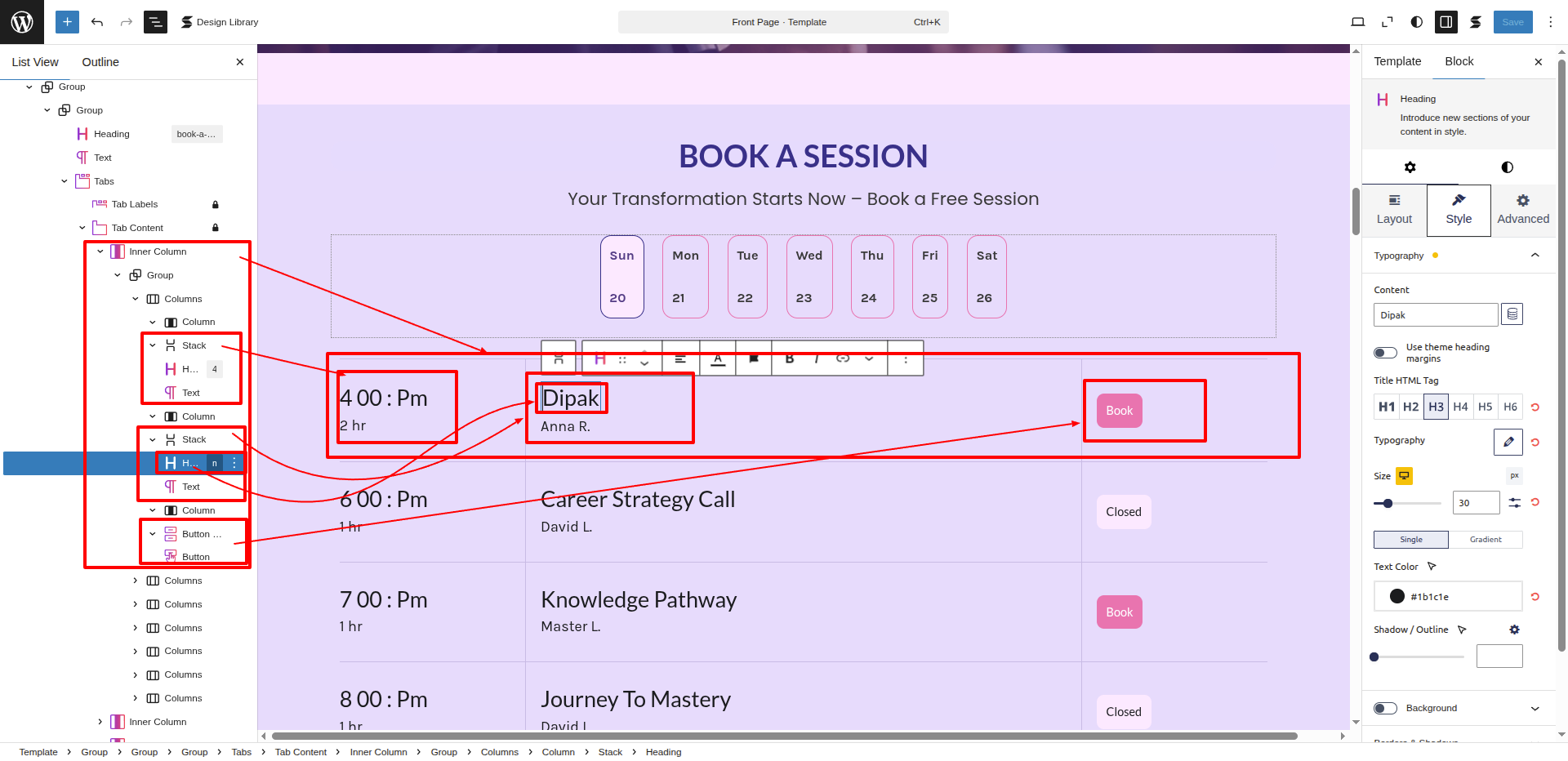
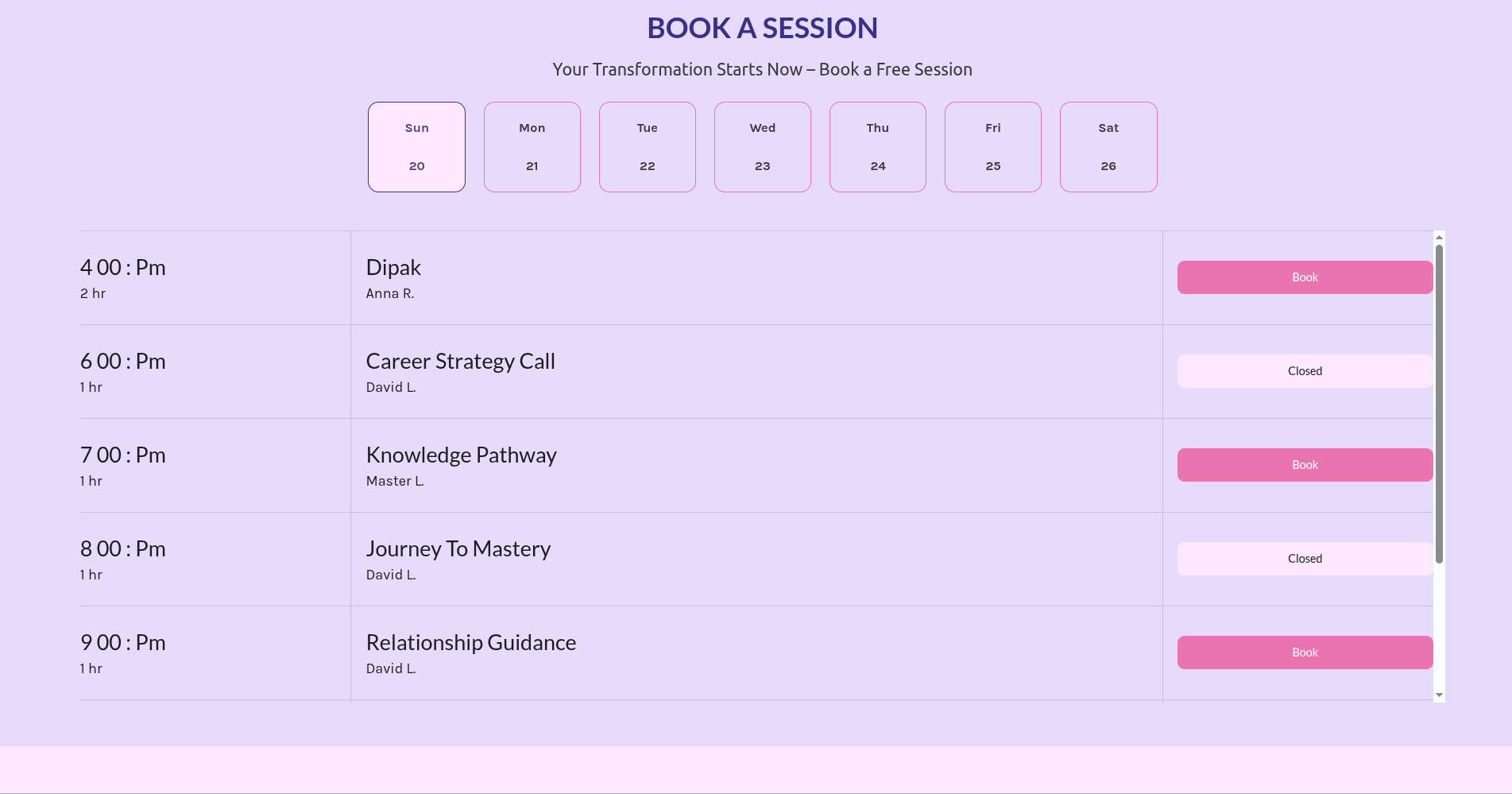
Setup Our Class Schedule Section
Set up the Our Class Schedule Section according to the instructions below.
Go to Dashboard Appearance Editor.
This is how you can add and set up the Our Class Schedule Section.
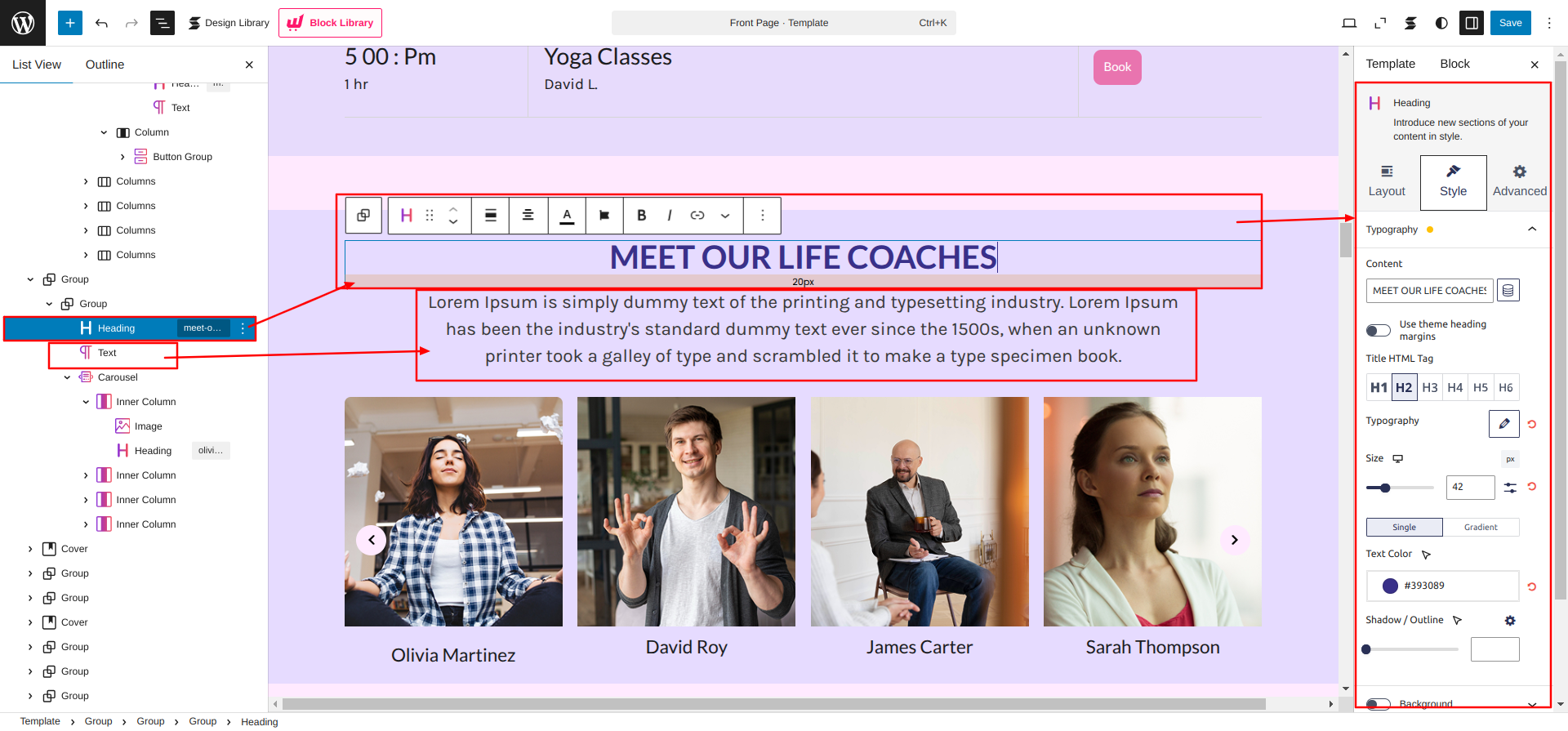
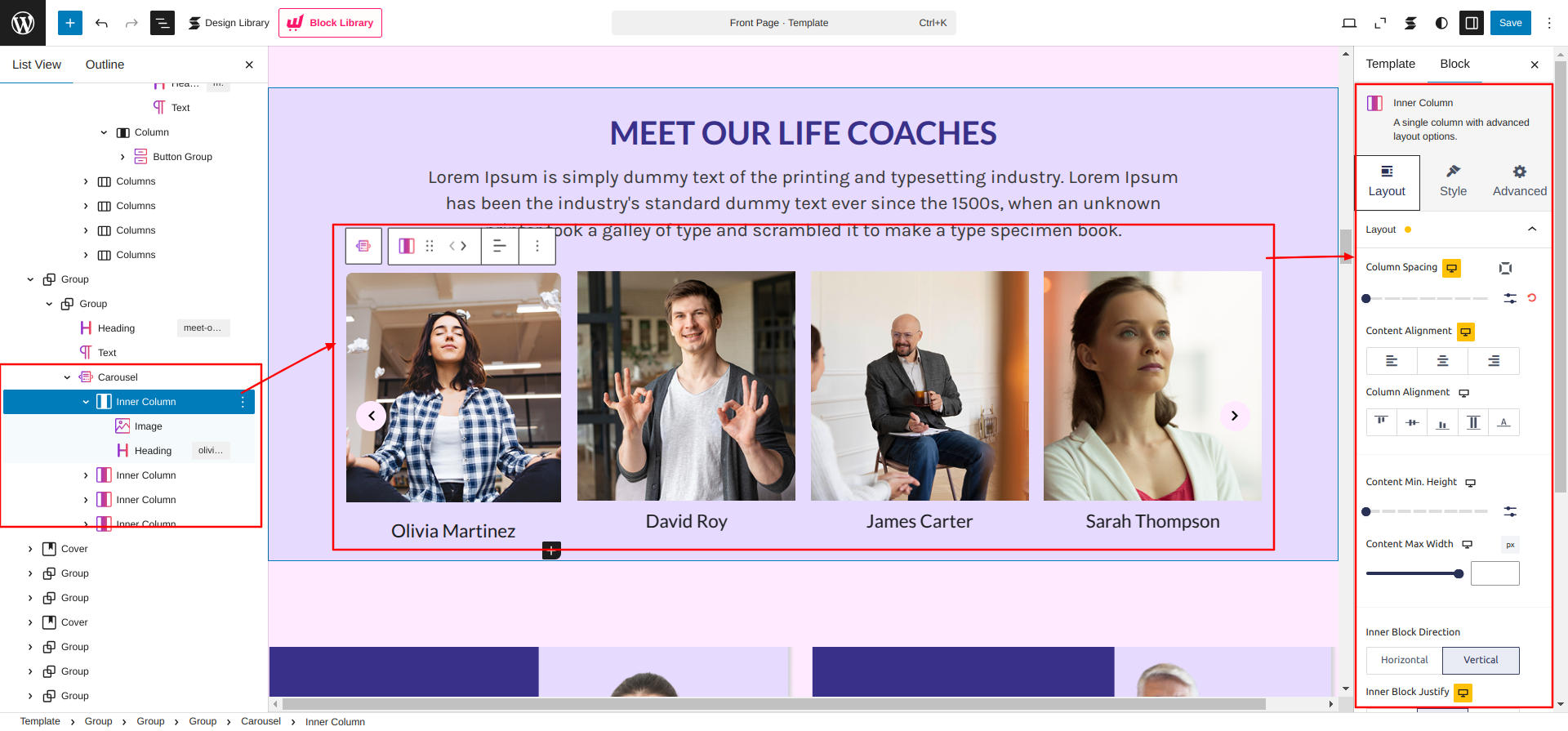
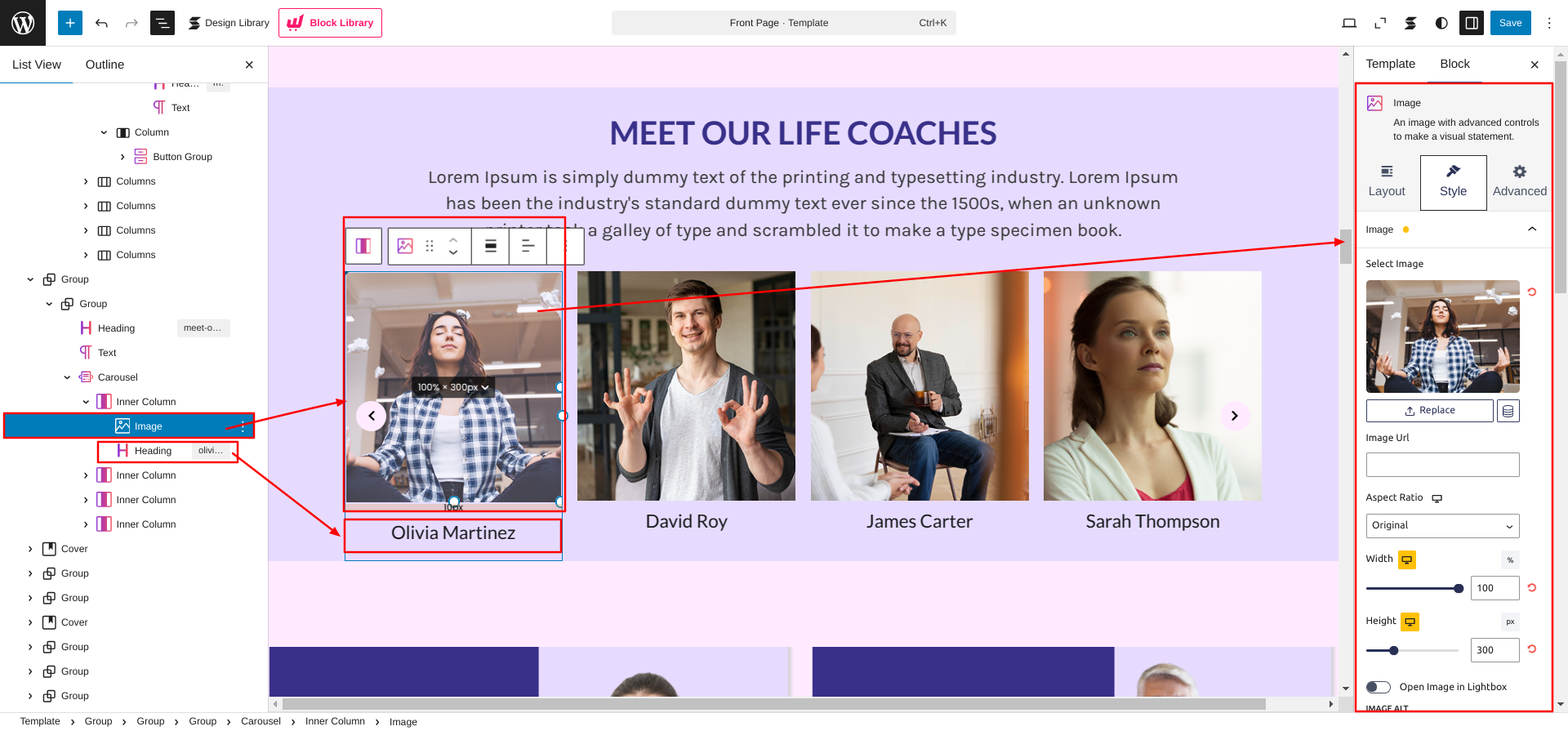
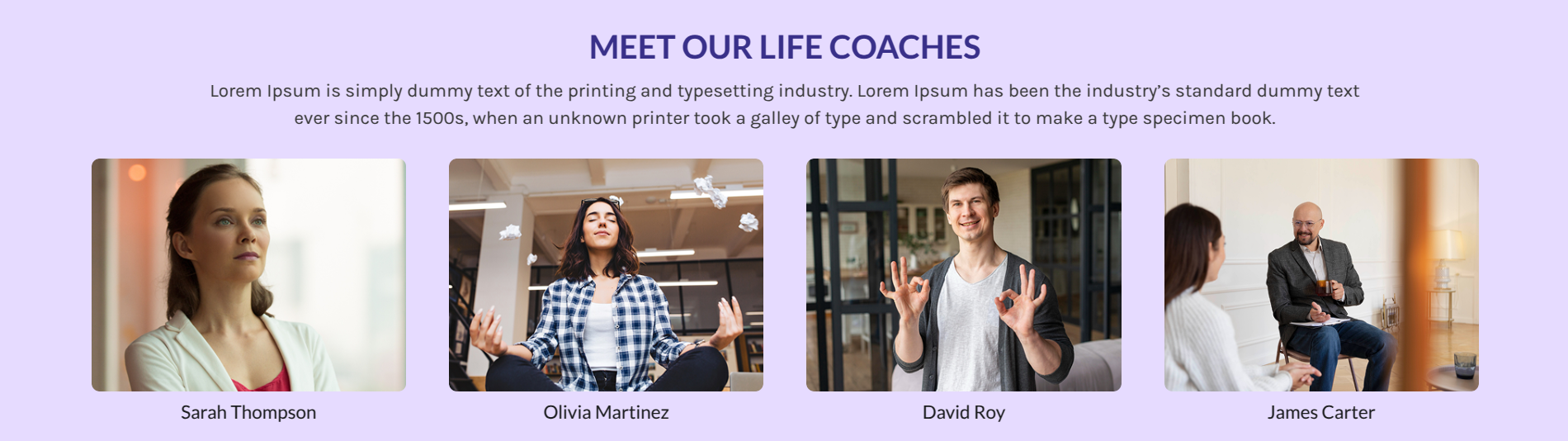
Setup Meet Our Life Coaches Section
Set up the Meet Our Life Coaches Section according to the instructions below.
Go to Dashboard Appearance Editor.
This is how you can add and set up the Meet Our Life Coaches Section.
Setup Collection Section
Set up the Collection Section according to the instructions below.
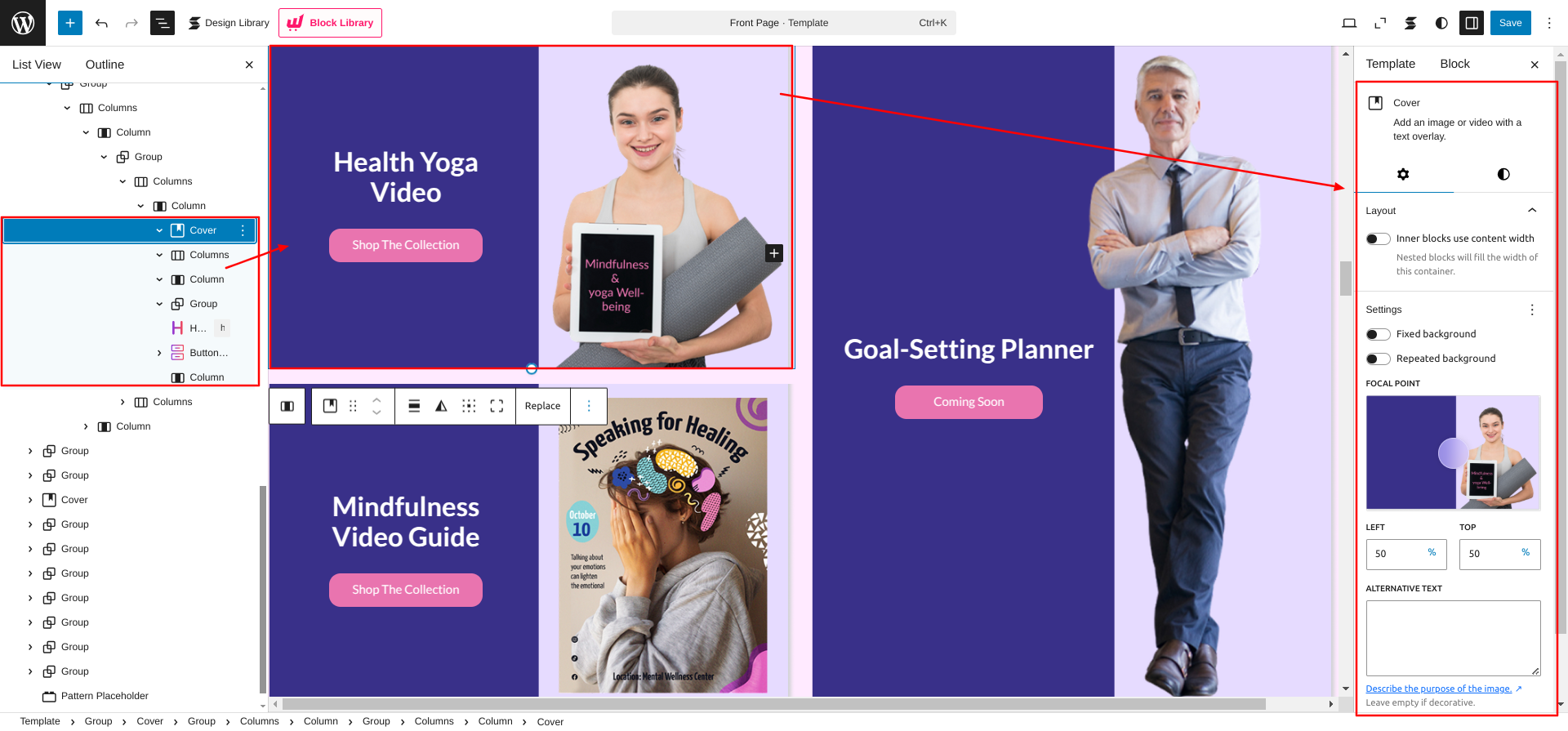
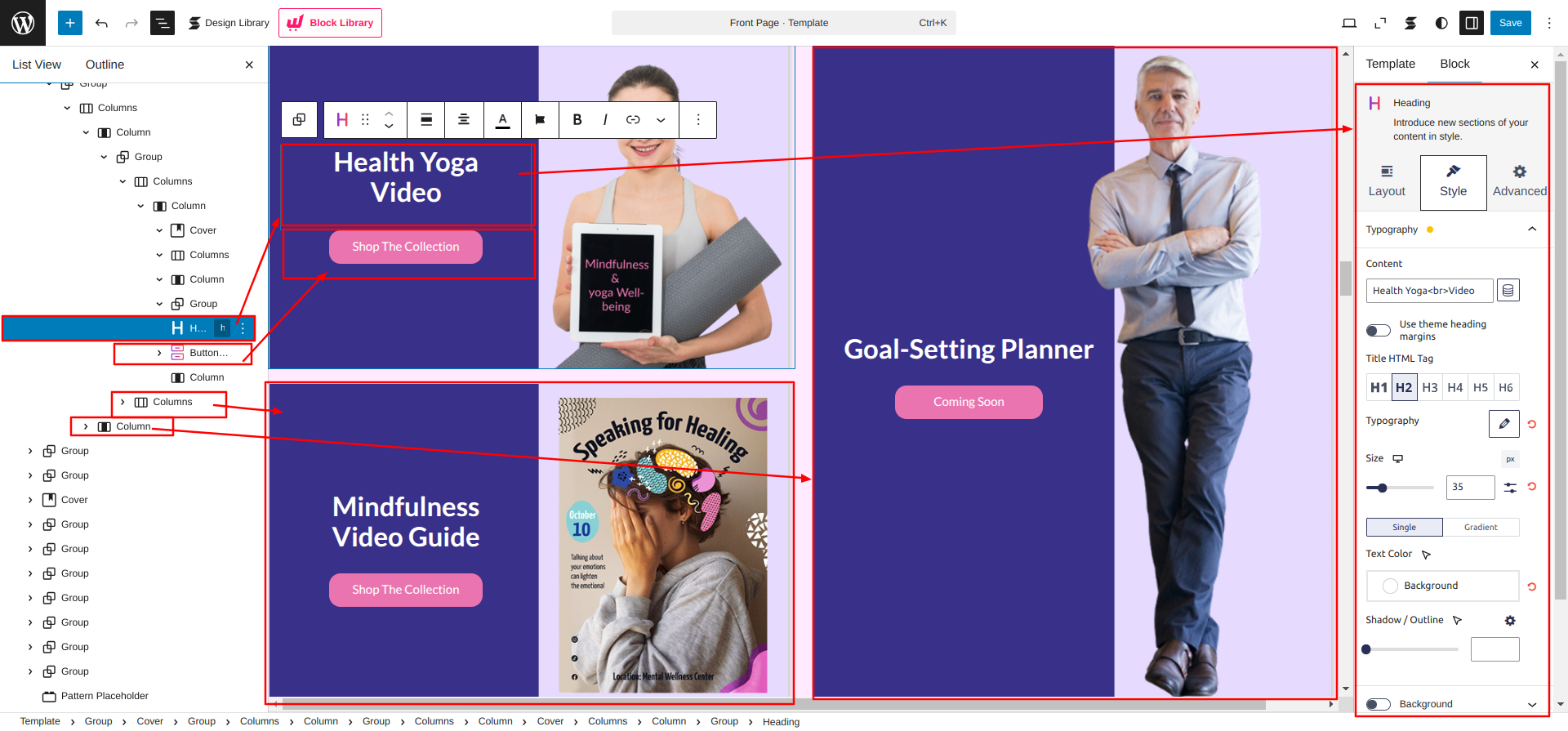
Go to Dashboard Appearance Editor.
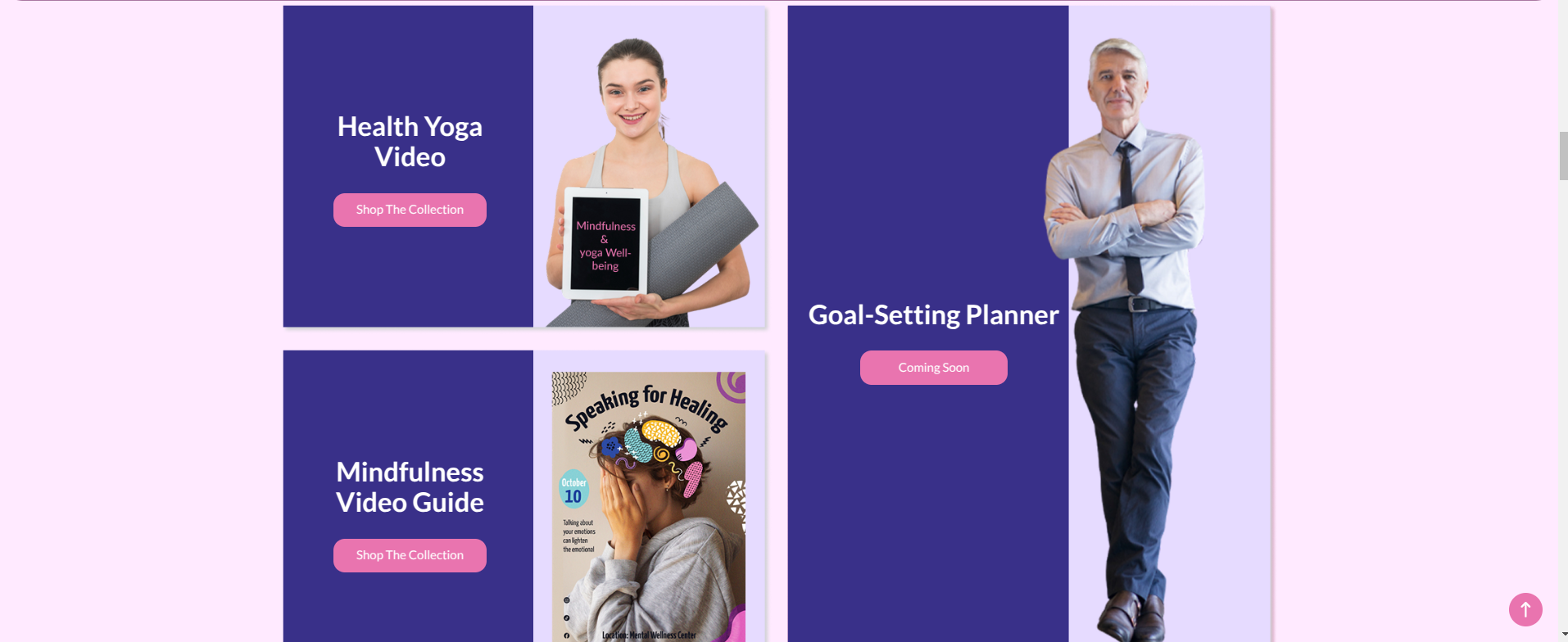
This is how you can add and set up the Collection Section.
Setup Featured Coaching Programs Section
Set up the Featured Coaching Programs Section according to the instructions below.
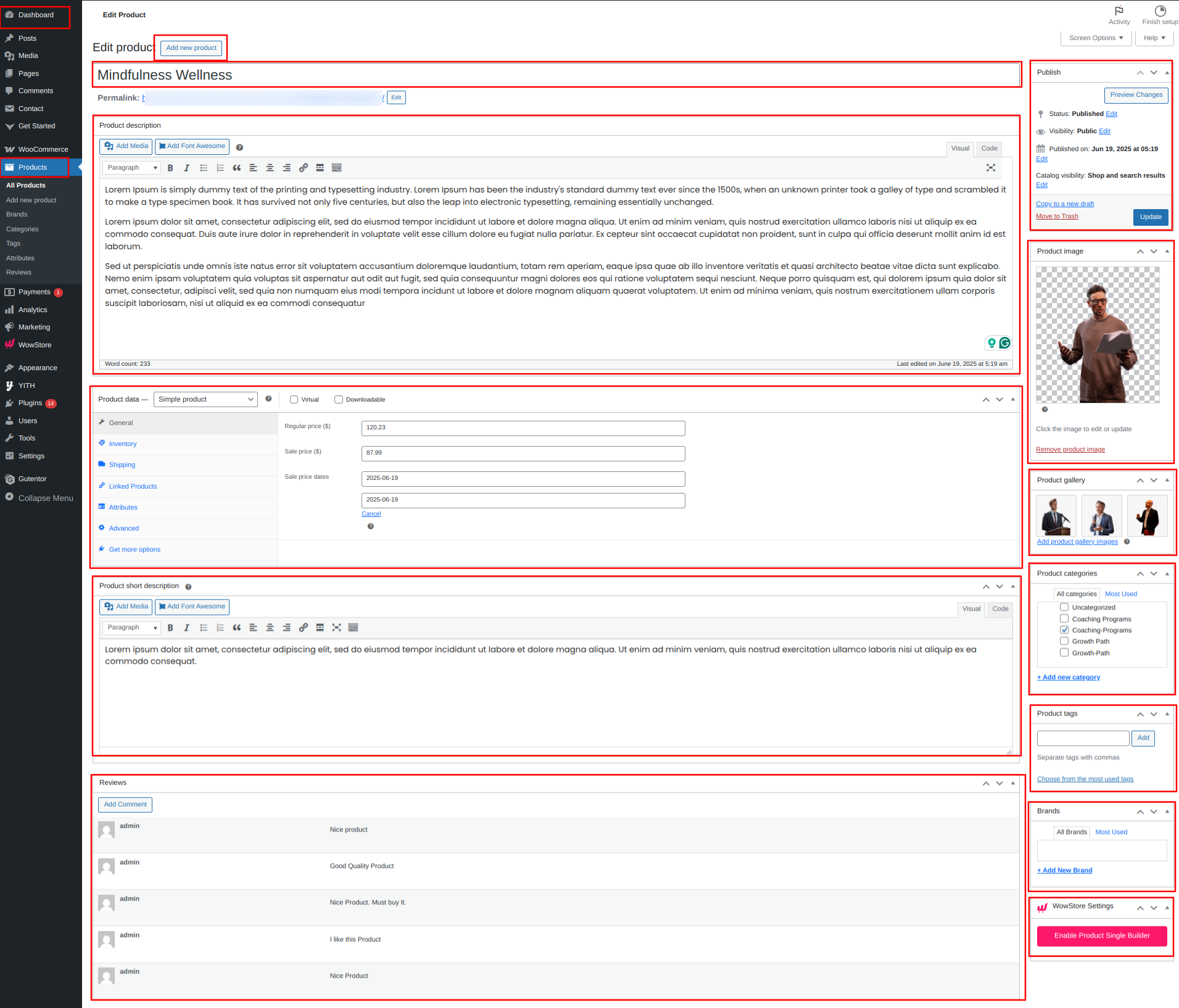
Go to the Dashboard Prroducts Add New.
As seen in the screenshot, enter the title, Description, Shot Description, Image, Gallery, Price and Category for the Product.
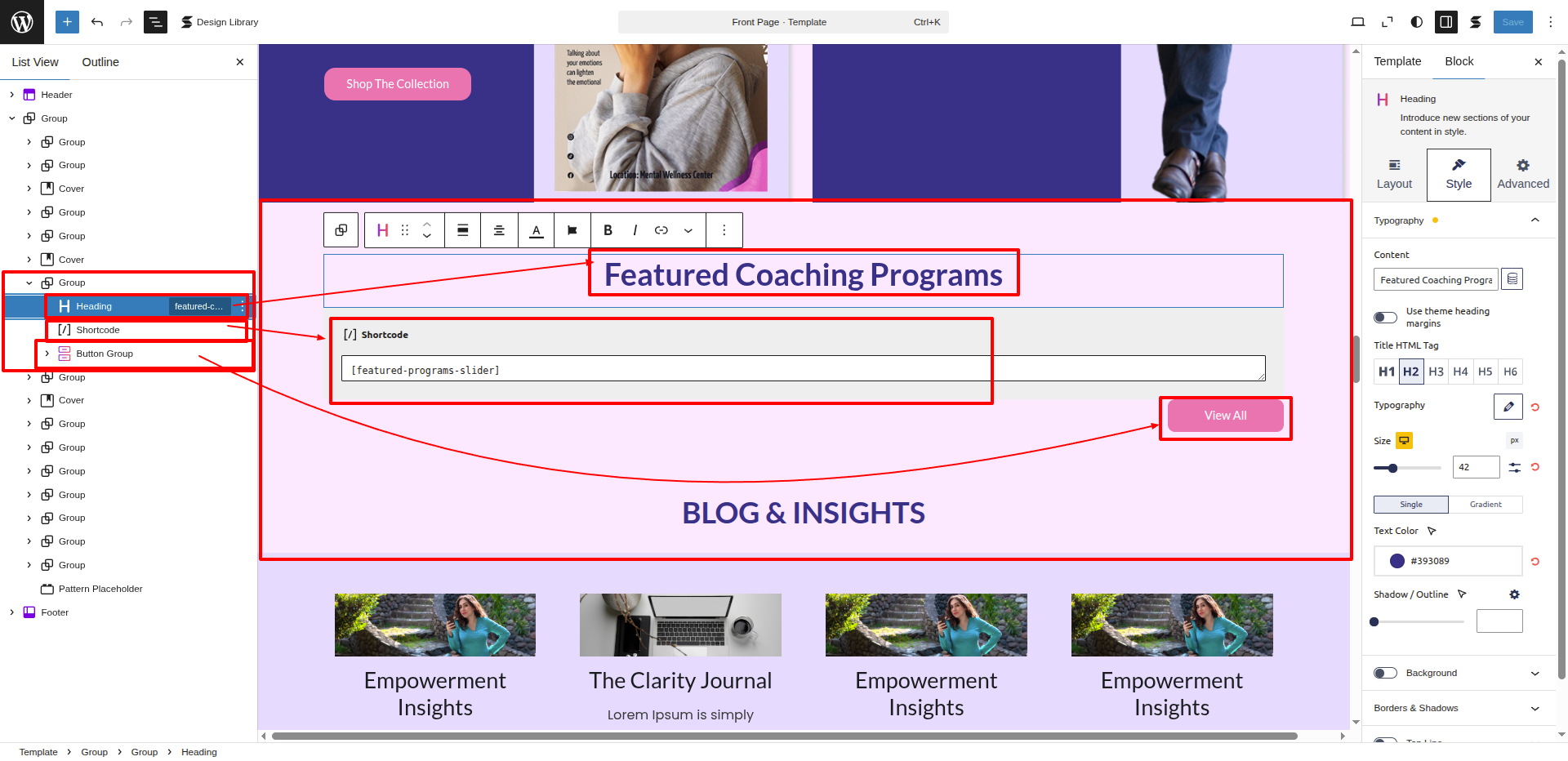
Go to Dashboard Appearance Editor.
This Section's Main Content is being fetched by using the ShortCode.
A shortcode is a special tag enclosed in square brackets ([ ]) that lets you execute code inside posts, pages, or widgets without writing any PHP.
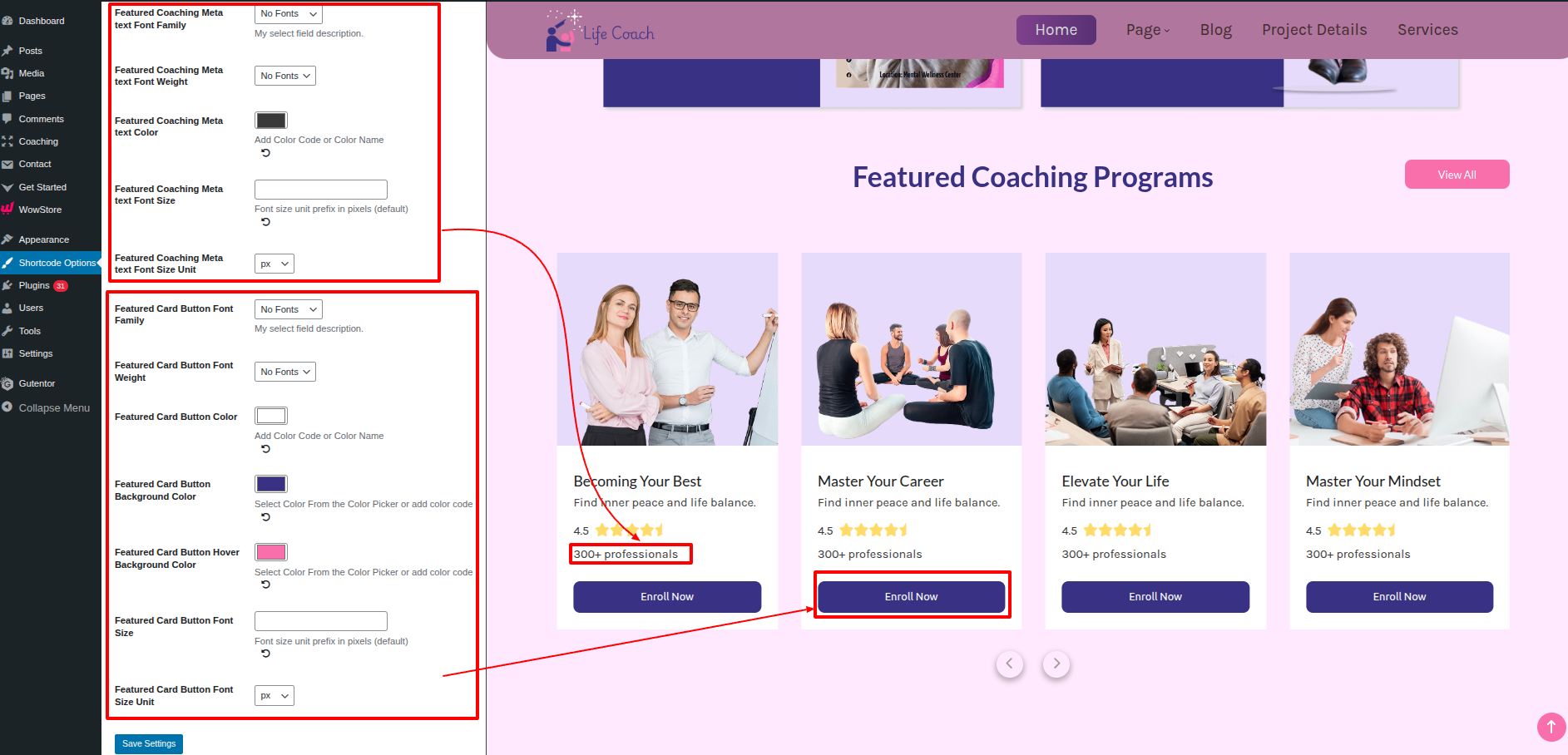
In This Section, the shortcode is [featured-programs-slider], from here the section is being displayed from a custom file which consists of the php code used to fetch the posttype sections.
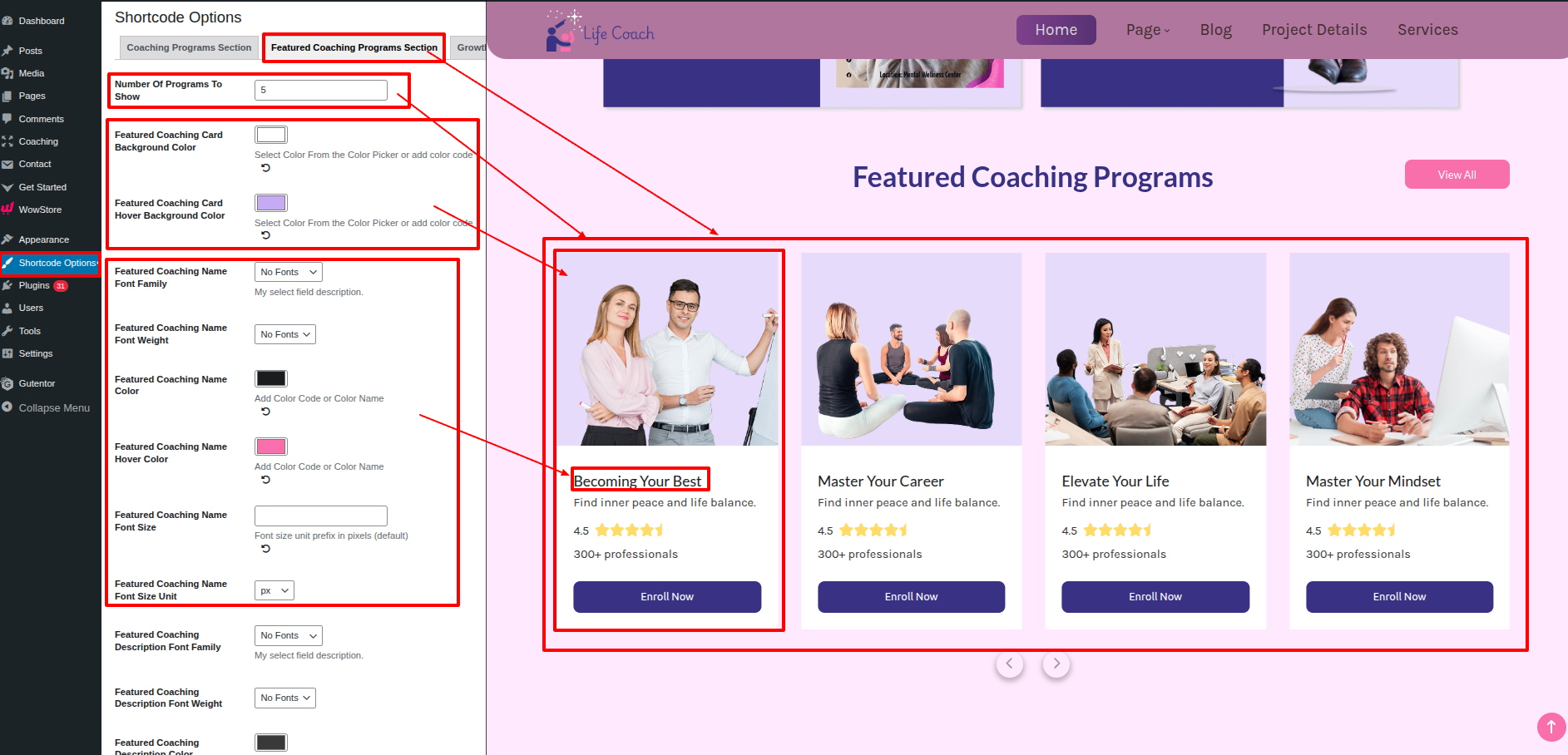
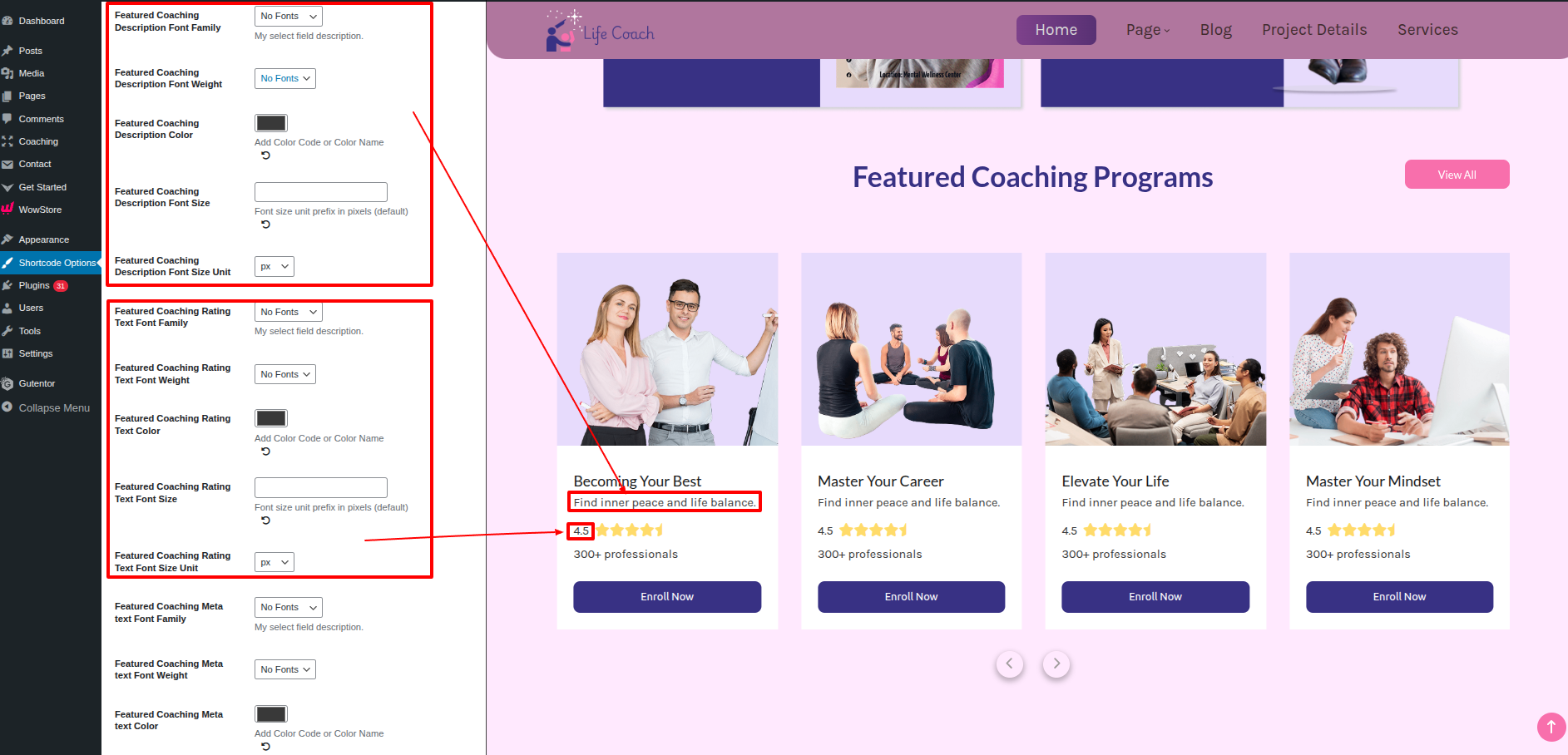
To Customize the section visually go to Dashboard Shortcode Options Featured Programs Slider.
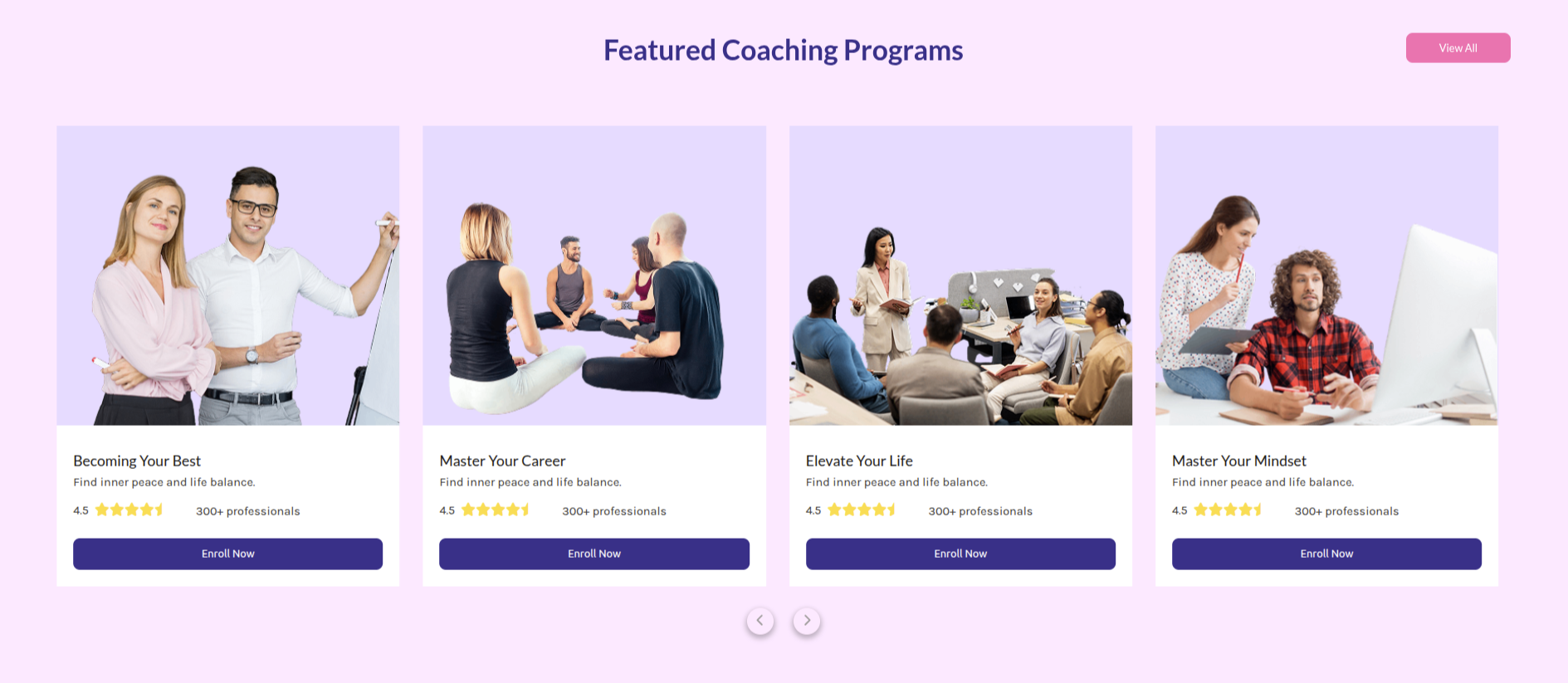
This is how you can add and set up the Featured Coaching Programs Section.
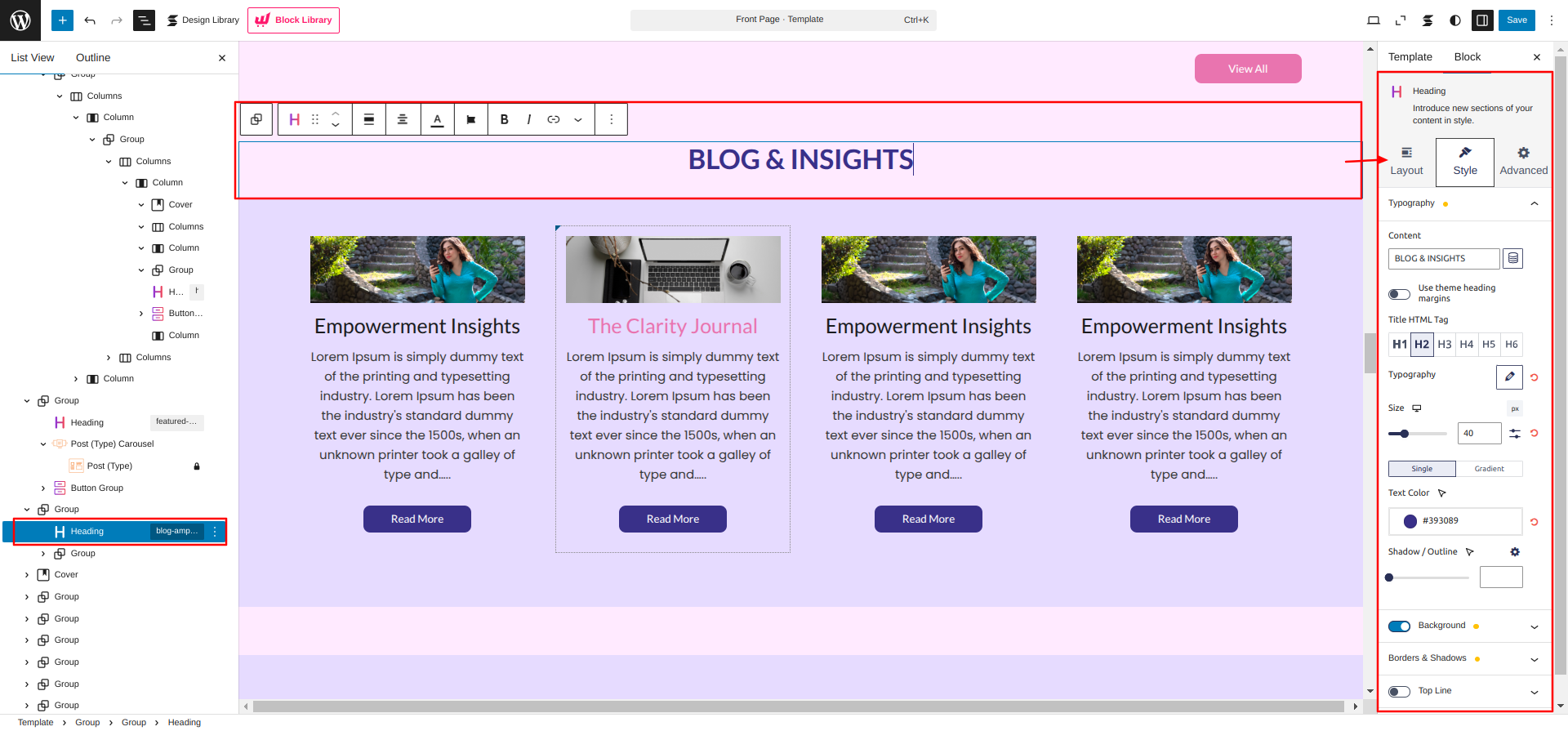
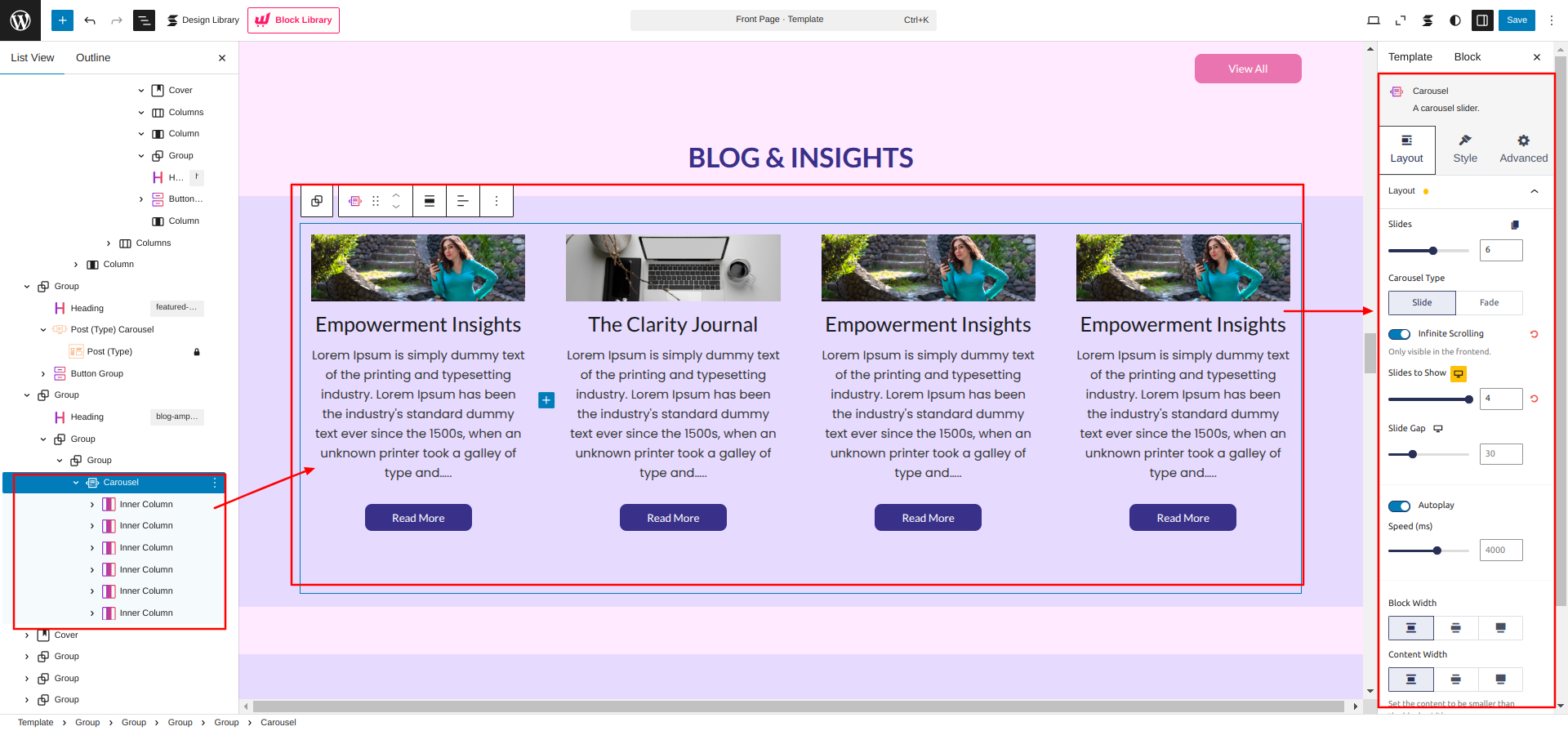
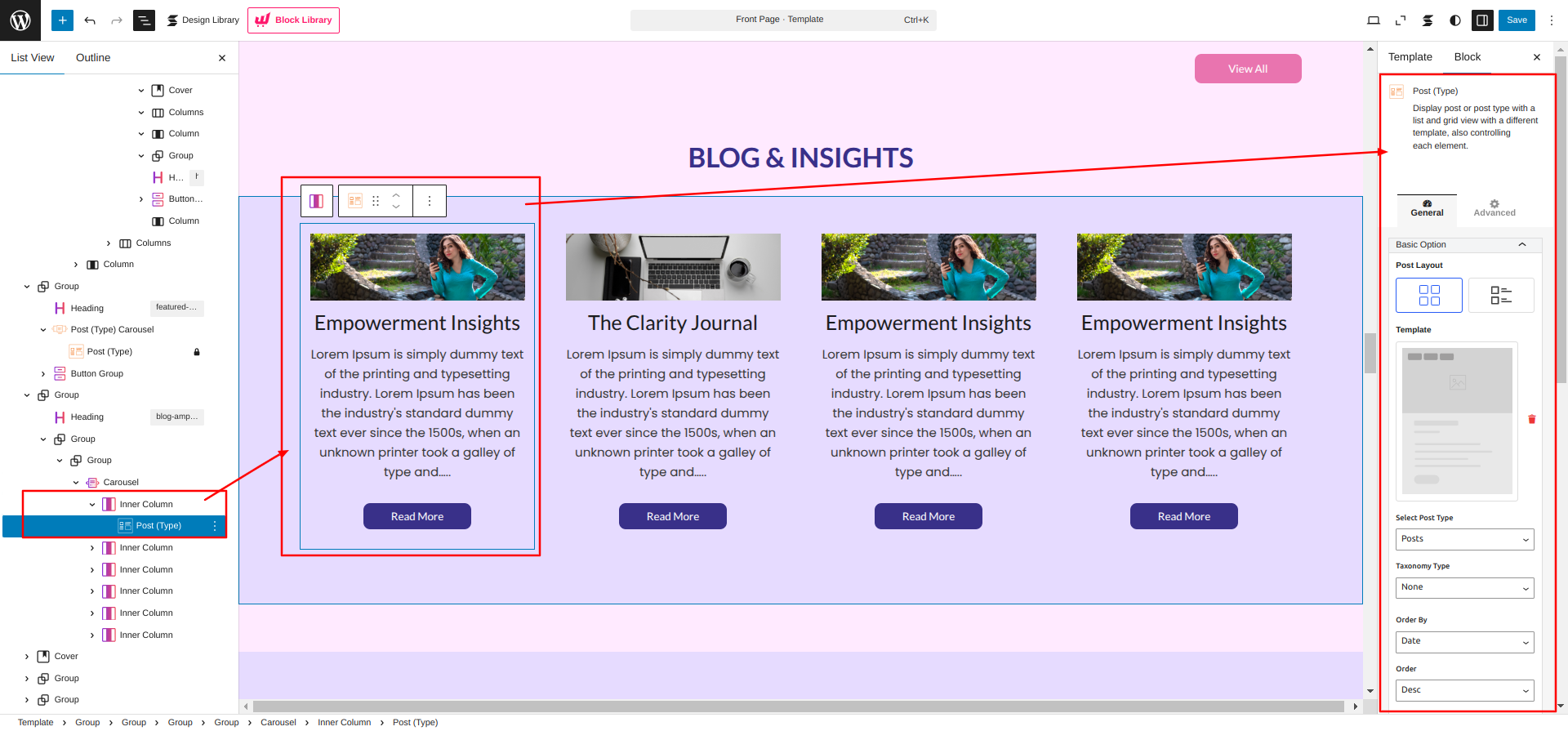
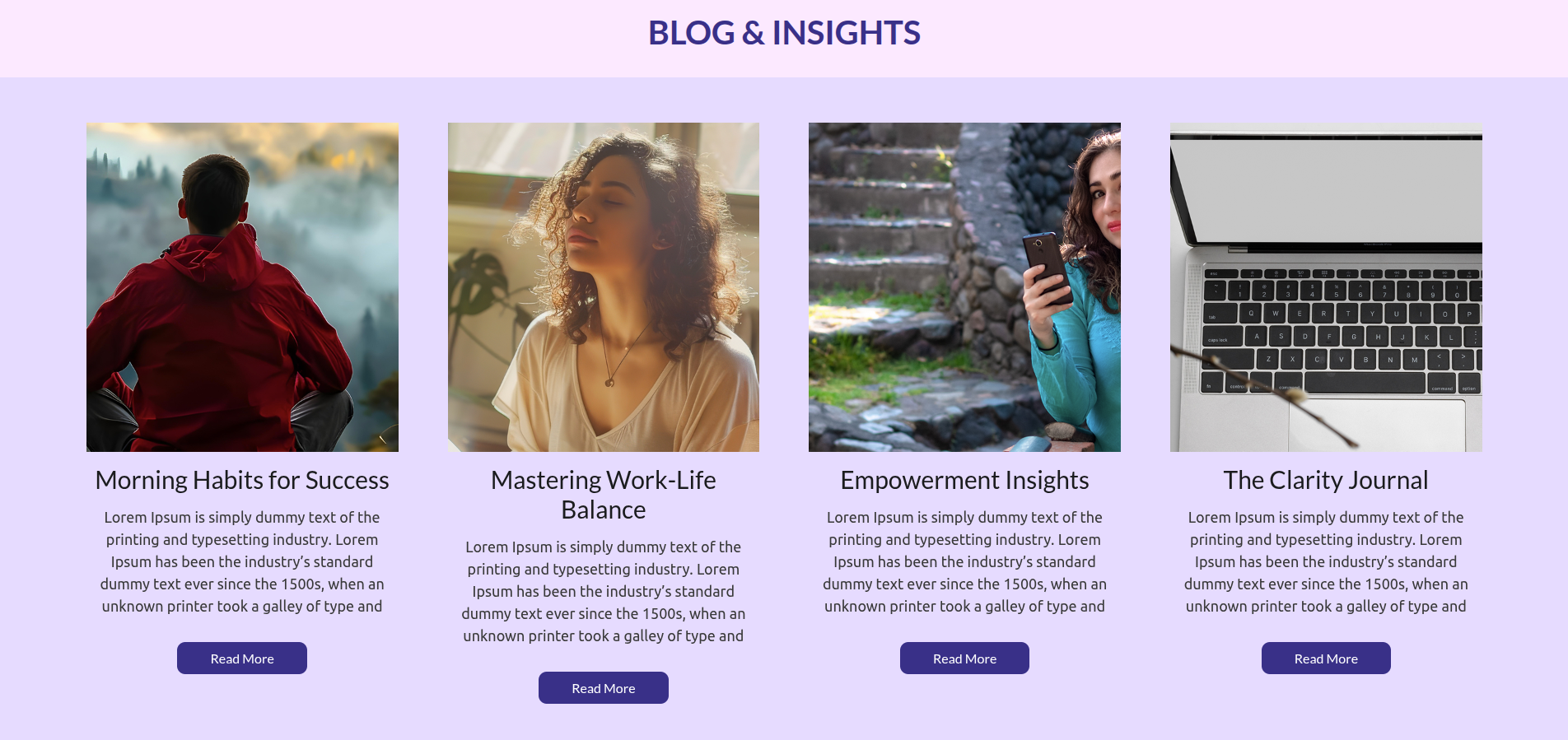
Setup Blog & Insights
Set up the Blog & Insights according to the instructions below.
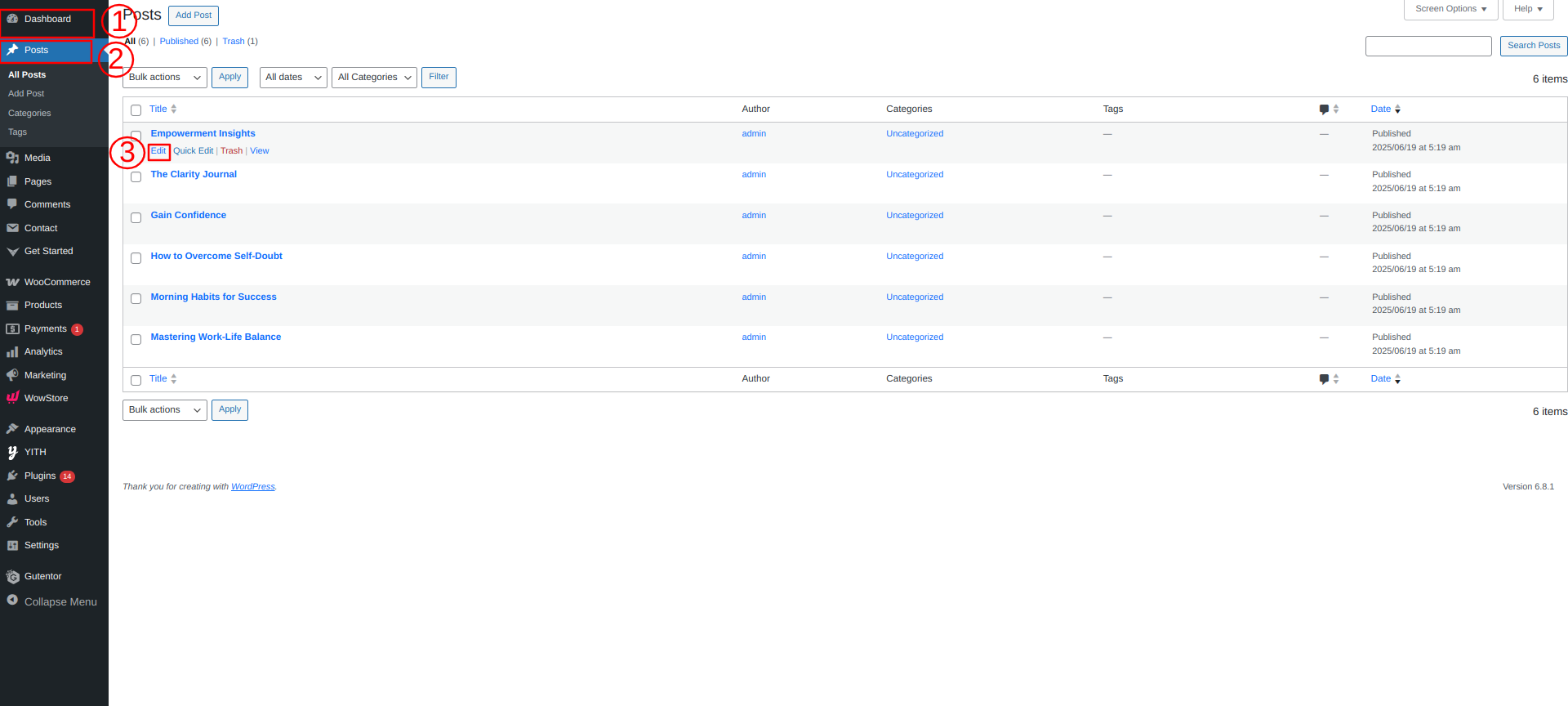
Go to the Dashboard Posts All Posts.
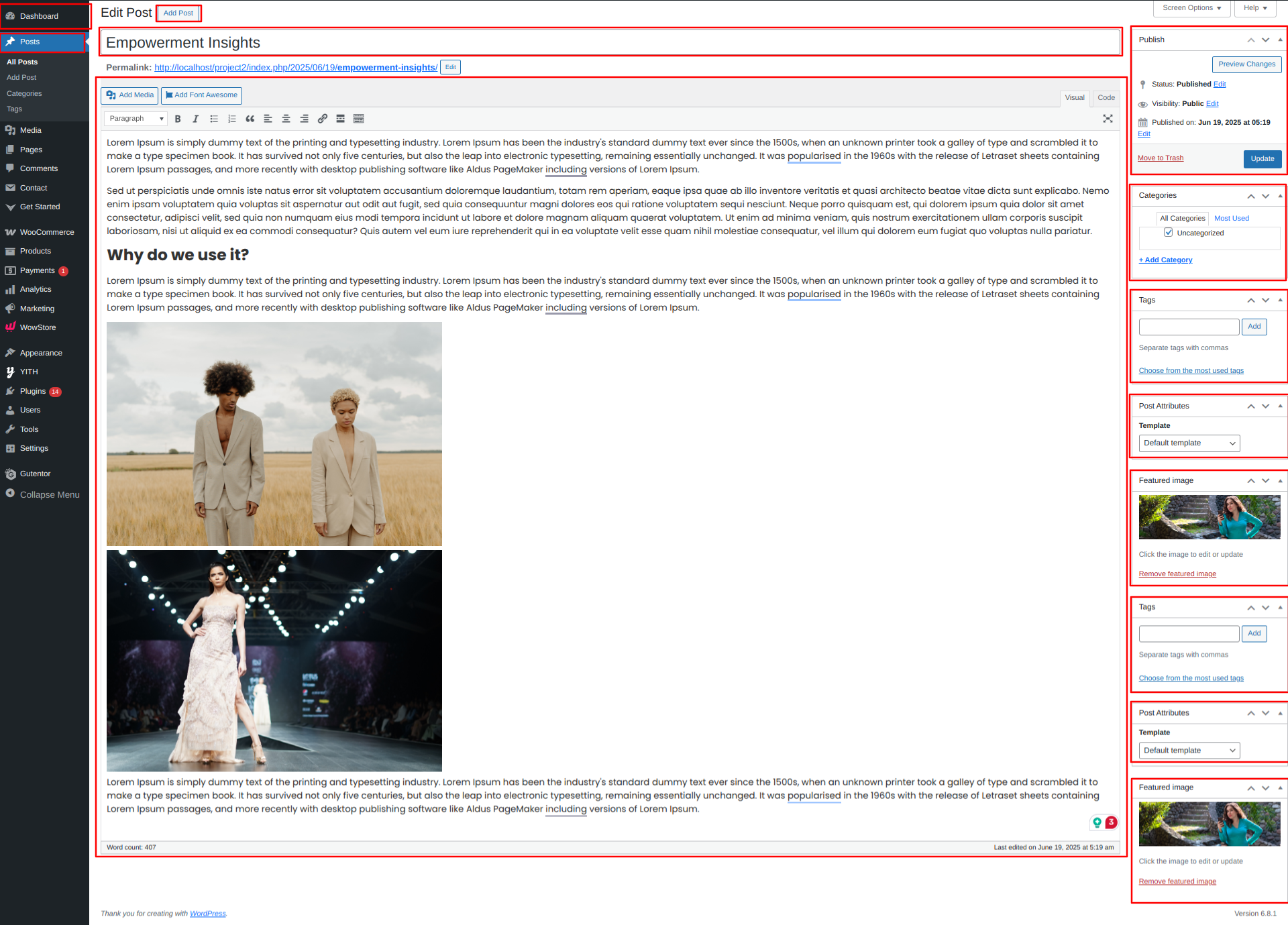
As seen in the screenshot, enter the title, Description, Shot Description, Image, Gallery, Price and Category for the Product.
Go to Dashboard Appearance Editor.
This is how you can add and set up the Blog & Insights.
Setup Offer Section
Set up the Offer Section according to the instructions below.
Go to Dashboard Appearance Editor.
This is how you can add and set up the Offer Section.
Setup Fitness Section
Set up the Fitness Section according to the instructions below.
Go to the Dashboard Prroducts Add New.
As seen in the screenshot, enter the title, Description, Shot Description, Image, Gallery, Price and Category for the Product.
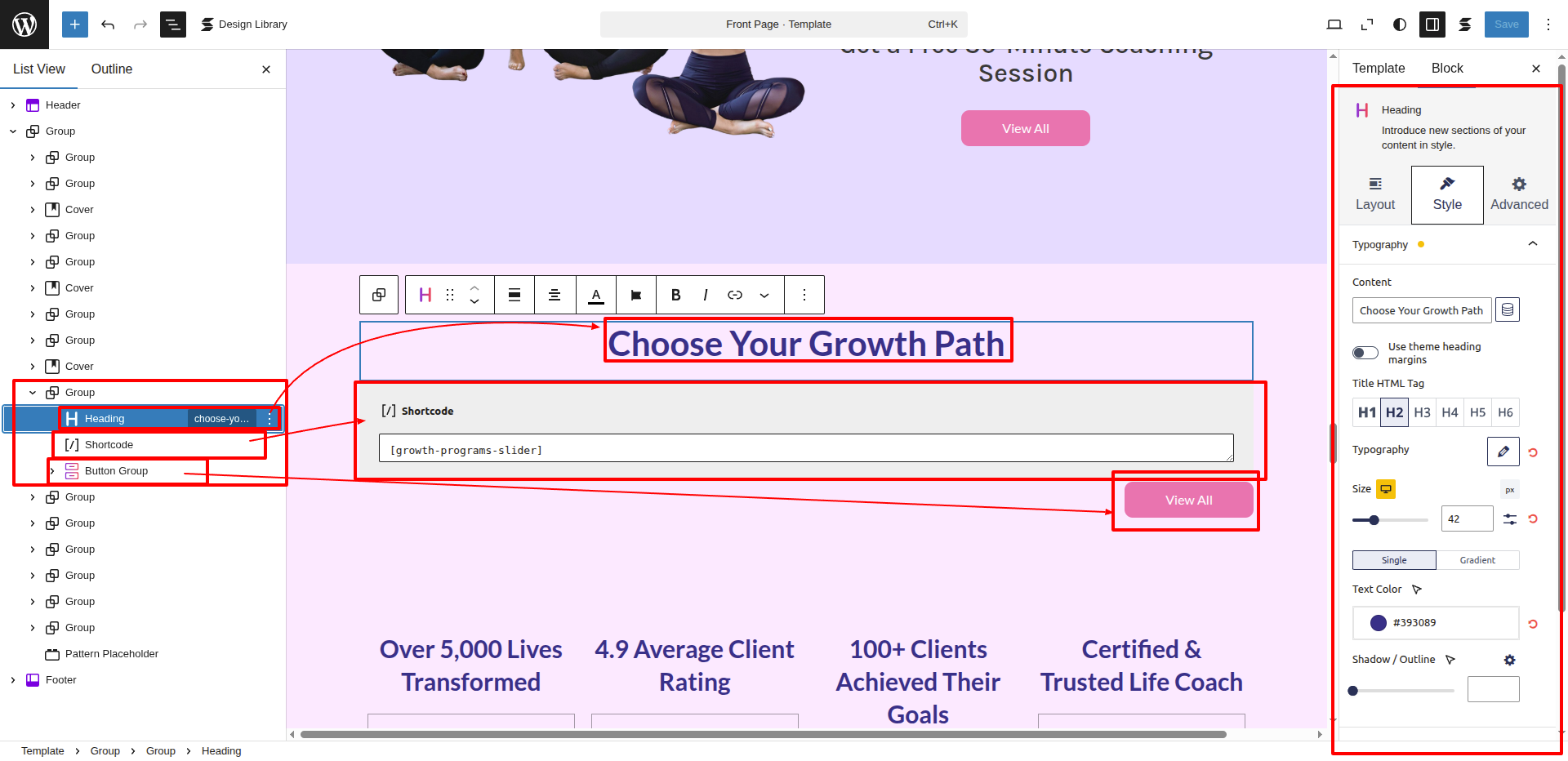
Go to Dashboard Appearance Editor.
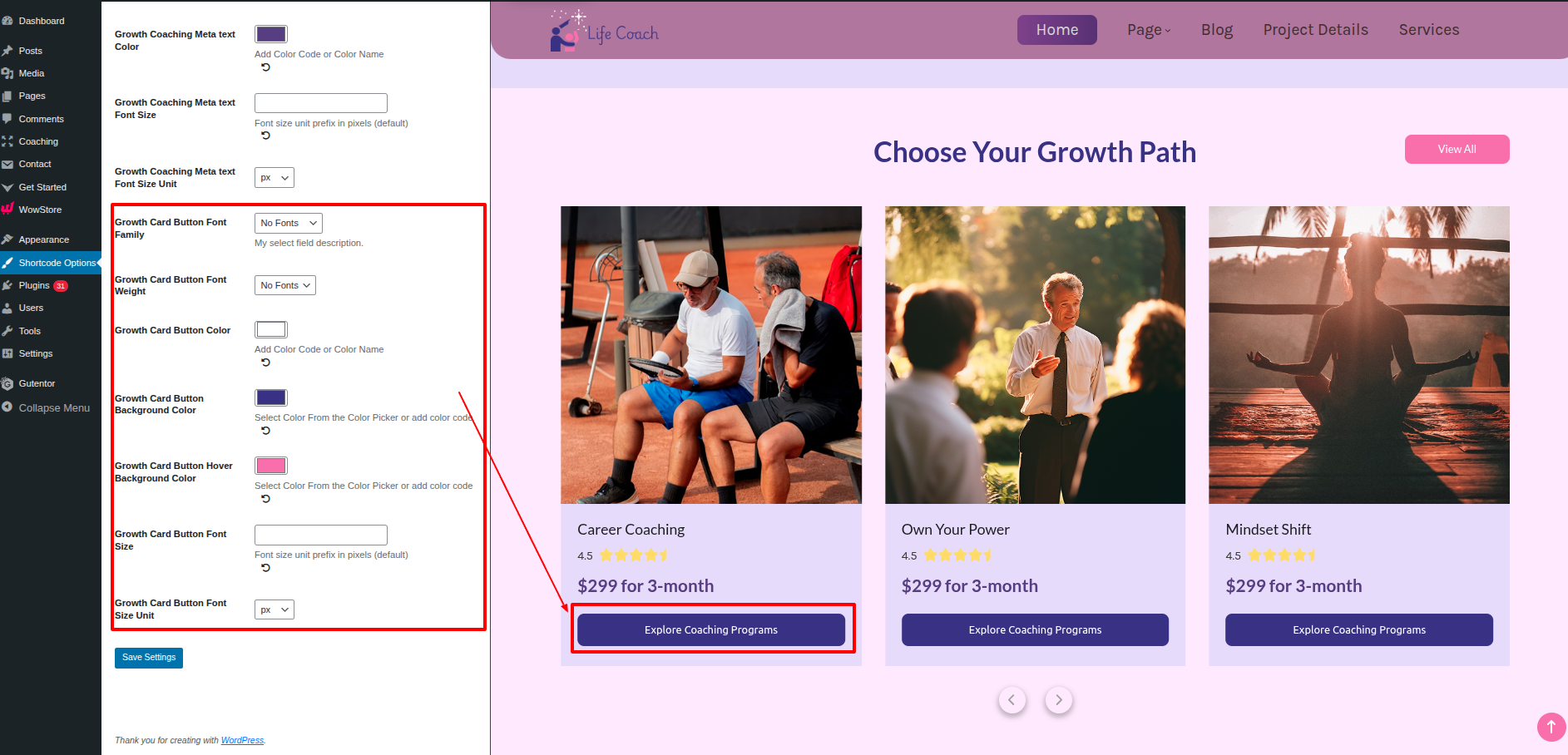
This Section's Main Content is being fetched by using the Shortcode.
A shortcode is a special tag enclosed in square brackets ([ ]) that lets you execute code inside posts, pages, or widgets without writing any PHP.
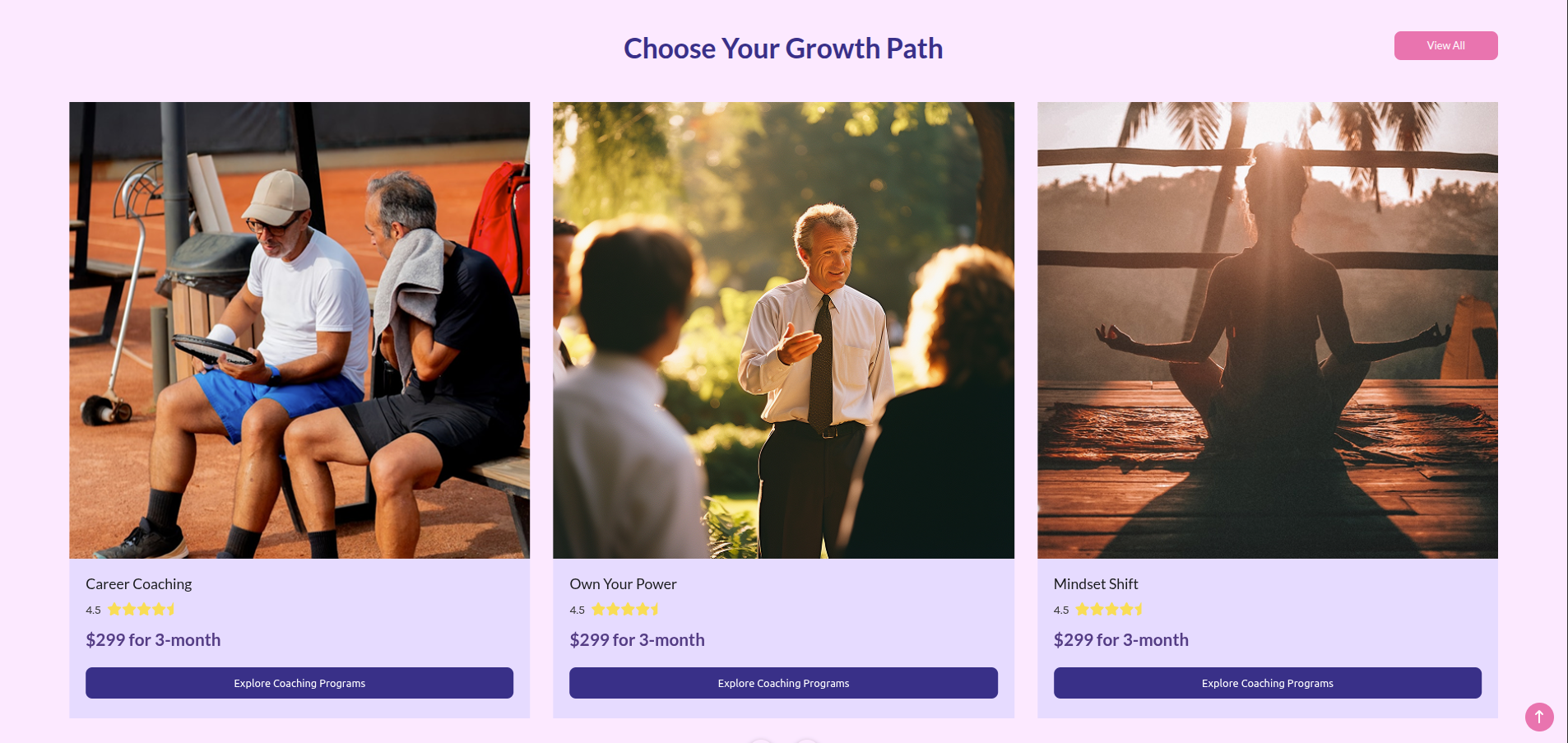
In This Section, the shortcode is [growth-programs-slider], from here the section is being displayed from a custom file which consists of the php code used to fetch the posttype sections.
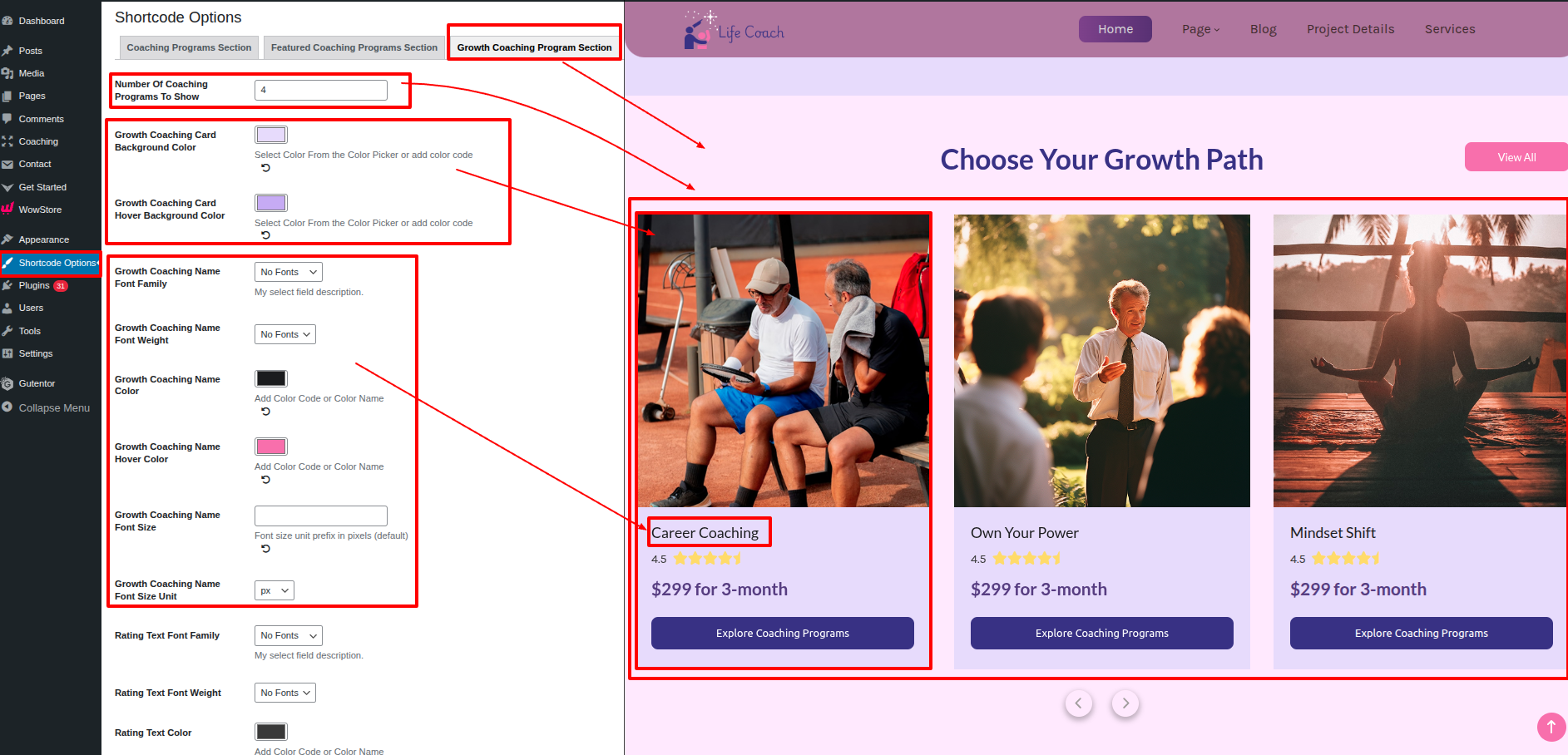
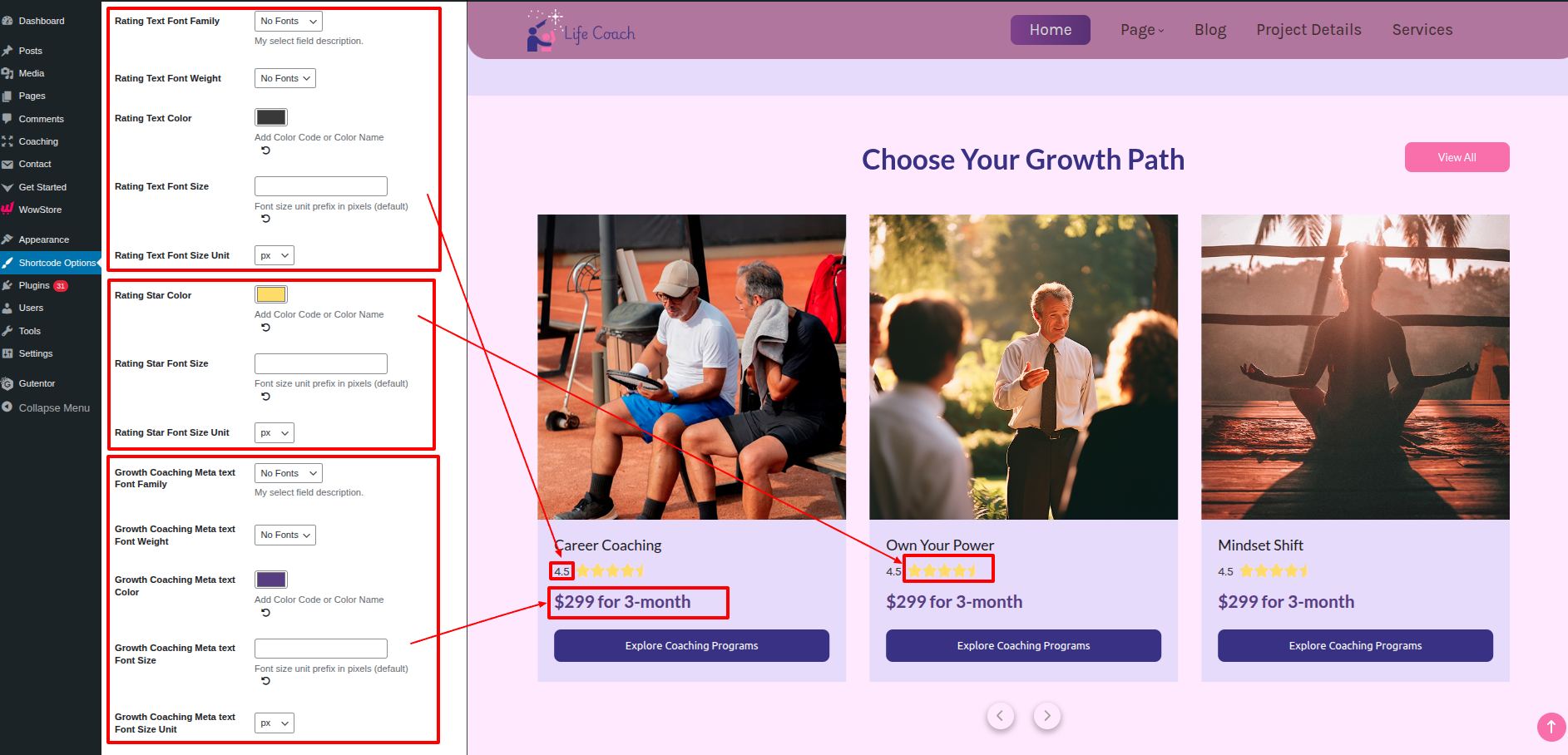
To Customize the section visually go to Dashboard Shortcode Options Growth Programs Slider.
This is how you can add and set up the Fitness Section.
Setup Services Section
Set up the Services Section according to the instructions below.
Go to Dashboard Appearance Editor.
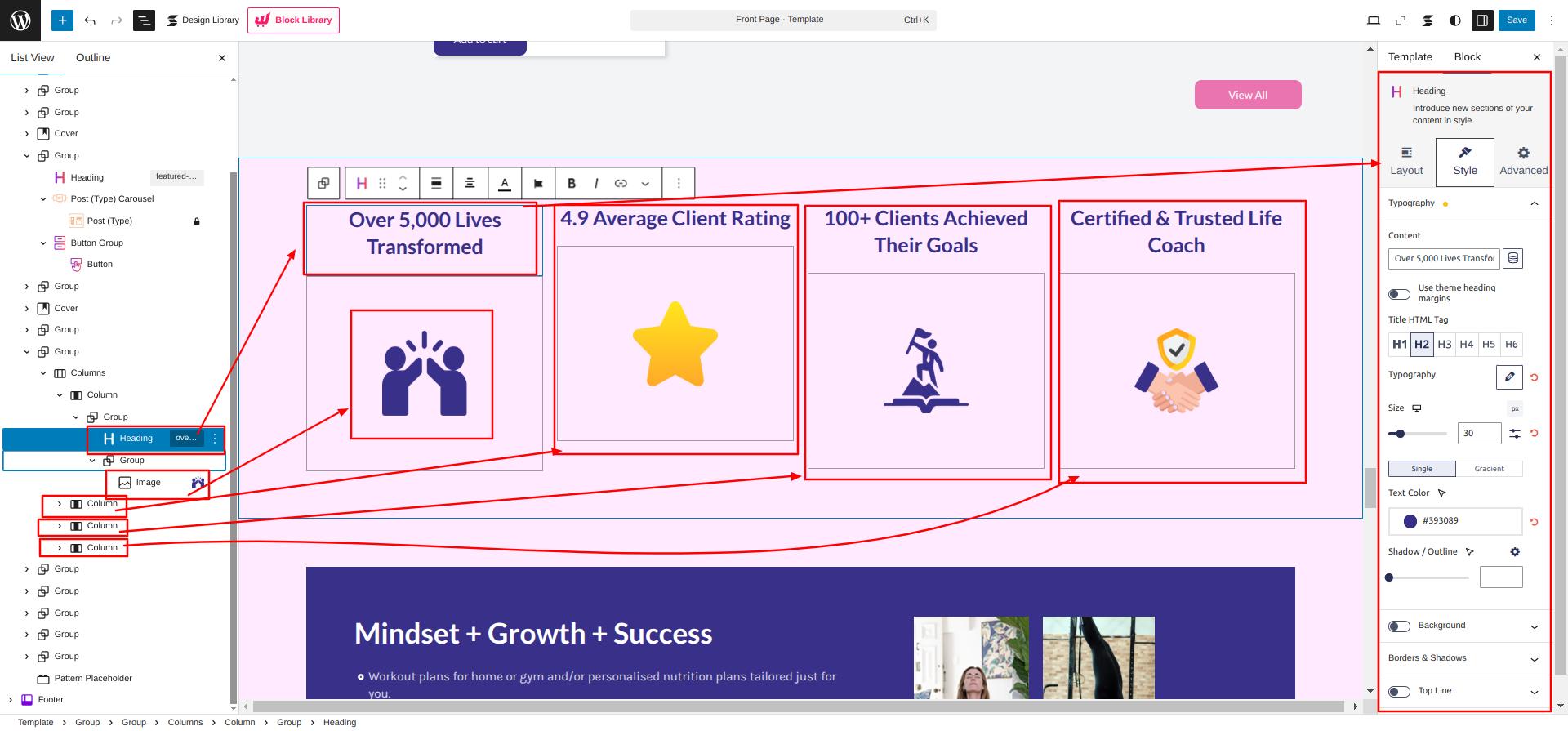
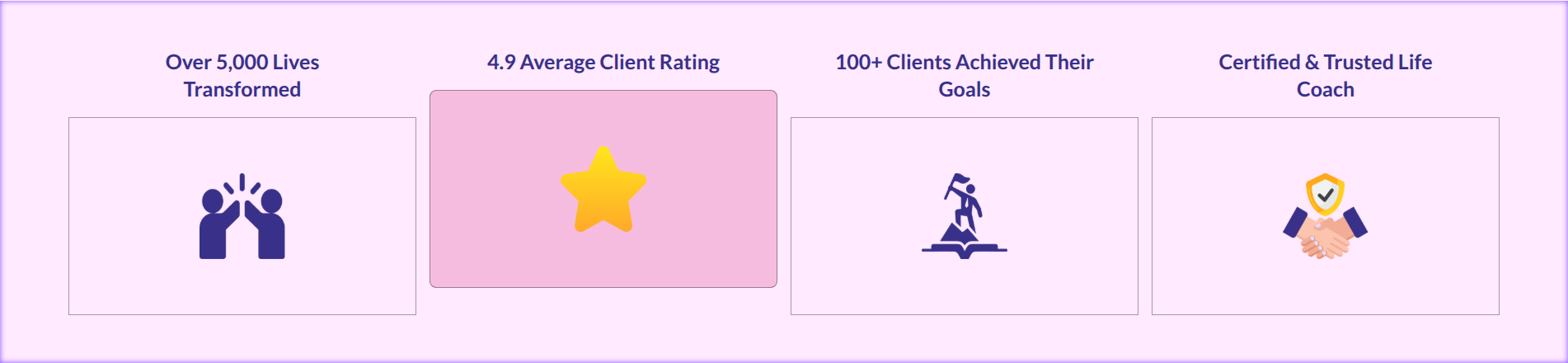
This is how you can add and set up the Services Section.
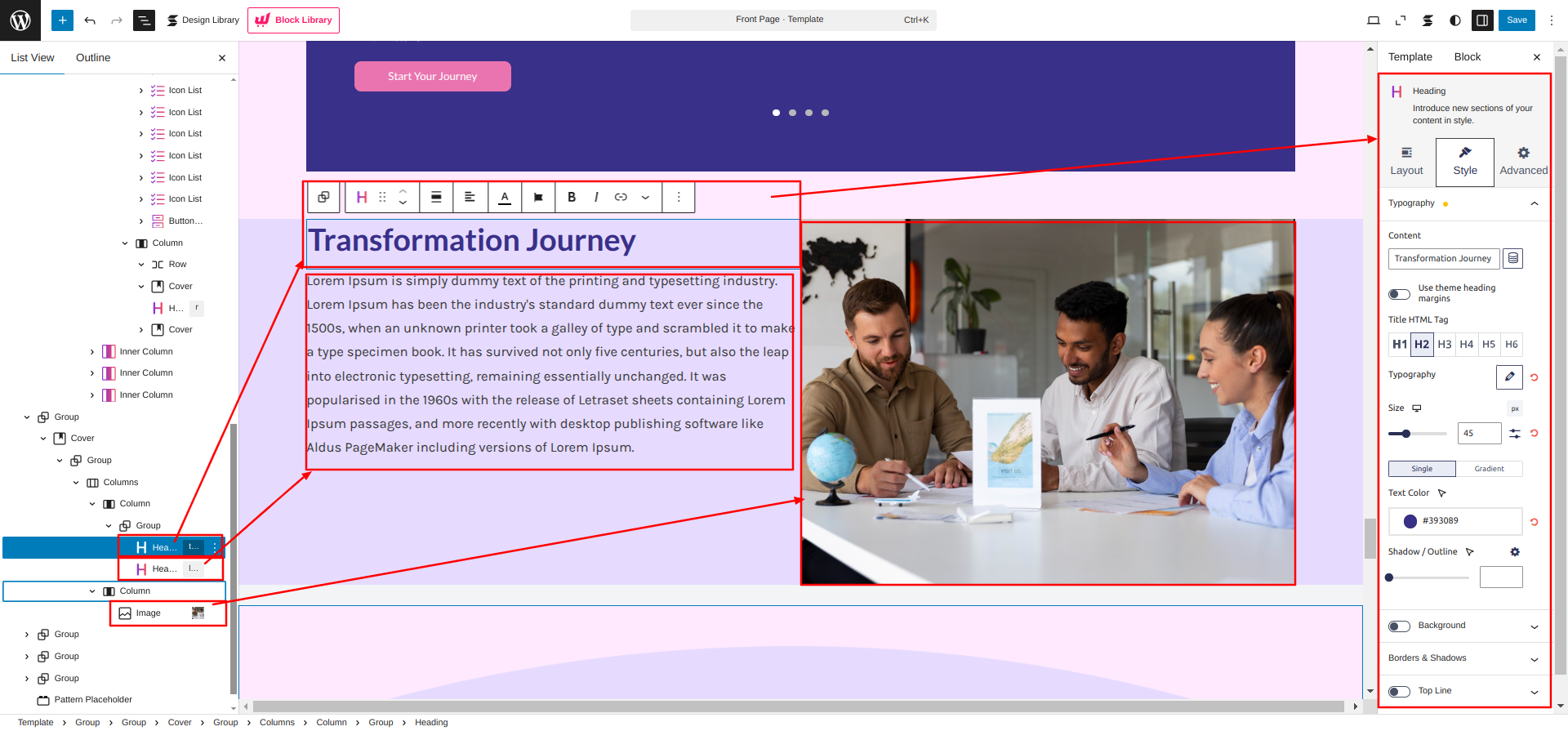
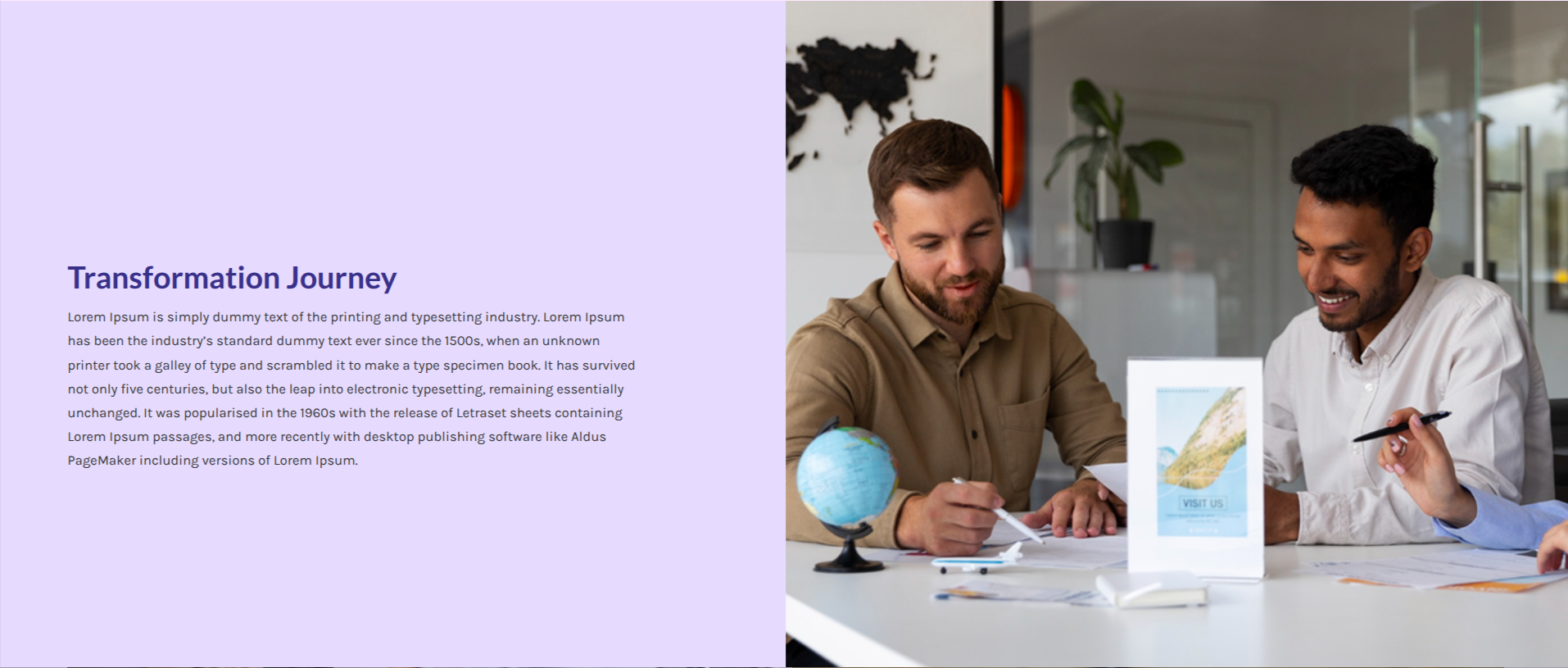
Setup Transformation Journey Section
Set up the Transformation Journey Section according to the instructions below.
Go to Dashboard Appearance Editor.
This is how you can add and set up the Transformation Journey Section.
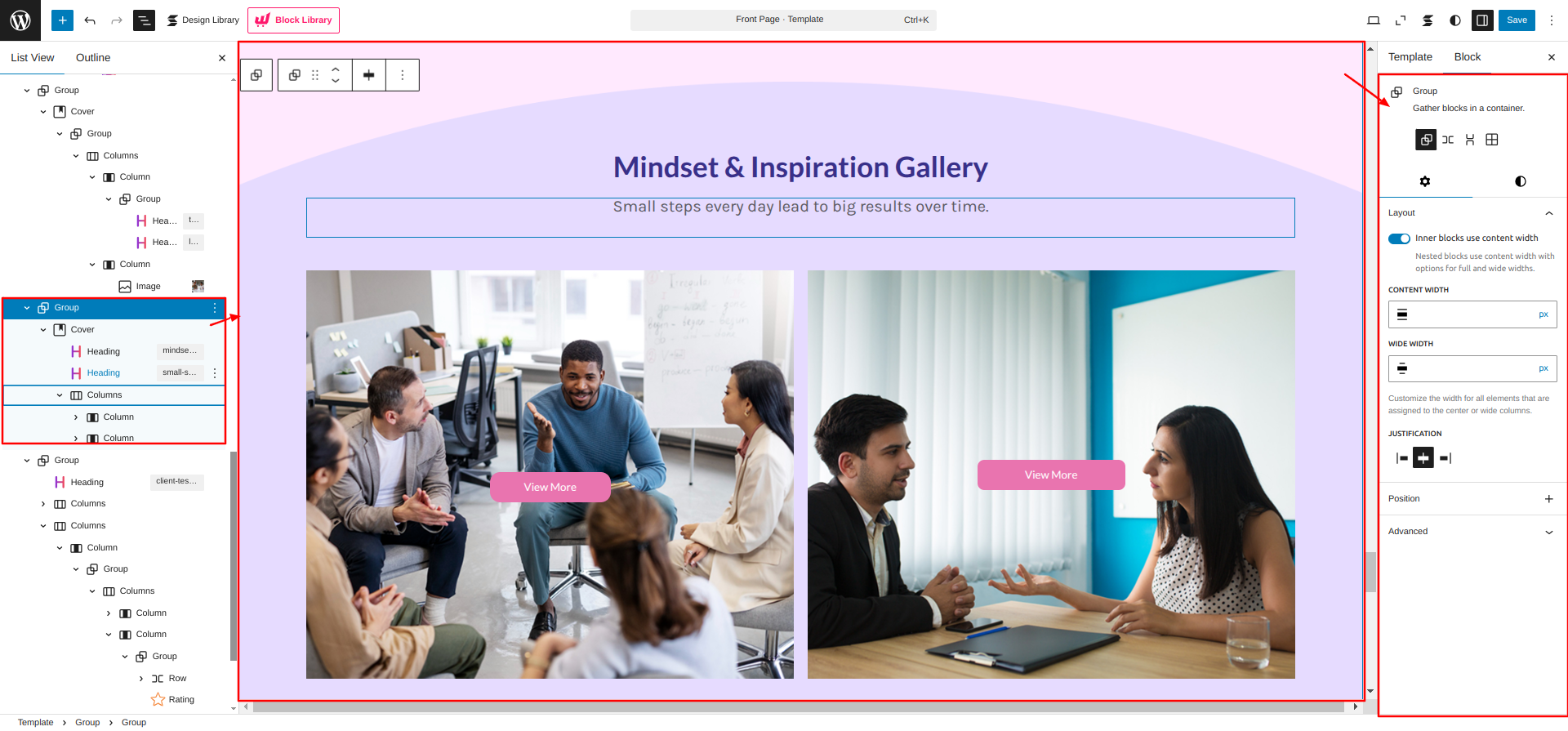
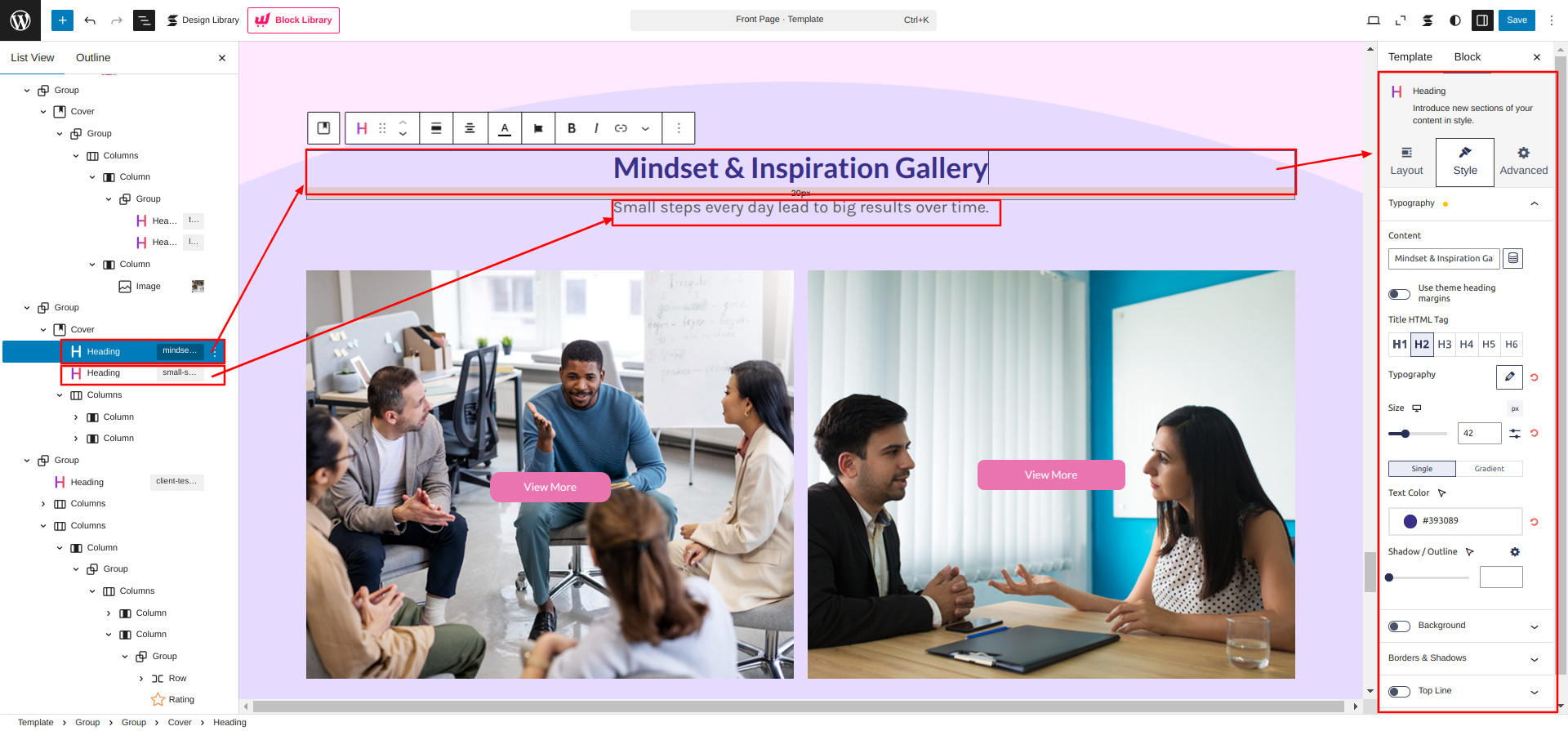
Setup Mindset & Inspiration Gallery Section
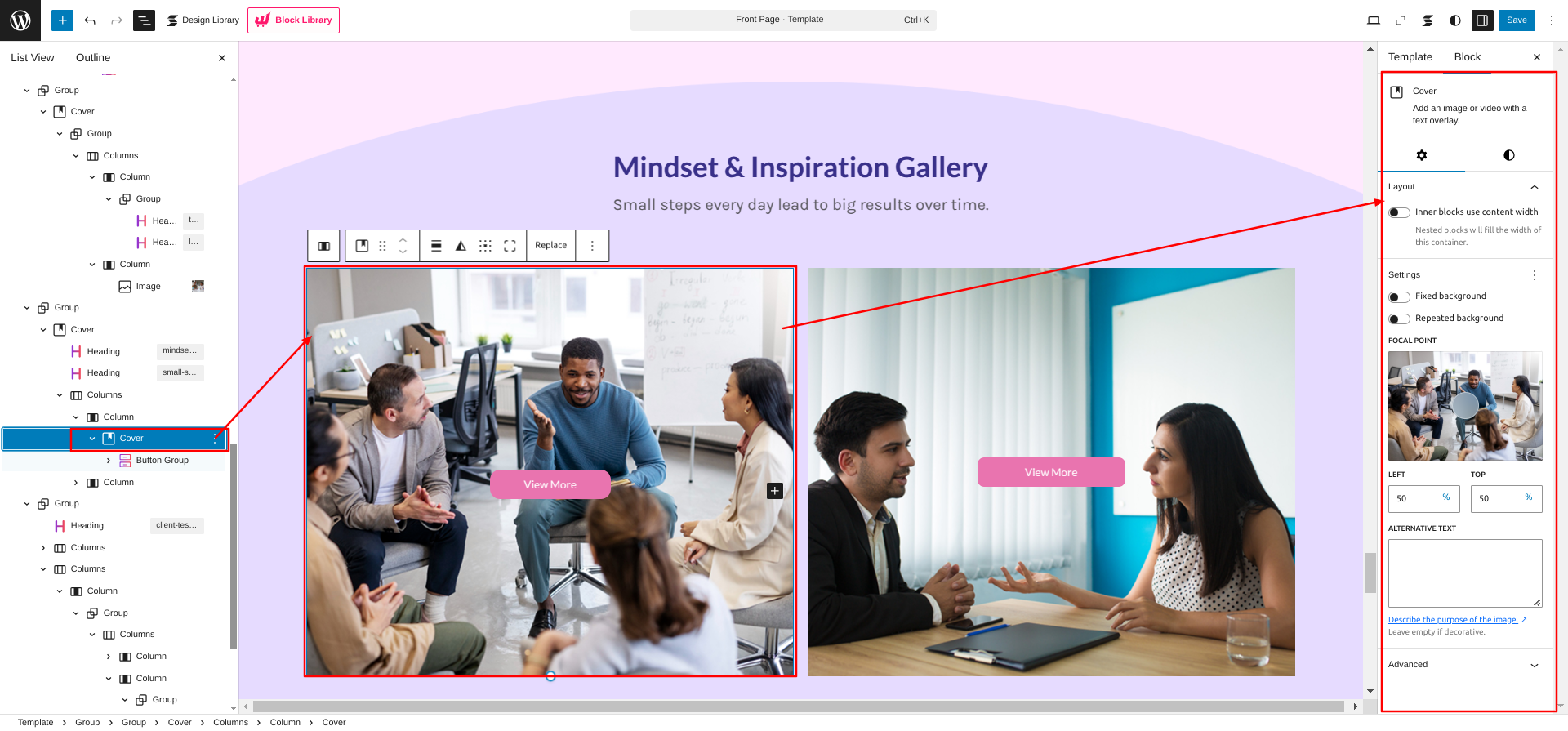
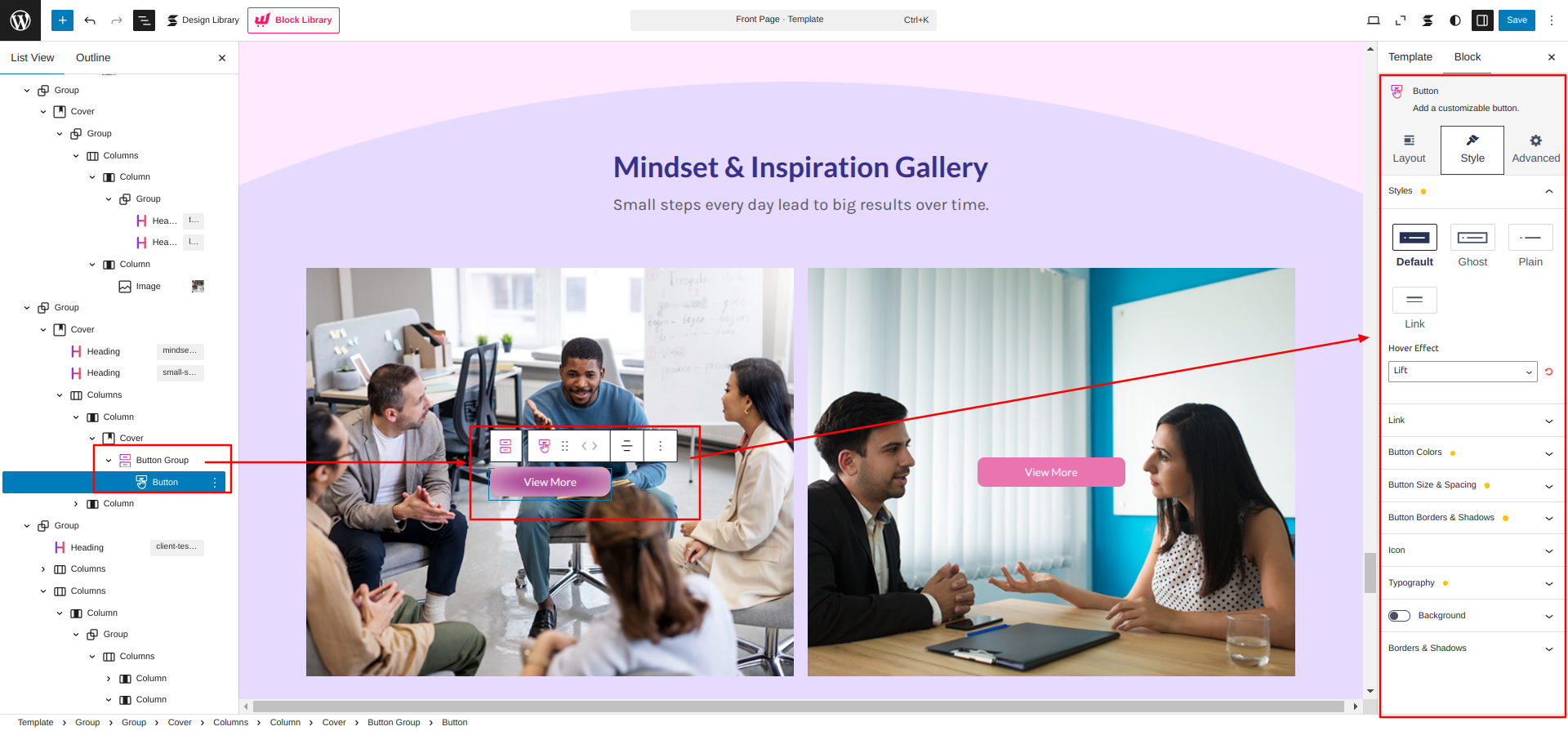
Set up the Mindset & Inspiration Gallery Section according to the instructions below.
Go to the Dashboard Appearance Editor.
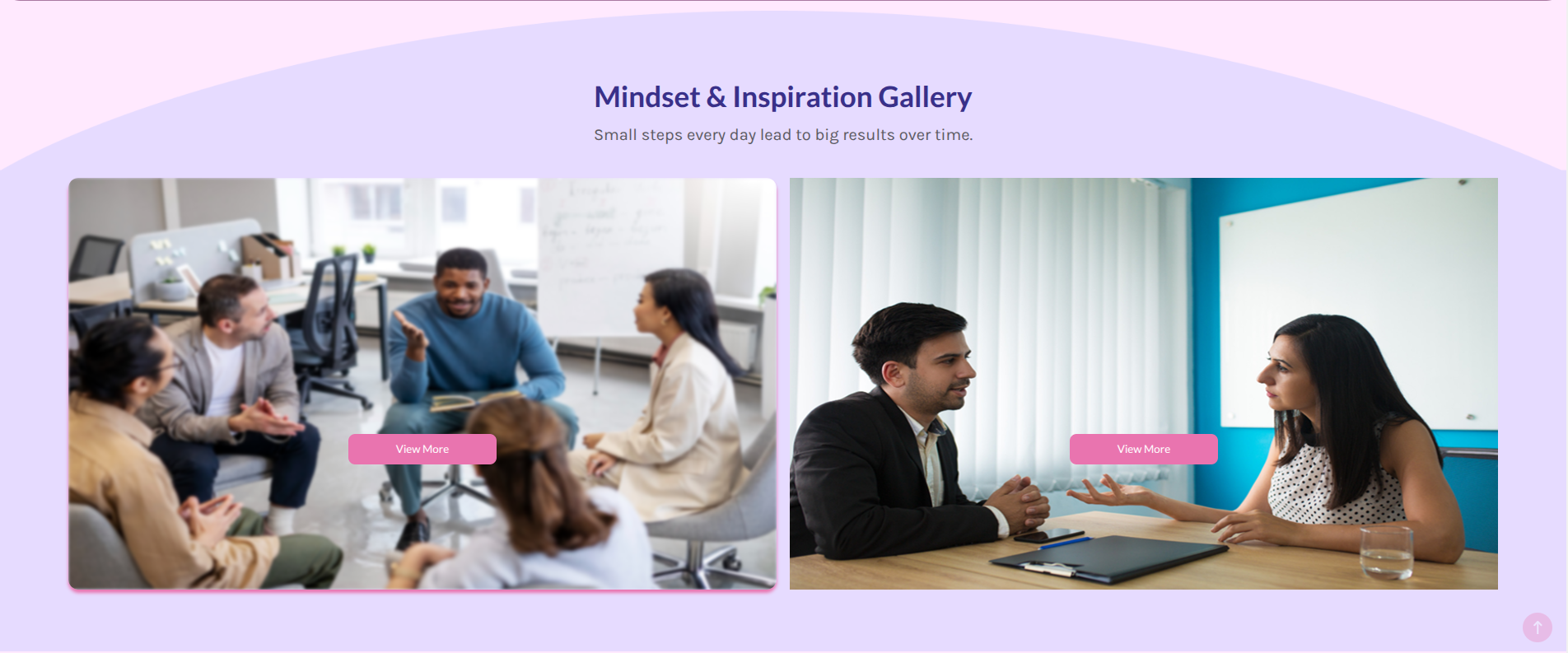
This is how you can add and set up the Mindset & Inspiration Gallery Section.
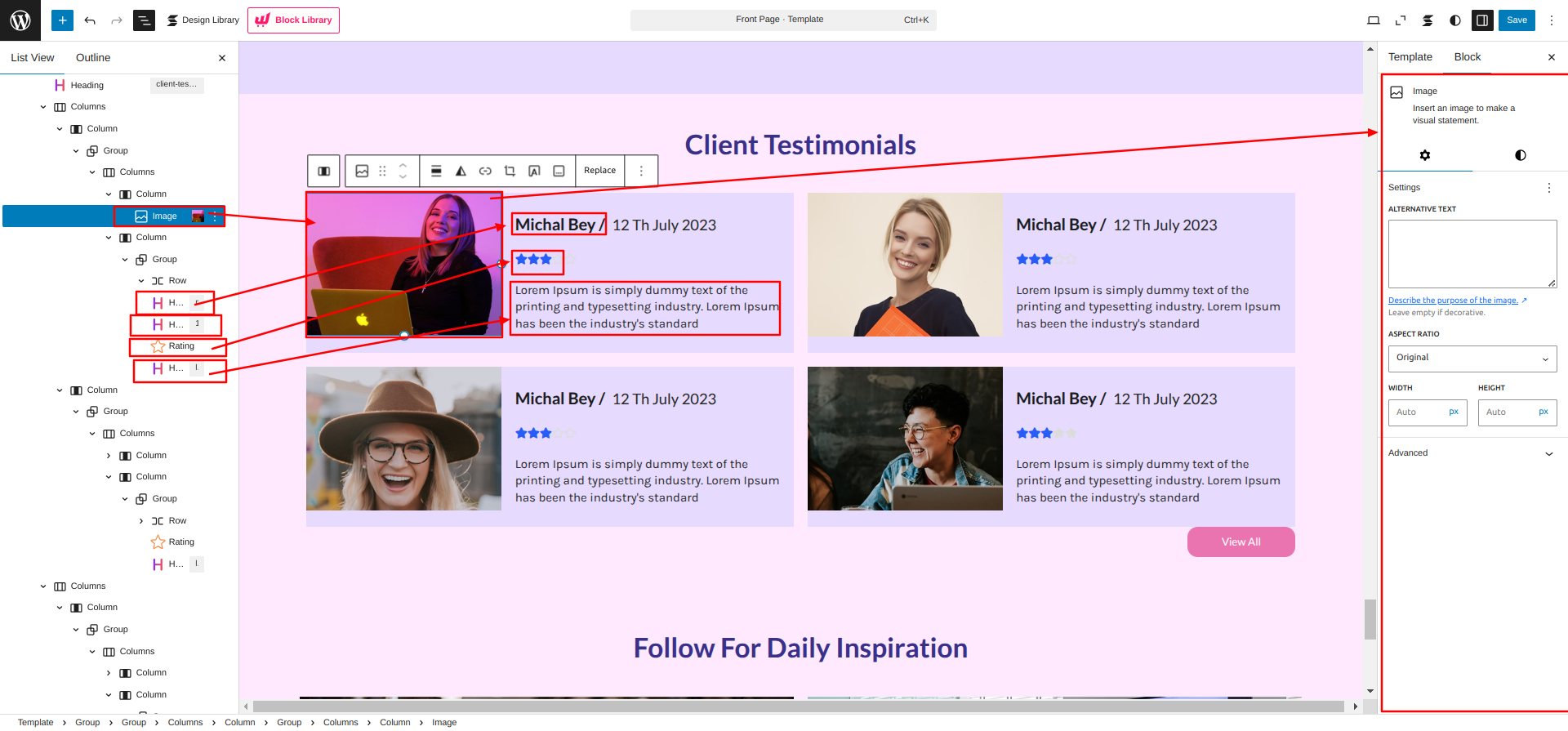
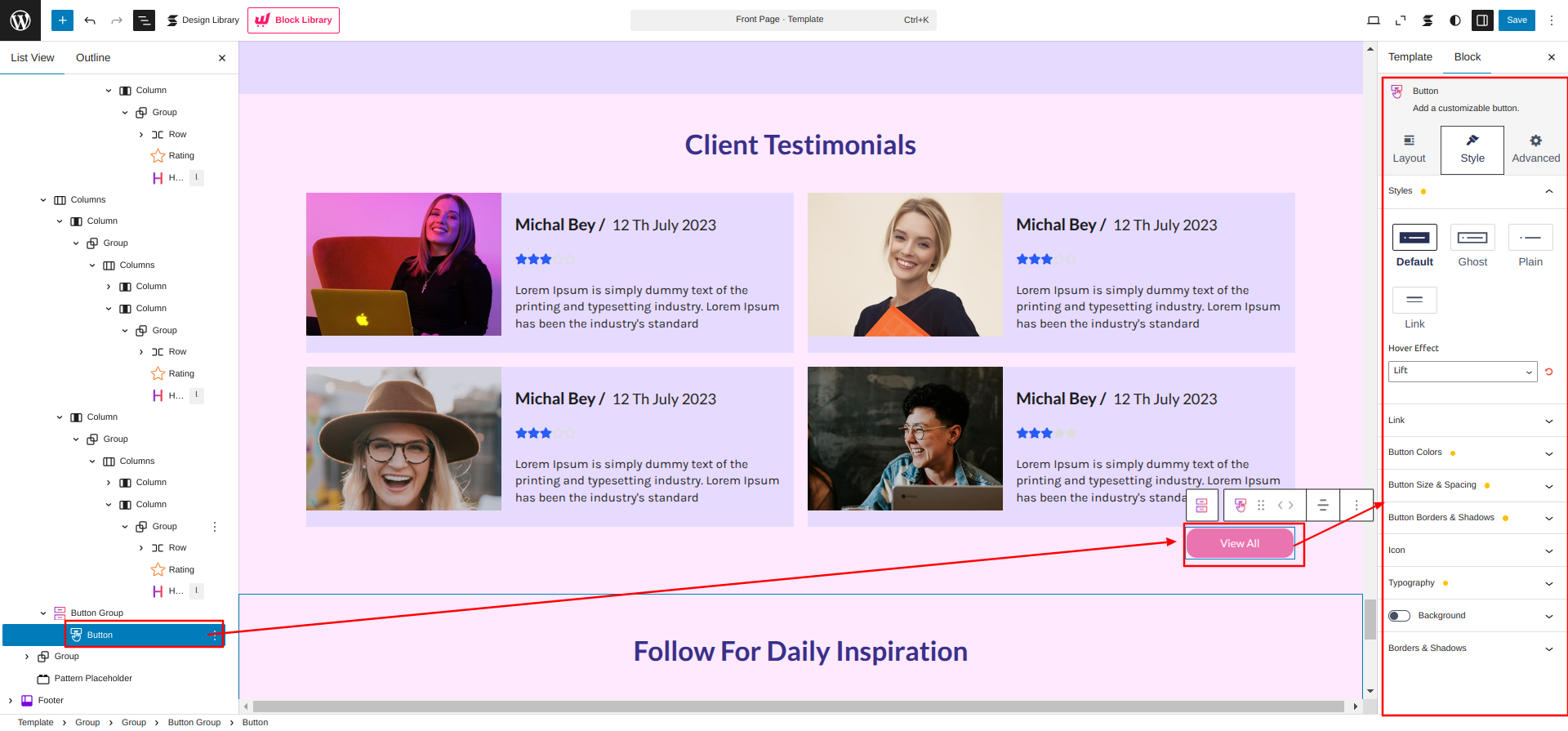
Setup Client Testimonials Section
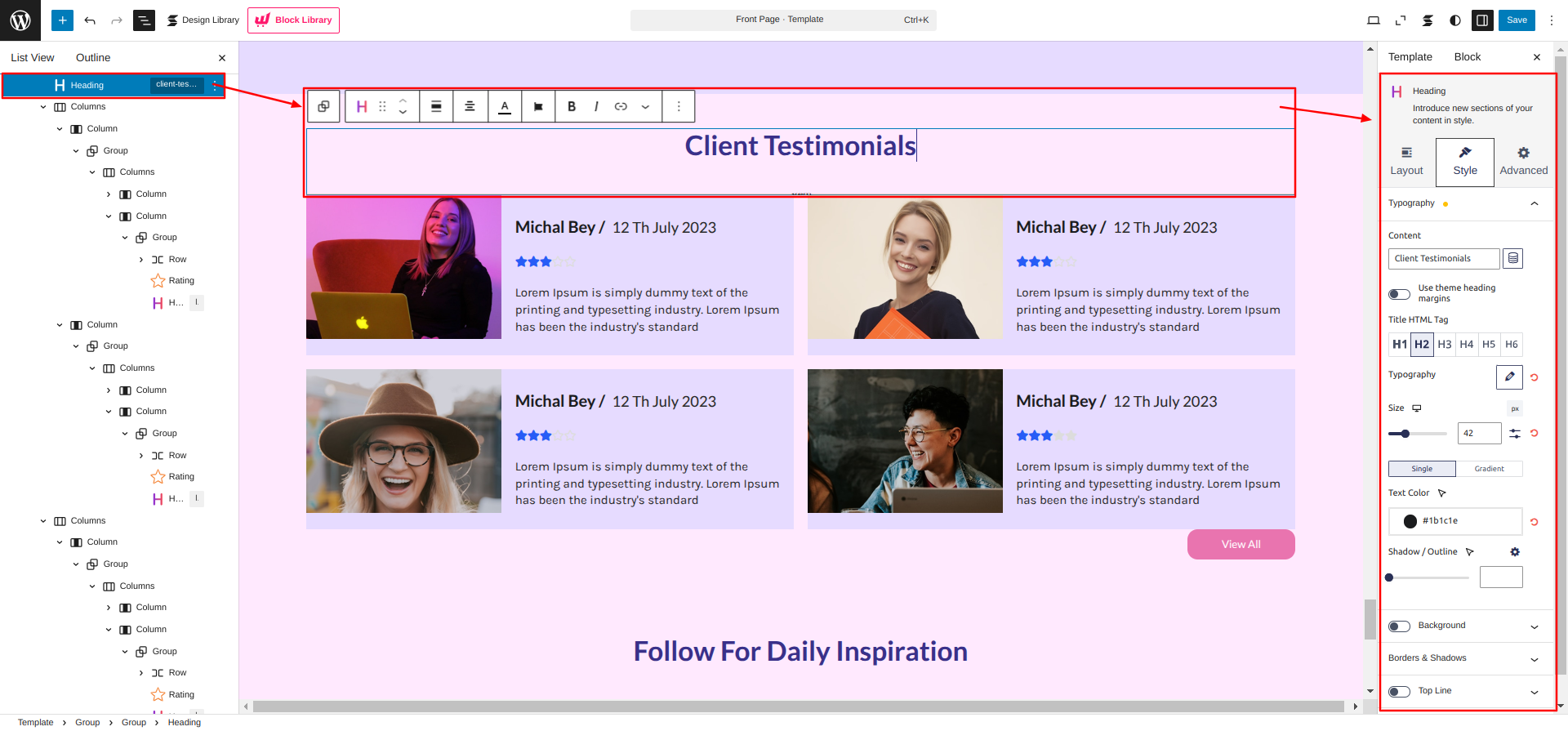
Set up the Client Testimonials Section according to the instructions below.
Go to the Dashboard Appearance Editor.
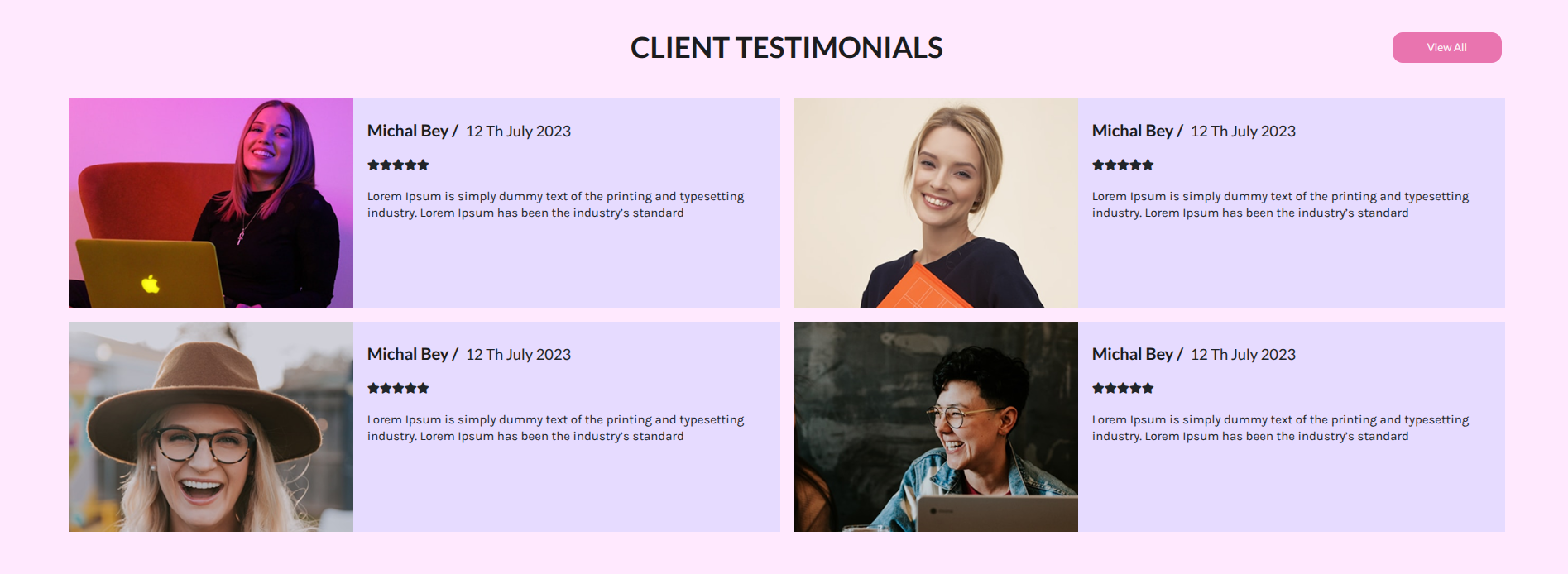
This is how you can add and set up the Client Testimonials Section.
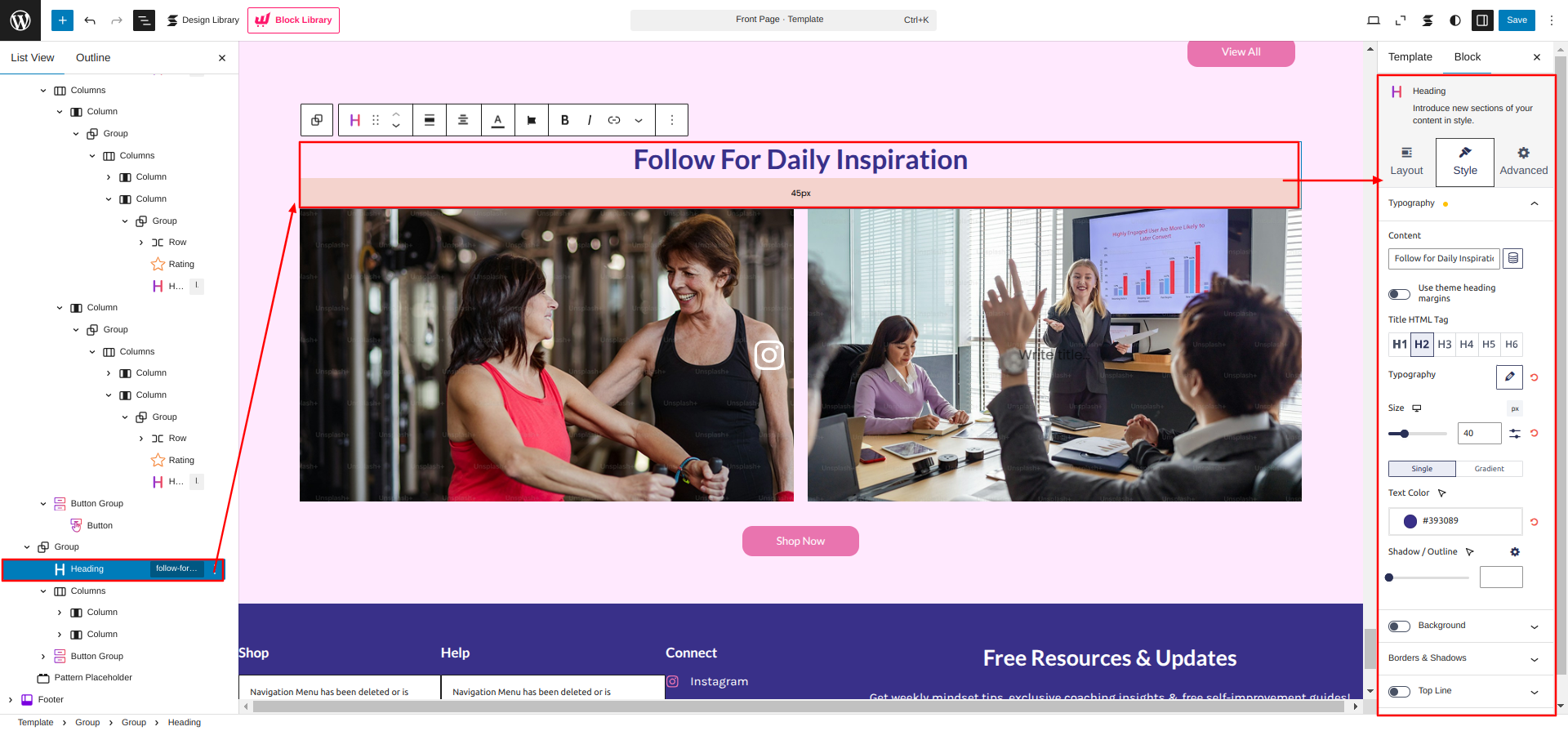
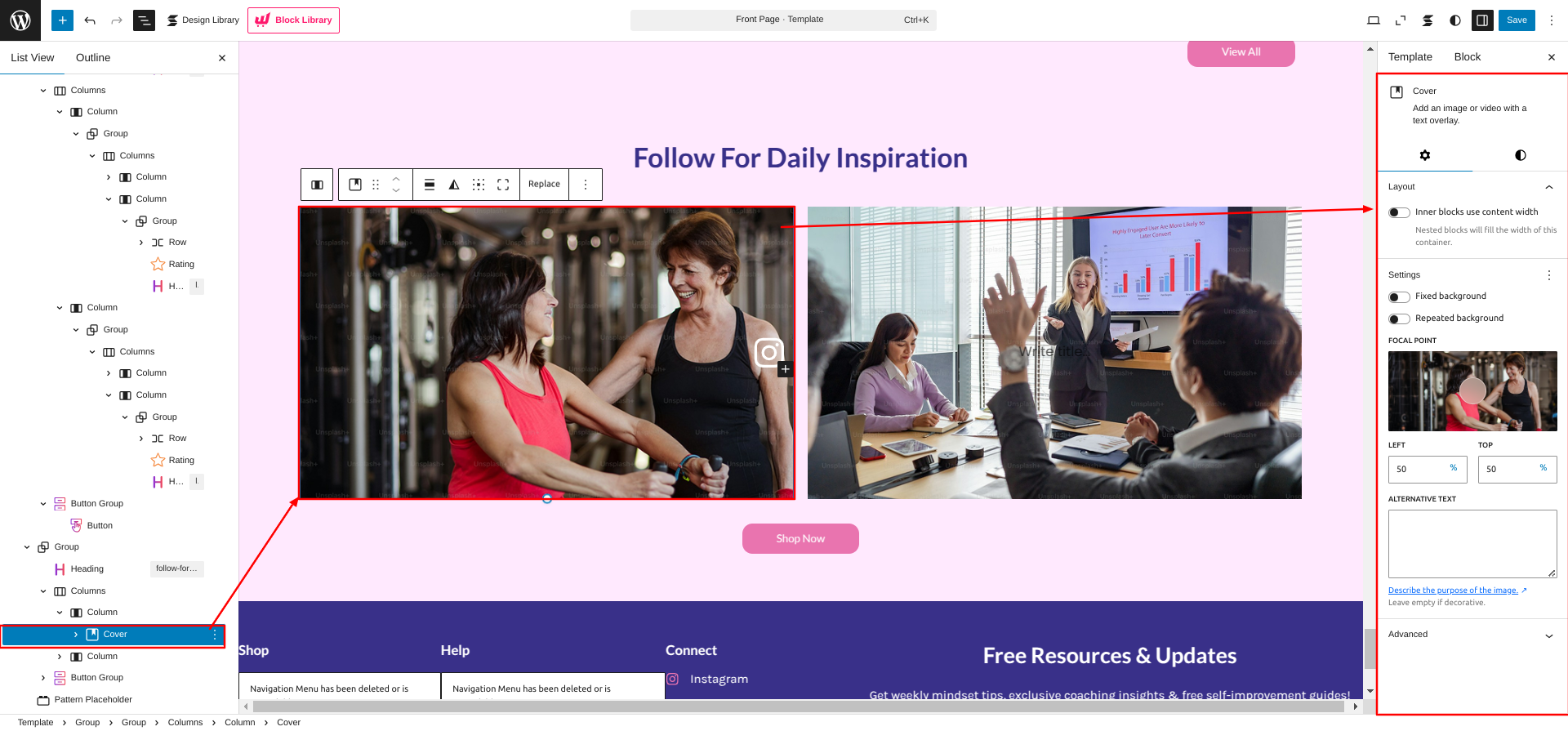
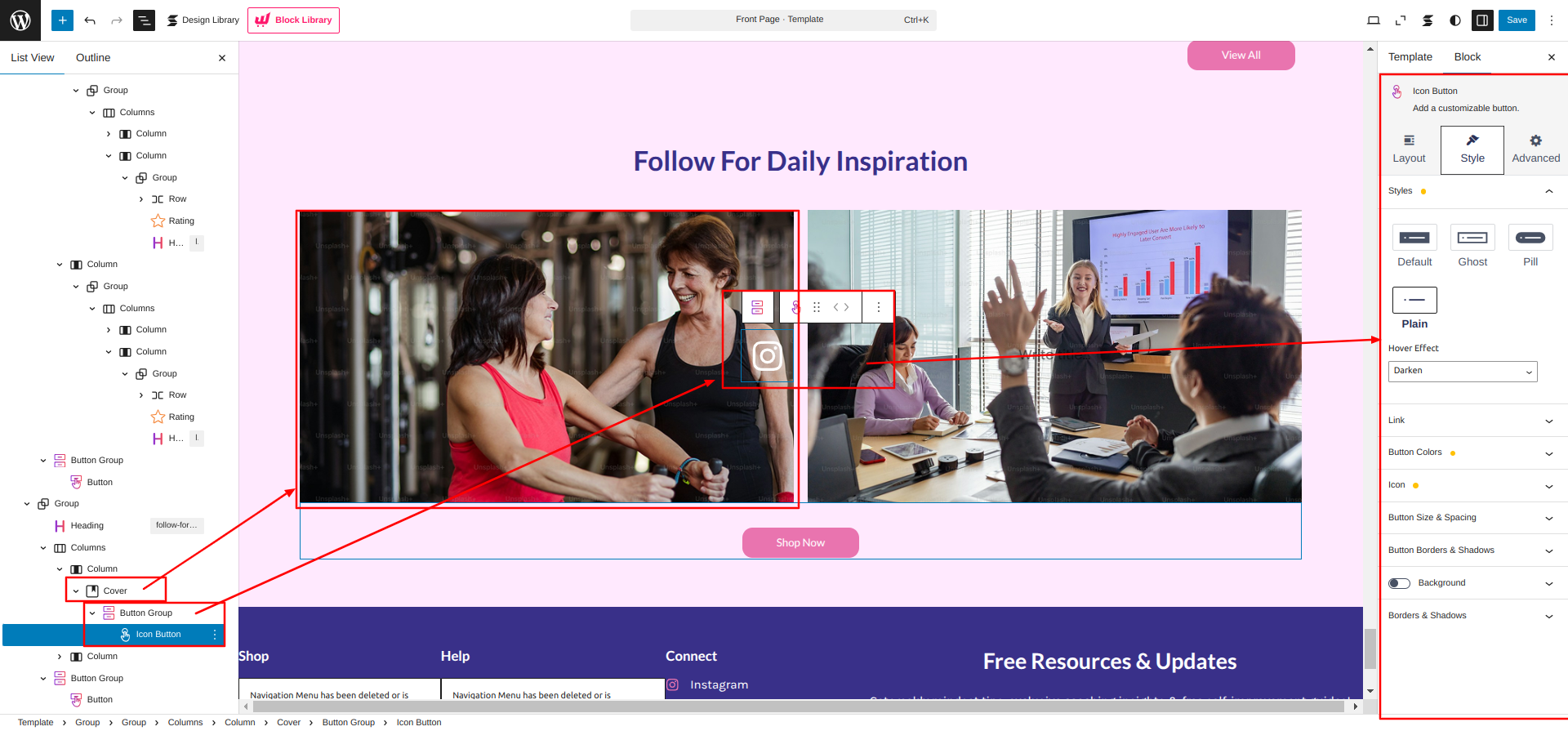
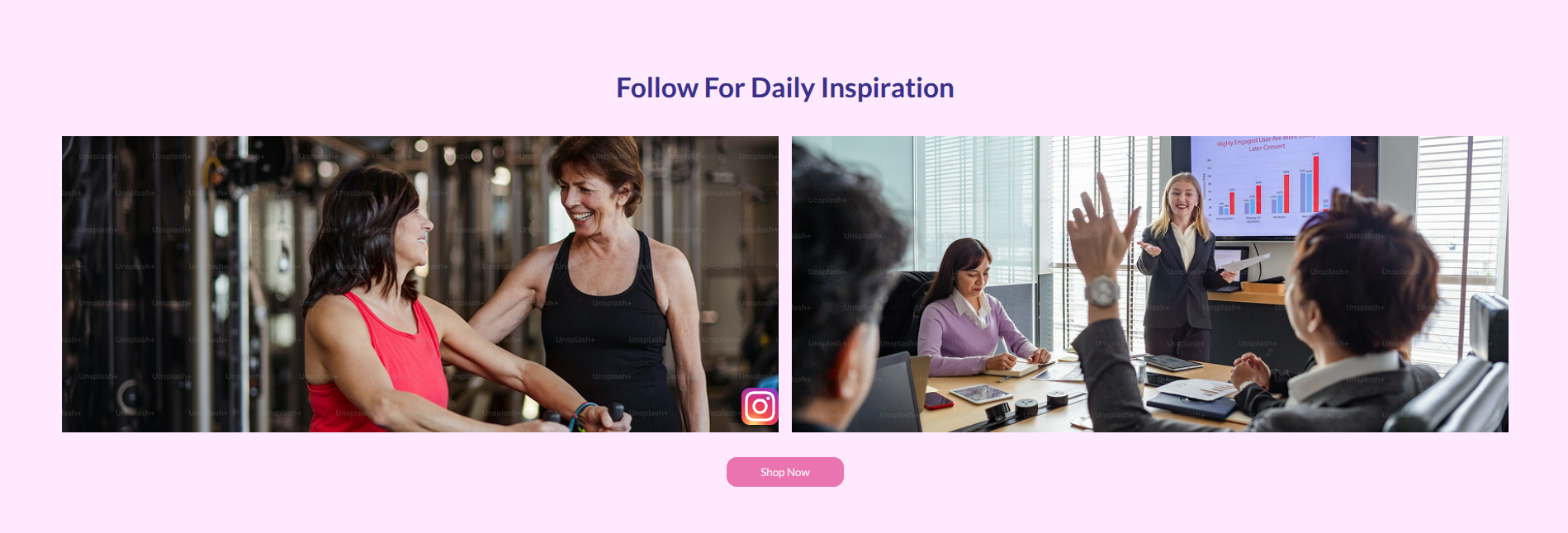
Setup Follow for Daily Inspiration Section
Set up the Follow for Daily Inspiration Section according to the instructions below.
Go to the Dashboard Appearance Editor.
This is how you can add and set up the Follow for Daily Inspiration Section.
INNER PAGES
SETUP CONTACT US PAGE
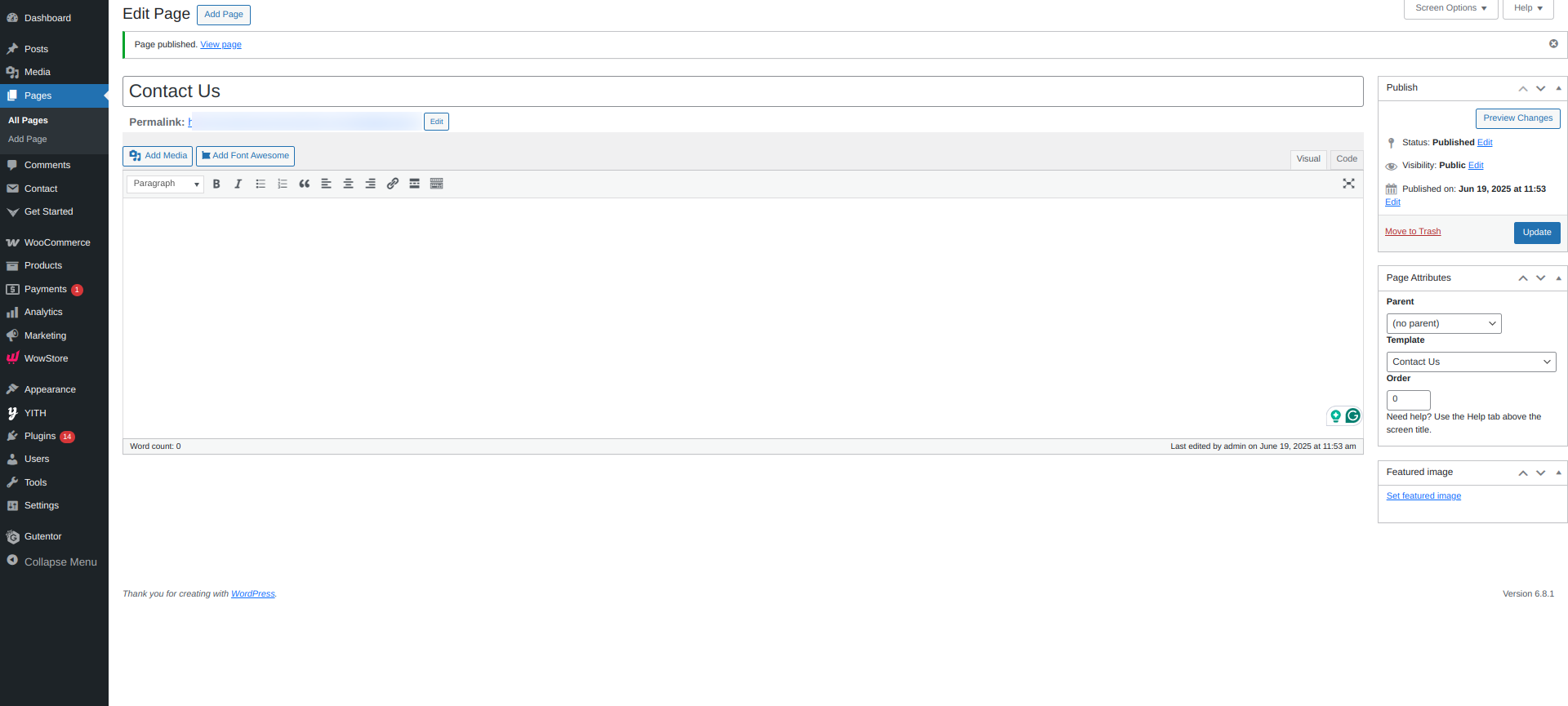
Set up the Contact Us Page by following the steps mentioned below.
- Step 1. Go to Dashboard Page Add New
- Step 2. Add Page Name
- Step 3. On the right side of the page, select contact-us template
- Step 4. Click the Update button
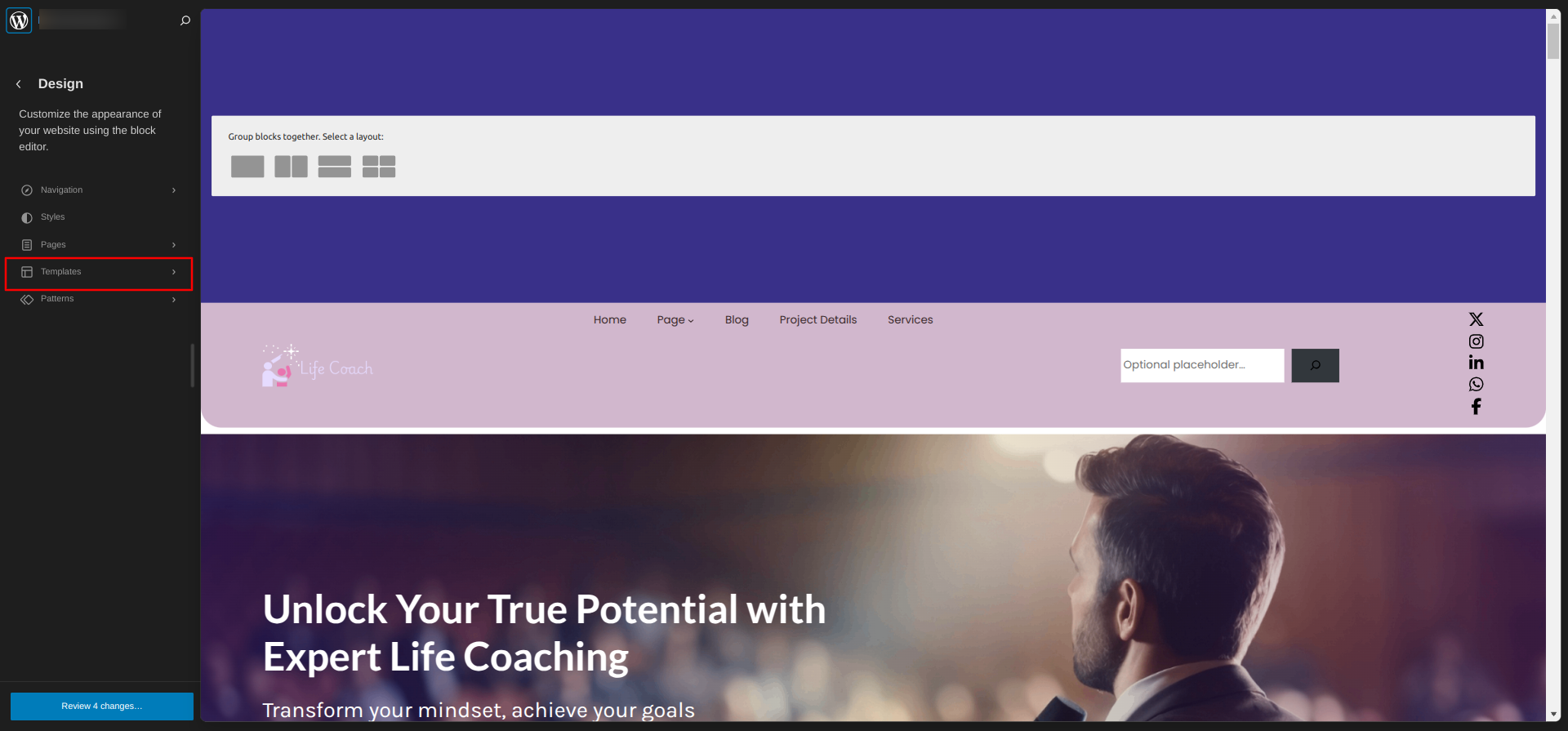
Go to the Dashboard Appearance Editor.
Click on "Template" as indicated in the screenshot below
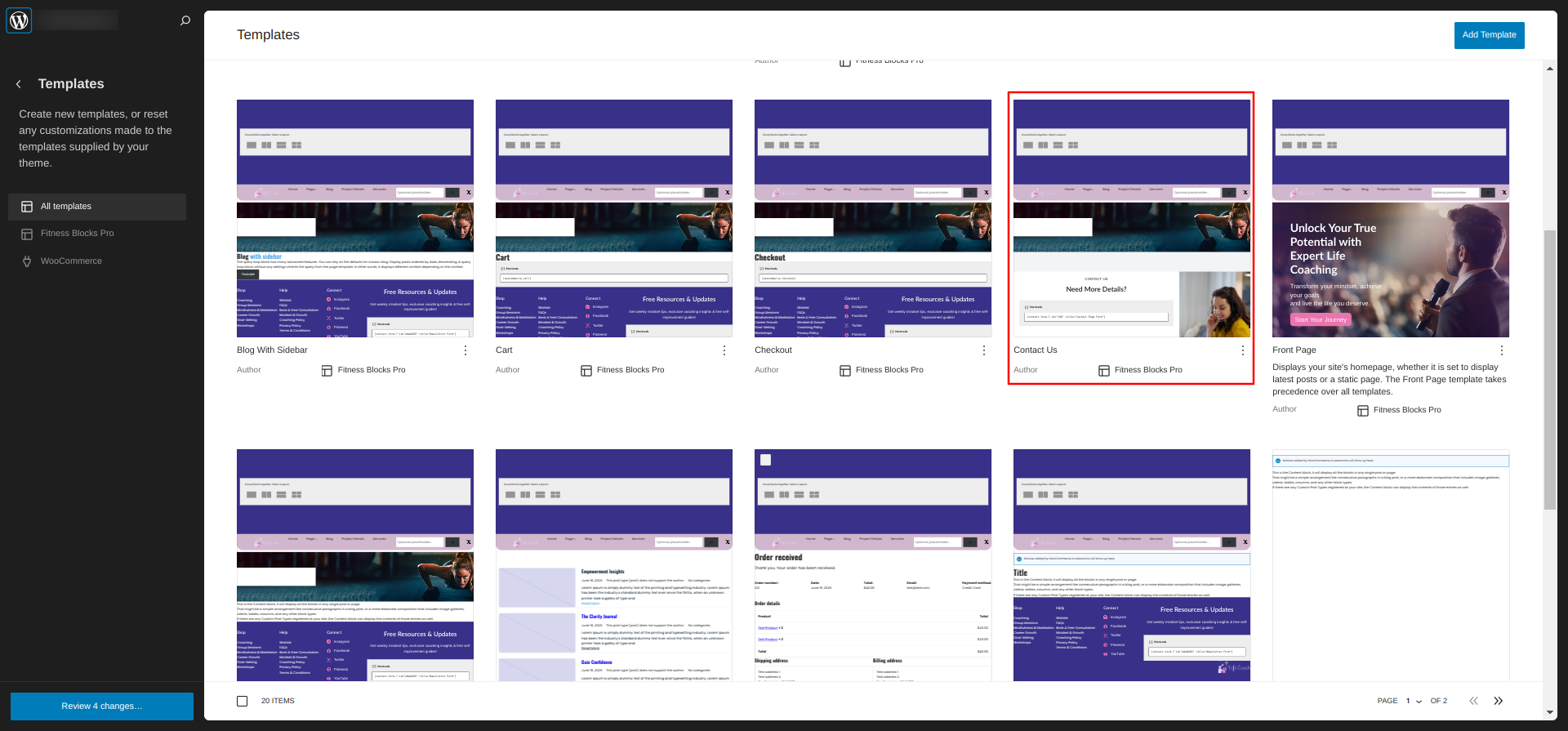
After that, a sidebar will appear now, as seen in the screenshot below, pick "Contact Us" from the dropdown.
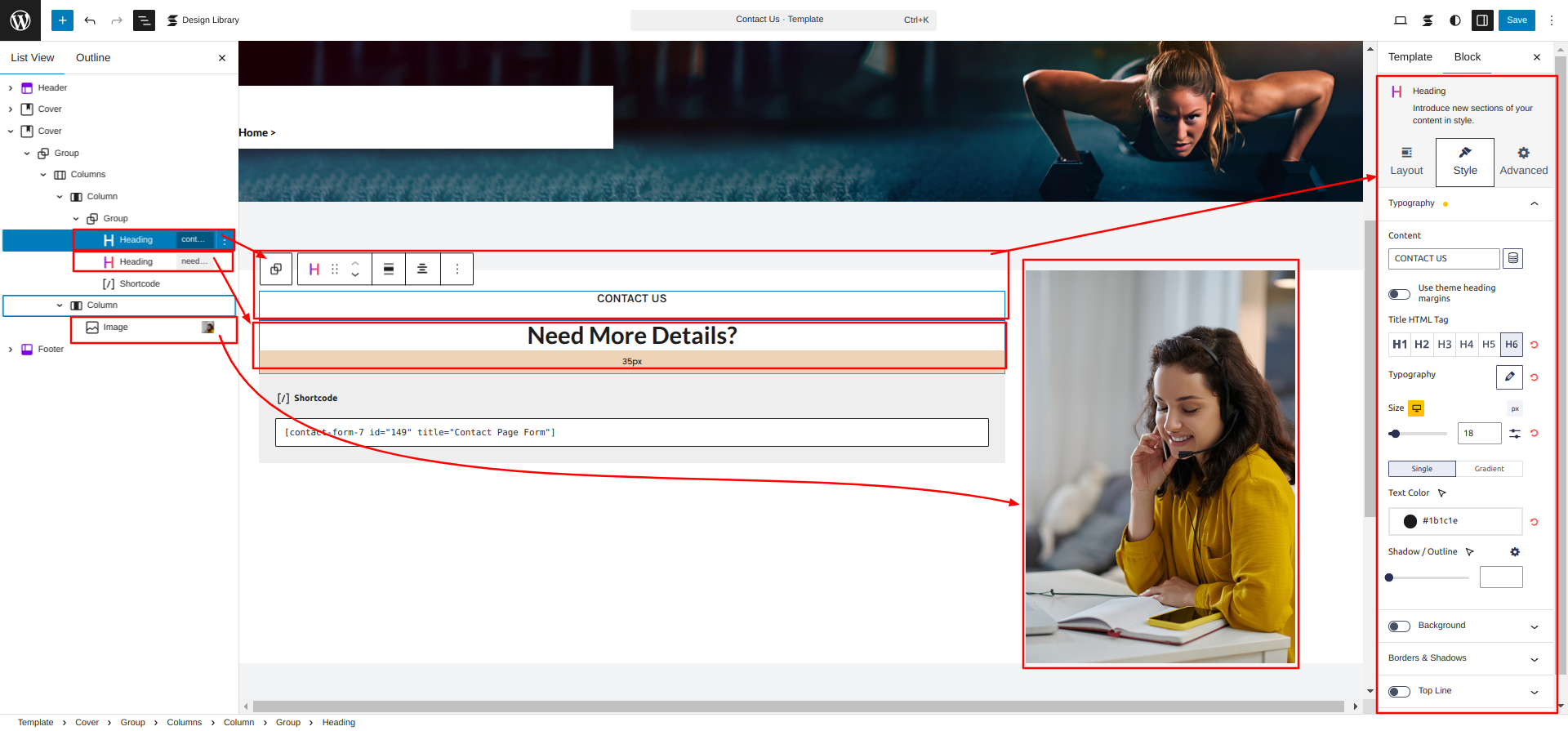
Created a Contact Form in accordance with the guidelines below.
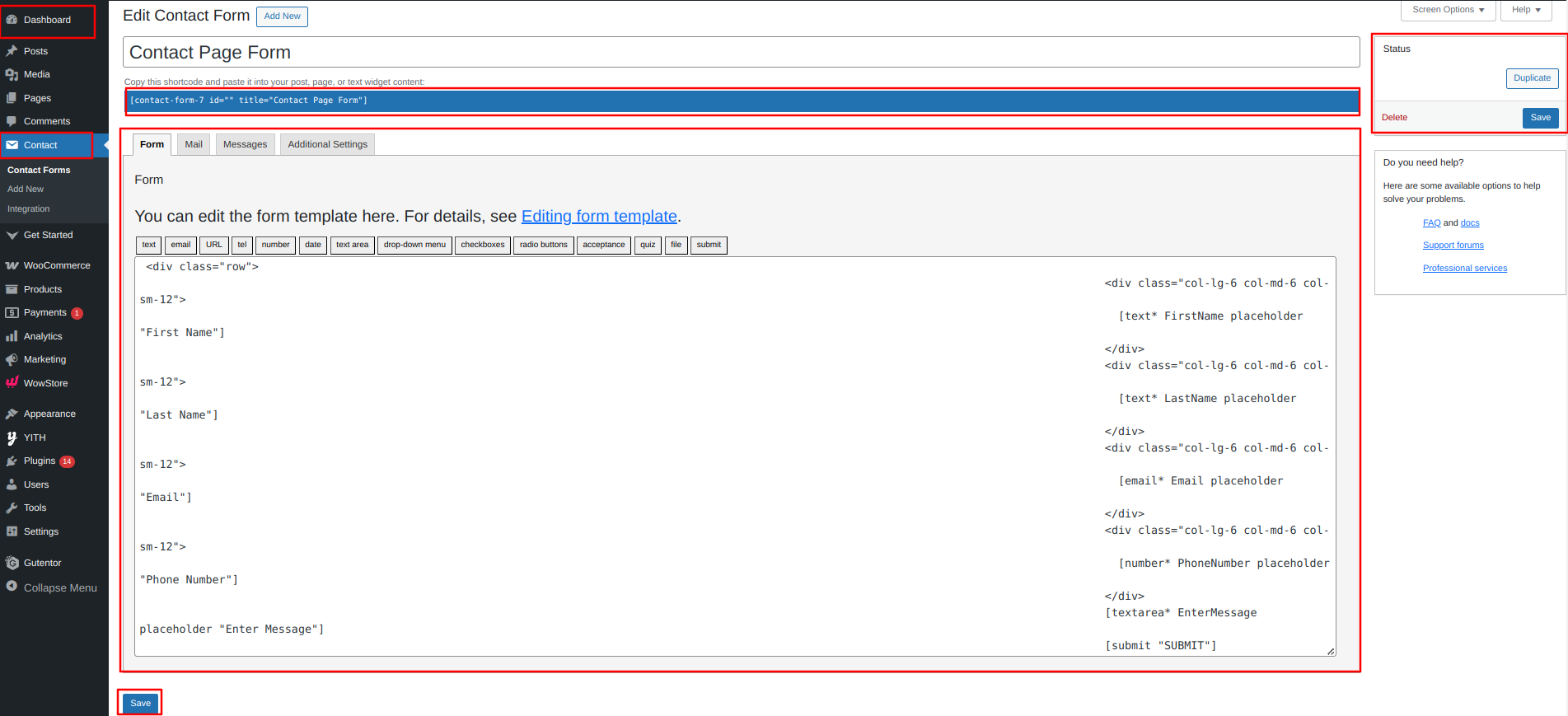
Go to the Dashboard Contact Add New.
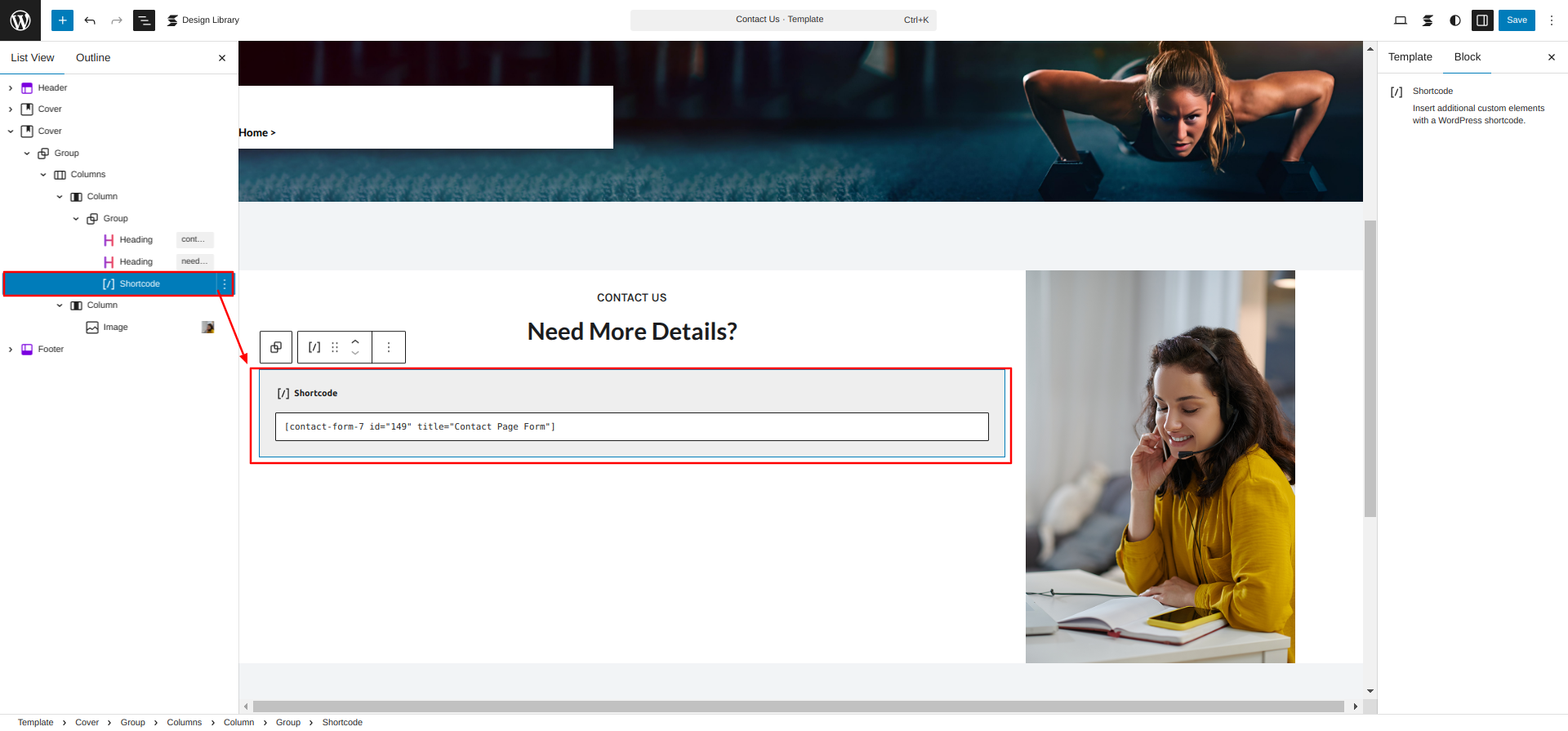
Using the contact form 7 plugin, I built a shortcode for the Contact Us Page Form and then used the shortcode block to enter the generated shortcode.
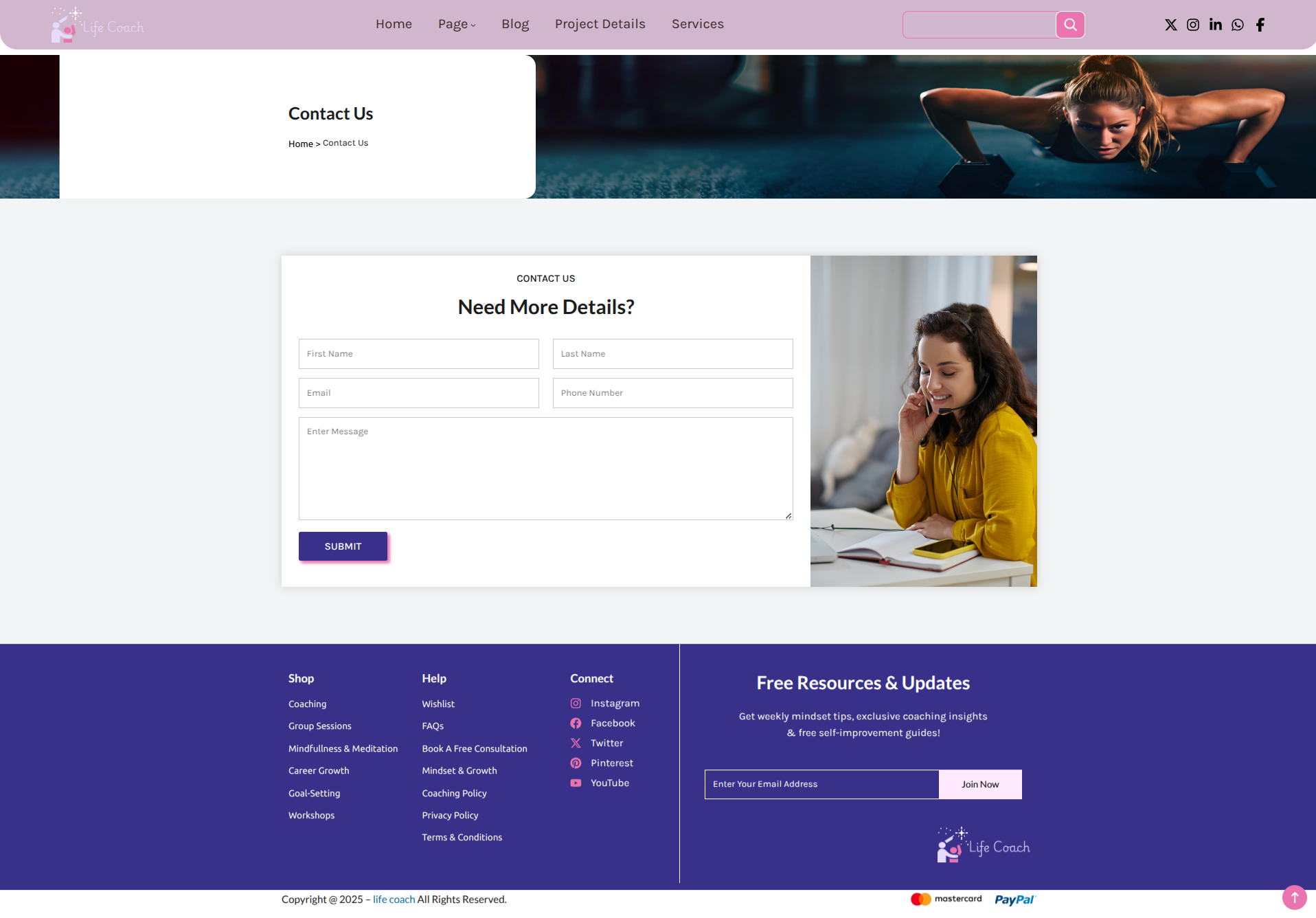
This is how you can add and set up the Contact Us Page.