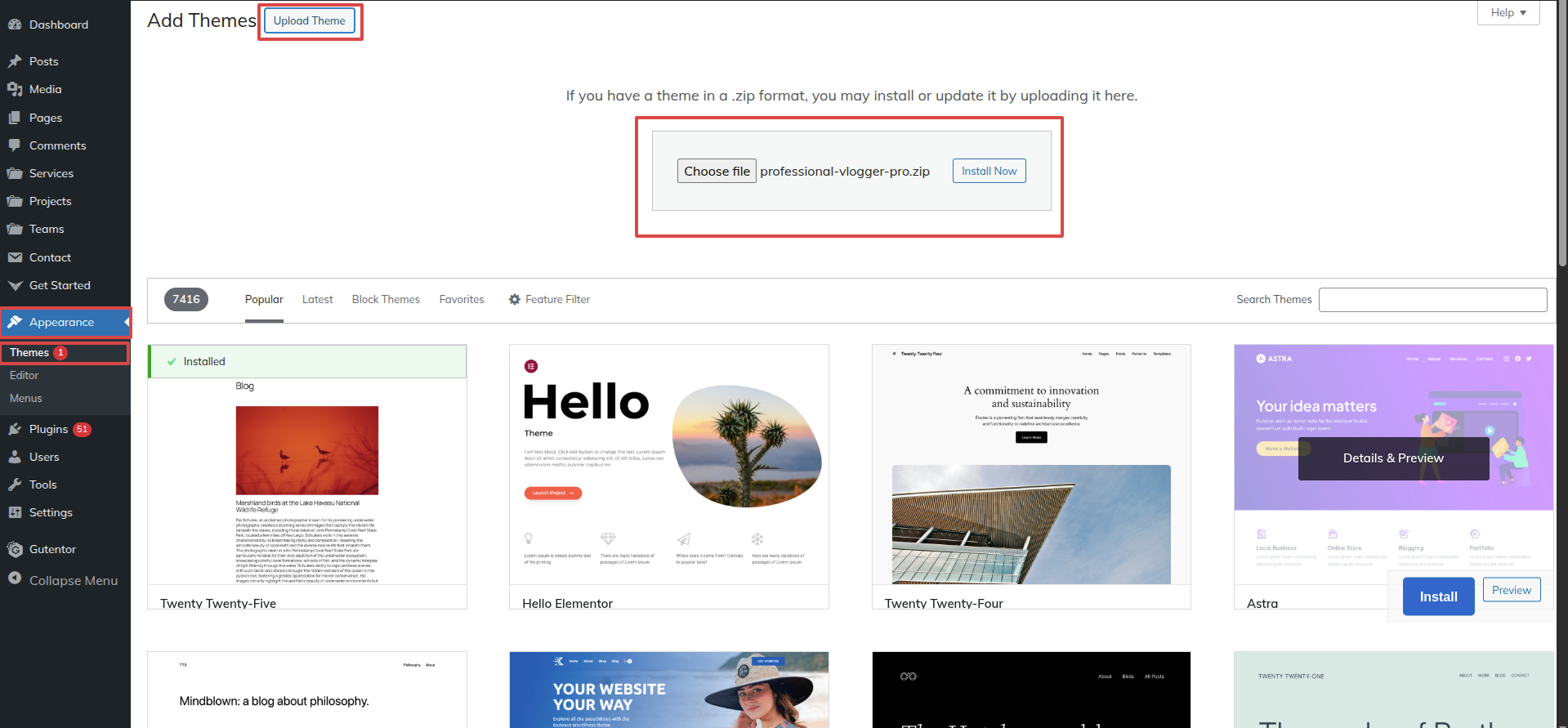
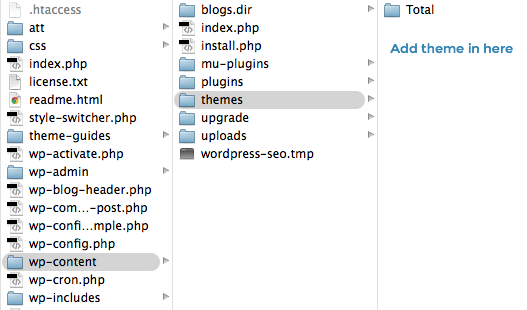
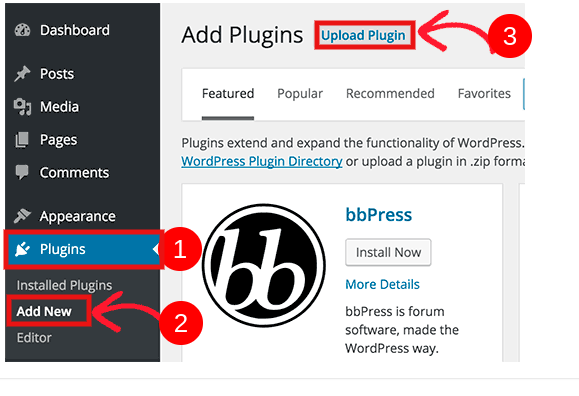
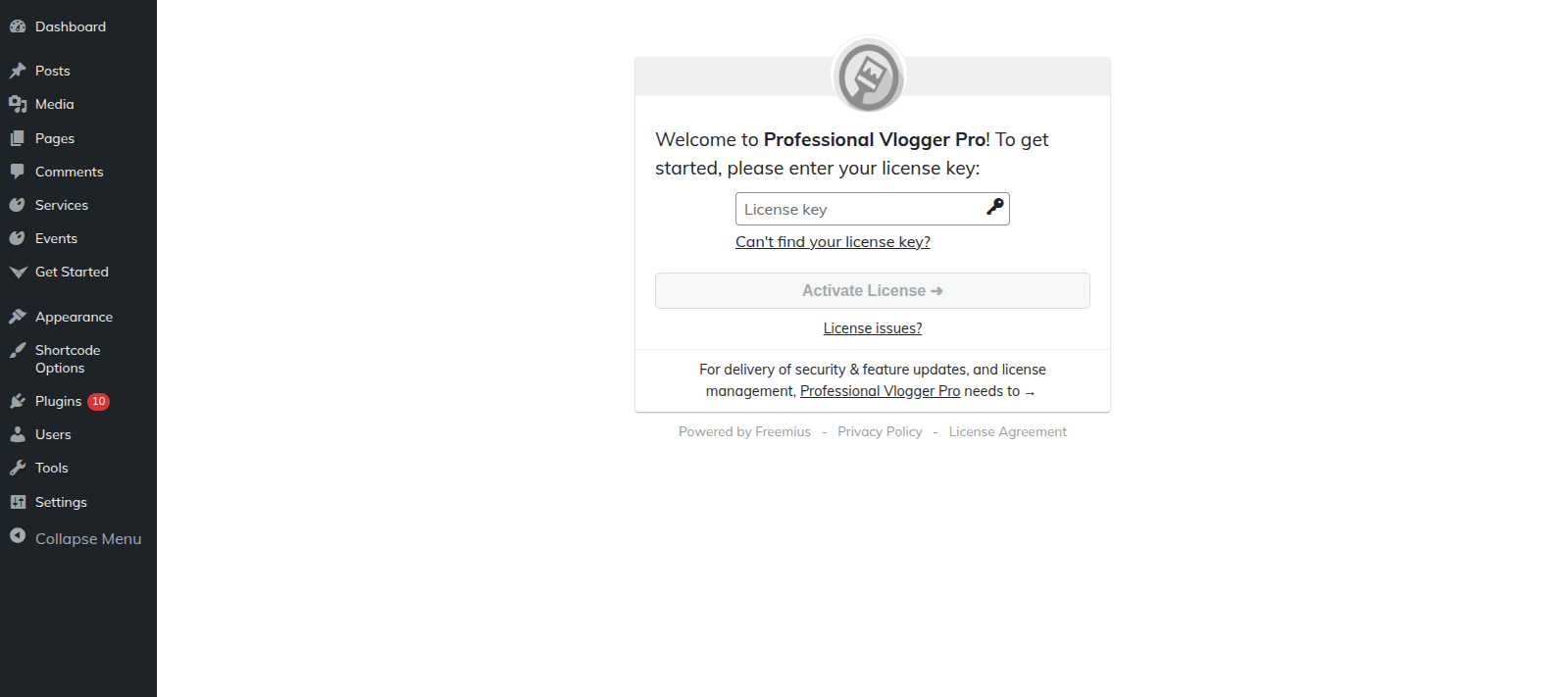
THEME IMPLEMENTATION
HOW TO SET UP HOMEPAGE
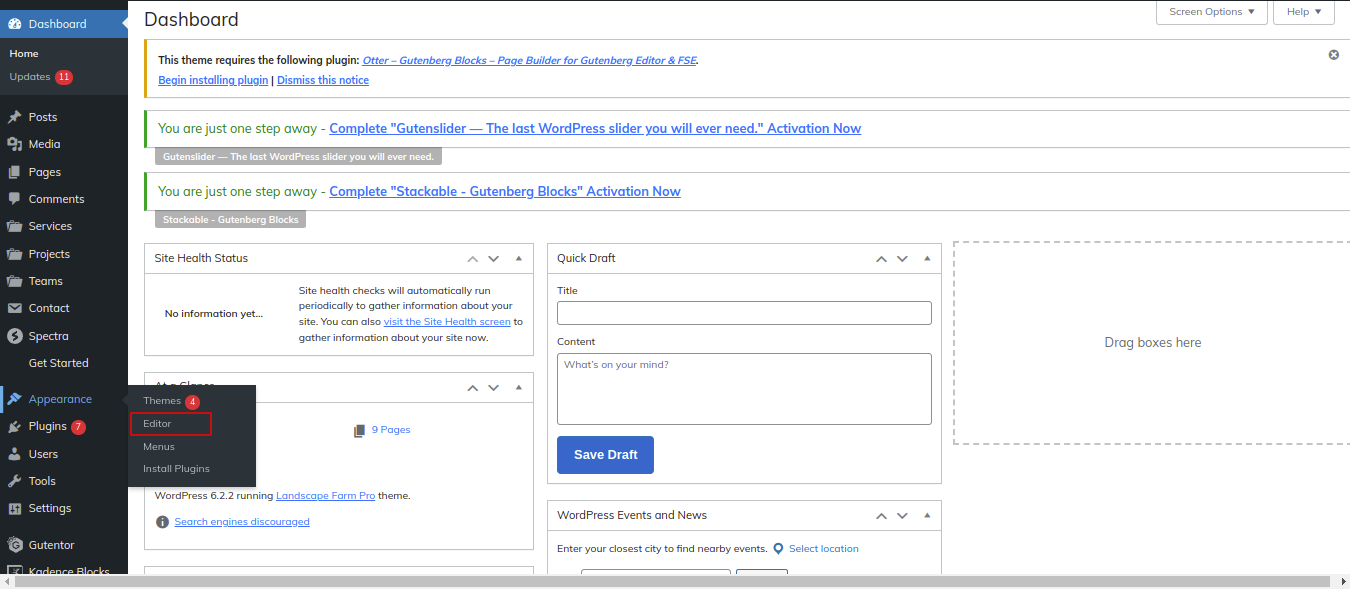
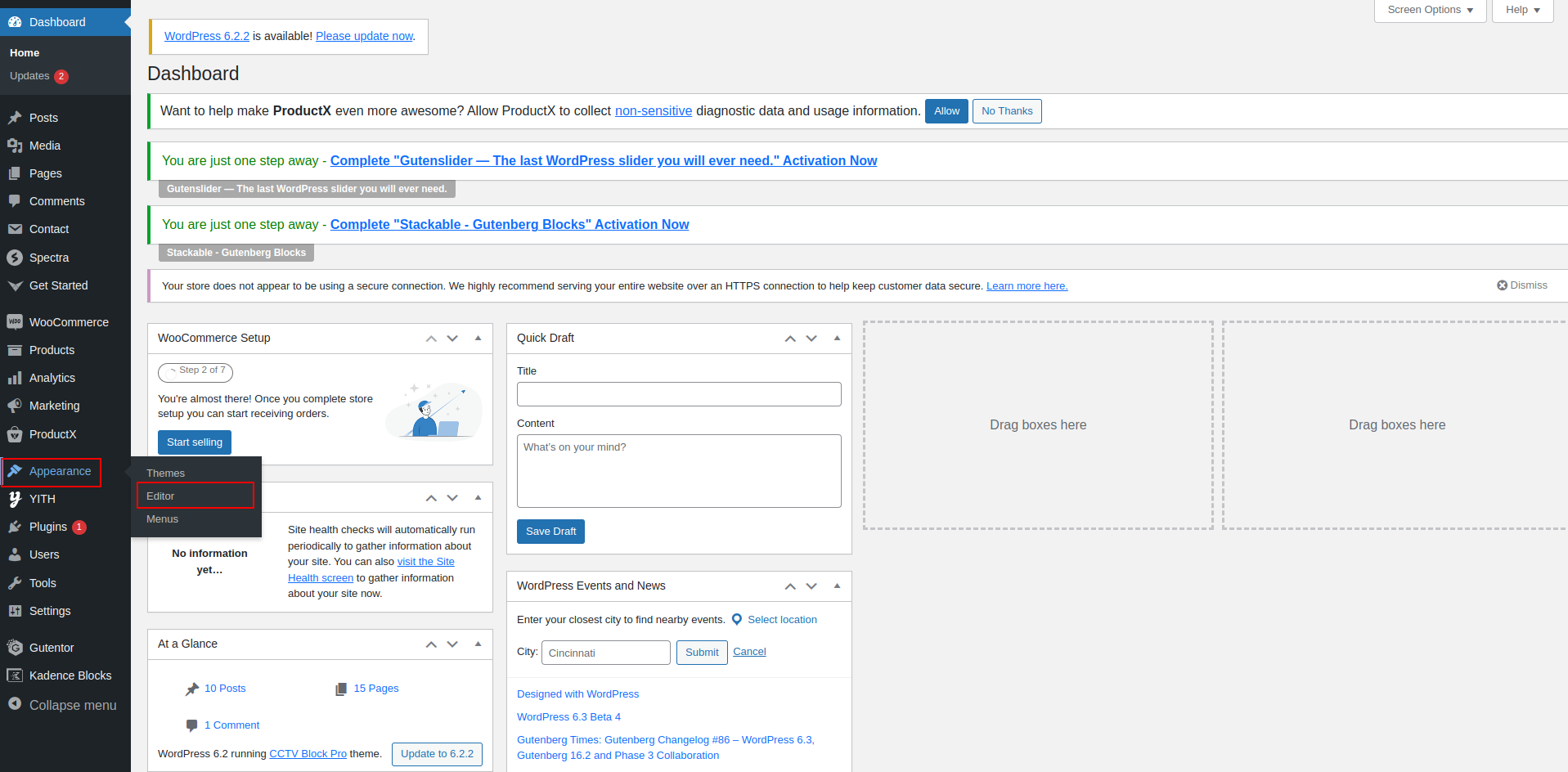
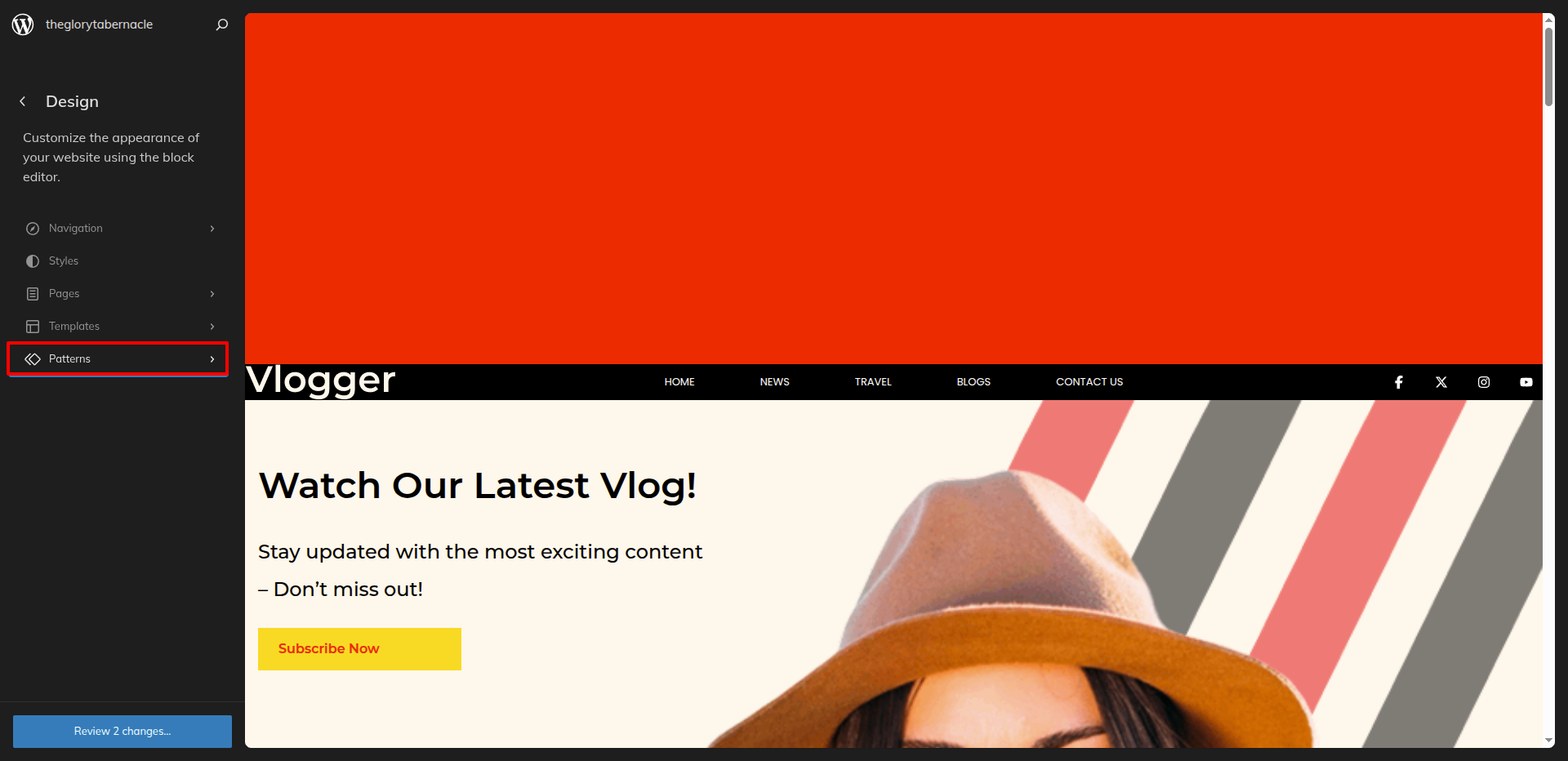
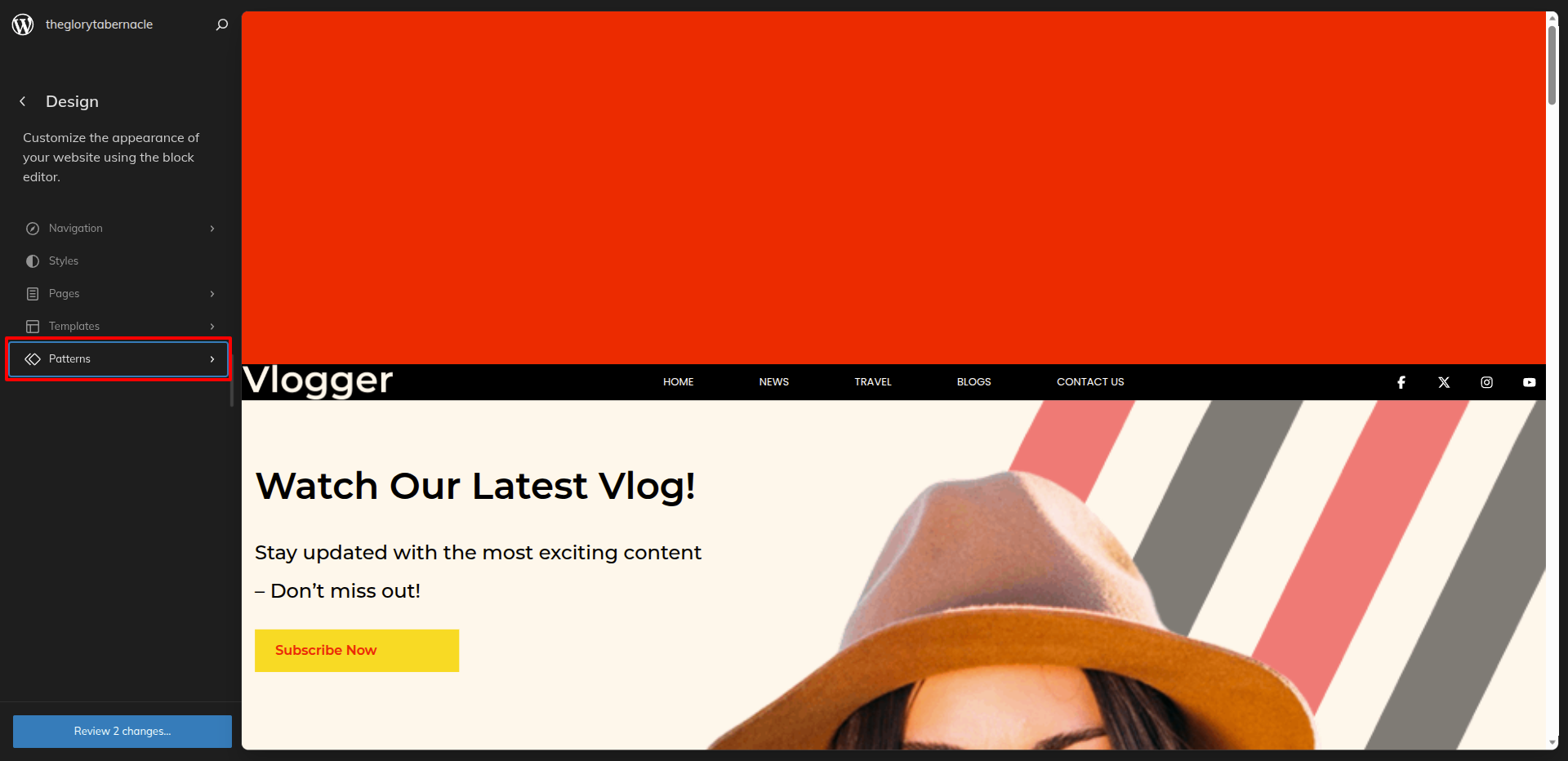
Go to the Dashboard Appearance Editor.
HOW TO INCLUDE PATTERNS AND BLOCKS IN A PAGE
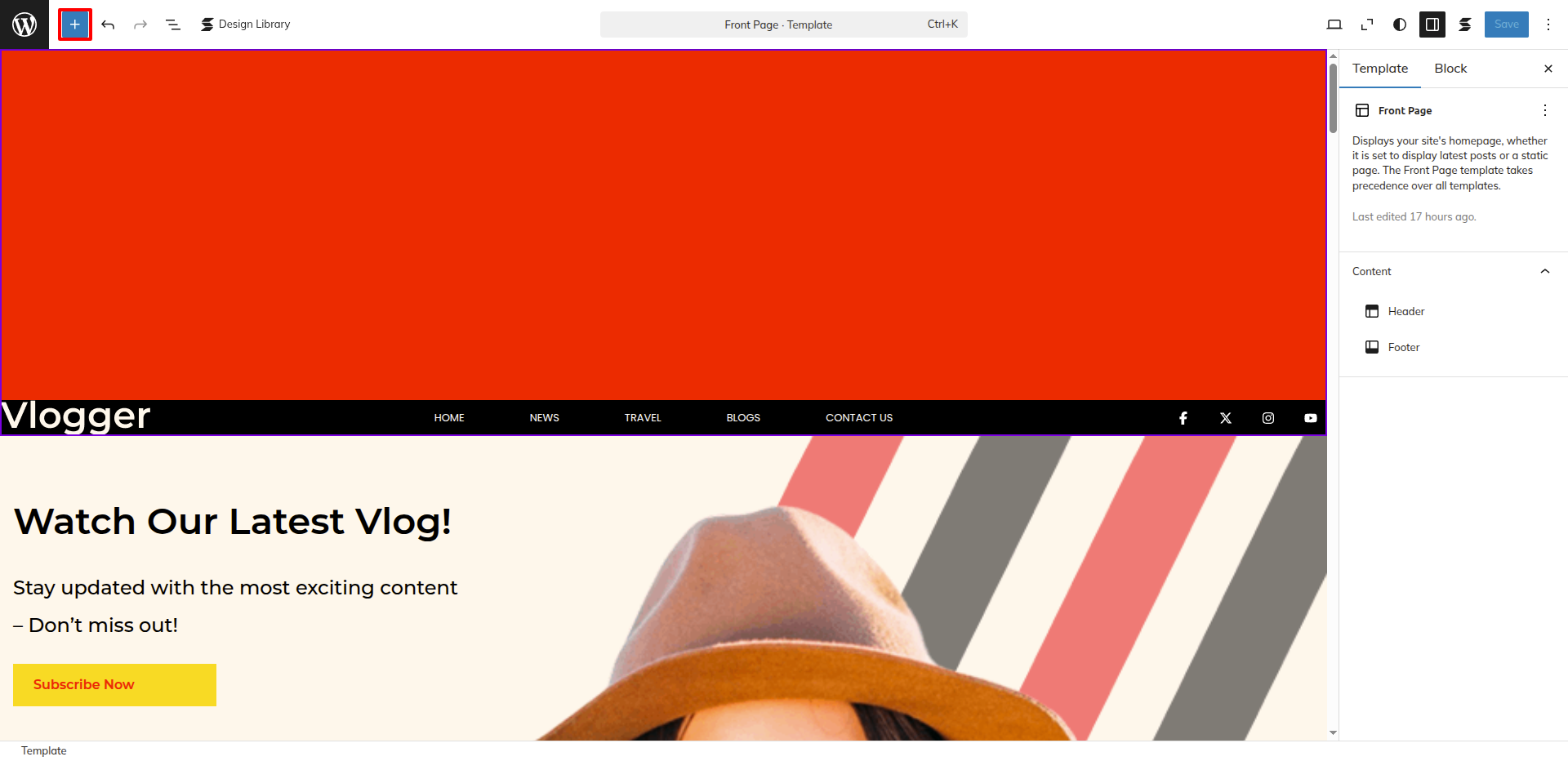
Please click the "Plus" icon as displayed in the screen below in order to add patterns and bocks.
Select " Professional Vlogger Pro" from the dropdown as displayed in the screen below once a sidebar has opened.
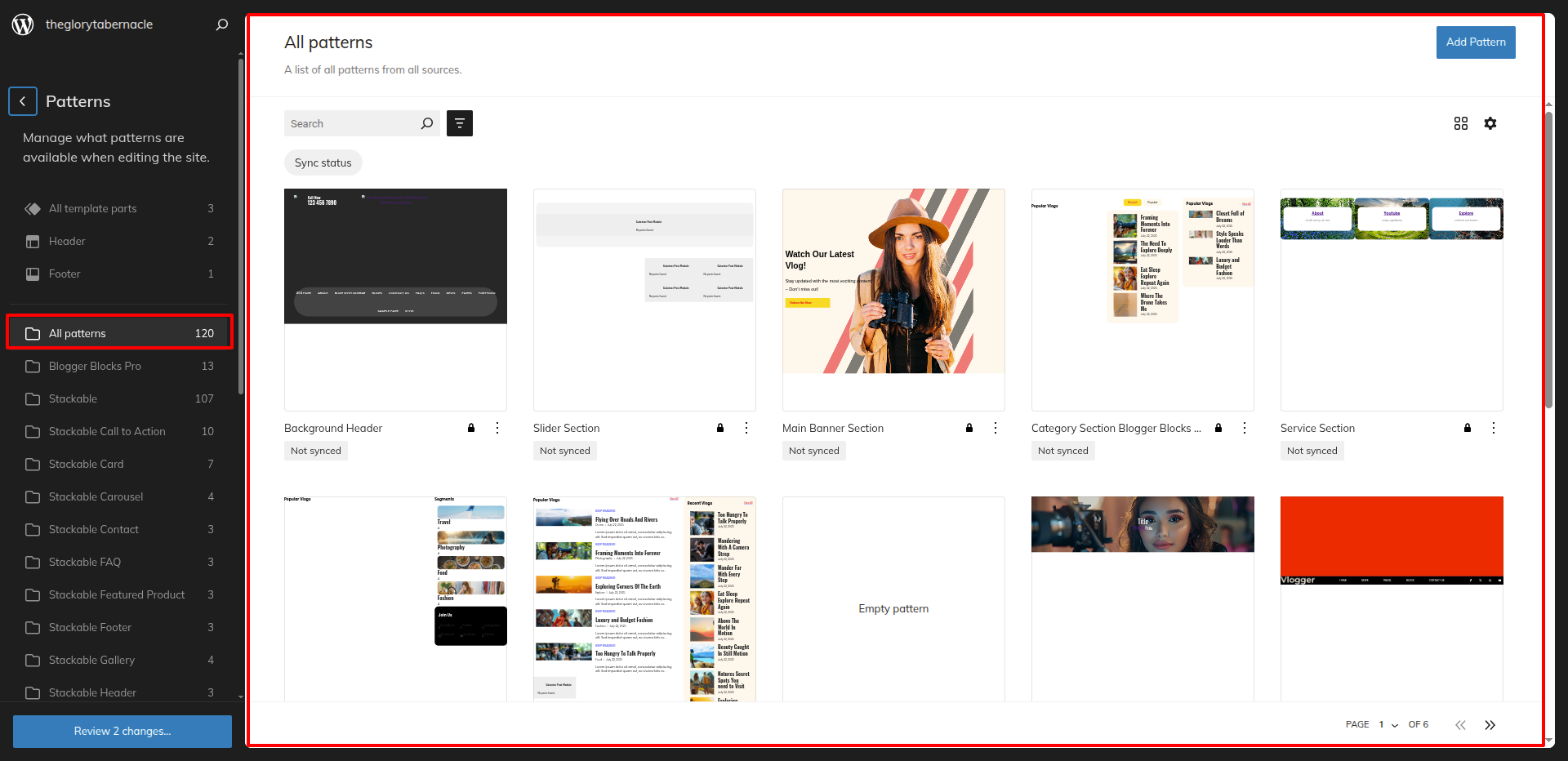
All of the theme patterns are now displayed here, and you may use them on any page.
All of the blocks are now displayed here, and you may use them on any page.
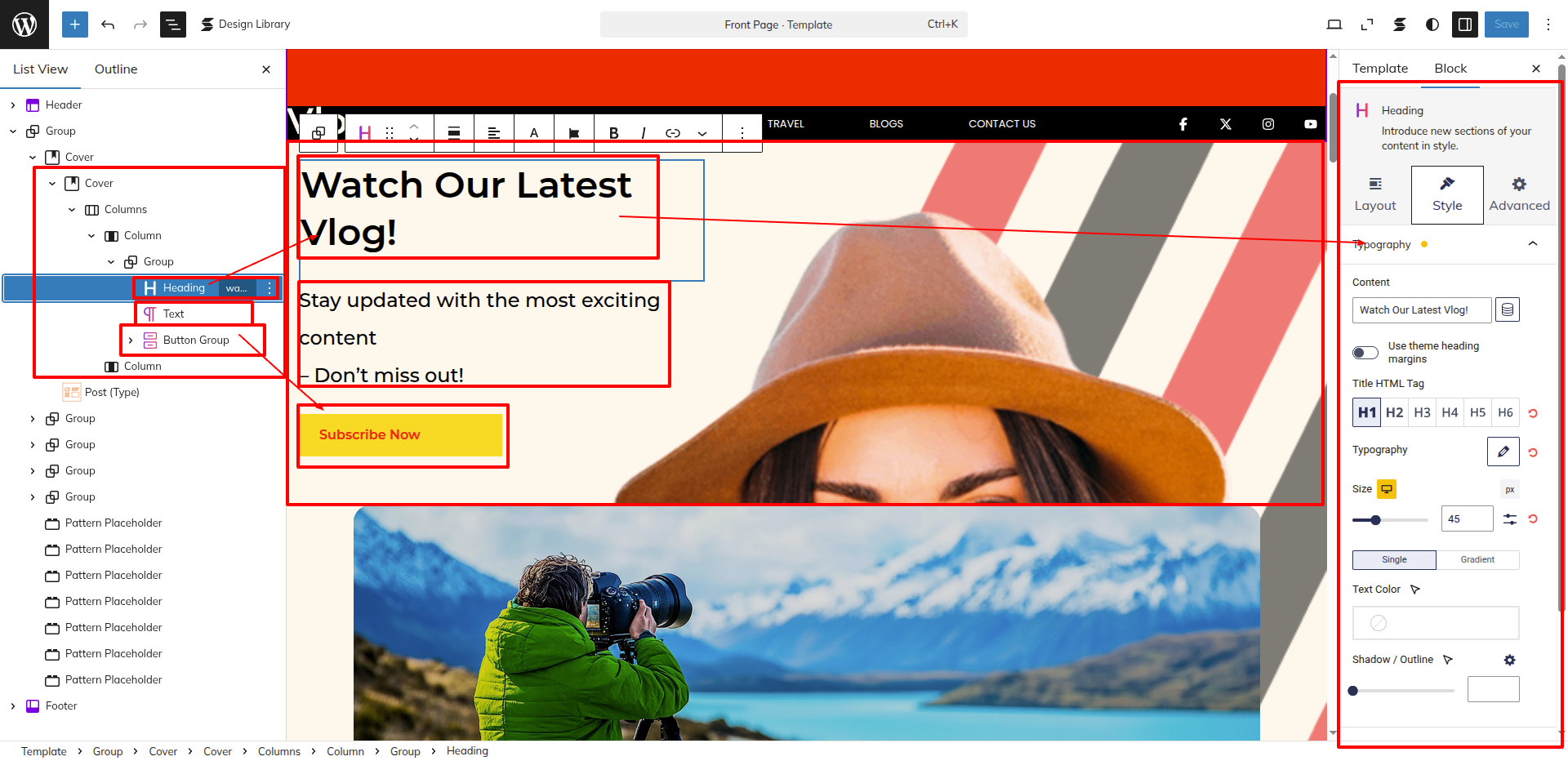
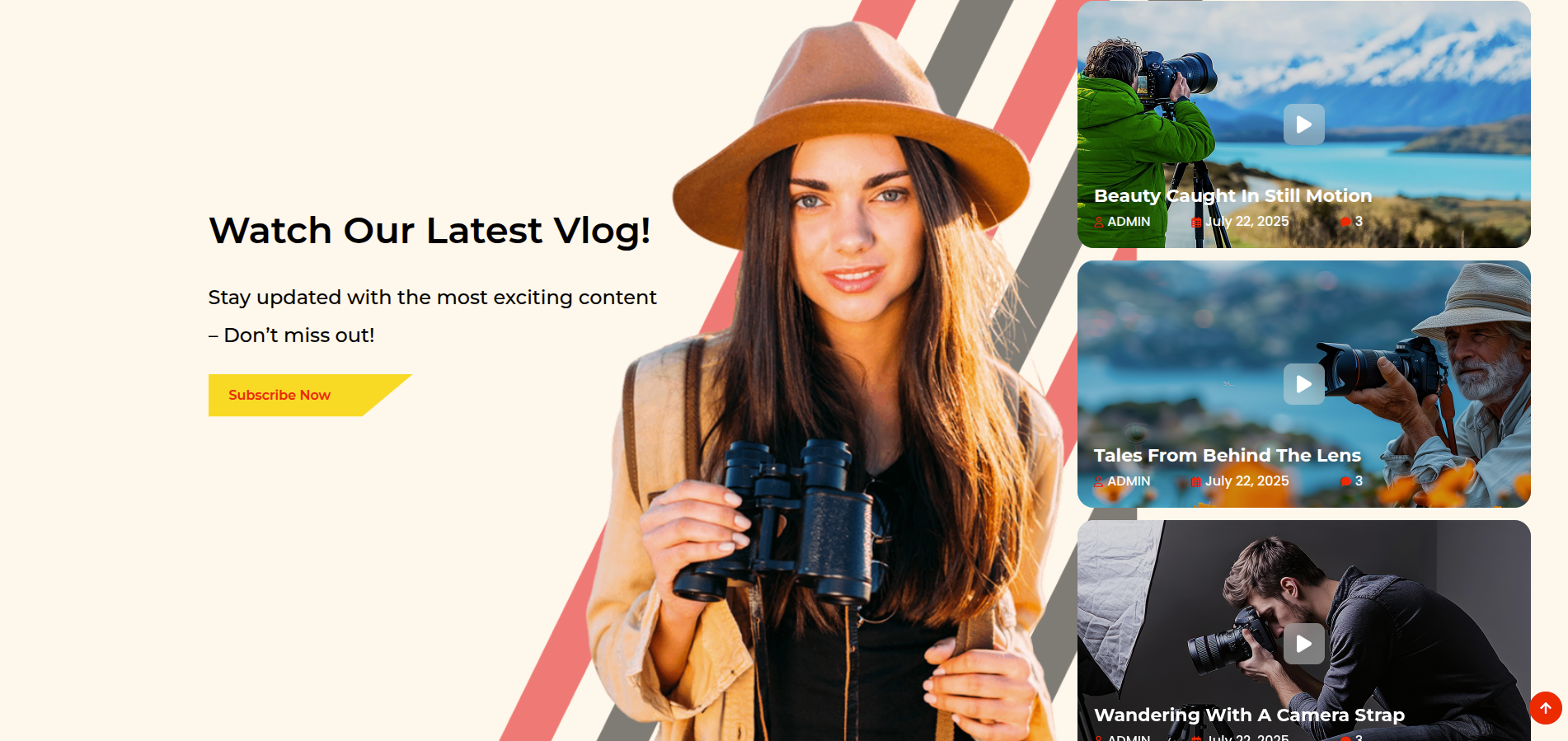
Setup Slider Section
Set up the Slider Section according to the instructions below.
Go to the Dashboard Appearance Editor.
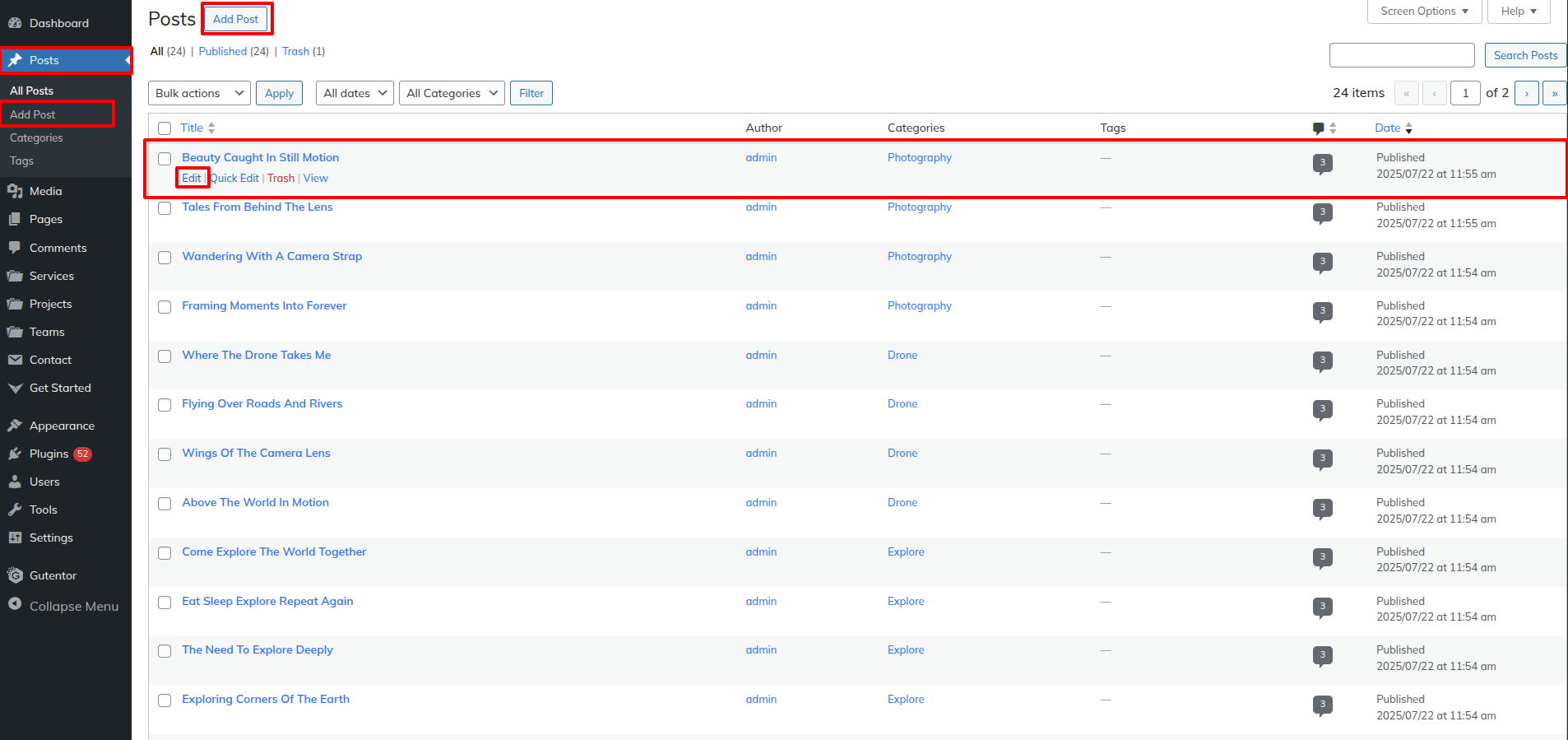
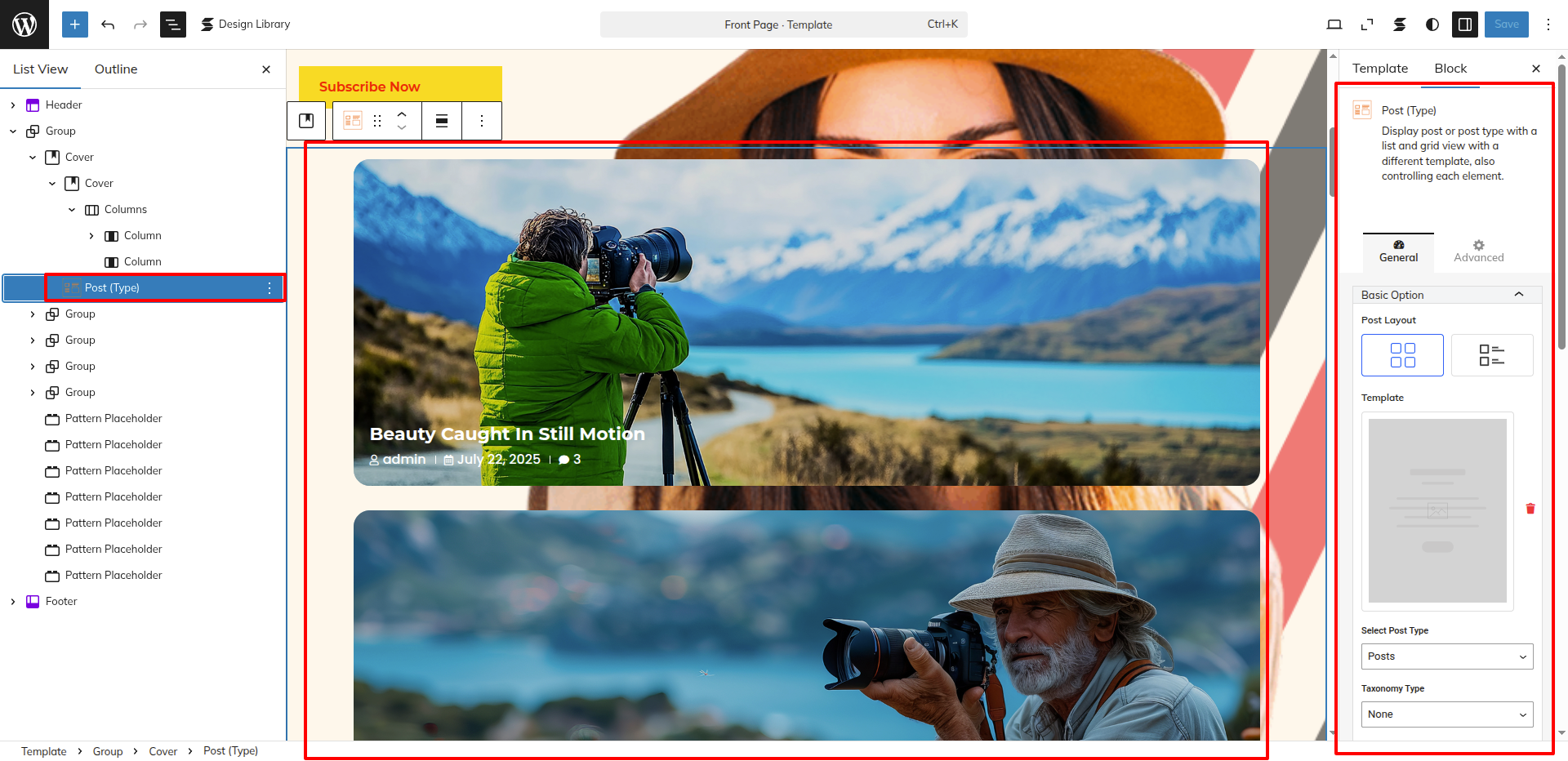
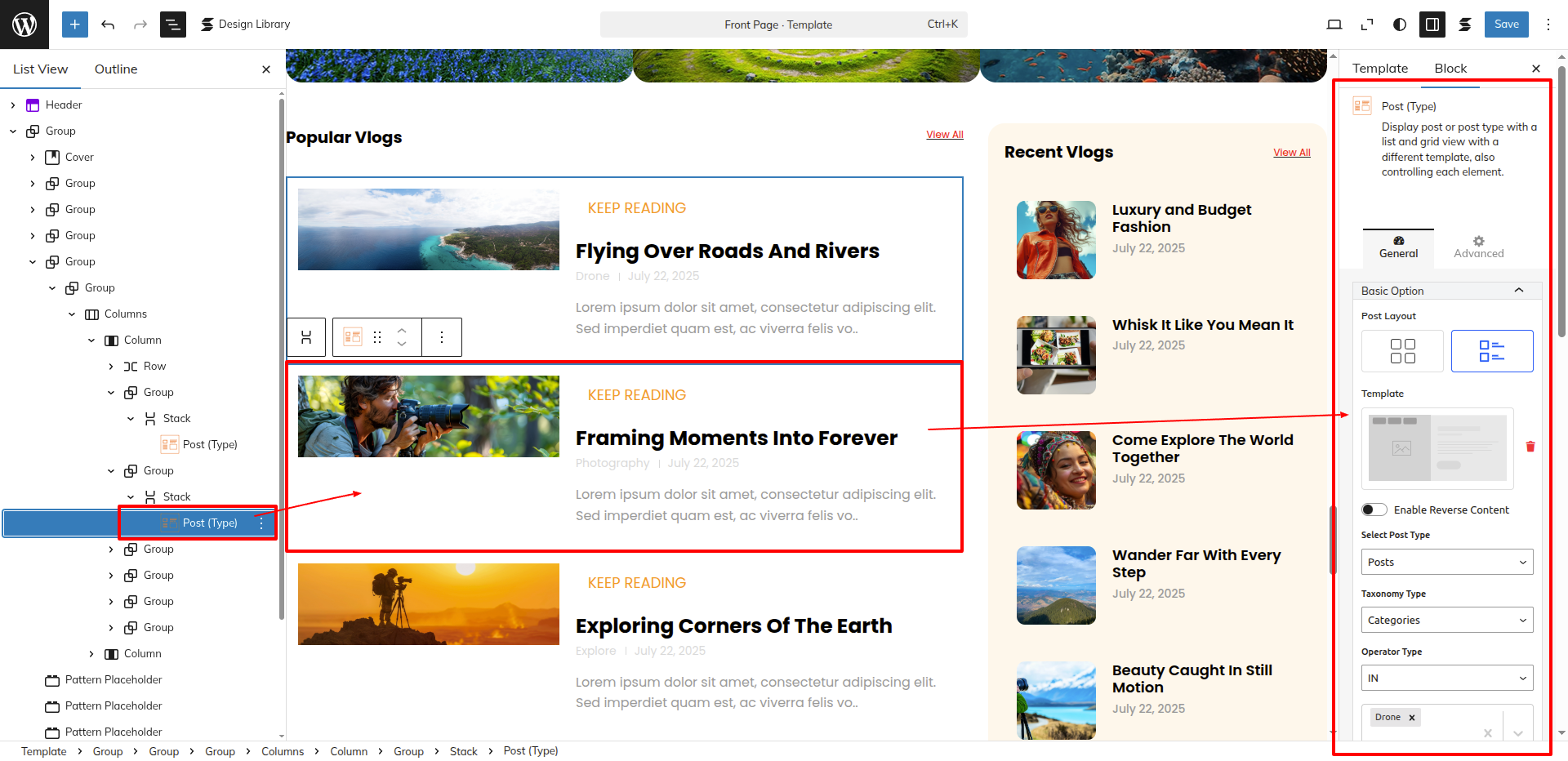
This Section consists Vlogs which are being fetched by using the Wordpress's Default Posts.
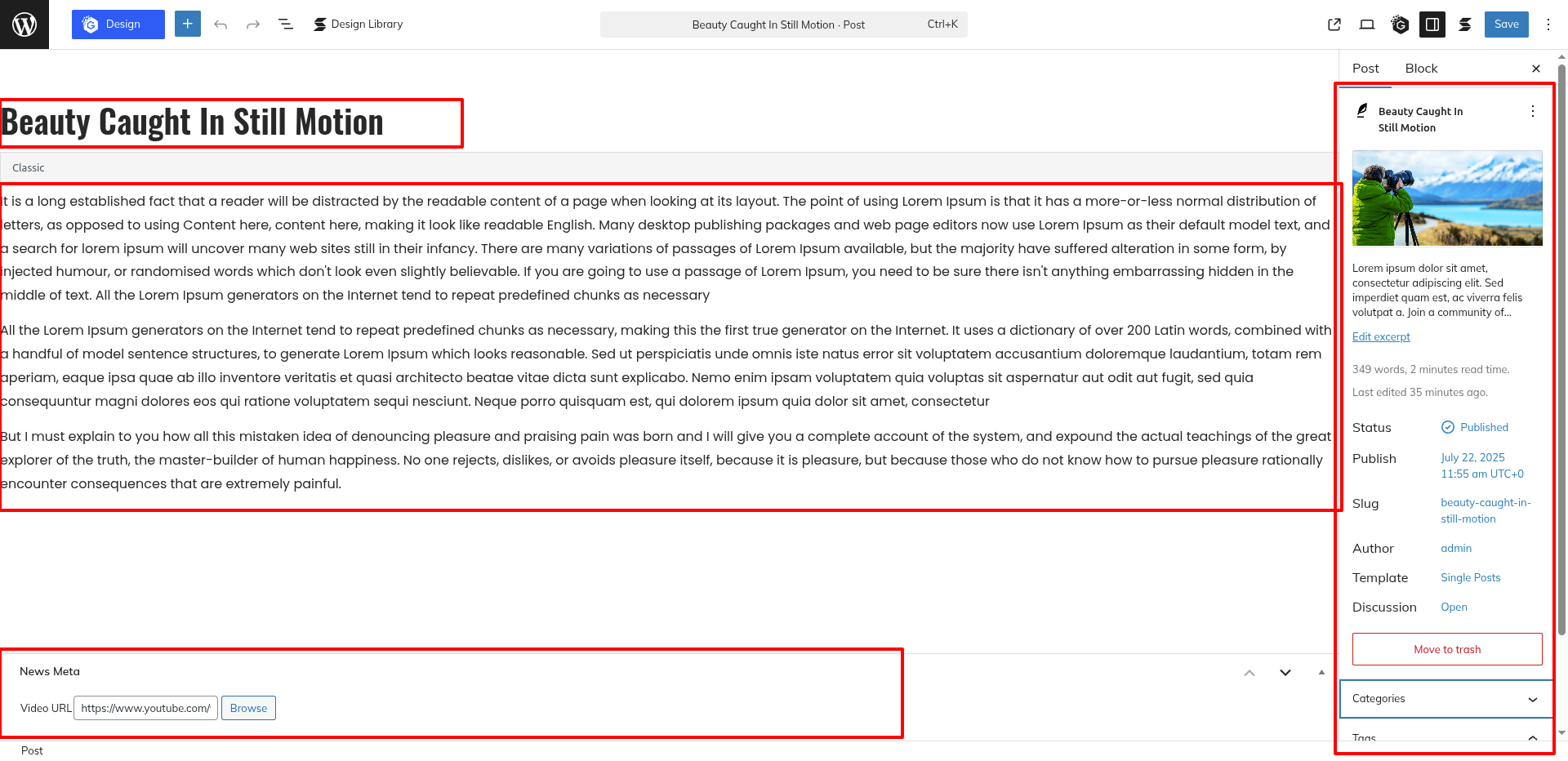
Go to the Dashboard Posts Add Post.
The Vlog Video Url can be added from the News Meta Field input field shown in the Below screenshot.
You can add a Video from Youtube or any video from your local storage by clicking the Browse Button.
This is how you may set up and add the Slider Section.
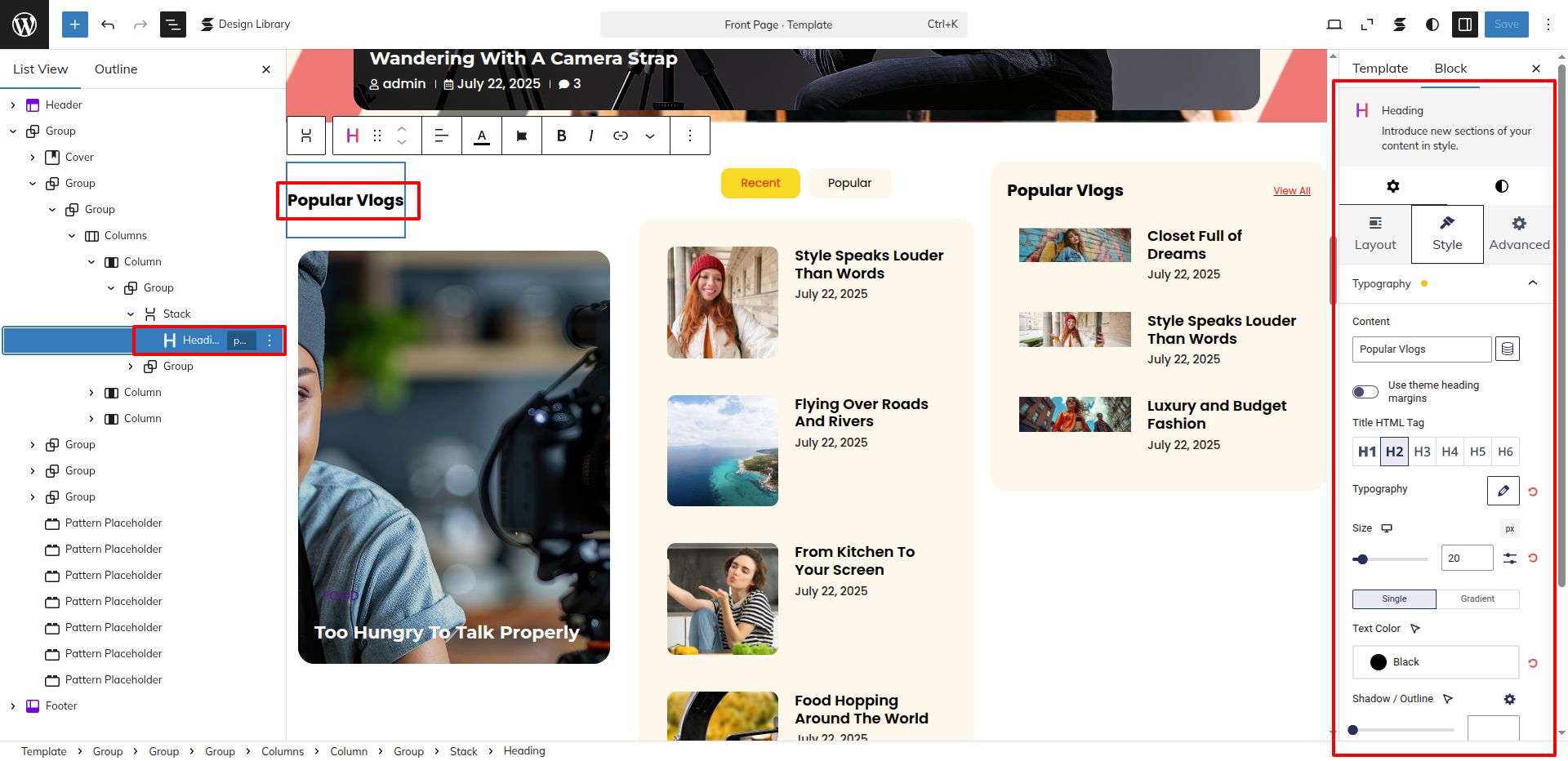
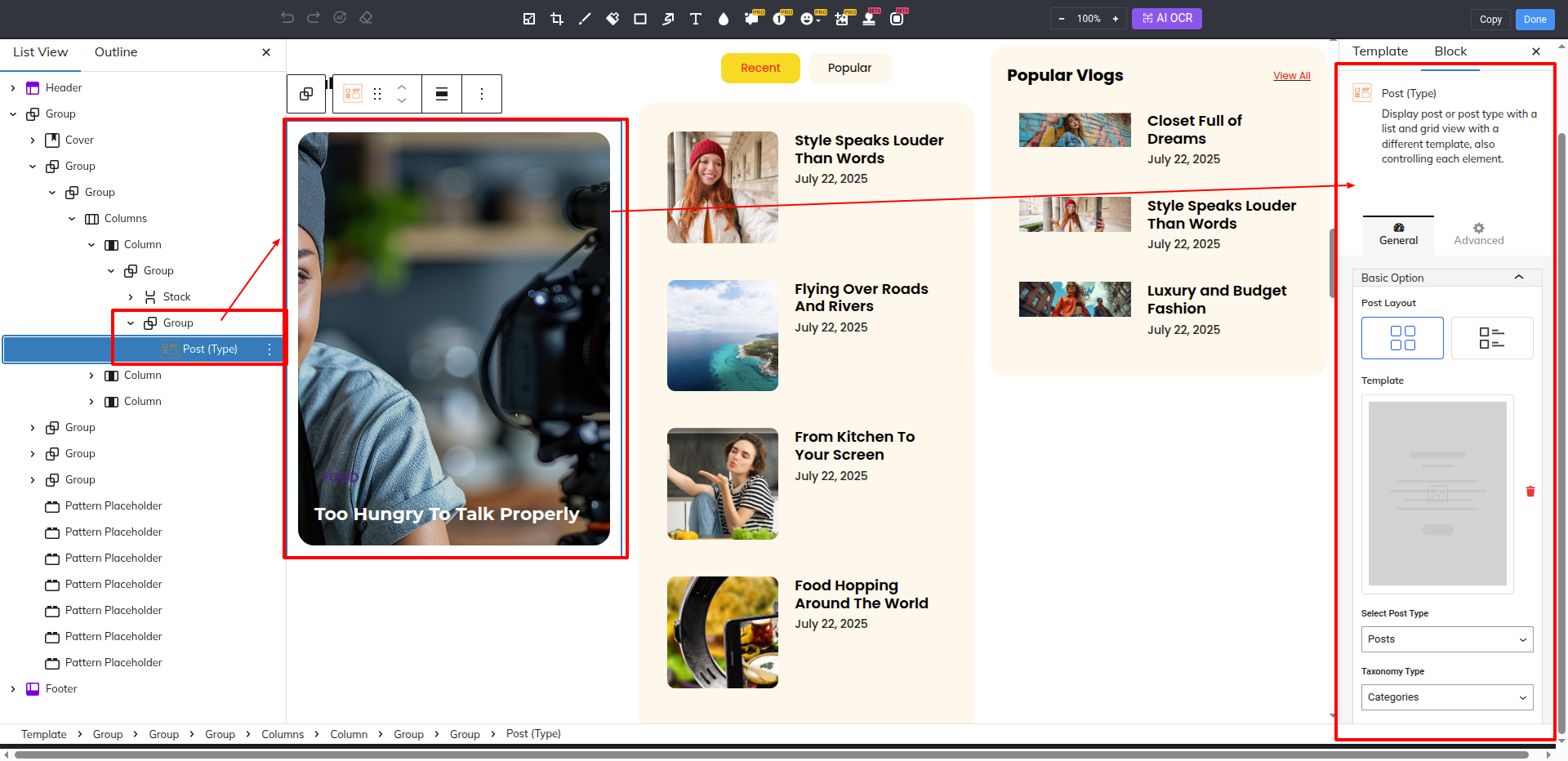
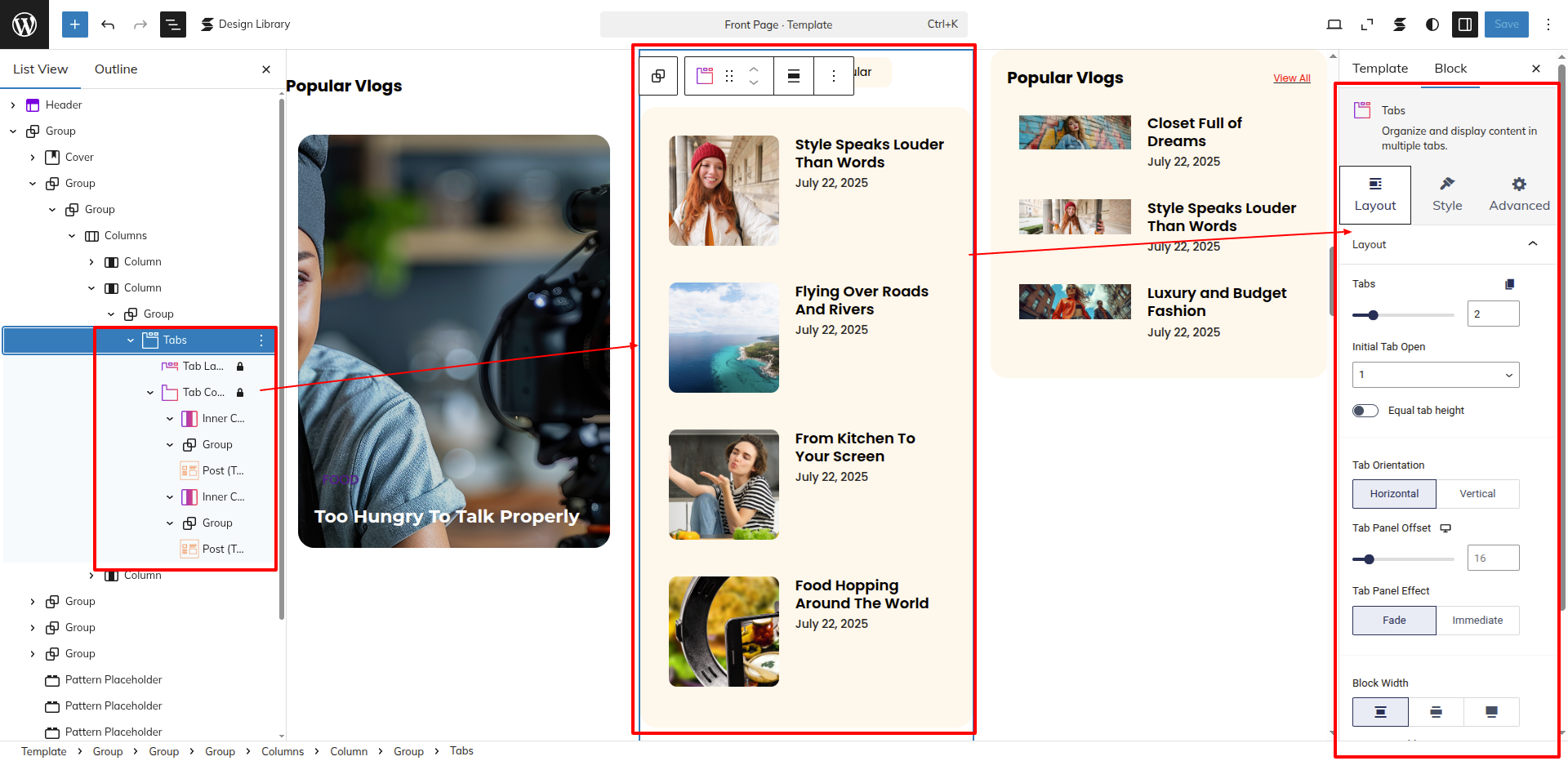
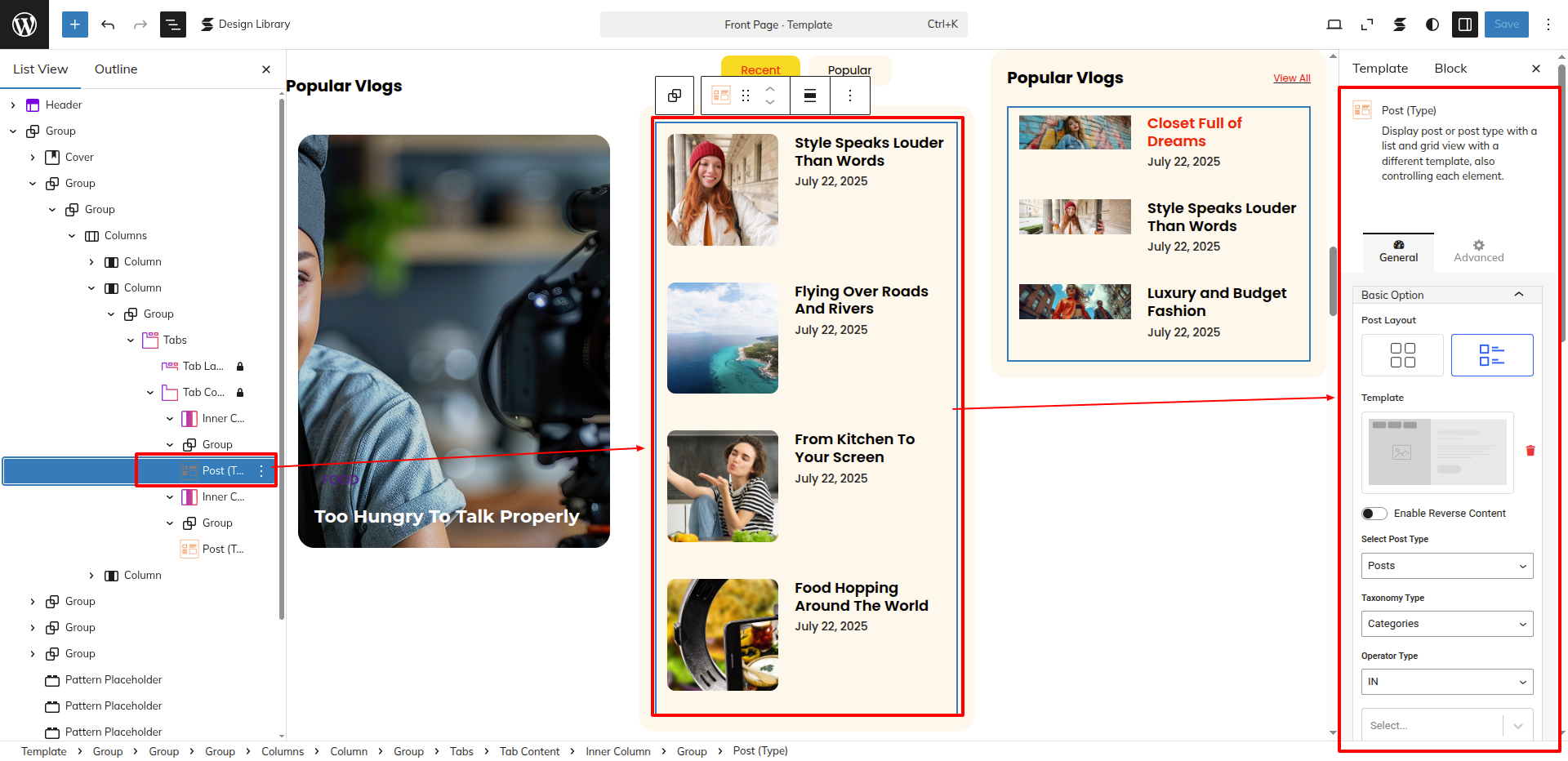
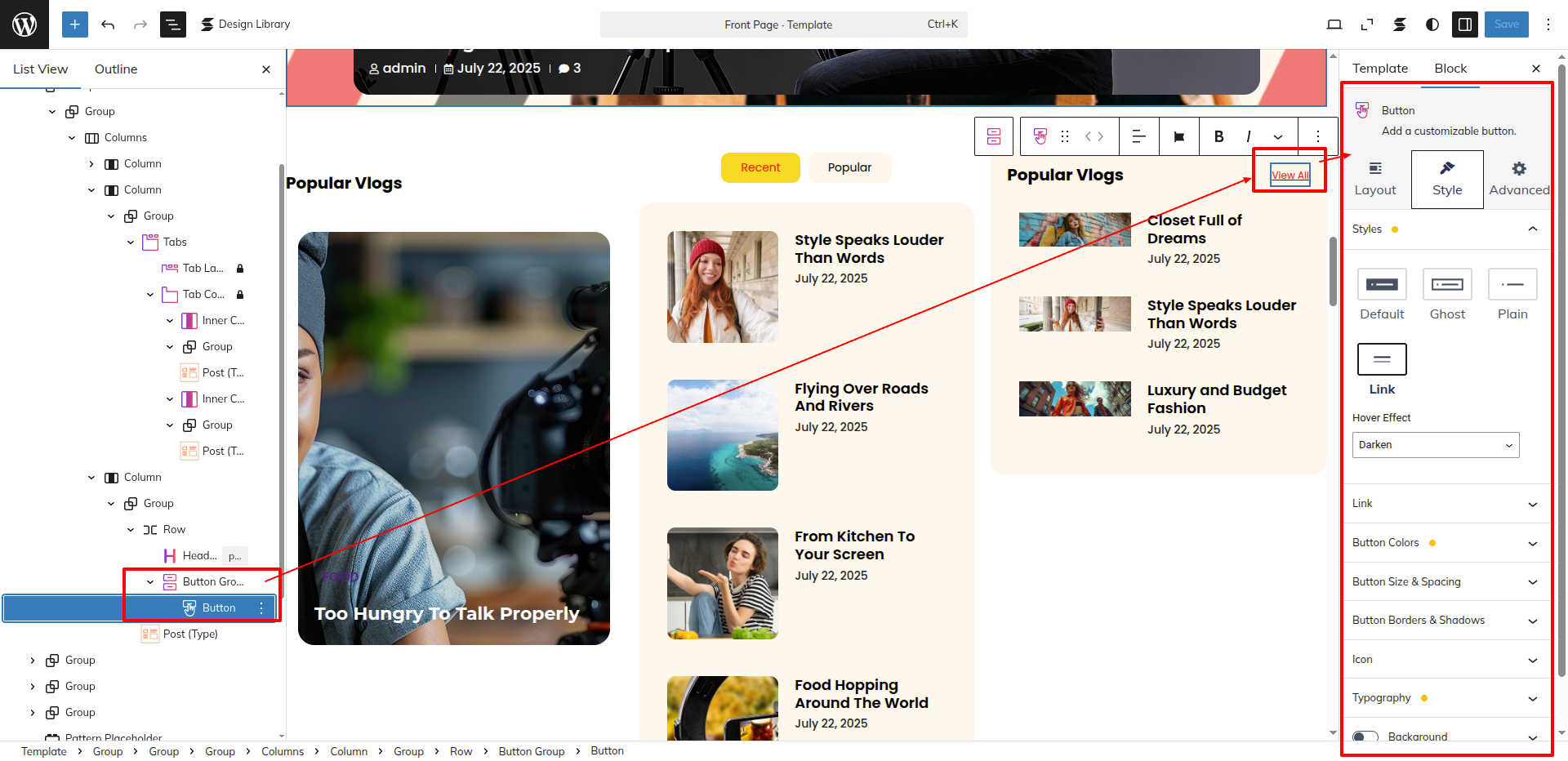
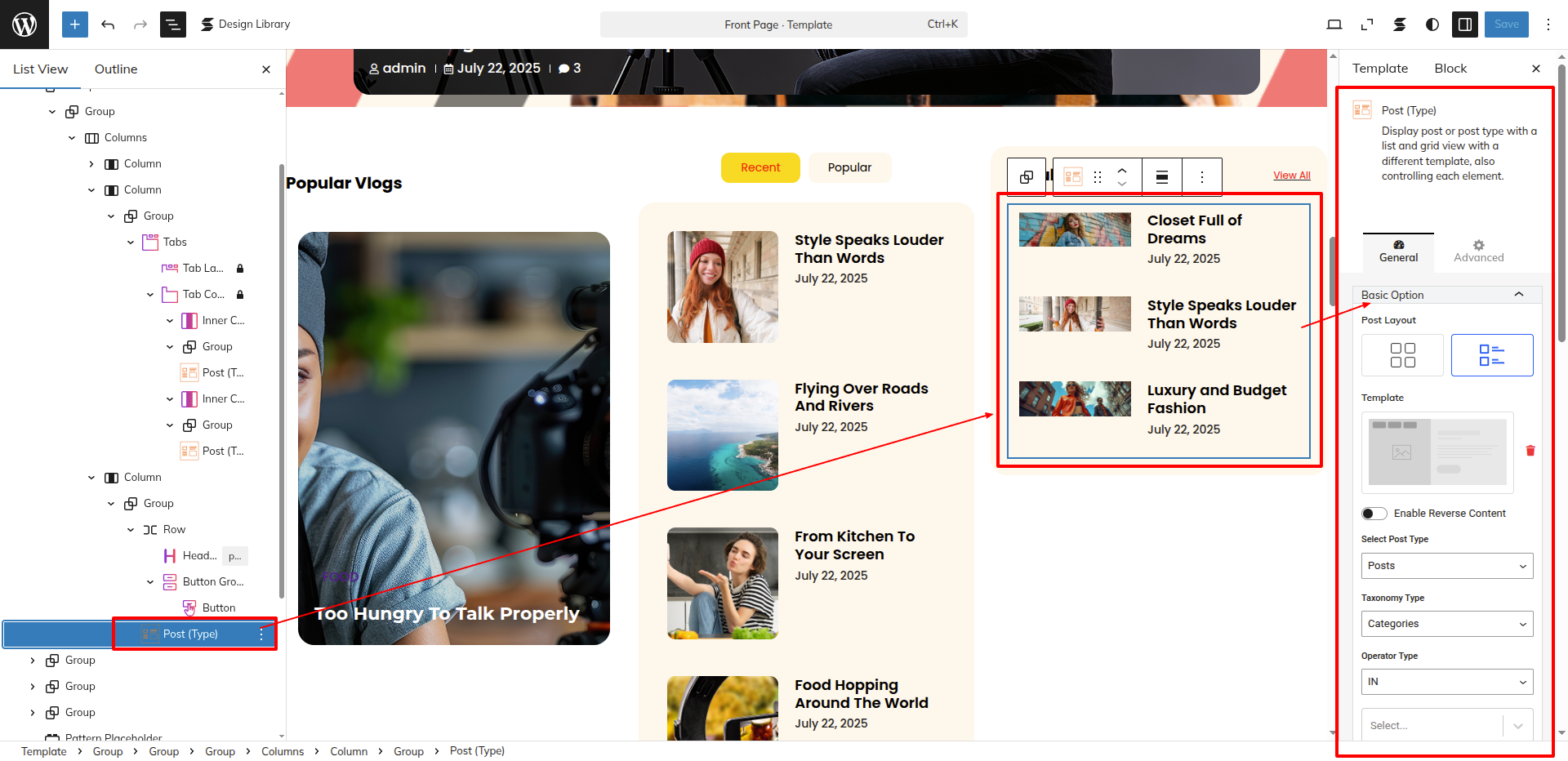
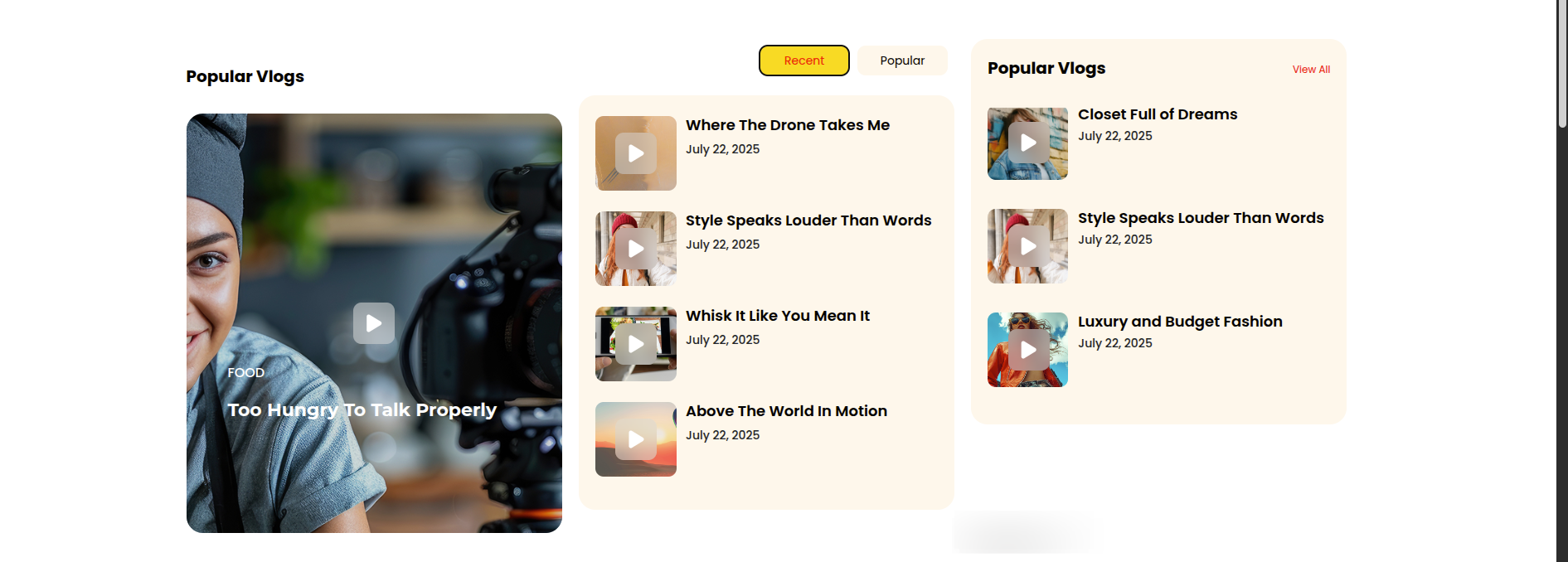
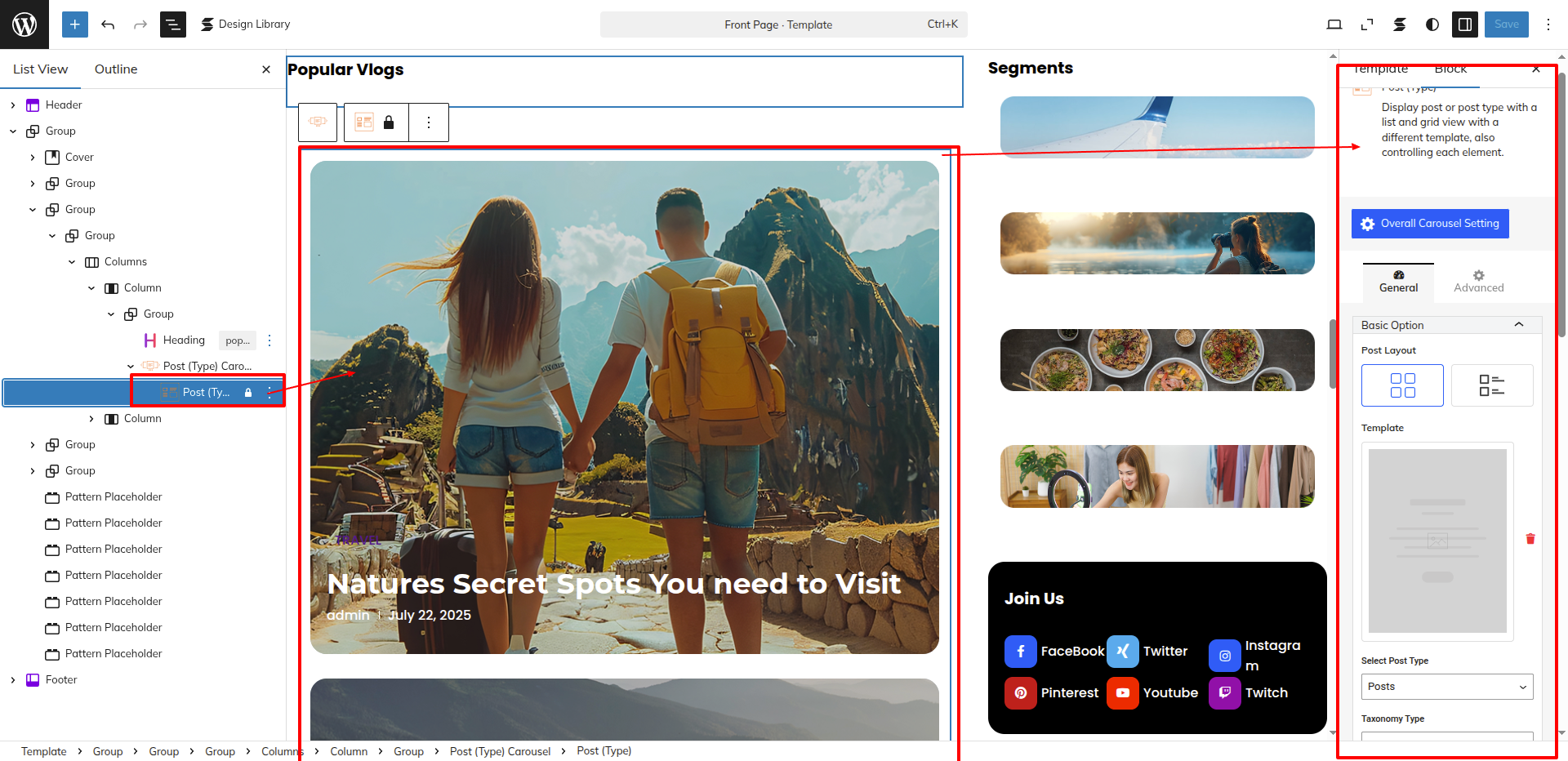
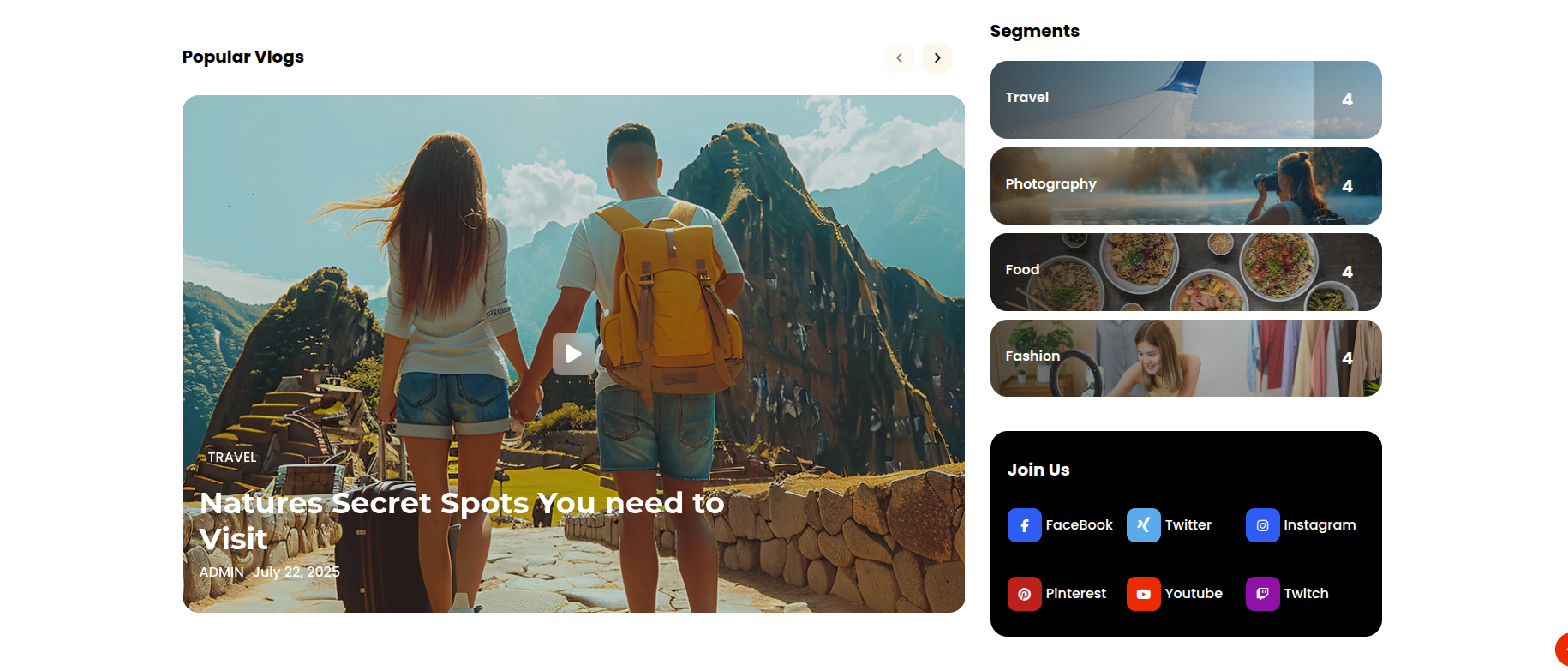
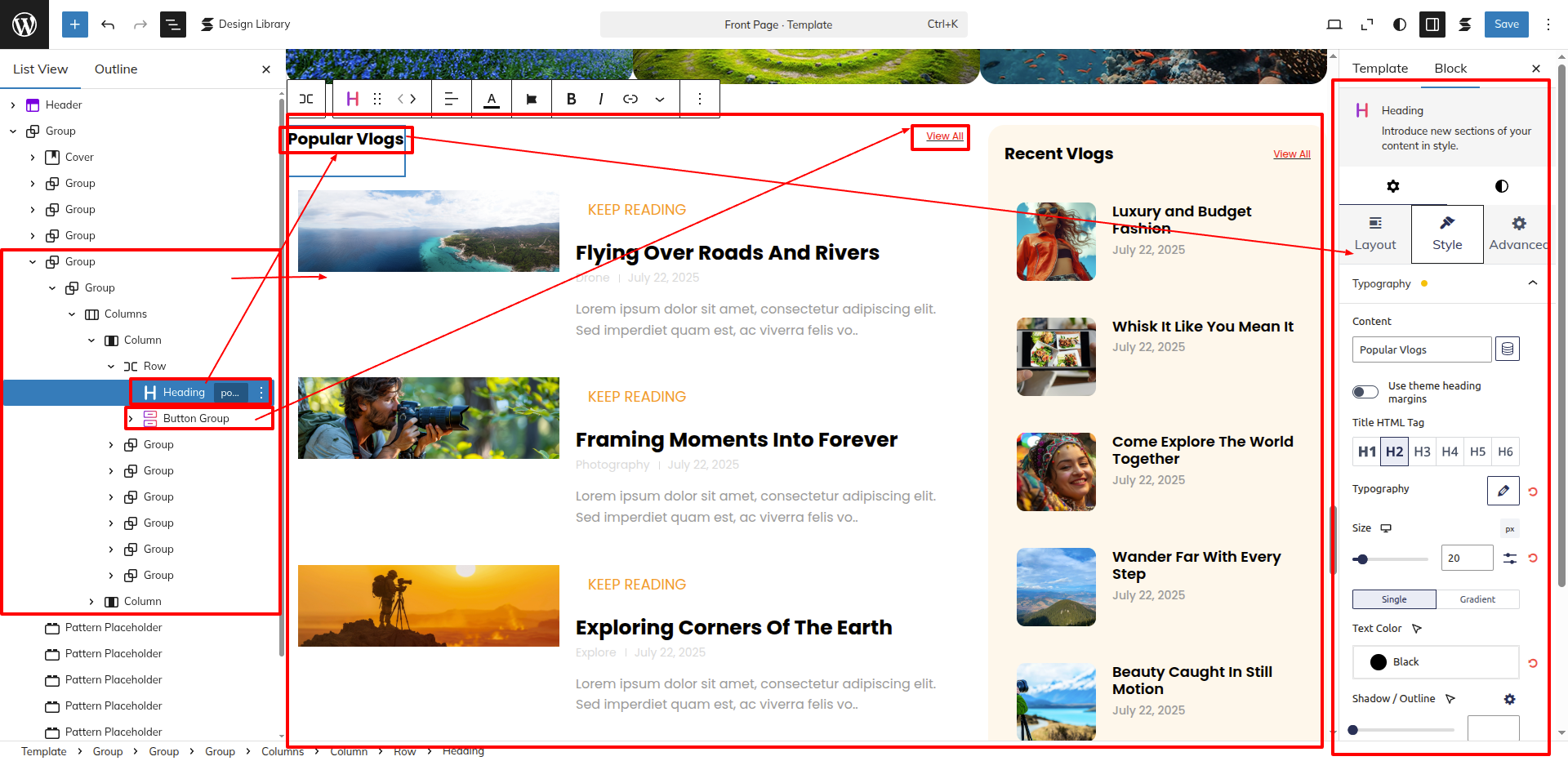
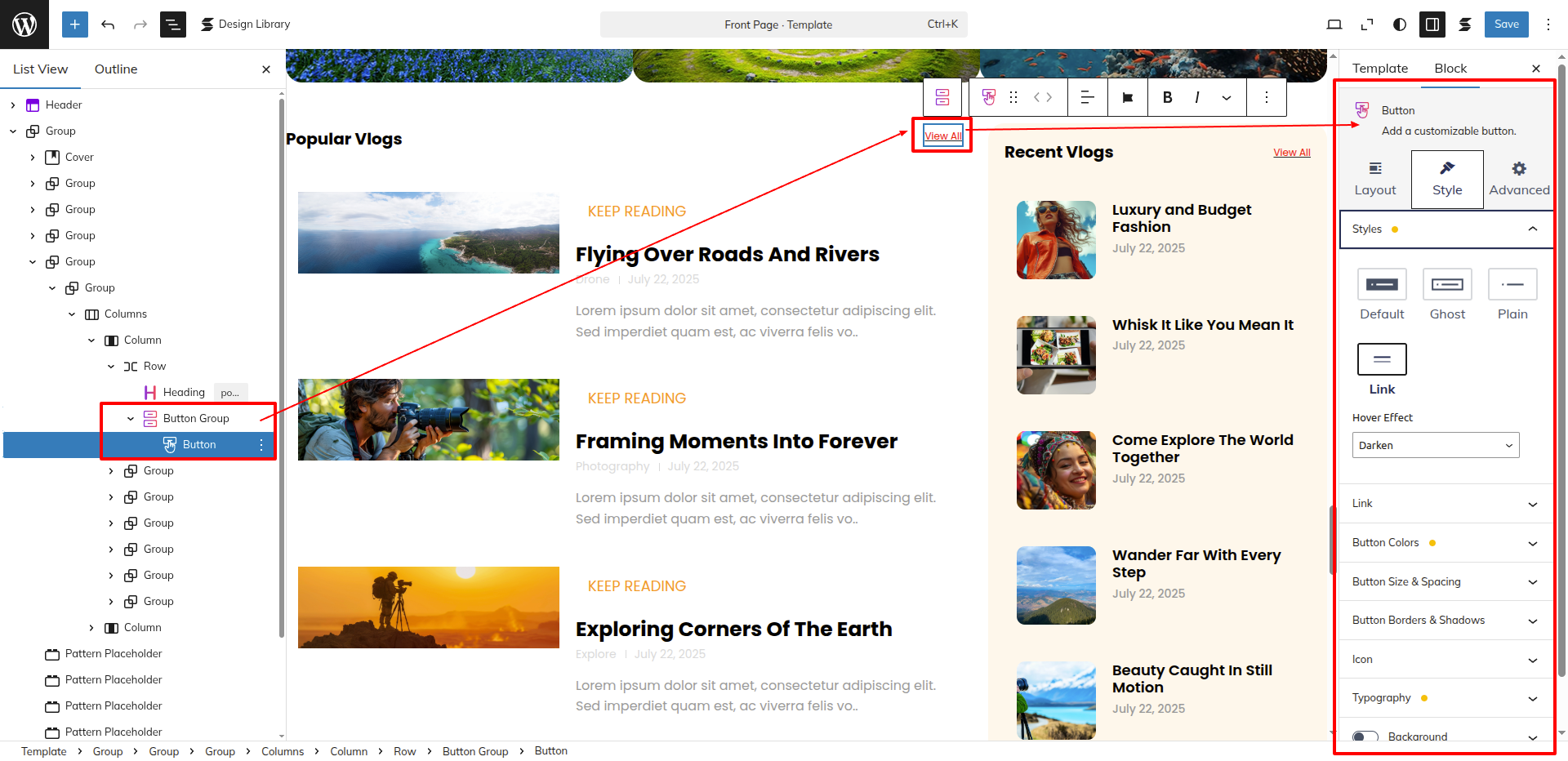
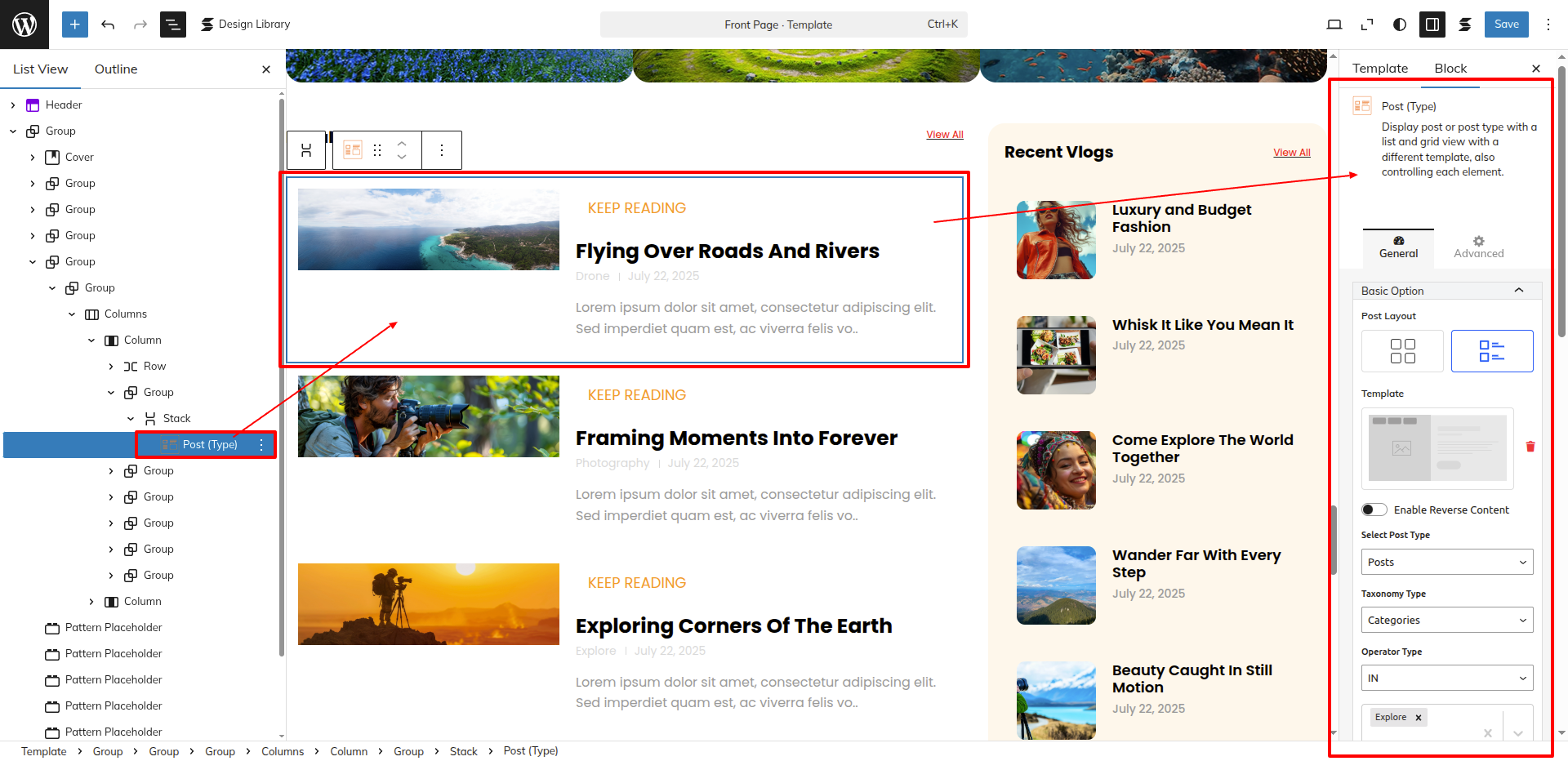
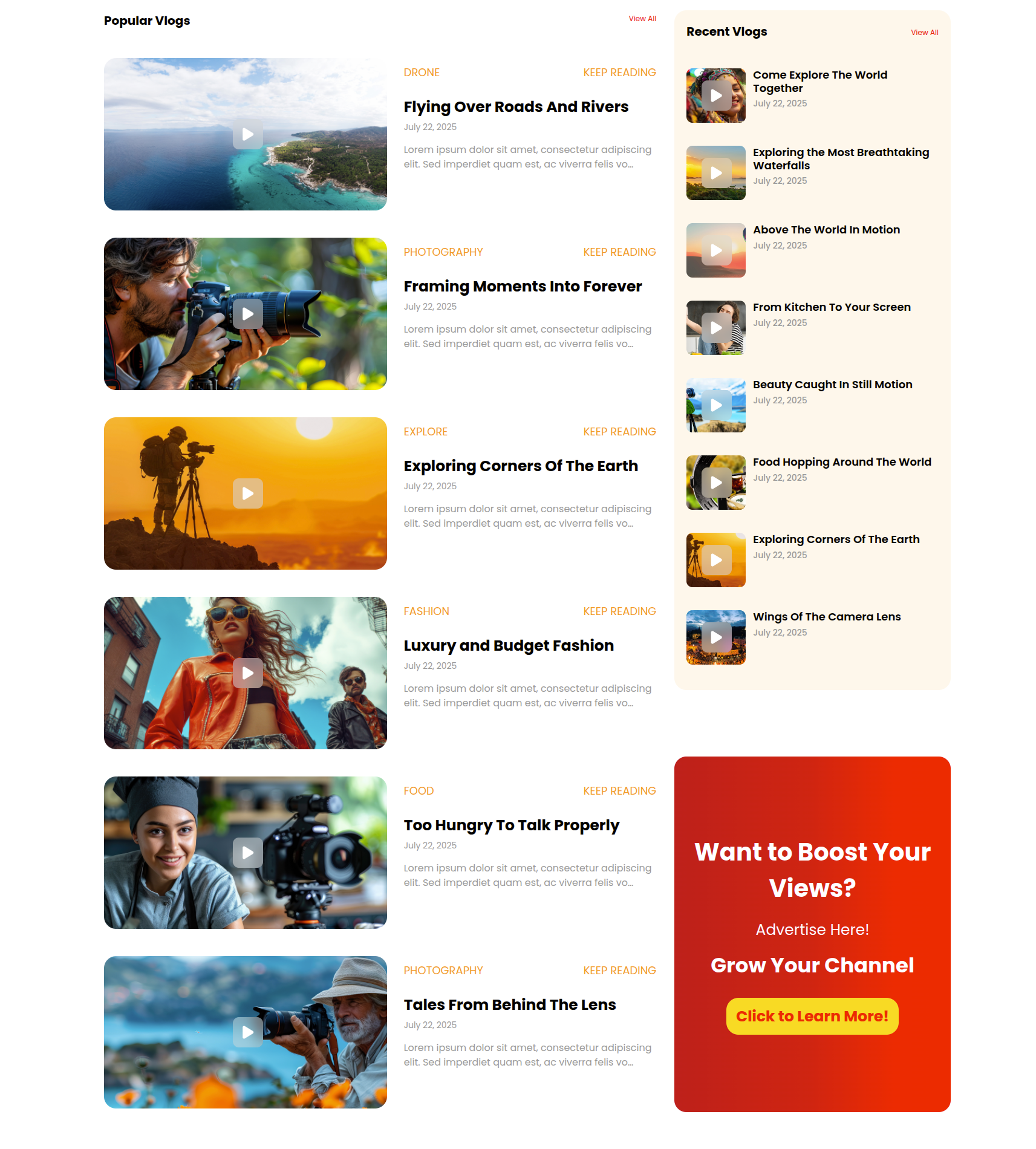
Popular Vlogs Section
Set up the Popular Vlogs Section according to the instructions below.
As seen in the screenshot, enter the title, Description, Shot Description, Image, Gallery, Price and Category.
Go to Dashboard Appearance Editor.
This is how you may set up and add the Popular Vlogs Section Section.
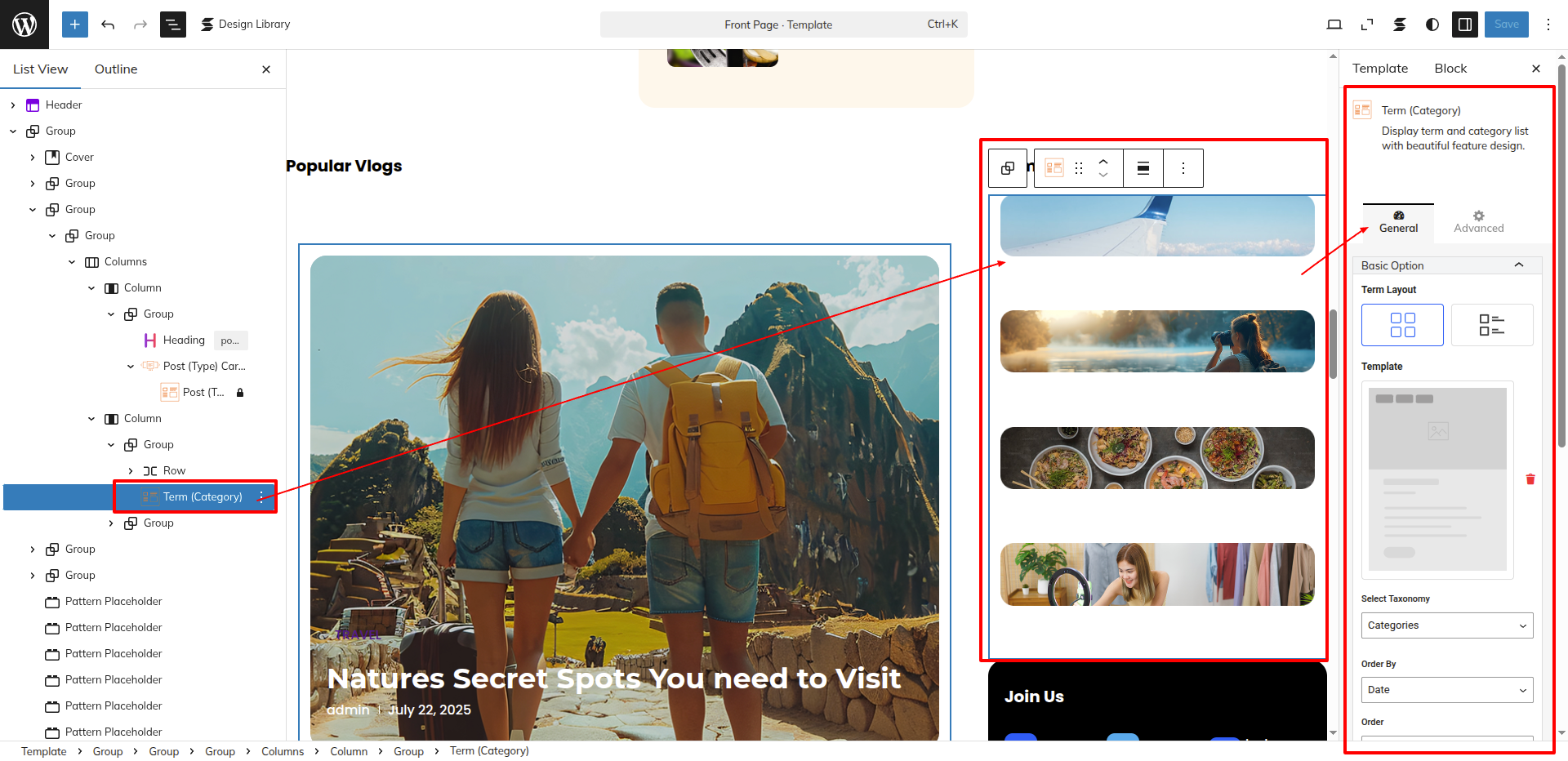
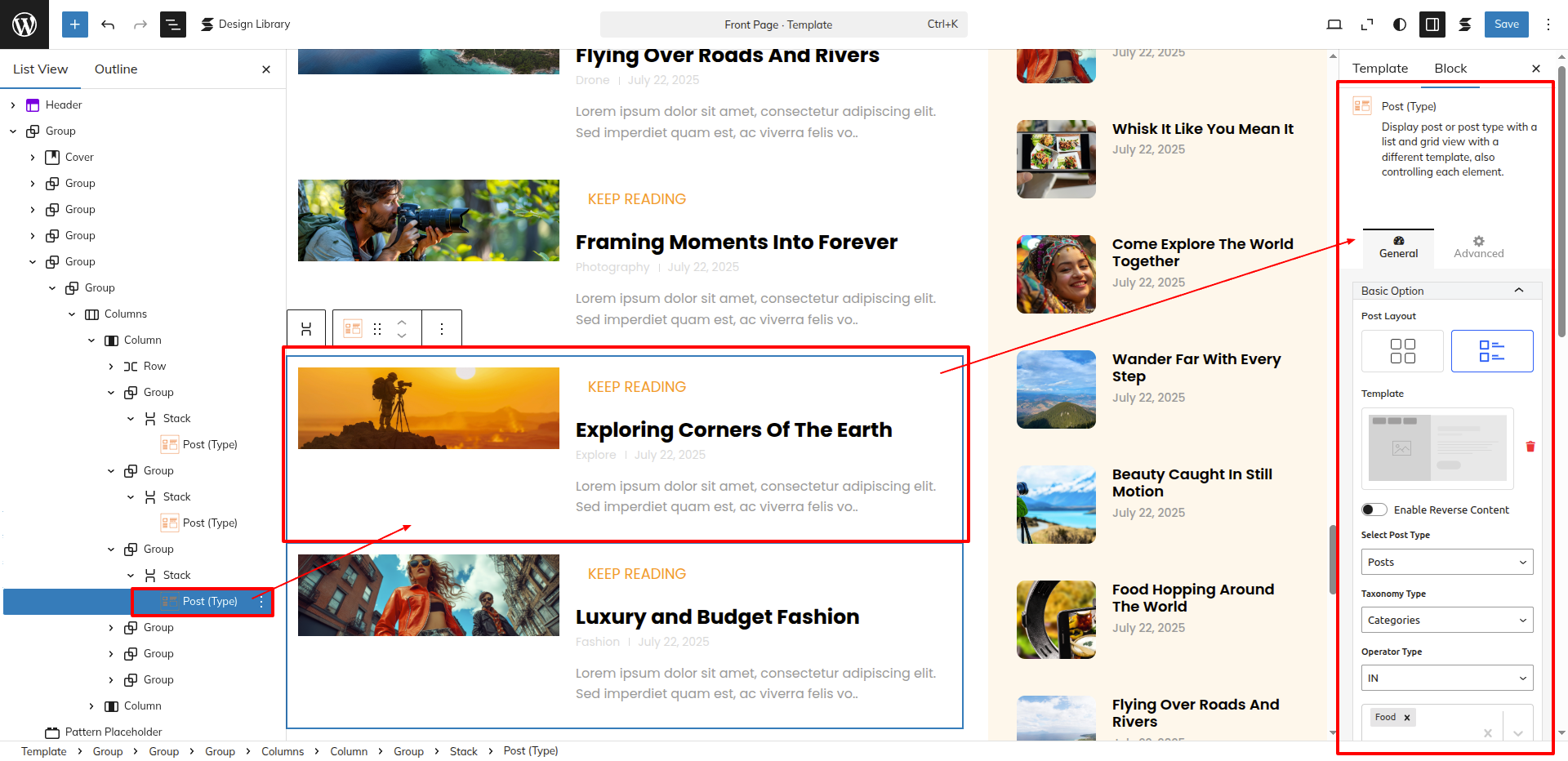
Setup Popular two Section
Set up the Popular two Section according to the instructions below.
As seen in the screenshot, enter the title, Description, Shot Description, Image, Gallery, Price and Category.
Go to Dashboard Appearance Editor.
This is how you may set up and add the Popular two Section.
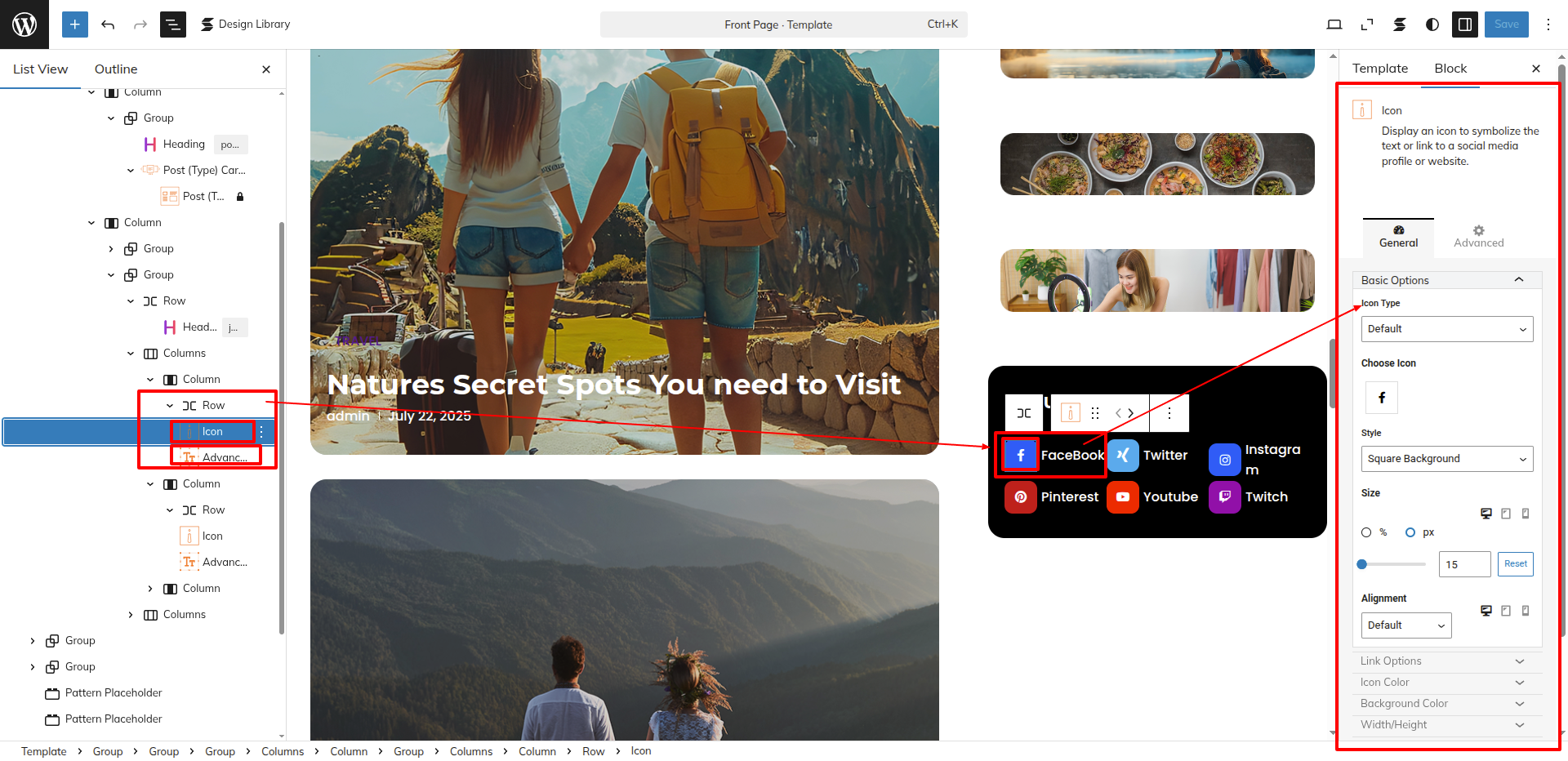
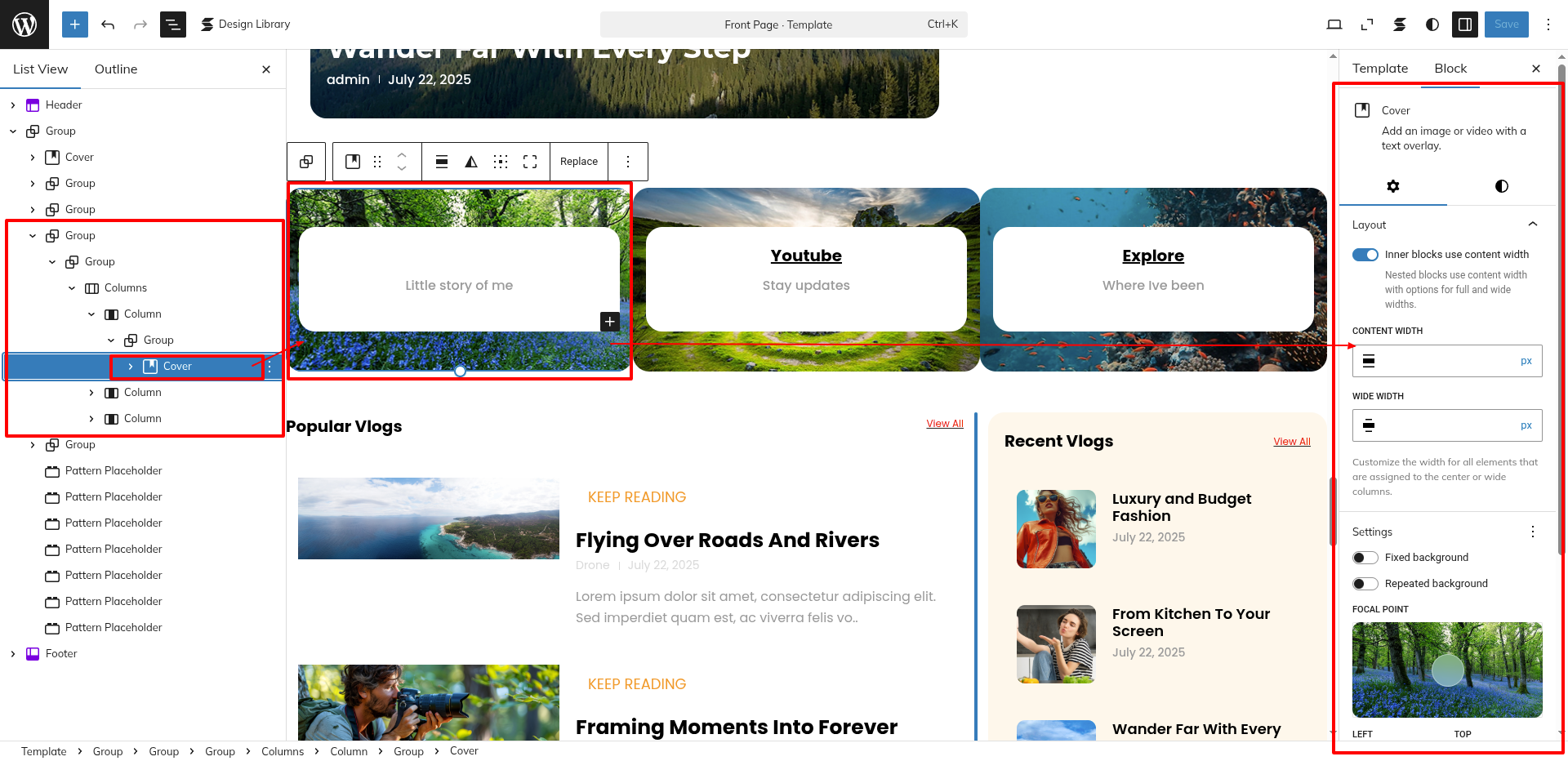
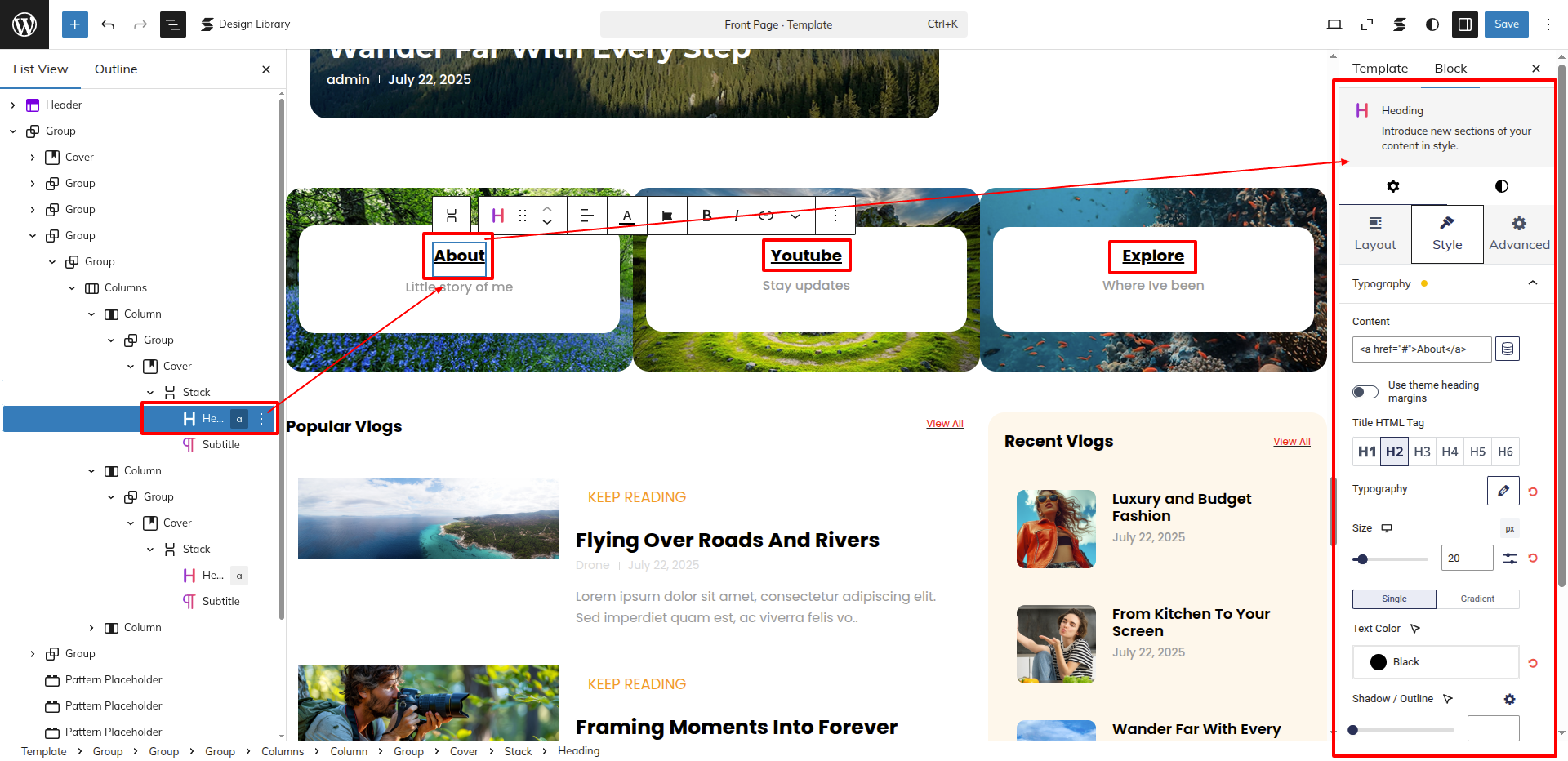
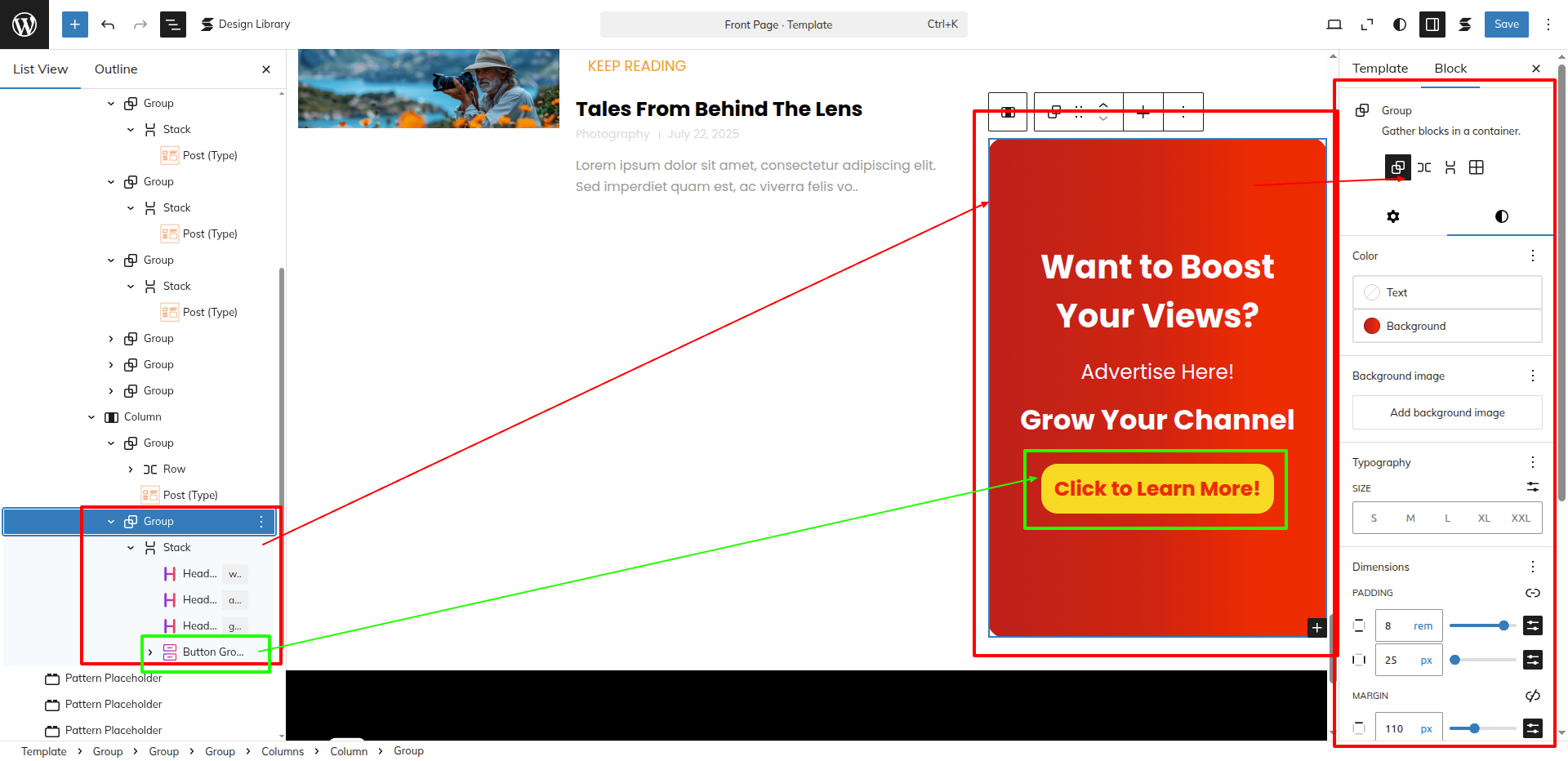
Setup In Future Section
Set up the In Future Section according to the instructions below.
Go to Dashboard Services Editor.
This is how you may set up and add the In Future Section.
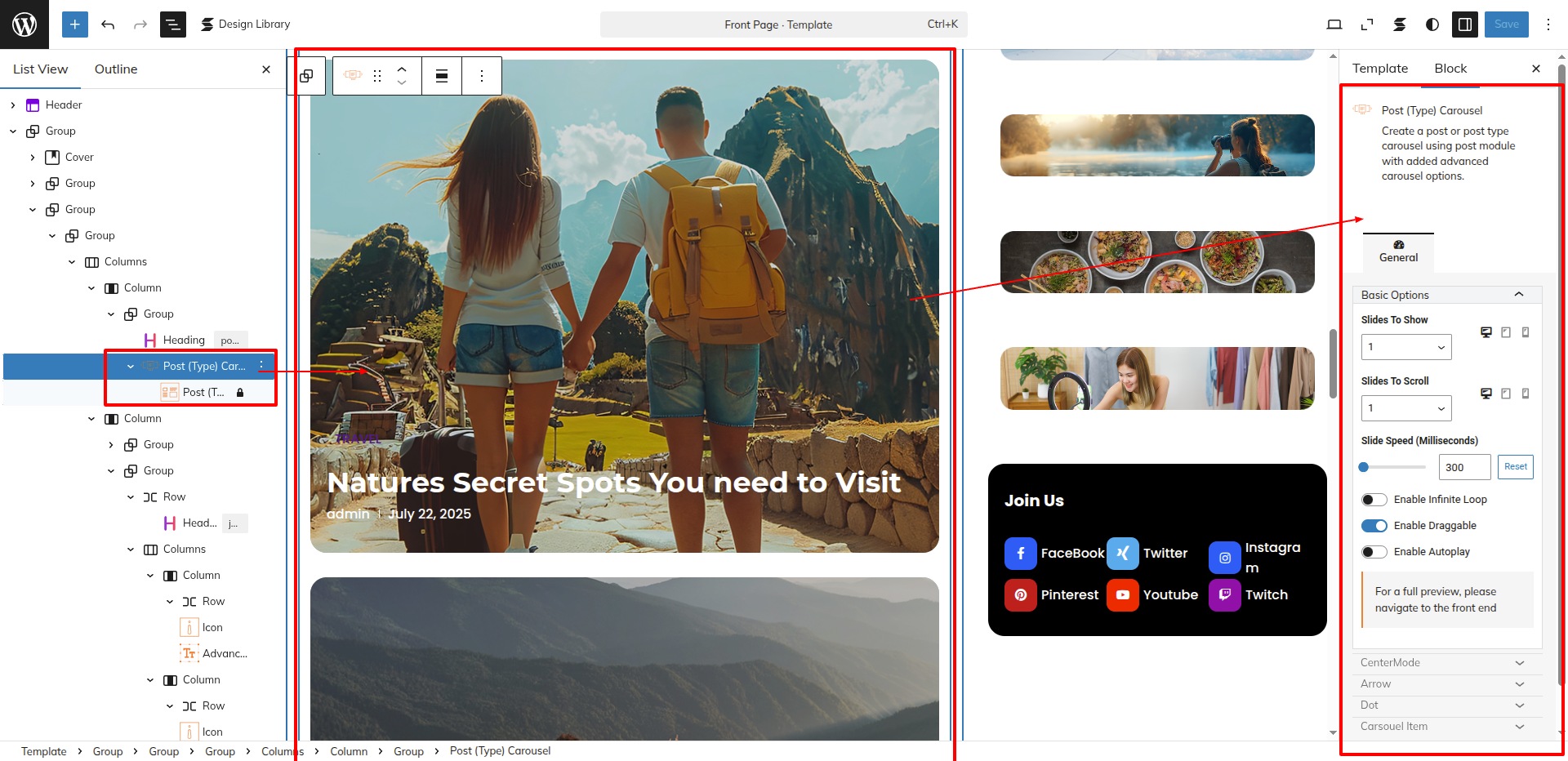
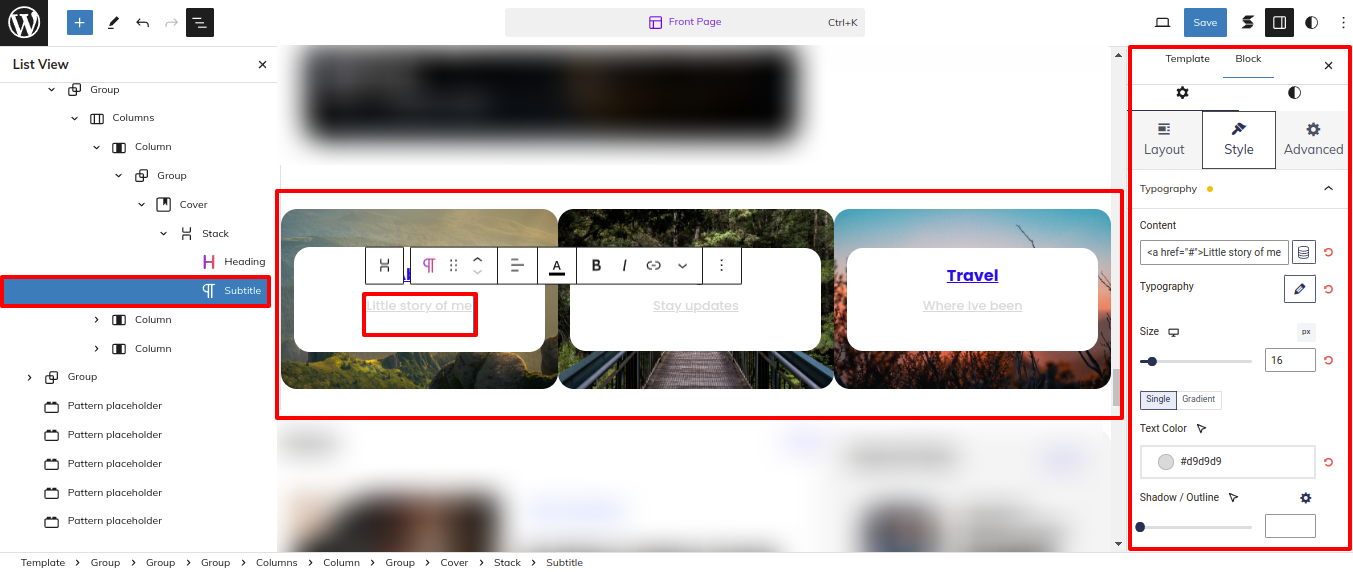
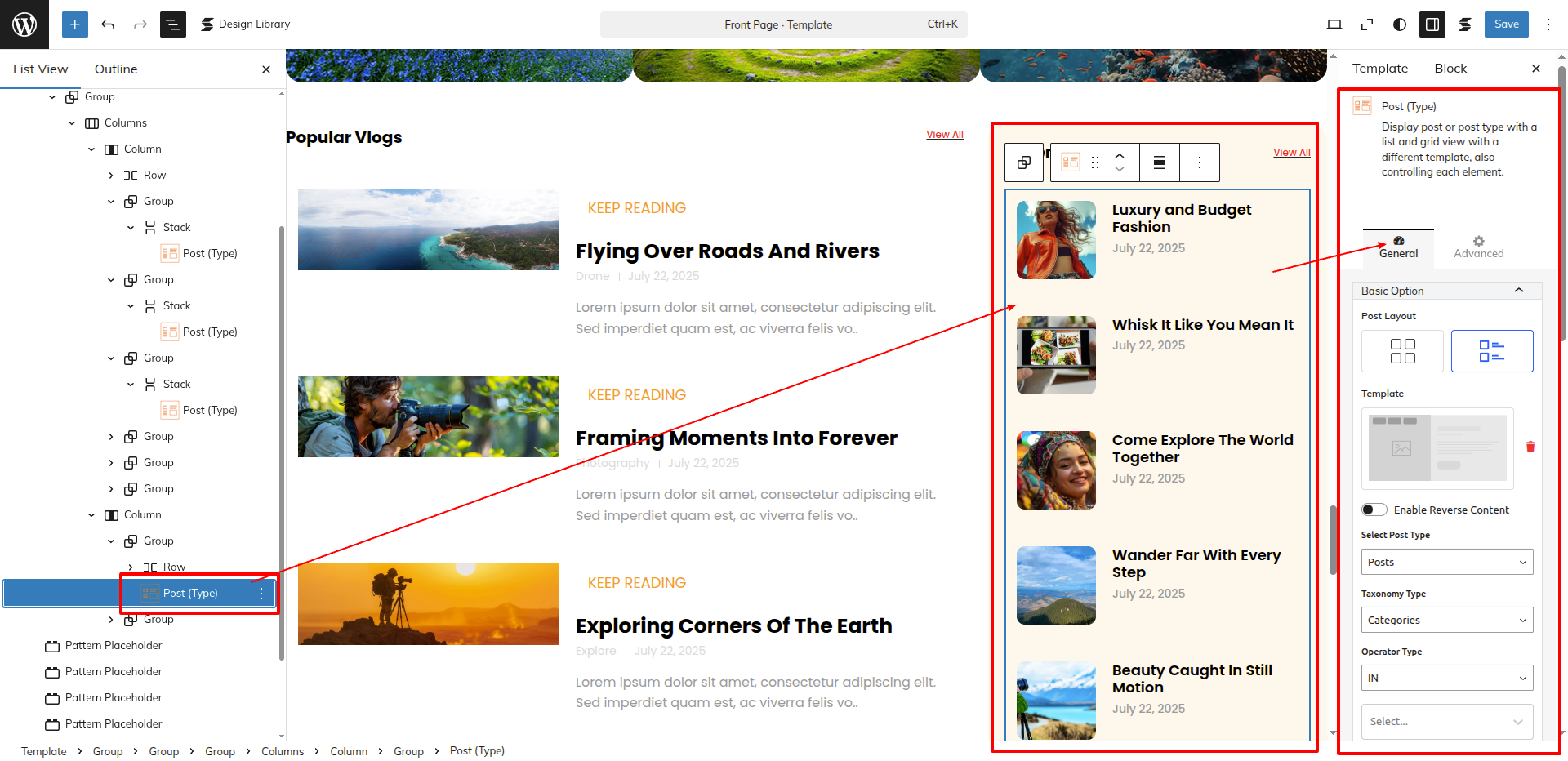
Setup Popular Two Section
Set up the Popular Section according to the instructions below.
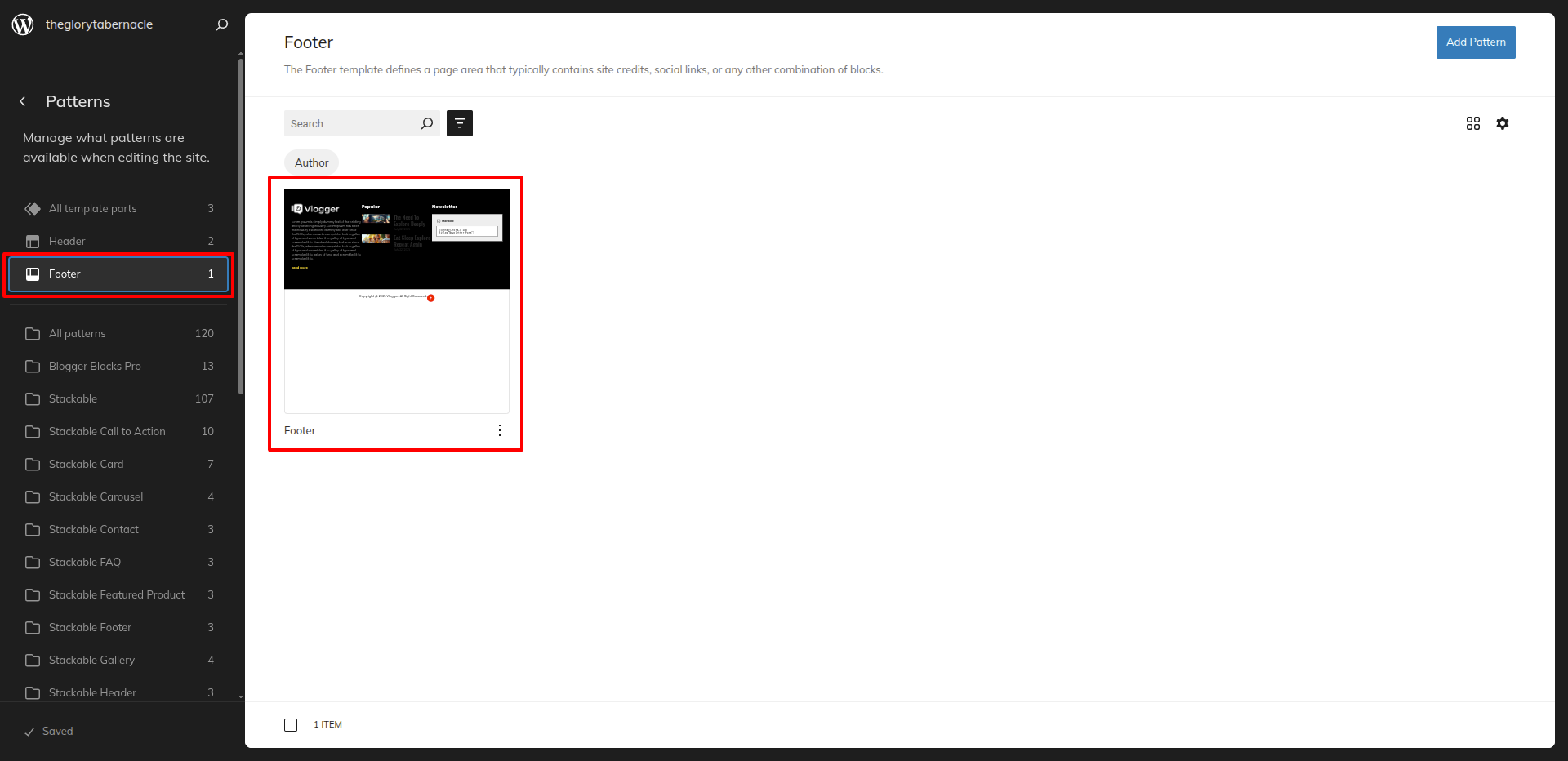
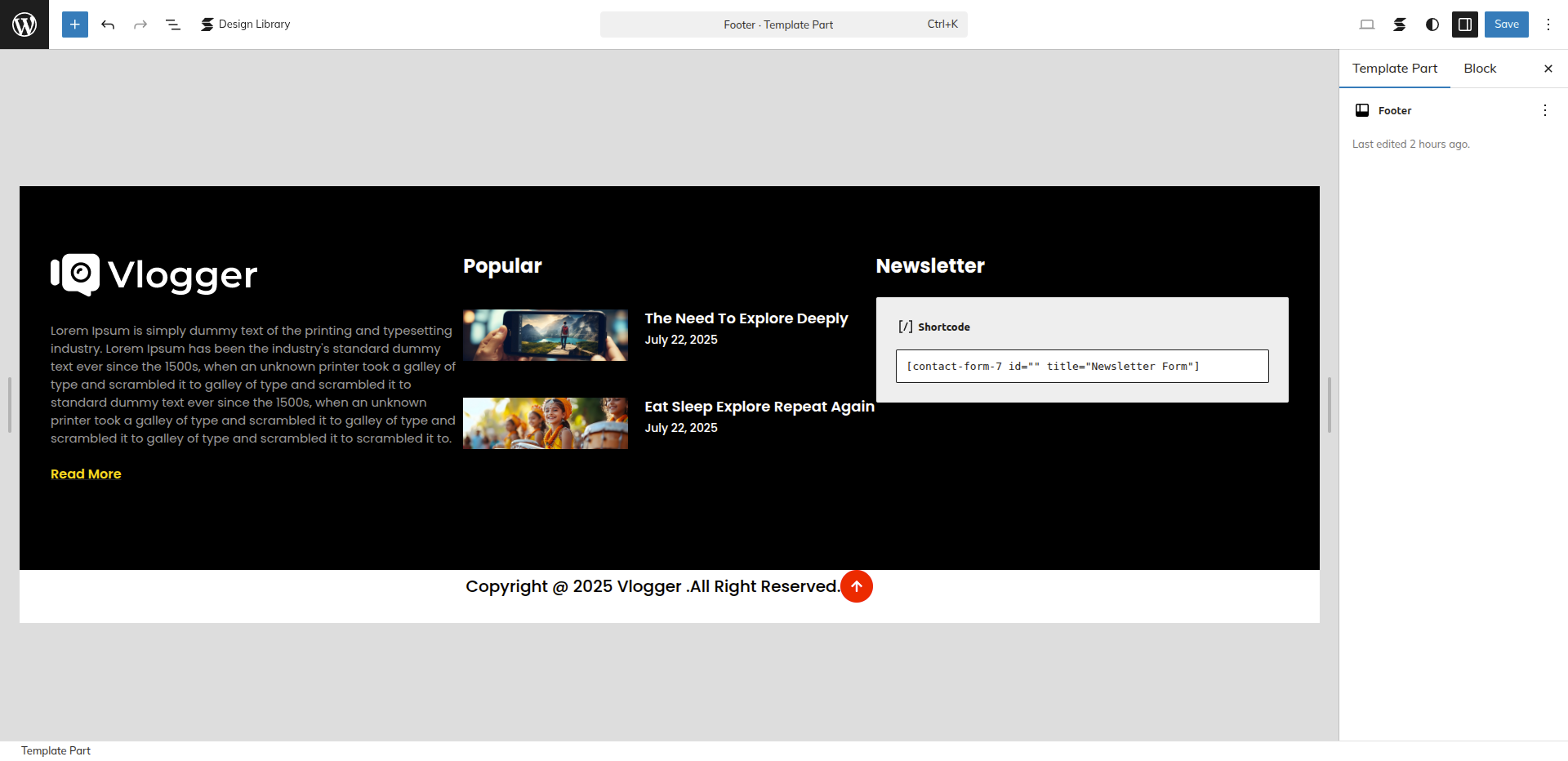
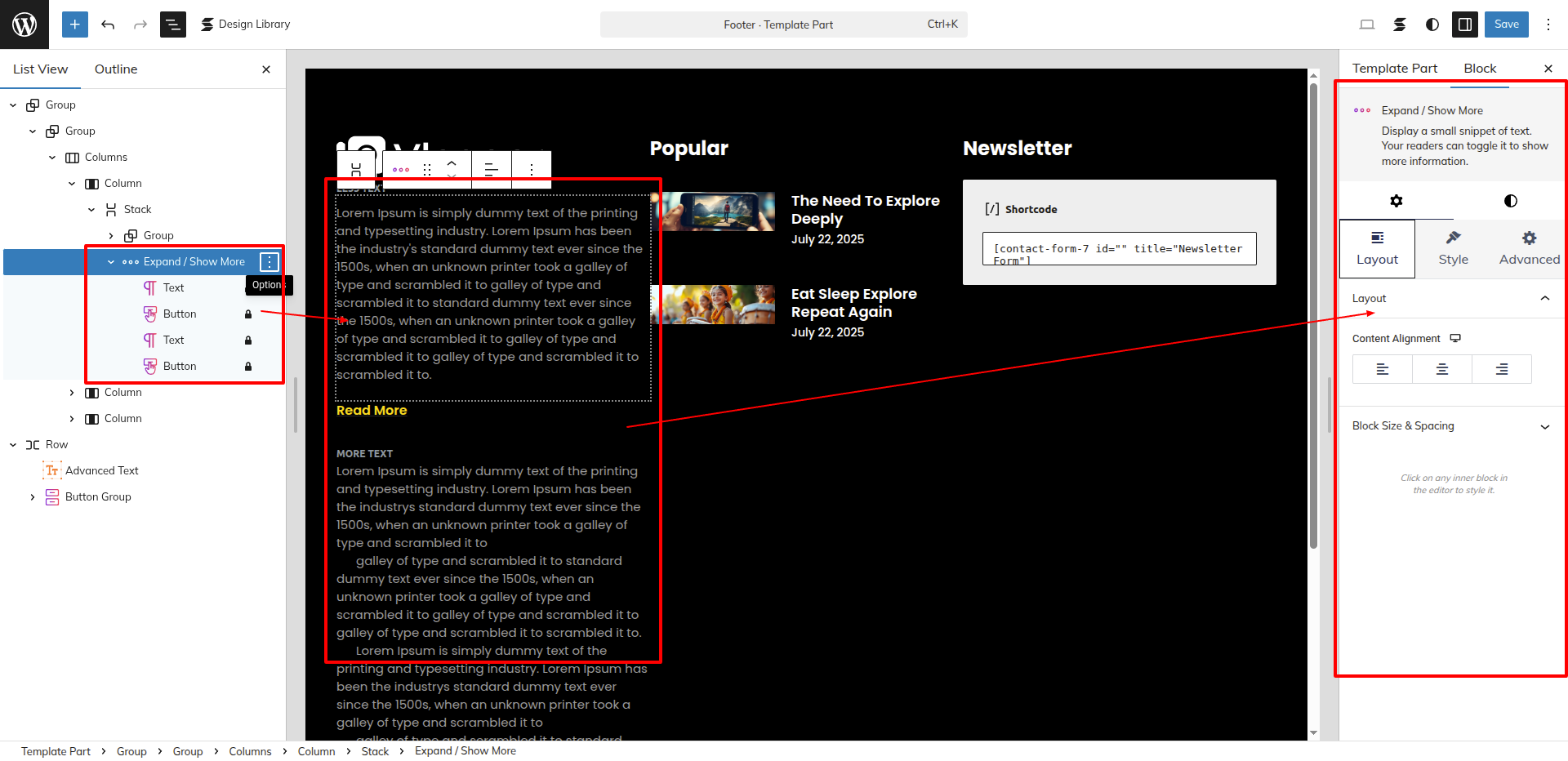
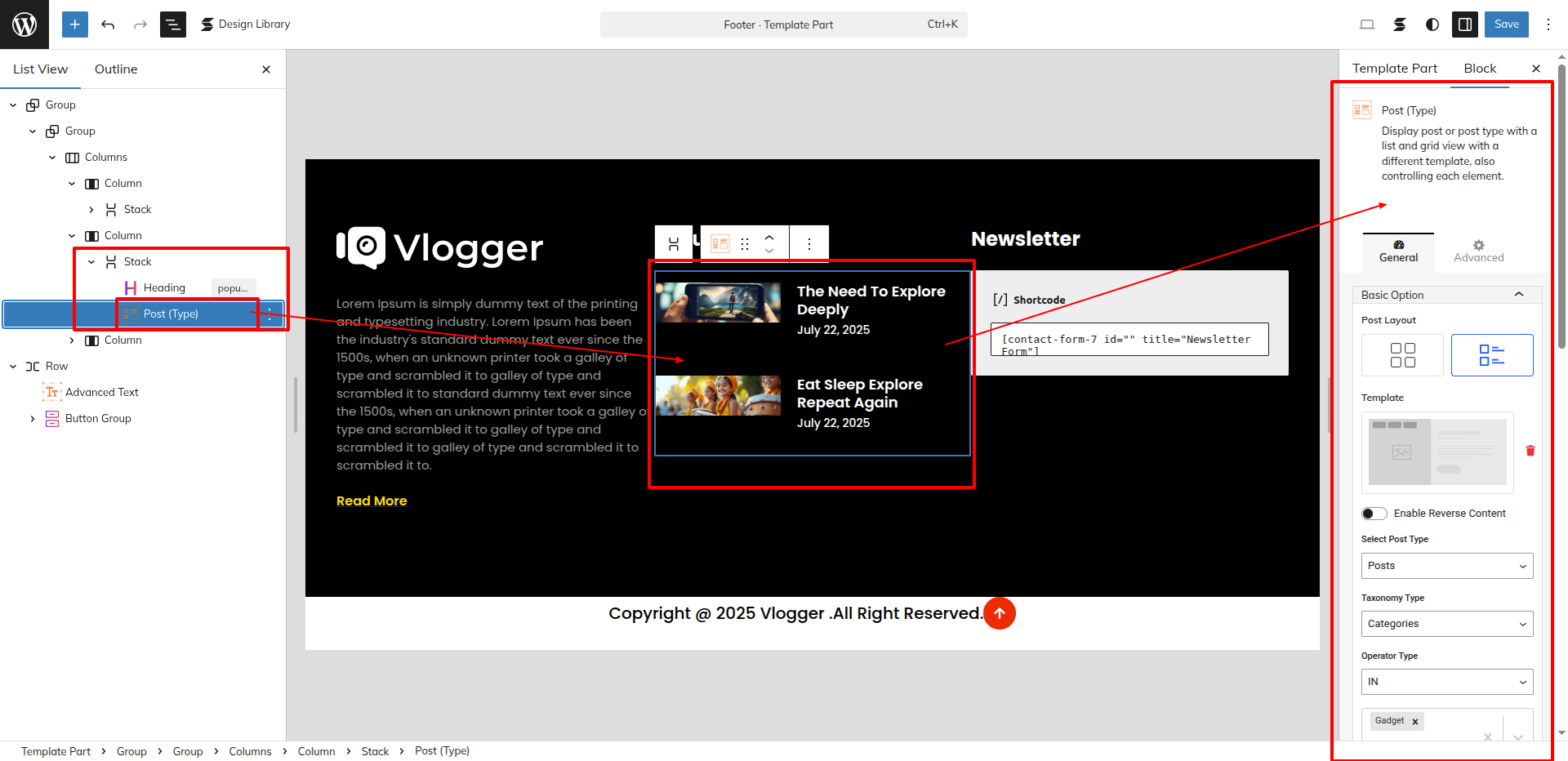
Go to Dashboard Appearance Editor.
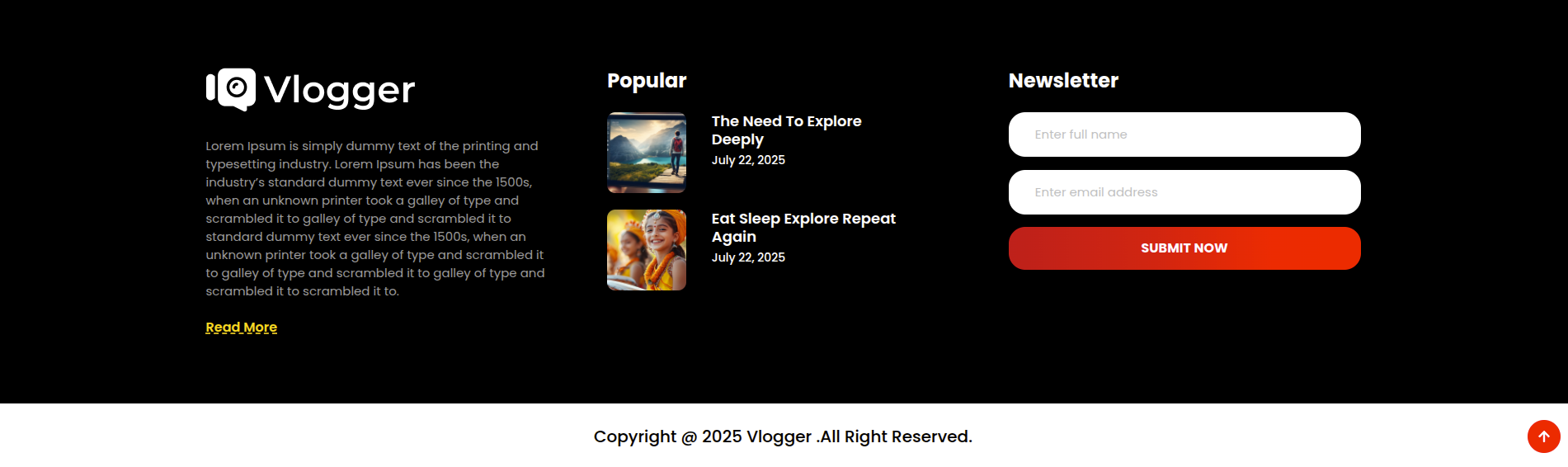
This is how you may set up Popular Section.
INNER PAGES
SETUP CONTACT US PAGE
Set up the Contact Us Page by following the steps mentioned below.
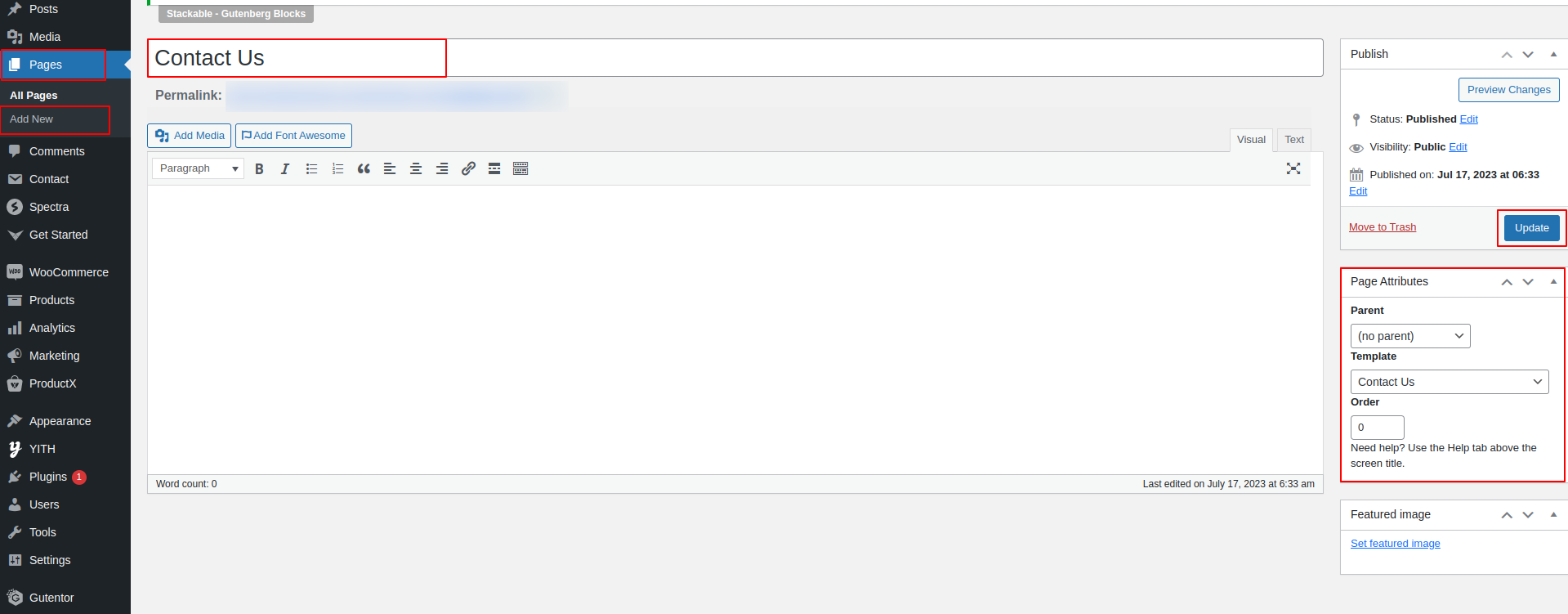
- Step 1. Go to Dashboard Page Add New
- Step 2. Add Page Name
- Step 3. On the right side of the page, select contact-us template
- Step 4. Click the Update button
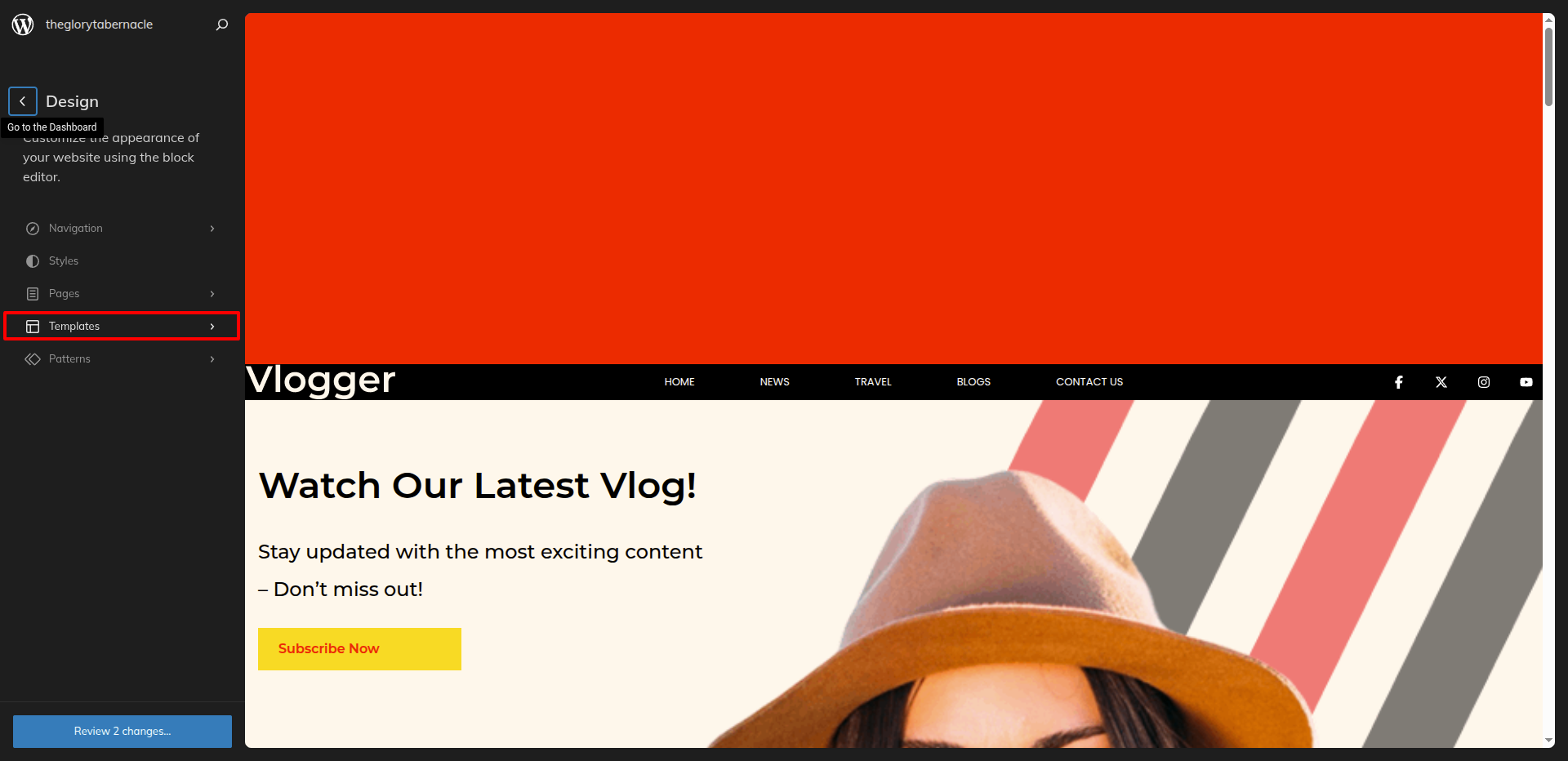
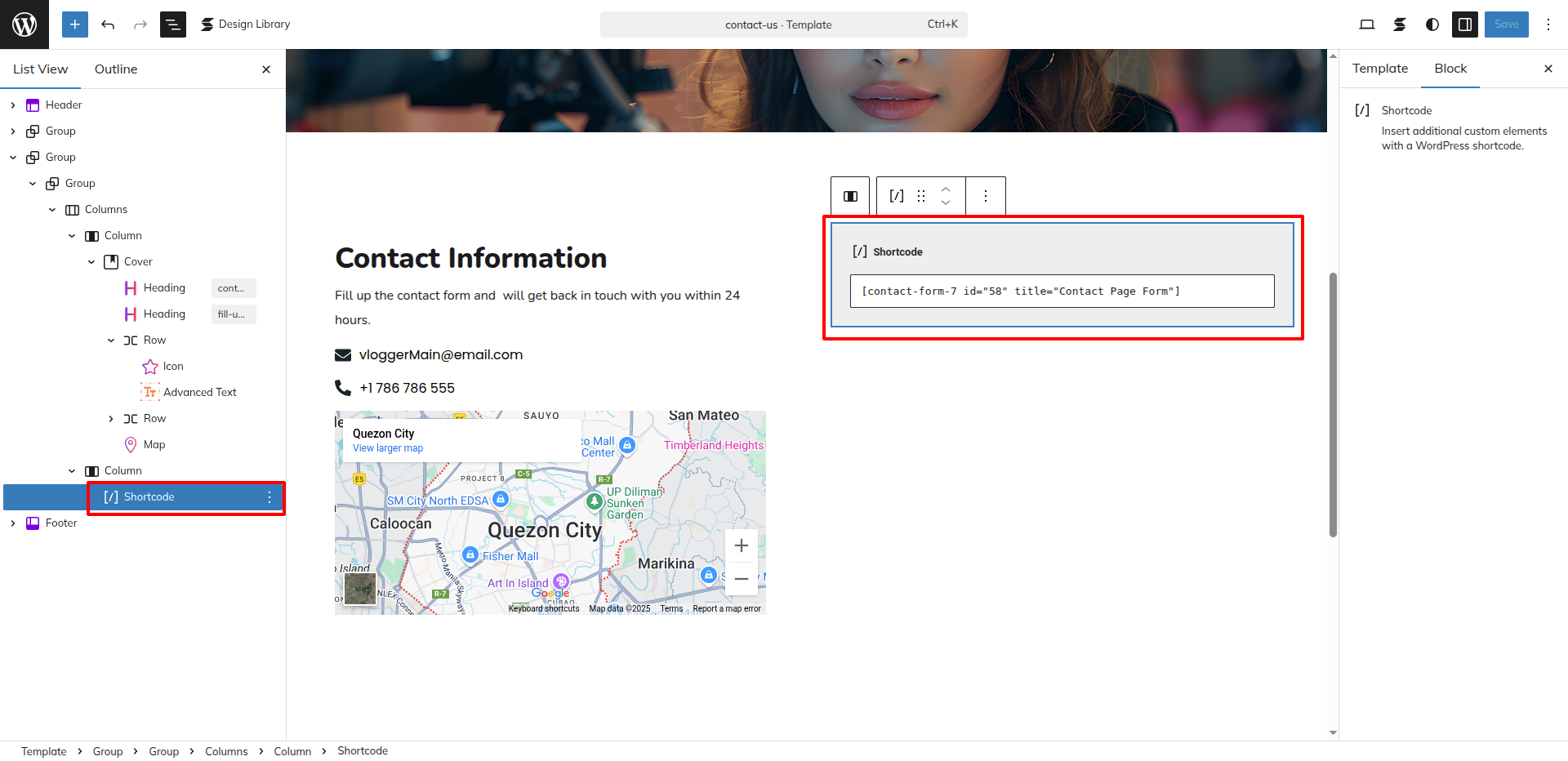
Go to the Dashboard Appearance Editor.
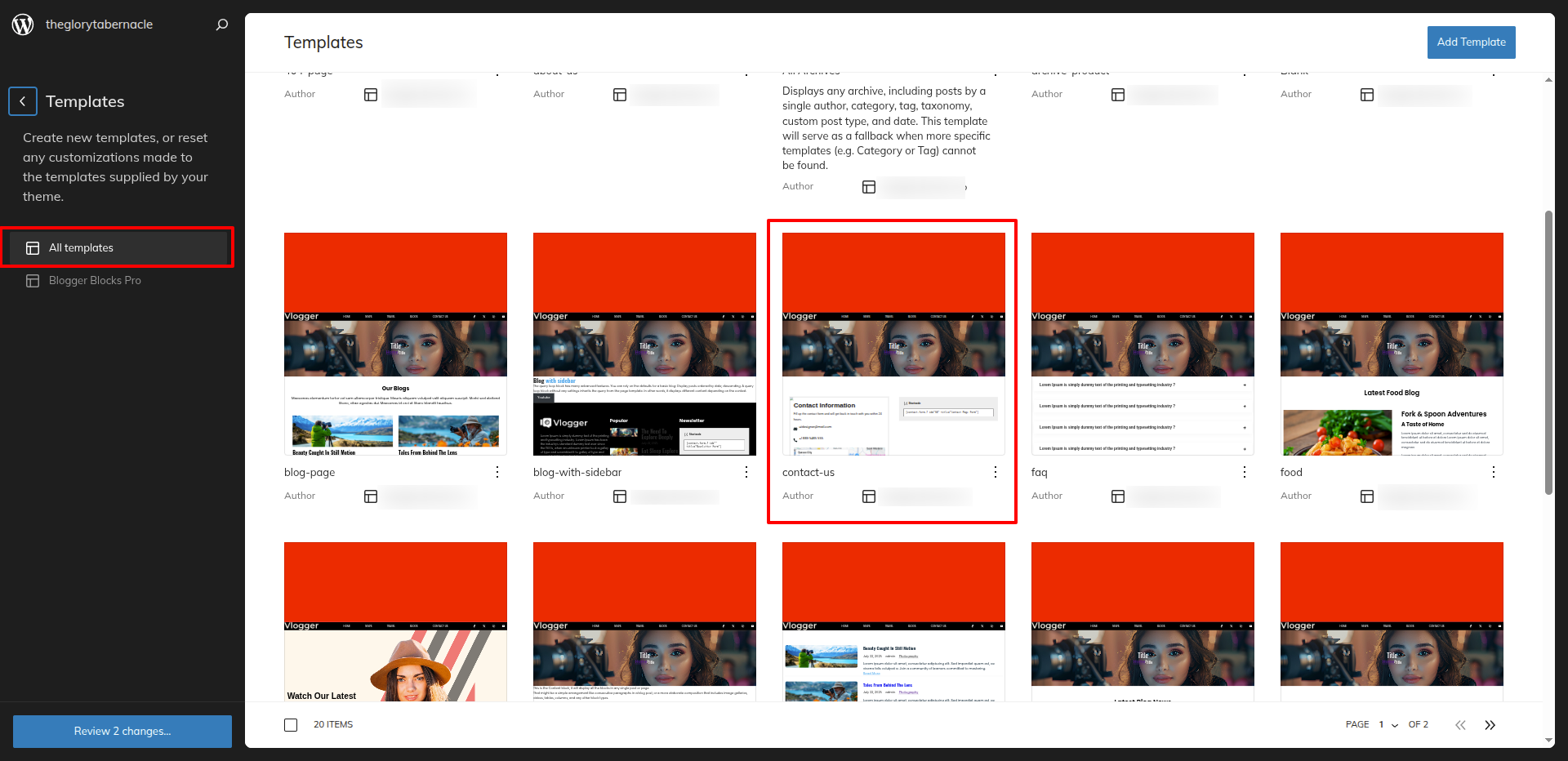
Click on "Template" as indicated in the screenshot below
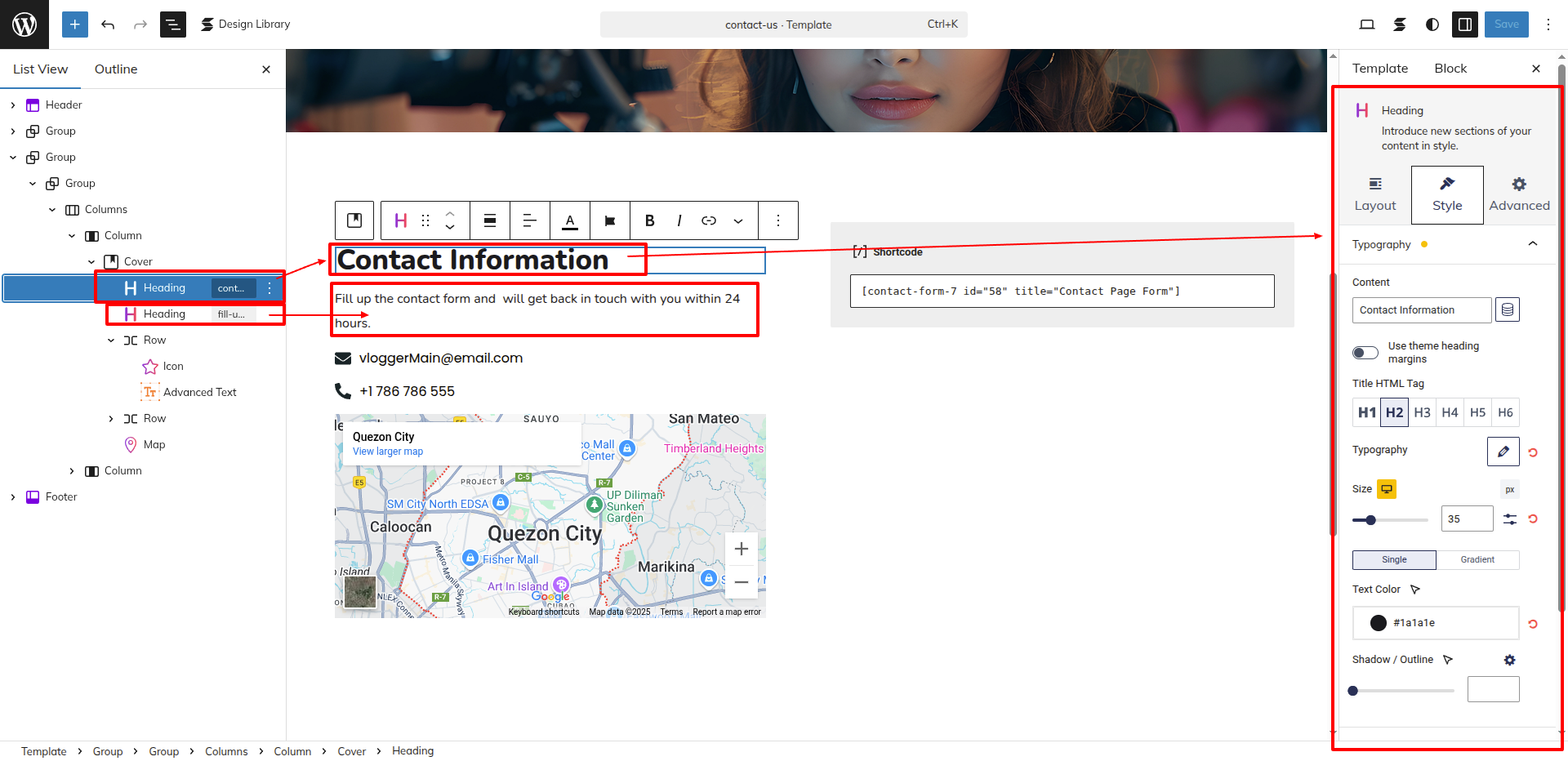
After that, a sidebar will appear now, as seen in the screenshot below, pick "Contact Us" from the dropdown.
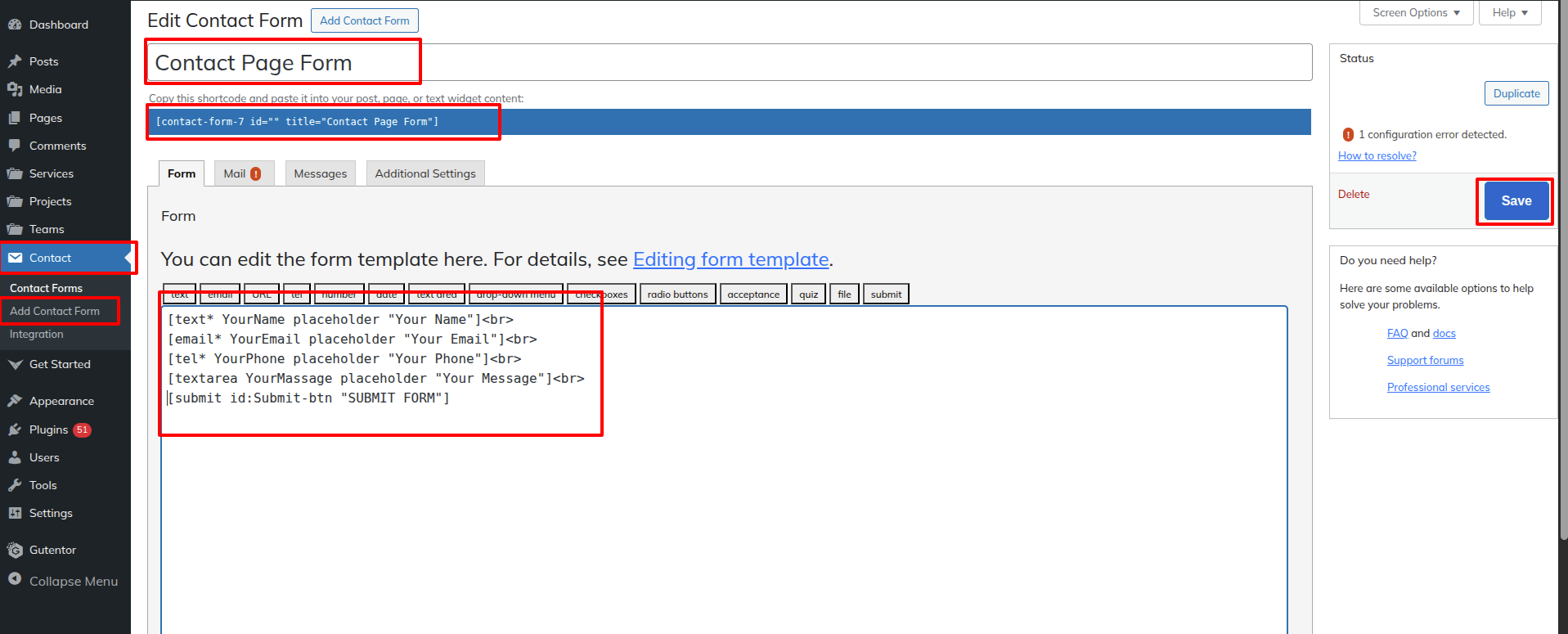
Created a Contact Form in accordance with the guidelines below.
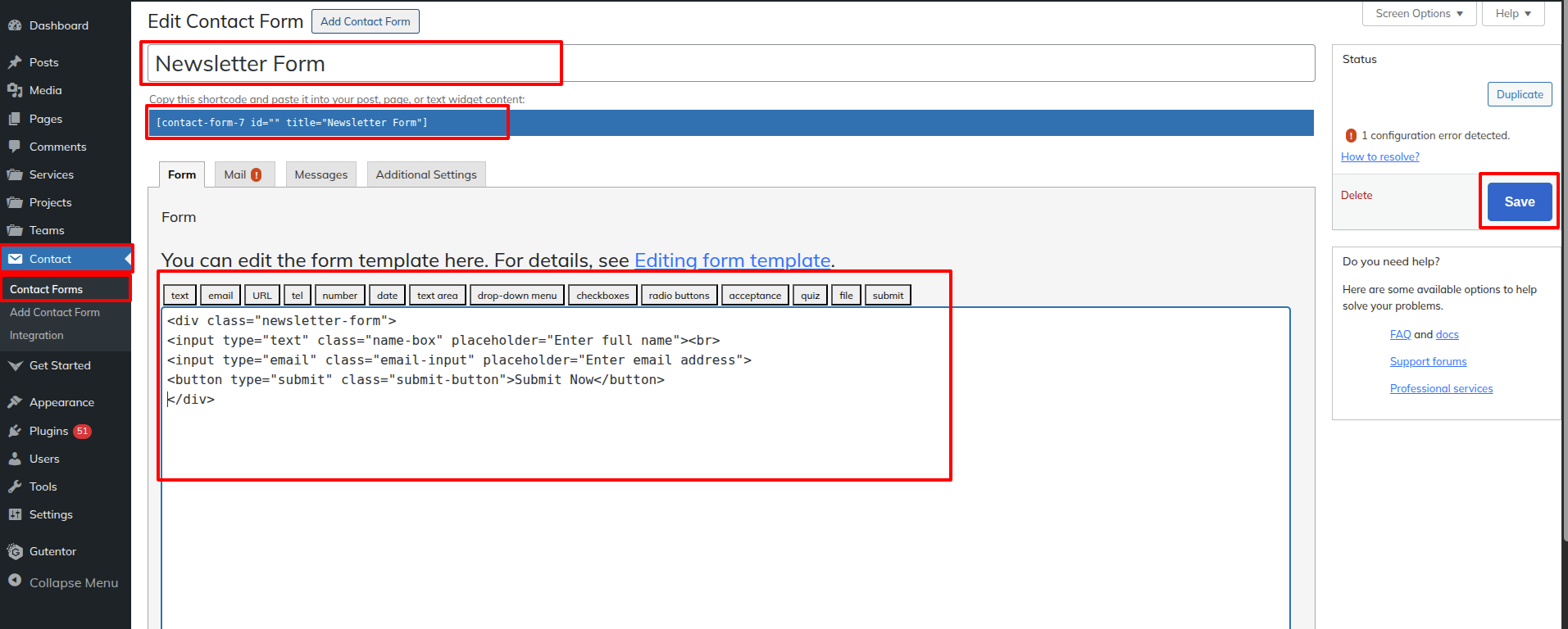
Go to the Dashboard Contact Add New.
Using the contact form 7 plugin, I built a shortcode for the Contact Us Page Form and then used the shortcode block to enter the generated shortcode.
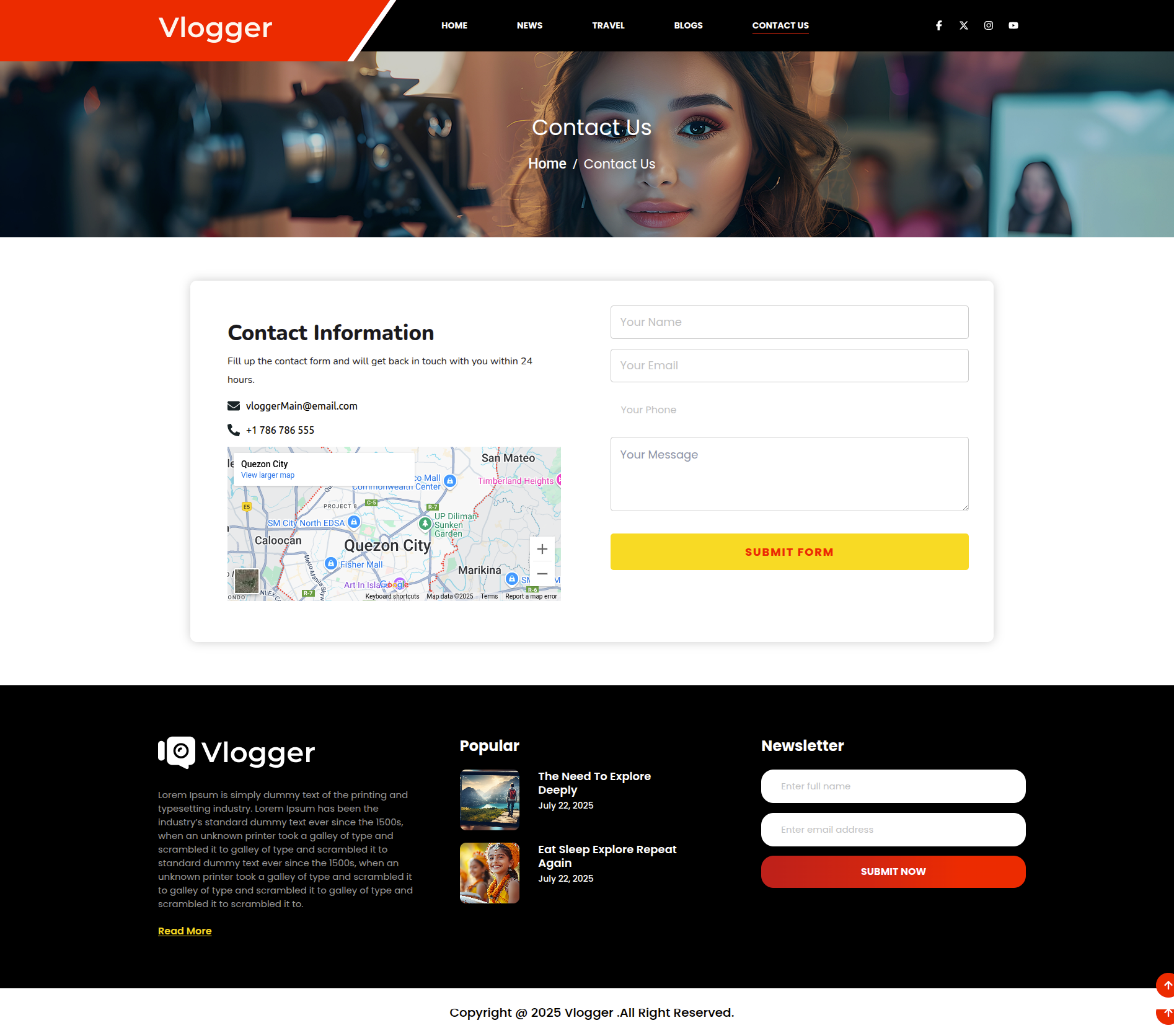
This is how you may set up and add the Contact Us Page.